
Expenses — track every rupee going out
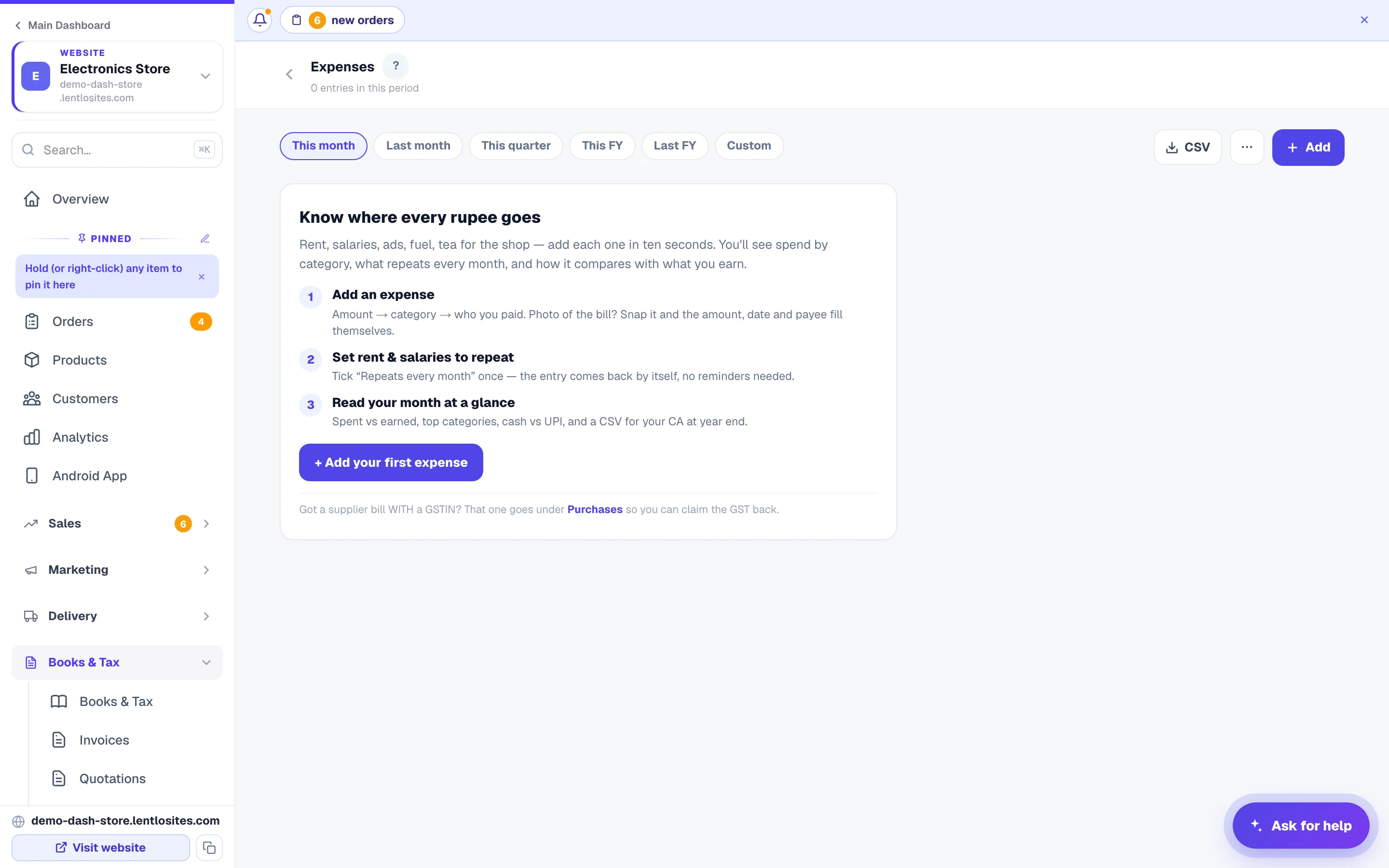
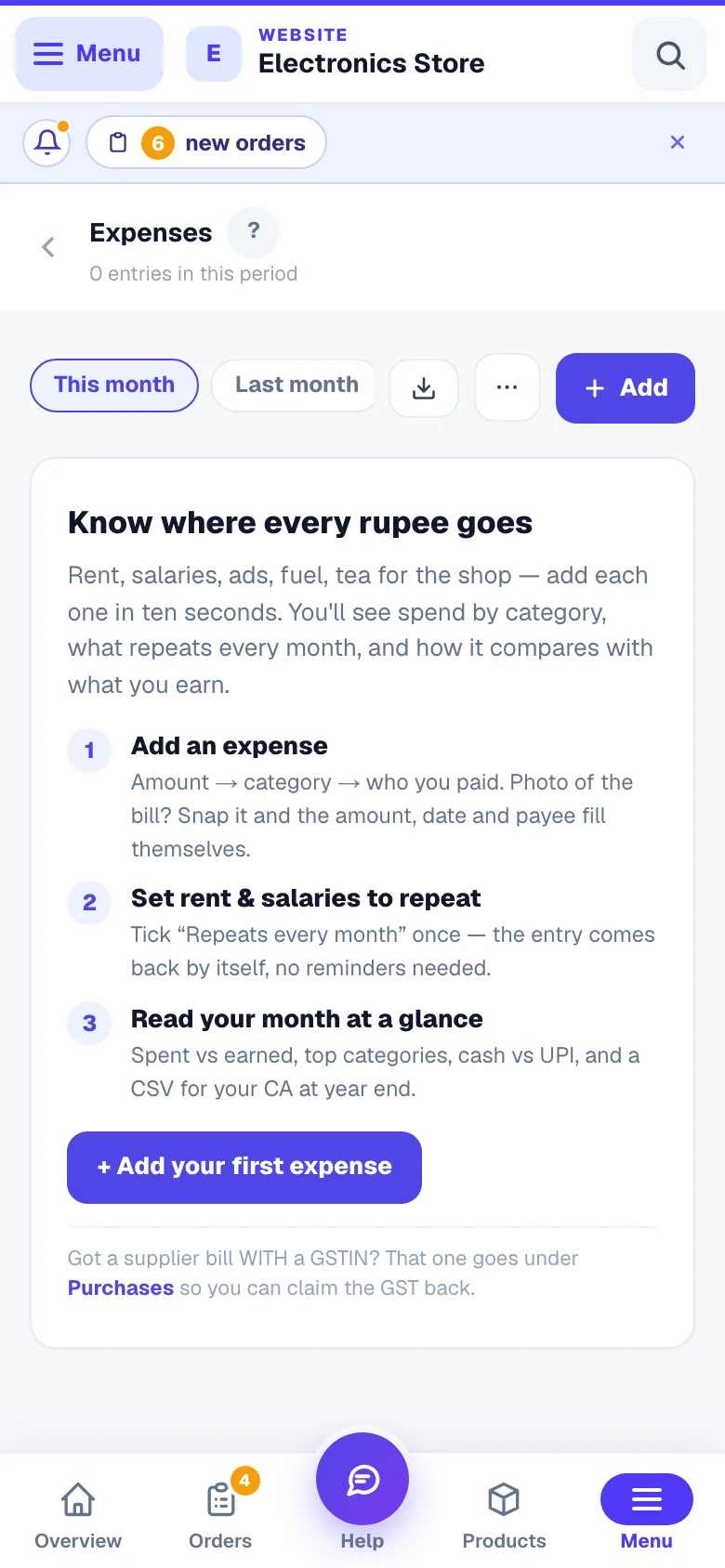
Rent, salaries, ads, fuel — add each in ten seconds, snap the receipt to auto-fill, set monthly costs to repeat, and see spent vs earned for any period. One page for each website and for the whole business in the CRM.
4 min readUpdated 14 Sep 2026
In this guide
- 1Record a costTakes seconds — do it as it happens.
What belongs here (and what doesn't)
Anything you paid without a proper GST tax invoice: rent to a landlord, salaries and wages, petty cash, local fuel, courier boys, government fees, the electrician. Money you received outside your website (a cash sale, a consulting fee, rent from a tenant) can go here too — switch the form to Income.
Bill with a GSTIN on it? Record that under Purchases instead so you can claim the GST back (input tax credit). Both reduce your profit; only Purchases reduce the GST you owe. The page reminds you gently — and if you snap a photo of a bill that shows a GSTIN, it tells you right there.
Add an expense in ten seconds
Tap Add
Type the amount first — it's the big box. Then tap a category. The categories are picked for your kind of business (a restaurant sees Ingredients & Gas first, a transporter sees Fuel and Tolls, a shop sees Courier and Ads) with the universal ones — Rent, Salary, Utilities — right after. Don't see yours? + Custom lets you type any name, and it's remembered.
Who you paid, and what for
Paid to remembers your recent payees — start typing and tap the chip. What for is a short note ("August rent", "diesel for van"). Pick Today / Yesterday or a date, and how you paid — Cash, UPI, Bank, Card, Cheque.
Save — or Save & add next
Entering a stack of bills? Save & add next keeps the form open with the same date and payment method, cursor already in the amount box.
Snap the receipt — the form fills itself (free)
Open Receipt photo, repeat, reference, notes and tap Snap or upload. A photo is read for you: the amount, the date, who you paid and a short description land in the empty boxes — anything you already typed is never overwritten. Check the numbers, save. The photo stays attached forever, so when your CA asks for "that petrol bill from March" it's one tap away. PDFs attach too (they aren't auto-read).
Reading receipts is free; there's a fair-use limit of 30 scans a day per person, shared with the bill photos you auto-fill on the Purchases page.
Rent, salaries, EMIs — set them to repeat once
In the same section, choose Every week / month / 3 months / year. The entry comes back by itself on its date — no reminders, no re-typing. A rent set on the 31st lands on the 28th in February and back on the 31st in March. Add an Until date if it ends (an EMI), or leave it open.
- The Repeating tab lists every rule with its next date and the monthly total they add up to.
- Edit the original entry to change future ones (the amount went up? change it once). Past entries stay exactly as they were.
- Stop repeating ends the series but keeps what already happened; deleting the original does the same.
- An auto-added entry shows a small ⟳ auto mark. Edit or delete just that one without touching the rule.
Bills you haven't paid yet
Electricity bill arrived but you'll pay it on the 20th? Tap Not paid yet? in the form and give it a due date. It counts in Spent right away, shows an amber to pay tag in the list, and adds up in the To pay strip at the top (red once something is overdue). Tap Mark paid on the entry when the money goes out — or open it and untick. A repeating bill marked this way comes back unpaid every period, so rent and EMIs turn into a tick-list.
Monthly budgets
Open ⋯ → Monthly budgets and set a limit for the whole business and/or per category (Marketing ₹20,000, Fuel ₹8,000…). The Spent tile then shows "42% of ₹60,000 budget" — amber at 80%, red past 100% — and Insights gets a Budgets card with a bar per category. On the quarter or FY views the limits multiply by the months shown.
Import from Excel, Vyapar, Khatabook, Tally or a bank statement
⋯ → Import from CSV / Excel. Save your sheet as CSV, upload it, and the columns are matched by their headings (Date, Amount, Category, Paid to / Party, Description / Narration, Payment mode, Type / Dr-Cr, Reference). Re-map anything that didn't match, check the preview — dates like 18/08/2026, ₹1,500.00, (500) for negatives and Excel date numbers are all understood — and import up to 500 rows at a time. Made a mess? Undo this import removes exactly those rows and nothing else. Imported entries carry a small 📥 mark. There's a template to download if you're starting fresh.
Reading your month
The page opens on This month. Switch to Last month, This quarter, This FY (April–March, the Indian financial year), Last FY, or your own dates.
Spent
Everything that went out in the period, and how it compares with the previous period of the same length.
Sales / Invoiced
On a website: order sales. In the CRM: invoices you issued. Other income you added by hand shows next to it.
Net left
Earned minus spent, and spend as a % of sales — the number that tells you if the month is working. In a pipeline-led business (services, agencies, dealers, real estate, wholesale) a month that spent more than it billed reads “Spent vs billed” instead of “Net loss”.
Repeating / Avg per day
What your fixed costs add up to each month — or, with no repeating entries, your average daily spend.
Insights shows where the money went (top categories with their share), how you paid (cash vs UPI vs bank), the day-by-day or month-by-month trend, who you paid the most, your budgets, and — in the CRM — the split by website. If you use the CRM's Salary & payouts, salaries marked paid appear as one Salaries & payouts line (visible only to people with pay access) and are counted in Net left without being copied into the list — and you get a warning if a hand-recorded Salary expense would double them.
Find, fix, export
- Search matches the payee, note, category or reference number — or type an amount like 500 to find every ₹500 entry. Filter by type, paid/to-pay status, category, payment method — and by website in the CRM. Sort newest, oldest, highest, lowest.
- Tap any entry to edit it. Delete gives you an Undo for a few seconds.
- CSV downloads the period you're looking at — every column your CA wants, formula-safe for Excel.
One book across the CRM and your websites
The CRM's Expenses page shows everything: entries you add there plus every entry made inside a website's own Expenses page (each carries a small 🌐 website chip). When adding from the CRM you can tag an entry For which website? — it then also appears on that website's page and in its Profit & Loss. Leave it as General for costs that belong to the whole business. A separate business book in the CRM keeps its own expenses.
In the CRM, a team member reads expenses with CRM access and adds or edits them with the same permission that lets them raise invoices; downloading the CSV needs export permission. On a website, any staff member can add an expense, while deleting, exporting and setting budgets need a manager or the owner.
Common questions
Where do salaries go — here or Salary & payouts? If you use the CRM's Salary & payouts module, record salaries there (it tracks per employee) — Expenses shows the paid total as one line automatically. Otherwise a monthly repeating Salary expense is the simplest. Don't do both; the page warns you if it sees both in one period.
Can I set a limit and be told when I cross it? Yes — Monthly budgets (⋯ menu). The Spent tile changes colour at 80% and 100%.
I recorded a GST bill here by mistake. Delete it (Undo is there if you slip) and add it under Purchases — that's where the GST credit is counted.
Does an expense change my GST reports? No. Expenses affect profit only. Purchases with GST feed your GST reports.
Old entries from before? Everything you recorded earlier is here, unchanged — income entries kept their green income type.
More in Payments, GST & books
Did this answer your question?
It takes one tap and it genuinely changes what we write next.