
Address labels & the day's run sheet
Design your label once, print for one order or fifty, and take a single sheet on the delivery run.
4 min readUpdated 10 Oct 2026
In this guide
Two kinds of label
A booked courier gives you their own barcoded label — that is what their scanners read, so use it as-is. Everything below is for the first case.
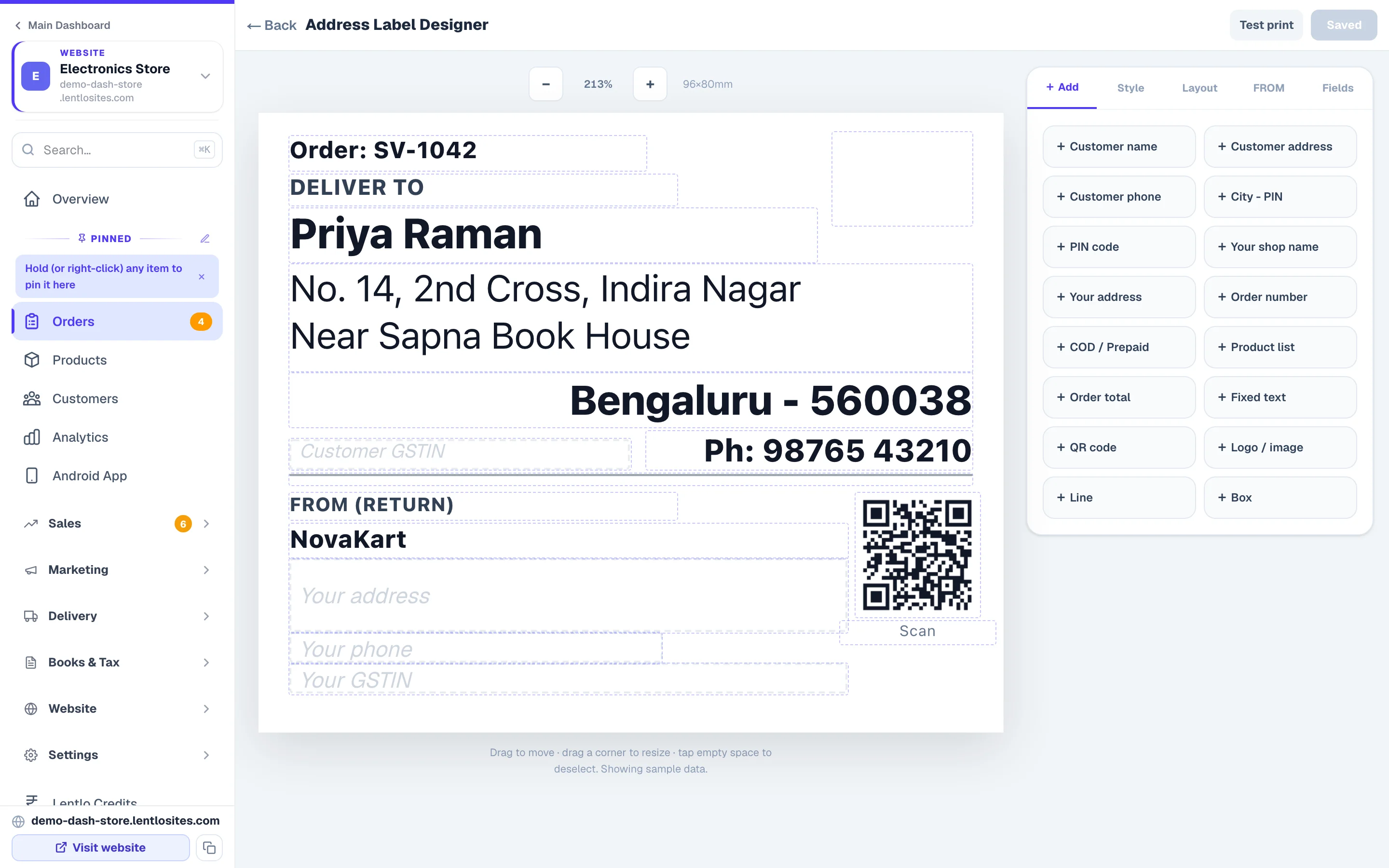
You do not have to design anything to start. Every shop already has a ready-made label — a clean DELIVER TO block on top, your return address below, and a scan code in the corner. Print it as it is on day one; open the designer only when you want it different.
Designing your label
Open the designer
Open any order → Print → Customise label design. The ready-made label appears on a canvas with a list of fields you can drop onto it.
Add the fields you need
For the customer:name, address, phone, PIN code, “City - PIN” on one line, email, GSTIN. On an order placed for someone else the label names the receiver, not the person who ordered, and an alternate number prints after the phone. For you: shop name, address, phone, email, GSTIN, logo. For the order: order number, order date, the COD / Prepaid line, the product list, item count, order total and payment method. Plus a scan code, fixed text, lines and boxes for layout — and your own custom fields for anything else you always write by hand.
Set the size and the paper
Two ways to print, from the same design. A4 sheet tiles the label across a normal page — six per sheet to start with — so you print a batch on plain paper and cut. Thermal prints one label per page at the exact size, for a sticker printer; the common presets are ready to pick (4×6 inch, 4×4, 3×2 and 2×1). Turn on cut lines if scissors are involved.
Save, then print one and check
Save, then print a single label on real paper before running fifty. Margins are the thing that catches people out.
Keep more than one design if you need to
Saved layouts lets you keep, say, a small thermal sticker and a big A4 slip and switch between them. Loading one puts it on the canvas — tap Save to make it the live design.
What belongs on a label
Do this
- The full address with PIN code, in a large readable size
- The phone number — a courier who cannot call will return the parcel
- COD amount, clearly, if money is to be collected
- Your shop name and a return address
- The order number, so a customer query is one search away
Not this
- Tiny type to fit more on — the delivery person is reading it in the sun
- Only a name and area with no PIN
- Product names on a label for anything personal or medical
- A logo so large the address gets squeezed
If you send anything by COD, add the COD / Prepaid line field yourself — it is left off the ready-made label on purpose, because most shops hand the parcel over already paid. The single most common cause of a wrong collection is a delivery person guessing the amount from a WhatsApp message.
Printing a batch
- Filter to what you're packingThe 'To ship' view
- Select those ordersTick the boxes
- Address labelsThe button shows the count
- Pack and mark PackedCustomers are told automatically
The print screen tells you how many labels and how many sheets before you press Print, and lets you switch between A4 sheet and Thermal for that run without touching the design. If your grid is wider than the paper it says so instead of silently shrinking everything.
The day’s run sheet
If you deliver yourself, print the delivery schedule for the day: every stop with the address, phone, what is in the order and how much to collect. It is one page in the van instead of a phone that keeps locking.
Route-delivery shops get this grouped by area and day — see Zone Delivery Days. Pickup orders are deliberately excluded from the run sheet: nobody is delivering those.
Common questions
Can I print from my phone?
Yes, if your phone can reach a printer. Most owners print in a batch from a computer and pack against the sheet.
Does the label design carry my brand?
Add your logo and shop name as fields. There is no watermark and nothing of ours on it.
What does the QR on the label do?
It opens that order’s tracking page. Useful if a customer wants status without messaging you, and for your own team when a parcel is sitting on a shelf unlabelled in your head.
What is the difference between this and the packing slip?
The address label is the sticker that goes on the outside — where the parcel is going and where it came from. The packing slip is the sheet that goes inside: every item, quantity and total, so the customer can check the parcel against it. Both print from the same order.
I booked a courier — do I still design a label?
No. Print their AWB label from the order; their scanners need their own barcode.
More in Delivery & shipping
Did this answer your question?
It takes one tap and it genuinely changes what we write next.