
Purchases & vendor bills
Record every supplier bill — snap a photo and let AI type the entry for free — and track the GST you can claim back.
7 min readUpdated 22 Oct 2026
In this guide
Why record your purchases
A purchase is any bill a supplier gives you — stock for your shop, raw material, packing boxes, even the courier's freight bill. Recording them here does three useful things: it tracks the GST you paid (which you can claim back as input tax credit if you're GST-registered), it shows who you still owe money to, and it feeds your Books & Tax so your profit numbers are real, not guesses.
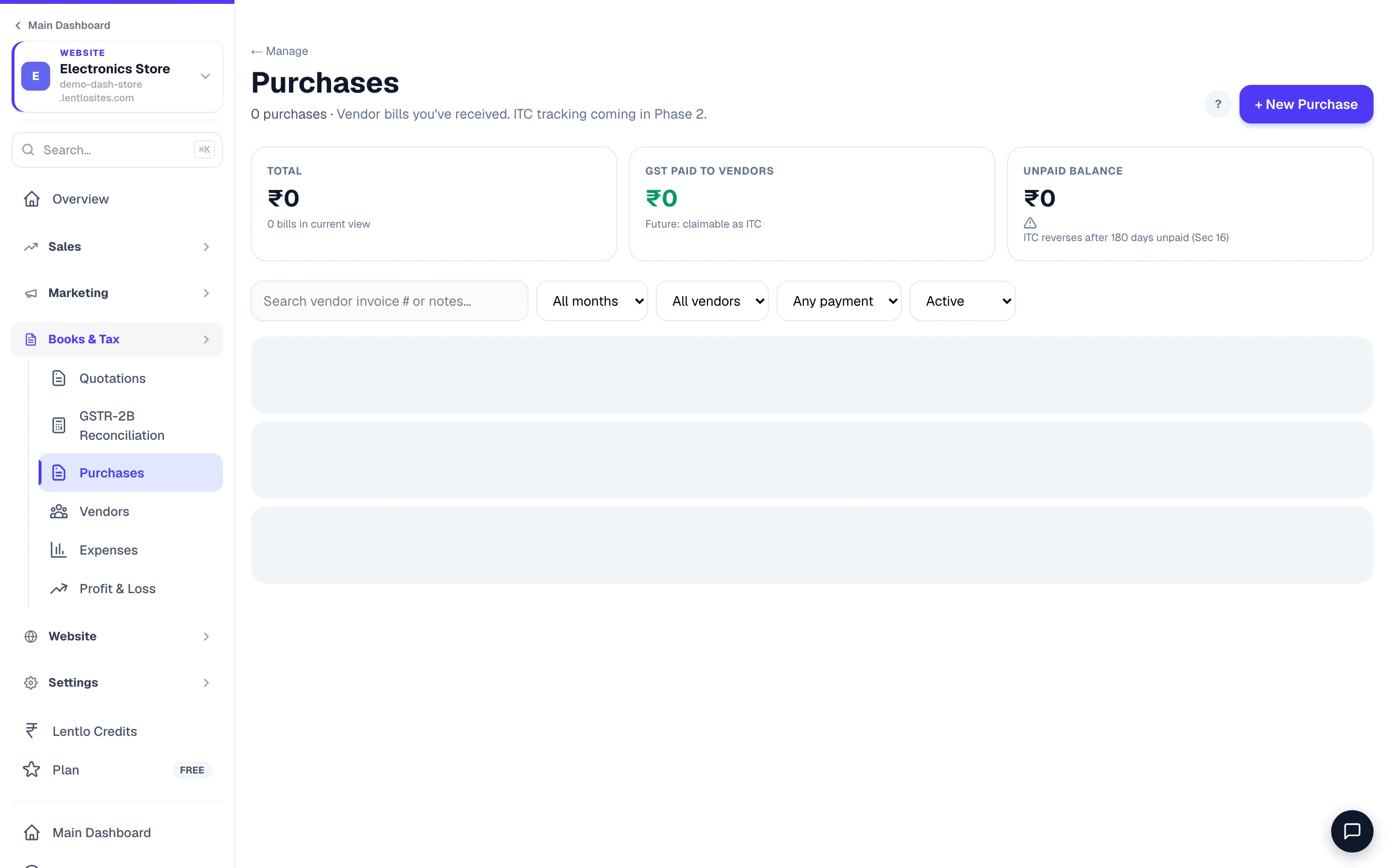
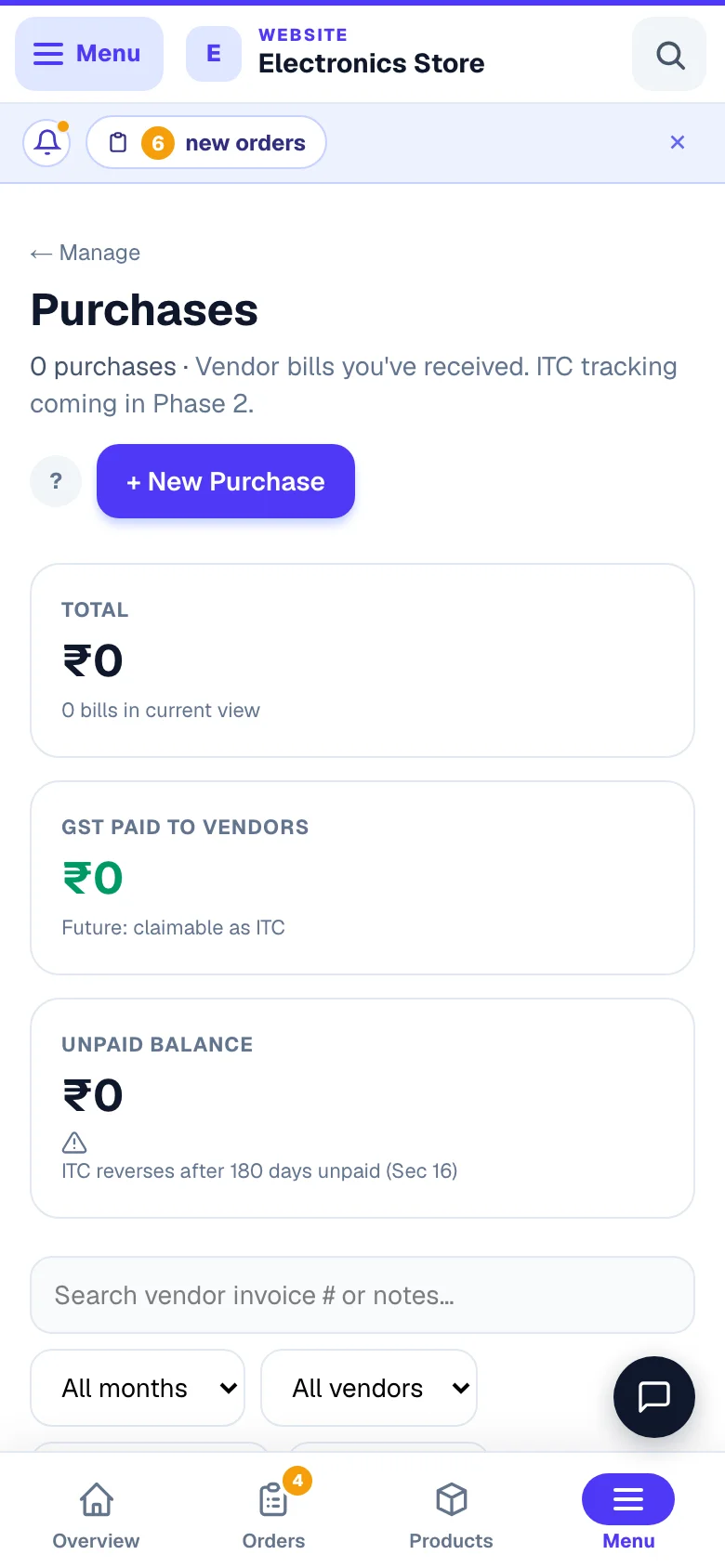
Find it in your website's sidebar under Books & Tax → Purchases (open your website from My Websites), or from the Books & Tax page. Three cards sit on top of the list — Total, GST paid to vendors and Unpaid balance — for whatever month, vendor and filters you have picked.
Recording a purchase
Every purchase needs a vendor (the supplier who billed you), so add the vendor once and reuse them on every future bill — see Vendors.
Tap + New Purchase
On the Purchases page. If your vendor list is empty, the form shows No vendors yet with an Add your first vendor link — the save button stays off until you have one.
Pick the vendor, invoice number and date
The vendor list shows each supplier's GSTIN, or “(unregistered)”. Type the Vendor's Invoice # exactly as printed on the bill — that's what GST matching uses later — and the Invoice Date (it decides which month the bill belongs to). Unregistered vendor (no GSTIN)? That's fine — the page just reminds you that reverse charge can apply on a few notified supplies like transport (GTA) or advocate fees.
Choose how to enter the amounts
- Quick total — one amount, one GST rate. Type the Total Amount (₹) including GST and pick the rate; the tax portion is taken out of it for you, and an optional Description names the bill (“GTA freight”, “raw material”). 30 seconds for the common case.
- Itemized products — one line per product with its own HSN/SAC, quantity, unit price, unit and GST rate, plus a Prices include GST tick for the whole bill (untick it when the supplier's prices are before tax). Use this when a bill mixes items at different rates, or when you want the items linked to your catalog (next section).
Pick the supply type, then Save Purchase
Supply Type is Regular (FCM) for almost every bill; pick Reverse Charge (RCM) when you pay the GST to the government yourself (GTA freight, advocate fees and the like). The live preview shows the taxable value and GST split before you press Save Purchase — the server does the final CGST/SGST vs IGST math from the states involved, so you never have to. The math needs your own business state too: if it was never set, Save says “Set your business state in Invoice Settings before recording purchases” — set it once there and save the bill again.
Example · Ananya Home Store, Kochi
Kerala Fabrics (also in Kerala) bills Ananya ₹11,800 for 20 cushions at 18% GST. In Quick total she types 11800 and picks 18%: the preview shows a taxable value of ₹10,000 and GST of ₹1,800 — saved as CGST ₹900 + SGST ₹900, because both are in the same state. She pays ₹5,000 now, so the bill shows Partial and ₹6,800 joins her Unpaid balance until she records the rest.
If your business has more than one GST registration, a Bill for picker appears so the purchase lands under the right GSTIN. Single-registration shops never see it.
Upload the bill — and let AI fill the form (free)
The paper bill fades, tears, or disappears exactly when your CA asks for it — so attach a photo or PDF and the copy stays saved with the purchase forever.
Snap or upload the bill
The Have the bill? Add a photo / PDF card sits right at the top of the New Purchase form — tap Upload bill. Photos and PDFs both work, up to 10MB. On the list you'll see 📎 Bill attached on every bill that has a copy, and View bill opens it from the purchase any time.
Forgot to attach it while saving? Open the purchase later and tap Upload bill on the detail page — you can also Replace bill there if you attached the wrong photo.
Tap ✨ Auto-fill from bill
The button carries a FREE chip — it costs nothing. AI reads the photo and fills the vendor (matched by GSTIN or exact name), invoice number, date, total, GST rate, and even which of your GST registrations the bill is for. If the vendor on the bill isn't in your list yet, it tells you so you can add them first.
Review, then save
The form tells you exactly how many fields were filled (“AI filled 5 fields — please verify everything before saving”). Always glance over them against the bill — a crumpled or badly-lit photo can be misread, and the AI leaves a field blank rather than guess.
Auto-fill works on bill photos — for PDF bills the copy is still saved, you just type the details yourself. There's a fair-use limit of 30 scans a day per person, shared with the receipt photos you snap on the Expenses page and the CRM's bill scans; past it the button says when you can scan again.
Itemized bills can update your stock
When a purchase line is linked to a product in your catalog, saving the bill can add those quantities to stock and update the product's cost price — so restocking and bookkeeping become one step.
- In Itemized mode, start typing a product name and pick it from your catalog. Products with variants let you pick the exact variant (say, Red / L) so stock lands in the right place.
- A product your supplier sends for you (it carries a Supplier label in Products) keeps your supplier's stock: a bill line naming one is kept on the bill, and the bill says it did not add to that product's stock.
- Keep Add these items to my stock ticked to update stock on save. Untick it for advance or in-transit bills — you can tap Add to stock on the purchase later, when the goods actually arrive (and undo it if needed).
More on stock counts in Stock management.
How purchases feed your GST credit and books
Every saved bill records the GST you paid to the vendor — that's the money you may claim back as input tax credit (ITC) when you file, and the cost side of your accounts.
GST paid, tracked per bill
The list totals the GST inside your bills for any month — the starting point for your ITC claim.
GSTR-2B matching
Upload your GSTR-2B file from the GST portal and it auto-matches against these purchases, flagging bills your supplier hasn't filed.
Books & profit
Purchases (minus their GST) count as your cost of goods in the profit & loss report — real margins, not guesswork.
180-day payment rule
GST law reverses ITC on bills left unpaid 180 days — the page warns you, so record payments as you make them.
See GSTR-2B reconciliation for the matching flow, Books & Tax for the full picture, and GST invoices for the selling side.
GST Advanced Mode (optional, Beta). Switch it on under Settings → Advanced → Enable GST Advanced Mode and every purchase you save or edit afterwards gets an ITC column: each line is marked Eligible for ITC under Sec 16 or Blocked by Sec 17(5) with the reason, and your GST Reports' GSTR-3B tab adds a Table 4 input-credit card (including the 180-day reversal). It is a preparation aid — your CA still makes the claim. Off by default; turning it on changes nothing you already saved.
Finding and managing your bills
The Purchases list is built for "which bill was that?" moments — filter by month (All months), vendor (All vendors), payment (Unpaid / Partial / Paid) or Active / Cancelled / All, or search the vendor's invoice number or your notes. Badges on each row show Paid / Partial / Unpaid, reverse-charge (RCM), returns and an attached bill at a glance.
Open any bill for the full detail
You get the money summary (subtotal, CGST/SGST/IGST, total), the attached bill copy, and the stock status of catalog-linked items (✓ Added to stock or Not added to stock yet).
Record what you've paid
Tap Edit / Add lines and set Amount paid so far (₹), then Save changes. This drives the Unpaid balance on the list — and keeps you safe from the 180-day ITC reversal above.
Fix, cancel, or return
Edit / Add lines lets you correct lines any time, and holds the finer choices the new-bill form leaves out: the full Supply Type list (Regular, Reverse Charge, Import, SEZ with or without payment, Composition — no ITC), Place of Supply (if different) for a bill delivered to another state (the tax split follows it), and internal Notes. Cancel purchase (inside Edit) keeps the record for audit instead of deleting it. Sent goods back to the supplier? ↩ Return to vendor asks how many of each line went back and an optional reason, and Create debit note reverses the GST credit and removes the returned items from stock — the original bill stays untouched.
A return subtracts everywhere it should: the Total / GST / Unpaid numbers on top of the list go down by the returned amount (the return row shows a purple − amount), and on the debit note itself the payment tracker reads Refund due from vendor — it's money coming back to you, adjusted in the vendor's next bill or refunded.
This prepares your data; your CA files your return. ITC eligibility has legal fine print (blocked categories, composition vendors) — when in doubt, show the bill to your accountant.
More in Payments, GST & books
Did this answer your question?
It takes one tap and it genuinely changes what we write next.