
Contacts, leads & the deal pipeline
Your customer book: add or import contacts, catch leads from your website and IndiaMART/JustDial, track deals on a pipeline board, and never miss a follow-up.
7 min readUpdated 4 Oct 2026
In this guide
Adding a contact — the phone number is the identity
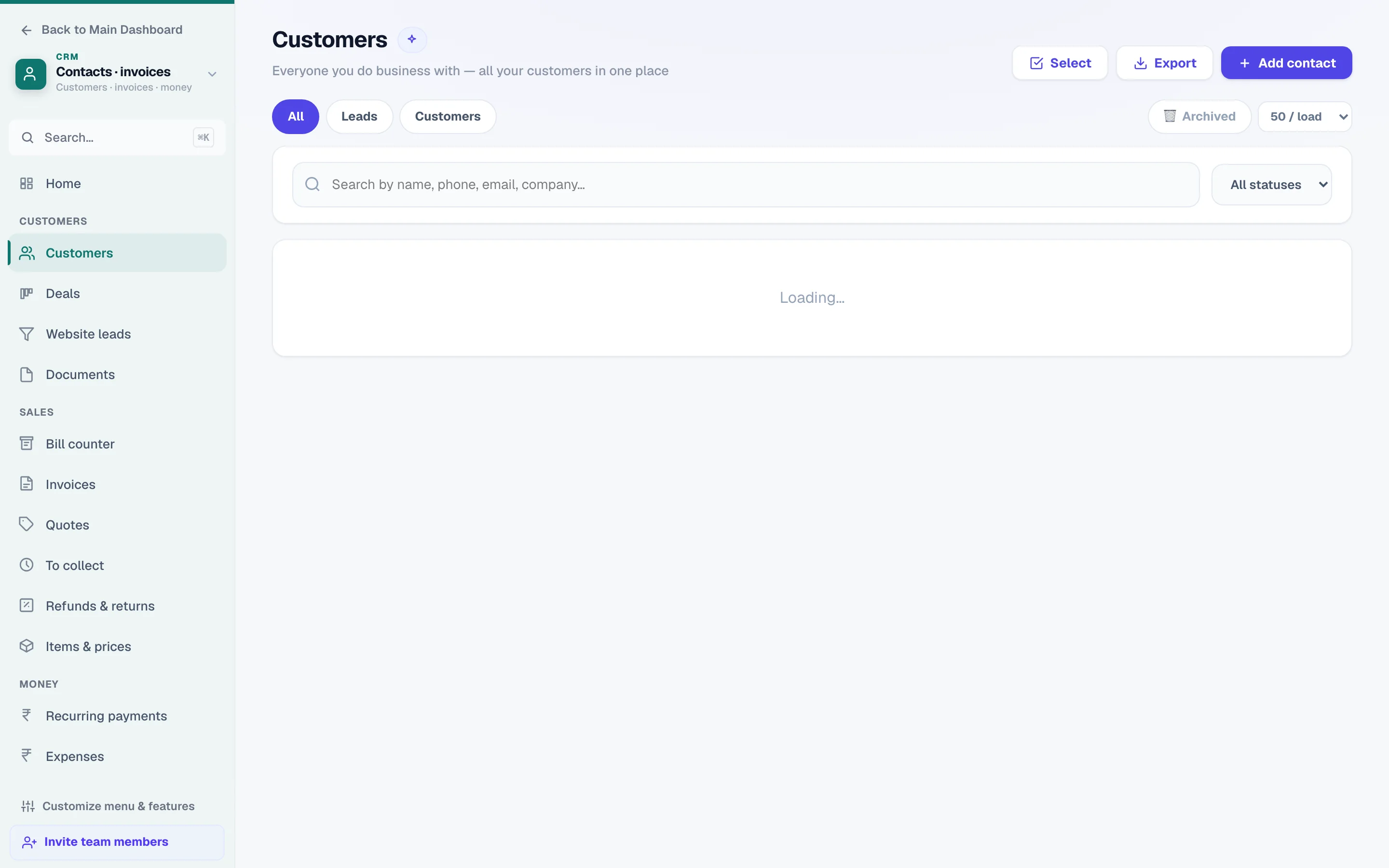
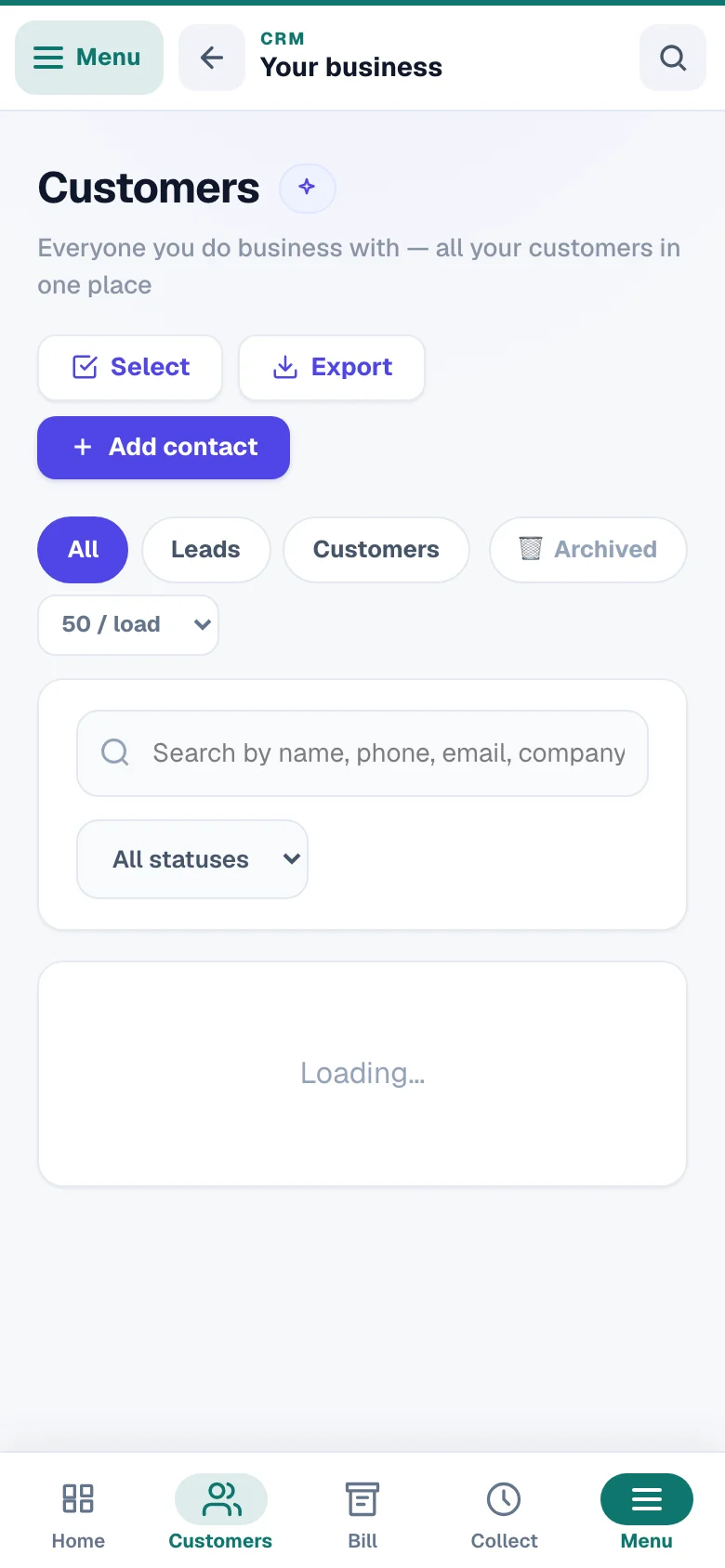
A contact is one person or business you deal with; add someone the moment you get their number so their whole story stays in one place. Open CRM → Customers (its How Customers work card shows how a customer's “Owes” line is worked out) and tap Add customer (the button uses your business's own word — patient, student, member…) — name, a 10-digit phone (required), and optionally email, company and address.
On the contact's page, Edit lets you keep the fuller picture: GST number (their bills become proper B2B tax invoices), address (prints on their bills automatically — type it once, never again), and their 🎂 birthday and 💍 anniversary so you can wish them and be the shop they remember. Tags, custom fields and extra people at the same business (a shop's owner + manager + accountant) all live there too. Your own fields (made under Custom fields) sit in More details: one marked * asks before you save the customer without it (Save anyway goes ahead — imports and website enquiries are never stopped), and one ticked Show on invoice — a PO number, say — prints under the buyer on that customer's bills and quotes made from then on; a bill already made keeps what it was made with.
A photo helps the team know them when they walk in — a clinic's patient, a gym's member, a coaching centre's student. Tap the round picture at the top of their page: Take a photo (on a phone) or Choose a photo, then fit it in its square (drag to move, Zoom to make it bigger, Turn if it came sideways) and Use this photo. It shows on the customer list and in class registers; tap it any time to see it larger, change it, turn it or remove it. Photos are kept private to your team — they are never on your website. See Photos.
Other days worth wishing them on — a shop opening, or for a vehicle dealer the day they bought or took delivery of a vehicle — go in the Important dates card under Details (a date saved without its year repeats every year; a one-time date must still lie ahead). Their birthday and anniversary stay in Details itself.
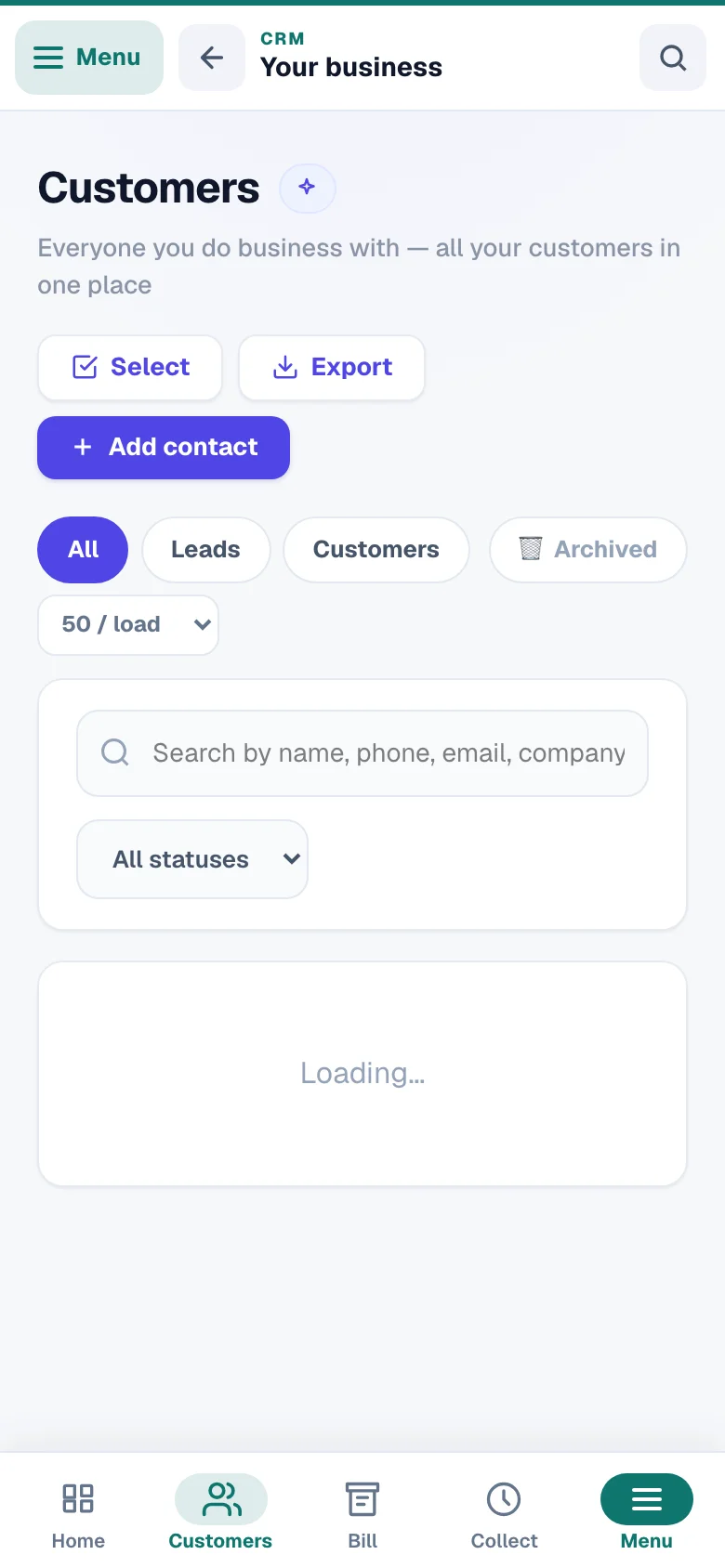
The phone number is how the CRM recognises a person. If you add a number that already exists, nothing is duplicated — the CRM simply opens the existing contact. The list has a search box — it finds a customer by name, phone (spaces, dashes and +91 don't matter), email, company, GSTIN, address, a tag, an answer in your custom fields, another person on their card or (with Vehicles on) their car's plate, and several words narrow it further (ravi vip) — and Filters: Show (All / Leads / Customers / Archived), quick filters in your business's own words (Owes money, Follow-up due, Bought this week, Birthday this week — a clinic, a coaching centre or a dealer sees its own), Status, Came from, the Order (newest, last activity, owes the most, name A to Z) and how many Rows at a time. What you apply shows as chips under the search line, each with an × to take it off. Every row carries a second line in your trade's words — a shop reads Last bill 5 Sept · owes ₹4,200, a coaching centre the class and the fee status, a dealer the deal stage and the open files.
- 1Add someoneCustomers and leads live in the same list.
The book wears your business type: a coaching centre or school sees Students here, a clinic sees patients, a gym sees members. Coaching and gym books also get Classes & attendance in the menu — put students into a class (batch) with its days and timing and mark who came in one tap a day. See Classes & student attendance.
Import your list from Excel or CSV
Import brings your existing customer list in from an Excel (.xlsx) or CSV file in one go — useful when you are moving from a diary, Excel or another app. Open CRM → Import & export (the same name for every business), then Import → Customers — up to 20,000 rows and 10 MB a file. A template to fill (Excel or CSV) is one tap away on that step.
Choose your file
Pick the Excel file itself (its first visible sheet) or a CSV. The CRM matches your columns to its own automatically — phone, name, email, company, tags, birthday and the rest — and every box can be changed; pick Not in my file for a column you don't have. Phone is the only must-have column, and each phone cell must hold one Indian mobile number — a landline, two numbers in one cell or a number Excel shortened (9.87E+09) is refused in words, never turned into a different number. A column of your file the page does not bring in is named under the preview, so nothing is left behind unseen. A CSV saved as Windows text (not “CSV UTF-8”) is still read — the page says so above your file's first rows, so check names with accents there.
No file? Paste the list. Under the file box, Or paste a list of numbers takes names and numbers straight from Excel, your phone's contacts or a message — one person per line, like Ravi Kumar, 98765 43210. Add a tag (say Diwali list) and every one of them gets it, so you can send them a WhatsApp broadcast by that tag later — for two tags, put a comma between them. A line without a number is left out; the list then goes through the same steps below — checked first, nothing saved until you import, and it can be undone.
Check the rows
Tap Check the rows: every row is checked on the server and counted as New, Updates, Already there, Problems or Left out, and each problem row says what is wrong in words (“Row 14 — Phone: needs a 10-digit mobile number”). Under the counts you see the first rows as they will be saved (phones as the CRM keys them, days in words with the year) and rows that come in with a note — a cell cut at its column's length, a customer an earlier Undo put in Trash that this import brings back. Nothing is saved until you tap Import N rows.
Import — you choose what happens to a customer already there
The default is Fill the empty boxes — a name, note or email you already typed is never replaced by the file. You can instead pick Replace with the file's values (a blank cell never erases) or Leave them as they are. A customer in Trash is left out (restore them from Customers → Filters → Show: Archived first) — except one an earlier import's Undo put there: importing them again brings them back with what they held, and the Check says so. Every import can be undone for 7 days from History on the same page — the customers it added go back to Trash, the values it changed come back, and anything other records point at now (messages, follow-ups, invoices) stays, the result saying which.
Ended up with the same person under two numbers? Open CRM → Duplicates — it finds likely pairs (same email or same name on two phones) and merges them side by side. Notes, invoices, deals, dues, case files, the vehicles they own, the cars they bought from you, their WhatsApp chats and class seats all move to the contact you keep — and a file that named the other number as its seller, co-applicant or guarantor now points at the contact you keep. With Money records on, a merge is refused while both people hold a share of the same loan file's payout that still counts — cancel one (one with no money on it) and merge again; a cancelled share with no money on it is removed by the merge itself.
Import straight from your WhatsApp chats
Years of customers live in your personal WhatsApp — bring them in without typing a single number. On the chat in WhatsApp choose ⋮ → More → Export chat → Without media, then on CRM → Import & export pick Import → From WhatsApp chats and select one or many exported .txt files (got a .zip from an iPhone? Unzip it first and pick the .txt inside).
Your chat files are read on your own device — the conversation itself is never uploaded. You get a table of everyone found in the chats: tick who to import, and each contact lands as a lead with their last message saved as a note on their timeline. One thing to know: WhatsApp only writes a person's number into the export when they are not saved in your phonebook — saved contacts appear by name, so for those you type the number into the row before importing (rows without a number are simply skipped). Group chat exports work too — handy for pulling every unsaved enquirer out of a customer group in one go.
The chat import fills blanks only (nothing you typed is overwritten — the spreadsheet import above lets you choose its rule), re-importing the same chat never duplicates the note, and no automation messages are sent to imported people.
Tags and saved views
Tags are your own labels (“VIP”, “wholesale”, “Diwali offer”) for grouping people; saved views remember a search so you can return to it in one tap. Add tags on any contact's page, or select many at once (More → Select several) and use the bottom bar — + Tag, Set status, Download, Move to Trash. Customers moved to Trash can be restored from Filters → Show: Archived. Downloading the list (More → Download this list, or Download on the bar) needs the team permission Export / download data — Viewers and Agents can look, not carry the list out.
After searching or filtering, open Filters → Saved views and name the view (say, “Hot leads”) — a saved view keeps the search and the status, and sits there from then on. More → Download this list downloads exactly what you are looking at (the filters included, Came from too) as a CSV that opens in Excel.
Customer numbers — C-0001, C-0002, in the order they came
Some businesses (salons and clinics first — it is being switched on business by business) get Customer numbers as a row in CRM → Personalize. Switch it on and every customer gets a number — C-0001, C-0002… — in the order they were added, the oldest card first; a new customer takes the next number the moment you save them. The number sits beside the name on the Customers list and on the customer's page, and a number is never reused: a removed customer's number stays gone. To find someone by it, type the number in the search box — C-0042, c42 or just 42 all find the same customer, listed first — and the Bill counter's customer box reads it the same way. A bill number typed in the search box shows the bill with Open customer beside it. The list's download adds a Customer no. column (and gender, alternate phone, WhatsApp number and city) once the numbers are on; a business without them downloads exactly the file it always did.
With the numbers on, Custom fields gains two more choices per field. Group is a heading — fields with the same group (say, Preferences) sit together on the customer's page. Private keeps a field for you and the team members allowed to see private notes: others never see the field or its value, it is never printed on a bill (a private field can't be ticked Show on invoice), never listed and never exported — only the customer's own data download carries it. A salon's Custom fields page also offers Add the salon preferences in one tap (hairstyle, makeup, nails, facial, hair colour, wax, music, favourite colour, likes, dislikes, special instructions, preferred contact method — all under Preferences); a clinic, gym or boutique gets its own set; a brand-new business of that type starts with them already there. The rows arrive as a draft — nothing is saved until you press Save changes.
The same tick covers notes: with the numbers on, the note box on a customer's page offers Private. A private note is read only by you and the team members allowed to see private notes (the See private notes tick — on for every role except Viewer); others never see it on the page, in Messages or among the files, and it never travels when a website's customers are handed to another business. A note saved without the tick is an ordinary note, as before.
Care alerts are the facts your team must see before they serve someone — an allergy, a skin condition, a medical note. With customer numbers on, a customer's page shows a red Care alerts band under their name (and the Bill counter shows the same lines beside the customer); + Add a care alert takes a kind (Allergy, Skin, Medical or Note) and one line of up to 200 characters, and the × asks before removing one. Who sees them is the team tick See care alerts (on for every role except Viewer); adding or removing also needs Add & edit contacts. A care alert is never printed on a bill, never in a list or a download, never used in a message — only the customer's own data download carries it.
With customer numbers on, the customer's page also keeps their profile — tap Edit on the Details card: gender, an alternate phone, a WhatsApp number (only when it is not the phone above), city, their home branch (when your business uses branches) and who referred them (type the name or phone of one of your customers and pick them). A phone must be one 10-digit Indian mobile; a referrer must be another customer of this business; leaving a field blank clears it. The home branch also shows beside Source and Added at the top of the page, and Referred by opens that customer's page.
Leads — every enquiry, caught automatically
A lead is someone who asked about your business but hasn't bought yet; the Leads inbox collects enquiries from all your websites so none sit unread. Open CRM → Website leads: a Coming from: line under the title names the websites whose leads land in this business (when none does, the page says so and points you to Websites & lead capture); new leads carry a dot, you can filter by website, search by name or phone, and mark all read. The Platforms chip in the same filter row lists every lead that arrived from outside your websites — IndiaMART, TradeIndia, ExportersIndia auto-pull, your lead link or the API — each with a WhatsApp button and a one-tap jump to the contact.
Each lead row has a WhatsApp button and a one-tap + Add to CRM, which files the person into Contacts as a lead. If their number is already in your book, the CRM says so and links you straight to them. On loan websites, a Manage link jumps to that website's own leads page for partner assignment and per-lead billing.
WhatsApp enquiries are caught too. With your WhatsApp API number connected, someone new who messages it is saved in Customers as a new enquiry and linked to their chat — and a known customer's reply is noted on their page and counts as their latest activity. Saving someone is not their agreement to receive offers. You can switch the saving off in the WhatsApp hub's Auto-replies → Welcome & away; see WhatsApp API hub.
Opening any contact shows a client card on top — photo initial, lead/customer chips, and every detail (phone, email, company, GSTIN) as a tap-to-copy row, with source and added-date beside it. One tap copies the value for pasting into WhatsApp, bills or anywhere else. Under the name sit two lines: the money line — Owes ₹4,200 · last paid 5 Sept, Nothing owed or In credit ₹500 (a tap opens the Statement; only for a login that may see money) — and Next: the next follow-up, with Open, or Add when there is none. One main button follows your business type — New bill, New deal, Book a visit or Add fee — and on a phone, chips (Activity · Files · Money · Details) jump to each section. More details reads as plain text until you tap Edit.
The lead-capture link — leads from anywhere
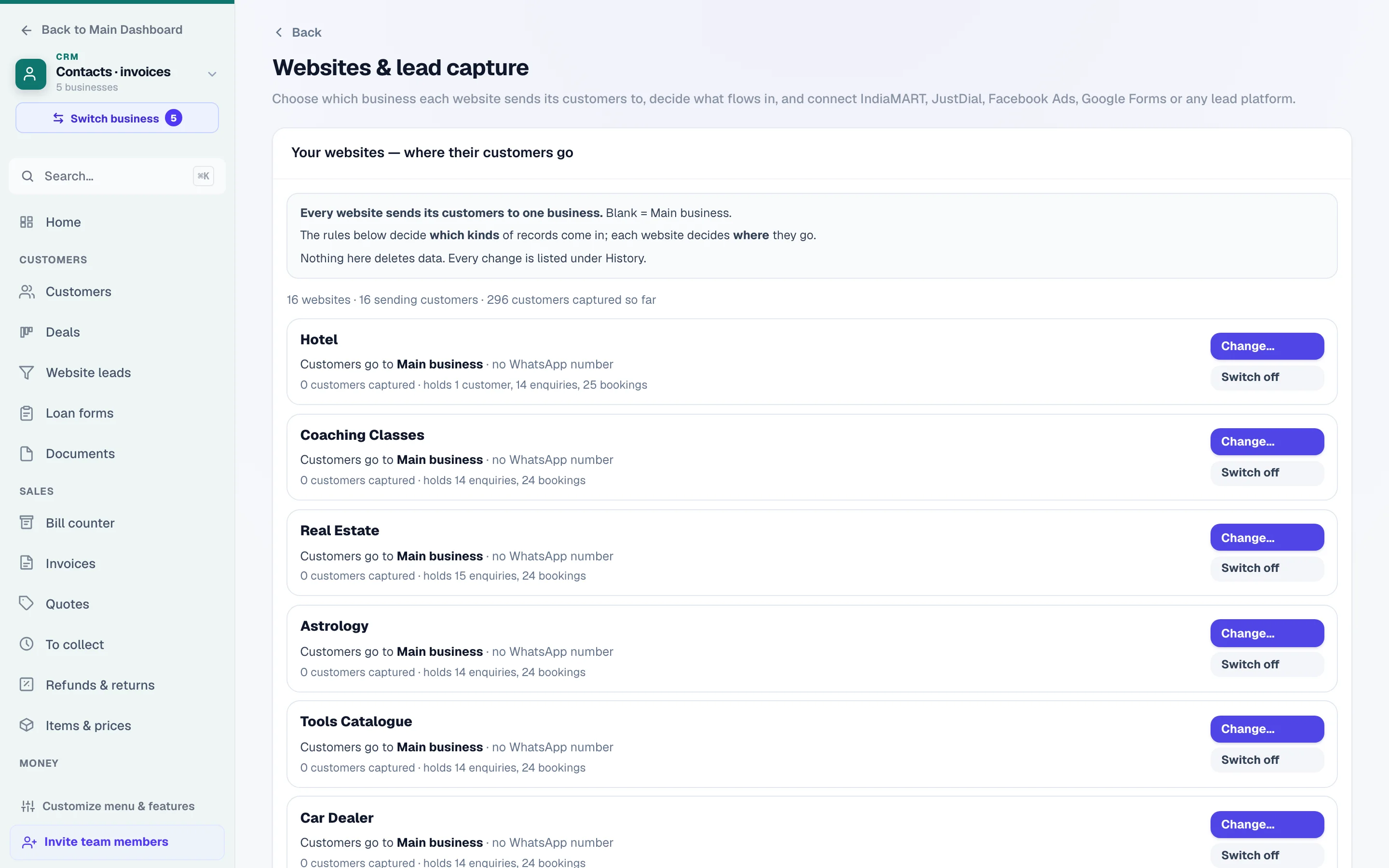
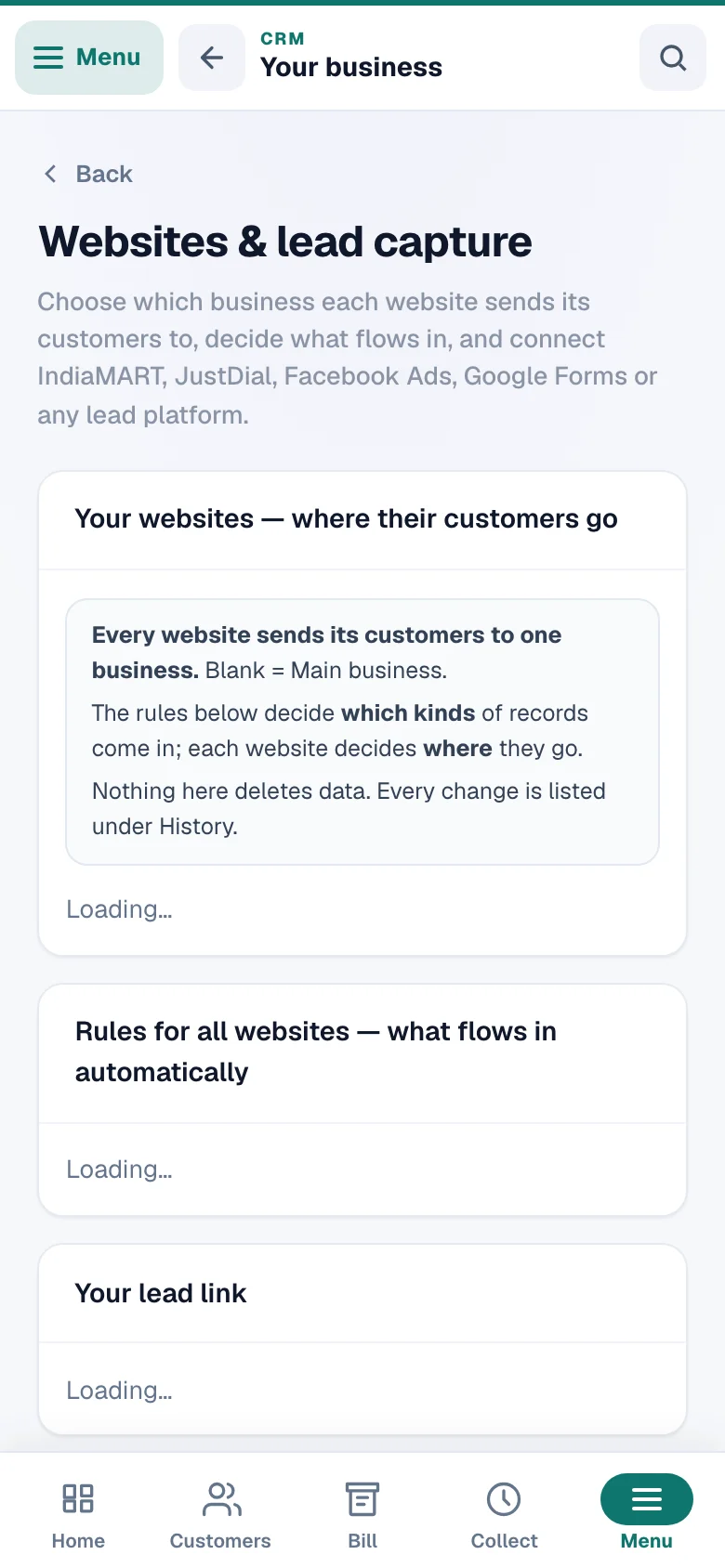
The lead link is one private web address that turns anything posted to it into a lead in your Contacts — it even works if you have no website here. Open CRM → Websites & lead capture and copy your link.
The same page also controls what your own websites feed in: the Websites built here panel lets you switch each source on or off (store customers, form enquiries, bookings, car-sell requests), set a from date so old history stays out, or go fully Manual and pull enquiries only when you press Import now — each row shows how many are waiting before you import. Changing these rules is setup (the Manage staff, attendance, branches & setup permission); pressing Import now needs the contacts permission. A source you switch off is paused: nothing new comes in from it by itself or through a team member's Import now — only you, the owner, can still bring its records in once.
If you keep more than one business book, the same panel is where each website picks which book its customers land in. A website with no book chosen feeds your main one. Changing it later never scatters what is already filed — you move the existing people yourself, with an Undo, and anyone with money on their name is left where they are.
IndiaMART & TradeIndia
Guided connect cards on the page — paste the link in the seller panel and enquiries arrive within seconds.
Facebook & Instagram Lead Ads
Connect through Zapier, Make or Pabbly Connect — the page shows the exact 3 steps, no coding.
Google Forms & any website
A copy-paste Apps Script for Google Forms, plus a ready-made form snippet for WordPress, Wix or any landing page.
Keep it private
Anyone with the link can add leads. If it leaks, tap “Get a new link” and confirm — the old one stops working everywhere.
Every platform card ends with its own copy-paste link (the ?src= tag on it is how each enquiry is labelled in Contacts, reports and automations). Press ▶ Send a test lead to prove the whole path in one tap, and the Arriving through your integrations panel shows the latest enquiries with a count per source. Developers get a full REST API card too — API keys live in CRM → Integrations & API, and a pushed lead can even fill your own custom fields (values only fill blanks, never overwrite your edits).
Automatic pulling goes the other way — instead of waiting for a platform to send leads, you paste your platform's own API key (IndiaMART CRM key, TradeIndia inquiry API, ExportersIndia inquiry API, or any https feed that returns leads as JSON) and we fetch new enquiries every 10 minutes, nothing to configure on their side. The first connect picks up the last 7 days; after that only what's new arrives, duplicates are ignored, and each connection shows its last-fetch status with a one-tap Pull now. Pulled leads land exactly like pushed ones — same Contacts, same timeline note, same automations. Connecting, pausing or removing a connection is setup (the Manage staff, attendance, branches & setup permission); Pull now only needs the contacts permission.
Each arrival lands in Contacts as a lead with the enquiry message on their timeline, and repeats of the same enquiry within two minutes are ignored. Websites built on LentloSites don't need this link — their forms flow in automatically.
The deal pipeline — what's cooking, in rupees
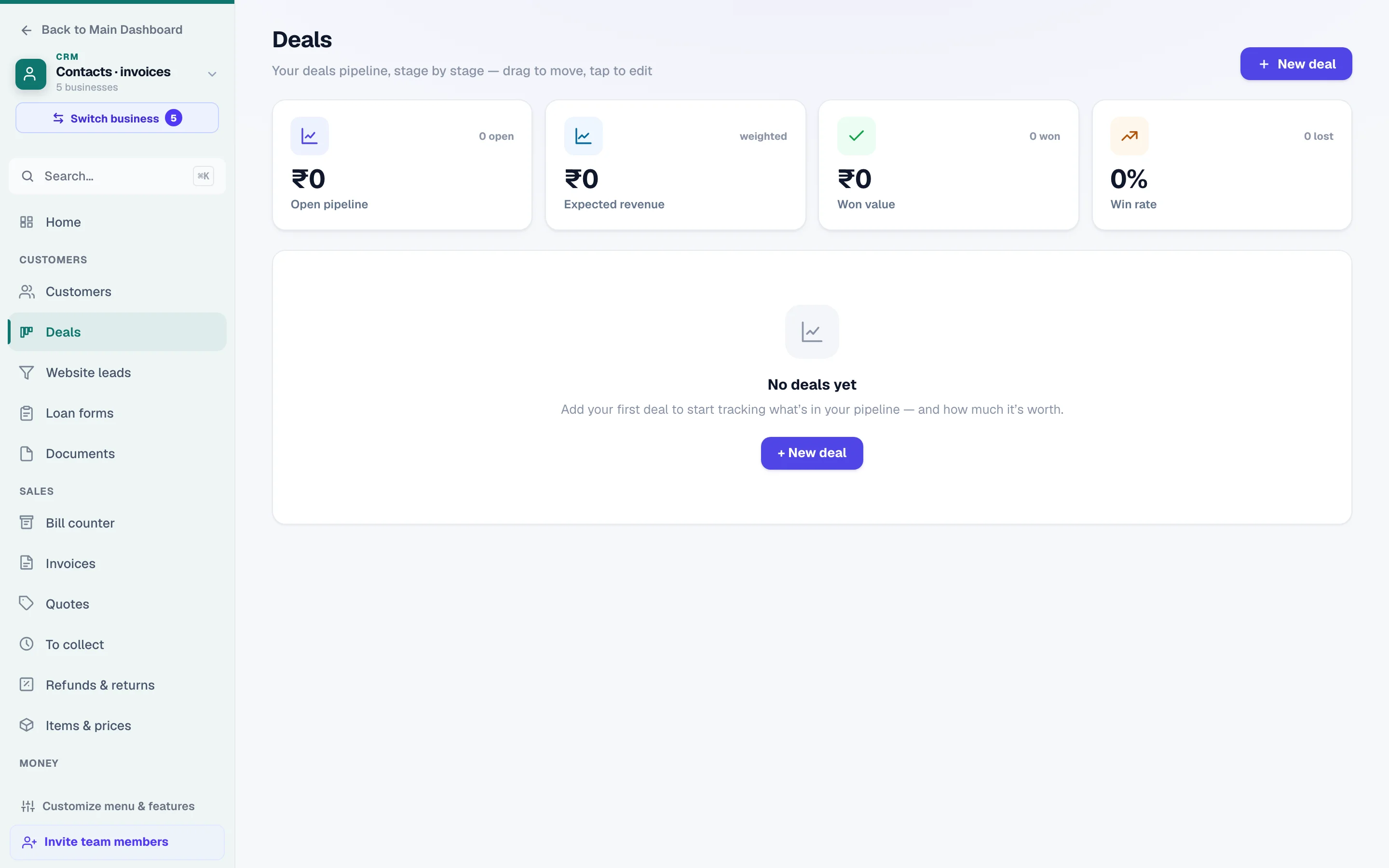
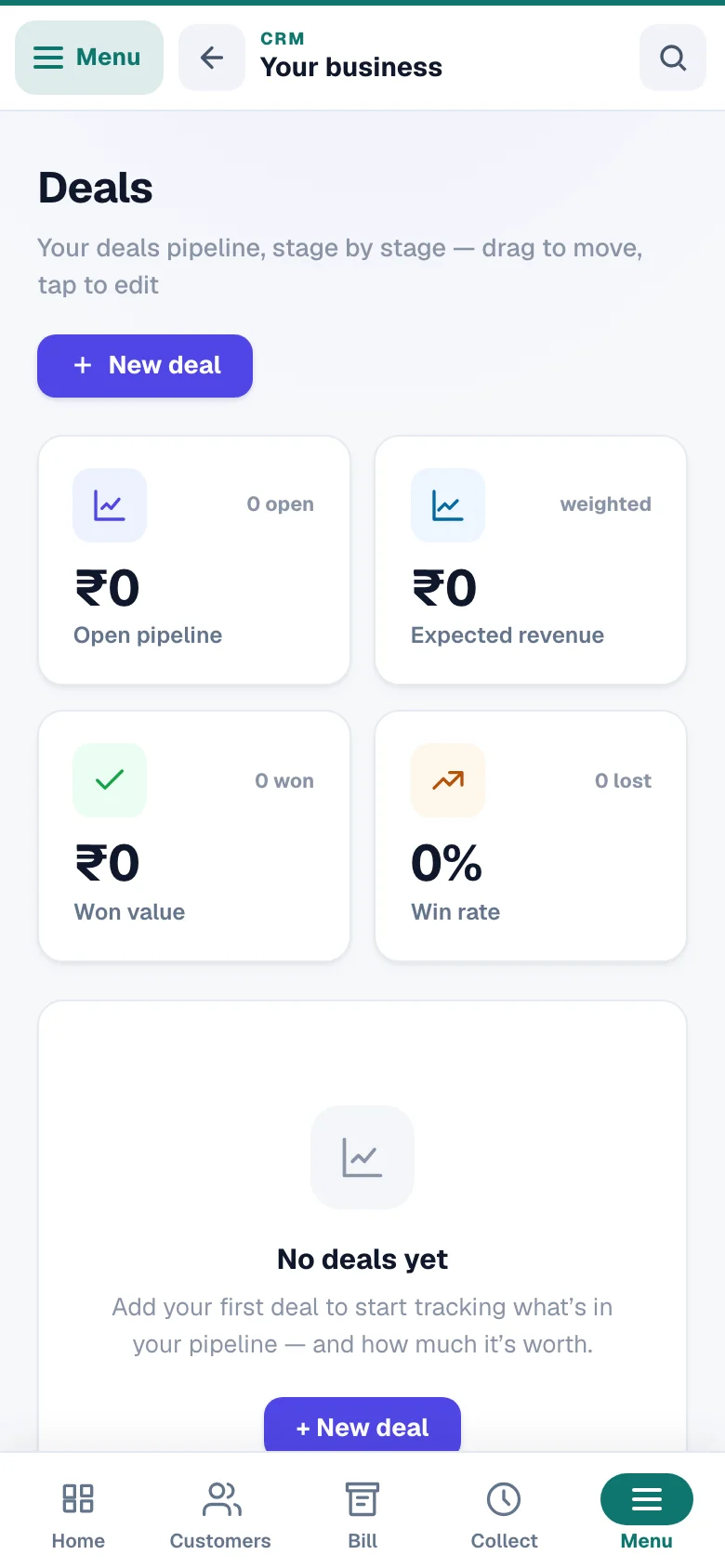
A deal is one possible sale (“Diwali bulk order — Sharma, ₹40,000”), and the pipeline is a board that shows every open deal by stage — so you always know what's close and what it's worth. Open CRM → Deals. The page starts with a How Deals work card: what each top tile counts (Expected revenue = each open value × its stage's chance — ₹10,00,000 at a 60 % stage plus ₹4,00,000 at 25 % is ₹7,00,000), and after how many quiet days a card turns amber for your type of business.
Add a deal
Tap New deal: give it a name, a value in ₹, an expected close date, a stage, and link the customer (you can create a new contact right there without leaving).
Move it as things progress
Drag a card to the next column — on a phone hold the card a moment, then drag (a quick swipe still scrolls the board; drag to the edge and the board scrolls under your finger) — or tap it and pick the stage. Each column is tinted by its kind (open, won, lost) with the stage's own colour on the dot, and every header totals its deals in ₹; the strip on top shows your open pipeline, expected revenue, won value and win rate (a clinic, a salon or a coaching centre reads Completed %). Each card says who owns the deal (a team member's initials), how long it has gone quiet — amber once it passes your trade's limit (a week for a dealer, three weeks for most) — the customer's next follow-up, and what has been invoiced; a card you drop on a won stage draws a tick. Search by deal or customer, tap Mine to see only your own, or switch to List and sort by value, quiet longest or close date. A new book shows its stages as empty columns with an example card, so the board is never a blank.
Close the loop with an invoice
Open a won deal and tap + Invoice — it starts a bill for that customer with the deal's amount already filled in. Deals also appear on the customer's own page.
The stages themselves are yours to rename, recolour and reorder under CRM → Deal stages — drag a stage by its handle (or use the arrows), pick its colour from the swatches, and the category chip says what it counts as; the same stages label your contacts and your board columns.
Hot leads — who to call first, and sharing new enquiries with your team
An enquiry is Hot when it wants an answer now: it came in within the last 2 days, it asked again (two or more enquiries from your website, lead link or IndiaMART in a week), or its deal moved this week. Only open enquiries count — a lead you marked won or lost, or a regular customer, is never Hot. On Customers the Hot leads filter (after New this week, for businesses that work on enquiries) lists them, and an enquiry's own page says why in amber at the top — Hot · New — came in 3 hours ago or Hot · Asked 2 times this week. Your business can decide what counts: open Filters — under the quick filters it says what Hot means in your book — and tap Change (it needs the Manage staff, attendance, branches & setup permission): new within 24, 48 or 72 hours; asked 2, 3 or 4 times over 7, 14 or 30 days; a deal moved within 7, 14 or 30 days. The list and every customer's page follow the new rule at once.
With a team, new enquiries can be shared in turn. In CRM → Automations, on a rule's follow-up task, set Give the task to → Team members, in turn and tick who takes turns. Each new task goes to the next person — the one who got the fewest from that rule this month — so Kiran, Sunil and you take one each, in order. Someone whose seat is paused or removed is skipped; if nobody on the list is left, the task is still made, for anyone to pick up. Each person sees their tasks under Follow-ups → Mine and gets the reminder when it falls due.
Follow-up reminders — never forget a promised call
A follow-up is a small reminder with a date, tied to a person — the CRM's answer to notes on your hand. Every customer's page has a Follow-up tab: set one in two taps — what kind (a call, a visit, a document, a payment…), when, and the reminder on your phone — and see their open follow-ups right there, with Snooze and Done beside each (See all on Follow-ups opens that customer's whole list when there are more than twenty). Team members who can only look see the open follow-ups there, without Add. Your due follow-ups wait on the CRM Home under Today · follow-ups, each with a one-tap done circle, and the whole list lives under Follow-ups & tasks.
The same composer logs notes and calls (connected / no answer / wants callback) — it shows to logins that can edit customers, and everything lands on the contact's timeline, so anyone on your team can read the full history before picking up the phone.
Customer visits — tap “Visited” at their place
For a business whose people go out to customers — a distributor's salesman on his beat, a service engineer, an insurance or loan agent — Visits keeps a record of who went where, when, and what happened. Turn it on under Customize menu & features → Visits; it then shows in the menu under Customers. The Visits page starts with a How Visits work card — what one tap keeps and who sees a visit's location.
At the customer's place, tap Visited
On the customer's page, tap Visited. The sheet reads where your phone is once (the first time your phone asks to allow location — you can say no; the visit is still saved, with the reason the location is missing). Tap Met them or Not met if you like, add a short note (“order for 20 cartons”, “shop shut — try Monday”) and tap Save visit.
The time comes from the CRM's own clock, never the phone's. The visit lands on the customer's Activity as one line — Met them · order for 20 cartons · Location ±18 m. On a weak signal, tap Save again: the same visit is never recorded twice.
See the day on CRM → Visits
CRM → Visits opens on today's visits; pick Yesterday, 7 days, This month, Last month or Custom (up to a month at a time). Each visit shows the time, the customer, met or not, the note and Open map — the spot in Google Maps. A long note shows three lines with Show all. The search above the list finds a visit by the customer, the note, who went, met or not met, the day or the time.
You, and team members with Manage staff, attendance, branches & setup, see everyone's visits and can pick one person under Who. Everyone else sees only their own visits. Recording a visit needs Add & edit contacts, notes, tasks.
A visit recorded by mistake? The × on its row (you, or a team member with the setup permission above) removes it from the list and from the customer's history — nothing else changes. Where a team member stood is theirs: a customer's own data download carries the day, met or not and the note — never the location.
Appointments — your website's bookings, inside the CRM
If your website takes bookings (a clinic, salon, coaching class, consultant or a restaurant's table reservations), switch on Customize menu & features → Appointments. It shows in the menu under Customers and lists the bookings of every website that feeds this business, day by day — Today, Tomorrow, Next 7 days or Last 7 days — each with the time, the person (tap the name to open their customer page), the service and whether it is waiting, confirmed, done or cancelled. The search finds a booking by name, phone, service, note, website, day or time, and the chips beside it show only Waiting to confirm, Confirmed, Done or Cancelled. The page starts with a How Appointments work card — what each button does on your website too.
Confirm, Mark done, Move (a new day and time) and Cancel work exactly as on your website's bookings page — it is the same booking, so the customer gets the same messages and a done booking makes its invoice if you switched that on. An advance, a UPI payment to check or a customer's change request stays on the website's bookings page (the link is under the list). A team member who isn't allowed on that website's bookings sees the list but can't change it; the booking's own note and advance show only to people who can. Which business a website feeds is set under Websites & lead capture.
WhatsApp a contact — with ready-made messages
Every contact page has one-tap ways to reach the person, and each tap is noted on their timeline automatically. The buttons at the top:
- WhatsApp — opens a picker: a blank message, or a ready-made message (payment reminder, thank-you and more) with the person's name, your business name and any due amount already filled in. It opens in your own WhatsApp, and when you come back the page asks Did it go? — It went records it as sent on their timeline and under Customer messages. A message that needs something this page cannot know — a quotation's total, your UPI ID, or the amount due when the customer owes nothing — is not sent with a gap: the picker asks you to use WhatsApp → Quick message lower on the page, where the message waits with a <fill in the total> part until you type it.
- Call — dials from your phone and logs “Called” on the timeline.
- Chat inbox — jumps to this person's thread in the WhatsApp hub, where you get full two-way chat history, broadcasts and auto-replies once your WhatsApp API is connected. See WhatsApp API hub.
Further down the same page, Messages shows everything said with this customer, both ways, newest first — the chats on your WhatsApp API number, the messages sent from the CRM, and the calls and texts you logged — each one once. A message that did not go says why, and what fixes it. The newest six show first; Show earlier messages opens the rest, and Open the WhatsApp chat takes you to their chat in the inbox.
Your team and lead assignment
You don't have to work every lead yourself — invite your people and hand leads out. CRM → Team has two tabs:
- CRM team — invite staff by their own mobile number with a role, so they can work contacts, leads and follow-ups without your login. Roles and permissions are covered in CRM basics.
- Website staff & partners — each website's own leads page (loan websites especially) lets you assign a lead to a staff member or partner from a dropdown on the lead, with per-lead billing for partners.
Removing a customer — Trash or erase
Every customer's page ends with Data & privacy. Open its options to download everything you hold on that customer as a file, to move them to Trash, or — for a customer who has asked you to delete their data — to erase them for good.
Move to Trash
- Hides the customer now — anyone who can edit contacts can do it (hiding their case files also needs the case-file permission for those departments)
- Their case files, payment plans, deals and open follow-ups go to Trash with them
- Invoices stay exactly as issued and payment dues stay on record — no reminders go out meanwhile
- WhatsApp sequences to their number stop and scheduled messages are cancelled — they stay stopped even if you restore; the chat itself stays
- No customer message goes out to them while they are in Trash
- Restore from Customers → Filters → Show: Archived within 7 days and everything else comes back as it was — except a payment plan whose end date passed meanwhile, which comes back ended (the restore says so)
- After 7 days they are erased for good — except a customer with case files, payment plans, deals, invoices or money records, or who is named on another customer's file, who stays in Trash until the owner decides
Erase now
- Only the account owner can do it
- For a customer who asked you to delete their data
- Shows exactly what will be deleted, then asks you to type the customer's name
- Deletes their notes, follow-ups, deals, payment plans, case files, WhatsApp messages, the WhatsApp updates prepared or sent to them or about their files, their saved dates and their entries in a vehicle's history, in every one of your businesses
- Where another customer's file names them as the buyer, seller, co-applicant or guarantor, their name and phone there become “[erased]” and their own ID and bank papers filed there under that role are deleted (Aadhaar, PAN, photo, address and income proof, bank statements, passbook, cancelled cheque, signature, CIBIL report) — the vehicle's papers, the transfer and registration forms and that customer's own papers stay; vehicles they owned stay in your records without an owner
- Invoices are kept as issued for your GST records — and it cannot be undone
When the customer has case files, payment plans, dues, deals, invoices or money records, or is named on another customer's file, the erase button itself says what happens — Erase and delete these records, Erase and clear their name from other files, or Erase and unlink the invoices / Erase and unlink the money records (or both) when invoices and money records — which stay exactly as issued and recorded, no longer linked to a customer card — are all they have — and pressing it is the confirmation. Team members see only Move to Trash, and the download needs the team permission Export / download data. Customers you remove from the Customers list (More → Select several → Move to Trash) also go to Archived and stay restorable there until you restore them.
In Customers → Filters → Show: Archived (and on the customer's own page) a customer moved to Trash from their page shows Will be erased on and the date — or Held with the number of business records that keep them in Trash for you to decide. A new order, booking or enquiry from their number made after you moved them to Trash brings them back — with everything the Trash hid, their automatic erase called off, and a note on their timeline saying which website brought them back. An older one, for example from importing a website's history, never does.
Common questions
Quick answers to the doubts owners hit most often in their first week with Contacts.
What's the difference between a lead and a customer? Just how far along they are — a lead has enquired, a customer has bought. Both live in Customers; Filters → Show: Leads or Customers works each group.
Will importing my file mess up contacts I already have? No. Matching is by phone; the Check shows new-vs-existing before anything is saved, the default fills only the empty boxes (you can choose to replace or to leave them instead), and any import can be undone for 7 days from History.
Someone enquired on my website — where do they show up? In your form inbox and in CRM → Leads; the background sync also files them into Contacts as leads. Enquiries need a phone number to become a contact.
Can I message many contacts at once? Contact-page WhatsApp buttons are one-to-one. For bulk sends, connect the WhatsApp hub and use broadcasts.
Does a deal's value bill anyone? No — it's your own estimate for forecasting. Money moves only when you raise a bill; see CRM billing & credit.
More in CRM, WhatsApp & AI
Did this answer your question?
It takes one tap and it genuinely changes what we write next.