
Loyalty points — reward repeat customers
Customers earn points per order, redeem them at checkout. Stops them from drifting to Amazon.
Watch0:445 min readUpdated 21 Oct 2026
In this guide
- 1Set the ratesHow many points per ₹100, and what a point is worth.
- 2Who is collectingEvery customer holding points.
How it works
The idea is simple: every order quietly builds up a balance the customer can only spend at your shop — a reason to come back to you instead of a marketplace.
- A customer places an order → points are added instantly, based on the order value. This works for COD too — no waiting for delivery.
- Points are tracked against the customer's mobile number, so every order they place with that number earns — even before they ever log in.
- On a later order, they log in at checkout (quick phone OTP) and use points for an instant discount.
- If an order is cancelled, the points it earned are reversed automatically, and any points the customer spent on it are returned. See Managing orders.
- Points don't expire unless you say so — they sit in the balance until spent. You can put a validity window on them later (see the fine print).
Quick setup — four numbers, five minutes
Everything lives on one dashboard page, with live rupee examples that update as you type — so you can see exactly what you're promising before you save.
Open Loyalty
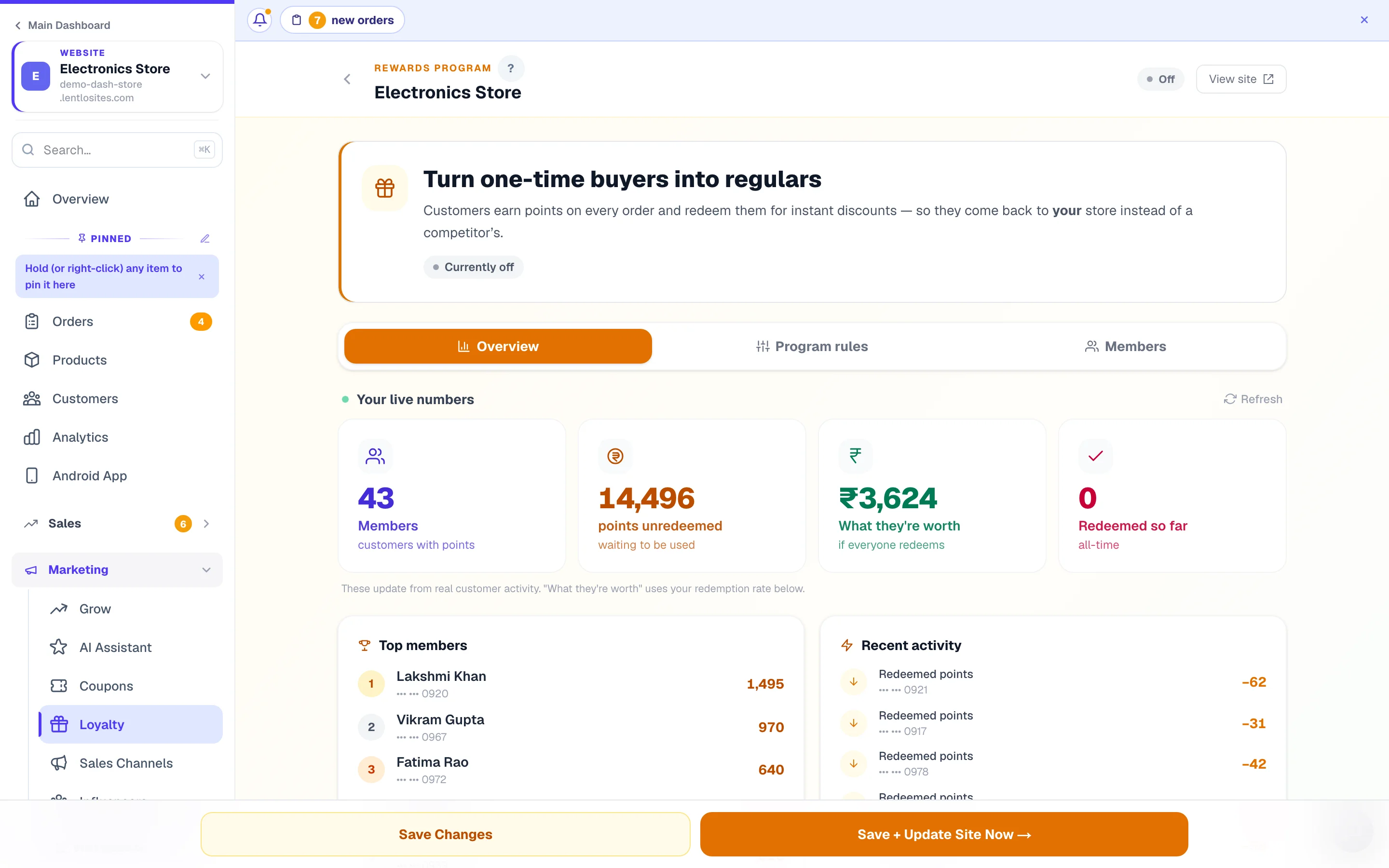
Go to Dashboard → your site → Loyalty (under Marketing in the sidebar). The page has three tabs — Overview, Program rules and Members — and a Live / Off chip at the top that shows your program's real state: the page shows what your checkout actually uses — the numbers saved on this page, else anything set earlier in the site editor, else your website design's own numbers — not just its own switch. Flipping the switch changes the chip only once you press Save Changes; until then the page says you have unsaved changes.
Turn it on
Open the Program rules tab and flip the switch on the card that reads “Reward program is ON/OFF”. Some website designs come with points already running — then the switch is already on, and the page shows the line “From your website design” under each number your design sets; type your own to change it. Otherwise the prefilled numbers below are sensible for most stores — you can tune them now or after you see real activity.
Name your points (optional)
Everything you set next sits on that same tab, under plain-English headings — What do you call your points?, How fast do they earn?, What are points worth? and Protect your margin. Call them anything — “Coins”, “Stars”, “Aura Club”. The name shows everywhere customers see points. Leave it blank to keep the name from your site editor.
Set how fast they earn
Points per ₹100 spent. Prefilled at 10 (or your design's own number) — so at 10 a ₹500 order earns 50 points, a ₹2,500 order earns 250. The example chips under the input show this live.
Set what points are worth
100 points = ₹X off. Prefilled at ₹25 (or your design's own number). With 10 points per ₹100 and ₹25, a ₹1,000 order earns 100 points worth ₹25 — about 2.5% back. Tune until the numbers feel right for your margin.
Protect your margin, then save
Under Protect your margin, set the % of each order a customer can pay with points — default 50%, so on a ₹1,000 order a customer can use at most ₹500 of points and the rest is real money. Set 100 for no limit, 0 to stop redeeming. Then Save Changes — your site updates on its own in a few seconds. In a hurry? Save + Update Site Now → pushes it straight away; if your website is already in the update queue it says so (“your site updates within a few minutes”) instead of pretending it is done.
Example · Ananya Home Store, Kochi
Settings: 10 points per ₹100, 100 points = ₹25 off, 50% of each order. Priya buys bedsheets for ₹2,000 on Cash on Delivery and earns 200 points at once (worth ₹50). Next month she orders cushions for ₹600, signs in at checkout and taps Use All:
Priya's second order
- Cushions
- ₹600
- 200 points used (100 points = ₹25)
- − ₹50
- She pays
- ₹550
- New points earned on ₹550 (the points-paid part does not earn)
- 55 points
Your live numbers — is it working?
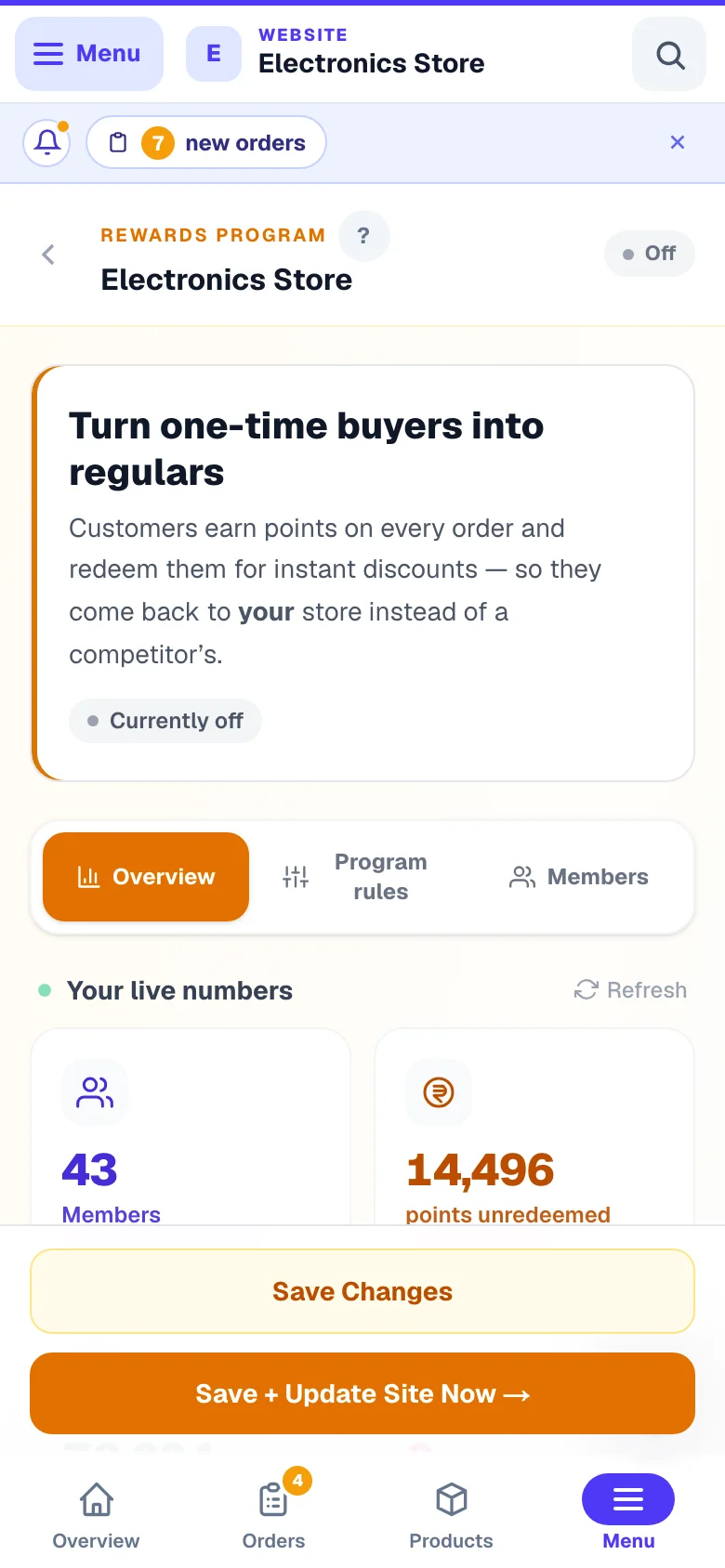
The top of the Loyalty page answers the money question at a glance, straight from real customer activity.
- Members — customers who hold points.
- Points unredeemed — the balance waiting to be used, and what they're worth in rupees if everyone redeemed today (your outstanding promise).
- Redeemed so far — all-time points spent, proof customers actually come back for them.
- Top members & recent activity — who your best repeat customers are, and a live feed of earns and redeems.
Where customers see their points
The program sells itself on your storefront — you don't need to explain it to anyone.
- On every product page — an “Earn up to X points” card near Add to Cart, with the rupee value, nudging the purchase.
- At checkout — a logged-in customer sees their balance with an “Enter points” box, an Apply button and a one-tap Use All. A live hint shows “X pts = ₹Y off” as they type, and the discount appears on the totals row. Not logged in? They see “Log in to earn points on this order and use your balance”.
- On the order-success screen — “+X points earned!” right after they buy.
- In their account — a points-balance card on their account page on your website (
/account) with a “View history” link.
The Rewards page on your website
When loyalty is on, your published site automatically gets a /rewards page — a home for the whole program, so customers can check their balance without asking you.
- It shows their points balance and rupee value, your earn and redeem rates, the full points history, and a simple 3-step “how it works”.
- Customers sign in with their phone number to see their own balance — nobody can see anyone else's points.
- Every heading and line on it is editable in your site editor, and it appears/disappears automatically when you turn loyalty on or off.
- Want it in your menu? Add a link to Rewards from the Header & Footer — it's a built-in destination there.
What earns points — the fine print
Knowing the exact rules helps you answer customer questions confidently.
- Points are calculated on the items total after discounts — delivery charges, COD fees and taxes added on top don't earn points.
- Points land the moment the order is placed, including COD orders — no waiting for delivery or payment.
- When you confirm orders first, an order request earns nothing while it waits — its points land when the customer accepts the final bill.
- Orders you create from the dashboard (phone/WhatsApp orders) don't earn or redeem points — see Manual orders. Want to reward that customer anyway? Press ± Adjust on their row in the Loyalty page's Members tab (or Adjust points on their page under Customers), type the points (e.g. 100) and a note — the note shows in their points history.
- The same box also deducts points to correct a mistake — type a minus number (e.g. -100). Balances can never go below zero.
- Removing one customer from rewards entirely: the Member points ledger on the Loyalty page's Members tab (and each customer's profile) has a per-customer button — tap ✓ In program to turn it into ✕ Removed. Removed customers earn nothing, can't redeem, and stop seeing points anywhere on your store (product pages, checkout, their account, the Rewards page). Their balance is kept — deduct it with Adjust points if you also want it gone. On members-only stores you can decide this right in the approve box when you let a new member in.
- The Overview tab also shows a Points given vs used chart (last 30 or 90 days), and the Members tab the full ledger — who has how many points, how much each customer was given and used — with a name/phone search and sorting by Balance, Most earned, Most used or Recent activity.
- Earning limits and Spending limits (Program rules tab): Minimum order to earn (₹), Maximum points per order earned, Minimum points per use, and Maximum points per order spent (it works alongside the % of each order — the lower wins). All optional; leave blank for no limit.
- Point validity (expiry): off by default — points never lapse. Turn it on under Program rules → Point validity and type Points stay valid for (days) — 90, 180 or 365 are common; the shortest is 7. Each earn keeps its own clock, spending always uses the oldest points first, and points your customers already hold get the FULL window from the day you enable it — switching it on never wipes balances instantly. Customers see an "expiring soon" note on the Rewards page, and expired points show in their history.
- Points paid with points: by default, the part of an order paid using points does not earn new points (a ₹500 order paid ₹100-in-points earns on ₹400). The switch Also give points on the part paid with points in Earning limits lets you be more generous and award points on the full amount.
- Editing an order: when you add or remove items, the points the order earned follow the new total (one adjustment line in the customer's history), and the rupees the customer paid with points stay on the bill as a discount — their spent points are never lost by an edit.
- Only orders placed after you switch loyalty on earn points. Marking older orders as delivered later won't hand out points for them — the program starts fresh from the moment you enable it. Want to reward a loyal customer for past orders anyway? Use Adjust points.
Points + coupons — yes, they work together
A customer can apply a coupon code and redeem points on the same order — the two discounts simply add up, and your store re-checks both on the server so the math is always honest.
- Your Protect your margin % still protects you: points can never cover more than that share of the items total, whatever else is applied.
- Points are different from cashback coupons: cashback puts real money into the customer's store wallet after delivery, while points are earned on every order and spent at checkout. Both reward repeat buying — many stores run both. See Coupons.
- A coupon's own Stackable with loyalty points switch does not stop points today — see Coupons. The % limit above is what protects you.
- One exception: if you've set special member prices for B2B/wholesale buyers and turned off coupon stacking for that member group, the member price is final — coupons and points don't apply on top of it. (By default, member buyers can still use both.)
What rates should you set?
The right rate depends on your margin — the goal is a reward that feels real to the customer but costs you a predictable 1–3% of repeat sales.
- Tight-margin stores (grocery, FMCG) — 5 points per ₹100, 100 points = ₹20. About 1% back.
- Fashion / electronics / premium — the defaults (10 per ₹100, 100 points = ₹25). About 2.5% back, enticing enough to change behaviour.
- One-shot businesses (cars, real estate, services) — loyalty isn't a fit; use coupons for launch pushes instead.
Repeat-purchase categories get a double engine: loyalty gives customers a reason to return, and the built-in Order Again features remind them at the right moment. Grocery, pharmacy and pet stores should run both.
Turning loyalty off stops earning and redeeming and removes the Rewards page from your site — but existing balances are kept safe for when you switch it back on. Don't use the off switch to wipe points customers were promised (that's a trust-breaker); correct individual balances with Adjust points instead.
More in Customers & marketing
Did this answer your question?
It takes one tap and it genuinely changes what we write next.