
Accept payments (Razorpay, UPI, COD)
The 7 gateways, UPI QR, COD fees, Partial COD deposits, a minimum order value, pausing methods — plus Test connection, what a customer sees when a gateway refuses, and the safety net that auto-recovers missed payments.
Watch 4 short videos9 min readUpdated 21 Oct 2026
In this guide
Ways to accept money
Which should I turn on first?
The money never touches us. It goes from your customer straight into your own gateway or UPI account. We only tell your website whether the payment succeeded.
Everything lives in one place: in your website's sidebar, Settings → Payments (the page is headed Payments; press Save at the top after a change). You can run several methods at the same time — customers pick one at checkout. There is no setup fee on our side; online gateways charge their own small per-transaction fee. The same gateway also powers every payment link you send — order pay links, booking advances, and on news sites reader passes, sponsor ad bookings and the "get paid for anything" payment links (classifieds, notices, event coverage) — so connecting it once switches all of them on.
Online gateways (7)
Razorpay, Cashfree, PayU, PhonePe, Easebuzz, Zoho Payments, CCAvenue — cards, UPI, net banking, wallets. Paste your keys and they go live.
UPI QR
Zero gateway fees. We show a QR with the exact amount; customer pays and uploads a screenshot; you verify.
Cash on Delivery
No setup at all. Add an optional COD fee to cover your risk and cash-handling cost.
Partial COD
Customer pays part online as a deposit, rest in cash on delivery. Cuts fake-order losses.
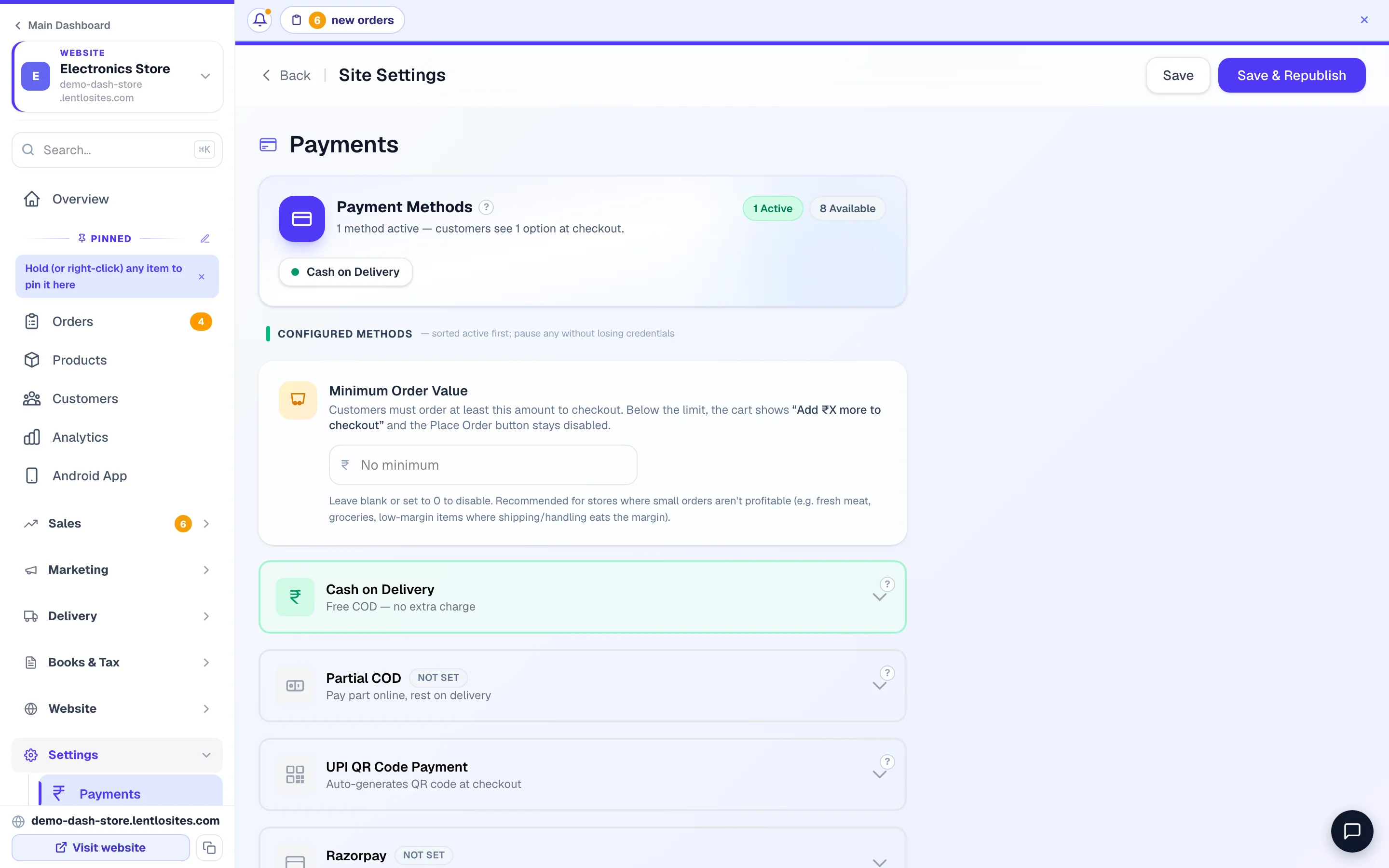
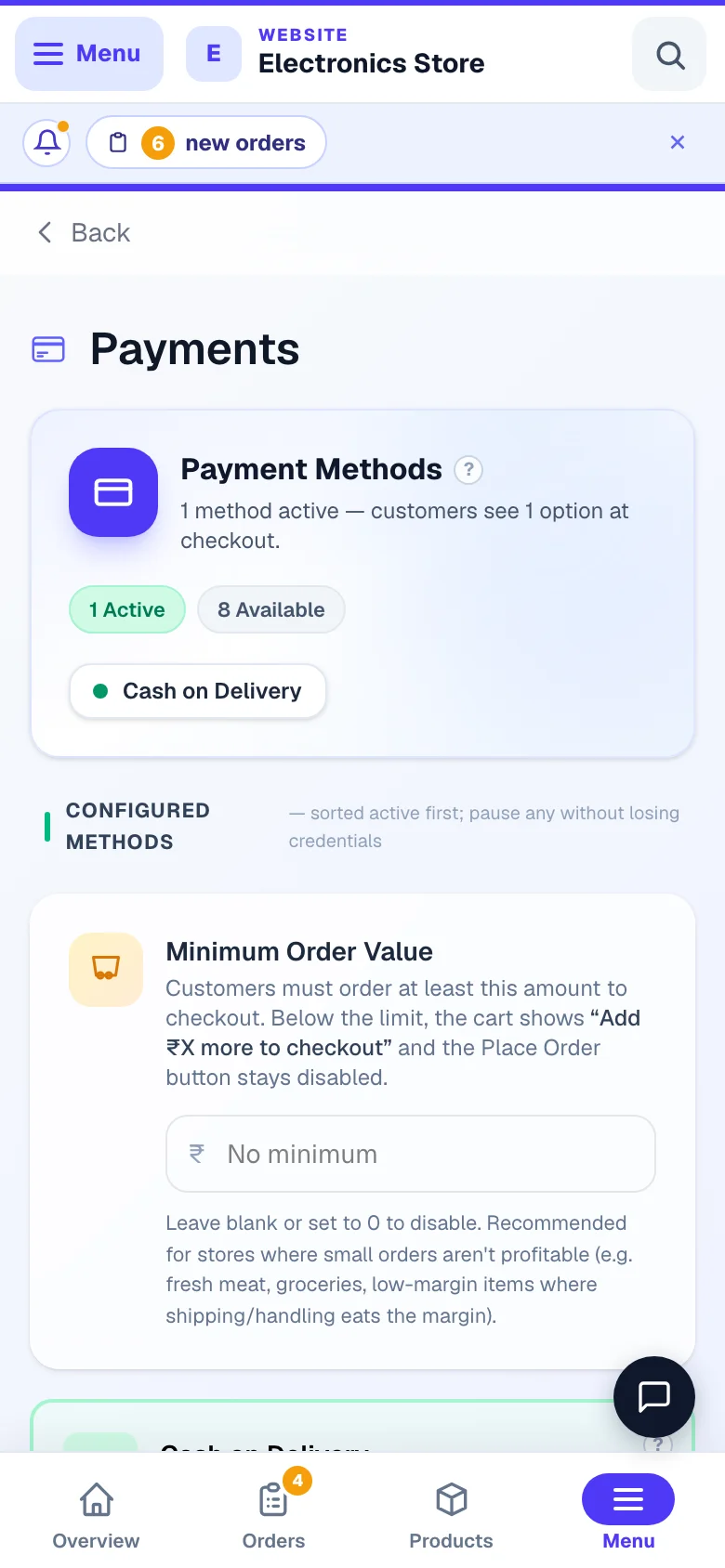
- 1CODTurn cash on delivery on or off, and set a handling fee.
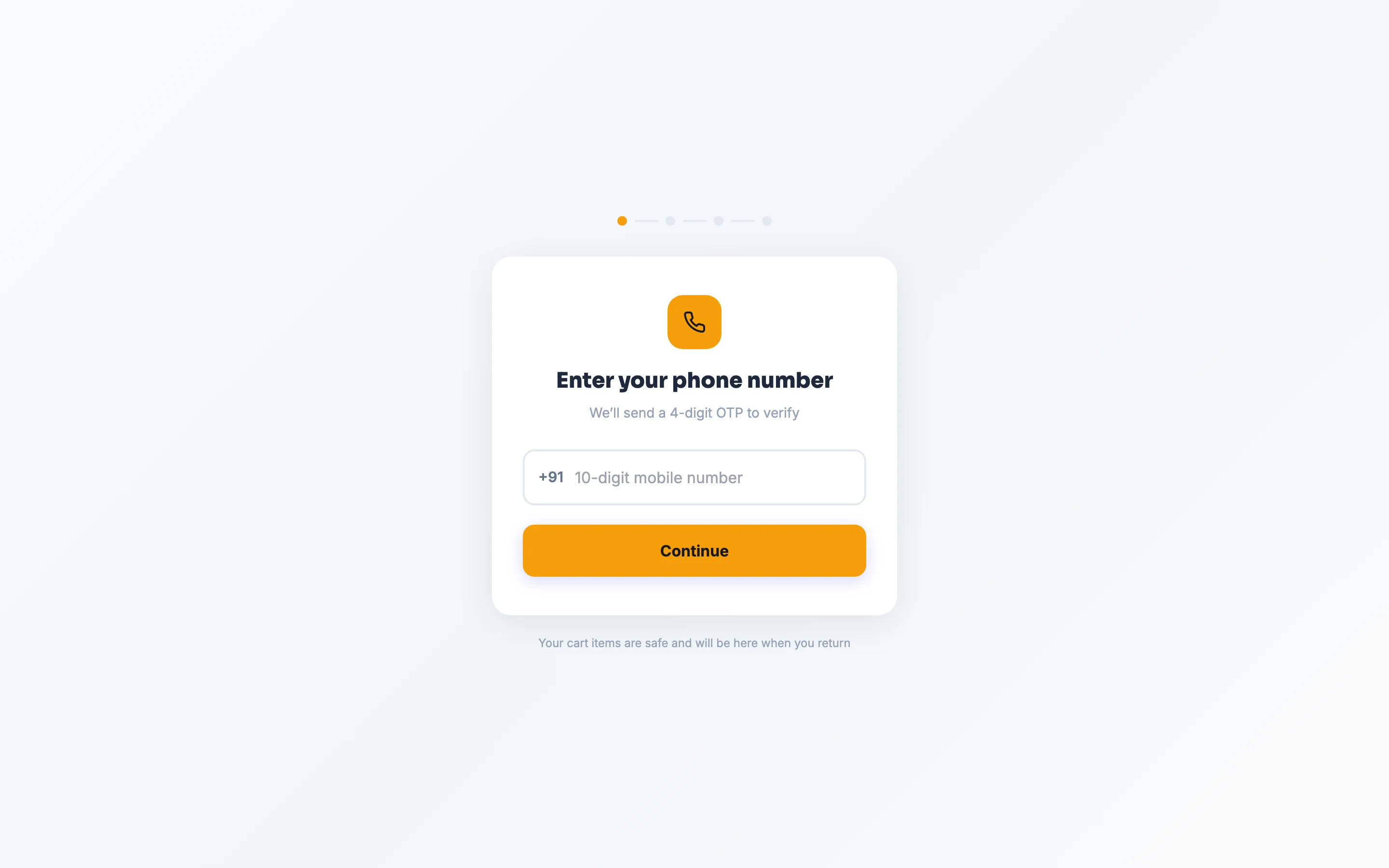
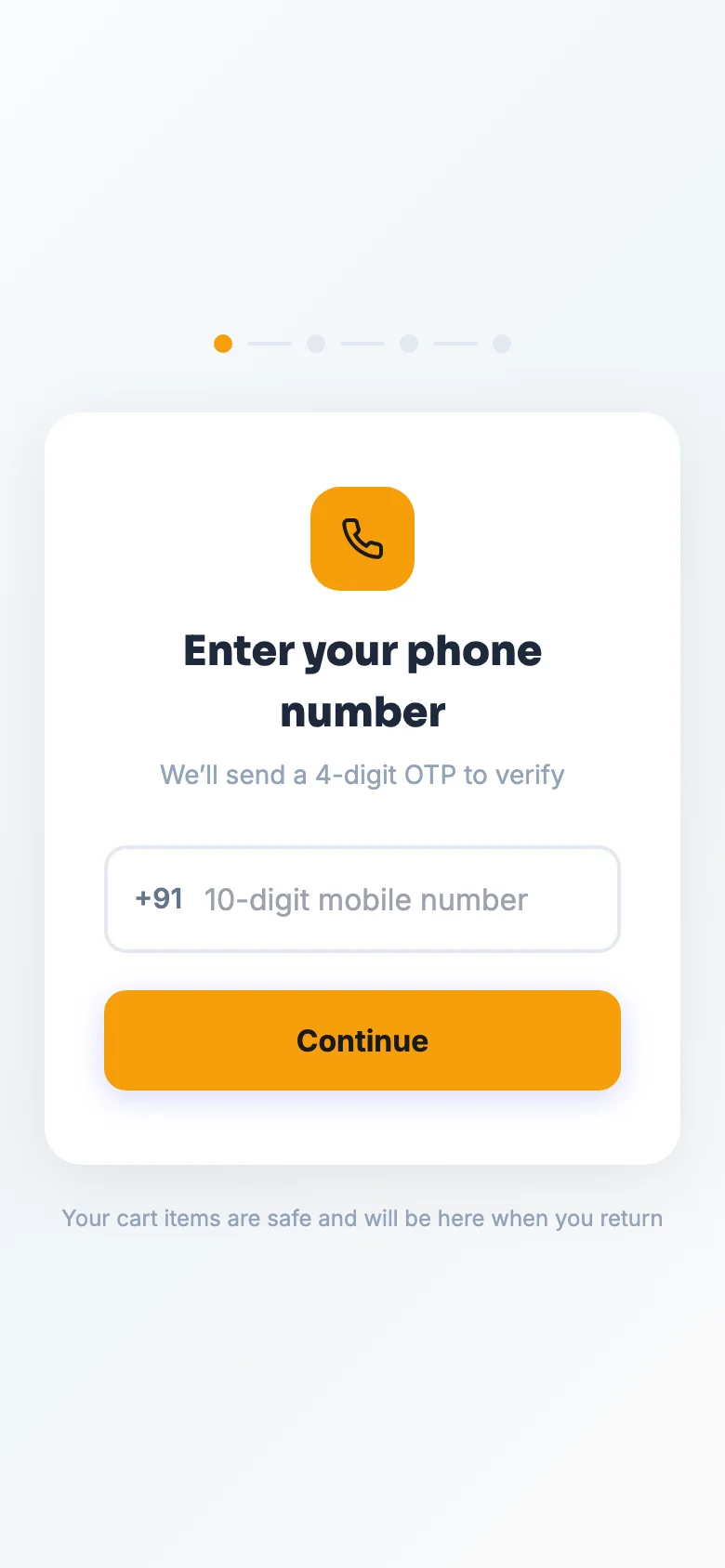
Before any gateway opens, checkout checks that the customer's mobile is a full 10-digit number — and the receiver's, when they order for someone else. A short or wrong number is refused with a plain message, so a paid order never arrives without a number you can call.
Online gateways — paste keys, go live
A gateway lets customers pay by card, UPI app, net banking, or wallet, straight into your gateway account. Connect one when you want automatic payment confirmation instead of checking screenshots yourself.
Open an account with the gateway
Sign up on the gateway's own website (for example razorpay.com) and finish their KYC — business PAN, bank account, GST if you have one. Approval usually takes a day or two.
Copy your keys from the gateway dashboard
Each gateway gives you two secret keys. Razorpay: Key ID + Key Secret (Settings → API Keys). Cashfree: App ID + Secret Key. PayU: Merchant Key + Salt. PhonePe: Client ID + Client Secret from PhonePe Business → Developer Settings → API Keys (Client Version is usually 1); older PhonePe accounts use Merchant ID + Salt Key instead — the PhonePe card has boxes for both, fill whichever pair your dashboard shows. Easebuzz: Merchant Key + Salt. CCAvenue: Merchant ID + Access Code + Working Key (M-panel → Settings → API Keys). On that same page do two more things, or payments break in ways that are hard to spot: (a) register the exact website address your customers check out on — your free lentlosites.com address and your own domain — or CCAvenue shows "10002 Merchant Authentication failed" instead of the payment page; (b) register our server IP (the CCAvenue card shows it, in the amber box) and paste the API Access Code + API Encryption Key CCAvenue then issues into the two extra boxes on the CCAvenue card (they sit in the amber "Payment confirmation when a customer closes the tab" box). Those two are what let us confirm a payment when the customer closes the tab. Zoho Payments works a little differently — see its own step below.
Paste them in Settings → Payments and save
Open that gateway's card, paste both keys, click Save. The moment both keys are saved, the gateway shows an Active badge and appears at checkout — there's no separate "enable" step.
Zoho Payments — a one-time connect instead of two keys
The Zoho Payments card needs four values plus a one-time connection. From your Zoho Payments dashboard (Settings → Developer Space) copy the Account ID and generate an API Key. Then open api-console.zoho.in, create a Self Client, and copy its Client ID + Client Secret into the card. Finally, in the Self Client's "Generate Code" tab, paste the scope string shown on the card (it's copyable), pick 10 minutes, generate the code, paste it into the generated code field and hit Save straight away — the code expires in minutes. The card then shows Connected to Zoho and the gateway goes live; we also register its payment webhook for you automatically.
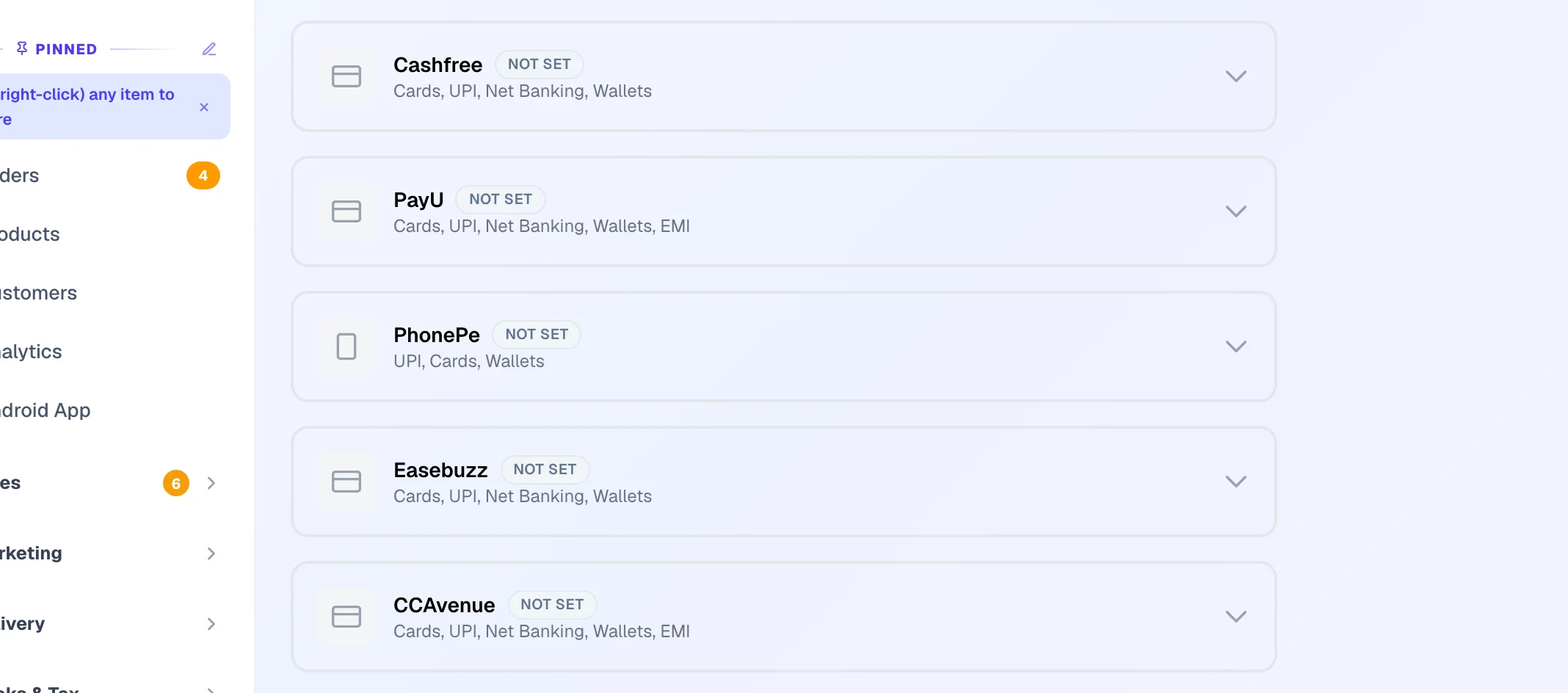
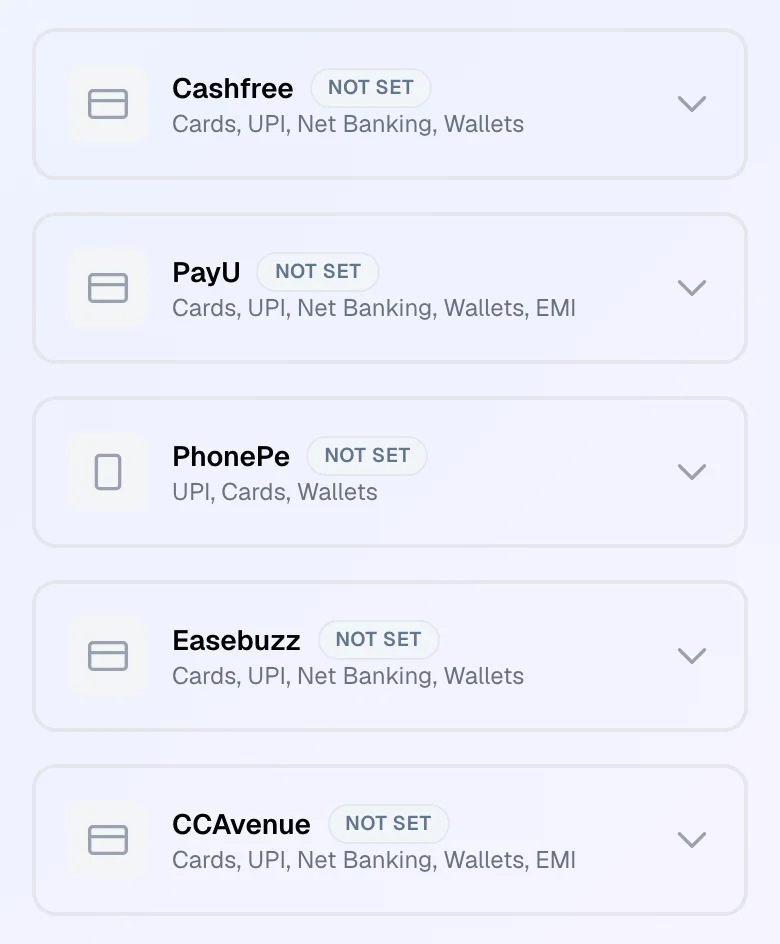
Try test mode first. Cashfree, PayU, PhonePe, Easebuzz, CCAvenue and Zoho cards have a Production/Sandbox switch; Razorpay uses separate test keys (rzp_test_...). Place a test order, confirm it lands in Orders, then switch to live keys or Production mode.
A key that can never work is refused the moment you press Save — your Razorpay Account ID (acc_...) pasted where the Key ID goes, an e-mail address pasted as a Cashfree App ID, a Cashfree TEST key while the card is on Production. The message under the card names what to copy and where it is. Every gateway judges your keys only when a customer pays, so this check at Save is what stops a shop from telling every customer "online payment isn't available" for a day.
Then press "Test now" on the gateway card. After you save, every gateway card has a Test connection row: it opens a ₹1 test session with your saved keys (no money moves) and shows the gateway's own answer. A gateway that is connected can still be not activated — for example Zoho Payments refuses every payment until Zoho has enabled "collect payments" on your account (KYC) — and this is the one-click way to know. If a customer ever fails to pay through a gateway, the same card shows that failure with the time, so you never learn about it from the customer first.

The webhook step — one extra safety wire per gateway
A webhook is a direct line from the gateway to your store: the gateway tells us instantly when a payment succeeds, even if the customer's browser closes. Your orders are already protected by two automatic layers (see the safety net), so this third layer is optional — but it's a 2-minute job worth doing if you sell in volume.
Razorpay and Zoho Payments — nothing to do
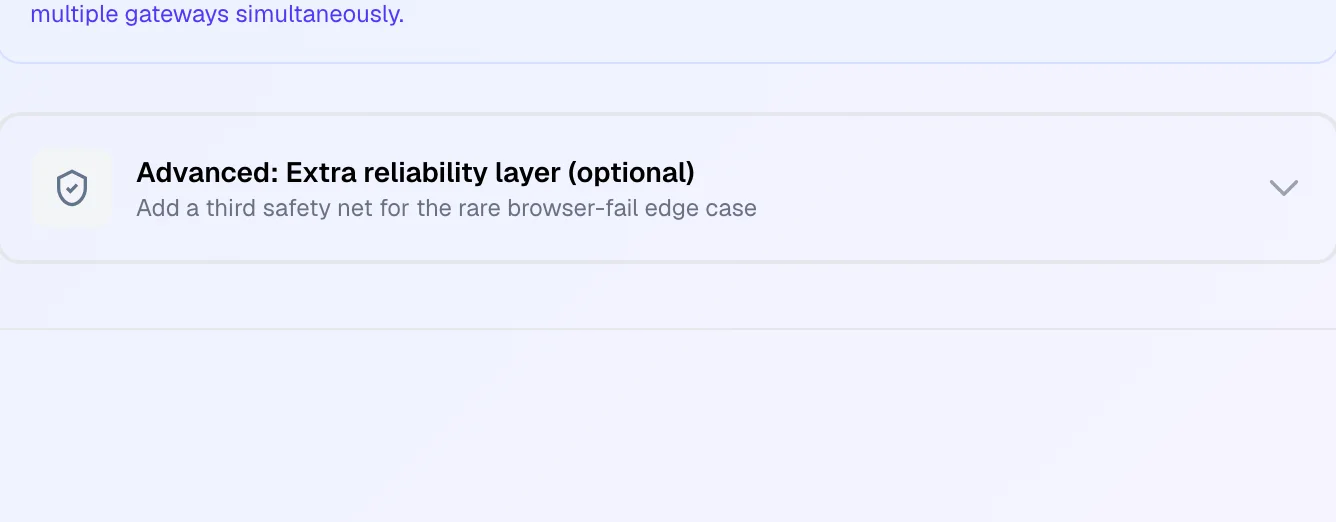
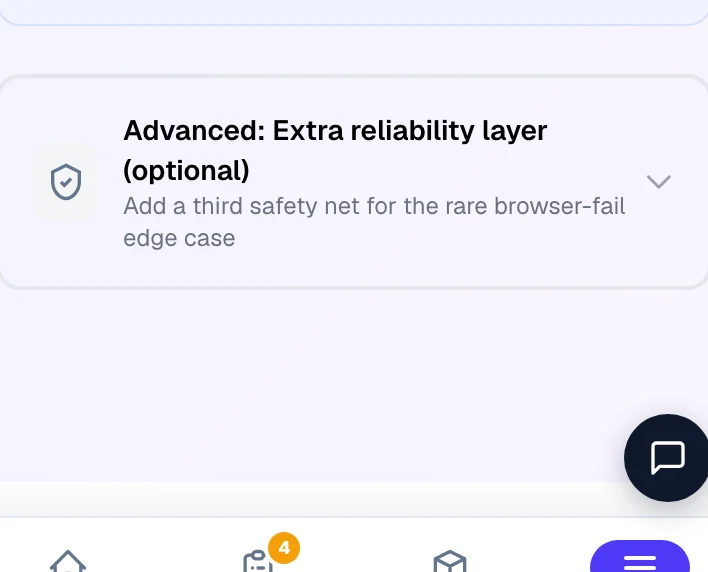
We register the webhook with Razorpay and Zoho Payments automatically the first time your credentials are saved/connected. You'll see an Auto-configured badge under Settings → Payments → Advanced: Extra reliability layer.
Cashfree / PayU / PhonePe / Easebuzz — copy one URL
Open Advanced: Extra reliability layer at the bottom of the Payments tab. Each gateway card shows a webhook URL with a Copy button and tells you exactly where to paste it (for example PayU Biz → Settings → Integration Details → Webhook URLs).
Finish the confirmation
Cashfree gives you a signing secret when you create the webhook — paste it back into the Cashfree card. For PayU and Easebuzz just tick "I've pasted the URL" — they sign messages with the salt you already saved. PhonePe asks you to choose a username and password when you create the webhook — type the same two into the PhonePe card so every message is checked, then tick the box.
CCAvenue has no webhook to paste — instead our reconciliation check asks CCAvenue's Order Status API every 5 minutes about any payment that hasn't come back, so a closed tab still becomes an order. That check only works with the separate API Access Code + API Encryption Key CCAvenue issues once you register our server IP — shown in the amber box on the CCAvenue card — (M-panel → Settings → API Keys) — paste them into the amber box on the CCAvenue card. Press Test now afterwards: it asks the Order Status API a real question and tells you plainly whether automatic confirmation is live or blind.
UPI QR — direct payments, no gateway fees
UPI QR lets customers pay straight into your UPI account with a scan-and-pay QR for the exact order amount. It's the simplest way to start — no gateway account, no fees — but you confirm each payment yourself.
How it looks to your customer: choosing UPI at checkout shows three short steps instead of the QR. The Pay button first checks the address and the rest of the order; only then a payment sheet opens with the QR, your UPI ID with a Copy button, and a 6-character payment note of letters and numbers (it is written into the QR, and most UPI apps show it beside the payment). In the same sheet, right after paying, the customer adds the payment screenshot and taps Send my order — paying and sending the order happen on the same screen. While the order can't be placed — an item no longer available, a PIN code you don't deliver to, or a cart under your minimum order value — the UPI step says why instead of showing the QR, so nobody pays for an order that can't go through.
A customer who pays and walks away is the costly case, so the sheet does three things: when they come back from their UPI app it highlights the screenshot step; if they try to close it after paying it asks Have you already paid?; and if the page is reloaded or they come back later, the checkout says You opened a UPI payment of ₹… with one button to add the screenshot. If they still leave, you see them on the Abandoned carts page as Opened UPI QR, with the amount and the payment note to look for in your UPI app.
Enter your UPI ID
Settings → Payments → UPI QR Code Payment. Type the UPI ID from your Google Pay, PhonePe, Paytm, or bank app (like yourname@okaxis) and save.
Pick your two small options
Show my UPI ID with a Copy button — keep this ON (it's on by default). Customers who can't scan the QR copy your ID instead. Show "Open UPI App" button — turn this ON only if your UPI ID is on a current (business) account; on savings accounts the amount doesn't pre-fill and customers get confused.
Verify each payment before marking paid
The customer must add a payment screenshot to send the order — the order can't be submitted without one. Open the order in Orders, match the screenshot against your bank/UPI app (the payment note helps you find it), then mark the order paid.
Always check the screenshot against your actual bank credit. Fake payment screenshots are common. Never mark a UPI order paid on the screenshot alone.
AI payment screenshot check (optional)
Turn on AI payment screenshot check in the same UPI QR section and every uploaded screenshot is checked within seconds: is it a real payment screen (not a random image), does the amount match the order, was it paid to your UPI ID, and was the same screenshot already used on an earlier order.
What you see
On the order page the screenshot gets an AI result — looks genuine, failed verification (with plain-words reasons), or could not verify. The orders list shows the same as a chip so you can spot problem orders at a glance.
What the customer sees
If the check fails, the customer is told payment not confirmed right on the order-success screen and asked to pay properly — with a Pay now button and a re-upload option. Genuine payers see Payment verified — thank you!
You still confirm
The AI reads the screenshot, but only your bank knows if money landed — a verified result still waits for you to tap Mark paid. Your first 2 checks are free. After that each completed check is paid like your other AI features: when Asha's one pool of answers runs your AI, a payment-screenshot check counts as one answer from your free daily answers or a pack (see Asha answers); otherwise the price shown under the toggle is taken from your Lentlo Credits. A check that fails to run is never paid for. There is a ceiling of 30 checks per store per day: past it, and whenever the check can't run, the screenshot simply comes back could not verify and the order waits for your eyes — nothing is ever auto-approved on a guess.
Selling digital products? Turn on Auto-deliver digital products when AI verifies (under the same toggle) and set a ₹ limit — small all-digital orders that pass the check are confirmed automatically and the download unlocks instantly. Keep the limit low: a perfectly-faked screenshot would unlock the file, so big orders should always wait for you.
Cash on Delivery + COD fees
COD lets customers pay cash when the parcel arrives — it wins trust with first-time buyers, but refused parcels cost you courier money. A COD fee helps cover that risk.
Turn COD on
Settings → Payments → Cash on Delivery → flip the toggle. Turning it off simply removes the COD option from checkout.
Set the fee (optional)
Charge a flat fee (say ₹40), a % of the order (say 2%), or both together. Below that, optionally set a minimum and maximum so the fee never goes too low or too high. Leave everything blank for free COD.
Check the live preview
The card shows exactly what a customer would pay on a ₹500, ₹1,000, ₹5,000 and ₹20,000 order — adjust until it looks fair.
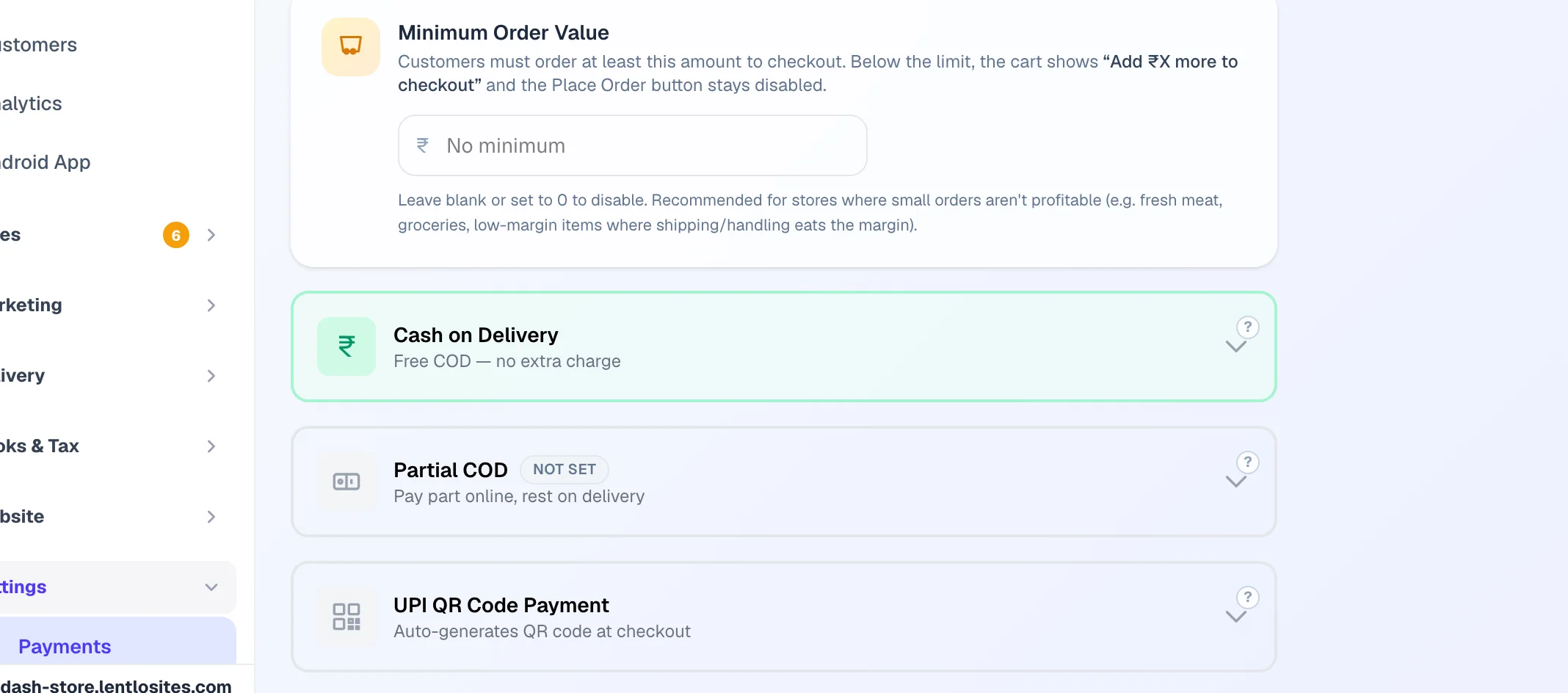
You can also block COD on individual products (from the product's edit page) or by pincode — see Shipping.
Partial COD — take a deposit, cut fake orders
Partial COD makes the customer pay part of the order online right away and the rest in cash on delivery. Once someone has paid a deposit, they almost never refuse the parcel — it's the best cure for COD losses.
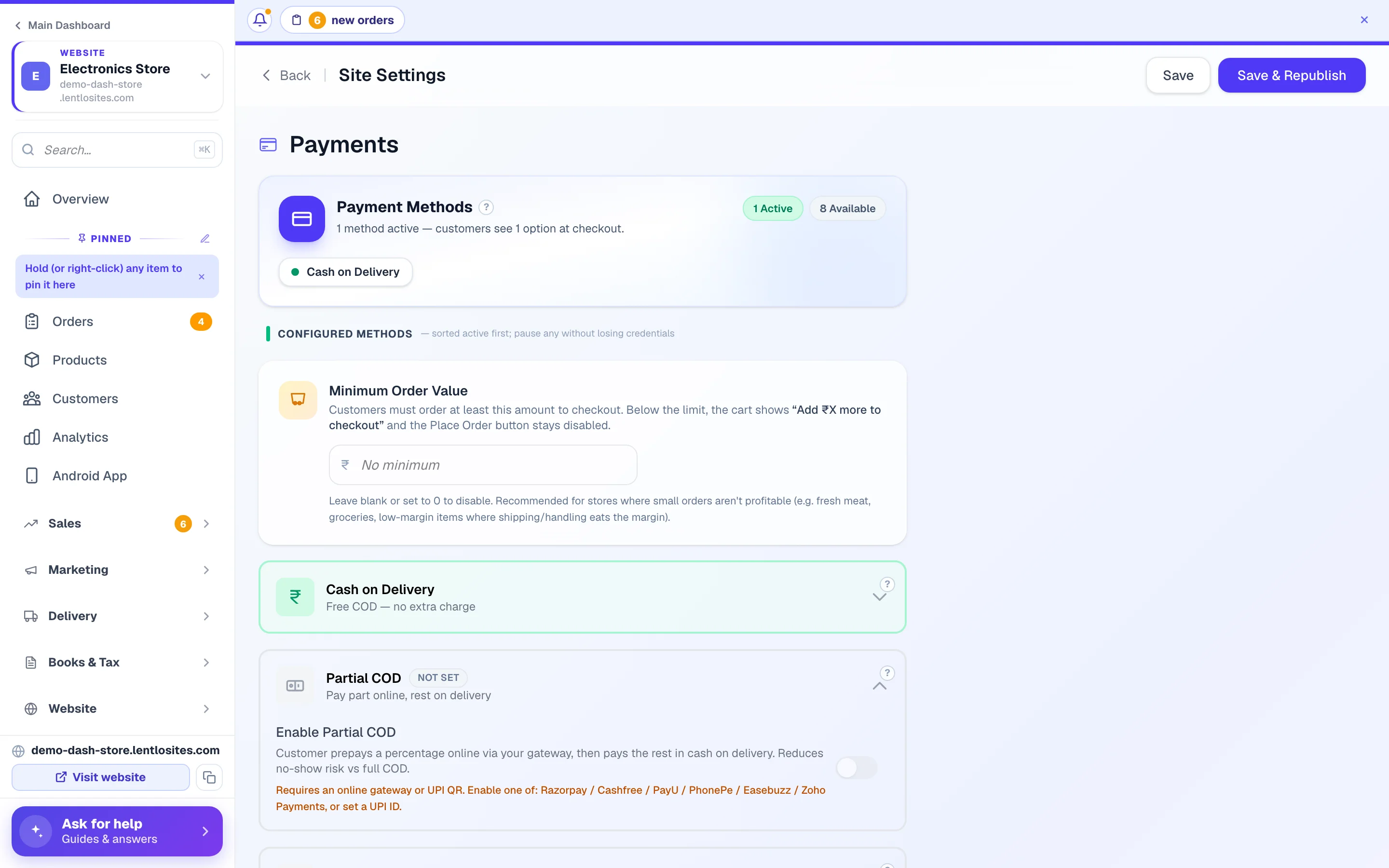
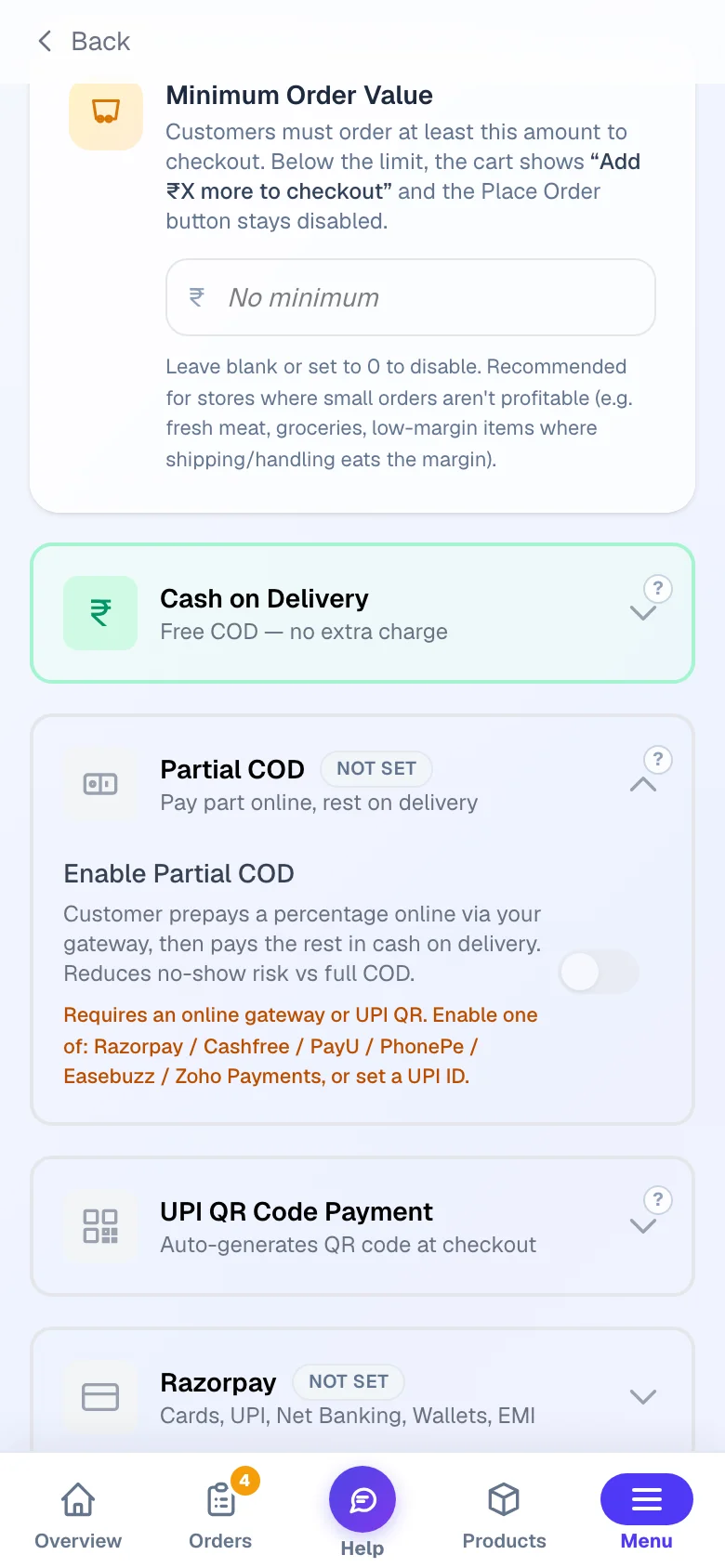
Have at least one online method ready
Partial COD needs a way to collect the deposit: any gateway or just your UPI ID. With UPI, the customer pays the deposit by QR and uploads a screenshot, same as regular UPI QR.
Enable it and pick the deposit
Settings → Payments → Partial COD. Choose a % of the order (10–90%, e.g. 50%) or a fixed ₹ amount (e.g. ₹200 online, rest on delivery).
Decide on the COD fee toggle (most shops: OFF)
"Also charge COD fee on Partial COD orders" adds your COD fee to the pay-on-delivery half. The deposit already protects you from refused parcels, so we recommend leaving it off. The online deposit amount is never changed by this fee.
Sharma Sweets — Partial COD at 20%, delivery ₹60, COD fee ₹40
- Sweets in the cart
- ₹1,000
- Delivery charge
- ₹60
- Paid online now — 20% of ₹1,060
- ₹212
- Collected at the door (fee switch off)
- ₹848
- With “Also charge COD fee on Partial COD orders” on: ₹848 + ₹40 fee = ₹888 at the door; the ₹212 online stays the same
- —
While Partial COD is on, it replaces plain COD at checkout — customers see "Partial COD" instead of "Cash on Delivery". It's also not offered on digital products or store-pickup orders (there's no delivery to split the payment on).
Default method + pausing a gateway
These two small controls keep checkout tidy: pick which method is pre-selected, and switch any method off temporarily without losing your setup.
Pause without losing keys
Every gateway card has a "Show at checkout" toggle. Flip it off and the gateway disappears from checkout, but your keys stay saved — flip it back on any time without re-pasting anything.
Pick a default payment method
When two or more methods are active, a Default payment method picker appears at the top of the Payments tab. That method comes pre-selected at checkout; customers can still choose another, and their choice is remembered while their browser tab stays open.
Minimum order value — the smallest basket you deliver
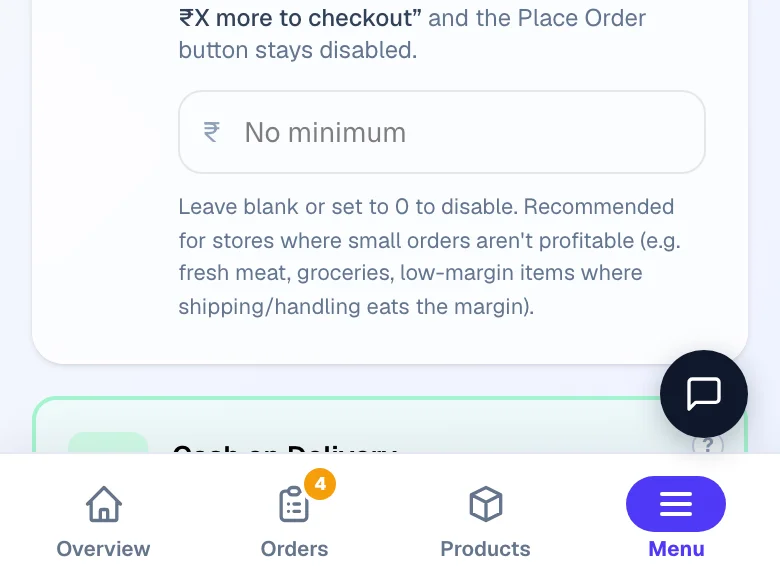
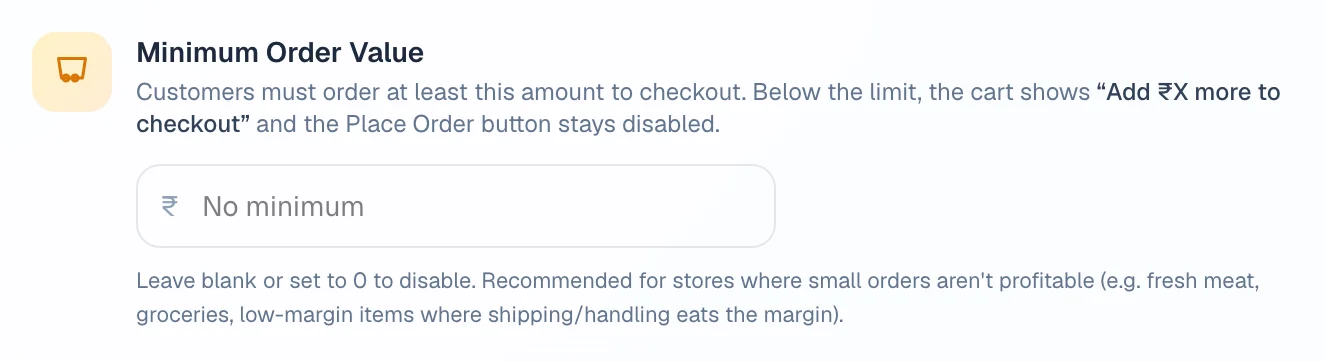
On the same Payments page, Minimum Order Value stops checkout below an amount you type (leave it blank for no minimum; Clear removes it). Below it, the cart shows “Add ₹X more to checkout” and the Place Order button stays off — and our servers refuse such an order too, so it can't be forced through. The amount is judged on the items in the cart, before delivery charges.
- Never applies to: store-pickup orders, orders you create yourself on the dashboard, repeat (subscription) deliveries, and a payment already captured.
- Member groups — if you use member pricing, a group's own minimum replaces this one for its members (it can be higher or lower).
The payment safety net — how missed payments recover
Sometimes a customer pays but their phone disconnects before returning to your site — the money is captured but no order appears. LentloSites handles this automatically, in three layers.
Normal path — instant
After paying, the customer's browser returns to our server, which creates the order. This catches nearly all payments.
Auto-recovery — every 5 minutes
We check your connected gateways every 5 minutes for captured payments that have no matching order and create the order automatically. Most "missed" payments simply appear in Orders a few minutes later — no action needed.
Payment Alerts — when you're needed
If a captured payment still can't be matched to an order, it lands on the Payment Alerts page (in your sidebar under Sales, with a red count when something's open) and as a red strip at the top of your Orders list. Each alert shows the amount, gateway, payment ID and the customer's contact.
From the alert you have two honest closes:
Create order for this payment (recommended) — confirm the items with the customer (a WhatsApp button is right there), then tap it. The order form opens with their number pre-filled; the order is created already marked paid via that gateway with the payment ID attached, so stock, sales reports and the GST invoice are all recorded like a normal sale — and the alert closes itself, linked to the order. If your order total differs from the captured amount, it still saves, with a warning on the order's timeline.
Dismiss — only when the money was handled outside: you refunded it from the gateway dashboard, it was a duplicate (the customer paid again and that order exists), a test payment, or you billed it elsewhere. Dismissing asks you to pick the reason (plus an optional note) and warns you it does not refund anything. Every dismissed alert stays visible in the page's History with who closed it, when and why — and can be re-opened with one tap if you change your mind.
Adding the webhook for each gateway shrinks the recovery window from minutes to seconds. Recommended once your store gets busy.
Double-payment protection — a UPI payment can look stuck on the customer's side (they switched to their UPI app and the payment popup closed) even though the money was captured. The checkout now remembers that attempt: it quietly checks with the server, and the moment the payment lands it shows the order confirmation instead of a live “Pay Now” button. If the customer still tries to pay the same cart again within 10 minutes, a warning asks them to wait first — “paying again could charge you twice”. If a duplicate does slip through (both payments captured), the second order is created anyway — money is never thrown away — and it's flagged Possible duplicate in your Orders list with a note on its timeline, so you can confirm with the customer and refund one.
When a gateway refuses to open
A gateway can be connected and still refuse — keys copied from the test dashboard instead of the live one, an account whose activation isn't finished, a website address CCAvenue doesn't recognise. When that happens the customer is not left staring at a dead button: checkout says "Online payment isn't available right now — please contact" followed by your shop's name, so they can still phone you, and any other method you have on (COD, UPI QR) stays available.
You find out at once, without waiting for a customer to complain. That gateway's card in Manage → Settings → Payments shows a red line — "A customer could not pay through this gateway" with the date, time and the gateway's own words. Fix the keys or the account and press Test now on that card: a passing test clears the red line, and so does the next customer who pays through it successfully. (A failure from your own Test now is labelled as yours — "Your last test failed" — never blamed on a customer.)
Collect payment for a pending order
When an order exists but isn't paid yet — a COD customer who now wants to pay online, or a phone order — open the order and share its payment link on WhatsApp. The customer pays through your own gateways and the order is marked paid automatically. Full guide: Payment links.
FAQ
Do I need all 7 gateways? No — one is plenty. Extra gateways are useful as backup if one has downtime, or to compare fees.
When does the money reach my bank? Gateway payments settle from your gateway account to your bank on the gateway's schedule (usually T+1 or T+2 days). UPI QR payments land in your account instantly. LentloSites never holds your money.
Can I run a store with just UPI QR and COD? Yes. Many small shops start exactly that way and add a gateway later — nothing else changes.
I enabled Partial COD but customers don't see it — why? Check that a gateway or UPI ID is set up (it needs one for the deposit), and remember it's hidden for digital products and store-pickup orders — and on orders whose delivery charge you add after the order (the amount is not final yet; UPI-screenshot payment is not offered on those either).
More in Payments, GST & books
Did this answer your question?
It takes one tap and it genuinely changes what we write next.