
Add team members & manage staff
Invite employees by phone and pick a ready-made role for your kind of website — from Manager to View only — or fine-tune every area. Revoke anytime. No OTP sharing.
Watch0:466 min readUpdated 21 Oct 2026
In this guide
- 1Invite by phoneThey sign in with an OTP — no password to share.
Why give staff their own login
Team accounts exist so a shop with more than one pair of hands — a billing person, a delivery manager, a part-time designer — can work on the website without the owner handing over their own login. Each person signs in with their own phone number and OTP, and sees your website in their dashboard under Websites You Manage.
- No OTP sharing — forwarding your OTP on WhatsApp gives away full owner access. A team account gives only what you choose.
- Free for your staff — working on your website costs them nothing. No recharge, no charges.
- Instant revoke — an employee leaves, you remove them in one tap. Your own login never changes.
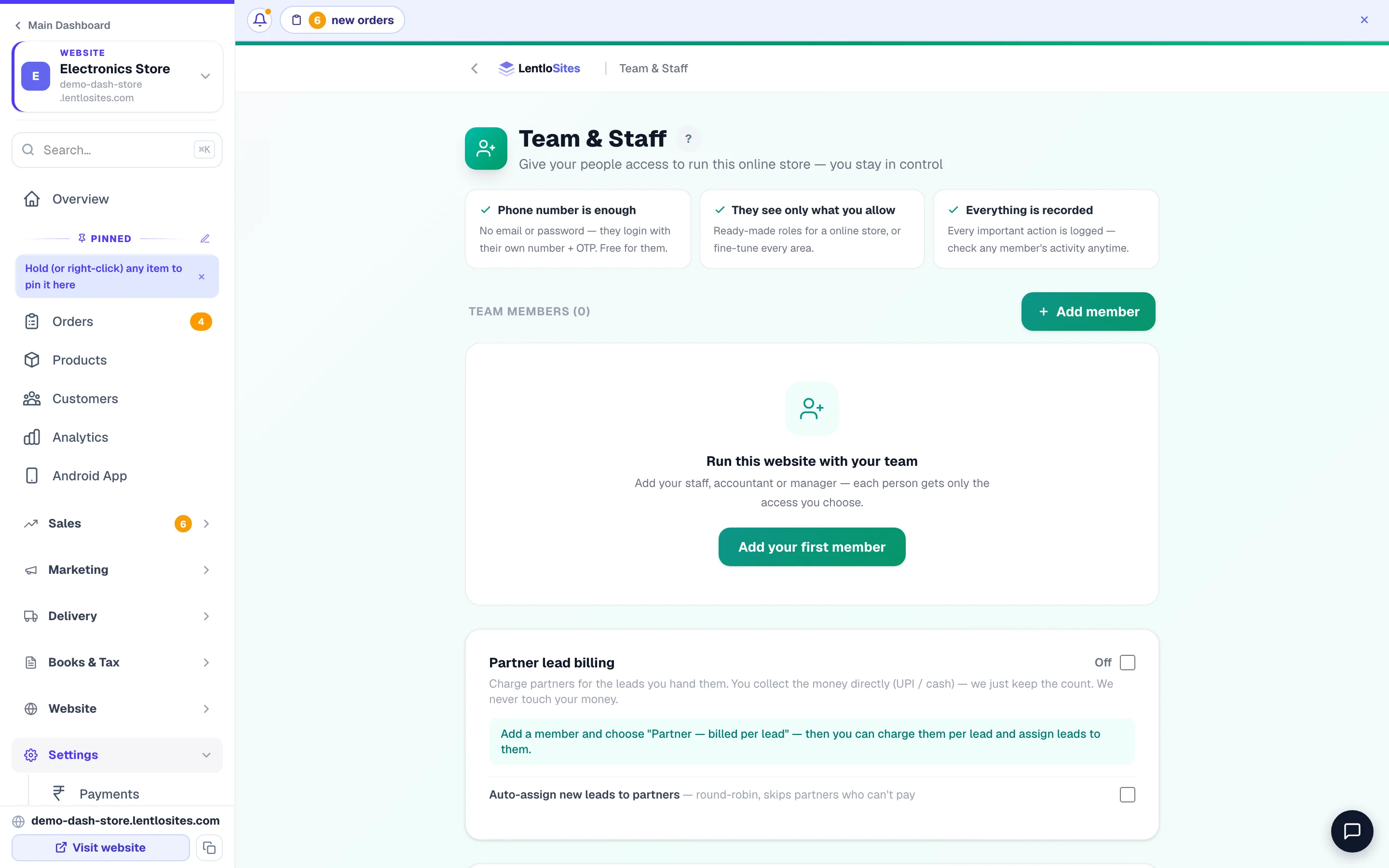
- Everything is recorded — every important action (orders, products, settings, logins) is logged automatically. Tap Activity on any member to see what they did, and when.
- Least access wins — a delivery boy doesn't need your GST reports. Pick the smallest role that covers the job.
How your staff log in — where each person signs in
Everyone signs in with their own mobile number and an OTP — never yours. Where they sign in depends on the job, and each person's card on the Team page always shows their sign-in link (Copy link or Send on WhatsApp) — so when someone forgets where to log in (“what is the login link?”), copy the link on their card and send it again.
- Managers and staff (every role except Delivery boy) — the sign-in link on their card. After signing in they find your website under Websites You Manage, or land straight on it if you chose a landing spot for them.
- Delivery boys — your shop's own address ending in /admin (for example yourshop.com/admin). That page is titled “Team sign-in” and shows your shop's name; only numbers you added as a delivery boy can sign in there, and they see only My deliveries. See Delivery boys.
- Partners — the same sign-in link as staff; they see only the leads you assign them.
- Your CRM team — invited from CRM → Team, not from this page. They sign in on the same page as you and accept the invitation; then they work in your CRM.
If an agency looks after your website, the link on each card already points to the right place — the agency's sign-in page, or your own domain's /admin.
Ready-made roles — matched to your type of website
When you add someone you pick a role — a plain-language job with the right access already bundled. The roles you see depend on what kind of website this is, in your business's own words:
- E-commerce — Store manager (recommended), Orders & delivery staff, Delivery boy, Products & stock, Marketing & offers. A pharmacy also offers Pharmacist — the Pharmacy Desk (checking prescriptions, handing medicines over) plus orders and products; it is never part of any other role, because prescriptions are health records.
- Restaurant — Restaurant manager, Billing counter (cashier), Kitchen / KOT staff, Reservations host, Delivery boy.
- Catalogue — Catalogue manager, Daily rates & catalogue, Enquiry handler.
- Car dealership — Showroom manager, Sales executive, Orders & delivery staff.
- Finance & loans — Lead manager, Partner manager.
- News — Editor — runs the newsroom, Reporter, Alerts & reader desk.
- Travel — Travel desk manager, Booking desk, Inventory & fares.
- Vehicle rental — Rental desk manager, Handover staff.
- Services, clinics, salons and other business websites — Front desk / receptionist.
- Every website also gets — Manager — runs everything, Website editor, Words & photos only, Accountant / GST, View only, and Partner — billed per lead (see Partners).
What a Website editor can change. The words, photos, pages and blocks of your website — and they can publish them. A few things in the editor stay with you: the loyalty points (what a ₹100 order earns and what 100 points are worth — anyone you allow Coupons, loyalty & offers can change them too), a car dealer's booking amount (anyone allowed Cars or Business settings), the phone and WhatsApp numbers customers reach you on in Site Settings — your shop's phone and WhatsApp numbers and any helpline, emergency, admissions or donations number your design shows (anyone allowed Business settings), and your popups and saved blocks (you or a Manager). Everywhere else — on your pages, in the header and footer blocks and in the links of Site Settings — they can remove, move or copy a phone number, a WhatsApp or call link, a group invite or a UPI ID your website already uses; only bringing in a new one is refused (anyone allowed Business settings can). Where one of these would be, the editor shows them a line saying who can change it. Their preview shows your customers' approved reviews, as your live website does.
Words & photos only — for someone who fixes typos and swaps pictures. They open the editor and can change the text and photos already on your pages, in your header and footer, and your business name and tagline — and publish. They cannot add, move, hide or remove a section, change a layout, spacing, colour or font, add or rename pages, change which header or footer shows, bring back an earlier version, or touch anything in Site Settings beyond the business words. The editor simply does not show those controls to them, and the server refuses such a change if it is ever sent. A Website editor can do everything a Words & photos member can.
Fine-tune exactly what they can do
Open Fine-tune exactly what they can do in the add/edit panel to see every work area as a simple checkbox list — Orders & customers, Products & stock, Bookings & appointments, Enquiries & leads, Customer reviews, Coupons, loyalty & offers, Customer messages, Blog, Edit the website, Edit words & photos only, Sales numbers & reports, Invoices, GST & books, and — under Advanced (grant carefully) — Business settings, Custom domain, Domain DNS records and Customer records (CRM). The names follow your kind of website (a restaurant reads Food orders & billing and Menu & dishes). Tick what they need; everything else stays closed. Three small tags help you decide:
- Money — this area shows your sales figures or money records (reports, books). Keep it off if the person shouldn't see revenue.
- Live website — this area changes what customers see (the editor, publishing).
- Sensitive — Business settings (it includes payment gateway keys and custom code), custom domain, the domain's DNS records (when your domain's nameservers are managed here — a wrong edit there can stop your email) and, on a pharmacy, the Pharmacy Desk. Grant only to someone you fully trust.
The green box at the bottom always says, in one line, what this person will be able to do — read it before you save.
Adding a team member
Adding takes under a minute — you only need their mobile number.
You can also ask the assistant in your dashboard's chat — “add Ravi, 98111 22233, as store manager”. It shows a card with the person and one of the same roles this page offers; nothing changes until you tap Confirm. On your shop's own web address it asks for the same one-time code this page asks for, and Undo on the card removes them again. Changing or removing someone later is done here.
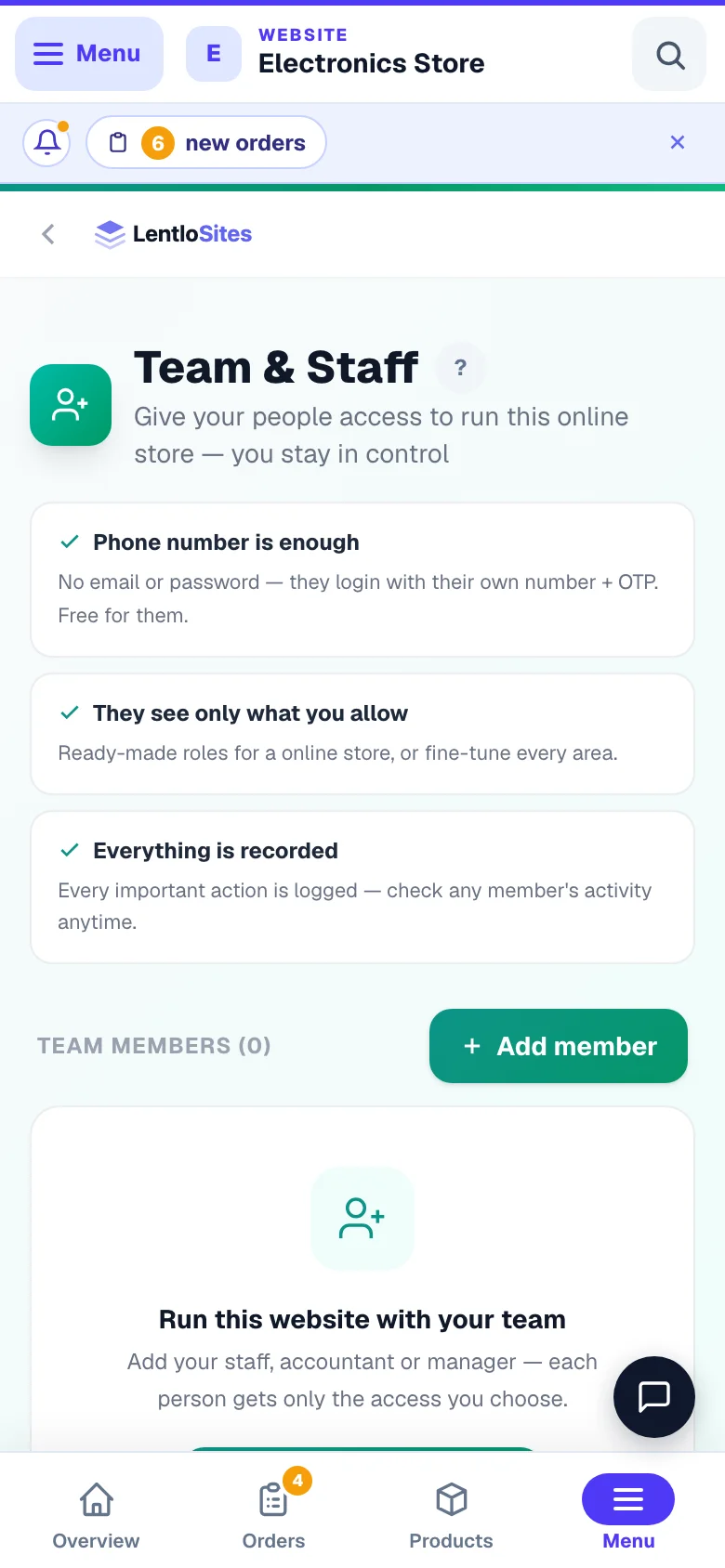
Open Team & Staff and tap Add member
Go to Dashboard → your website → Team & Staff (in the Settings group of the side menu). Only you as the owner see this page — team members can't add other team members.
Enter their name and phone, pick a role
Type a name you'll recognise ("Ravi — evening shift"), their 10-digit mobile number, and choose a role. Fine-tune if needed. Run more than one website? Open Also add to your other websites to give the same person the same access everywhere in one go. Then tap Add member.
Send them the login link on WhatsApp
If they already have an account with that number, they get access instantly — whether they registered it as 10 digits or with +91 in front. If not, they show as Waiting for signup — tap Send on WhatsApp on their card: it opens WhatsApp with a ready-made message and the login link. The moment they sign up with that same number (their own OTP, on their own phone), access switches on automatically — and it's completely free for them.
If they already run a website of their own here, they'll see both — yours and theirs — and can switch between them in their dashboard.
Adding a delivery boy? His link is different — it is your shop's own address ending in /admin, shown on his card. See Delivery boys.
Change, pause or remove a team member
- Edit access — tap Edit access on their card to change their role or fine-tune areas. It applies straight away; they don't need to log out. Use the Copy access from chips to give someone the same access as an existing member in one tap.
- Pause — stops their access instantly WITHOUT removing them (long leave, seasonal staff, a dispute). Resume brings everything back exactly as it was.
- Check their activity — tap Activity to see their recent actions on this website, newest first.
- Remove — tap the bin icon and confirm. Their access ends immediately, on every device. Your data stays; their own account keeps working — they simply can't see your website anymore.
- Re-add anytime — add the same phone number again and they're back, with whatever role you pick this time.
Delivery boys
Delivery boy is a special job: he sees only the orders you give him to deliver — the customer's phone, address, map location, the items and the cash to collect — on one screen called My deliveries. He cannot open your orders list, sales, customers or anything else, so this job cannot be mixed with other permissions (the panel tells you if you try). Someone who handles orders and also delivers gets Orders & customers plus Deliver orders instead. A delivery boy signs in at your shop's own address ending in /admin — the link is on his card, with Send on WhatsApp and Copy link — not on the login page your other staff use. You give out orders on the Deliveries page — see Deliver with your own delivery boys.
Choose where they land after login
Each member's card has a small “After they sign in, open” setting: leave it on their own dashboard, or land them straight on this website or this website's Orders — perfect for a billing person who only ever works orders. (Someone who can also deliver gets a third choice, this website's Deliveries; a delivery boy always lands on My deliveries, so his card shows no choice.) Three honest rules: it's only a landing spot (it never limits what they can open); if they set their own start page in Account settings, their choice wins; and the moment they create a website or business of their own, they land in their own world automatically.
Asha for your team — you set the limits
Every team member can ask Asha, the dashboard helper, from their own login — and you decide how much. When you add or edit a member, a small “Can ask Asha” block sits under the access boxes with three controls:
- Can ask Asha — switch it off and Asha tells them “Ask your name to turn on your Asha access” and nothing more. Their dashboard keeps working as usual.
- Free answers a day — 5 unless you change it, never more than your own daily allowance, reset at midnight. Quick replies (“where is coupons?”) never count.
- Answers from your packs, for life — after their free ones and their own pack, how many of your pack answers they may use in total. 0 = none. The card shows how many they have used.
A member can also buy an answer pack of their own — it is theirs alone and never touches yours. Each member's card shows the setting in one line (“Asha: on · 10 free a day · 3 of 50 from your packs used”); tap Edit access to change it. Everything about your credits, plans and billing stays yours — Asha never discusses them with a team member.
What team members can never do
Some things stay with you no matter which role you give — so even your Manager can't take the shop away from you.
- Team changes — only you (and your agency, if one manages you) can add, change or remove team members.
- Plan & credits — your plan, your credits and billing never appear in a staff member's menu.
- Deleting the website — owner-only, always.
- Payment settings & domain — closed by default; you can grant them explicitly under Advanced (grant carefully) in fine-tune (they carry a Sensitive tag for a reason).
Never share your OTP — add them as a team member instead. Your OTP is your full owner login: domain, plan, credits, even deleting the website. A team account limits the damage if their phone is lost or misused.
Partners — outside people you can charge per lead
The Partner role is for someone outside your business — a freelancer or agent who works your enquiries. Unlike staff, a partner sees only the leads you assign to them, and you can charge them for each lead.
- Partner lead billing — a switch on the Team page. Set a price per lead, and choose Prepaid (they buy credits from you first, with an optional block when credits run out) or Postpaid (pay later).
- They pay you directly — cash or UPI, hand to hand. The Team page only keeps the count; this money never passes through anyone else. The + Credits button just records what they paid you.
- Auto-assign — optionally share new leads between partners round-robin, skipping partners who can't pay.
- Removing a partner is money-safe — the leads billed to them return to the pool and the charges reverse automatically. A removed partner with money still owed (or unused credits) stays visible as Removed · settle up until you settle.
See what your staff did — the Activity log
Open your website → Settings → Activity log. Every change on the site — an order cancelled, a price edited, a page published, a domain added, a staff member invited — is listed with who, when, the before → after of edited fields, and the device it came from. Filter by person, by area (Orders, Products, Money, Content, Settings, Staff…), by "needs a look" (deletions, cancellations, access changes), or search an order number; save any filter set as a named view for next time. Owners and your provider only.
What about your CRM (credit, invoices, deals)?
Your CRM is account-level and has its own separate team — open CRM → Team to invite people into it. Website staff are different: with the Customer records (CRM) permission they can only see this website's customers, read-only — they can never touch your customer credit, CRM invoices or deals from a website role. Partners never see customer records at all (only the leads you assign them).
One thing worth knowing if you keep more than one business book in the CRM: a CRM team seat covers all of that account's books, not one of them. If a person should only see one business, give them a website role here instead of a CRM seat.
Restaurants — limit a person to one branch
If your website runs Restaurant Mode with more than one outlet, every team member's card gets a Branch access dropdown. Pin someone to one branch and they see only that branch's orders, tables and bookings — the Andheri manager never sees Borivali's counter. Leave it on All branches for people who work across outlets.
If an agency manages your website
Some owners have their website looked after by an agency. In that case the agency can also add or remove team members on your behalf — the people they add appear in the same Team list you see, and you can manage them too. If your dashboard lives on your own domain (yourshop.com/admin), your staff log in there as well — same link, same OTP, your branding.
The same door now works for the people you invited into your CRM team. Someone with only a CRM seat signs in on your domain and lands straight in the CRM — they see the CRM, WhatsApp and Help, and nothing else of your website. If they haven't accepted the invitation yet, the only screen they get is the invitation itself, under your brand, with a Sign out link. Nobody else's business ever shows up there: one domain means one business.
Quick rule of thumb: family member running the shop → Manager. Billing/packing person → Orders & delivery staff. Person who only carries orders to customers → Delivery boy (he signs in at your shop's address ending in /admin). Cashier → Bill counter. Content writer → Website editor. Accountant → Accountant / GST. Outside agent working your enquiries → Partner.
More in Your account & plan
Did this answer your question?
It takes one tap and it genuinely changes what we write next.