
Zone Delivery Days (Route Delivery)
Deliver by area on set days — water cans, dairy, tiffin. Zones by pincode, a van calendar, and an optional "want it sooner" extra.
6 min readUpdated 21 Oct 2026
In this guide
Who should use this
This feature suits shops that run a delivery route themselves, on fixed days per area — not shops that hand parcels to a courier.
Water cans & dairy
The van covers one locality per day on a rotating round.
Tiffin & fresh food
Meat, fish, veg boxes — items prepared for a known delivery day.
Multiple riders
Cover every area on every delivery day instead of rotating.
Not for couriers
If Shiprocket/Delhivery ships your parcels, use normal Shipping instead.
One delivery mode at a time. Zone Delivery Days and Delivery Scheduling (fixed weekdays + time slots for everyone) cannot both be on. If Delivery Scheduling is on, the page warns you — and saving with zone delivery switched on turns it off automatically. You can switch back any time.
Turn it on
The whole setup lives on one page, and nothing changes on your website until you press Save.
Open Delivery Days
From your dashboard sidebar, look under Delivery and tap Delivery Days. You can also reach it from the Orders page (the Zone delivery button) or from the Shipping page (Delivery timing & schedule → Manage Zone Delivery Days).
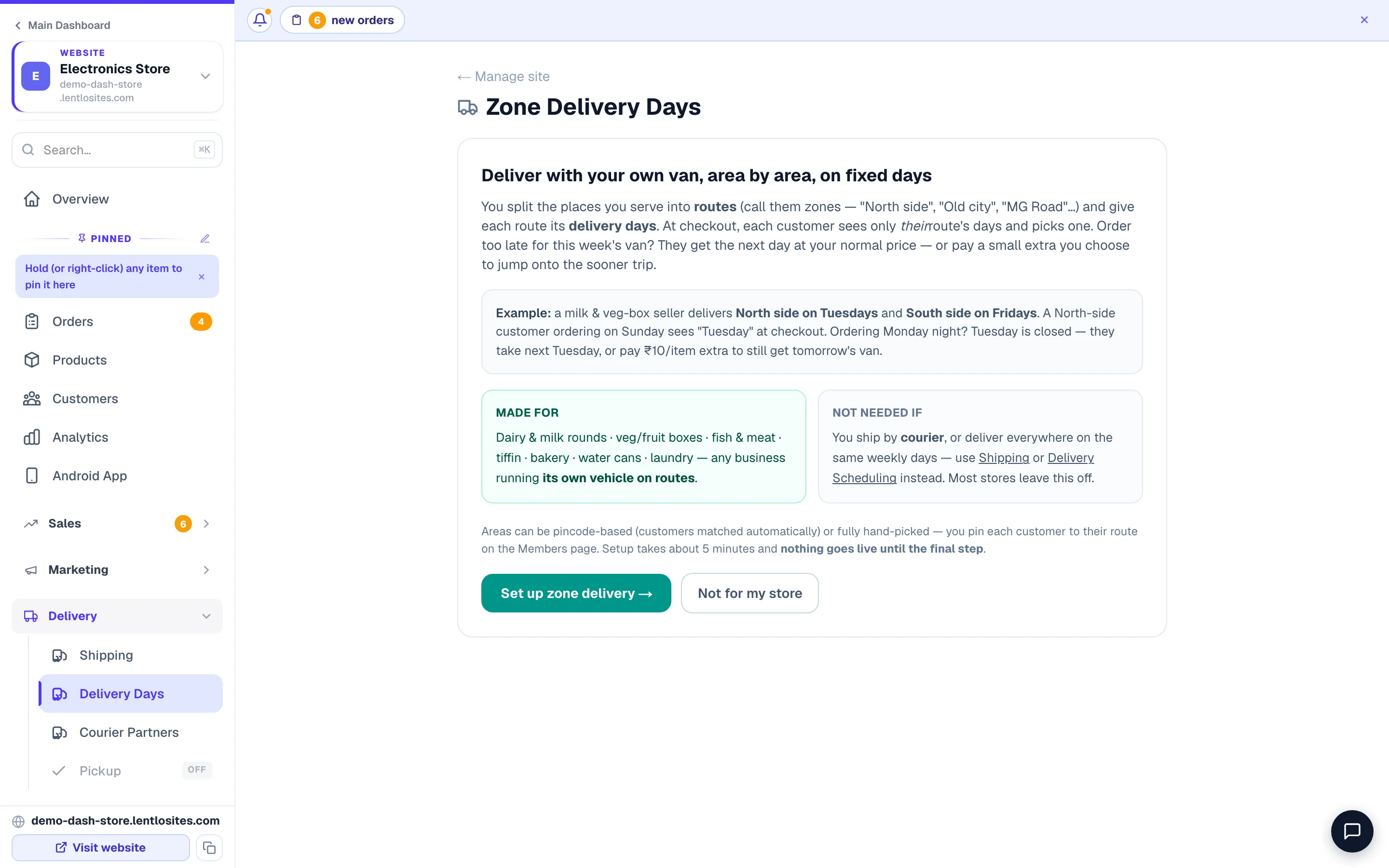
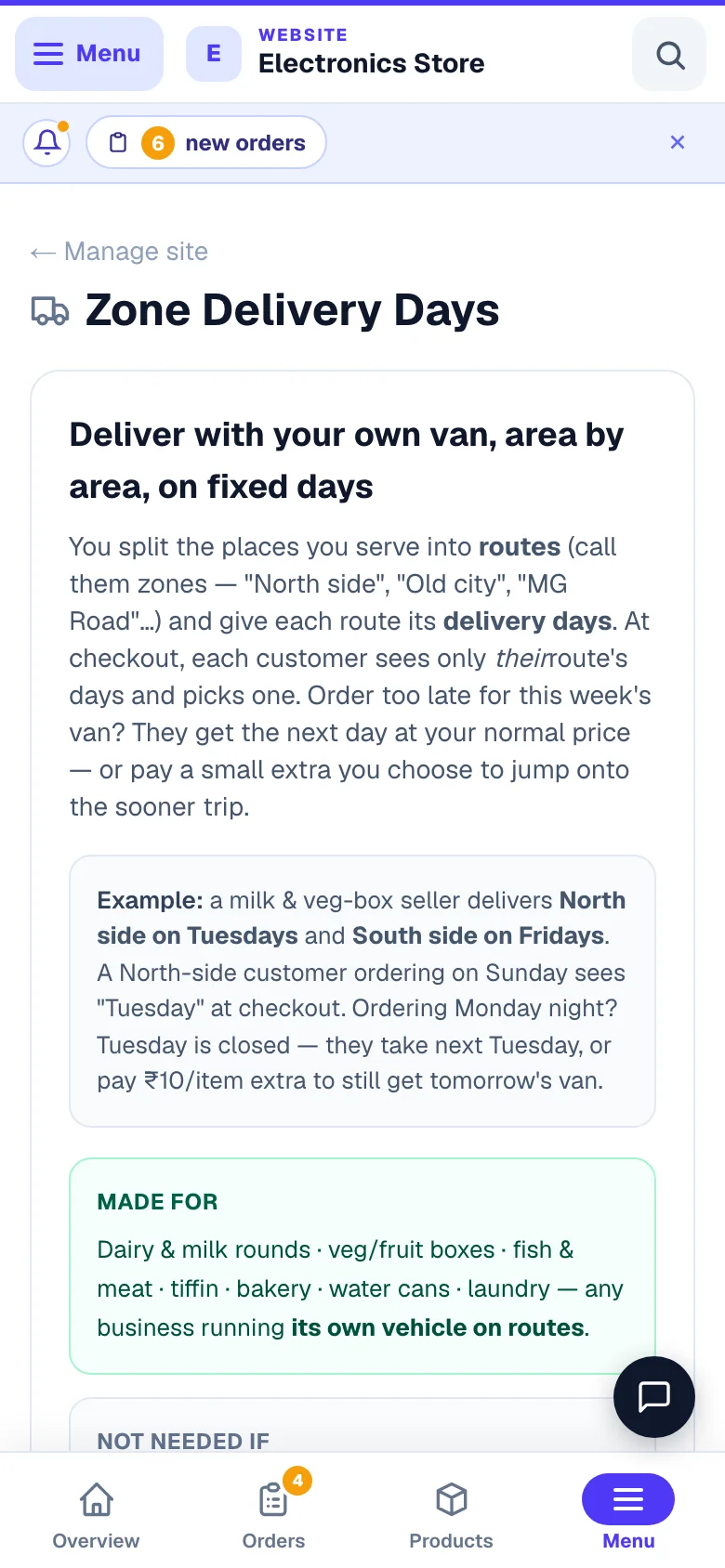
Read the intro, then tap Set up
First visit? The page opens with a plain-language intro — what zone delivery is, a worked example, who it's for and who doesn't need it. Nothing is configured and there's no switch to trip over. Tap Set up zone delivery to start a 3-step guided setup: 1) name your routes, 2) pick delivery days, 3) review & turn on. Nothing goes live until you tap the green button at step 3 — explore freely. (If the feature was switched on earlier by mistake but never set up, the intro says so and offers a one-tap Switch it off.)
Once set up, the page shows everything at once — switch, zones, calendar, extras — for day-to-day running.
Pincodes are optional. If your whole delivery area shares a single pincode (common for one-town route businesses), skip them entirely: name your route zones, add delivery days, and pin each customer — or each approved address — to their zone on the Members page. A pinned zone always wins over the pincode anyway. Routes start empty; use + Add your first zone or the one-tap Start with 4 sample zones button.
Step 1 — group your pincodes into zones
A zone is simply a named delivery route (South, East, MG Road…). Customers land in a zone either way: you pin them (or, with address approval on a members-only store, each approved address) to a zone yourself — your assignment always wins — or, if you've added pincodes to zones, a new customer's pincode places them automatically. Run whichever suits you: pincodes for auto-matching, hand-pinning for tight route control or when your whole area shares one pincode, or both together.
Name your zones (pincodes optional)
The page starts empty — add your own zones, or tap Start with 4 sample zones and rename them. Pincodes are optional: paste them into a zone (commas or new lines) to auto-match customers by address, or skip them entirely and pin customers to zones on the Members page.
Let the page catch gaps for you
If you already set per-pincode delivery rates on the Shipping page, this page compares the lists and warns when some of those pincodes aren't in any zone — customers there would see "no delivery days". One tap adds them all to a zone of your choice.
Keep each pincode in only one zone. If a pincode appears in two zones, the customer is placed in whichever zone is listed first — the second zone's days never show for them. The page shows an amber warning listing any such pincodes.
Step 2 — build your delivery calendar
The calendar says which zone (or zones) your van visits on each date, and by when a customer must order to catch that day.
Set your order-by rule — it's saved with your settings
At the top of the calendar section, set "Customers must order X days before each delivery". This rule is saved — every day you auto-fill or add later uses it, and it can never quietly reset. On an existing calendar the page reads the rule from your current days and shows a small "read from your current calendar" note — check it once and Save.
Tell the page how each zone is delivered
Under Auto-fill delivery days, each zone gets its own rhythm: In rotation (the van covers one rotation area per day, cycling in order), Every day (covered on every delivery day — a nearby radius, or every zone for multi-rider shops), or On days… (fixed weekdays only, like a Saturdays-only route). Tick your weekly off days, and list any upcoming holidays to skip. Two one-tap presets set all zones to a rotating van or to every-day coverage. On an existing calendar the page reads this pattern from your saved days — check it once.
Add days — your existing days are never touched
Pick a From and To date (the page suggests about 3 months) and press Add days — new days are added after the ones you already have; days already in the calendar are left exactly as you set them. Want to rebuild instead? Replace upcoming days… asks you to confirm first and tells you how many days it would replace — past days are always kept. When the calendar runs low, the reminder banner has a one-tap + Extend by 1 month that continues your pattern (the rotation picks up exactly where it stopped).
Fine-tune any day
Past days are tucked away behind a Show past days button, so the list opens at today. Every upcoming date shows chips for your zones — tap a chip to add or remove that area from that day. Tap a day's order by … ✎ to change just that day's order-by date (quick 1/2/3-days-before buttons, or any date), or use "Order-by for all upcoming days" in the list header to change every upcoming day at once — the page warns you first if some days would close for normal-price orders right away. Removing an upcoming route day asks whether to skip it and shift the later route days (a holiday — each later day moves one step, no area gets missed) or just remove that one day. Days whose order window has already passed show as closed.
Choose when a delivery day stops taking orders
Under "When should a delivery day stop taking orders?" pick one of two options: take orders the whole day (till 11:59 PM of the last day to order — the default), or stop earlier at my closing time (say 8:00 PM — most businesses stop in the evening to pack and plan the route). A "How it works with your calendar" box shows exactly what your choice means using your own next delivery day — delivery day, last day to order, the moment ordering stops, and what happens after. When you set a time, the customer's picker shows it too ("Order by 8:00 PM today") and the day drops out the moment it passes.
Don't let the calendar run dry. When your last delivery day is less than 2 weeks away, the page shows a reminder with a one-tap + Extend by 1 month — otherwise customers will soon find nothing to pick.
What customers see at checkout
Once you save, checkout asks each delivery customer for their pincode and shows a delivery-day picker for their area only — a South customer never sees East's days, because your van isn't in South that day.
- Days they ordered in time for show at your normal listed price.
- Picking a day is required — the Place Order button stays locked until they choose one.
- Store-pickup orders and digital-only orders are never asked for a delivery day.
Step 3 (optional) — charge extra for "sooner" delivery
When a customer misses a day's cut-off, that day can still appear under "Need it sooner?" — at a small premium you control. The van is going anyway; they're paying to jump in late.
Entirely optional — and now a single switch. The section starts with the switch "Let customers book a just-closed day for an extra charge". Many route businesses don't sell late slots at all: turn it OFF and a closed day simply disappears — customers pick your next available day at the normal price. Your extra-charge settings are kept and come back if you switch it on later.
Set an extra % per product
In the third section, give each product an extra percentage — or type one number and tap Apply to all. Leave a product at 0 for no premium. Heavier or fresher items can carry a bigger extra than the rest.
Set the minimum notice
Allow "sooner" delivery from X day(s) ahead controls how late a late order can be — with 1 day, a customer can book tomorrow's missed slot, but never today's.
Set a last order time (optional)
A sooner delivery is a special trip, and you need time to prepare it. Tick "Set a last order time for ‘sooner’ days" and choose a time plus when it falls — for example take orders until 8:00 PM, 1 day before delivery: tomorrow's sooner slot then disappears at 8 PM tonight, and customers see only later days. Pick "on the delivery day itself" if you take same-day orders until a morning cut-off, or 2+ days before if you need a longer head start. A live example on the page shows exactly what your numbers mean in real dates.
You also control what customers see: keep "Show the deadline to customers" ticked and the day picker tells them "Order by 8:00 PM today" — they know how long they have, which nudges them to order now. Untick it and the slot simply closes quietly at your time. Leave the whole thing off and sooner days stay bookable any time of day, exactly as before.
Choose how the extra grows when they book late
Under "How much extra when they book late?" pick one of two behaviours:
- Same extra, any sooner day (default) — one day late or three, the extra charge is the same.
- Grows each day they're late — booking 1 day after the order-by date costs ×1 the extra, 2 days late ×2, 3 days late ×3. You can change any day's multiplier (say ×1, ×1.5, ×2) and add more days; booking even later just uses the last day's ×. A live example under the ladder shows the exact rupee amounts.
Example with a ₹500 item carrying a 20% sooner extra (+₹100): a customer booking 2 days after the order-by date pays +₹200 for that item, 3 days late +₹300 — the same items simply cost more the later they book. Each delivery day in the "Need it sooner?" row shows its own price tag, so customers always see the exact extra before choosing.
The extra is worked out on our servers from the prices in your catalog — customers can't tamper with it — and it appears on the order and its bill as a separate Off-schedule Delivery line, so your product prices stay clean. On a GST-registered store whose prices include GST (the usual setting) that line is taxed like the goods it is delivering and the customer's total is unchanged — only the tax split on the bill; on a store that adds GST on top of its prices the line carries no GST for now. If the day rolls over while someone is mid-checkout and the extra grows, we never silently charge more — they're asked to re-confirm the day at the new price.
One "sooner" charge, never two. Delivery Scheduling has its own priority-day surcharge. Since only one delivery mode can be on, a customer can never be charged both — the dashboard enforces this when you save.
Pin a customer to a zone (when one pincode falls in two areas)
Some pincodes are big — one side of it is your South route, the other side is East. Automatic pincode matching can only pick one. For these customers, pin them to the right zone yourself:
Open Members Access
Go to Manage → Settings → Members Access (the page is headed Members). Every customer row has a Delivery zone dropdown (it appears once you've created zones). It sits right next to Approve — so on stores with member approval you can approve someone and place them on their route in the same moment.
Pick their zone
Choose the zone you actually serve them from. From then on, that customer always sees that zone's days at checkout — whatever their pincode says — and their picker shows "📍 your delivery area" so they know it's set for them. To go back to automatic, pick the first option in that dropdown: it reads "Pincode decides" when your zones carry pincodes, and "Not on a route yet" when they don't (because with no pincodes there is nothing to decide automatically).
- Pinning works for signed-in customers (they sign in to order on members stores anyway).
- With "Only deliver to my zones" on, a pinned customer can order even if their pincode isn't in your lists — you've personally put them on a route.
- Tick several customers → the selection bar at the top gets a Delivery zone action to pin them together. The Delivery Days page shows a "N pinned" count on each zone, and tapping it opens the Members page.
"Only deliver to my zones"
This switch is for businesses that deliver nowhere else — no courier, no exceptions. With it on, a pincode outside every zone simply can't order: the customer sees "outside our delivery area" at checkout, and our servers refuse the order too.
- Off (default): areas outside your zones can still order — those parcels ship through your normal Shipping rates, like any courier order.
- On: only zone pincodes can order for delivery. Store pickup keeps working for everyone.
Your delivery fee still applies
Zones decide when you deliver, not how much you charge. Your regular delivery fees from the Shipping page apply to zone orders exactly as before, and the "sooner" extra is added on top when used. If a zone pincode has no delivery rate set, the page shows a note so you can add one.
Want some products delivered only on certain routes — fresh items on your Tuesday run, dry goods anywhere? Each route is also an area under Where you deliver: pick it for a category or a product and customers elsewhere see "Delivers only in …". Routes count as areas only while Delivery Days is switched on.
Running your delivery days
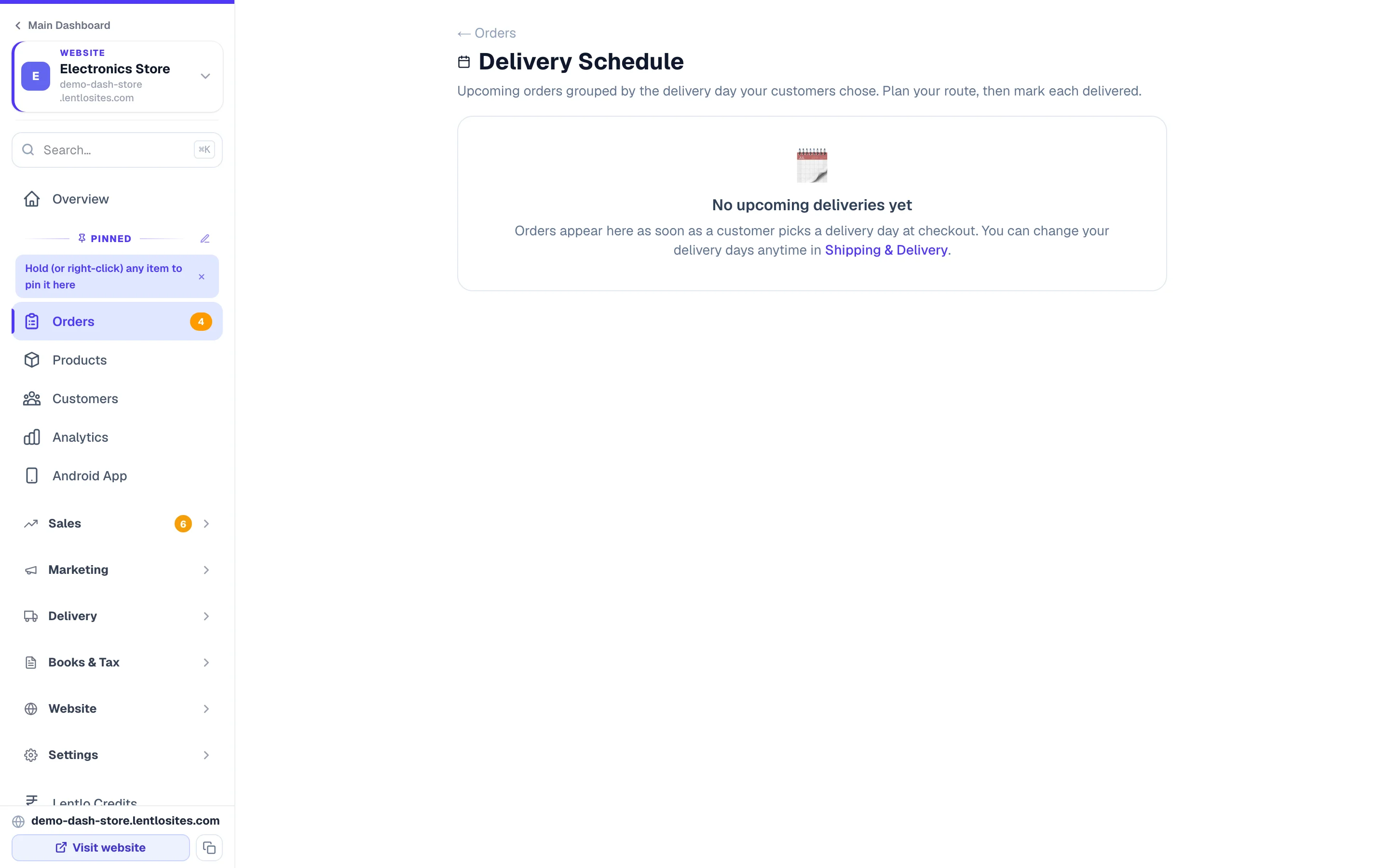
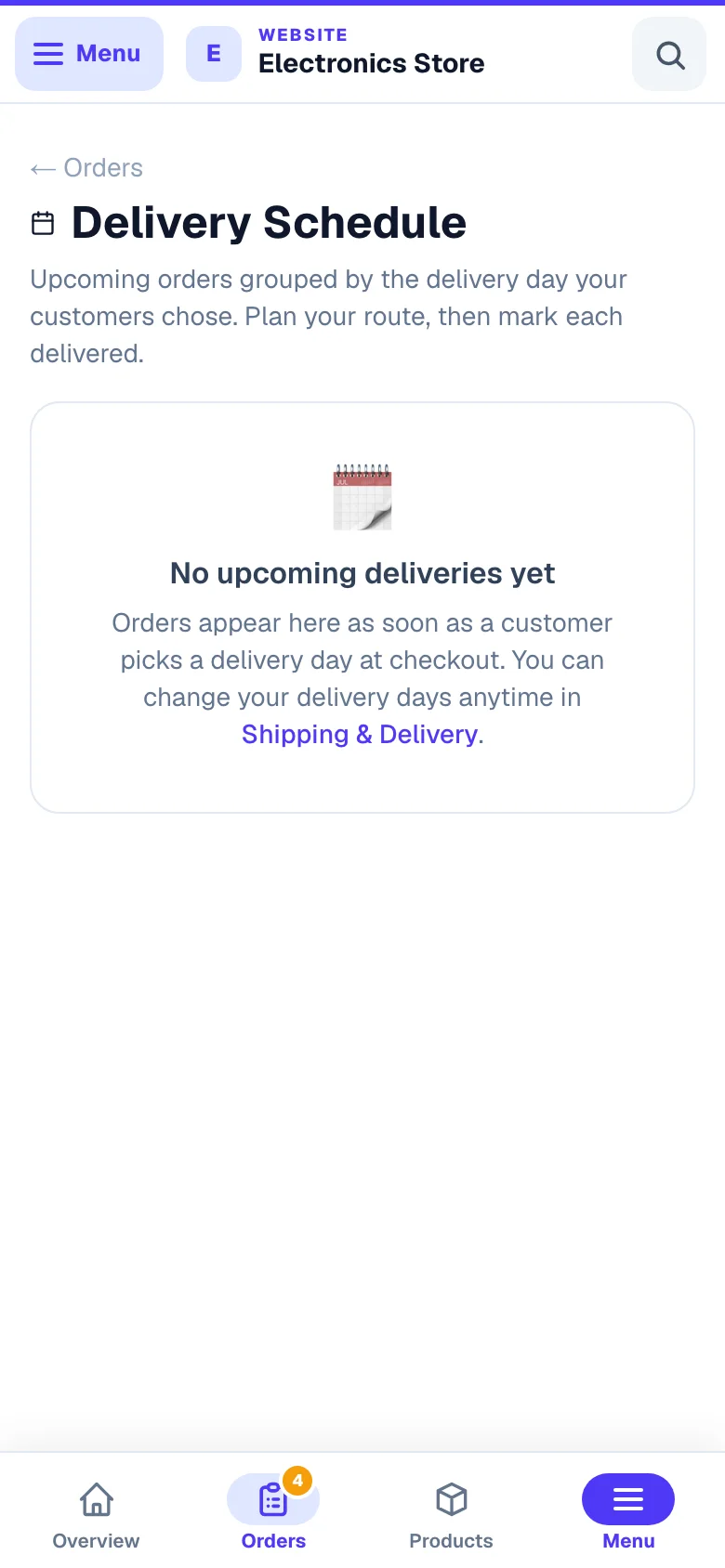
On delivery morning, you need one list: who gets a delivery today. The Orders page grows a delivery-day filter (Today, Tomorrow, This week, Overdue, or any date), and the Delivery schedule view lists each upcoming day's orders with the customer's name, phone, address, item count — and the total cash to collect on COD orders for that run.
Every order also shows which zone it belongs to — a small map-pin zone tag on the order row, on the order's page, and on the Delivery schedule (each day's header adds a zone breakdown like North ×3 · South ×2). Off-schedule orders carry an amber Sooner tag with the extra amount the customer paid (Sooner +₹200), so a special trip is never a surprise. In the Orders page Filters panel you can narrow by Delivery day type — Sooner (paid extra) or Regular day — or by Delivery zone, and there's a one-tap Sooner view chip above the list. The orders download carries Zone and Sooner columns too.
The Delivery schedule has the same filters at the top: zone chips (tap North to see only North's days and orders — the day counts and cash-to-collect recompute for what's shown) and a ⚡ Sooner only toggle for just the special trips. Filters sit in the page link, so you can send your driver a "North only" link directly.
Common questions
Can I use zone delivery and time slots together? No. Zone Delivery Days and Delivery Scheduling are separate modes and only one can be on. Pick zones if your days differ by area; pick Delivery Scheduling if everyone shares the same weekdays and time slots.
What happens if a customer's pincode isn't in any zone? With "Only deliver to my zones" off, their order ships through your normal Shipping rates with no day picker. With it on, they can't place a delivery order at all.
Is the "sooner" extra charged automatically? Only when the customer themselves picks an off-schedule day from the "Need it sooner?" options. Ordering before the cut-off always costs your normal price. Products set to 0 add nothing even on sooner days.
Can I still take a phone order for a closed day? Yes. When you create an order from the dashboard (manual orders), the form shows a Delivery day picker with the customer's zone and the same days they'd see at checkout — regular days, ⚡ sooner days with the exact extra, and the zone's days that have already closed for online orders (marked "closed online" — cut-off passed, or sooner switched off) as tappable chips too, plus any other date you type. On any off-schedule day you choose whether to charge the sooner fee or deliver it free — the closing rules only limit customers ordering on your website; you're the one making the trip, so you decide.
Do my changes go live immediately? Changes apply only when you press Save changes — then your website updates on its own within a minute, no manual publish needed. Until you save, you can Discard to go back to the last saved setup. If the same settings were saved from another tab or device in the meantime, the page pauses saving and asks you to reload — your newer save is never overwritten.
Does this change anything for pickup? No. Store pickup ignores zones, calendars and the sooner extra completely.
What if my shop confirms orders first? When you confirm orders first, the day a customer picks is their wish. The picker shows no sooner extra and nothing is added; a customer who picks no day can still send the request. You set the real day — and any charge — when you confirm it.
More in Delivery & shipping
Did this answer your question?
It takes one tap and it genuinely changes what we write next.