
Contact form inbox
Every message your website's forms send — contact form, your own forms, notify-me, loan applications — in one inbox. Reply on WhatsApp in a tap, export to Excel.
Watch0:385 min readUpdated 21 Oct 2026
In this guide
Where these come from
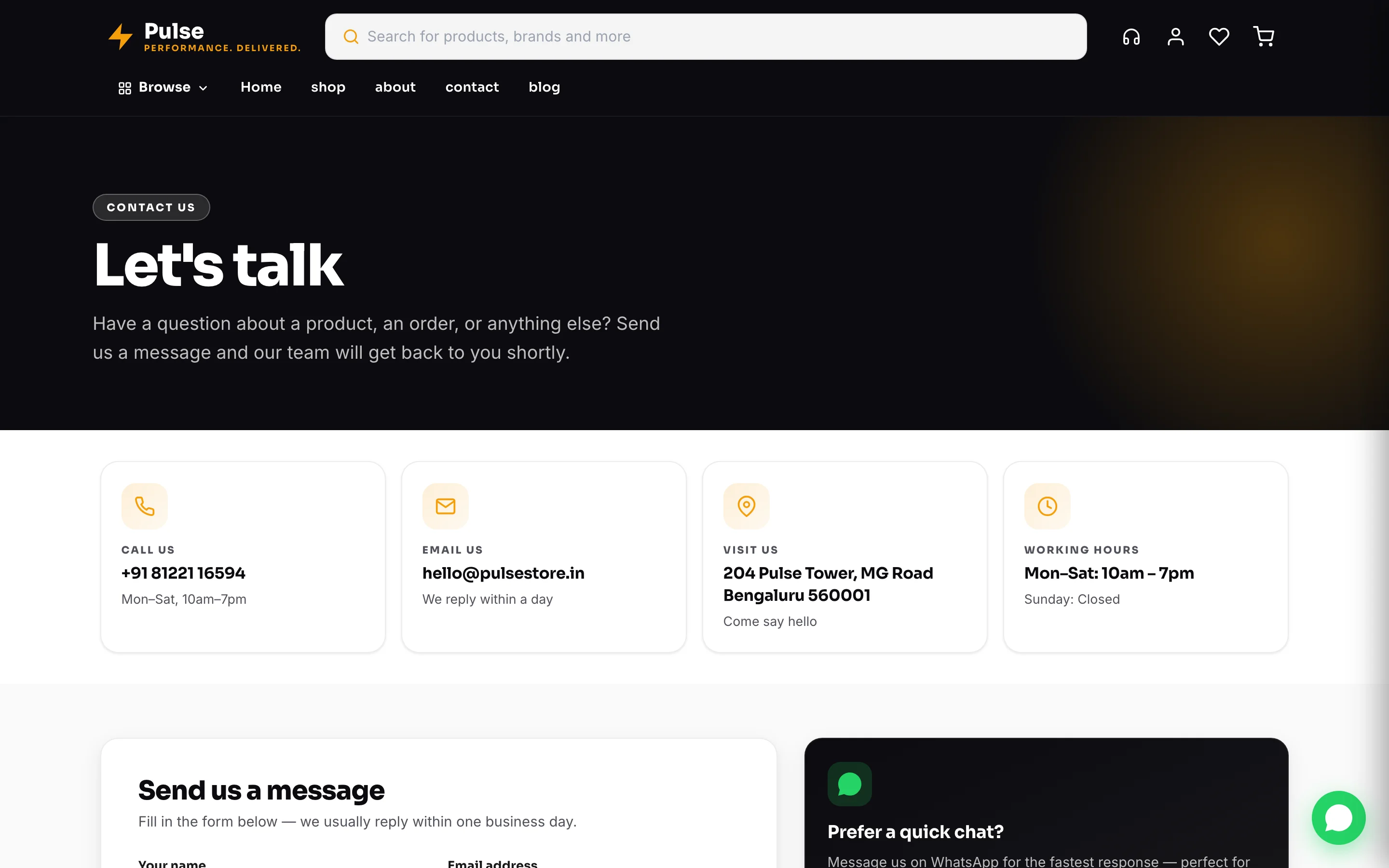
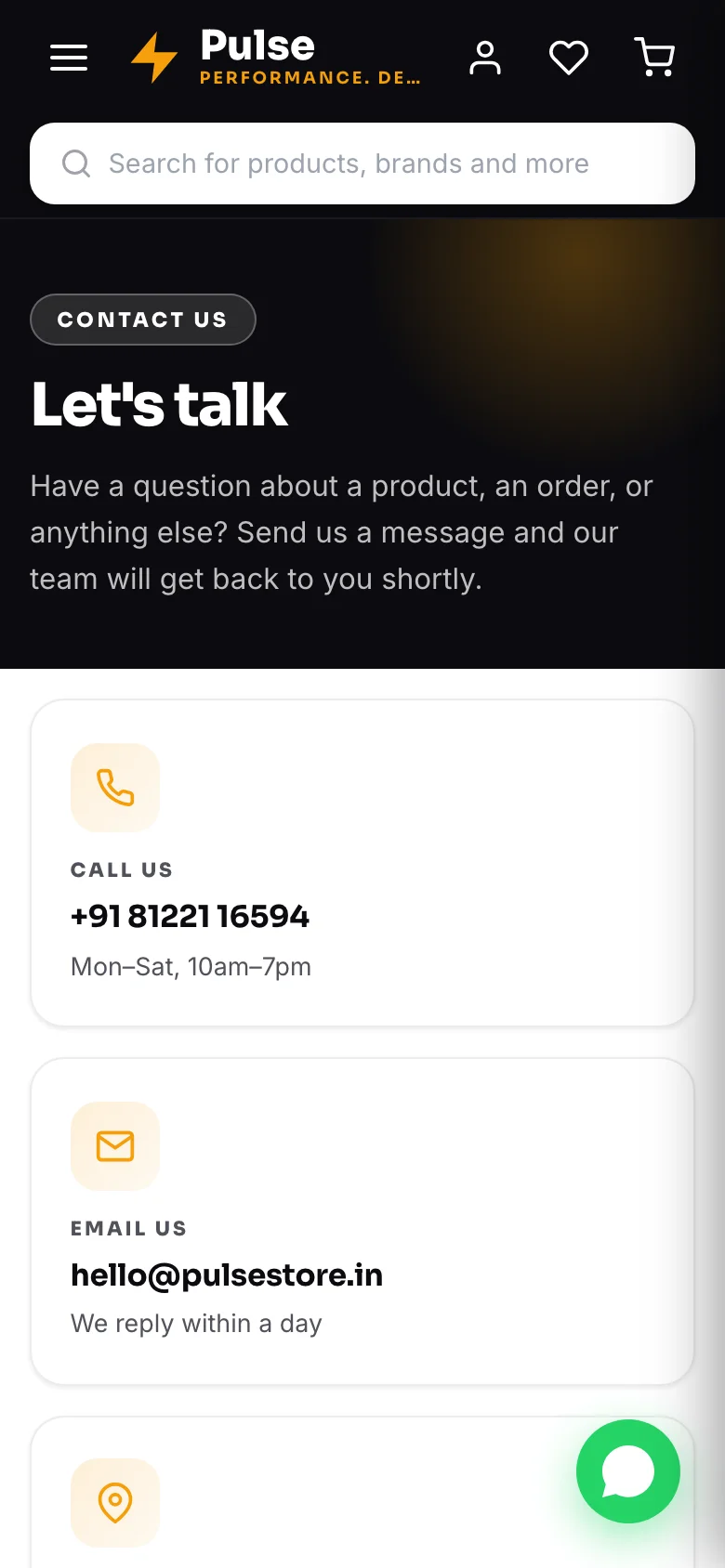
Your website’s Contact page has a form, and every message it takes lands here instantly. So does a good deal more than that — anything on your website that asks a visitor for their details posts into this one inbox:
- The contact form on your Contact page, and any contact form your design places on the home page or a service page.
- A form you built yourself with the form-builder block — a consultation form, a quote request, a callback form — wherever you put it.
- The “notify me when it’s back” box on a sold-out product.
- On catalogue websites, an enquiry list a customer chooses to send to you rather than over WhatsApp.
- On the Yard design, a sell request from someone offering you material.
- Newsletter sign-ups from a footer or a newsletter block.
Each one arrives labelled with the form it came from and the page it was sent from, so one inbox stays readable.
Something happens quietly with every submission: if you run ads, the enquiry is reported to your ad platform as a lead — from the server, so it counts even when a browser closes (see Ad tracking).
And on websites priced per enquiry, this is the moment the small lead fee applies — no enquiry, no charge, and the same person writing twice in a day counts once.
Processing submissions
Open Form Inbox
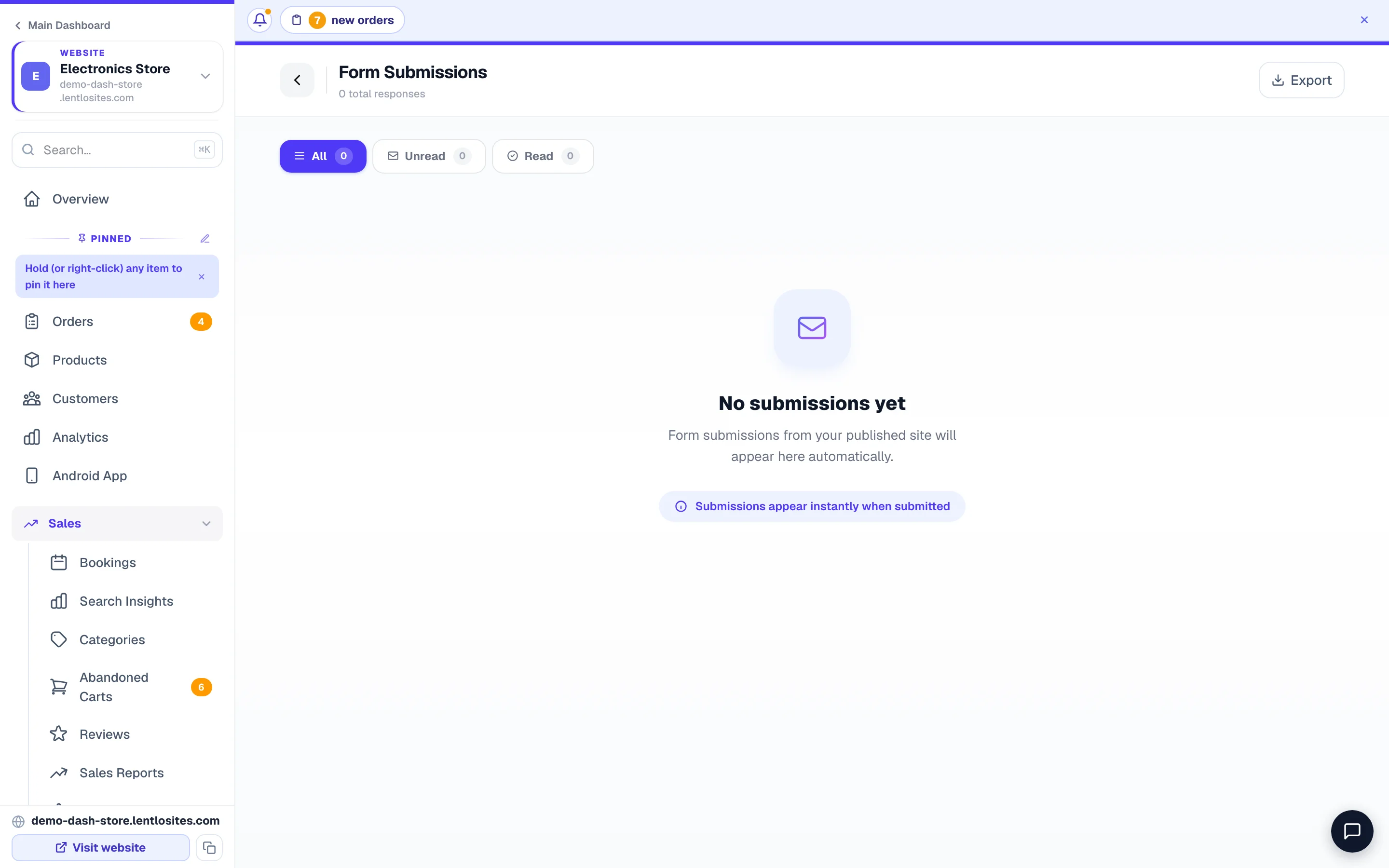
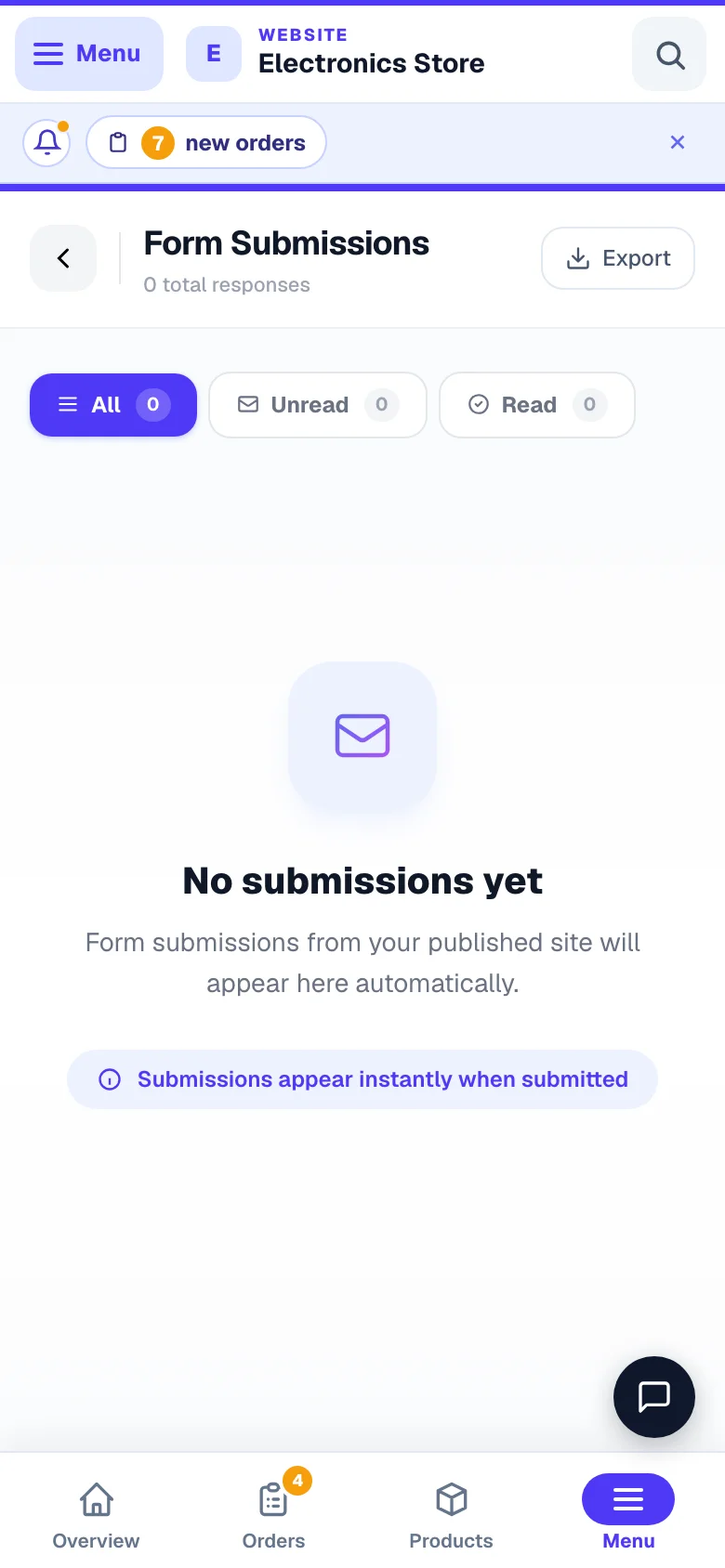
From your website's Manage page or the sidebar, open Form Inbox — it sits under Sales, and the number of unread messages rides on the tile and on the sidebar row. The page itself is titled Form Submissions; its top shows how many responses you have and a blue “3 new” badge for unread ones, and the All / Unread / Read tabs (each with its count) let you work only what you haven't answered.
Tap a message to read it in full
It opens in a window over the list: the full message, their email and phone, the exact time it arrived, and every other answer under the question your form asked — a loan application in its own steps, choices and amounts written out (“Bank account”, “₹30,000”). The page it was sent from, their IP address and browser sit folded under Technical details. Opening a message marks it read.
Reply
In that window, WhatsApp opens a chat with their number (their message is on your screen, so you write your own reply), the phone number is a tap-to-call link, and Email opens your mail app. Delete asks once, then removes the message for good — there is no undo.
Keep a copy when you need one
Export at the top downloads the enquiries for any period you pick as an Excel or CSV file — handy for a sales follow-up list or for your accountant.
One enquiry, one message — even on a bad network
A customer on a weak signal often taps Send twice. Your inbox no longer shows that as two enquiries: the second tap lands on the same message, so you are never left wondering whether Kavita wrote once or twice. On lead-priced websites you are never charged twice for it either.
The other half of the same change: your website now tells the customer the truth. If the message really could not be saved, they see a plain “could not send” line and keep everything they typed, so one more tap sends it — instead of the old cheerful “Thank you!” over an enquiry that never reached you. And once the message is stored, everything that follows it — your alert, the copy in your contacts, the lead reported to your ad platform, any webhook you connected — is queued and run on its own, so a blip in one of them can never swallow the enquiry. The lead reported to your ad platform is tried again if it fails; your alert and a webhook are sent once and never twice, so a hiccup can mean one missing alert, never a duplicate — the enquiry itself is always in the inbox.
Not missing any
The unread count rides on the Form Inbox tile on your Manage page and on the sidebar row, and refreshes about once a minute. On a phone, service, catalogue, news and travel websites carry an Inbox cell in the bar at the bottom of the screen. Scan the badges once a day — an enquiry cools fast.
Spam protection: one internet connection can send your website at most 10 forms a minute, so a single bad actor can’t flood your inbox. Ordinary customers stay well below it.
Loan application forms (finance sites)
Finance / loan-services designs get a full application-form builder at Loan Forms — multi-step forms with document upload (PAN, Aadhaar, bank statements), built from ready loan presets or your own fields. These power your site’s /apply pages, and every application lands in Loan Leads — on a finance website, the Loan Desk — with the uploaded documents attached. It also shows in this inbox, each answer under the question your form asked.
Live the moment you publish: new finance sites start with a ready Personal Loan form, and any form you publish, edit or remove in Forms updates your live site automatically within a few seconds — no need to press Update Website.
To put a new loan on your website, use + Add a loan to your website at the top of Loan Forms. Type the name, leave Also create its own application form ticked if it needs its own questions, and it appears on your site in a moment. Use + New form only when you want a form with no card — a second form for the same loan, say. To change the order the loans appear in, use the ↑ ↓ buttons on each loan card — they are on this same Loan Forms page under On your website, and also in Loan Desk → Products. Either place works; that order is the order customers see, and it saves as you tap. Rates, documents, eligibility and partner payouts are edited in Loan Desk → Products, which the Edit rates & details button takes you to.
Two different things live on that page, and the order tells you which is which. On your website — loan products customers see comes first: these are the cards a visitor taps. Your application forms comes below: the question sets those cards open. Adding a form does not put a new card on your website — a form only reaches customers through a product.
Each product says which form it opens — Has its own application form, or an amber No form of its own — opens <form>. A product without its own form still takes applications; it just asks your default form’s questions, so use Give it a form on any product that needs different ones. Each form says the same thing from the other side: Opens for Home Loan, a blue Default form badge on the one every form-less product falls back to, or Not opened by any product on your website — worth checking if you built a form and cannot find it on your site. To move that blue badge, open the form you want and tap Make this the default form (it has to be published first) — from then on every product without a form of its own asks that form’s questions.
A form marked Draft — not live is not reaching anyone: its product keeps using the default form until you press Publish. Ready means the form exists and works, not that a card for it appears on your homepage.
Once you tap Manage products here in Loan Desk → Products, that manager owns your loan cards — rates, eligibility and partner payouts live there. This panel then loses its Edit and remove buttons (the ↑ ↓ order buttons and Give it a form still work), and Edit rates & details takes you to the right place to add, rename or remove one.
“I added a loan application form but it is not showing on my homepage.” A form never shows on its own — customers reach it through a loan product card. Add the product with + Add a loan to your website (or + Add product), then use Give it a form on it, and make sure the form is published, not Draft — not live.
More in Your website
Did this answer your question?
It takes one tap and it genuinely changes what we write next.