
Track Order — how customers check where their order is
Just the mobile number they ordered with, no account needed: the status, the courier's own scans, and the collection card for pickup orders.
Watch0:335 min readUpdated 21 Oct 2026
In this guide
How a customer uses it
- They open the linkFrom your menu, or the WhatsApp you sent
- Their mobile numberNo account, no password
- They see the statusAnd the courier's scans, if booked
- Or they message youYour contact is on the same page
The link lives in your menus (account area, footer and the phone menu), on the thank-you screen right after an order (Track My Order), and in the order messages your own WhatsApp number sends. Typing the number shows that number's 20 most recent orders on your website. Customers who are signed in also see all their orders under My Account → Orders.
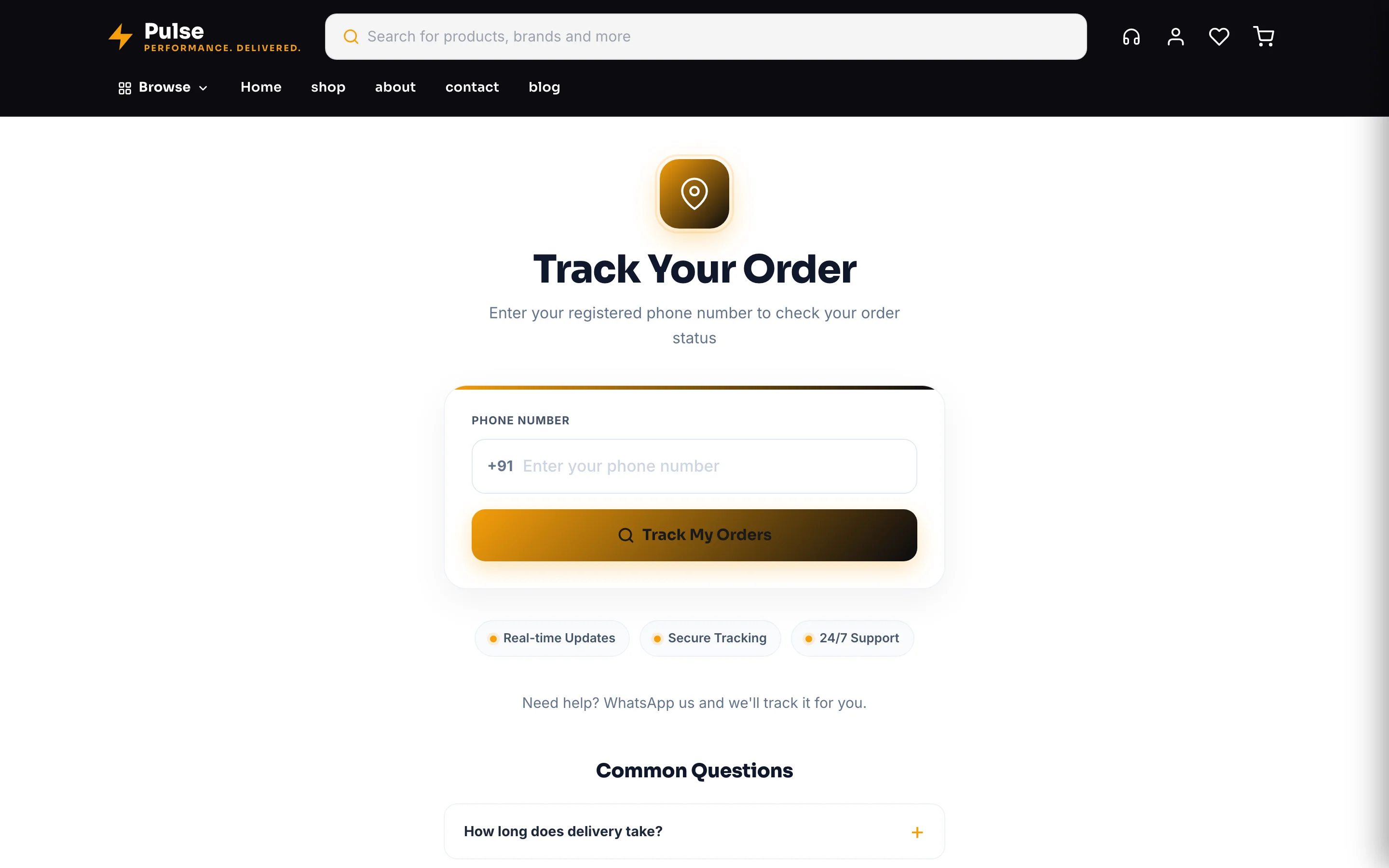
What is on the page
| Part | What it shows |
|---|---|
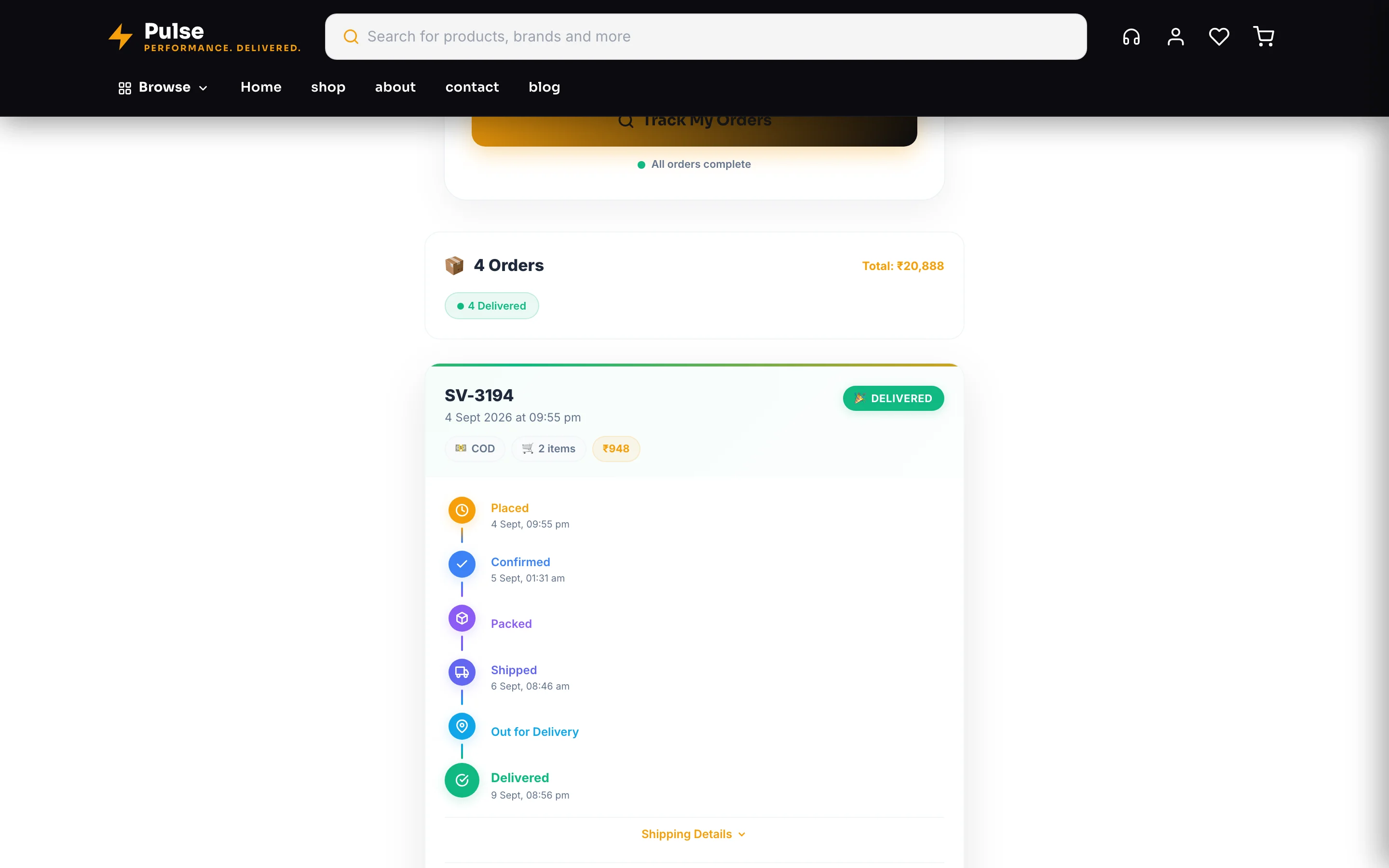
| Status timeline | Where the order has reached — pending, confirmed, packed, shipped, out for delivery, delivered |
| Kitchen steps (restaurants) | A food order shows the kitchen's steps instead — order placed, cooking, ready, on the way, delivered (takeaway: ready for pickup, picked up; a table: ready to serve, served) — and, when you set a usual cooking time, “Cooking — ready in about 20 min” |
| What they ordered | Items with sizes or colours, quantities and the order summary — subtotal, discount, GST, delivery, COD charge and total. On a pharmacy website the medicines are listed only after the customer signs in with the number they ordered with |
| Who receives it | When the customer ordered for someone else, the receiver's name is on the order card (“for Priya”). The receiver's mobile and the alternate number show too — but only to the customer signed in with the number that placed the order; a lookup by phone number alone shows the name only |
| Parcel journey | With a connected courier: the scan-by-scan trail, newest first, the same one the courier's own website shows |
| Courier and tracking number | Whether you booked through a partner or typed it in yourself |
| Collection card (pickup) | Your address, hours and instructions — and a clear “Ready! Show order SV-1042 at the counter” once you mark it ready |
| Amount still to pay | On a COD or part-paid order, so nobody is surprised at the door |
| Delivery charge (added after the order) | When you add the delivery charge after the order: “Being confirmed by the shop” and a Total so far until you add it, then the charge and what is left to pay — and a signed-in customer gets a button to their final bill |
| Order request (the shop confirms first) | When you confirm orders first: “Waiting for the shop to confirm” — nothing charged; then the delivery date and your note once you confirm; or your reason if you could not accept it |
| Delivery code | When your own delivery boy is bringing the order and you use the delivery code: the 4 digits to give him at the door — shown only after the customer signs in with the number they ordered with |
| Your Downloads (digital products) | The download buttons for anything digital, with how many downloads are left — shown only to the customer signed in with the number they ordered with; a lookup by number alone shows the order without the links |
The delivery code
If your own delivery boys deliver and you switched on the delivery code (the Deliveries page, at the bottom), an order that is out for delivery shows a Your delivery code card. The digits appear only after the customer signs in with the mobile number they ordered with — someone who only types the number sees “Your delivery code is ready” and a Sign in to see the code button. The card refreshes by itself the moment they sign in, and disappears once the order is delivered. See The delivery code at the door.
Follow the delivery live
If your own delivery boys deliver and you switched on Live tracking (the Deliveries page, at the bottom), an order that is out for delivery shows a Follow your delivery live button. It opens a map with your delivery boy and the customer’s door, the time it may take (a range, like “12–15 min”), how many deliveries are before theirs, their delivery code, the cash to keep ready, and a call button. Like the code, it needs the customer to sign in with the mobile number they ordered with — a phone number alone never shows where a delivery boy is. When the order arrives the screen says Delivered. See Live tracking. Track Order stays open even while you pause ordering with the full-screen “closed” notice — customers can still follow an order that is on its way.
What you control
Hiding the link does not switch the page off. Every tracking link you have already sent by WhatsApp or SMS keeps working — only the visible menu link disappears. That is deliberate: a customer holding a link should never hit a dead end. See What customers see.
Keeping it worth reading
The page is only as good as your statuses. An order that sits on “Confirmed” for four days teaches the customer to message you instead — which is the thing you were trying to avoid.
Do this
- Move the status the same day the parcel actually moves
- Book through a connected courier when you can — the scans then arrive on their own
- Type the tracking number the day you hand the parcel over, if you ship yourself
- Use Ready for Pickup for collection orders — the page then says Ready with your pickup hours, and your Ready for pickup message names where to collect it
- Put the tracking link in your order-confirmation message
Not this
- Marking everything Shipped on a Monday to clear the list
- Leaving the courier and tracking number blank after handing the parcel over
- Hiding the link because a customer complained — fix the status habit instead
- Telling customers to wait for a WhatsApp when the page answers it better
Example · Rakesh, a kirana store in Indore
He used to get eight “where is my order” messages a day. Two changes ended almost all of them: the tracking link went into his order-confirmation message, and he started moving statuses as parcels actually moved rather than in one batch each evening. The messages he still gets are the useful ones — a changed address, a wrong size.
Related
| You want to… | Read |
|---|---|
| Move orders through their stages | Managing orders |
| Book couriers and get scans automatically | Delivery & shipping |
| Set up collection from your shop | In-store pickup |
| Change what messages customers get | Customer notifications |
| Show or hide the link | What customers see · Header & Footer |
Common questions
Does a customer need an account to track an order?
No. The mobile number they ordered with is enough — useful on another phone, or when a family member asks. Only the private parts wait for a sign-in with that number: the receiver's phone numbers, the delivery code, the live map and digital downloads.
Where does the courier's scan trail come from?
From the courier itself, when you booked through a connected partner. Updates arrive every couple of hours, and the order page has a Refresh button for when you want the latest right now.
I ship with a local courier. Does tracking still work?
Yes — type the courier's name, the tracking number and, if they have one, their tracking link on the order. That is what the customer sees. There will be no scan trail, because a local courier has no feed.
Can I change the wording on the page?
Yes. Its headings and labels are editable in the website editor like any other text — useful if you want it in your own words or a mix of English and Hindi.
Someone says their tracking link does not work.
Check they are using the number they actually ordered with — a spouse's phone number is the usual cause. An order placed for someone else is tracked with the number of the person who ordered, not the receiver's. If the order was created by you, make sure the phone number on it is theirs.
More in Products & orders
Did this answer your question?
It takes one tap and it genuinely changes what we write next.