
Delivery days, time slots & repeat orders
Let customers pick a delivery day (and slot) at checkout, charge a small 'get it sooner' fee, and turn regulars into automatic weekly or monthly repeat orders.
7 min readUpdated 21 Oct 2026
In this guide
What delivery scheduling is
It is a delivery-day picker on your checkout, for shops that run their own deliveries on fixed days instead of couriering every order. You tell LentloSites which days you deliver; the customer picks one of those days while ordering, and the chosen day shows on the order in your dashboard.
Day picker at checkout
Customers choose from the days YOU deliver — with an order-by cut-off time so late orders move to the next day.
Time slots (optional)
Add windows like Morning 8–11 with a limit on orders per slot per day, so you never overbook a route.
'Get it sooner' fee
Missed the cut-off? Offer the earlier day anyway for a small extra fee that you set.
Repeat orders
A customer can subscribe to a past order — the same items arrive every week, 2 weeks or month, priced fresh each time.
Turn on delivery days
Use this when you deliver on the same days for everyone — say Monday, Wednesday and Friday across your whole city.
Open the Shipping page
In your website's sidebar go to Delivery → Shipping and open the Delivery timing & schedule box at the end of the page (it stays folded until you tap it — most stores never need it). Inside, under "We deliver ourselves (own van / staff)", find Same delivery days for everyone and switch "Let customers pick a delivery day" ON. (The same box also holds the estimated delivery date settings for courier orders.)Pick your delivery days
Under Which days do you deliver? tap the weekdays you actually deliver on ("Every day", "Mon–Sat", "Mon–Fri" and "Weekends" are one-tap shortcuts). Then set your Order-by time (the cut-off — orders after it shift to the next delivery day), the Earliest delivery (same day if before the cut-off, next day, in 2 days or in 3 days), and Let them book up to 1 week, 2 weeks or 1 month ahead. Times are India time.Mark the days you're closed
Days you're closed (no delivery) takes your off days and festival dates — this year's fixed national holidays are one-tap chips, and you can add any other date. Closed days simply disappear from the customer's picker. Under What customers see you can also reword the line above the picker (it reads "Choose your delivery day" unless you change it).Save
Press Save delivery schedule — a Preview line right above it reads your setup back in one sentence first ("You deliver on Mon, Wed, Fri. Customers order by 18:00, earliest delivery next day."). The picker appears on your checkout right away. The customer's chosen day shows as a green chip on each order in your Orders list, and you get Today / Tomorrow filters there to plan each day's deliveries.Run different days in different parts of your city? If your Shipping page already has area zones, an Apply this schedule to dropdown appears at the top of this box — set one schedule for All areas, or a separate one per area zone. For full route delivery with its own calendar, use Zone Delivery Days instead.
Time slots (optional)
Slots split a delivery day into windows — useful when your van does a morning round and an evening round, or when you can only handle so many orders per trip. In the same box, under Delivery time slots (optional), tap + Add a time slot — up to 8, each with a name (like "Morning"), a start and end time, and Max orders per day (leave it blank for no limit). When a slot fills up for a date, customers simply can't pick it — no overbooking, no awkward calls.
The "get it sooner" fee
This is an optional extra charge for priority delivery — it turns your cut-off from a hard wall into a paid fast lane. Say your cut-off is 6 PM: a customer ordering at 8 PM would normally wait for the next delivery day. With a "sooner" fee set, the earlier day stays available — for a little extra.
- In the amber "Get it sooner" box of the same settings, pick Flat ₹ extra or % of order and type the amount. Leave it on Off and the cut-off simply applies to everyone.
- The fee is calculated on our servers from your setting — a customer cannot change it from their browser.
- It appears as its own line at checkout, and on the bill as a separate "Priority Delivery" line — so the invoice total always equals what the customer paid.
- Not on an order request: when you confirm orders first, no fee is added to the request — you set the day and any charge when you confirm it.
Sharma Dairy, Pune — delivers Mon, Wed, Fri · order by 6 PM · earliest next day · sooner fee ₹20 flat
- Customer orders on Tuesday at 8 PM — past the cut-off
- —
- Normal days offered: Friday onward, basket
- ₹450
- “Get it sooner”: Wednesday, basket ₹450 + sooner fee ₹20
- ₹470
- With % of order instead (say 5%), the fee is 5% of the basket after any discount
- ₹22.50
Repeat orders (subscriptions)
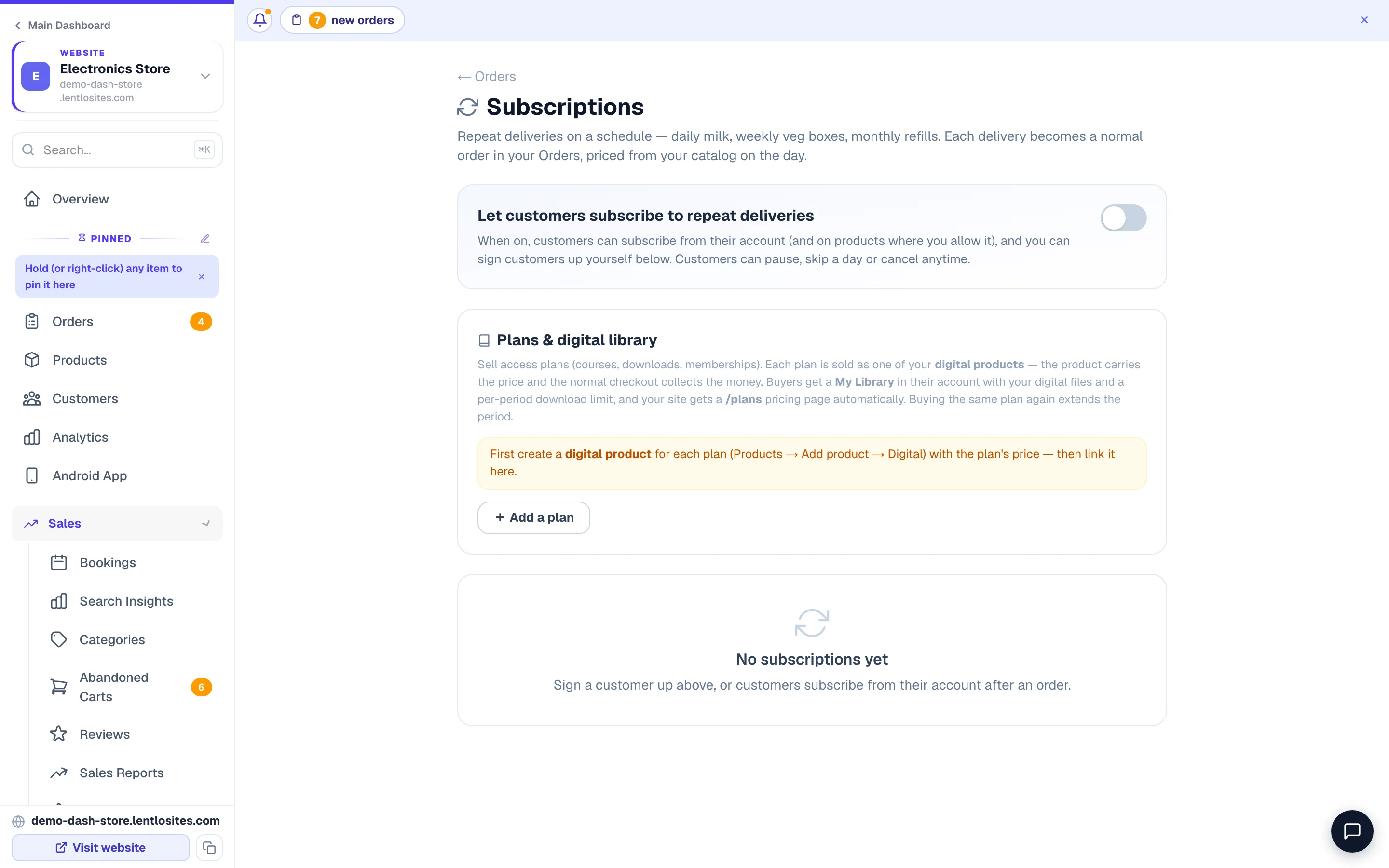
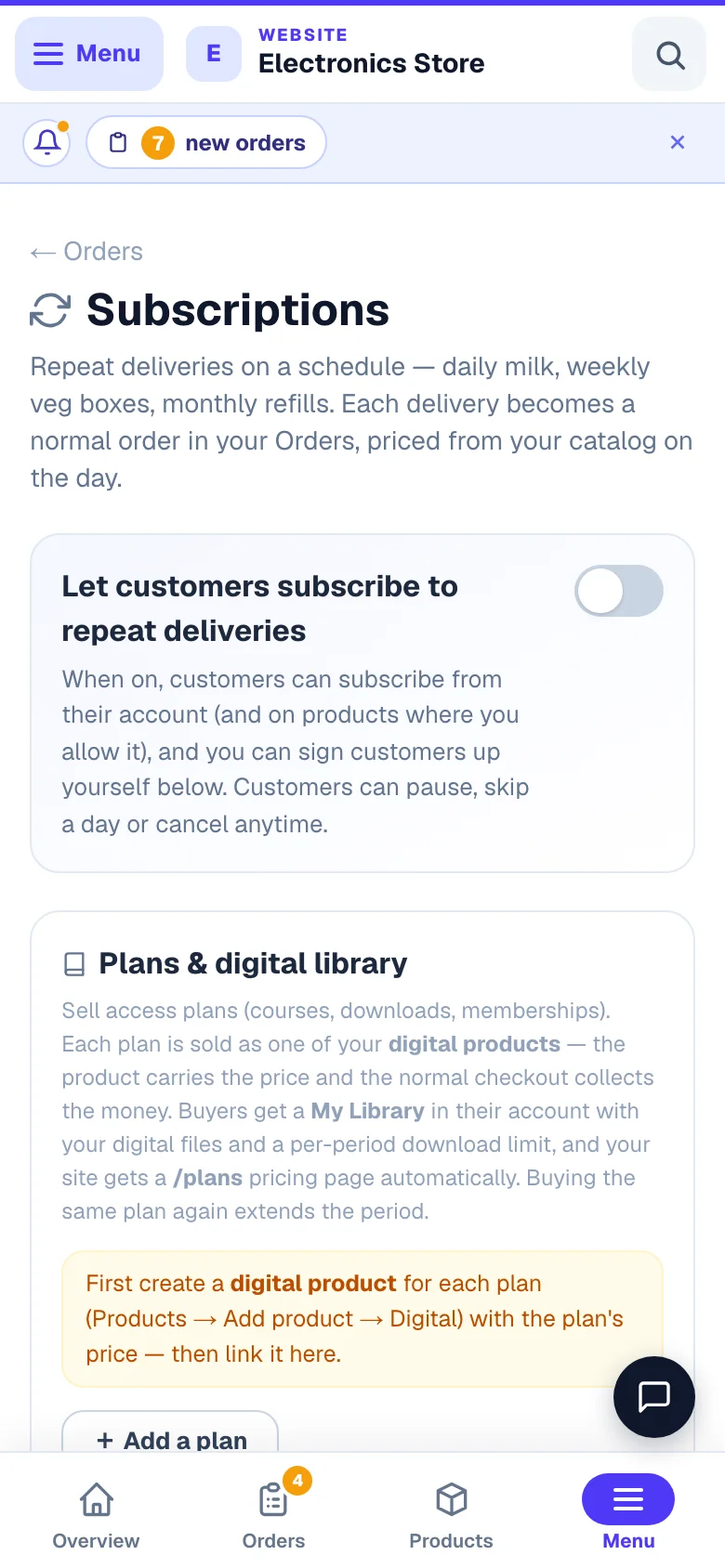
Repeat orders let a customer say "send me this same order every week" — perfect for milk, water cans, tiffin, or a monthly grocery basket. You switch it on from Sales → Subscriptions in your website's sidebar (it shows there dimmed with an Off mark until you do) with one master switch, "Let customers subscribe to repeat deliveries".
- Once on, a Subscribe button appears next to past delivery orders in the customer's account on your website. They pick a rhythm: every day, every week, every 2 weeks, or every month. (Pickup orders can't be subscribed — this is for home delivery.)
- Each cycle, LentloSites creates a normal order in your Orders list automatically. It is priced fresh from your current prices each time — if you raised the milk price last month, the next repeat uses the new price, never the old one.
- Each repeat order is cash on delivery — or, when you allow it, paid automatically from the customer's store wallet balance. Weekday schedules, subscriptions you set up yourself, a Subscribe box on the product page, holiday skips and a monthly statement all live in Repeat orders & subscriptions — read that one for the full picture. If a day's order can't be made (an item out of stock, say), that delivery is skipped rather than creating a bad order, and the reason shows on the subscription for you and the customer.
- Customers manage themselves: skip the next delivery, pause, or cancel anytime from "My Subscriptions" in their account. You can also pause, resume or cancel any subscription from your Subscriptions page.
What's off by default
All of it — nothing on this page touches your store until you choose it. Day scheduling, time slots, the sooner fee, and repeat orders are each separate switches; you can use one without the others (for example, delivery days without slots, or repeat orders without any day picker).
Common questions
Quick answers to the doubts owners raise most often about delivery days and repeat orders.
Can a customer pick a day I don't deliver? No. The server double-checks every chosen date against your schedule — days you didn't enable, holiday dates, and made-up dates are all rejected, even if someone fiddles with the page.
Do subscription prices stay locked at the old price? No — each repeat is priced from your current product prices on the day it's created. You never accidentally honour last year's rate.
Do coupons or points apply to repeat orders? No. Repeats are plain orders of the same items — no coupon, loyalty or referral discounts are attached automatically.
How is GST handled on the sooner fee? It stays its own Priority Delivery line on the bill, separate from your products. On a GST-registered store whose prices include GST (the usual setting), the tax on that line follows the goods it is delivering (the law treats a seller's own delivery charge as part of the sale), and the customer's total does not change — only how the bill splits it. On a store that adds GST on top of its prices, the line carries no GST for now. Bills for orders placed before this rule started stay exactly as they were printed.
Read next: Delivery charges & shipping · Zone delivery days · Managing orders · Customer reorder.
More in Delivery & shipping
Did this answer your question?
It takes one tap and it genuinely changes what we write next.