
Homepage sections — rows of products
Add 'New arrivals', 'Under ₹499' or 'Festival picks' rows to your homepage without opening the editor — then press Update Website.
5 min readUpdated 14 Sep 2026
In this guide
What a section is
A section is one horizontal band on your homepage: a title, an optional subtitle, and a set of products or categories underneath. Your design already ships with a few; this page is how you add your own on top.
- Add a sectionGive it a title
- Choose what goes inHand-pick, or a whole category
- Pick a layoutScrolling row or grid
- Save & Update WebsiteLive on your homepage
Adding one
Open Homepage Sections
Website → Homepage Sections, then + Add Section.
Title it the way a customer thinks
Section Title— “Under ₹499”, “Just arrived”, “Diwali gifting”. A Subtitle is optional and usually unnecessary.
Choose what fills it
Where do products come from? has two buttons. Auto (filter by category) fills the row by itself — pick a Category filter (or leave it on All products), a Sort by order and Max products. Hand-pick products opens a search box where you tick the exact ones you want, in the order you tick them. Hand-picking is right for a festival row; the auto filter is right for a row you never want to touch again.
Set the layout
On most designs a Card display block gives you ↔ Horizontal scroll or ▦ Grid (wraps to rows), plus how many cards fit per row on Mobile, Tablet and Desktop — set Mobile to 1 with Horizontal scroll for one big card with the next peeking. Older designs show a single Layout dropdown instead, and a few offer a Card designchoice (Classic, or a Combo card with price against M.R.P. and “You save”). A “See all” link is optional, and a Background tint separates one section from the next.
Save Changes — then put it live
Save Changes stores the rows with the rest of your homepage. Like every change made in the editor, customers see it once you press Update Website— the green button in the editor's top bar, or on your website's Manage page. Then open your homepage on a phone and scroll the whole way down.
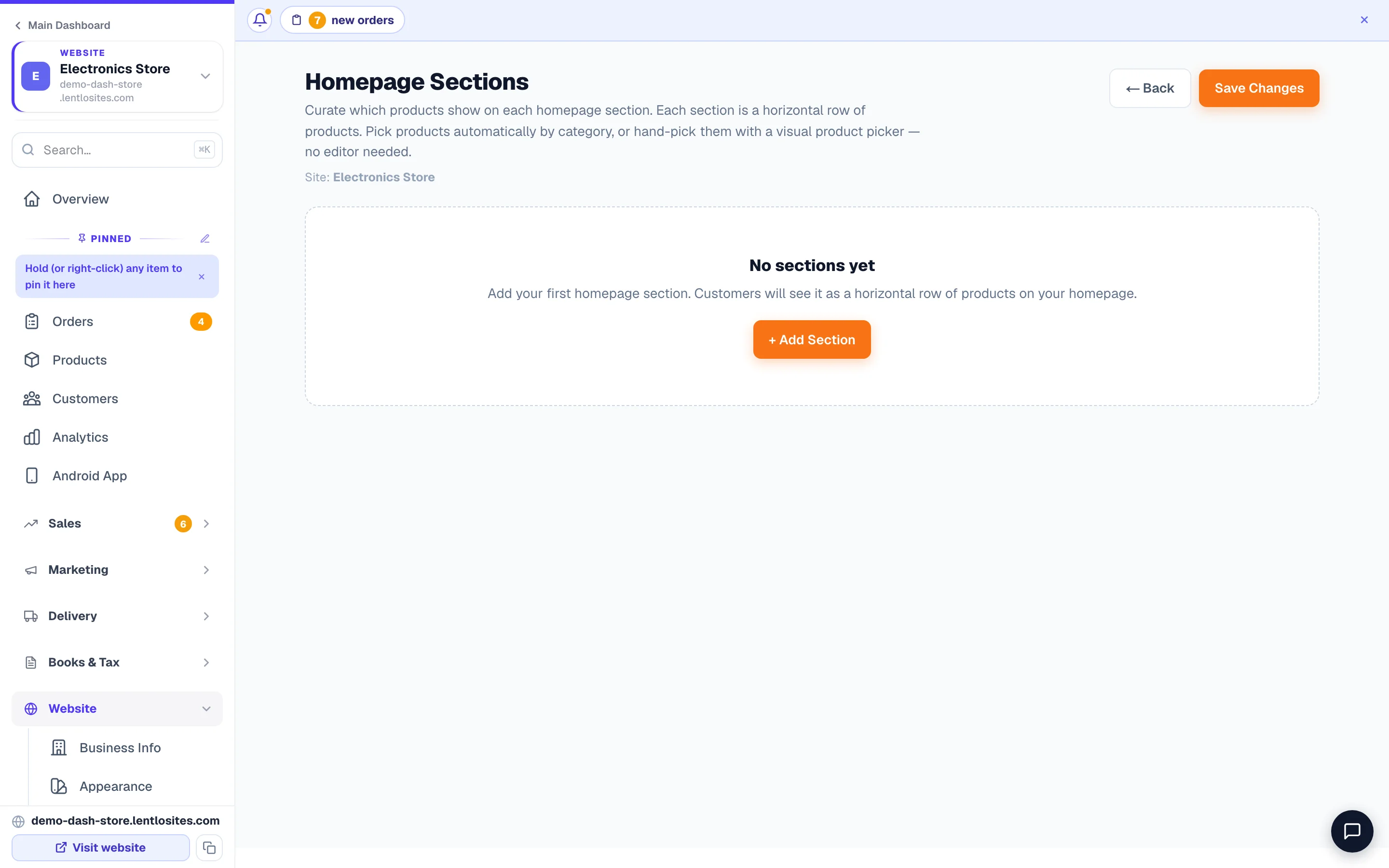
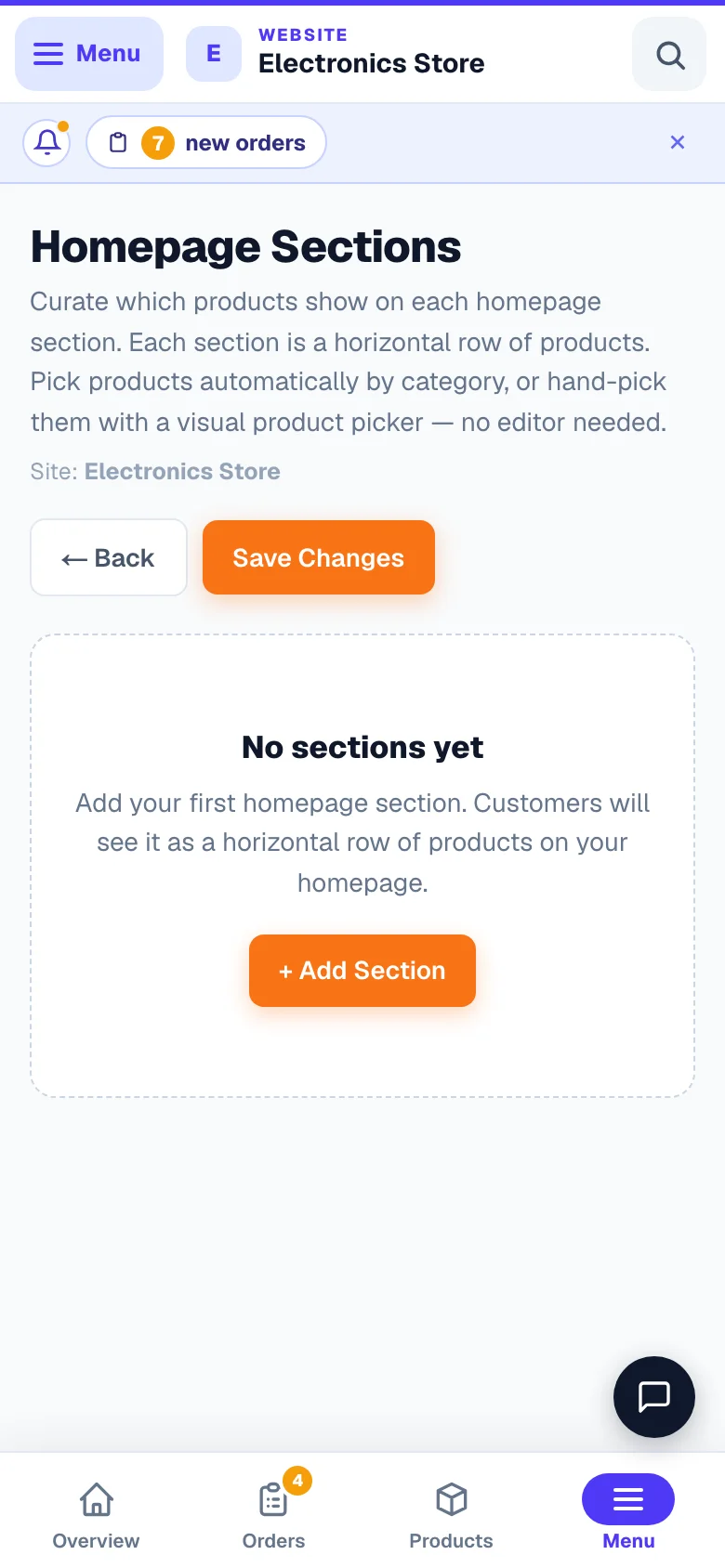
- 1Add a rowNew arrivals, Under ₹499, festival picks — your choice.
Which layout to choose
A scrolling row should always end with a product half visible — that peek is what tells a customer there is more to swipe. Our rows do this for you; it is why they look right on a phone.
How many sections
Example · Sneha, a home-décor store in Pune
She started with nine sections. Her analytics showed almost nobody reached the fourth. She cut it to four — New arrivals, Under ₹999, Best sellers, Shop by room — and orders went up, because the products that matter now sit where people actually look.
Do this
- Three to five sections, best sellers first
- One clear promise per section title
- Refresh the top row for a festival, then change it back
- Check the whole homepage on a phone after saving
Not this
- Ten sections nobody scrolls to
- Two sections showing the same products
- Titles like 'Section 1' or 'Our products'
- A section with only one product in it
Common questions
It says 'Add products first'.
A product section needs products. Add a few in Products and come back.
I saved, but my homepage has not changed.
Saving stores the rows; your live homepage is rebuilt when you press Update Website(in the editor's top bar, or on the Manage page of that website). Press it once and every saved row goes live together.
Can I reorder the sections?
Yes, move them up and down on this page. The order here is the order on your homepage.
My design already has product rows. Do these replace them?
No, they add to them. If your homepage now feels long, remove a section here rather than fighting the design.
Can I add sections to pages other than the homepage?
Yes — in the editor, open any page, press Add section in its section list and put the block at the top, after any section, or at the bottom. See Sections & layout.
More in Your website
Did this answer your question?
It takes one tap and it genuinely changes what we write next.