
Media — every photo in one place
Find, re-use and recover every image you have ever uploaded — with a 60-day undo on anything you delete.
4 min readUpdated 1 Oct 2026
In this guide
One shelf for every picture
Photos arrive here from everywhere: a product you added, a banner you set in the editor, your logo, a blog cover. You don’t “upload to Media” as a separate step — uploading anywhere puts it here too.
- You upload anywhereProduct, editor, blog, logo
- Four sizes are madeAutomatically, in WebP
- Stored on the CDNPlus a second backup copy
- Findable in MediaSearch, filter, tag, re-use
- Its size is knownAsha never uses a logo strip or a screenshot as a photo
Every image is saved four times— a large one for computers, a medium and small one for phones, and a thumbnail. Your customer’s phone downloads the small one, so your site stays fast even if you uploaded a 6 MB photo straight from your camera.
Finding an image again
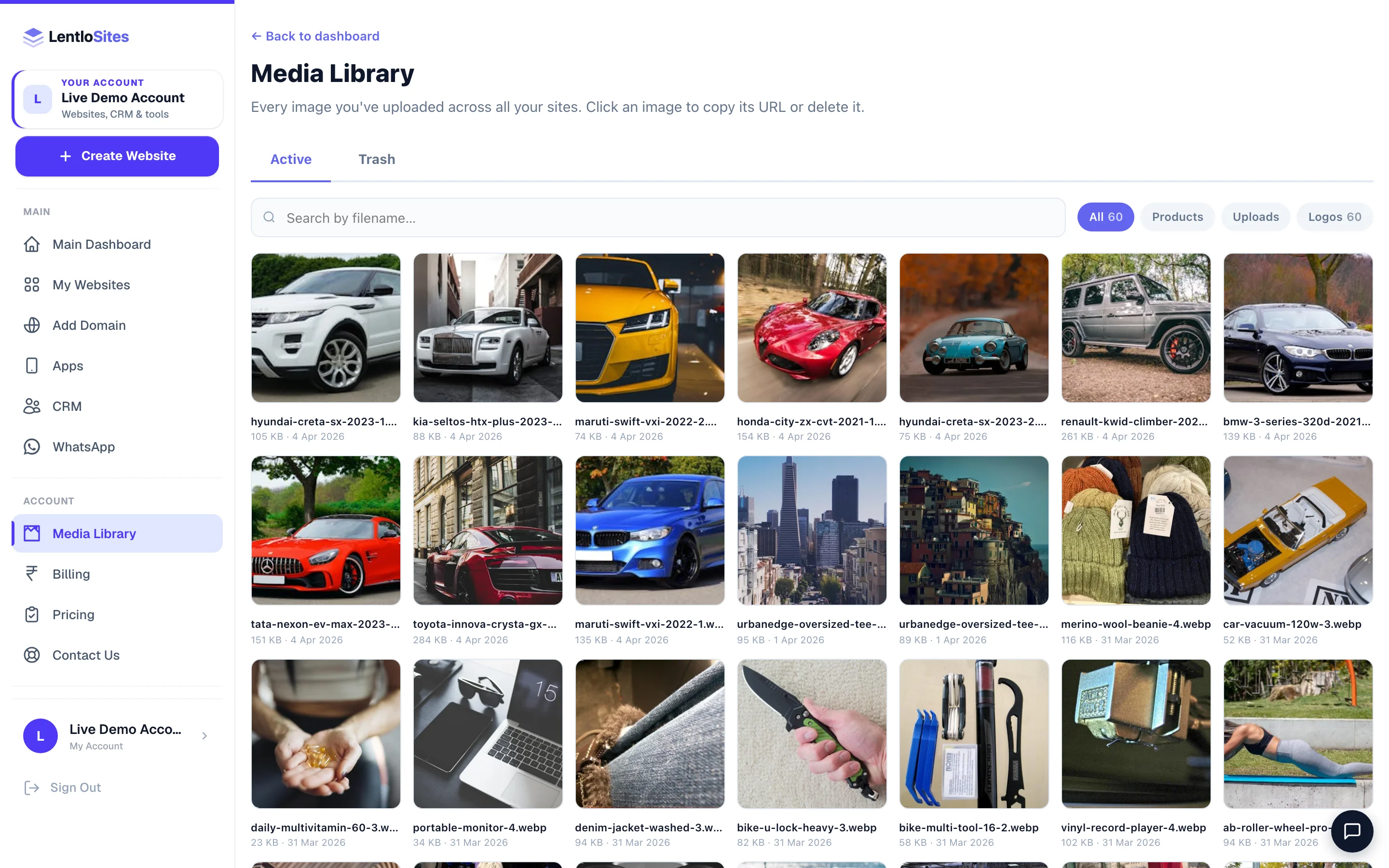
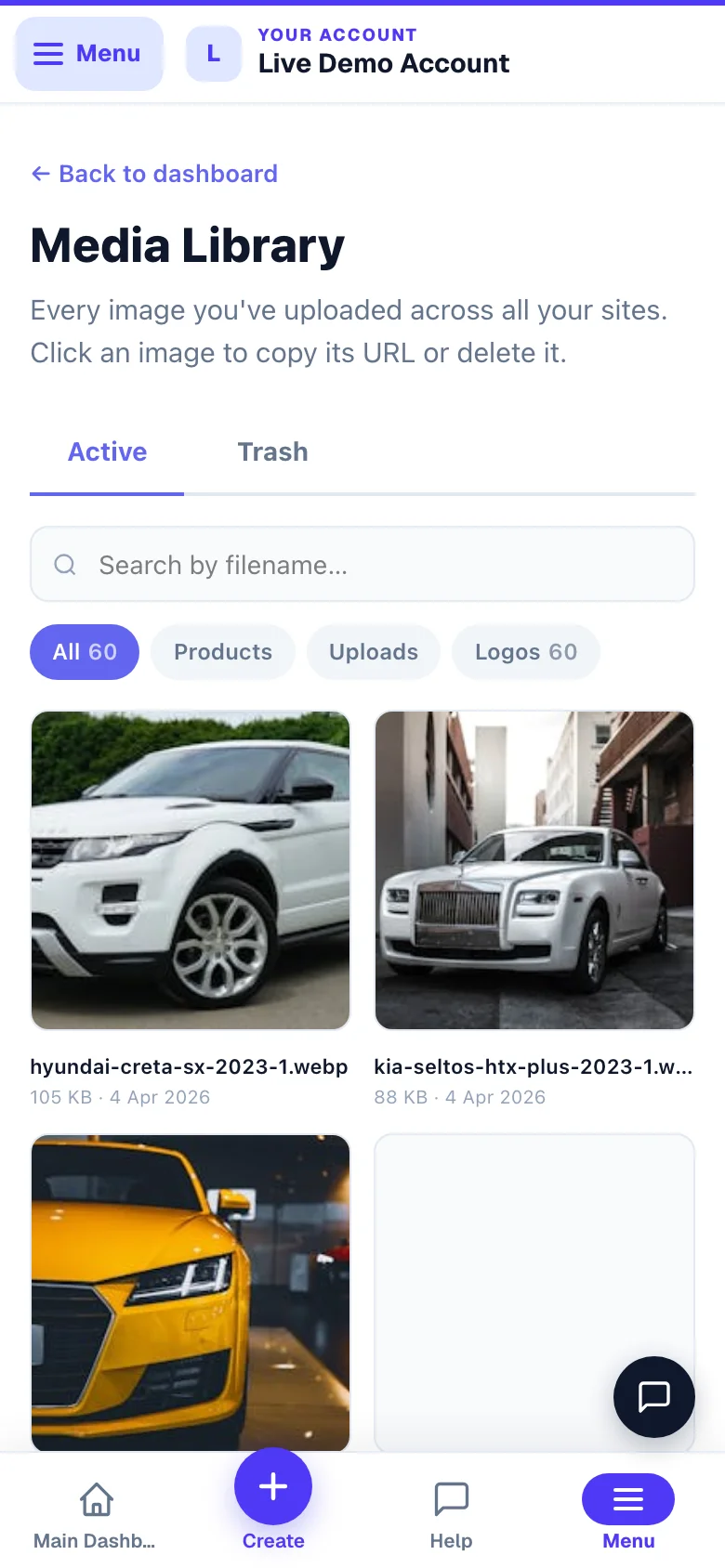
Open Media Library from the main menu — it is one shelf for all your websites, so it sits at account level, not inside one site. (Running your dashboard from your own domain? It is in that site's menu instead.) The page has two tabs, Active and Trash, and three things narrow the list down fast:
- Search by filename — the name your phone or camera gave it, or one you set.
- Filters — All, Products, Uploads, Logos, each with its own count. Products means images attached to a product; Uploads is everything you added by hand.
- Tags — your own words, added with Add a tag. This is the one that scales.
Example · Rahul, a garments shop in Ludhiana
Every Diwali he tags that season’s banners diwali and the product shots winter. Next October he searches diwali, sees last year’s set, and re-uses three of them in ten seconds instead of hunting through 400 files.
- 160-day undoDeleted images wait here for 60 days.
Re-using a photo instead of uploading again
Copy an image’s address from Media and paste it wherever an image is asked for. The same file is served again — no second upload, no extra storage, and the picture is already the right sizes.
Find the image and copy its link
Tap the image to open it, then Copy URL. You now have its web address on your clipboard (Open next to it shows the full-size file in a new tab).
Paste it where you need it
Into a blog cover, a section image in the editor, or anywhere a link to a picture is accepted.
Re-using one banner across three pages is better than uploading three copies: the visitor’s phone downloads it once and shows it instantly everywhere else.
Free photos — real Indian business photos when you have none
Wherever an image is asked for — a banner, a story block, a product, a category tile, a blog cover — the picker has a Free photos tab beside Library and Upload (in the website editor every image box also shows aFree photos button). It holds a library of real photographs of Indian shops and life — salons, kirana counters, dhabas, coaching classes, tailors, clinics, festivals, streets, food, hands at work — chosen one by one, stored in our four sizes like your own uploads, and free to use on your website. Search by a plain word (salon, diwali, spices), tap a topic chip, or pick Wide / Tallto match the space; every tile shows the photo’s size and the photographer.
- Our library — photos from Pexels photographers, hosted by us, so they load as fast as your own pictures.
- Unsplash — a second source searched live; those photos are served from Unsplash and credited to the photographer, as Unsplash asks.
Your own photos always come first. A library photo is a stand-in: tap it on the page whenever you have a real one of your shop and swap it.
Describe a photo — Google reads it, so do screen readers
Google cannot see what is in a picture; it reads the few words behind it. Tap any photo in Media and answer What is in this photo? Google reads this. — a plain line like Fresh alphonso mangoes in a wooden crate, then Save description. The same line is read aloud to a blind customer by a screen reader. Under every tile the description shows in place of No description yet, and the search box finds photos by it too.
- A good file name is a head start. A photo uploaded as red cotton kurti.jpg starts with “Red cotton kurti” as its description; camera and phone names (IMG_2031, WhatsApp Image 2026…, Screenshot…) start empty.
- It follows the photo. Pick a described photo into a product or an editor block whose description box is still blank, and that description is offered there (products) or filled in (the editor) — you can always change it on the product or the page.
- Who can change it: the person who uploaded the photo, the owner of the website it is filed under, or an admin. Anyone else sees the description read-only.
Deleting — and getting it back
Move to Trash in the image's window takes it out of your library. It waits in the Trash tab for 60 days, where one tap on Restore brings it straight back. After 60 days it leaves your library — but only if nothing anywhere is still using it: a nightly check reads every product, page, blog post and setting first, and a picture that is still in use is put back rather than removed. Even then the file is kept in a private recovery store for a further year, so support can bring it back if you ask.
Deleting an image that a live page still shows leaves a blank space on that page. Check the page first if you are unsure — there is no cost to keeping an image.
Photos that actually sell
Do this
- Shoot in daylight, near a window — free and better than any filter
- Plain background: a white sheet or a clean wall
- Square-ish framing, product filling most of the frame
- One clear photo per product beats five blurry angles
Not this
- Screenshots of WhatsApp forwards — they arrive already crushed
- Photos with someone else's watermark or price sticker
- Dark shop-light shots with a yellow cast
- Text written across the product photo — it breaks on small screens
Upload the original from your phone. Don’t shrink it first — we make the small versions for you, and starting from the big file gives a sharper result on modern screens.
Common questions
Is there a limit on how many images I can keep?
No practical limit for a normal shop. Images are stored on a content network built for this, and every file is kept in a second location as a backup.
Why is my photo showing sideways?
Some phones store a rotation flag rather than rotating the pixels. We read that flag and straighten the image on upload — if one still looks wrong, re-upload it after opening and saving it once in your phone’s photo app.
Can I edit or crop a photo here?
Not in Media. Crop on your phone before uploading — the built-in photo editor on both Android and iPhone is more than enough.
Does deleting a photo break a page that still uses it?
No — and this is deliberate. Deleting takes the photo out of your library, but the picture itself stays where it is, so nothing on your live site goes blank. A nightly check looks at every product, page, post and setting; if it finds the photo still in use it quietly puts it back in your library rather than removing it. To really take a picture off your site, change the page or product that uses it.
More in Your website
Did this answer your question?
It takes one tap and it genuinely changes what we write next.