
Recovering abandoned carts
See who filled a cart but didn't order, message them on WhatsApp in one tap with a ready-made note, and track exactly how much money comes back.
5 min readUpdated 21 Oct 2026
In this guide
How a left-behind cart is spotted
Your store quietly notices when a customer reaches checkout with a cart but never places the order — so you get a real chance to win the sale back.
- The checkout must have a valid 10-digit mobile number. Customers sign in with their mobile before the checkout opens, so the number is already there for almost everyone; the cart is saved when they type or change it, or leave the page. No phone, no way to reach them, so nothing is saved.
- We wait 15 minutes before calling a cart "abandoned" — they might still be paying. Only quiet carts show up.
- There's one entry per customer. If they come back and try checkout again, the same entry simply updates with their latest cart.
- The page shows the last 30 days by default — switch with the small 7d, 30d and 90d buttons beside the pills.
If the customer places the order normally, their entry disappears from your waiting list on its own — you'll never message someone who already bought.
The cart list — who left, and what it's worth
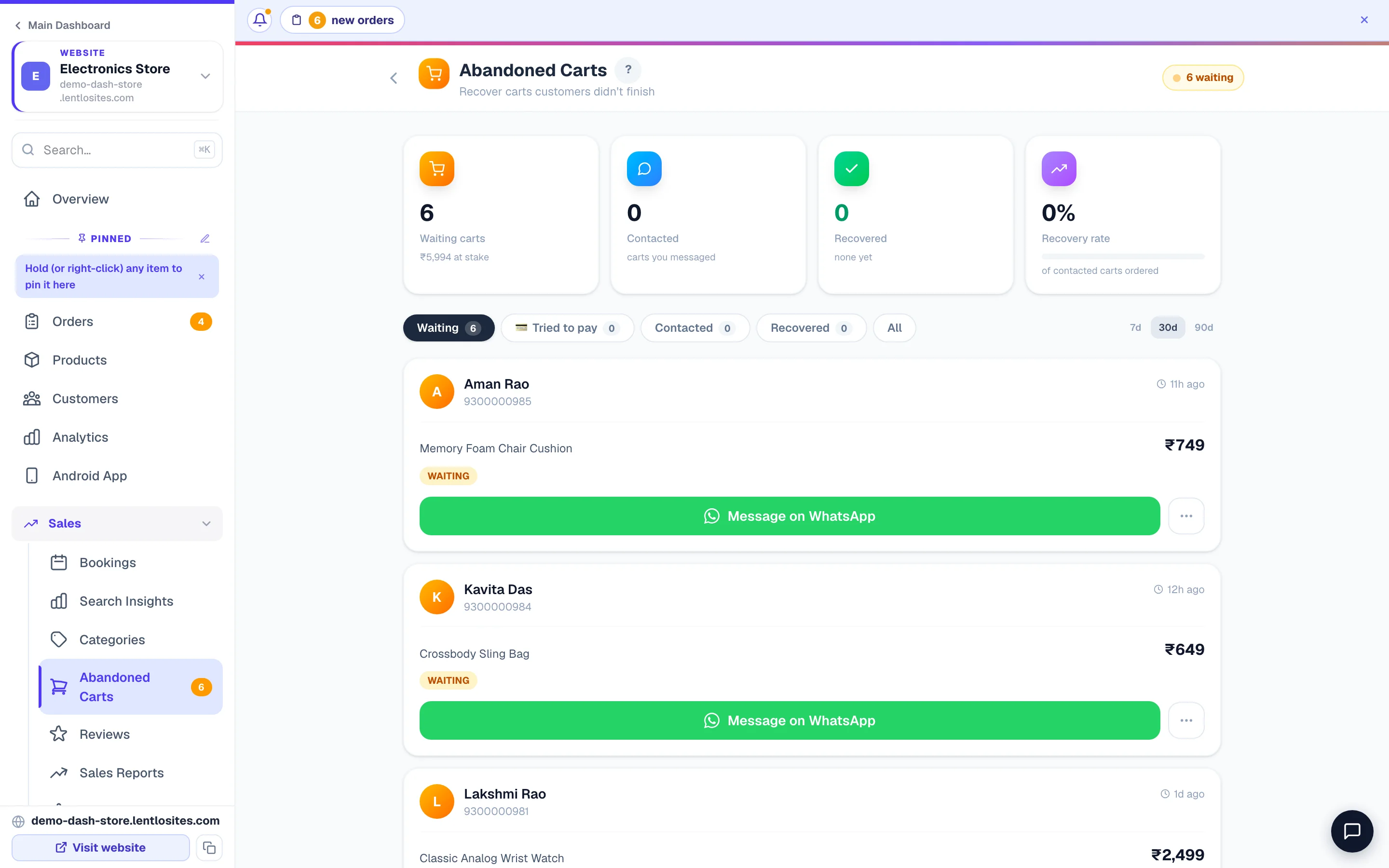
Open Abandoned Carts under Sales in your site's dashboard menu — a small badge shows how many carts are waiting right now.
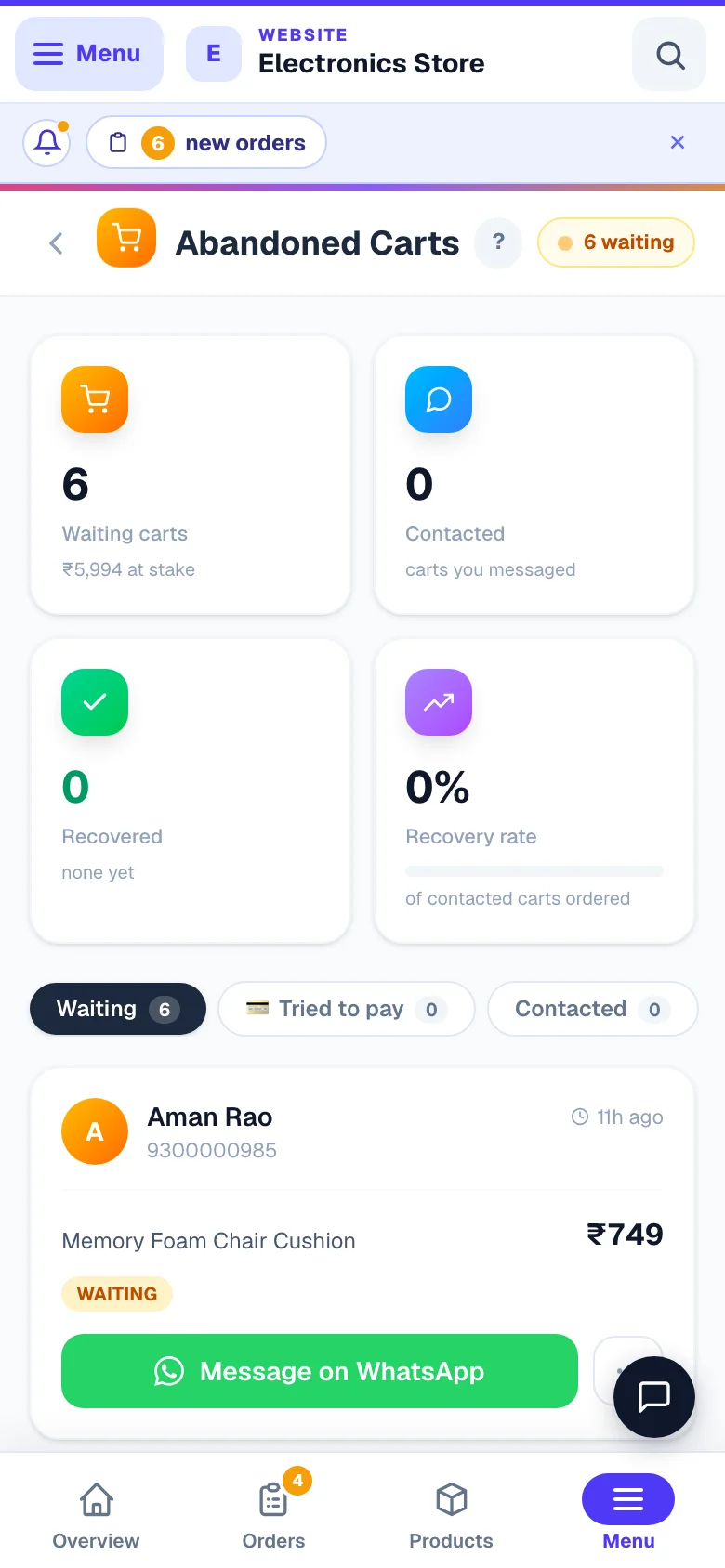
Four cards at the top give you the money picture at a glance:
Waiting carts
Carts you haven't messaged yet, with the total rupee value sitting in them. The moment you message one, it moves to Contacted — so this list is always your to-do list.
Contacted
Every cart you messaged that hasn't ordered yet — including ones you closed (they show a small Closed tag, and you can reopen them to follow up again).
Recovered
Contacted customers who then placed an order, with the value that came back.
Recovery rate
Of the carts you messaged, the percentage that turned into orders.
Each cart card shows the customer's name and phone, what's in the cart (with size or colour if they picked one), the cart value, and how long ago they left. A small chip tells you where things stand: Waiting, Contacted ×2 (with a log of when you tried), or Recovered. Use the pills on top — each shows a live count — to switch between Waiting, 💳 Tried to pay, Contacted, Recovered and All. Carts that tried to pay float to the top of every list.
- 1One tapOpens WhatsApp with a written message ready to send.
💳 “Tried to pay” — your hottest leads
Some customers go further than leaving a cart: they tap Pay online, reach the payment page — and the payment never completes (UPI timeout, closed the app, changed their mind at the bank screen). These are the hottest leads you have: they already decided to buy.
The 💳 Tried to pay pill shows exactly these people, with a red chip on the card telling you which payment method they opened, when, and how many times they tried. The one-tap WhatsApp follow-up works the same as any cart — and if they later pay (any way at all), the card flips to Recovered automatically. If a customer changes their cart and tries again, it stays ONE card — never duplicates.
UPI QR customers show here too. When a customer opens your UPI payment sheet and no order follows, the card says Opened UPI QR with the amount they were asked to pay and the 6-letter payment note written into the QR. They may already have paid: look in your UPI app for that amount and note. If the money is there, the WhatsApp button opens a ready message asking them to send the payment screenshot so you can confirm the order (you can edit it before sending).
Winning a cart back on WhatsApp — one tap
The follow-up message is already written for you — with the customer's name, their items, the total, and a link straight to your checkout — so recovering a cart takes seconds.
Tap Message on WhatsApp
On any waiting cart, tap the green Message on WhatsApp button. A preview opens so you can read the message first.
Adjust if you like
The message is fully editable before sending — add a personal line, or mention today's offer. The checkout link uses your real website address, so tapping it drops the customer right back at checkout.
Tap Open WhatsApp and send
WhatsApp opens with the message ready — just press send. The cart is automatically marked Contacted and the attempt is noted with the date and time.
Your default message — set it once
The ready-made message comes from a default you control, so every follow-up sounds like your shop without retyping anything.
In the message preview, tap Edit default message, write it your way and tap Save (only the owner or a manager can change it). Drop in these placeholders — they fill in automatically for each customer:
- {name} — the customer's name · {items} — what's in their cart
- {total} — the cart value · {store} — your store name · {link} — your checkout link
A small sweetener works wonders — mention a discount code in your message. Set one up first in Coupons.
Recovered value — proof the follow-up works
The Recovered card exists to answer one question honestly: did messaging actually bring money back?
When a customer you contacted places an order — even days later — their cart flips to Recovered and its value is added to the "came back" total. We match by phone number, so it counts even if they order different items than what was in the cart. Carts that converted without you messaging aren't counted as recovered — that credit isn't yours to claim, so the number you see is real.
Once the order lands, handle it like any other — see Managing orders.
The automatic reminder — recovery while you sleep
If you've switched on customer notifications, your store can also nudge cart-leavers automatically — free, and with no work from you.
In your dashboard, open Notifications and turn on Customer notifications, then Remind customers who left a cart. From then on:
- About an hour after someone leaves a cart, they get a friendly notification on their phone — "your cart is waiting" — that opens your checkout.
- It goes only to customers who accepted notifications from your store, and only once per cart — never a barrage.
- The automatic reminder doesn't touch your Contacted numbers — those stay yours, so your recovery rate reflects your own WhatsApp effort.
More on how customers subscribe and what else you can send: Customer notifications.
Good manners — and a few limits
A cart follow-up is welcome when it feels like helpful service, and annoying when it feels like chasing — a little etiquette keeps customers happy.
- One friendly message is usually enough. The card shows "Tried ×2 · last 3h ago" so you never accidentally message the same person twice in an hour.
- Message at a sensible hour — an 11 pm "you forgot your cart!" rarely lands well.
- Offer help, not pressure. "Facing any trouble with payment?" recovers more carts than "BUY NOW".
- Done with a cart? Tap ⋯ → Dismiss — it's handled to take it off your to-do lists. If you had messaged it, it stays visible under Contacted with a Closed tag (your follow-up history is never lost); otherwise find it under All. One tap reopens it.
- Phone numbers are private customer data. Only you and staff you've given the Orders permission can see this page.
More in Products & orders
Did this answer your question?
It takes one tap and it genuinely changes what we write next.