
Vendors — your supplier list
Save each supplier once — GSTIN optional — link every purchase bill to them, and always know how much you owe.
4 min readUpdated 21 Oct 2026
In this guide
What the Vendors page is for
Vendors are the people and companies you buy from — your wholesaler, your packaging supplier, your transporter. Keeping them in one list means you type their details once, and every purchase bill after that is just a pick from a dropdown. It also unlocks the money view: who you owe, and how much GST you have paid to suppliers.
Find Vendors in your website's sidebar under Books & Tax, or open the Books & Tax hub — the page that keeps vendors, purchases, and GST filings together. Three counts sit on top: Total suppliers, GST Registered (with a GSTIN) and Cash / URP (unregistered).
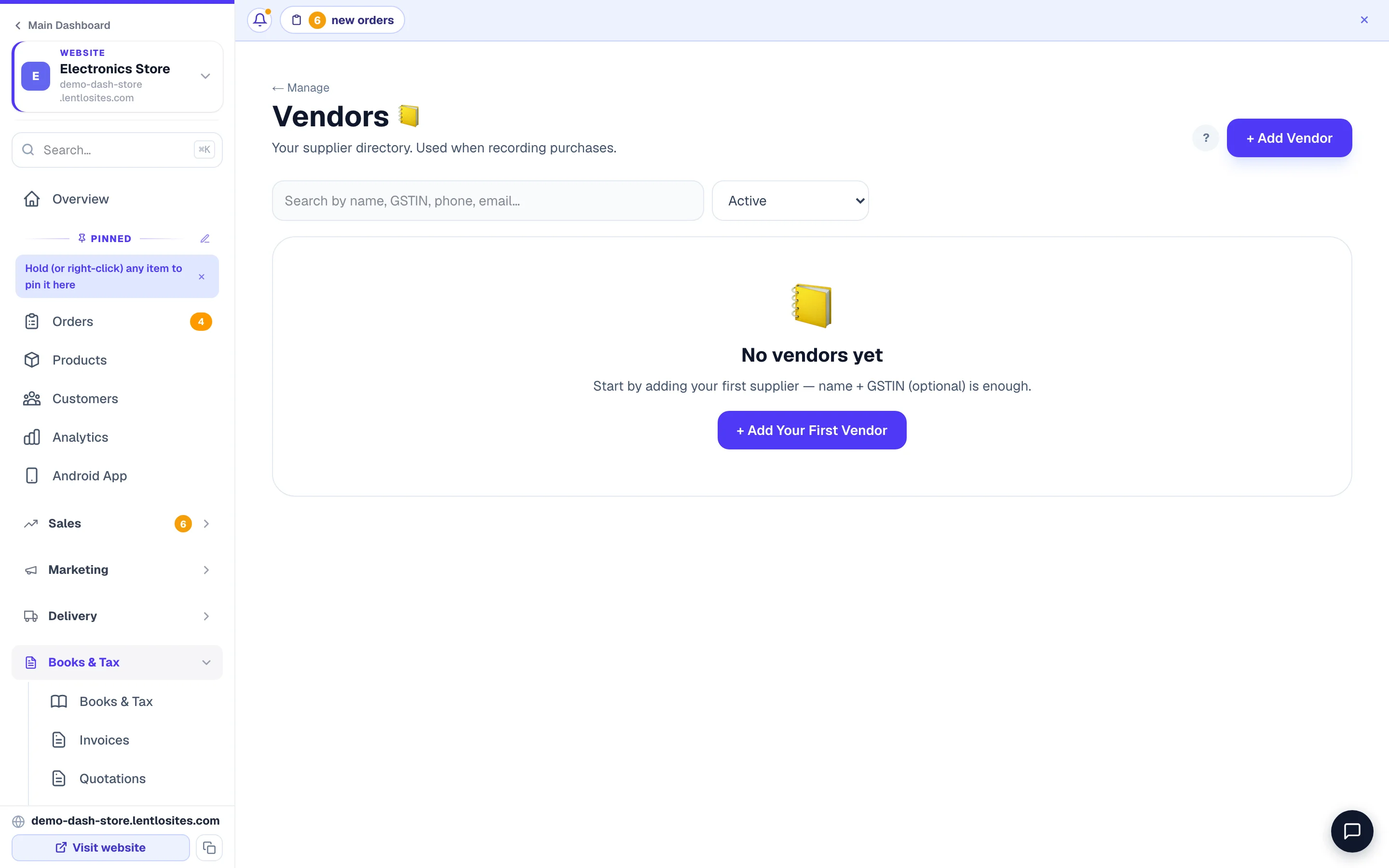
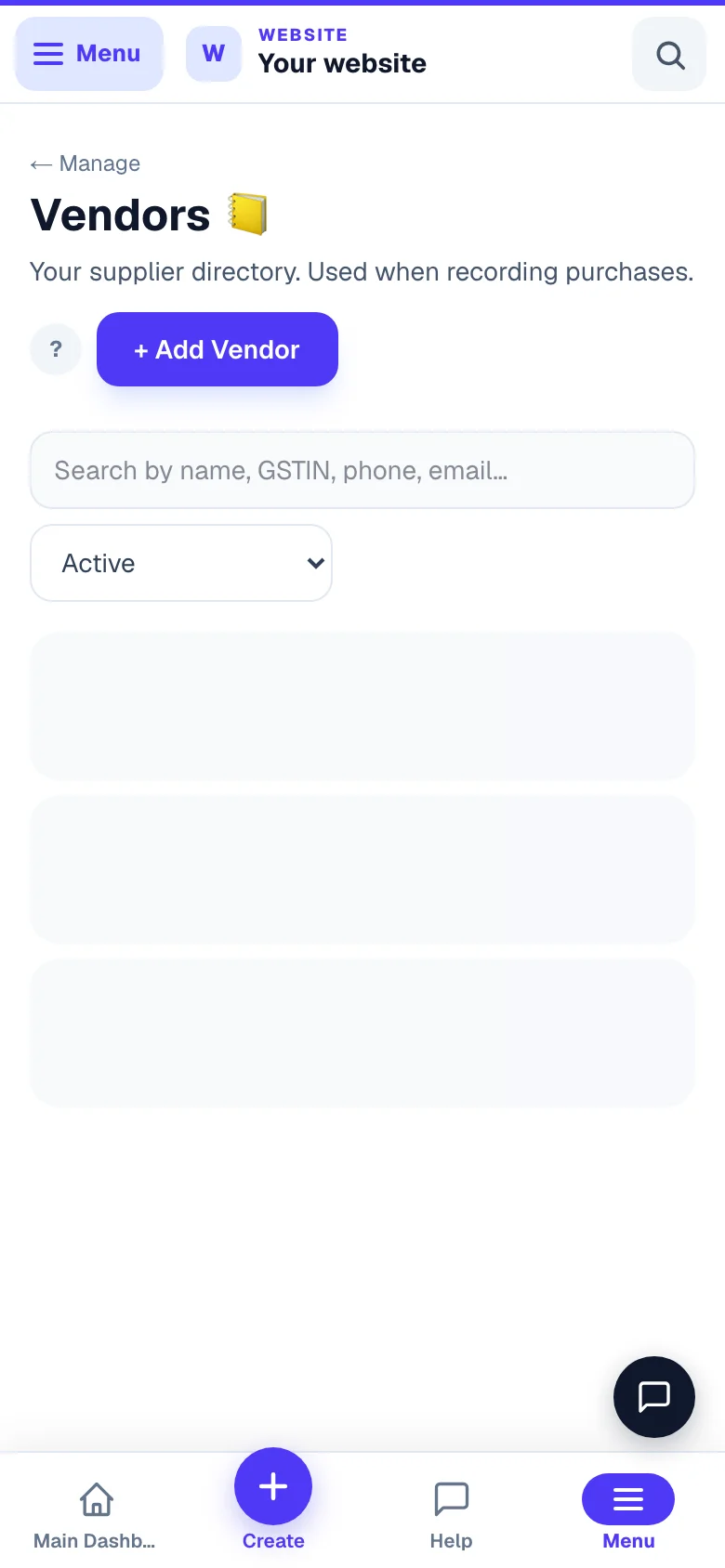
Long supplier list? The search box finds a vendor by name, GSTIN, phone, or email — no scrolling needed.
Add a vendor
Adding a supplier takes under a minute — most fields are optional.
Tap + Add Vendor
The New Vendor form opens (a sheet from the bottom on a phone). Only one field is required: the supplier's Legal Name. A short Display Name and a Trade Name / DBA are optional.
Add the GSTIN — only if they have one
If your supplier is GST-registered, type their 15-character GSTIN. We check it as you type — ✓ Valid shows their state and PAN, and the State box fills in automatically. Buying from a small unregistered supplier or paying cash? Leave GSTIN blank — you can type their PAN instead if you have it, and pick their state yourself. That's completely fine.
Optional: contact, address, payment terms, notes
Phone, email, a Contact Person and the address (two lines, city, pincode) help you reach them later. Payment Terms (days) is the number of days they give you to pay — for example 30 for "net 30". Enter 0 if you pay on the spot. Notes are internal — only you see them. Press Create vendor.
A GSTIN can be on only one active vendor at a time. If you try to add a supplier whose GSTIN is already saved, we'll tell you which vendor has it — so you never end up with accidental duplicates. (Removed a vendor? Their GSTIN frees up for re-use.)
Link purchase bills to vendors
Every purchase bill you record is tied to one vendor — that link is what turns loose bills into proper books. When you record a bill on the Purchases page, the first thing you pick is the vendor. If your list is empty, the page sends you here first: add the supplier, then record the bill.
- Only active vendors appear in the picker — removed ones stay out of the way.
- The vendor's GSTIN travels with the bill, which matters when you claim GST back. See GSTR-2B matching.
See what you owe each vendor
Your vendor ledger lives on the Purchases page — filter by a supplier and the totals become their account. Pick a vendor in the All vendors dropdown and the three cards at the top update to show, for that supplier alone:
- Total — everything you've bought from them
- GST paid to vendors — the tax portion you may claim back
- Unpaid balance — what you still owe them right now
Each bill carries a payment status — unpaid, partly paid, or paid — so the unpaid balance stays honest as you clear bills.
Pay supplier bills within 180 days. GST rules (Section 16) say that if a bill stays unpaid past 180 days, the GST credit you claimed on it has to be returned. The Purchases page reminds you of this next to your unpaid balance.
Where vendor spend shows in your books
Vendor purchases flow straight into your profit maths — record the bill once and every report picks it up.
- Books — the hub shows your supplier count and explains the golden rule: a proper tax invoice from a GSTIN supplier = record it as a Purchase (GST claimable); rent, salaries, and petty cash = record as an Expense.
- Profit & Loss — your purchase bills feed the cost side of the report without the GST part; the GST you paid to vendors is tracked separately as claimable credit for your GST filing, never as a cost.
Remove or restore a vendor
Removing a vendor never deletes your history — it just hides them from pickers so you can't attach new bills by mistake. Open the vendor, tap Remove vendor at the bottom of the form and confirm. To bring them back, switch the filter above the list from Active to Inactive (removed) (or All), open them, tick Active (visible in pickers) again and press Save changes. Old purchase bills keep their records either way. One catch: if you have since added another active vendor with the same GSTIN, the old one can't be switched back on until that one is removed.
More in Payments, GST & books
Did this answer your question?
It takes one tap and it genuinely changes what we write next.