
Reports & Excel exports
Download your sales, customers, stock and marketing data as Excel or CSV — and know exactly which files to send your CA every month.
Watch0:386 min readUpdated 21 Oct 2026
In this guide
What Reports gives you
A report is a spreadsheet of your real business records — the same orders, customers and products you see on screen, but in a file you can open in Excel, print, or forward on WhatsApp. Shop owners use them for month-end accounts, stock checks, and answering the one question every CA asks: “send me this month's sales.”
- Always live — the file is built fresh from your data the moment you download it. There is nothing to “generate” first or wait for.
- Money is exact — amounts come from your order records in rupees, with the full breakup: subtotal, discount, delivery fee, COD fee, GST and total.
- Dates follow Indian time (IST) — “This month” means the Indian calendar month, so your files match your Orders page day for day.
Where each report lives
There is no separate Reports page to hunt for — each report sits on the dashboard page where its data lives, so you download it right where you're already working.
Orders page
Report button → Sales / Orders report: every order with the full money breakup, plus a summary tab. The Sales Analytics screen (Sales Reports in the sidebar) has the same Report button.
Customers page
Download button → your full customer phonebook with spend, orders, loyalty points and last-order date.
Products page
Reports button → 4 reports: Product catalog, Product performance, Low-stock reorder list, Inventory valuation. This button shows on tablet and desktop screens, not on a phone.
Bookings page
Export button → appointment requests with customer, service, preferred date/time and status.
Form inbox
Export button → every form submission (contact, newsletter, custom forms) with every field as a column, headed by the question your form asked.
Coupons & Partners
Coupons page → coupon performance. Influencers page → commission ledger and payout register.
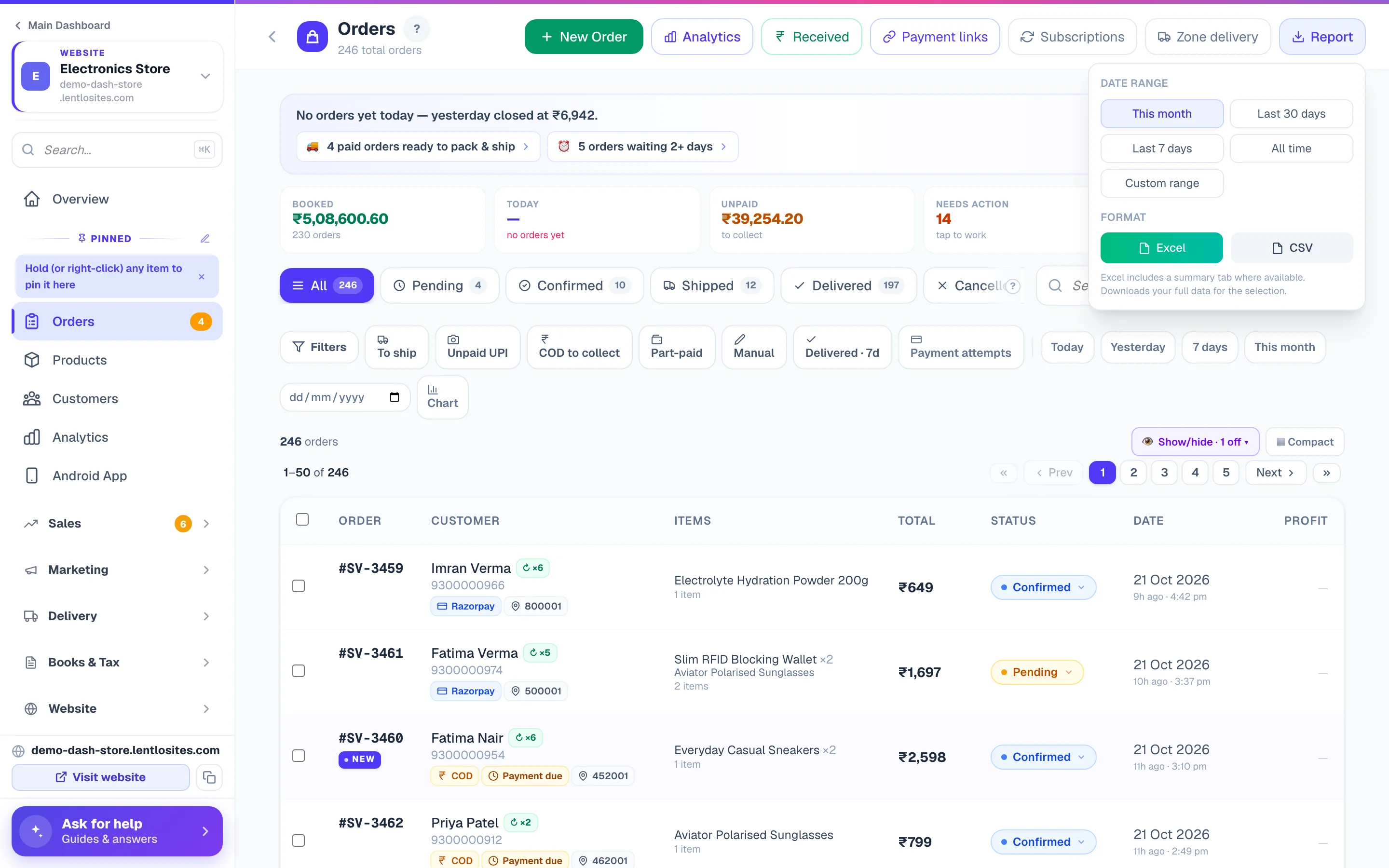
Open the page and tap the download button
For example, open Orders and tap Report at the top. A small panel opens with your choices — nothing downloads until you pick a format.
Pick the report (where there is more than one)
On the Products page the Reports button lists all four product reports — tap the one you want first. Pages with a single report skip this step.
Picking a period
Most reports cover a date range, so you can pull exactly the month or week you need. The panel offers quick presets — This month, Last 30 days, Last 7 days, All time — and a Custom range with from/to dates for things like a full financial year. Each report opens on its usual range: the sales report and Product performance on This month; the customer list, product catalog, bookings, form-inbox and coupon reports on All time. Then tap Excel or CSV — the file downloads straight away.
- The downloaded file is named with the period, like sales-report-2026-06-01_2026-06-30.xlsx, so month files never get mixed up.
- Two stock reports have no date picker on purpose: Low-stock reorder list and Inventory valuation are a snapshot of your stock right now.
Excel or CSV — which to pick
Both formats hold the same main table; they differ in extras and where they open. Excel is the better everyday choice; CSV is for importing into other software.
Excel (.xlsx)
Ready to open and print. Where available, includes an extra Summary tab — totals, averages and breakups computed for you.
CSV
Plain table, opens in any app — Google Sheets, Tally imports, other billing software. Contains the main table only, no summary tab.
Rupee symbols and customer names in Hindi, Tamil or any Indian language display correctly in both — the files are prepared so Excel on Windows doesn't garble them.
The Summary tab is your month-end shortcut. The Sales / Orders Excel file adds a second tab with total orders, booked revenue (cancelled, returned and RTO orders left out), average order value, a "Balance still to collect" line (money owed on orders not fully paid — wallet and part payments already subtracted), breakups by status and payment method, and a Profit & loss block — GST collected, shipping and COD fees, discounts given, items cost and gross profit with margin. Each order row also carries Received (₹) and Balance Due (₹) (your receivables view) plus Net Revenue, Items Cost, Gross Profit and Margin % columns (blank when a product in that order has no cost price — the "Cost known" column tells you which).
The full list — all 11 reports
Here is everything you can download today, so you know what exists before you need it.
- Sales / Orders report — every order in the period with customer, items, payment and the full money breakup, plus the Summary tab. An order placed for someone else also shows the receiver, their mobile and the alternate number.
- Customer list — phone, email, total spend, order count, loyalty points, last-order date; its Summary tab counts repeat buyers and new customers.
- Product catalog — every product with price, stock, HSN, GST rate, category and type (it opens on All time; a date range picks products added in those dates).
- Product performance — units sold, revenue, cost and margin per product for the period (margin shows “—” where you never recorded a cost price).
- Low-stock reorder list — tracked products at 5 units or fewer, sorted emptiest first. Your shopping list for the wholesaler.
- Inventory valuation — stock × cost per product, with cost and retail totals for the whole shop.
- Bookings / appointments — see Bookings.
- Contact enquiries / form submissions — see Form inbox.
- Coupon performance — per coupon: orders, revenue and total discount given (cancelled and returned orders are left out; the discount figure counts every discount on those orders, including loyalty points used alongside the coupon).
- Influencer commission ledger and Influencer payout register — every commission and payout with UPI/bank details and transaction refs; see Influencer program.
What your CA wants every month
Most accountants ask for the same small set of files after month-end. Downloading them takes about two minutes.
Sales / Orders report — This month, Excel
From the Orders page. The Summary tab gives your CA booked revenue and payment-method splits at a glance; the Orders tab has the order-by-order detail with GST per order.
GST filing data — from the GST Reports page
GST return figures (GSTR-1 and GSTR-3B) are prepared on a separate page: Books & Tax → GST Reports in your website's sidebar, with its own JSON and CSV buttons and an annual GSTR-9 card. That page organises your invoices the way the GST portal wants them — see GST invoices and GSTR-2B matching.
Purchases and expenses, if you record them
The Expenses page has its own CSV button for the period you are viewing. Purchase bills have no download yet — your CA reads them on the Purchases page (each bill keeps its photo or PDF), and with GST Advanced Mode on, the GST Reports page's GSTR-3B tab totals their input credit. Your Profit & Loss view then ties the month together on screen.
Other downloads outside the report panel
A few pages have their own download buttons, because their files follow a format someone else needs:
- Selected orders as CSV — tick orders on the Orders page and download just those, for a courier or your accountant (see Orders).
- Expenses CSV — the CSV button on the Expenses page downloads the period you are viewing (see Expenses).
- GST returns — GSTR-1 / GSTR-3B as JSON for the portal and CSV for your CA, the annual GSTR-9 roll-up, and a CMP-08 summary for composition dealers, all on the GST Reports page (see GST invoices & reports).
- E-invoice and e-way bill files — the portals' bulk-upload files, on E-Invoice Setup and on each order (see E-invoicing).
Profit & Loss, Analytics and Purchases are read on screen — they have no download of their own today.
Common questions
The doubts owners raise most often about report downloads, answered in a line or two each.
Can reports be emailed to me automatically every month?
Not yet — reports are download-on-demand. The good side: the file is always built from live data the second you ask, never a stale copy.
Can my staff download reports?
Yes. The sales report needs order access, the four product and stock reports need product access, and the two influencer reports need influencer access. The customer list, bookings, form-inbox and coupon reports are open to any staff member you have added to the site. See Staff accounts.
Do cancelled orders appear in the sales report?
The Orders tab lists every order with its status, so nothing is hidden. The Summary tab's revenue counts booked orders only — cancelled, returned and RTO orders are left out, matching Analytics.
Why is margin blank for some products in Product performance?
Margin needs a cost price, and each order remembers the cost at the time it was placed. A product whose orders carry no recorded cost shows “—” instead of guessing; if only some of its orders carried a cost, the margin shown counts just those and reads lower than reality. Add cost prices in Products and future orders will carry them.
Is there a charge for downloading reports?
No. Reports are included with your site — download as many as you like.
More in Payments, GST & books
Did this answer your question?
It takes one tap and it genuinely changes what we write next.