
Header & Footer — menus, mobile drawer & announcement bar
Control your top menu, footer links, the phone ☰ drawer and an announcement bar. Add outside links, reorder, hide built-in links per location.
Watch0:417 min readUpdated 21 Oct 2026
In this guide
The four tabs
The page is split into four tabs — each one controls a different part of what customers see:
- Header — the menu at the top of every page. Supports dropdown sub-links (e.g. “Collections” with items under it).
- Footer — the links at the bottom of every page. Two lists on one screen: your main footer links, plus the small policy row (Privacy, Terms, Refunds).
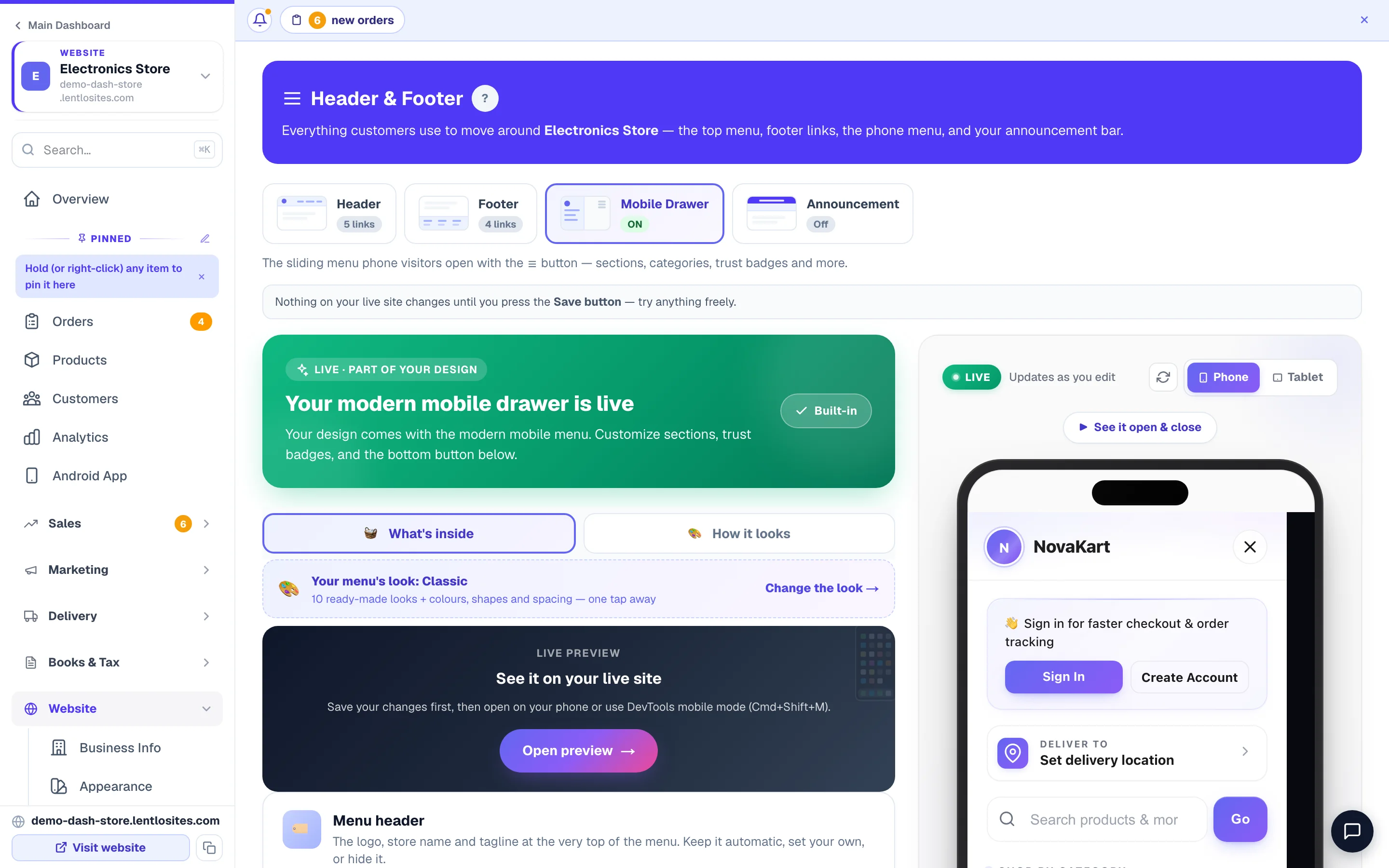
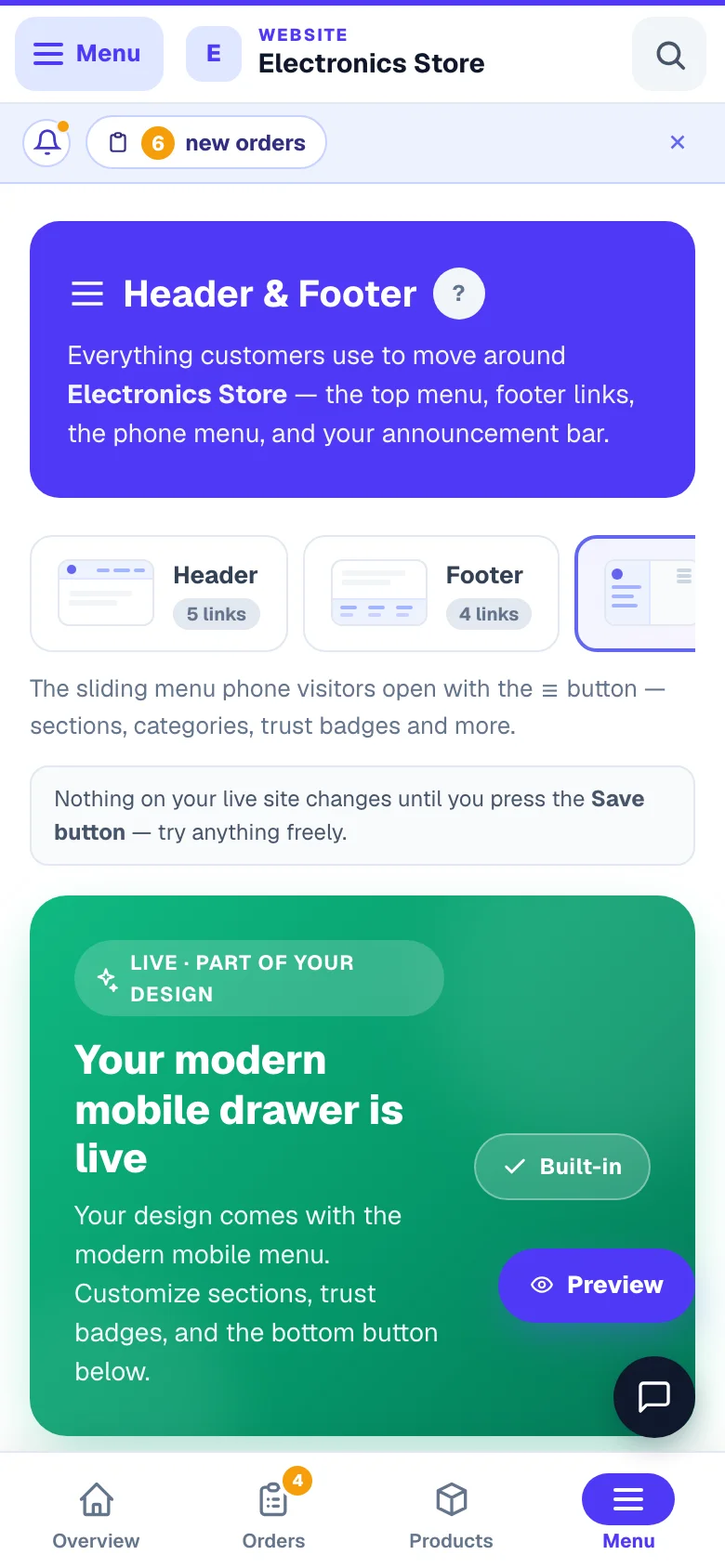
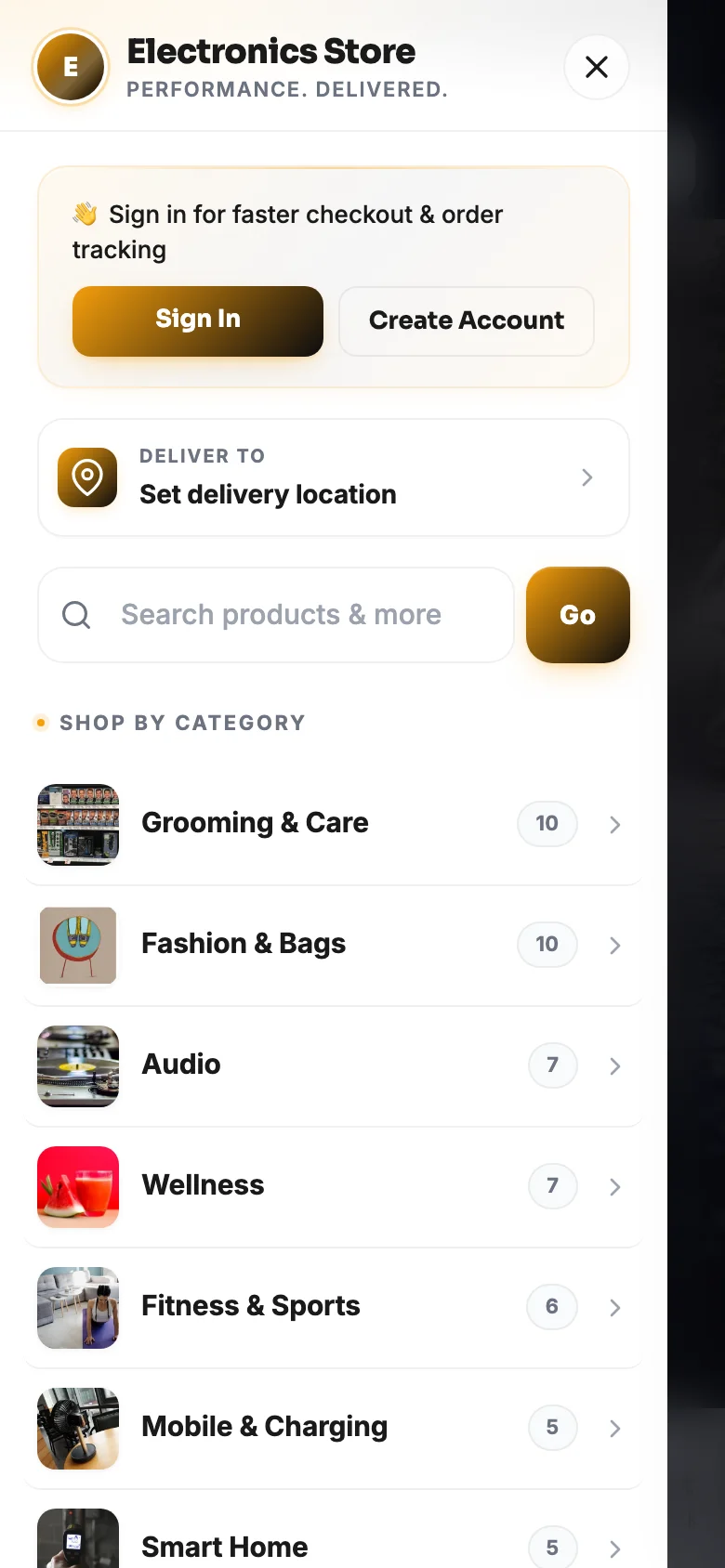
- Mobile Drawer — the sliding menu phone visitors open with the ☰ button. Fully customizable: design, sections, trust badges, colours and more.
- Announcement — a slim message strip at the very top of your site. Perfect for sales, festivals or delivery news.
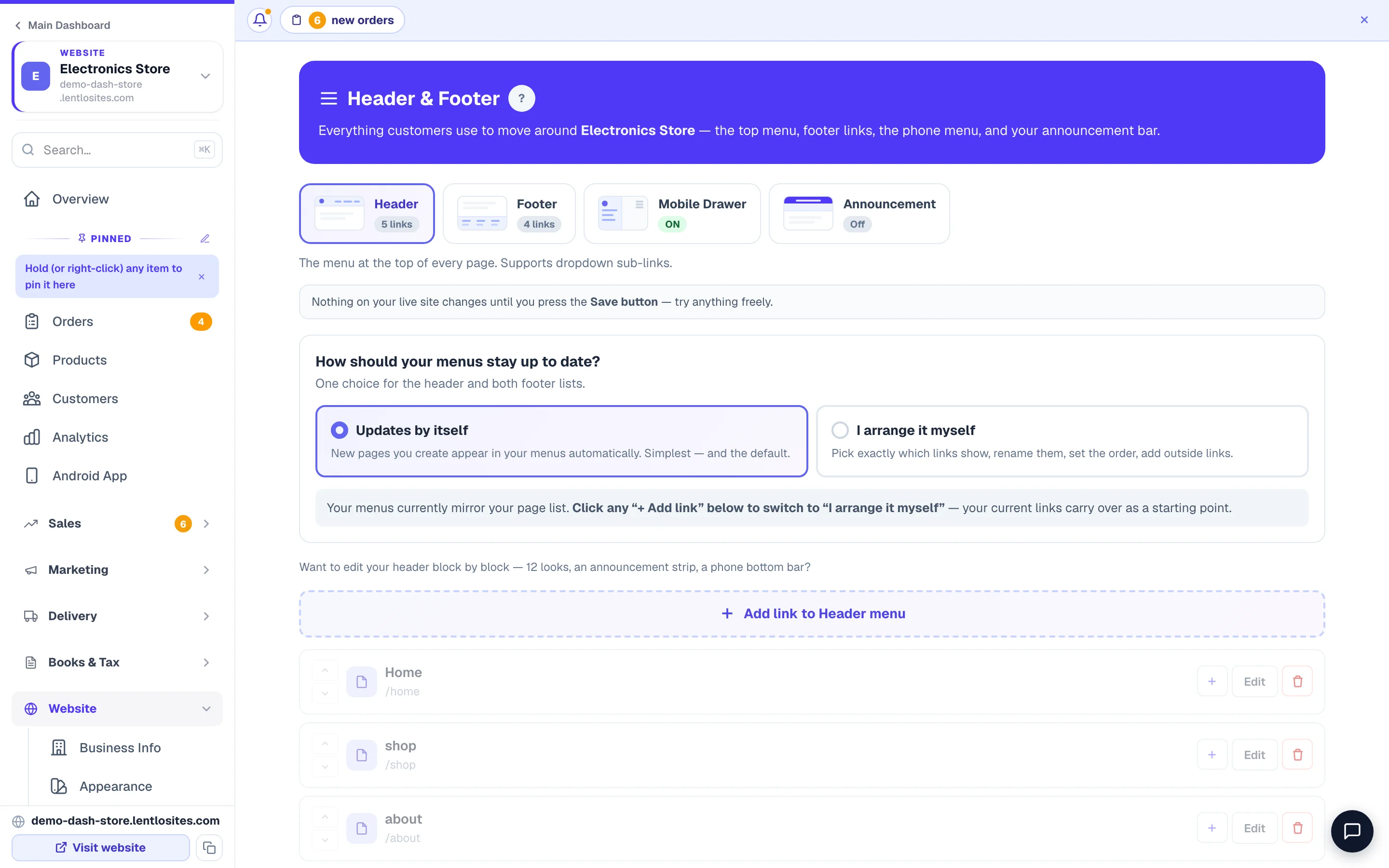
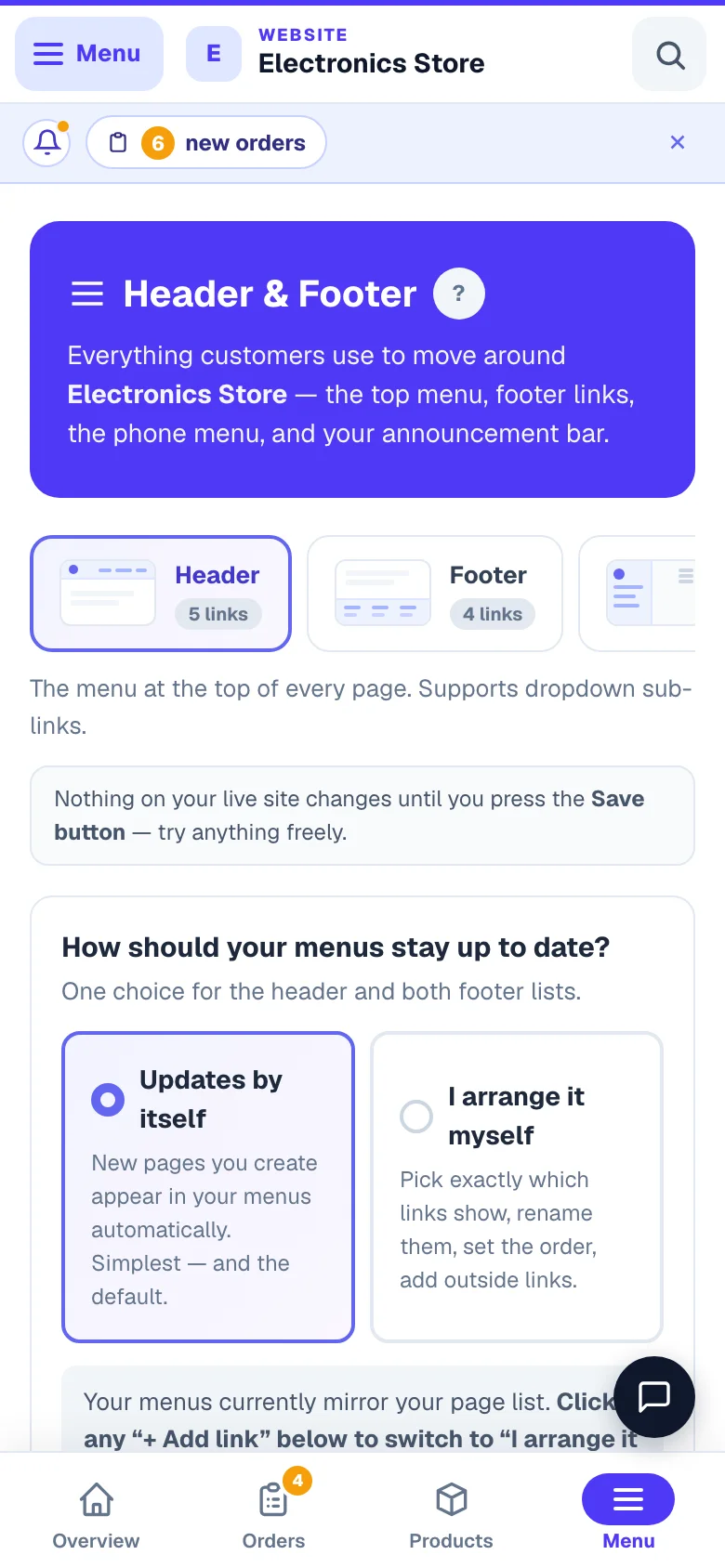
- 1Four surfacesHeader menu, footer, the phone drawer and the announcement strip.
Want to change the header's look, not just its links? The Header and Footer tabs carry a door: Make my header a block (or Open the header block once you have one). A block is edited in the website editor like any section — twelve header looks, ten footer looks, an announcement bar, a phone bottom bar and your own 404 page. Menus, the drawer and the announcement text stay here; the block reads them. Full guide: Header, footer & site-wide blocks.
Blank canvas and preset websites also get a quicker choice right here. On the Header tab, the Header design & button card shows six header styles as small drawings — Automatic, Classic, Editorial, Bold, Utility and Soft — so you can see where the logo, the menu and the button sit before you choose. Under the drawings is a live picture of the style you tapped, made with your own saved logo, colours and menu; switch it between Computer and Phone. The same card holds the header Button text and Button link. Tap styles freely to compare — nothing changes on your website until you press Save. The Footer tab has the same in its Footer design & text card: four footer styles (Automatic, Classic, Editorial, Utility), plus the footer's About line and Opening hours. A useful check: a dark logo disappears on the dark Bold bar — the picture shows you that before your customers see it.
Using the Soft (floating) header on a colourful first section? When Soft is chosen, a switch appears under the picture: Floating header sits over the top section. The floating bar normally rests on a thin white strip. If your page opens with a full-width colour or photo, that strip shows above it and the bar sits half on white, half on colour. Switch it on and the colour runs behind the bar, edge to edge. Leave it off when your first section is white — nothing changes there. The same switch is in the website editor under Site Settings.
“Updates by itself” vs “I arrange it myself”
Your header and footer menus can stay up to date in two ways. One choice covers the header and both footer lists:
- Updates by itself (default) — your menus mirror your page list. Create a new page and it appears in the menu automatically. Simplest — no setup needed.
- I arrange it myself — you control every menu item: pick exactly which links show, rename them, set the order, add outside links.
Click any Add link… button and you switch to “I arrange it myself” automatically — your current links carry over as a starting point, so you never start from a blank list. While arranging yourself, new pages don’t join menus on their own — a blue “Add new pages” box appears when a page is missing, with one-click add. You can switch back to “Updates by itself” anytime; your custom menu is kept for next time.
SnapCart, CartWave, Aura, ShopNest, StyleHive and TrendFlow print their own header row (Home · Shop · Deals · About · Reviews · Contact). Choose “I arrange it myself” and that row — and the Browse list in the phone menu — becomes your links, in your order, with your names; a page you removed (Deals, Reviews) is no longer linked from the header. The row has room for about six short names: a longer menu shows the first few and tucks the rest under More (the phone menu lists them all), so put your most important links first. These headers have no dropdowns, so sub-links follow their parent in the same list, and a Heading is left out.
Asking Asha to change a menu
You can also tell Asha in the chat: “add Press to the footer”, “rename About Us to Our Story in the top menu”, “remove Blog from the menu” or “add a Shop Toys heading with Puzzles under it”. She puts up a card with the menu before and after — nothing changes until you tap Confirm. Your website then rebuilds itself; if this page is open, its menus change to the new ones without a reload (drawer and announcement edits you have not saved stay).
- If your menus update by themselves, the card switches them to “I arrange it myself” — only when the menus stay exactly as they are now apart from what you asked, and the card says so. From then on a new page joins a menu only when you add it. When that cannot be kept exactly, she says so and you make the change here.
- She changes only what your design shows. A few designs draw their own top links, and she names the exact place: the Nav Links list in the editor's Site Settings → Header & Navigation, or each page's Show in Header switch (Pages → the page's ⋮ menu → Page Settings), or — where the design writes its links in — that they cannot be changed. A design that draws its own footer links has them in Site Settings. On a top menu with no drop-downs she tells you where the link would show — never a plain “done”. She never links a page your live website does not show, so a new menu entry never opens an error page. A policy page stays in the policy row while it is published.
- Undo on her answer puts the menus back exactly as they were — “Updates by itself” included — unless they were changed again meanwhile.
Adding a link
Use this when you want a menu item that isn’t a page — a WhatsApp link, your Instagram, or a section heading to group links.
Pick the menu
Open the Header tab, or the Footer tab (which has both the main list and the policy row).
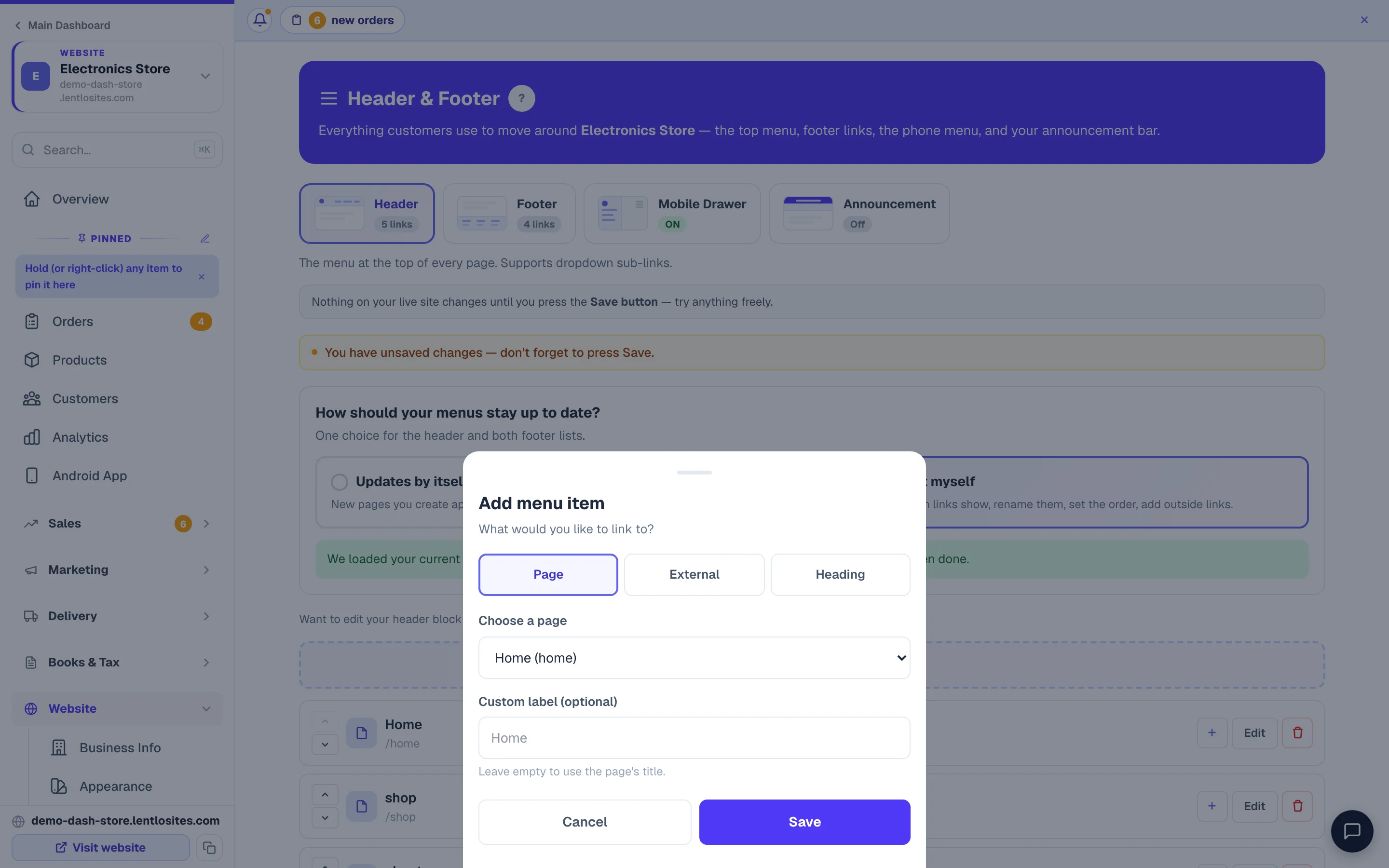
Add link
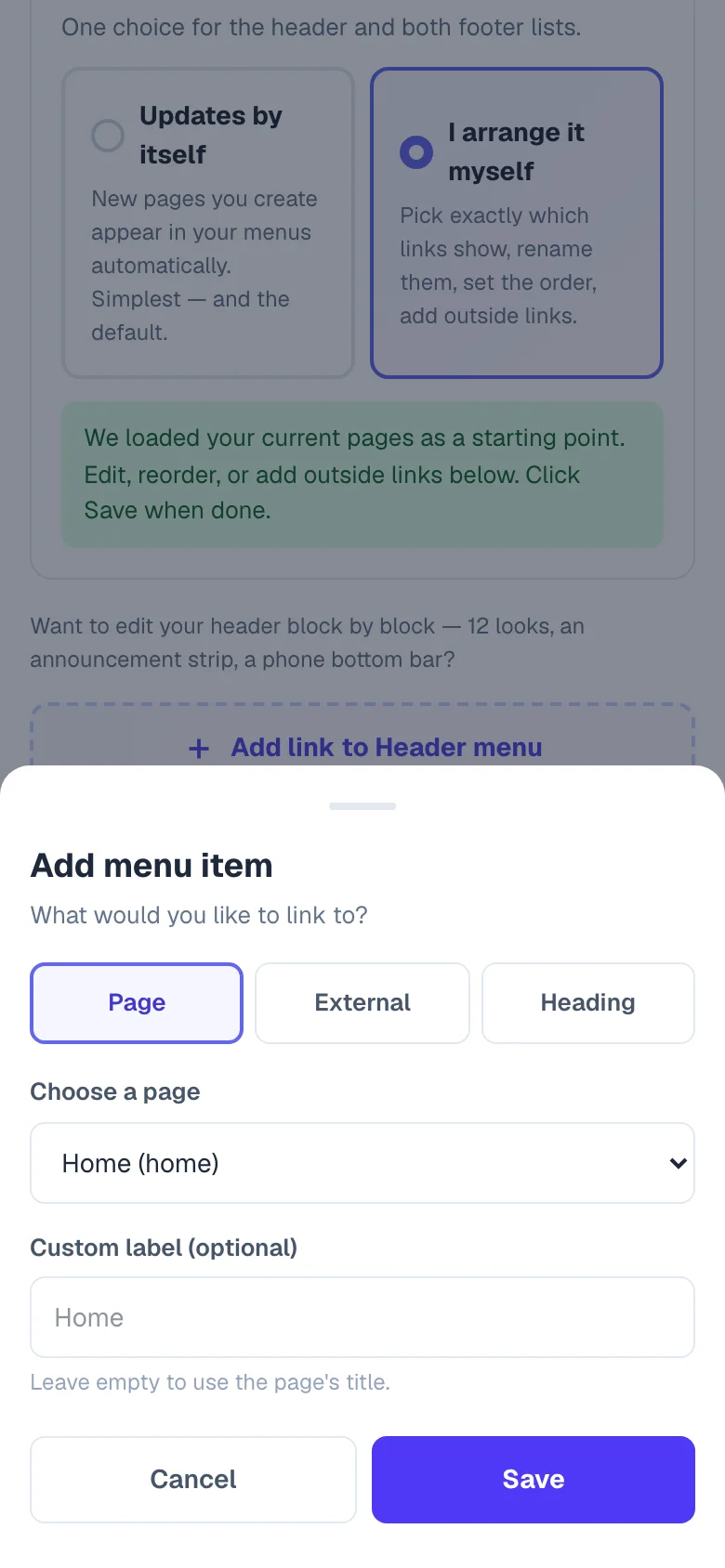
Click the dashed Add link to Header menu button (each list names itself — Footer links, Policy links). Pick the type:
- Page — pick from a dropdown of your existing pages; optionally give it a shorter label. A new item starts with no page chosen, so every link goes exactly where you pick (an item left on “Home” would keep customers on the home page).
- Category (stores) — link straight to one of your product categories; the published site opens that category’s own page
- External — enter an address. Allowed:
https://,http://,tel:+91…,mailto:…,wa.me/…and a path on your own site like/faq. There’s an “Open in new tab” switch (recommended for outside sites) - Heading — a non-clickable section label, useful for grouping the links below it
Order with the arrows
Each row has ↑↓ arrows — the order you set is the order customers see. On the Header tab, each row also has a + button to add dropdown sub-links under it.
Save
Click Save Changes. Everything on this page applies together when you save — see how changes go live below.
Footer links & the policy row
The Footer tab manages two lists: Footer links (your main list) and Policy & legal links (the small row at the very bottom). Policy pages (Privacy, Terms, Refund Policy) are marked Always shown — they can’t be removed from the footer because payment providers and customers expect them. To take one down, unpublish the page itself in Manage Pages.
Removing links is fully honored — including removing all of them. In “I arrange it myself” mode, deleting every link from a list means that menu shows no links on your live website (on designs that support it, the footer’s whole links column hides). Your site stays navigable through the logo, the ☰ menu and your footer contact details.
Built-in feature links (Track Order / Wallet / Blog)
Some links aren’t pages you created — they’re platform features whose links are placed automatically by your website design. The Header and Footer tabs each show a green “Built-in features” section where you can remove or add them per location:
- Track Order — customers check order status without an account. Removing the link doesn’t break SMS tracking links — the page stays reachable directly.
- My Wallet — store-credit balance. Customers with balance can still reach
/walletdirectly. See customer wallet. - Blog — your blog index. To switch off the whole blog feature (not just the link), use the Appearance page. See blog guide.
- My Account (Footer tab only) — on store websites a “My Account” link is added to the footer automatically. Remove it here if you don’t want it; customers can still sign in from the account icon and the phone menu.
Each one showing has a Remove button; each one removed comes back with + Add. So you can hide Track Order from the Header but keep it in the Footer, for example. If a feature is hidden everywhere on the Appearance page, the buttons here are greyed out until you clear that master switch — see visibility toggles for how the two levels work together.
The footer credit line
The very last line of your website footer shows “This site built with LentloSites”. On any paid plan, the Footer tab shows a Footer credit line box where you can replace it with your own text — for example “Crafted with care by Sharma Stores”. Leave the box blank to keep the standard line. Like everything on this page, it applies when you press Save.
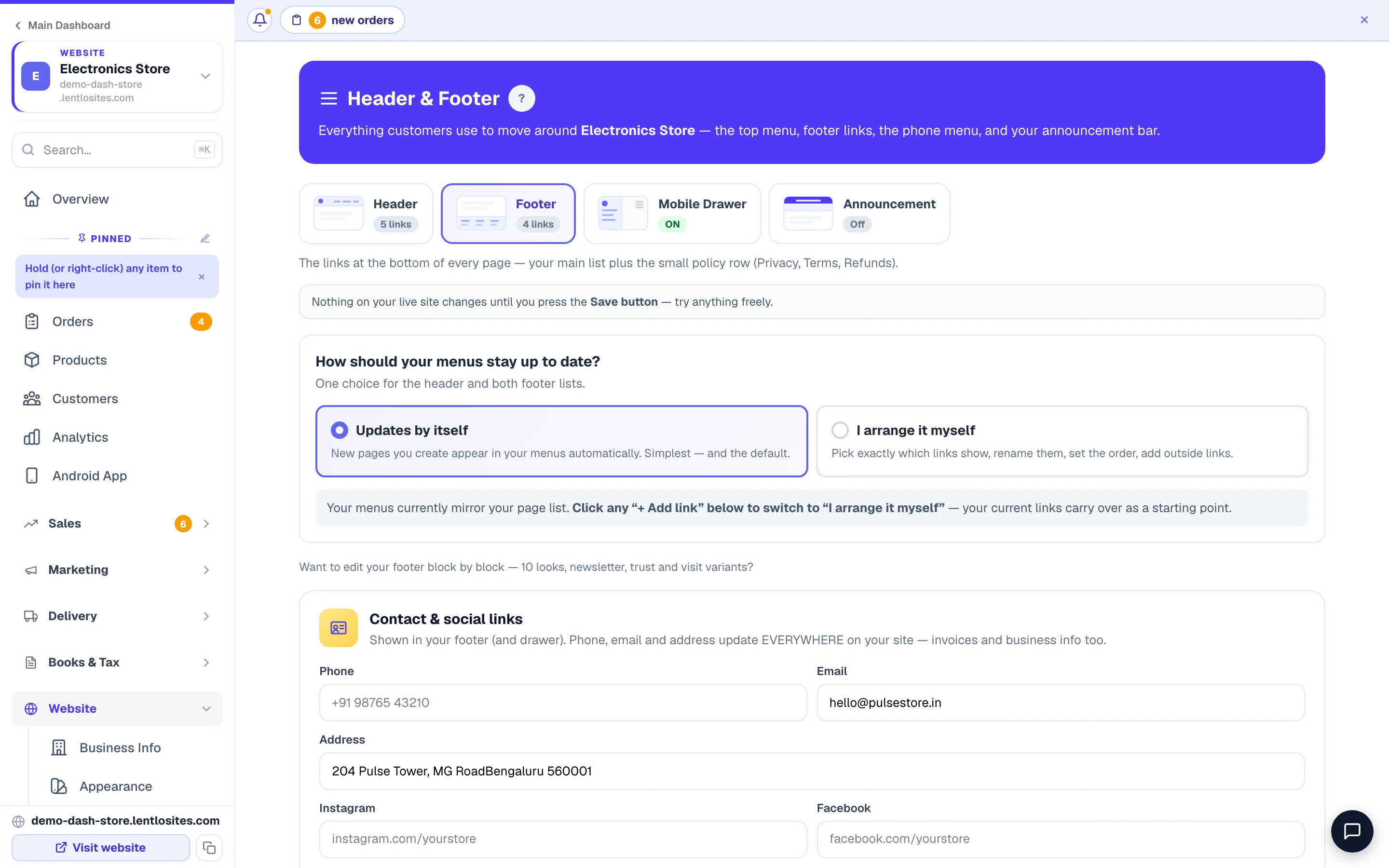
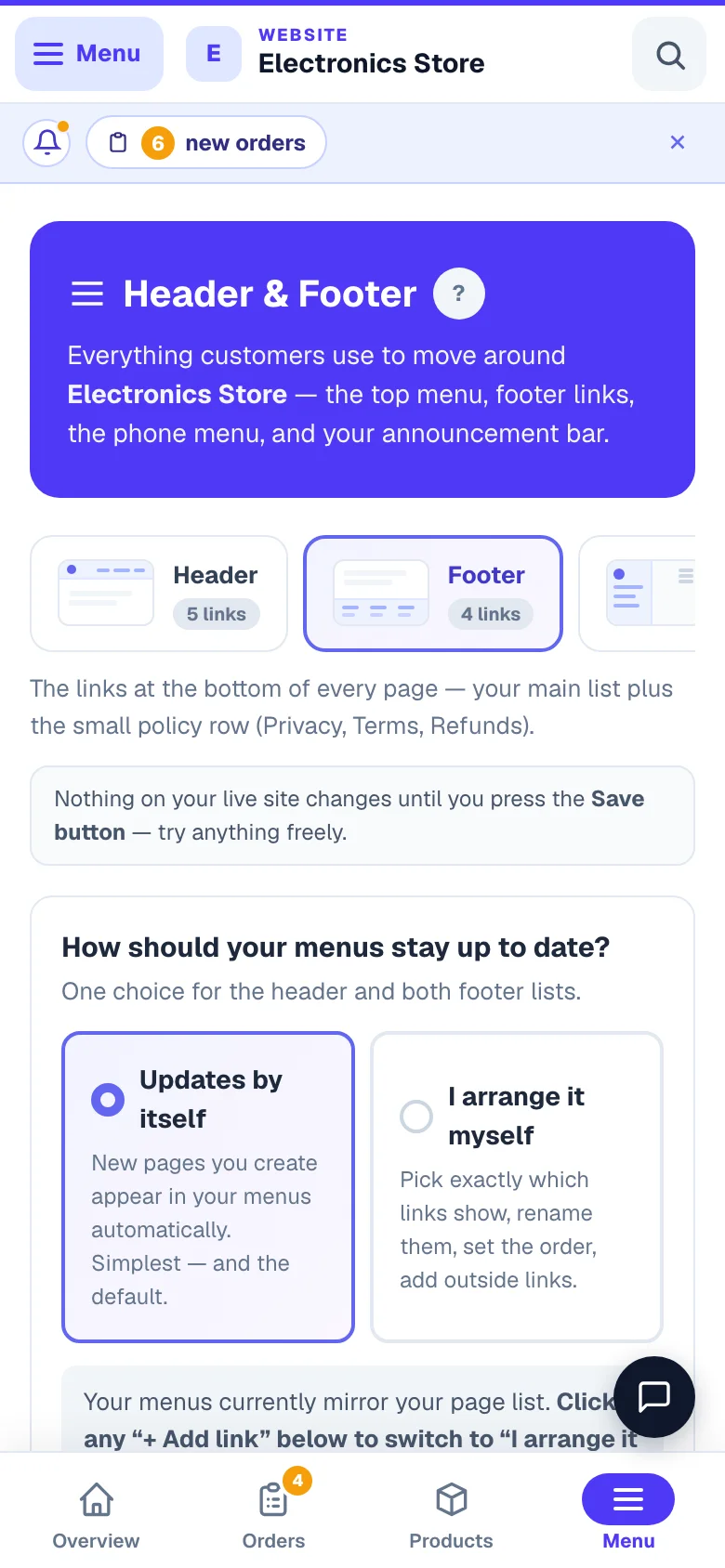
Common setup: Header — Home, Shop, About, Contact (4 items). Footer — Quick Links (same), plus Track Order + My Wallet built-ins. Policy row — Privacy, Terms, Refund.
The mobile drawer (phone menu)
Most Indian shoppers visit on their phone, so the ☰ menu is often the first thing they touch — this tab makes it yours. A live phone preview sits beside the controls (on small screens, tap the floating 👁 Preview button) and updates as you edit; press Save to apply.
What you can customize:
- Menu design — pick a design from the gallery, then fine-tune shape, background, item look and spacing.
- ☰ button & animation — choose the hamburger icon style, its animation, and how the drawer slides open.
- Menu header & close button — keep your logo + store name automatic, set your own, or hide it; style the ✕ close button. On Custom you can pick the logo from your already-uploaded images, upload a new one, or paste a URL.
- Logo Display Mode — this one lives in the editor's Site Settings rather than here, and it decides what the top-left of your website actually shows: Icon + Text (your logo image beside your name — the default), Icon / Logo only (the image on its own, right for a logo that already contains your name), or Text only. Beside it sit the logo image height and text size, set separately for computers and phones, and where the logo sits in the phone header. Its size is the Header logo height control beside it — the header bar grows with the logo, so a bigger logo never spills out of it. On computers a large logo (76px or more) also settles as shoppers scroll: once they move past the header, the logo shrinks in step with the scroll and the bar turns slim, and it returns to full size at the top of the page. Nothing below the header jumps while this happens.
- Footer logo size & position — also in the editor's Site Settings, under Footer: a separate footer logo if you want one, its height (a second one just for phones), and whether it sits left, centre or right. Leave them on the design default and nothing changes.
- Colours & buttons — theme, button fill, icon chips and text size to match your brand.
- Sections — switch on/off and reorder the drawer’s building blocks: account block, pincode delivery check, search bar, Recently Viewed, Shop by Category (see categories), your main nav links, Help & Info, trust badges, contact cards, social media.
- The WhatsApp message — the drawer’s Message us on WhatsApp chip opens a chat with a message already typed for the customer, so they don’t start from a blank box. Write your own in Message the WhatsApp chat opens with (up to 160 characters) — put
{brand}where your business name should appear, or leave it empty for the default. - Links inside the drawer — hide, rename, re-icon or reorder individual links in the Browse and Help & Info sections, drawer-only. Your header and footer stay unchanged.
- Every other word in the menu — open Other words in the menu under the section titles to write, in your customers’ language, the sign-in and create-account buttons, the signed-in greeting, the delivery pill (“Deliver to” / “Set delivery location”), the signed-in chips (Orders, Wishlist, Wallet, Track, My account), the search button, the “Recent” / “Clear” words, the “View all” link under categories, and the Call / WhatsApp / Email cards. An empty box keeps the platform’s word.
- Trust badges (up to 4) — reassure customers with delivery, returns, payment security. Use the icon library or your own emoji.
- Bottom action button — a sticky button at the drawer’s bottom, great for a sale or your most-wanted action.
- Custom blocks — add your own headings, text, links, buttons, images, banners, notes or opening hours anywhere in the drawer.
On newer designs the modern drawer is part of the design itself. Older designs show an “Upgrade to the modern mobile drawer” switch — until you upgrade, they keep their basic sliding menu and the customizations here apply after you switch on.
Announcement bar
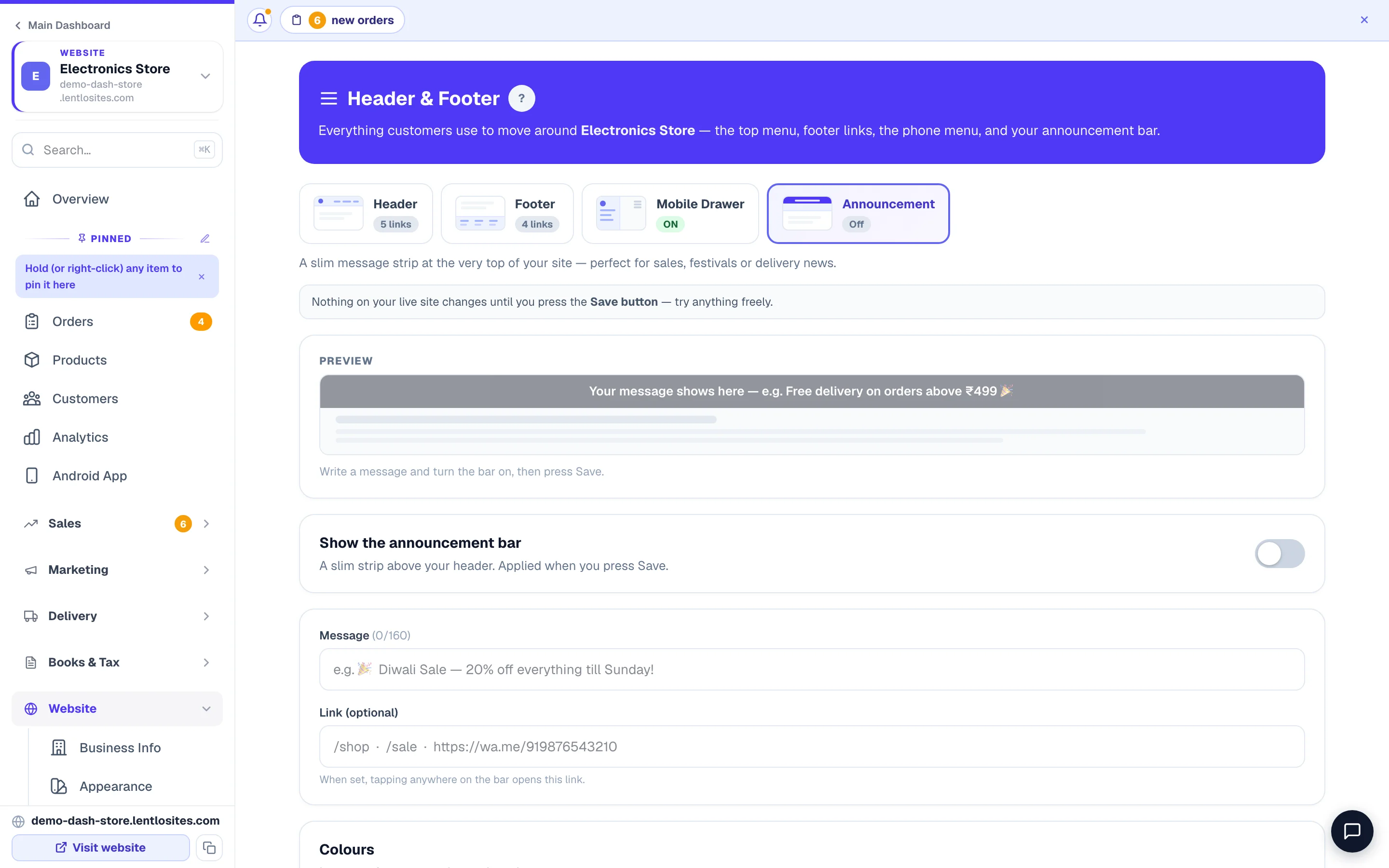
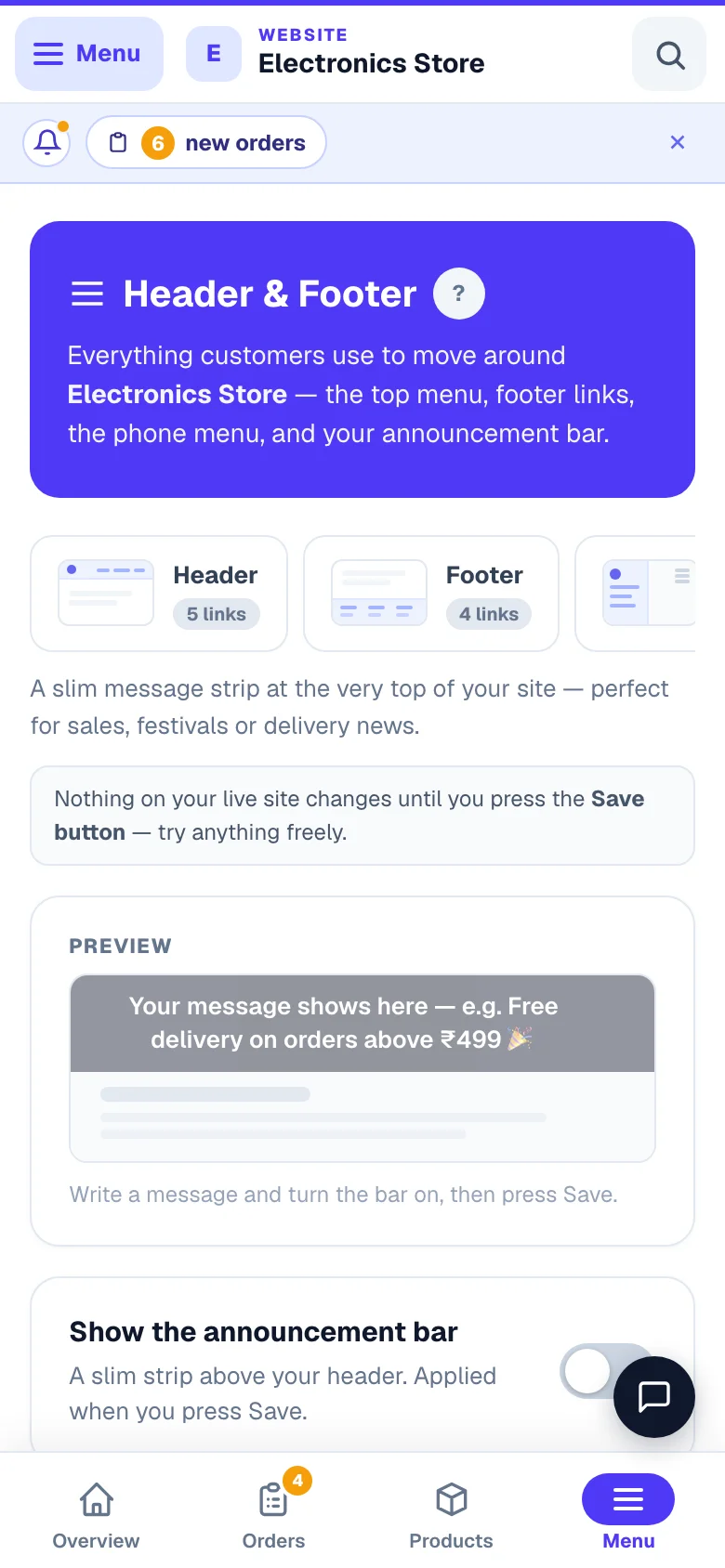
A slim strip above your header for time-sensitive news — “🎉 Diwali Sale — 20% off till Sunday!” or “Free delivery this week”. Shops use it because it’s seen on every page without touching the design.
- Message — up to 160 characters, with a live preview as you type.
- Link (optional) — tapping anywhere on the bar opens it. Use a page path like
/shopor an outside link likehttps://wa.me/91…. - Colours — leave on Auto to match your brand, or pick your own background and text colours.
- Let visitors close it — adds a small ✕. Once closed, that visitor won’t see the bar again on that device — until you change the message or link, which brings it back for everyone.
- Where it shows — every page, or homepage only.
You can also tell Asha in the chat: “add an announcement: Diwali sale 20% off”, “change the top bar text to Free delivery this week” or “turn off the announcement”. She puts up a card with the bar before and after — nothing changes until you tap Confirm, and Undo puts the old bar back. Turning it off keeps the words here for next time. If this page is open, the Announcement tab shows her change without a reload (menu edits you have not saved stay).
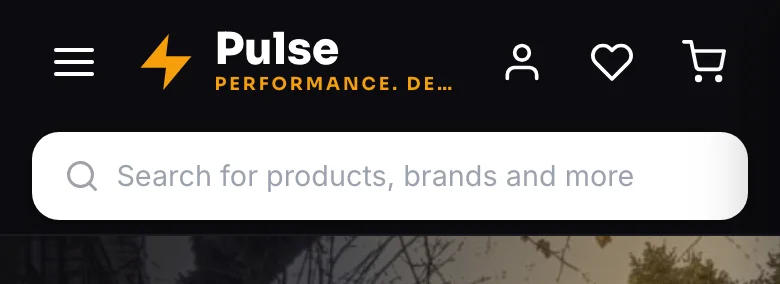
Two different strips can sit at the top. Besides this bar, many designs draw a strip of their own — a promo line, a moving ticker or a phone and hours row — set in the website editor under Site Settings, usually with its own on/off switch there. Switching this bar off does not remove that one. Not sure which one you are looking at? Ask Asha “what is the strip at the top of my website?” — she reads your design and names each one and where it is changed.
External link examples
Outside links let a menu item open WhatsApp, dial your number, or jump to your social profile:
- WhatsApp:
https://wa.me/919876543210?text=Hi! - Phone:
tel:+919876543210 - Email:
mailto:info@yoursite.com - Instagram:
https://instagram.com/yourbrand(the drawer’s Social media section also shows icon buttons)
Don’t add too many items — 5-7 per menu is the sweet spot. Phone screens fit about 6 comfortably before scrolling.
How changes go live
Everything on this page — menus, built-in link switches, drawer settings, the announcement bar — is staged together and applied when you press Save Changes. If you have unsaved edits, a reminder notice appears; leaving without saving discards them.
- Published site: saving republishes automatically — changes appear on your live site in about 5-10 seconds. No need to press “Update Website” in the editor.
- Not published yet: your changes are saved and appear when you publish your website.

Read next: What customers see (visibility toggles) · Edit your site · Categories · Blog.
More in Your website
Did this answer your question?
It takes one tap and it genuinely changes what we write next.