
URL redirects — keep your old links working
Moving to LentloSites? Point every old page address to its new page so Google rankings, ads, and shared links keep working.
3 min readUpdated 21 Oct 2026
In this guide
Why old links matter
Redirects protect the traffic your old site already earned — set them up before you switch, and you lose nothing in the move.
Your old site’s pages are saved in many places you can’t edit: Google results, ads you ran, WhatsApp chats, even printed flyers. If those addresses don’t exist on your new site, visitors see a “page not found” — and Google slowly removes your pages from search. A redirect fixes both: the visitor lands on the right page, and Google transfers the ranking.
Adding redirects
Each redirect is simple: an old address, and the new page it should go to. You can add them one by one or in bulk.
Open URL Redirects
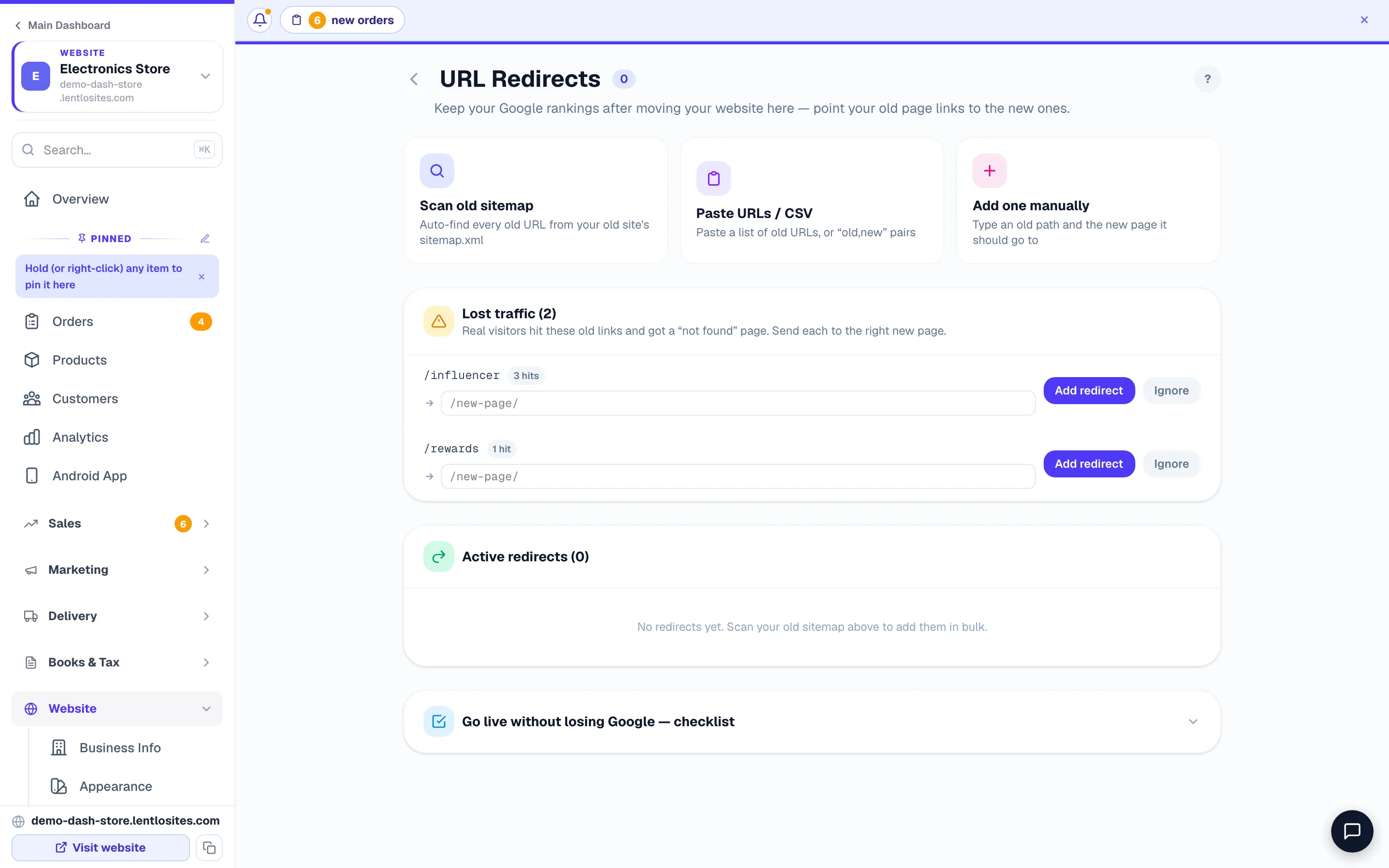
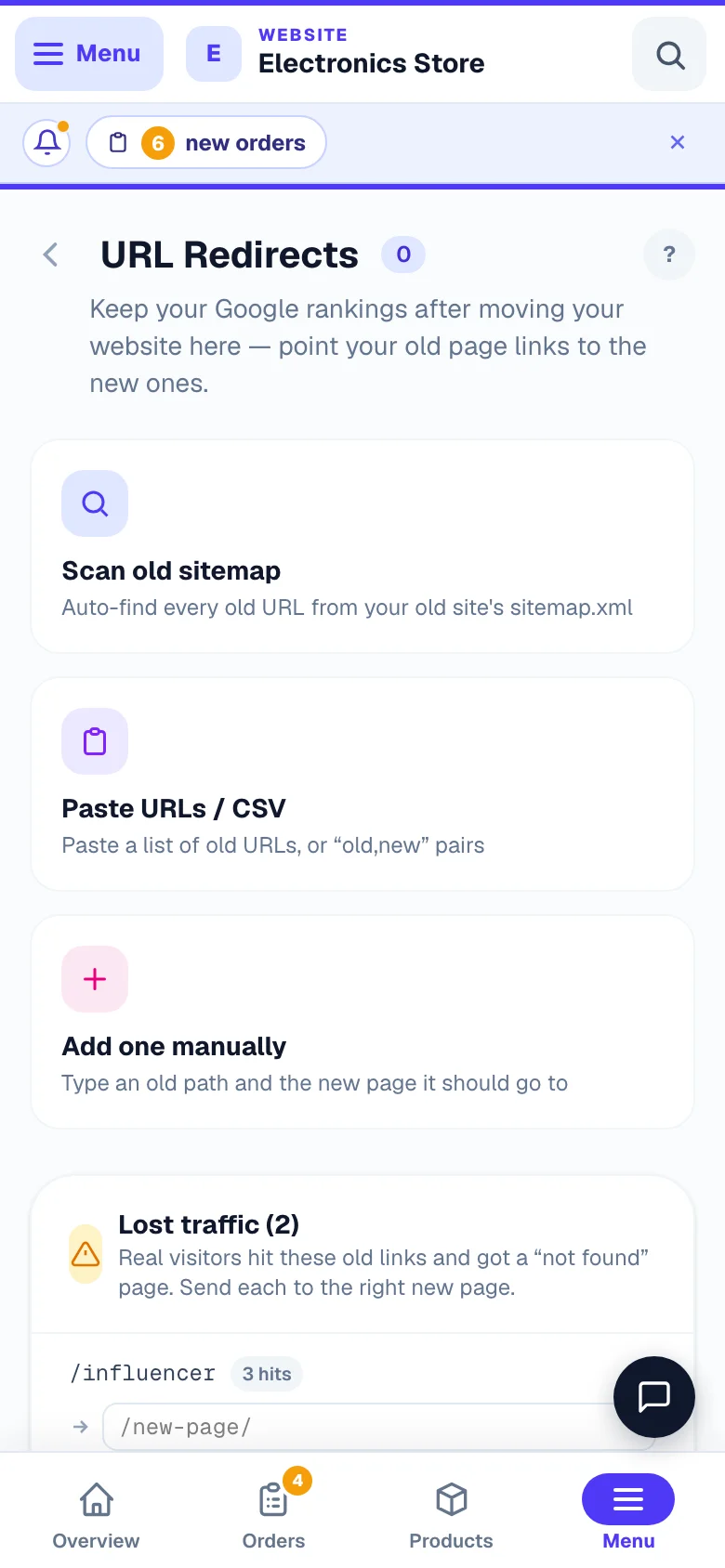
In that website’s menu, under Website, open URL Redirects (it is also a tile on the Manage page).
Pick how to add them
- Scan old sitemap — the fastest way. Type your old site’s sitemap address (usually
your-old-site.com/sitemap.xml) and we read every old page and suggest the matching new page wherever we find one — the rest just need you to pick a target. Keep the old site online so we can read it. - Paste URLs / CSV — paste old links, one per line, and we suggest matches. Or paste ready-made pairs like
/old-page, /new-page/if you already know the targets. - Add one manually — type one old path and choose the new page.
Review and add
A Review redirects window opens with a line at the top — how many old addresses you gave, how many were matched automatically, how many still need a target. Each suggestion carries a label: Strong match, Likely or Maybe. Strong matches are ticked for you (Select matched ticks every matched row, Clear unticks everything); check the rest, type or pick any missing target, then press Add 12 redirects — the button counts what you ticked. They go live on your site within a couple of minutes.
Fix lost traffic automatically
Even after setup, the page keeps watching for old links you missed — you don’t have to guess which ones exist.
When a real visitor opens an old link that has no redirect yet, it appears in the Lost traffic list with a count of how many people hit it. Where we can, we suggest the best new page — accept it in one tap (or type the right page yourself), or Ignore links that don’t matter (like old spam or bot visits). Check this list weekly for the first month after moving.
A link that opens normally again — say you added that product back — leaves the list by itself. It no longer needs a redirect, and one would only hide the page from your visitors.
Testing a redirect
Testing takes ten seconds and proves the move worked.
Wait a couple of minutes after adding, then type the full old address into your phone’s browser — you should land straight on the new page. Active redirects lists every one you have, old address on the left and new page on the right, each with an on/off switch and a delete button, so a wrong one is easy to correct. Redirects work on your own domain and on your free lentlosites.com address, once your site is published.
Two redirects can never send visitors round in a circle — /a to /b and /b back to /a would leave both pages unable to open. If a new redirect (or switching one back on) would do that, the page says so and names the addresses, so you can change one of them.
When you don’t need redirects
Redirects are only for addresses that changed — skip them when nothing did.
- Brand-new website, no old site — there are no old links to protect.
- The address is the same on both sites — if your old
/contactpage is still/contact, it just works. We even skip suggesting redirects for these during a sitemap scan. - Your homepage — your domain itself points to your new site the moment you connect it. Redirects are for the inner pages.
Best order for a smooth move: add your redirects first, then connect your domain. The moment your domain switches over, every old link already lands in the right place. The URL Redirects page has a built-in “Go live without losing Google” checklist covering the whole switch.
More in Your website
Did this answer your question?
It takes one tap and it genuinely changes what we write next.