
What customers see — visibility toggles
Show/hide Track Order, Wallet, Blog, out-of-stock products, Add-to-Cart on cards. All in one place.
Watch0:434 min readUpdated 21 Oct 2026
In this guide
Where to find them
Two places mirror the same switches:
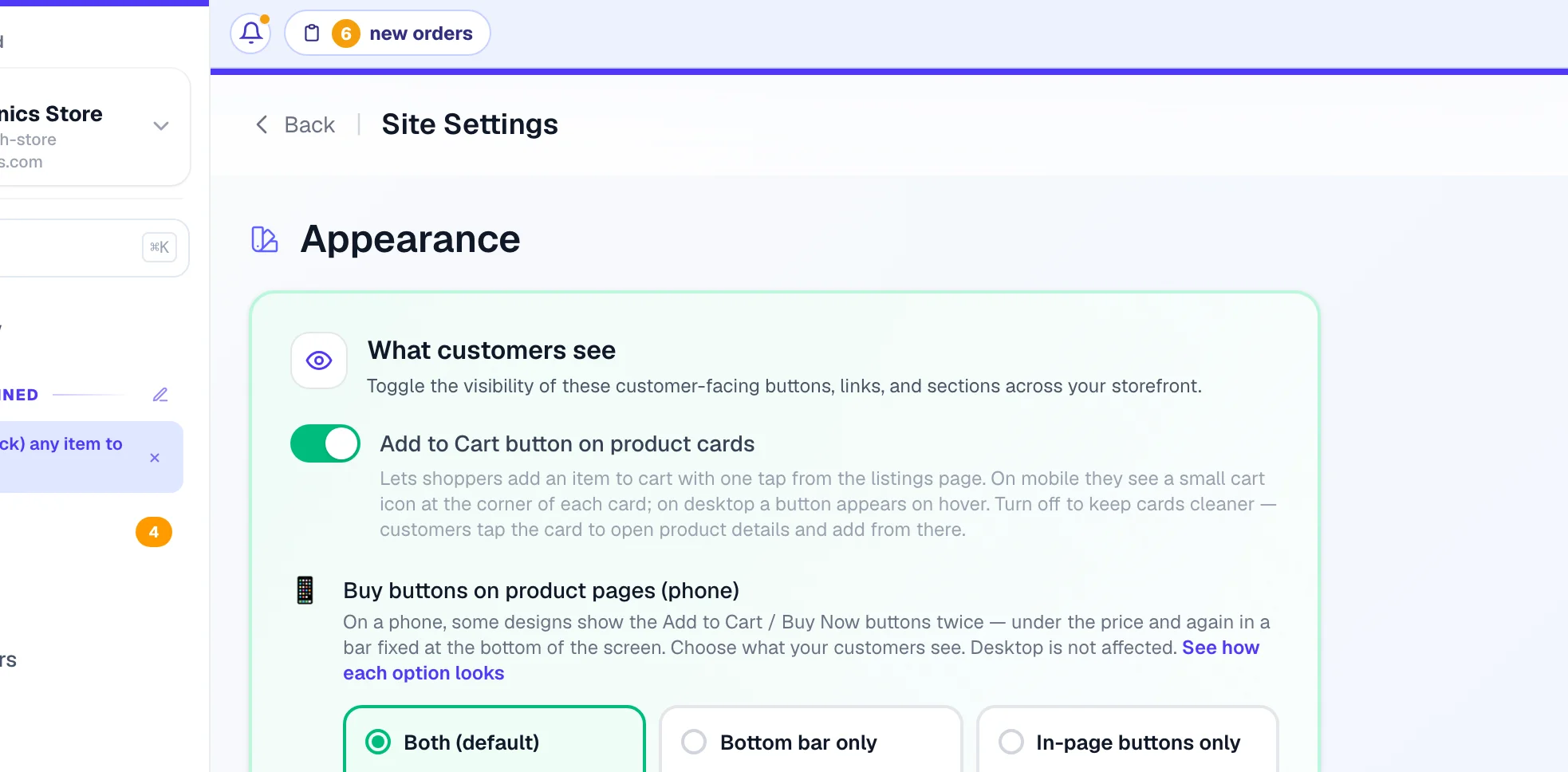
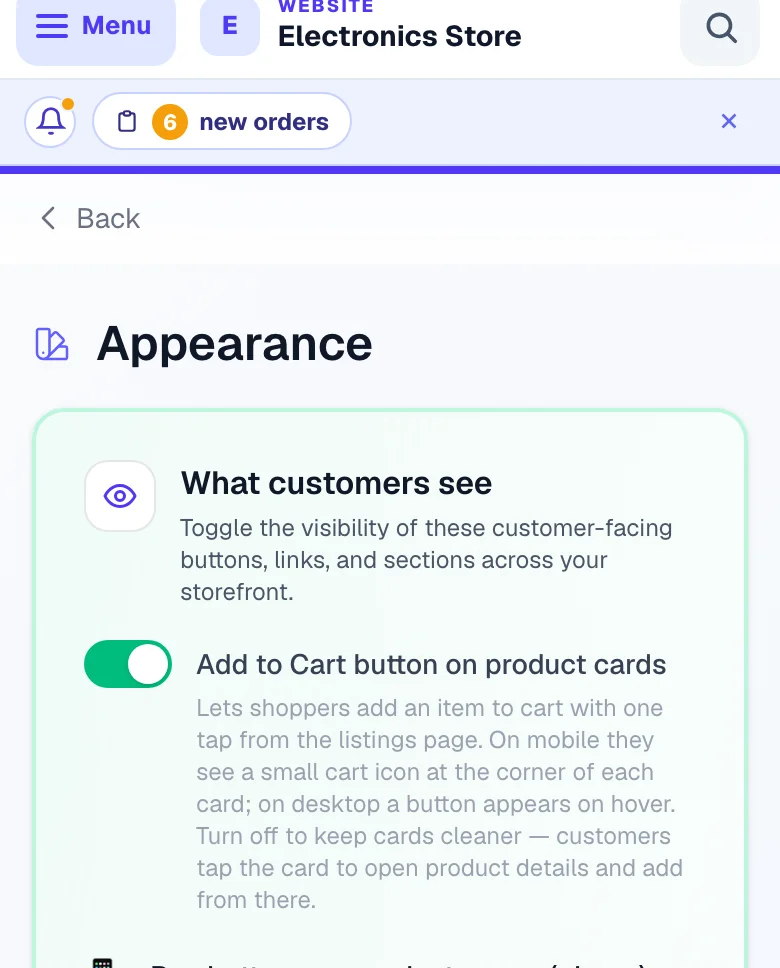
- Appearance → “What customers see” — the first card on the page, with the full explanation under every switch. Open Appearance from the Website group of that website's menu. This is the complete list. The one switch on that card that is not about your storefront is Asha may use free library photos — it decides whether pages Asha builds may take photos from the free library when your website has none (see Ask Asha).
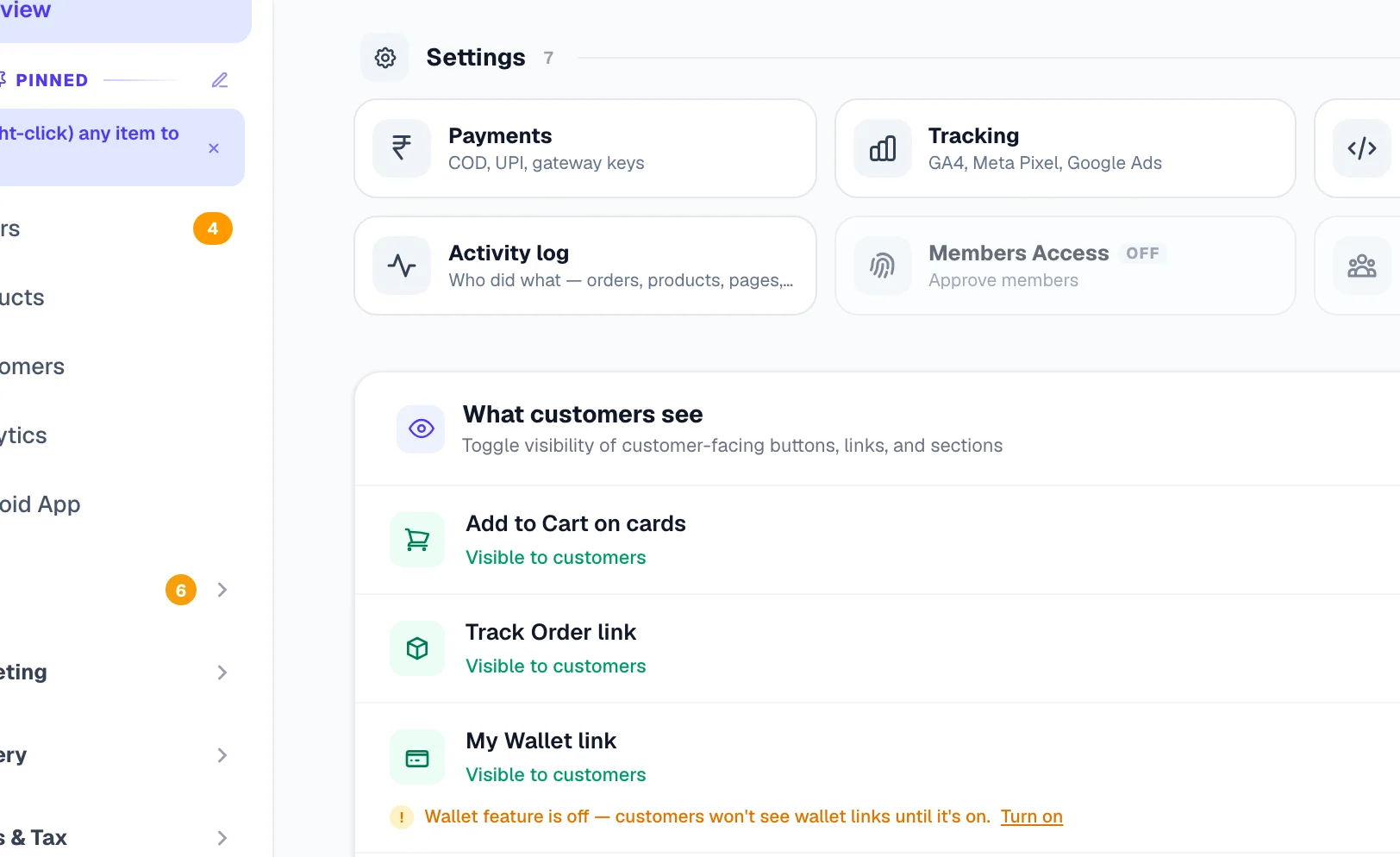
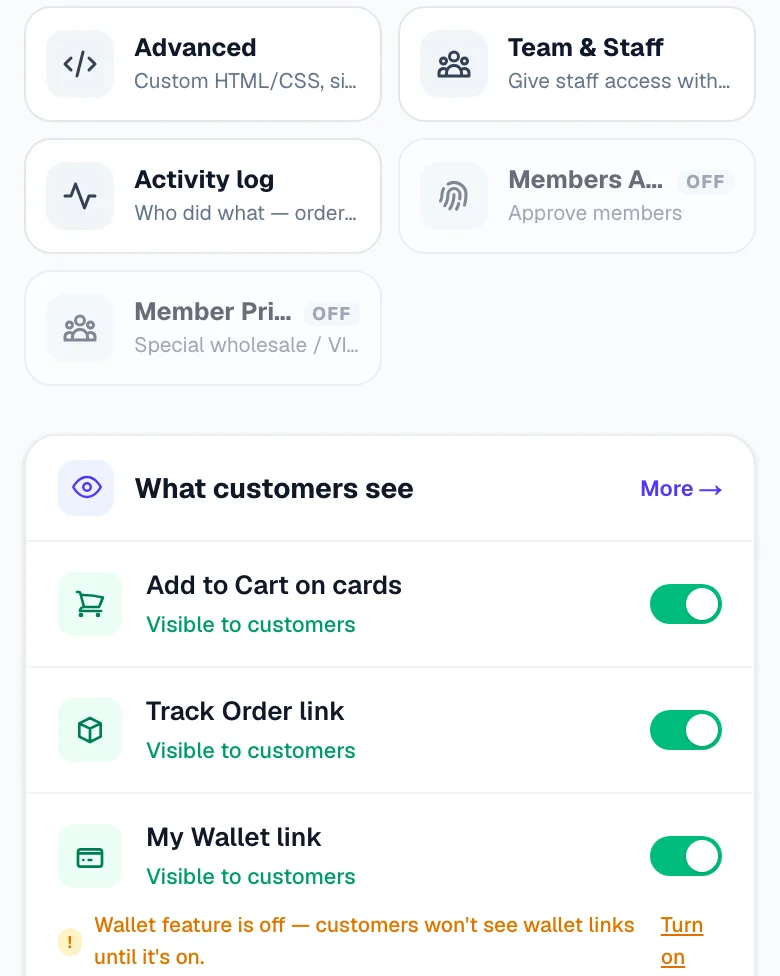
- The Manage page → “What customers see” card — the same switches near the bottom of your site's Manage page, for a quick flip without leaving it. More → on that card opens the Appearance page.
Both write the same setting. On the Manage card a tap saves at once. On the Appearance page a switch is only a change on your screen until you press Save (top right, or at the bottom of the page) — an Unsaved changes note reminds you. Either way your website updates itself within about a minute; there is nothing else to publish. The quick card appears on store and catalogue websites, for owners and managers.
The editor's preview and the Preview link follow these switches too, so a link you hid here is hidden there as well (if the editor was already open when you flipped a switch, reopen it to see the change).
Blank canvas and canvas-based designs also show a “What this website does” card above these toggles. Its switches are bigger than a button: Sell products online adds or removes the whole store (shop, checkout, account and the Products / Orders / Shipping menus), Take bookings publishes or removes your Book page, Write posts switches your blog pages, and Show my branches points you to Branches. Switching one off keeps your data — orders, bookings and customers stay in your dashboard; only the pages and any fee for it stop. Page changes go live with your next Update Website. (A supplier's own website shows only Write posts there: it never sells or takes bookings itself.)
The toggles
Add to Cart button on product cards
Default ON. On a phone it is the small cart icon in the corner of each card; on a computer the button appears when the customer hovers. Some sellers would rather a customer opened the product first than added it from the grid — worth turning off when what you sell needs to be looked at properly before it goes in a cart (custom sizes, several variants, anything expensive).
Buy buttons on product pages (phone)
Both, bottom bar only, or in-page buttons only — for designs that show Add to Cart / Buy Now twice on a phone. Full guide with pictures: Buy buttons on product pages (phone).
Product photos
How a photo meets its frame on product cards and the product page — Auto (a wide or tall photo is shown whole instead of being cut off), Show the whole photo, or Fill the frame — plus the shape of the card frame (a design that keeps its own frame shape shows a note there instead). Full guide: Product photos.
Track Order link
Default ON. Customers can check order status by entering their phone + order number. The link shows in:
- Account dropdown
- Footer Customer Care section
- Mobile menu
Hiding this doesn't break the page — direct links from SMS / order confirmations still work. Only the visible link is hidden.
My Wallet link
Default ON when wallet is enabled. Hide if you don't use the wallet feature. Hiding doesn't lock customers out of existing wallet balance — the /wallet page still works.
Two switches, not one. This row is only the link. If the wallet feature itself is off (its own switch lives on the Wallet page), customers see no wallet links whatever this says — and a small amber note appears under the row telling you exactly that, with a one-tap Turn on.
Blog section
Default ON. Turn it off if you are not going to write. This one goes further than the others: your blog pages stop being published altogether, so the address genuinely stops existing and drops out of the page list search engines read. Your posts stay saved for whenever you switch it back on. See Publishing blog posts.
Show out-of-stock products in listings
Default ON. Sold-out products appear in shop / category / search with a “Sold Out” badge and disabled buy buttons.
Turn it off and sold-out products disappear from your shop, categories and search — but each product's own page keeps working, so a link you shared on WhatsApp last week still opens something instead of an error. That is how the big shopping sites behave too.
The advanced option below it goes much further. Once you have turned listings off, a second switch appears — Hide product pages too. That removes those pages from your website entirely, so every old link to them stops working and Google drops them. Use it only if you truly want the product gone; for a temporary sell-out, the normal setting is the safer one.
Order Again + previously-ordered hints
Default ON. Switches the whole “Order Again” system: an Order Again tab in the customer's account, a small dot on products they have bought before, a “You've ordered this before” pill on the product page and an “Add from past orders” strip at checkout. Logged-out shoppers never see any of it. Turn it off if you don't want any of that surfaced.
Price per unit on pack sizes (₹/kg, ₹/100 ml)
Shown by default. On the Manage card the switch is Price per unit on pack sizes (₹/kg) — on means shown. On the Appearance page it is worded the other way round, Hide price per unit (₹/kg, ₹/100 ml) — site-wide — on means hidden. A product sold in Pack sizes shows the rate under each size so customers can compare them — a 25 g pack priced ₹40 reads “₹1,600/kg”, a 750 ml bottle at ₹27 reads “₹3.6/100 ml”. That is how Blinkit and Instamart show pack prices, and it helps when a bigger pack is the better deal.
For small sachets, gift packs or anything sold by the jar the number can look alarming (“₹1,600 for honey?”). Hide it and the line disappears from every product page and quick-pick sheet at once — the sizes, their prices and the ★ Best value badge stay exactly as they were. Your website updates itself within about a minute; nothing else to publish.
To hide the line on one product only, leave the site-wide line showing and open that product instead: Products → edit the product → Pack sizes → How prices show to customers → untick “Show that price under each size”. The site-wide switch wins over the per-product box.
Three more switches on the Appearance page
These sit in the same card but not on the Manage-page shortcut:
- Ask for an alternate number on every delivery order — default OFF. Switched on, checkout needs a second number on every delivery order — a mobile, or a landline with its STD code — for the courier or your delivery boy to try when the first does not answer. Off, the field is there but optional. Pickup and digital orders never ask, and it must differ from the customer's own number.
- Customer updates on WhatsApp — not a switch here: shipped, out-for-delivery and delivered messages go only from your own WhatsApp number, switched on in WhatsApp → Order & store updates.
- Hide low-stock urgency — site-wide — default OFF, meaning the orange “Only 3 left in stock” pill shows on product pages, the cart and checkout once stock falls to 5 or below. Turn this ON to hide the pill everywhere. To hide it on one product only, edit that product instead.
Built-in features in your menu
For Track Order / My Wallet / Blog specifically, you can also decide per location on the Header & Footer page (Website group of that website's menu) — show Track Order in the footer, hide it from the header. The switch here is the “hide everywhere” shortcut; Header & Footer is per-menu, with a Remove button on each built-in and a + Add button to bring it back. The automatic footer “My Account” link on store websites has its row there too (Footer tab → built-in features). When you have hidden a feature everywhere from here, its buttons there are greyed out until you clear this switch.
Hiding the Shop page
The Shop page can be switched off in the editor (Pages → ⋮ → Disable). Your design links to it from many places — the menu, “Shop now” buttons, the category strip, the phone menu’s “Shop by Category” — so when it is off, every one of those links and the category pages are hidden with it. Nothing is deleted: customers can still open each product from your home page and from search, each product page keeps the blocks you added to it under Product pages in the editor's page list (Item pages on a catalogue), and switching the page back on brings everything back on the next publish. The editor's preview hides the same links while the Shop page is off, so it looks the way your live website does. To hide only the menu link and keep the page live, use Header & Footer instead.
Recommended for most stores: All defaults ON. Optional turn-off: Out-of-Stock in listings (to keep shop page tidy) and Add-to-Cart on cards (if your products need consideration before buying).
Do these change what Google sees? Most of them do not — hiding the Track Order, Wallet or Add-to-Cart links only changes what a visitor is shown; your products, prices and page text are untouched. Two are different, and are marked as such above: switching the blog off stops those pages being published, and the advanced hide product pages option removes sold-out product pages from your website. Both of those do change what search engines can find, which is exactly why they are called out separately.
More in Your website
Did this answer your question?
It takes one tap and it genuinely changes what we write next.