
Sell on Google & Bing (Sales Channels)
One live product link puts your catalog on Google's free Shopping listings (and Bing) — no spreadsheets, always in sync.
6 min readUpdated 21 Oct 2026
In this guide
What you get
On a Blank canvas or any canvas-based design, listings exist only while Sell products online is switched on (Settings → Appearance → “What this website does”). Switch selling off and the listings stop — connected channels are cleared on the next sync; switch it back on and they return with your next publish.
Instant sync
Save a product, change a price, sell out — the change reaches Google in seconds. Orders, returns and purchase receipts that move stock are pushed too.
Free Google listings
Your products appear on Google's Shopping tab without paying for ads. Ads are optional, only if you want them.
Verdicts with fixes
Each product's Google status shows on the page — approved, under review, or needs a fix — with the fix in plain words.
Account protection
Things Google rejects (digital downloads, missing photos) are kept out automatically; your delivery charge rides every listing so nothing is rejected for missing shipping info.
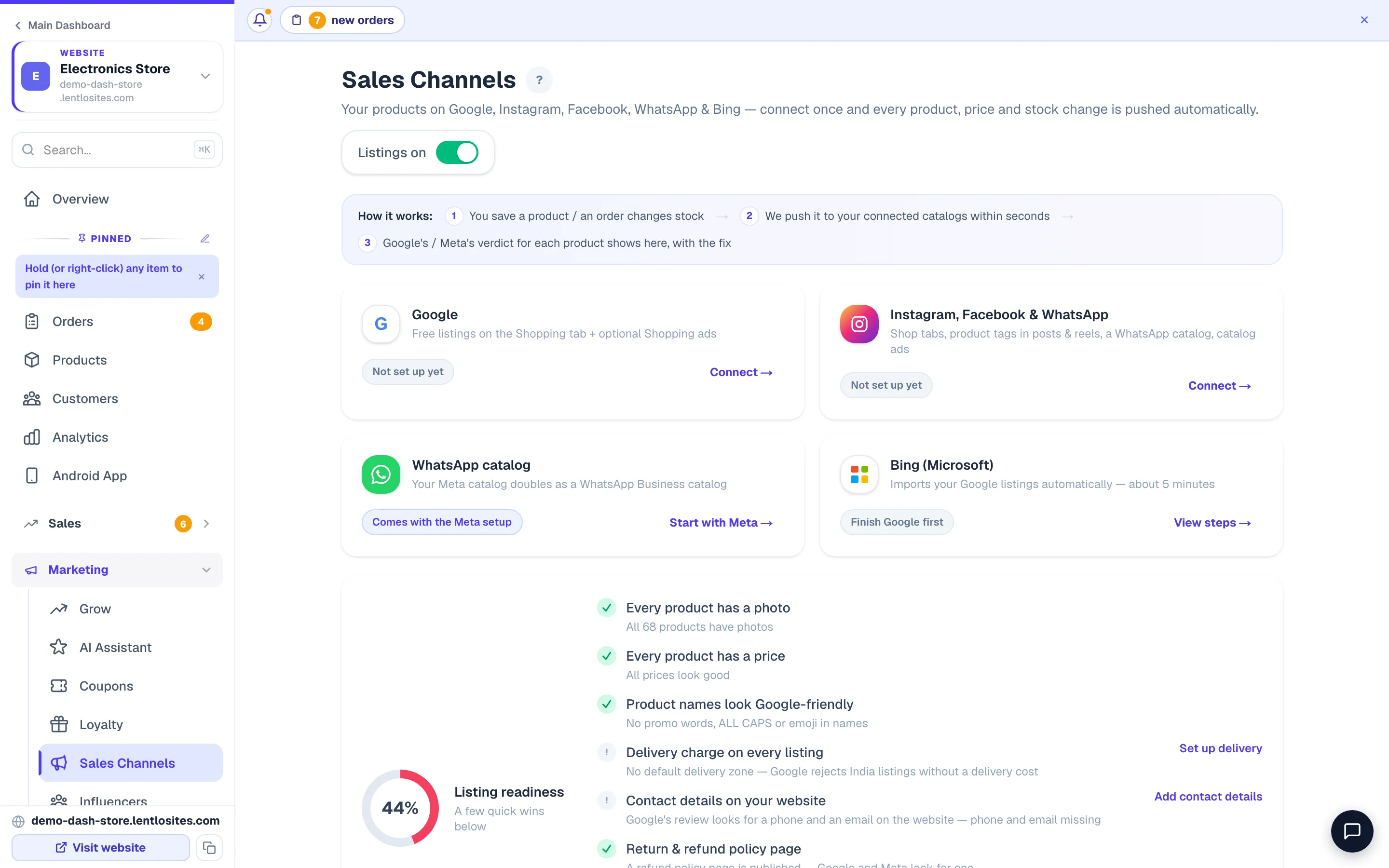
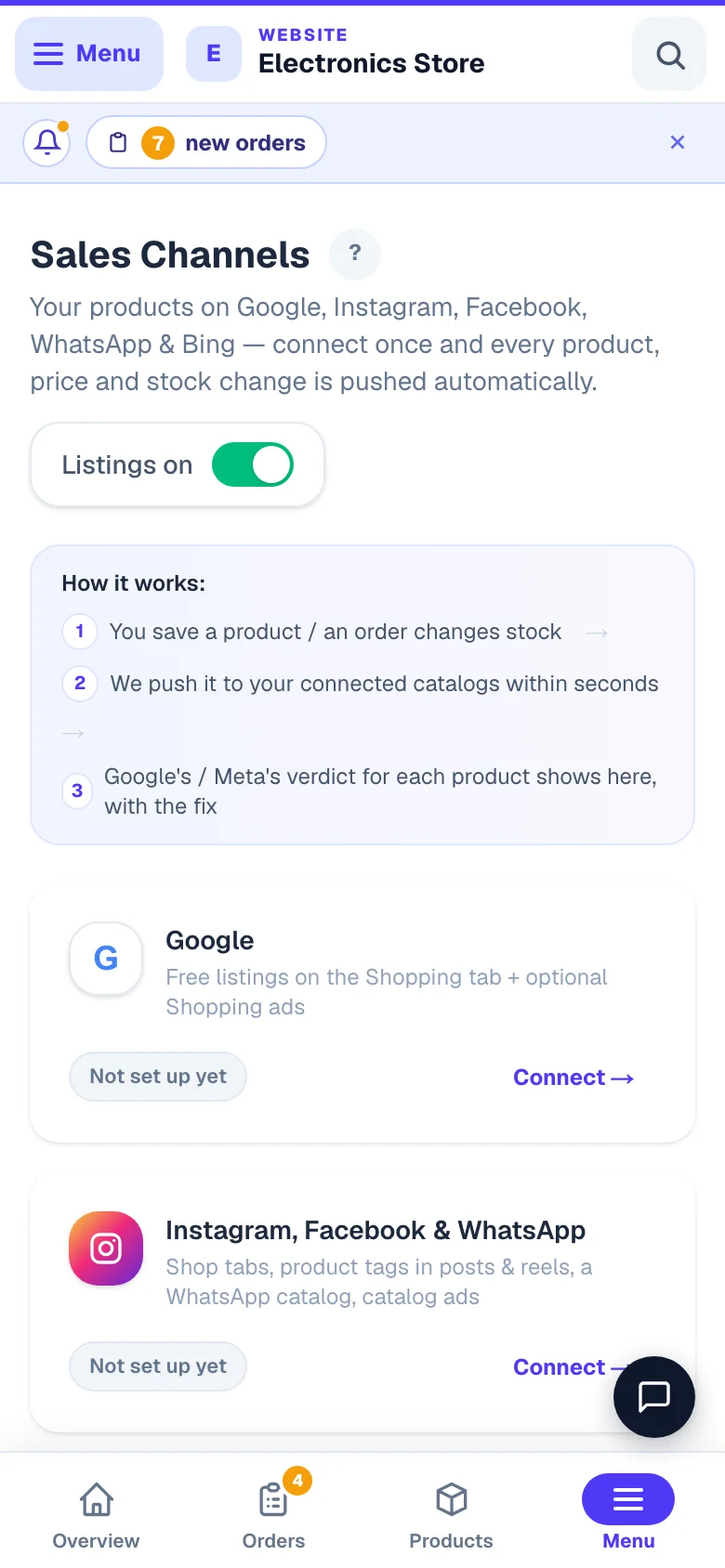
Open Sales Channels in your site's sidebar (under Marketing). The page shows a card per channel, the selected channel’s connection panel, your Listings with verdicts, a Listing readiness score, and the live product link. Sales Channels is for E-commerce websites with products; a restaurant website does not have it.
Before you start — the readiness score
The readiness panel checks your catalog the way Google will:
- Photos — products without a photo can't be listed. The panel names them; add a photo and they join automatically.
- Prices — products priced ₹0 are kept out.
- Product names — Google rejects names with promo words ("FREE SHIPPING", "best price"), ALL CAPS, or emoji. The panel flags each name with the exact fix. These are warnings — the products still list.
- Delivery charge — Google requires a delivery cost for India on every listing. It is taken from your default delivery zone (Shipping) automatically; set one up if the panel says it’s missing.
- Contact details and a refund policy — Google’s first review looks for a phone number, an email and a return/refund policy page on the website; new sellers without them are usually suspended for “misrepresentation”. Business Info holds the contact details, and the readiness panel’s Add policy pages button takes you to Pages, where the return/refund policy can be generated for you.
- Verification codes — needed to prove the website is yours (steps below).
GST and prices on listings
Google and Meta list the final price a customer pays — for India that means GST-inclusive. There is no separate tax setting for India in Merchant Center: the price itself must include GST. Stores whose prices already include GST (the default) list exactly what the website shows. A store set to “prices exclude GST” adds GST at checkout — so its listings (and the product page’s structured data that Google reads) carry the grossed-up final price, computed with the same rule as the checkout: your product’s GST rate (or the site default), 0% for composition and no-GST stores. A struck-through price is sent as the MRP. Delivery charges are listed exactly as your delivery zone charges them.
Kept out automatically (their rules, not ours): digital downloads, auction items, affiliate products, and — on medicine stores — anything Google classifies as prescription medicine will be rejected on their side. Products sold only as a subscription are kept off too (feeds list one-time purchases — switch the product to “Buy or subscribe”), and so are sold-out products while your settings hide sold-out product pages completely. A pharmacy website is not sent at all — Google restricts medicine listings. Products you’ve limited to members or specific groups are also kept off — Google shows listings to everyone, so a members-only product never ships. The same goes for a product you deliver only in some areas (Where you deliver) — Google lists to all of India, so it stays off until its delivery area is “Everywhere you deliver”; “Everywhere except…” products are listed. Everything skipped is listed on the page with the reason. Your website itself is never affected.
Connect instant sync (recommended)
Open the Google card → Connect. There are two ways to connect; both end with every product change flowing to Google automatically and Google’s verdicts flowing back.
Sign in with Google (when the button is shown)
One click with the Google account that owns your Merchant Center. If that login has several Merchant Center accounts, the page asks which one is this store’s — pick carefully; listings go into the account you choose.
Or connect with a key file (works today, about 10 minutes)
You create a free “service account” in Google Cloud — think of it as a robot user that only updates your own Merchant Center — add its email to Merchant Center, and paste its key file. The Google card lists the exact clicks:
- Google Cloud → create a project → turn on the Merchant API → Service accounts → Create (any name, no roles needed) → Keys → Add key → JSON (a file downloads).
- Merchant Center → ⚙️ Settings → People and access → Add person → paste the service account’s email (ends with
.iam.gserviceaccount.com) → Admin. - Back on Sales Channels, paste the whole JSON file → Connect instant sync. The key is stored encrypted and used only for your own Merchant Center.
Verify and claim your website
Google lists nothing until your website is verified and claimed. Merchant Center shows a verification code (choose the HTML tag method) — paste it into the box on the Google card and press Save code. It goes live within a minute; then click Verify on Google. Once connected, the card shows whether the website is claimed and offers a Claim now button.
Keep the code forever. Deleting it later un-claims your website and your listings stop. If you add a custom domain later, your product links change — connected stores are re-pushed automatically, but you must re-verify and re-claim the new address in Merchant Center.
Watch the first sync
The card shows how many products are in Merchant Center, how many are approved, under review, or need a fix, and a small activity feed (“2 min ago · Change pushed — 3 pushed”). Test push sends one product and shows Google’s immediate answer; Check verdicts reads the latest statuses on demand (they also refresh automatically a few minutes after each push, hourly while anything is under review, and daily). Full sync re-pushes every product — useful after a big change such as a new domain; the verdicts follow in a few minutes. If the chip reads Instant sync retrying, paused or needs attention, open the card — it says what to do.
Listings — verdicts and fixes
If Merchant Center has a problem with the account rather than a product — an unverified business, a policy warning, a suspension — the Google card says so in a red band with Google’s own words, because nothing lists at all until that is cleared.
Once connected, the Listings section shows every product’s Google status. Needs a fix rows come first with the reason in plain words (for example “Photo too small — use a photo at least 500×500 px”) and a link to open the product. Fix it in your dashboard — the change is pushed within seconds and Google re-reviews it. Nothing is hidden: rejected items are never shown as synced.
The same verdict follows the product: open any product and its Google & Instagram listing section starts with a Listing status line per connected channel — Approved, Under review, Needs a fix (with the fix), Hidden by you, or Not listed yet. A product with options shows the worst option (“1 of 3 options”), and a rejected product opens that section by itself. The Products page also shows a small Not on Google tag on anything you’ve hidden.
You’re alerted the moment something is rejected — an app notification on your phone (“2 products need a fix on Google — Steel Bottle: photo too small”), and a WhatsApp message from your own WhatsApp API number once you map a layout for Google / Instagram listing rejected in the WhatsApp hub. One alert per new problem, never a repeat for the same item, at most three a day. Switch the app alert off under Notifications (“Google / Instagram listing rejected — alerts you”).
No connection? The daily link (about 10 minutes)
Create a free Merchant Center account
Go to merchants.google.com and sign in with any Google account. When it asks for your online store address, enter it exactly as shown on the Sales Channels page.
Verify your website with the code
Same as step 3 above — paste the HTML-tag code on the Google card, Save, then click Verify on Google.
Add your live product link
In Merchant Center: Products → Add products → Add products from a file → From a URL. Paste the live product link (the Your product link card has Copy link, plus Download XML and CSV if you want the file itself). Leave the schedule on daily; Fetch now in Merchant Center re-pulls immediately. Your delivery charge already rides every product, and prices include GST — nothing to configure for shipping or tax.
Wait for Google's review
Google reviews new sellers — usually 2–5 days. After approval, free listings switch on automatically. The Google card shows “Google pulled your link X hours ago” once Google’s fetcher starts pulling (opening the link yourself doesn’t count).
Bing — the 2-minute bonus
Microsoft Shopping lists Indian stores too, and it imports your Google listings directly — so finish Google first, then open the Bing (Microsoft) card → View steps:
- Create a free account at ads.microsoft.com → Tools → Microsoft Merchant Center → Create store, entering your website address exactly as the card shows it.
- Verify your website in Bing Webmaster Tools (HTML meta tag method) — paste the code on the card and it goes live within a minute; the card turns green once it’s live. Keep the code: removing it un-verifies the site. (Already running Microsoft Ads with the UET tag on the site? Microsoft may validate the domain from it — the code works either way and also unlocks Bing’s search reports.)
- In the store choose Import from Google Merchant Center → sign in with the Google account that owns Merchant Center → set it to repeat. Bing then mirrors Google, including every instant update — and Google’s per-product verdicts on the Listings table are Bing’s too. Prefer the link? Add it as a scheduled feed in the store’s catalog settings (it’s in Google’s format); the card shows Bing pulled the first time Microsoft’s fetcher reads it.
- Running Microsoft Ads? Clicks on Bing ads (incl. Shopping ads) show in Analytics as Microsoft Ads (Bing), separate from Bing search — automatic once auto-tagging is on in Microsoft Advertising (it is by default).
Shopping ads — pay to appear at the top (optional)
Free listings put you on the Shopping tab; Shopping ads put your products at the top of Google search results, with photo and price. You pay Google per click, from your own Google Ads account — the money always stays between you and Google.
The Google Shopping ads card on the Sales Channels page walks you through it:
- Guided steps (always available) — create a free Google Ads account, link it to Merchant Center, and start a Performance Max campaign with a daily budget. Google builds the ads from your product photos and prices automatically — no designs needed.
- Connect Google Ads (when available) — sign in with Google once and manage everything from the card: we link Merchant Center for you, you start a ready-made campaign in one tap with your daily budget, and spend, clicks, orders and return show right on the page. Pause, resume or change the budget anytime.
Before spending money: set up purchase tracking (Settings → Tracking → Google Ads Conversion ID) so Google learns which clicks become orders — without it, ads stay expensive. Start small (₹200–₹500 a day) and give it 1–2 weeks of learning before judging results. If your website ever goes offline, we pause the campaign automatically — resuming is always your tap.
Control it per product
Every product's edit form has a "Google & Instagram listing" section:
- Brand — shown on listings. Selling branded goods (Milton, Samsung…)? Set the real brand per product. Blank = the default brand from Sales Channels → Listing settings, or your store name. One Google rule to know: a product with no barcode and no SKU that only has the store-name fallback goes to Google as unbranded — which Google accepts; what it flags is a brand with no code beside it. A brand you type yourself is always sent, so pair it with a barcode or SKU. Instagram & Facebook always show a brand (your store name if nothing else).
- Retail barcode (GTIN) — the number under the barcode on the pack, printed by its maker. Optional, but listings with real barcodes perform noticeably better on Google. A code from the in-store range (13 digits starting with 2 — what your CRM's Generate makes, or your own shop labels) is never sent, because Google and Instagram refuse it: keep it under Your own code on the product.
- Condition — New / Refurbished / Used (great for refurb phone sellers).
- Don't show on Google & Instagram — keeps one product off the channels while it stays on your website (connected channels remove it within seconds).
- Many at once: on the Products page tick the products, then Google & Instagram → Hide (or Show) in the dark bulk bar — seasonal items, samples, or anything Google keeps rejecting, in one tap.
Your product's category rides along automatically — and if you use subcategories (Dashboard → Categories), Google receives the full path (e.g. Electronics > Laptops > Gaming Laptops). A struck-through price is sent as the MRP, and per-product delivery rules override the zone charge on that product’s listing.
See what the free listings bring you
Google tags every click on a free Shopping listing (the srsltid parameter it adds to your product links — nothing for you to set up). Your Analytics shows those visits as Google Shopping (free), separate from Google search and Google Ads — with visitors, orders and sales value per source, so you can see exactly what the listings earn. Paid Shopping ads keep showing as Google Ads.
Listing settings
- Brand shown on listings — the default for products without their own brand. Leave it blank and your store name is used: on Instagram & Facebook always; on Google only for products that carry a barcode or SKU (code-less products list as unbranded — Google’s rule). Type a brand here and it goes out on every product without its own.
- Delivery charge on listings — From your default delivery zone (recommended: the zone’s charge and free-delivery threshold ride every listing) or I manage delivery inside Merchant Center / Commerce Manager (listings carry no charge; use this for regional tables or carrier-based rates you configure there).
- Listings on/off — the switch at the top. Off takes your products down from connected channels; the link stops too.
If a product gets rejected on Google
Read the reason on the Listings section
Connected stores see the reason and the fix under each product. Without a connection, Merchant Center → Products shows each item's status.
The usual fixes
- "Missing shipping information" — set up a default delivery zone under Shipping (or switch Listing settings to manage delivery in Merchant Center and add it there).
- "Promotional text" — rename the product without words like sale/offer/free shipping (the readiness panel catches these before Google does).
- "Image quality" — use a clean product photo (at least 500×500 px) without watermarks or promo stickers.
- "Price mismatch" — rare; save the product again so the latest price is pushed (or Fetch now in Merchant Center).
- "Website not claimed" — the verification code was removed or the site was never claimed. Re-add it on the Google card, verify, then tap Claim now.
Fix the product in your dashboard — connected stores push the fix within seconds; link users press Fetch now.
Want Instagram, Facebook and WhatsApp too? See Sell on Instagram, Facebook & WhatsApp.
More in Customers & marketing
Did this answer your question?
It takes one tap and it genuinely changes what we write next.