
Customer wallet — store credit, top-ups, refund-to-wallet
Customers add money to a store-credit balance and spend it at checkout. Refund orders instantly, reward top-ups with bonuses. (Your own platform balance is Lentlo Credits — separate guide.)
6 min readUpdated 21 Oct 2026
In this guide
Looking for YOUR balance — the one that pays your plan and platform fees? That's a different thing called Lentlo Credits. This page is about the customer wallet: store credit your customers hold with your shop. For your own balance with us, see Lentlo Credits.
What customers can do
The wallet is a prepaid balance a customer keeps with your shop — perfect for regulars who order often (tiffin, grocery, milk rounds) and want to pay in one tap without pulling out UPI every time.
- Add money via any payment gateway you've connected (Razorpay, Cashfree, PayU, PhonePe, Easebuzz, Zoho Payments, CCAvenue — instant credit) or via UPI QR (you approve manually after seeing the screenshot). Gateway setup: Payments setup.
- See balance on a dedicated
/walletpage and as a small pill in the nav header (shown once they're signed in and hold a balance or have a top-up pending). - Pay at checkout — toggle "Use wallet balance" to apply it. If wallet covers the whole order, no other payment is needed and the order confirms automatically. The amount applied can never be more than the balance the customer actually holds — if the balance changed after the page loaded, checkout asks them to use a smaller wallet amount before any online payment starts.
- Track everything — full transaction history, pending top-ups awaiting your verification, rejection reasons. Customers see every credit and their balance in My Wallet on your website.
What you control
Everything about the wallet is opt-in and tuned from one dashboard page — you decide the limits, the bonus offer, and every rupee that moves.
- Approve / reject UPI top-ups — review the screenshot + UTR, click Approve or Reject with a reason (the customer sees the reason in My Wallet).
- Refund any order to wallet — instant. Customer's wallet credited; no gateway round-trip. See how below.
- Manually credit / debit any customer's wallet — for goodwill credits, compensation, or corrections. A note is recorded with every entry.
- Recharge offers (levels) — up to 6 slabs like "Add ₹1,000 → 10% extra · Add ₹2,000 → 20% extra", each with a percent and/or flat bonus and an optional tag ("Most popular"). The biggest matching slab applies to the whole recharge, and the offers show as attractive cards on your wallet page. The older single-rule bonus keeps working until you add slabs.
- Set limits — minimum top-up (default ₹10), maximum per top-up (default ₹10,000), and maximum wallet balance per customer (default ₹10,000 — the safe RBI ceiling for closed-loop store credit; you can raise it up to ₹50,000).
- Checkout spend rules — cap wallet use to a % of each order, set a minimum order value for wallet use, decide whether wallet combines with coupons (all / never / only specific codes) and with Cash on Delivery. The checkout explains any restriction to the customer in plain words.
- Optional expiry on bonus and cashback credits — see expiry below.
- Profit view — the Overview tab shows money received in advance, free credit given (your cost), how much came back as sales, expired-unused credit, and the split of outstanding balance between money customers paid vs free credit you granted.
- Per-customer history — tap any customer to see their full wallet ledger, with credit/debit actions right there.
- Export CSV — full ledger for accounting / reconciliation.
- Subscriptions paid from the wallet — let repeat deliveries settle from the balance automatically; see Repeat orders & subscriptions.
- Notifications — the Settings tab shows two WhatsApp switches (a message to the customer on every credit, an alert to you when a top-up needs approval), but the page itself says these are not sent yet. Customers see every credit in My Wallet, and waiting top-ups show as a count on Wallet.
Staff-safe. A team member opens this page only with Orders & customers in their Team access. Money actions (approve/reject top-ups, manual credit/debit) also need manager-level access — staff members with limited access see the numbers but not the money buttons. More on team roles: Site staff.
Step by step
Switching the wallet on takes one click — your live website updates itself, no manual republish needed.
Enable wallet on your store
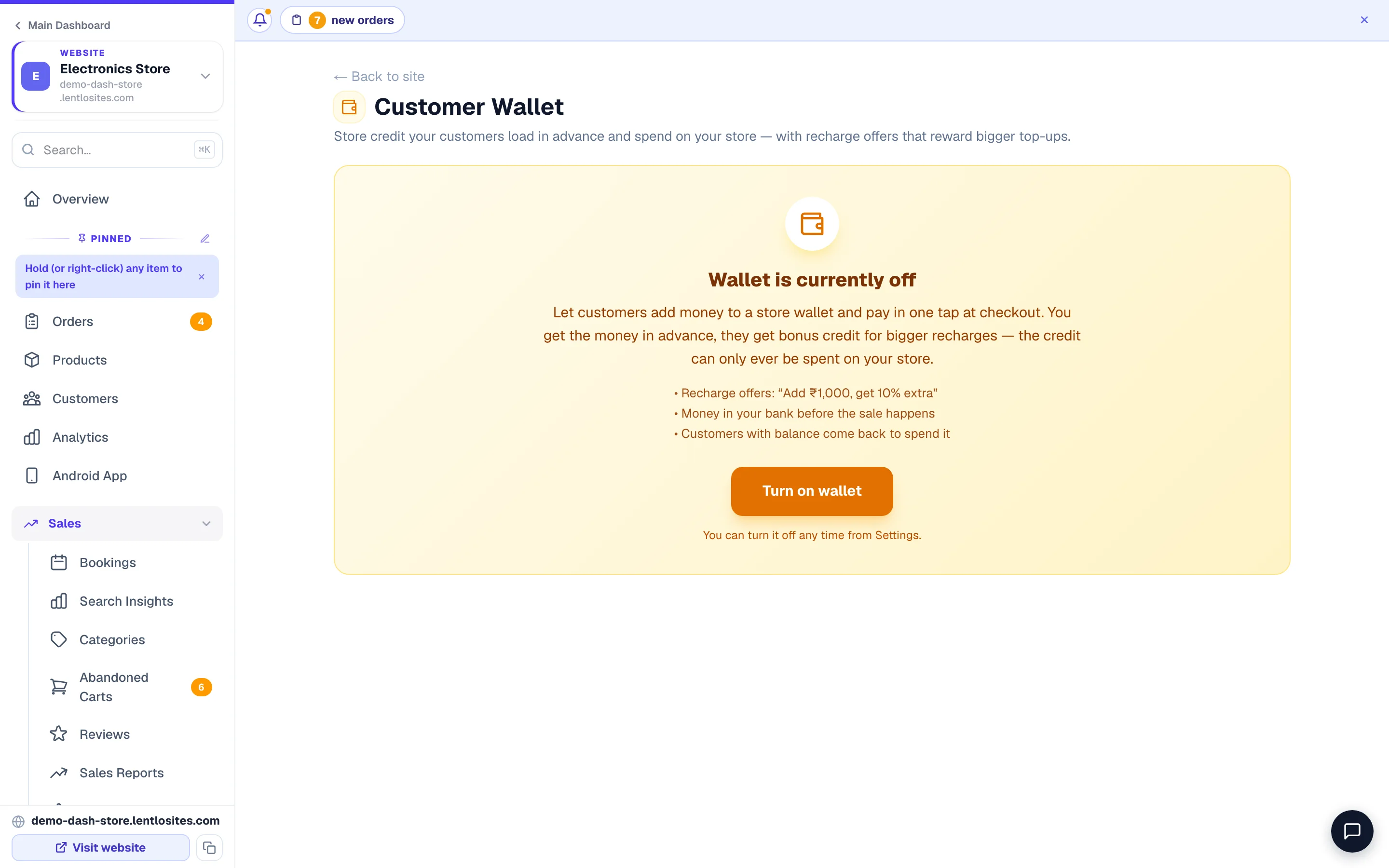
Open your site's dashboard and click Wallet (in the Sales section) — the page is headed Customer Wallet. While it is off, the page is one amber card: press Turn on wallet. (Later you switch it off again from the Settings tab, the Enable wallet row.) If your site is live, it republishes automatically — the /wallet page and the "Use wallet balance" toggle at checkout appear on their own within a minute. (On a draft site they go out with your first publish.)
(Optional) Add recharge offers
Open the Recharge offers tab and add offer levels — for example ₹500 → 5% extra, ₹1,000 → 10% extra, ₹2,000 → 20% extra (there's a one-click ready-made ladder). A live preview shows exactly how the offer cards look to customers. Bigger recharges mean more of the customer's money committed to YOUR store, so keep the top offer at or below your profit margin.
In Settings you can also control how wallet money is spent: max % per order, minimum order value, and whether it stacks with coupons or COD.
Approve UPI QR top-ups
When a customer adds money via UPI QR, you get a count badge on the Wallet menu item. Open the Top-ups tab — it opens on Needs approval whenever something is waiting (and on All top-upswhen nothing is) — check the screenshot and UTR against your bank, then click Approve. The customer's wallet is credited instantly (bonus included), and they see it in My Wallet.
UPI QR top-ups only appear as an option when you've added your UPI ID under Manage → Settings → Payments. Gateway top-ups need no approval — they credit the moment the payment succeeds.
Browse customers, credit or debit manually
The Customers tab lists every wallet with its current balance plus lifetime credited and spent totals (search by name or phone). Tap History on a customer, then + Credit / − Debit for goodwill amounts or corrections — type the amount and a reason; each entry lands in the customer's history.
Closed-loop = no withdrawals. Customers cannot move wallet balance back to their bank. They can only spend it at your store. If a customer wants real money back, you do a normal gateway refund (back to their card/UPI), not a wallet credit. This is what makes the wallet RBI-safe — you don't need a Prepaid Payment Instrument license.
What about taxes? When a customer adds ₹1,000 to wallet, that's NOT a sale (no GST). It becomes a sale only when they spend it on a product — the order then goes through normal GST calculations. Your "wallet liability" (visible on the dashboard) is money you're holding for customers.
How wallet pays at checkout
At checkout the customer flips one toggle and the wallet covers as much of the bill as it can — the store never over-collects, because the server re-checks every amount.
- Full wallet: order ₹500, wallet has ₹500 → use ₹500, gateway charges ₹0, order auto-confirms.
- Partial wallet + gateway: order ₹500, wallet has ₹200 → use ₹200, gateway charges ₹300.
- Partial wallet + COD: same as gateway — wallet covers part, COD covers the rest. (Switch off Allow wallet with Cash on Delivery in the Settings tab if you prefer to collect the full COD amount in cash; the wallet then works only with online payments.)
- Wallet + coupons + loyalty points: stack cleanly — the coupon and loyalty discounts reduce the order total first, then wallet pays the remainder.
- Not with Partial COD: wallet credit can't be combined with the Partial-COD advance option — checkout refuses that mix with a clear message so a customer is never charged twice for the same rupee. They can use wallet with a regular gateway, full COD, or on its own.
- Not on an order request: when the shop confirms orders first, nothing is paid while the order is still a request — the wallet toggle is hidden at checkout, and the customer pays the final bill after the shop confirms.
Sign-in required. To spend wallet money (or loyalty points) the customer must be signed in with their phone OTP — that's what proves the balance is really theirs. Guests see the toggle only after logging in.
Refunding an order to wallet
Refund-to-wallet turns a return into store credit the customer will spend with you again — instant for them, zero gateway paperwork for you.
Open the order in Orders and start a Return / RTO. Pick the items coming back, and under Refund keep To wallet (it is picked first — you can also choose Cash / manual or No refund). The preview shows the exact ₹ before you confirm; on confirm the wallet is credited instantly and the customer sees it in My Wallet. Refund credits are the customer's real money — they never expire.
Cancellations refund the wallet part automatically. If an order that was partly (or fully) paid from wallet gets cancelled, that wallet money goes straight back to the customer's wallet on its own — you only handle the gateway/cash part. The auto-refund is recorded in the order's history.
Bonus & cashback expiry (optional)
Top-up bonuses and coupon cashback are free credits you give away — an optional expiry creates urgency to come back and spend them, and caps how much free credit piles up.
- Turn on Auto-expire bonus & cashback credits in the Settings tab and set the Days until free credits expire.
- Real-money top-ups and refunds NEVER expire — only the free credits (top-up bonus and coupon cashback) do. Manual credits you give from the dashboard don't expire either.
- Credits that expire show their expiry date in My Wallet — remind customers yourself before a big batch runs out (no WhatsApp reminder is sent for you).
- When they spend, the soonest-expiring credits are used first automatically, so nobody loses a bonus while an old top-up sits unspent.
Removing test or mistaken entries
Tried the wallet out with your own number, or credited the wrong customer? Remove the entry from whichever view you found it in: the Top-ups tab (a ✕ Remove button on the recharge card), the Activity tab (every credit and debit across all customers, searchable by name or phone), or the Customers tab (tap History on a customer). You type a short reason, and the entry moves out of the history while the balance adjusts the opposite way (removing a ₹500 top-up takes ₹500 back out of the balance).
- Nothing is ever deleted. Removed entries sit under "Show removed entries" in the same history — tap Restore any time and the money comes back exactly as it was.
- Recharges remove as one unit — the top-up and its bonus go together, and your stats (money received, free credit given) update to match.
- Order entries can't be removed here. Money spent or refunded on an order is managed from the order itself — cancelling refunds the wallet automatically, and deleting a test order frees its wallet entries for removal.
- You can't remove credit the customer already spent — the balance can never go below zero. For a fully-tested wallet, tap Select entries in the customer's History and remove the paired entries together (the credit AND the debit that spent it cancel out, so the whole test set clears in one step).
- Your CSV export keeps removed entries, marked with the date and reason — honest books, and every remove/restore is recorded in the platform audit trail.
Stats you'll see on the dashboard
The Wallet page opens with the numbers that matter for money-safety — how much credit is outstanding and how fast it's moving.
The big amber panel at the top of the Overview tab is "Wallet money customers hold" — the total store credit outstanding, how many customers hold it, and a bar splitting it into money they paid in versus free credit you gave (bonus and cashback). If bonus credit is due to expire soon, a chip on the same panel says how much goes in the next 30 days.
Under Last 30 days sit six cards:
- Money received — what customers actually paid in, before any bonus.
- Free credit given — recharge bonus + coupon cashback. This one is your cost.
- Spent at checkout — wallet money used on orders.
- Orders using wallet — how many orders used it, and what they were worth.
- Refunded to wallet — returns and cancellations you settled as store credit.
- Pending verification — UPI top-ups waiting for you to approve, with the amount waiting.
Below those, a plain-words "Simple version" line adds up what you collected in advance against the free credit you actually gave (after expiry), and a six-month bar chart shows top-ups, free credit and spending side by side so you can see whether the offer is paying for itself.
Reconciling with your bank. Top-ups via gateway are deposited in your gateway settlement (like normal sales). Top-ups via UPI QR go directly to your UPI-linked bank. "Wallet money customers hold" is what you owe in store credit — make sure the money they paid in half is covered by the cash you are holding from those top-ups.
Want the wallet link out of your menus? Flip "My Wallet" off under Settings → Appearance → What customers see. The links disappear, but the /wallet page itself stays reachable — customers holding a refund balance are never locked out of their money. More: visibility toggles.
More in Payments, GST & books
Did this answer your question?
It takes one tap and it genuinely changes what we write next.