
GSTR-2B & input credit matching
Upload the govt's GSTR-2B file and match it against your purchase bills — so you only claim input credit that's safe to claim.
6 min readUpdated 21 Oct 2026
In this guide
What is GSTR-2B, in shop words?
GSTR-2B is the govt's statement of your purchases — built from what your suppliers filed, not from your books — and you can only safely claim input credit on bills that appear in it. Every month, when your suppliers file their GSTR-1, the portal collects all the bills they reported with your GSTIN on them into one list: your GSTR-2B. If a bill is on that list, the credit is yours to claim. If it's not — because the supplier forgot to file, or filed late — claiming it can bring a notice later.
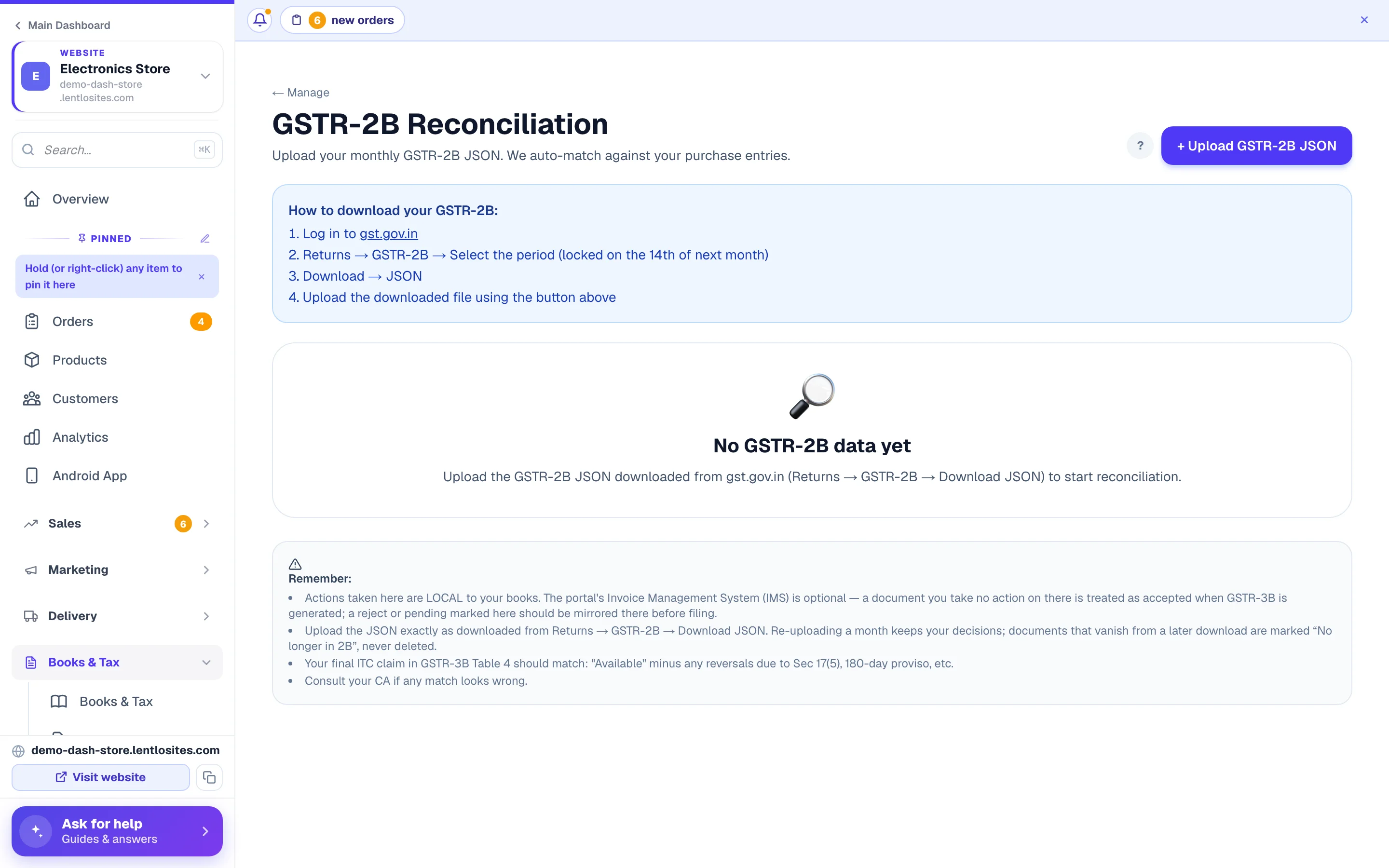
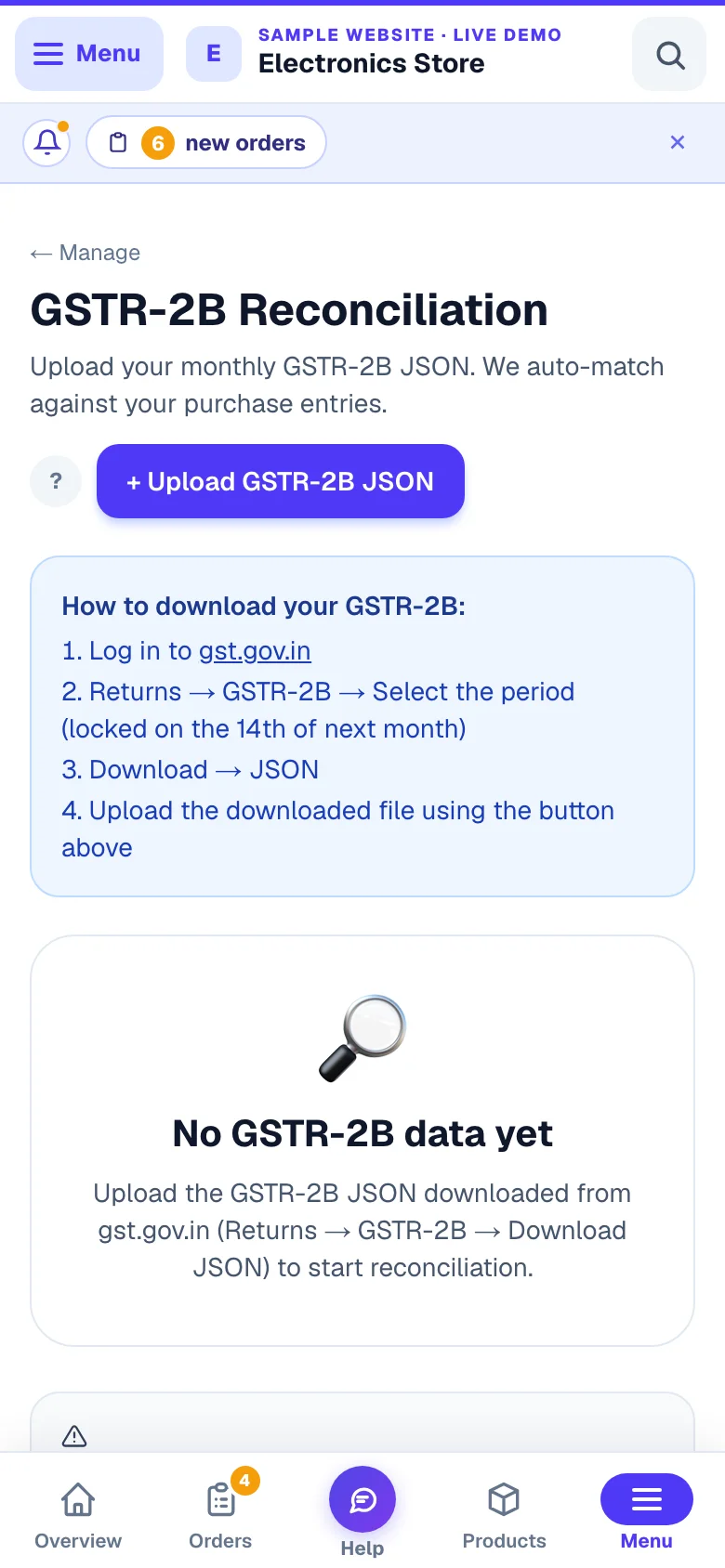
So the monthly job is simple: compare the govt's list with your own purchase entries, and sort out anything that doesn't agree. That comparing is exactly what this page does. Find it in your website's sidebar under Books & Tax → GSTR-2B Reconciliation — it's also linked from your Books & Tax page.
Upload the portal file
The portal gives you GSTR-2B as a small JSON file — you upload it here once a month, and the matching runs on its own.
Download your GSTR-2B from gst.gov.in
Log in to gst.gov.in → Returns → GSTR-2B → pick the month → Download → JSON. The file for a month is ready around the 14th of the next month.
Upload it on the GSTR-2B page
Tap + Upload GSTR-2B JSON (top right) and pick the downloaded file. We read the month from inside the file itself — no need to select a period. Within seconds, every supplier bill in the file is matched against your purchase entries for that same month. Each month you have uploaded then appears in the Period dropdown with its match count and upload date.
More than one GST number? The file's own GSTIN decides which registration it is matched for — your main GSTIN, or an extra business you added under Businesses & GST Numbers in Invoice Settings — and only that registration's purchases are compared. A file for a GSTIN that is not one of this website's registrations is refused with its number named, and a file with no return period inside asks you to download it again from Returns → GSTR-2B → Download JSON.
How matching works: we pair bills by the supplier's GSTIN + bill number (small differences like capital letters, spaces, or leading zeros don't matter), then compare the taxable value and every tax head (CGST, SGST, IGST, cess). Amounts within ₹1 of each other still count as matched — that's normal rounding. A bill whose total agrees but whose IGST-versus-CGST/SGST split differs shows as Tax split differs with both sides laid out, so you can fix the place of supply on the purchase.
Two things must be right in your books first: each purchase entry needs the correct bill date (that decides which month it's matched in), and each supplier needs their GSTIN saved on their vendor card. A purchase whose supplier has no GSTIN can't be matched at all, and only saved entries are matched — a bill still sitting as a draft is skipped. See Purchases and Vendors.
The match results
Every row gets one label, so you instantly know which bills are fine and which need your attention.
Matched
The govt's list and your books agree. Nothing to do — this credit is safe to claim.
Amount differs
Same bill, different total. One side has a typo — check the paper bill and correct your purchase entry.
Missing in books
The supplier filed this bill, but you never entered it. Add the purchase entry — it's credit you'd otherwise lose.
Missing in 2B
You entered this bill, but the supplier hasn't filed it yet. Remind them — don't claim it until it appears.
Tax split differs
Same bill, same total — but the taxable value or the CGST/SGST/IGST split doesn't agree. A small table shows 2B beside your books, row by row.
No longer in 2B
A later download for the same month no longer carries this document. It's kept for your records and counts towards nothing.
Use the filter chips above the list (All and one chip per result, each with its count) to see one kind at a time, and the Period dropdown to switch months. On each row you can tap ✓ Accept, ✗ Reject (for example a bill that isn't really yours), or ⏸ Pending (park it for next month) — except a “No longer in 2B” row, which has no buttons because there is nothing left to decide.
A row also carries the document's own facts straight from the file: Vendor credit note or Vendor debit note, Import (bill of entry), ISD credit, a Reverse charge tag, and — where the portal itself says so — ITC not available with its reason (place of supply, time-barred, return period). Those the portal blocks are never counted as credit, whatever you mark.
Fixing mismatches — always in Purchases
This page only reports differences; the fixing happens on your purchase entries, so your books stay the single truth.
Open the purchase entry and correct it
For Amount differs or Missing in books rows, go to Purchases, then fix the total or add the missing bill — with the supplier, bill number, and bill date exactly as on the paper bill.
Re-upload the same JSON
Come back and upload the same file again. Matching runs fresh against your corrected books — the fixed rows now show Matched, and the marks you had already made stay where they were.
Re-uploading is safe. Your Accept / Reject / Pending marks and notes stay on the bills they belong to — only the matching is worked out again against your corrected books. A document the new download no longer carries is marked No longer in 2B and kept; nothing is ever deleted.
The three summary numbers
Above the list, three cards total up the GST from the govt's side — they give you (and your CA) the month's picture at a glance.
- ITC available — GST on the bills that are paired with your books (Matched, Amount differs or Tax split differs) plus anything you marked Accept yourself. This is the amount that lines up with what you'd claim in GSTR-3B.
- Pending review — GST on rows you parked. Not counted this month.
- Rejected — GST on rows you rejected, and rows the portal itself marks ITC not available. Kept out of the claim on purpose.
Example · Sharma Electricals, Jaipur
October's GSTR-2B lists two supplier bills: Gupta Wires (GST ₹1,800), which Sharma had entered in Purchases, and Kapoor Traders (GST ₹900), which nobody had entered. Sharma's books also hold a Verma Supplies bill (GST ₹540) that Verma has not filed yet.
What the cards show
- Gupta Wires — Matched
- ₹1,800
- Kapoor Traders — Missing in books (counts nothing yet)
- ₹0
- Verma Supplies — Missing in 2B (counts nothing)
- ₹0
- ITC available after the first upload
- ₹1,800
- Kapoor's bill added in Purchases, same file uploaded again — now Matched
- + ₹900
- ITC available after the second upload
- ₹2,700
A supplier's credit note is subtracted, not added — that is how a discount or a return your supplier gave you lowers the credit you can claim. A Missing in 2B bill counts towards nothing until the supplier files it; a No longer in 2B row counts towards nothing at all.
Your monthly routine
Ten minutes a month, after the 14th, keeps your input credit clean and audit-ready.
Around the 14th — download and upload
Get last month's JSON from gst.gov.in and upload it here.
Clear the three problem chips
Add missing purchase entries, correct wrong totals, and WhatsApp the suppliers whose bills are Missing in 2B — the sooner they file, the sooner your credit shows up.
Re-upload, then mark the rows
Upload the same file once more so the fixes turn Matched, then Accept / Reject / Pending whatever remains.
Share the summary with your CA
Before they file GSTR-3B, your CA can check this page — the "ITC available" number is their starting point.
What this tool does — and what your CA does
Being honest about the line keeps you out of trouble: this page matches and totals, it does not file anything.
- We do: read the portal file, match it to your purchase entries, flag every difference, and total the matched credit.
- Your CA does: the final claim in GSTR-3B — including reductions the tool can't judge (personal-use items, bills unpaid beyond 180 days, and similar GST rules).
- The portal still needs you: Accept / Reject / Pending here is your own working record. The portal's Invoice Management System (IMS) is optional — a bill you take no action on there counts as accepted when GSTR-3B is generated, so mirror any reject or pending you mark here on gst.gov.in before filing. Bills the portal itself marks “ITC not available” (wrong place of supply, time-barred) are shown with that reason and never counted as credit.
- Upload the file exactly as downloaded from Returns → GSTR-2B → Download JSON — the portal's own file, not a spreadsheet made from it. Imports (bill of entry) and ISD credit inside it are read too.
Matching covers supplier bills, amended bills, supplier credit and debit notes (a supplier's credit note reduces your credit and pairs with the debit note you raised), imports (bill of entry) and ISD credit. Selling-side GST lives in GST invoices & reports.
More in Payments, GST & books
Did this answer your question?
It takes one tap and it genuinely changes what we write next.