
Pick a design & create your site
Pick a ready-made design, answer a few quick questions, and publish your new website in minutes.
Watch1:056 min readUpdated 21 Oct 2026
In this guide
yourname.lentlosites.com — your free web address. You can change anything afterwards, and creating a site costs nothing.What to keep ready
The setup wizard asks for these. Having them handy makes it a 2-minute job:
Business name + tagline
Exactly how you want them to appear on your website.
WhatsApp / phone number
Powers the WhatsApp chat button, contact page and header.
Address + working hours
Shown in the footer and on your contact page.
Logo (optional)
PNG, JPG or SVG. No logo yet? Skip it — add one any time later.
Photos or one product
Shops need at least one product with a name, price and photo (a car dealer, one car); other businesses can add up to 5 photos.
Find the right design
The design gallery shows every ready-made website we offer, grouped by the kind of business you run — so you only see designs that fit.
Not sure which one is yours? Read Which design is right for your business first — it starts from what you want a visitor to do, names the card to tap for every kind of business, and points out the four designs that live under a card you would not guess.
Blank canvas — all-in-one. One of the cards on that first screen is not a design but a starting point: an empty Home and Contact page on the modern canvas engine, with every capability behind a switch — enquiries (always on) and Write posts on, Sell products online and Take bookings off until you turn them on in the What this website does card at the top of Settings → Appearance. The wizard skips the products step; in the editor the empty page offers Start with a ready-made layout (five sections), the block library, or a whole ready-made page. Its header and footer are blocks the moment you want them to be — see Header, footer & site-wide blocks.
Open the gallery
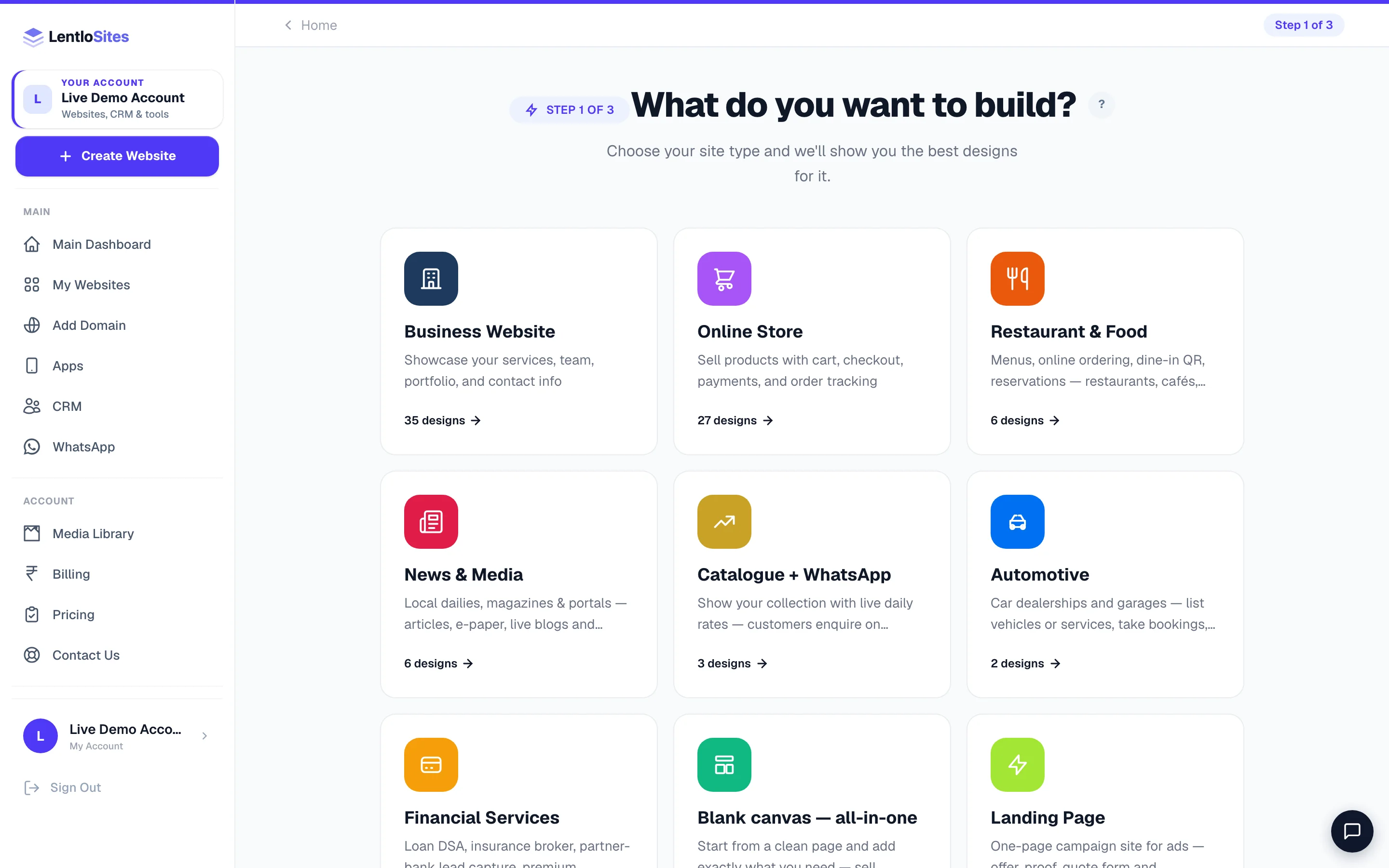
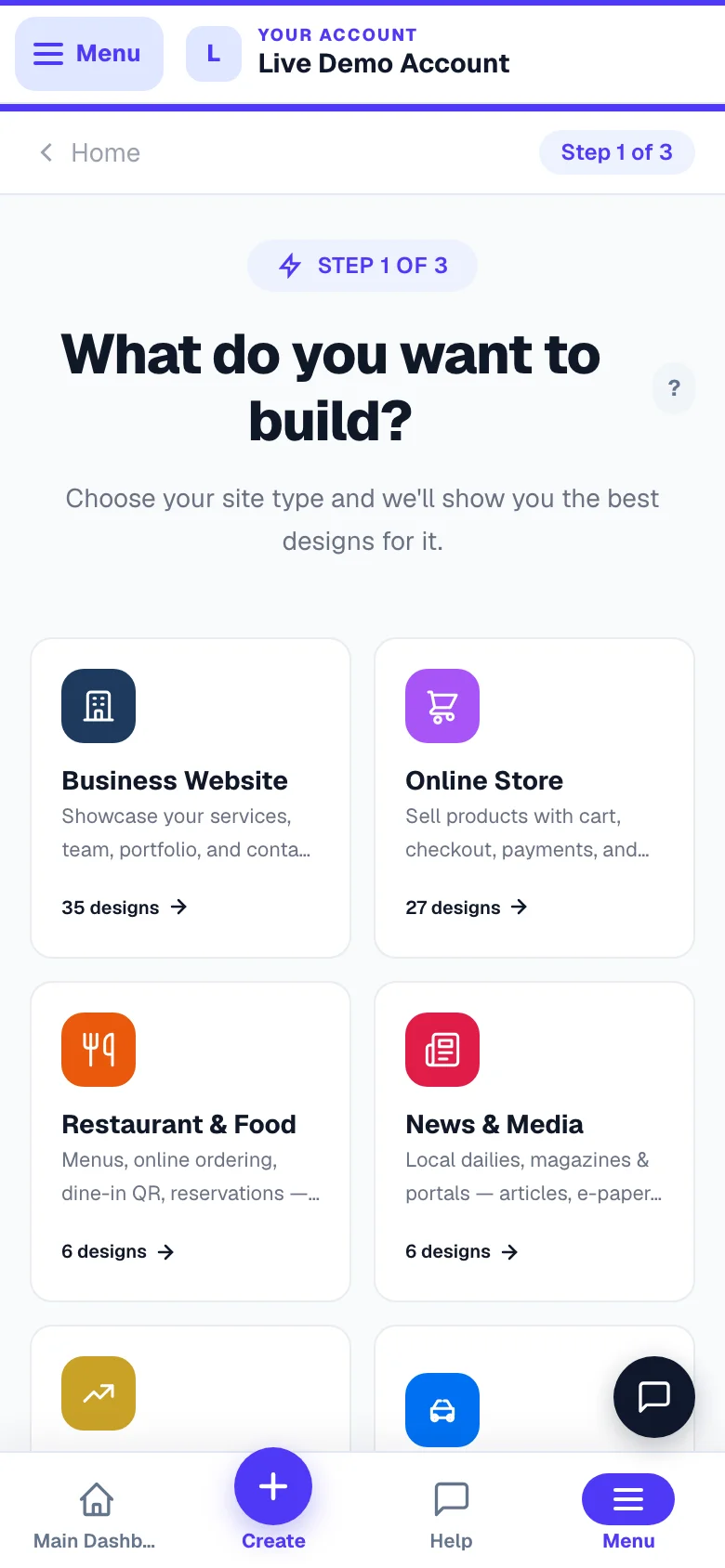
From your dashboard, tap Create Website in the menu (on a phone it is the Create tab in the bottom bar). The screen is marked Step 1 of 3 and asks What do you want to build? — Business Website, E-commerce, Restaurant & Food, News & Media, Catalogue + WhatsApp, Automotive, Financial Services, Blank canvas — all-in-one, Landing Page and Portfolio. (An eleventh card, Ticket Booking, is marked coming soon and holds no designs yet.) Each card shows how many designs it holds. The Blank canvas — all-in-one card is different — it says Start from blank instead of a design count and takes you straight to naming your site, with an empty first page, a ready-made header and footer, and switches you turn on only when you need them — sell products, take bookings, write posts (enquiry forms are always on). Blank sites skip the add-products step.
Narrow down with pills and search
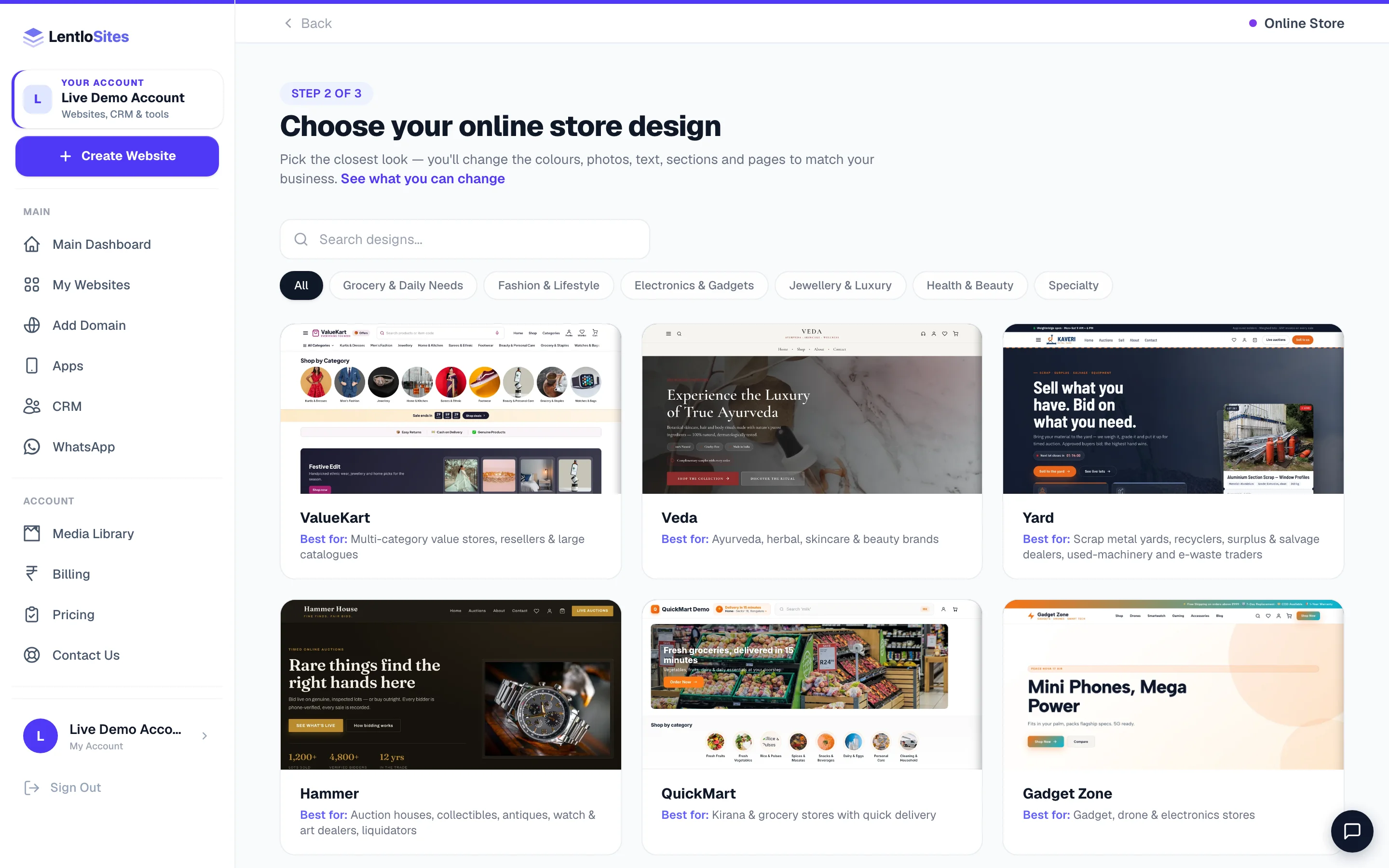
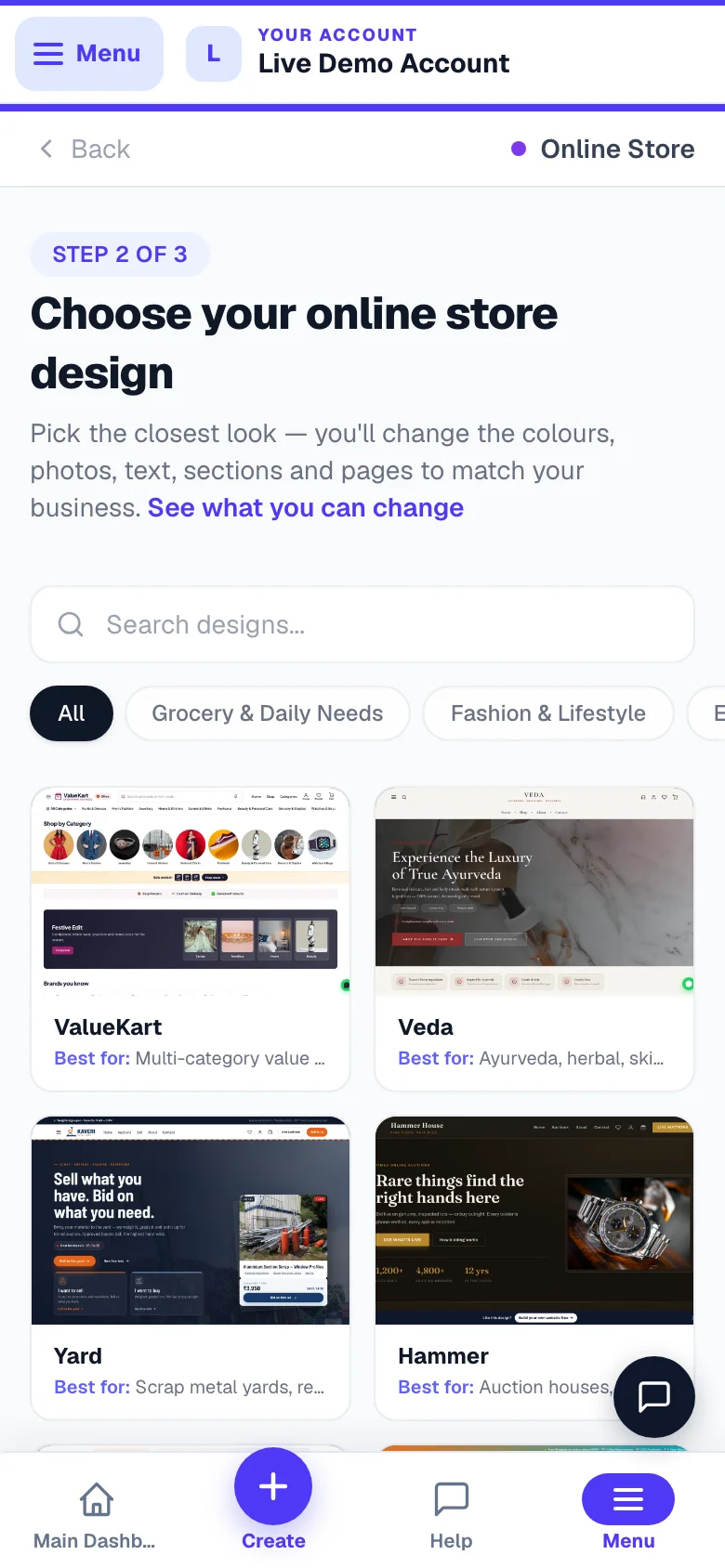
Inside a type, use the category pills — for shops: Grocery & Daily Needs, Fashion & Lifestyle, Electronics & Gadgets, Jewellery & Luxury, Health & Beauty, Specialty; for business websites: Health & Wellness, Education, Real Estate & Travel, Events & Creative, Professional & Community — or just type in the Search designs... box. Every card has a Best for: line saying who the design suits.
Preview, then pick
Tap a card to open its preview page. Click the preview picture, or press View Live Demo, to browse a full working demo of that design in a new tab — tap around it like a real customer would. Happy? Press Use This Design. A green New chip on a card means it is one of the newer block-built designs (a preset) — it opens the same preview page as every other card.
Nothing looks exactly like your business? That is normal — every design is a starting point. You change the colours, fonts, logo, photos, every word, the sections and the pages afterwards, so pick the closest look. Prefer your own layout? Start from the Blank canvas card. And if you would rather have it built for you, the Can't see your look? card at the end of the gallery (and the See what you can change link above the grid) opens a short explainer — everything you can change, then three ways to get your website: Customise a ready design (free), Start from a blank canvas (free), or We design it for you — an optional service, ₹5,999 one-time, ready in 2–7 days, 2 free revisions, and you can still edit everything yourself after delivery. Nothing is charged when you send the request: fill in your industry, what the website should do and any reference website, send it, then confirm on WhatsApp — our team replies with the plan and a payment link. If your website was set up by an agency you see Ask your website provider instead, and the request goes to them.
Answer a few quick questions
The setup wizard collects your business details once and fills them into dozens of places on the site — footer, contact page, WhatsApp buttons and more — so you don't have to edit each page by hand.
Name your website
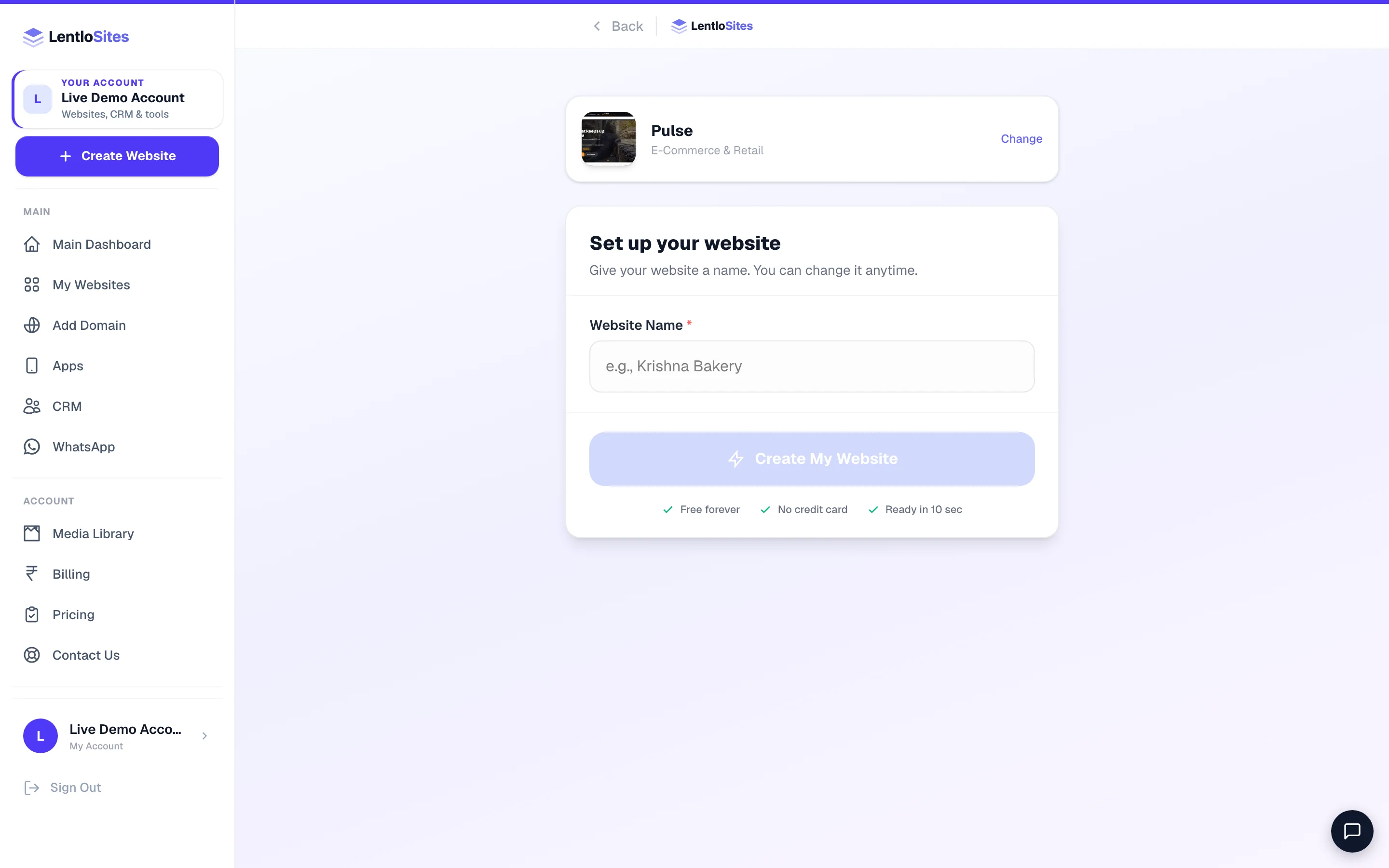
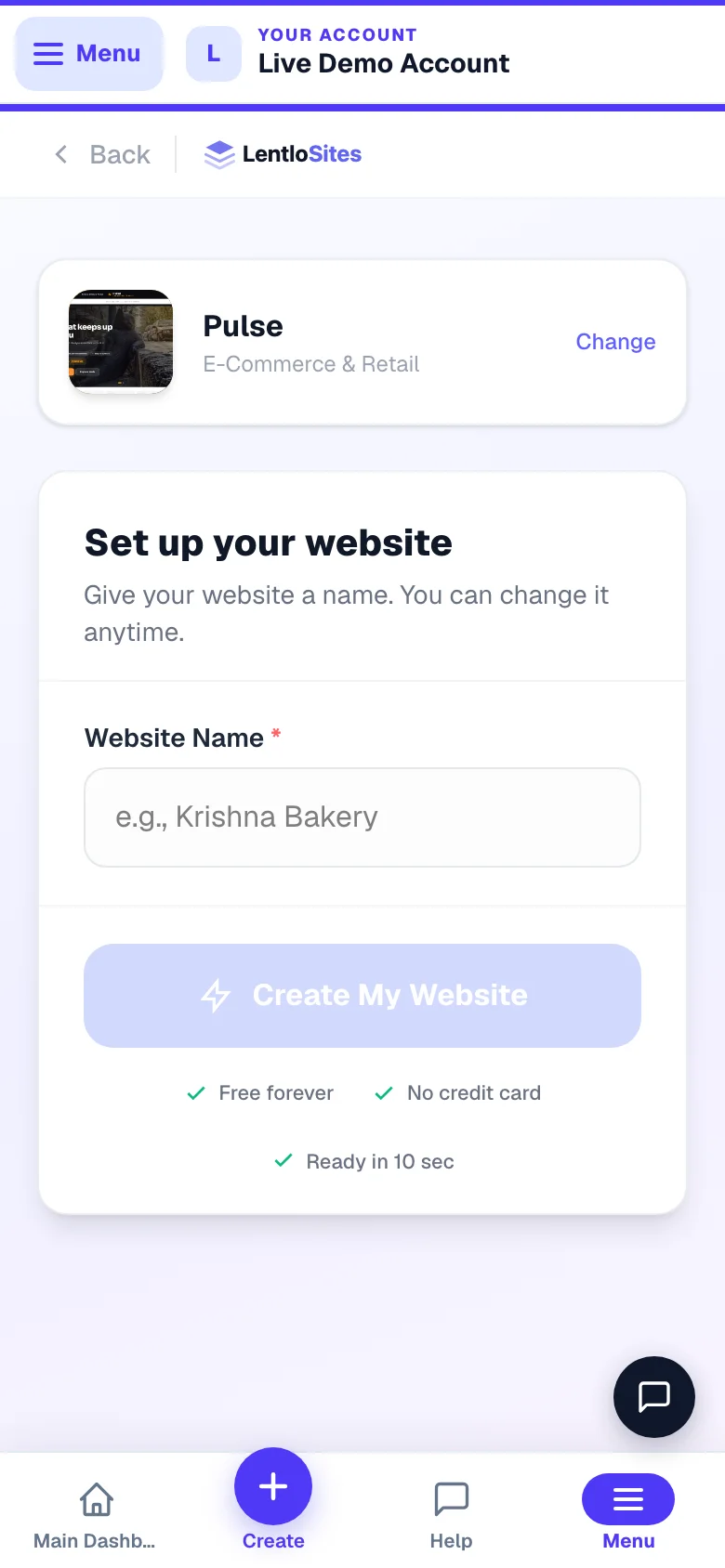
Type your business name on the Set up your website screen. As you type, a Your web address panel shows the free address you get — Sharma Sweets becomes sharma-sweets.lentlosites.com, live from day one. Then press Create My Website. (Resellers first choose Myself or My Client and pick the client.)
Already have your own domain? Type it here. Under the address panel there is an optional box — type krishnabakery.com and you see a live preview of www.krishnabakery.com marked connect later · free. Nothing is bought or connected now; we simply remember it, and your Manage page then shows a Connect krishnabakery.com to this website card so you can finish it in about five minutes. Any domain works — one you already own (GoDaddy, Hostinger, Namecheap, BigRock…) or one you buy later — connecting is free on every plan, your free address keeps working alongside it, and you can add more than one domain or change them any time from that website’s Domain page (the setup screen still calls it Manage → Custom Domain). See Connect your own domain.
Tell us about your business
The screen is headed Tell us about your business. Tagline, address, working hours (pick a set or choose Custom and set Opens at / Closes at) and your 10-digit WhatsApp / phone number are needed; email and Instagram are optional. Type them carefully — they appear on your live website exactly as written.
Upload your logo (or skip)
Drop a PNG, JPG or SVG (under 25 MB) and you'll see a live preview of it in your website's header. No logo yet? Tap Skip for now — I don't have a logo — the design's clean default look stays until you add one later.
Add photos — or your first product
Business designs: add up to 5 photos (all optional). The first becomes your homepage banner, the second goes on your About page, and all of them fill your gallery.
Shop designs: add at least one product with a name, price and photo (MRP, category and a short description are optional) — you can add the rest later from the Products page. Then, on Shipping & Payments, set two delivery basics: Free delivery above (the order amount) and whether you accept Cash on Delivery.
Car dealer designs: add your first car (name, brand, year, asking price, fuel, km driven, transmission, owner, photo), then the Booking Advance Amount a buyer pays to reserve a car and the refundable Test Drive Deposit. Cash on Delivery starts off for car dealerships.
Finish — your site is created
The last screen reads Almost there! Just 2 more steps to make your website live — Customise your website and Publish to go live — while your site is created with everything you entered. Cafés, restaurants, bakeries and catering designs even get store pickup switched on automatically using the address you gave.
Close the tab any time — nothing is lost. Your answers are saved in your browser as you go, and the site itself is only created when you finish the last step. So there are no half-made sites cluttering your dashboard. And if you had already started with the same design earlier, we resume that unfinished draft instead of creating a duplicate.
Let AI write your website's text
Don't want to write headlines and About-page text yourself? On the finish screen a Let AI write your website’s text — free card appears (and later the AI button inside the editor does the same): describe your business in your own words — “family-run kirana store in Warje, Pune, selling groceries and daily essentials” — and AI writes the text across your pages.
- The first write-up for a new site is free.
- After that, each run uses 10 Asha answers — your free daily answers first, then your packs — and only when it succeeds. If it fails, nothing is used.
- Everything it writes is editable — open the editor and change any line you like.
Make your site live
After the wizard, your site is a private draft — customers can't see it yet. Two small steps remain:
Open the editor and look around
Tap Open Editor on the finish screen. Check your text, colours and photos — see Edit your site for the basics.
Press Publish Website
The button sits at the top right of the editor (on a narrow phone it reads just Publish). One click publishes your site to yourname.lentlosites.com with free hosting and SSL; after that first time the same button reads Update Website. Share the link on WhatsApp and you're in business. The Manage page is your home for everything after that — see Publish your site & go live.
Want your own .com? Connect a custom domain like mybrand.com any time — it's included free on every plan. See Connect your own domain.
Common questions
Does creating a website cost anything?
No. Creating and publishing on the Free plan costs nothing upfront — see Billing & plans for how the plans work.
Can I change the design later?
Not with a switch yet — so preview the live demo before choosing. If you change your mind, you can create a fresh site with a different design any time, for free.
I skipped the logo / photos. Where do I add them later?
Logo: your website’s Business Info page (Logo and Favicon), or in the editor under Site Settings. Photos: on any page in the editor. Products go in the Products section of your dashboard.
Will my site look good on phones?
Yes — every design is built mobile-first, since most Indian customers will visit from a phone.
I pressed Create Website inside the live demo and it asked me to sign in.
The live demo (the sample-business dashboard) is read-only, so nothing can be created from it. Tap Sign in to create my website — or Continue building in my account if you opened the demo from your own account — and you come straight back to the same setup step; everything you typed stays saved on this device.
More in Start here
Did this answer your question?
It takes one tap and it genuinely changes what we write next.