
Tour of your dashboard & Manage page
Your site's control room — attention cards, quick switches, the sidebar, phone tabs, and where everything lives.
Watch0:456 min readUpdated 21 Oct 2026
In this guide
Your website list
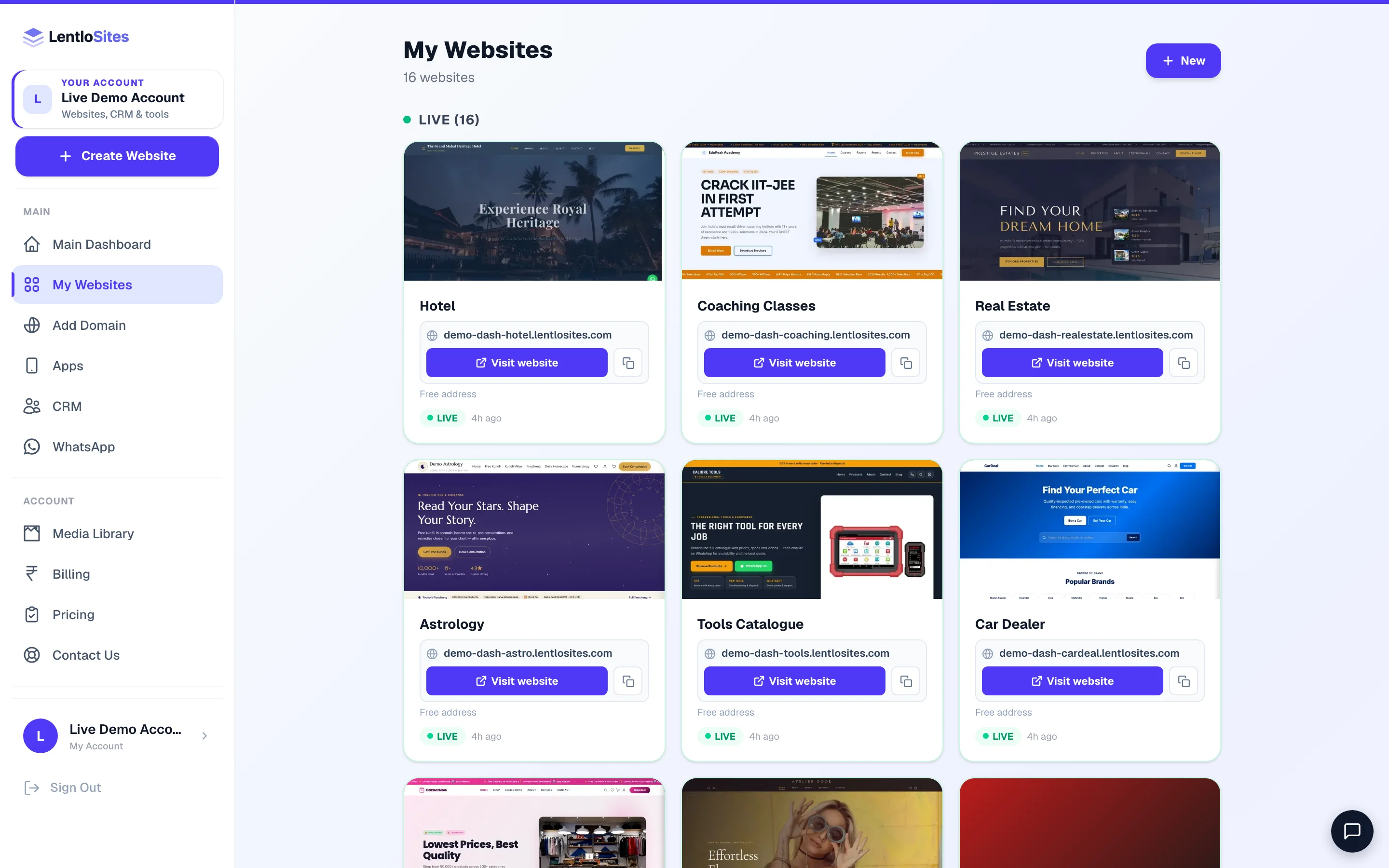
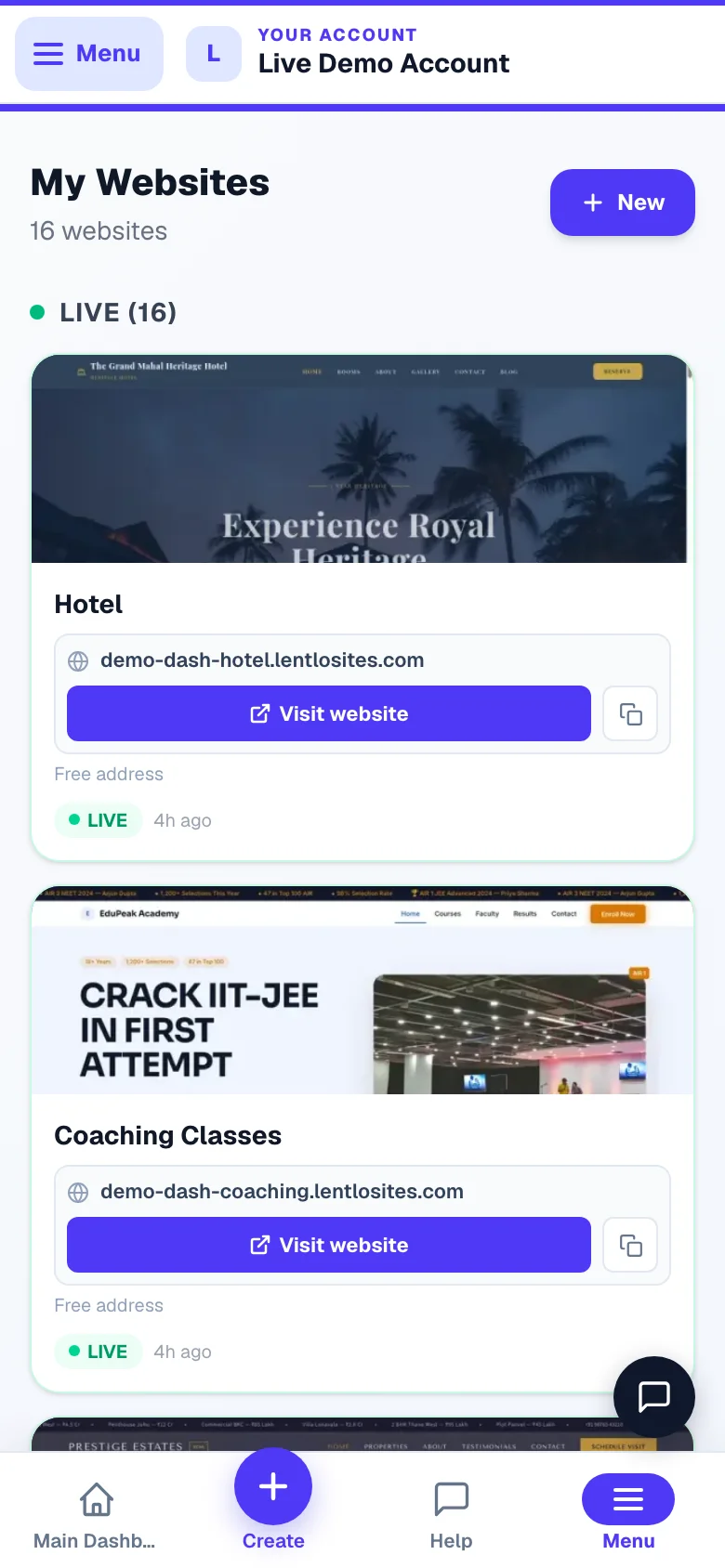
My Websites is the front door — one card per website, so you can see at a glance what’s live and what’s still a draft.
Open My Websites
Click My Websites in the menu. Your sites are grouped into Live (green dot) and Drafts (amber dot). The New button at the top starts a fresh website — see Create your first website.
Tap a card to open that site's Manage page
Everything for that one website — orders, products, settings — lives behind its card.
The Manage page — your control room
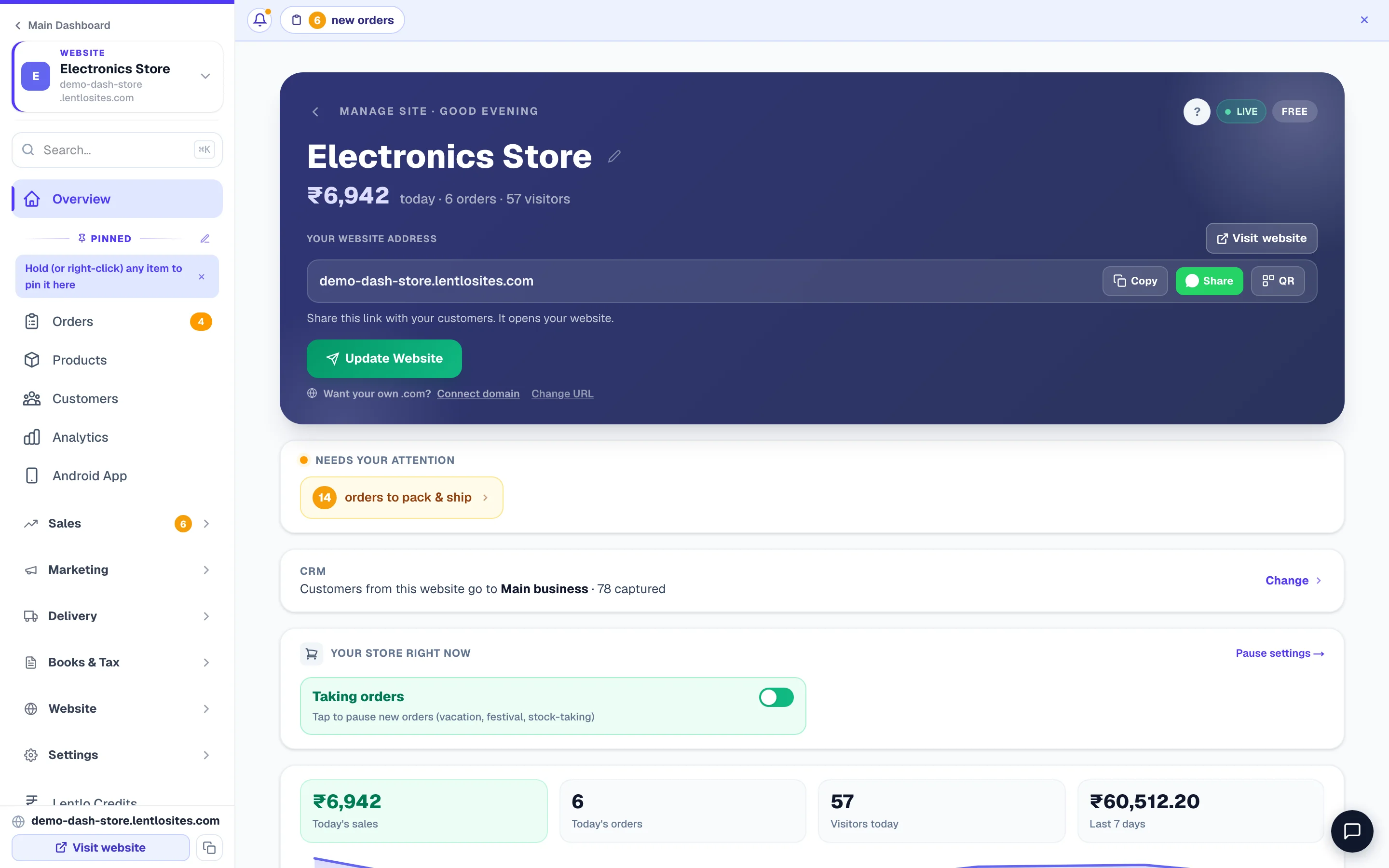
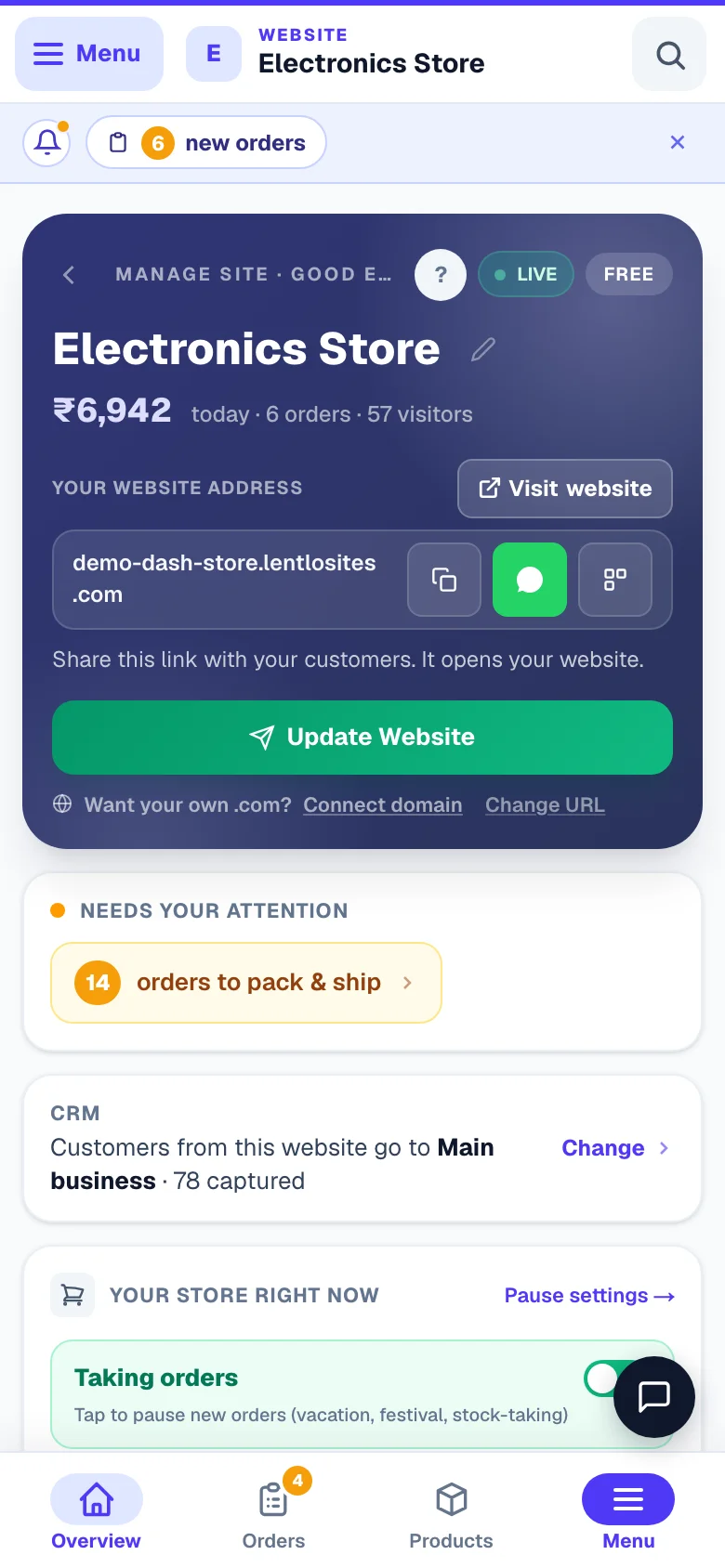
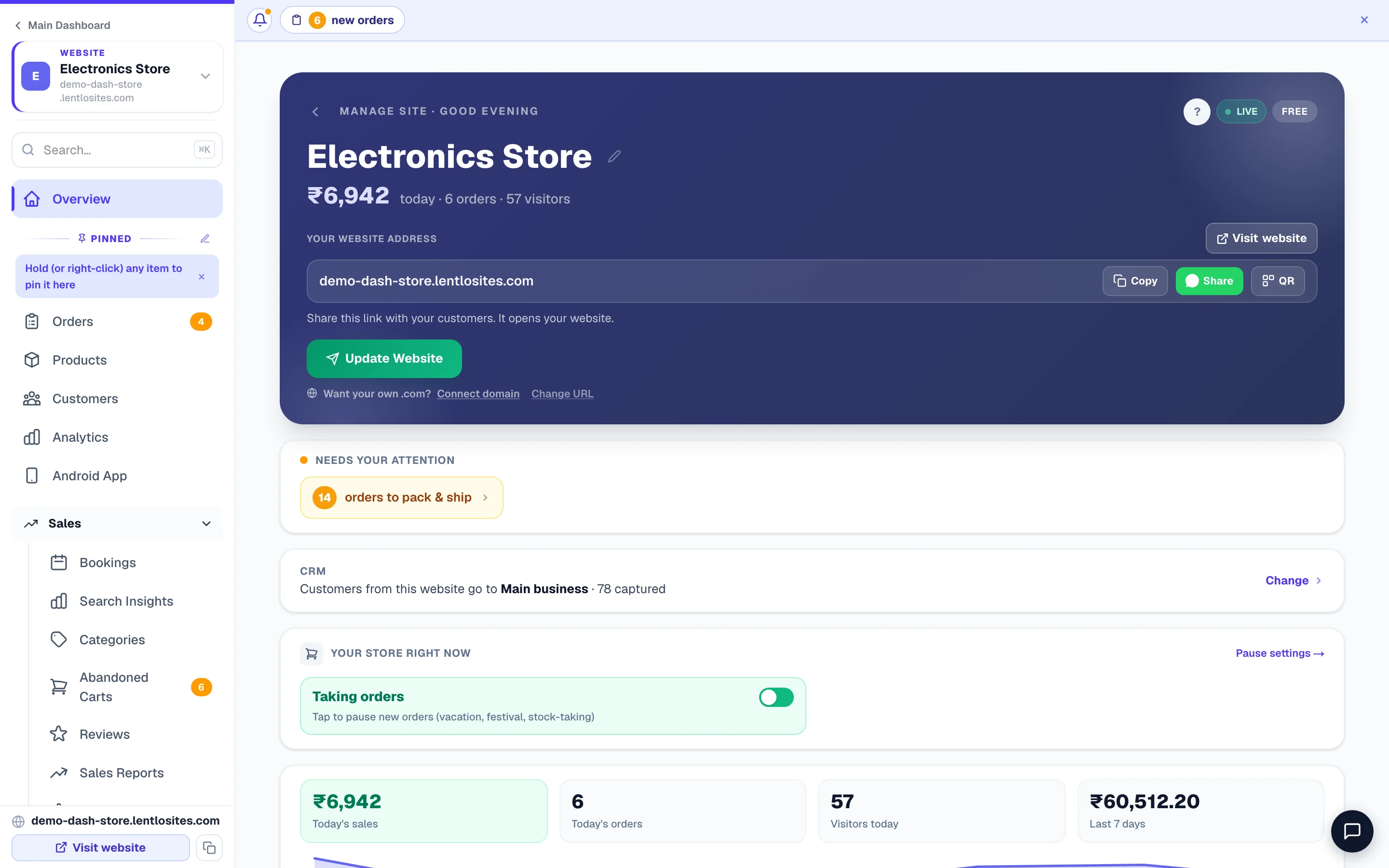
The Manage page shows your site’s health in one glance and puts every daily action one tap away. Open it whenever you start your work day.
- Your site name & today’s sales sit at the top (“₹6,942 today · 6 orders · 319 visitors” on a store; visitors, bookings and enquiries on a service website), with a green LIVE pill when your site is online and your plan badge (tap it for Billing). The small pencil beside the name renames the website.
- Your website address sits under its own label — this is the link customers open, and it is your website. Tap it, or Visit website next to the label, to open it in a new tab, or use Copy, Share (WhatsApp) and QR right next to it. The line under it says what it is for: share it with your customers. To use your own domain, tap Connect domain under the buttons — you can add more than one and change them anytime. Every card on Main Dashboard and My Websites carries the same address with a Visit website button and Copy. In that website's menu, the same address sits in one slim row pinned at the bottom — address, Visit website, Copy — always one tap away (it reads Not live yet until you publish).
- Edit Website opens the editor to change your pages. Update Website publishes — on most designs, saved editor changes go live for customers only after you press it.
- Change URL lets you pick a new free address. On a live website, old links to the previous address still open your website (usually within 5 minutes of the change), and no other website can take that address. With your own domain connected, the free address sits on its own line (Free address: …) with Change — changing it never touches your domain.
- 1Take edits liveYour changes reach customers only when you press this.
- 2Start here dailyAnything waiting on you, in one card.
Edited but customers don’t see it? On most designs, editor changes are saved as a draft first. Press Update Website on this page to make them live. More in Edit your website.
“Needs your attention” — your daily to-do
These coloured chips are your morning checklist — they count the work waiting for you and take you straight to it.
- Orders to pack & ship — new and paid orders waiting to go out (a restaurant reads orders to confirm & prepare, a car dealer bookings to confirm)
- Table reservations to confirm (restaurants) and new leads to contact (loan websites)
- Products not marked on the Pharmacy Desk (pharmacy websites) — shown first, because customers cannot order those products until you say what each one is. Tap it to open the Pharmacy Desk’s products. See Pharmacy websites.
- Products low on stock — restock before they sell out
- Reviews to approve, enquiries to reply, wallet top-ups to approve
- Quotations awaiting response — price quotes you sent that the customer hasn't answered yet
- “Customers could not pay online” — a red chip counting the times your payment gateway refused to open a payment this week. It is the one chip you should never leave sitting: tap it and press Test now under Test connection on the gateway card in Payments to see the gateway's own answer. Usually the account simply is not activated to collect yet. See Accept payments.
- Vehicle rentals (rental websites) — vehicles overdue for return in red, licence uploads to verify, and pickups & returns today. Each opens the matching tab of the Rental Desk. See Vehicle rental websites.
- Products rejected on Google / Instagram — the shops you list on refused some products (a missing brand, a price mismatch). Tap it to open Sales Channels, fix what it names, and they re-sync by themselves. See Sell on Google & Bing.
- Checkouts blocked by your minimum-order rules — a red chip that appears when customers this week tried to order but your minimum-order amount (site-wide or a member group's) kept the Place Order button locked. It shows how much money was sitting in those carts — tap it to review the rule.
Tap a chip and you land on the exact list it counted — the low-stock chip even opens Products pre-filtered. When there’s nothing pending you’ll see a calm green “All caught up — nothing needs your attention right now.” On a store, the Your store right now card below shows today’s sales, today’s orders, visitors today and the last 7 days with a small 7-day graph; a service website shows visitors, bookings and enquiries today instead.
The CRM card — where this website’s customers go
A small CRM card says which CRM business book this website’s customers are added to — for example “Customers from this website go to Main business · 68 captured” — or, in amber, Not adding customers to any CRM. Change (or View for a team member) opens the CRM’s website connection page, where you pick the book. See Start with the CRM.
“Active store rules” — limits you’ve switched on
If any setting that limits who can place an order is switched on, an amber strip lists it right on the Manage page — a member group's minimum order amount, a site-wide minimum order value, or a members-only store. Each chip says plainly what the rule does (e.g. “Wholesale: no orders under ₹10,000 — 12 members affected”) and taps through to the page where you can change it. No rule on = no strip. This exists so a blocking rule can never run silently in the background without you knowing.
Your shop's location. When your delivery fee is by distance and your shop's location is not saved yet, a Set your shop's location card sits at the top of the Manage page — set it right there on the map, and the sidebar's amber ! on the delivery setting goes away. Without it every delivery pays your first distance's fee (or, with a set delivery distance, customers can't choose home delivery at all).
The “Set up your business” ring
New sites show a progress ring with the steps that matter most — logo, phone number, publish, and your own domain, plus first products and online payments on store sites (service sites get a first-blog-post step instead). It’s why-first: each step directly helps you get orders.
Each step carries points (“2 of 6 done — finish to reach 100”) and its own button — Upload, Add, Set up, Connect. A jewellery catalogue gets “Set today’s gold & silver rates”; a rental website gets “Add your vehicles & set rates”. The list checks itself automatically as you finish things — no ticking boxes. Once everything is done, it disappears on its own. Want it out of the way earlier? Tap the small ×.
Recent Activity, and the cards that come and go
- Recent Activity — the last five orders, bookings and enquiries, newest first, with View all orders (or View all bookings) under them.
- GST registered? Set up invoices. — appears once orders are coming in: Open Books & Tax to add your GSTIN, or Not now to hide it on that device.
- Connect your domain — if you told us the domain you want during setup, a card reminds you to connect it, with Connect domain.
- Lower your per-sale fee — on a published website on the Free plan, the owner sees a card explaining that your own domain is already included and that paid plans only lower the small fee you pay per sale.
Stores: “Your store right now” — pause ordering
Published store sites get a live switch at the top of the Manage page: Taking orders / Ordering paused. Going on vacation, closing for a festival, or doing stock-taking? One tap pauses new orders instantly — customers see your notice, while your website stays online. Tap again to resume. Your own manual orders, payment links for existing orders, and subscription deliveries keep working while paused.
The wording customers see, what they can still do (browse / fill carts / closed notice), and an auto-resume date live under Pause settings → on that card (the Appearance page, “Pause ordering”) — the full story is in Pause ordering — take a break without going offline.
Restaurants: “Your restaurant right now”
Restaurant sites get a live strip at the top of the Manage page: an Accepting orders pause switch, a Table QR ordering on/off switch, tables occupied right now, today’s reservations, and a Serving now card that shows exactly which meal timings are running this minute (say “Serving: Dinner”) and how many menu categories are greyed out for guests — the same live state your customers see. Tap it to jump to Menu timings.
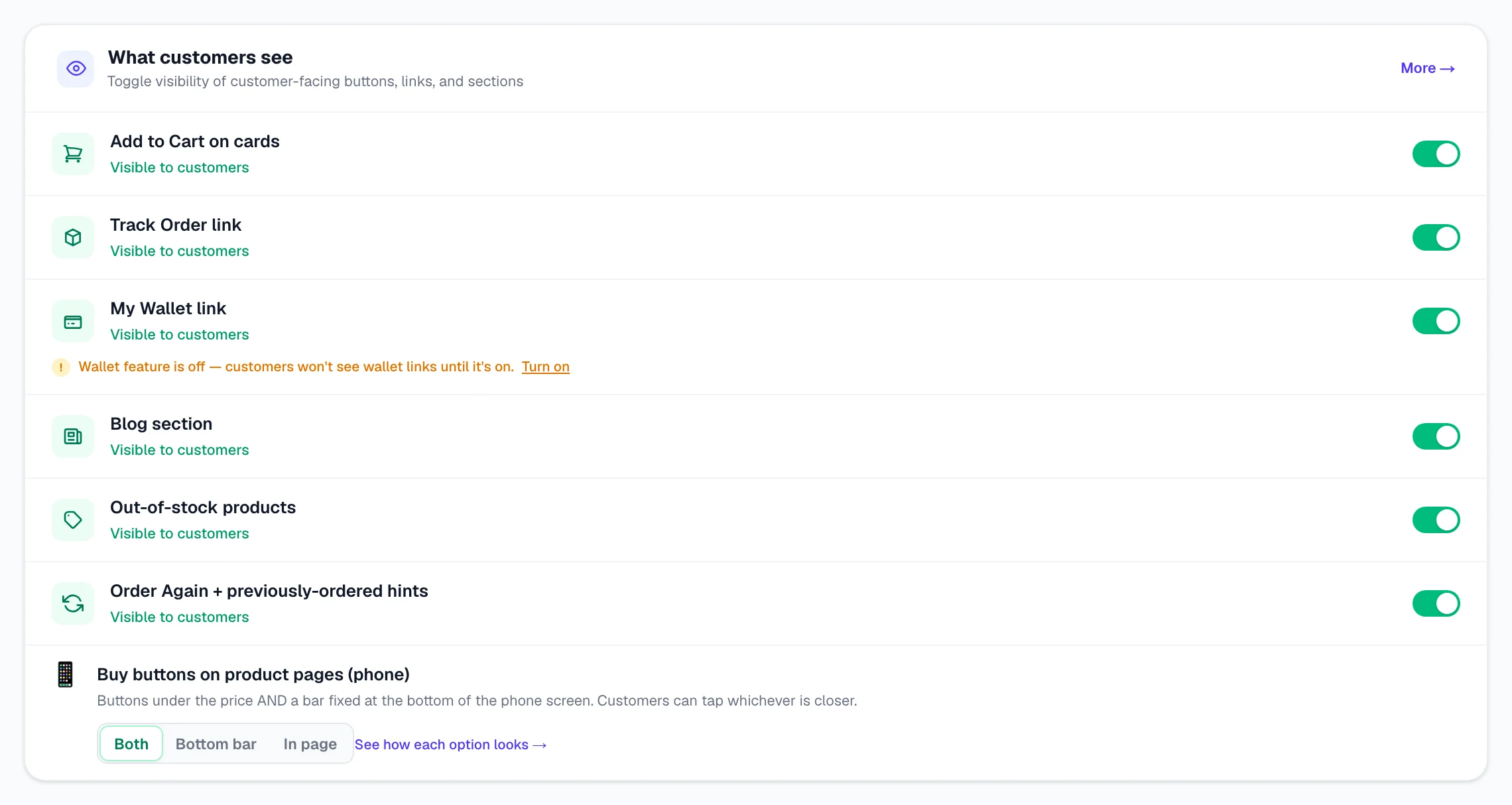
Quick switches — “What customers see”
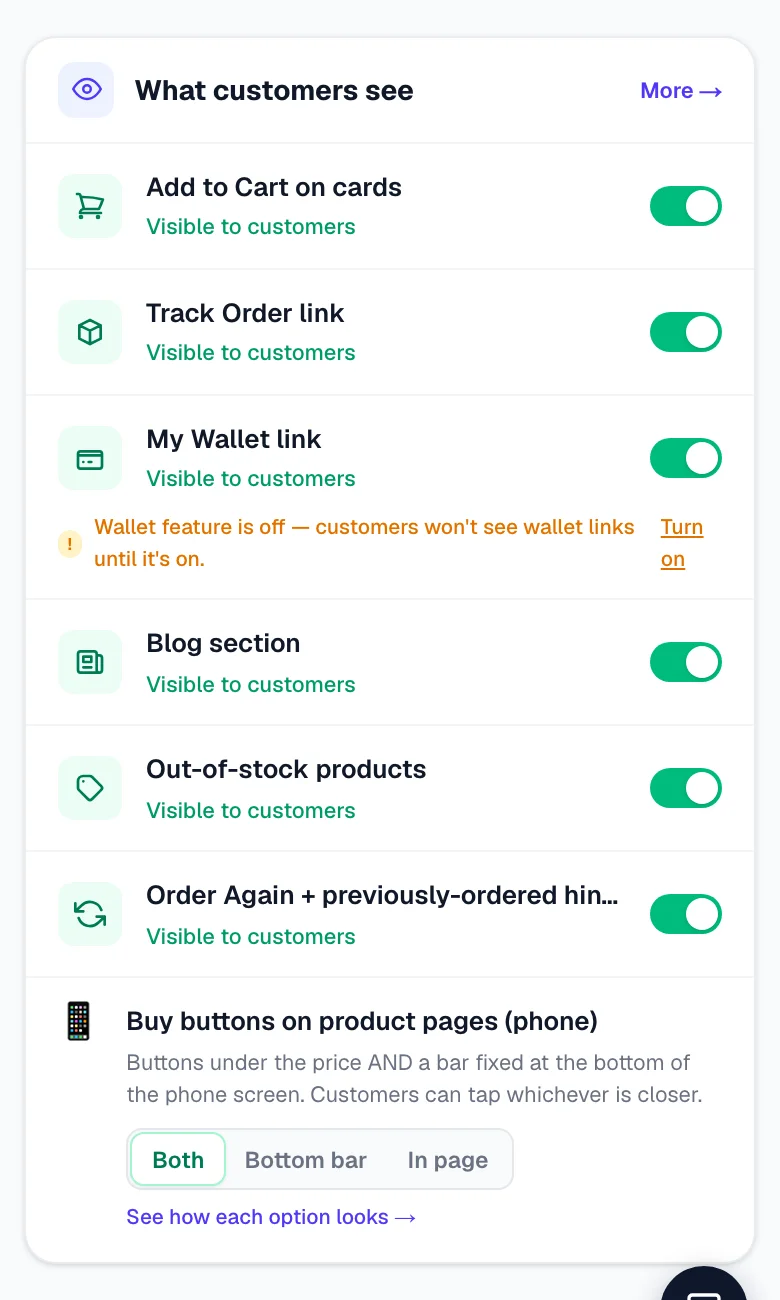
Near the bottom (on store sites), one card holds show/hide switches for customer-facing things — handy when you want to hide something for a while without touching the editor.
- Add to Cart on cards — the cart button on product cards
- Track Order link · My Wallet link · Blog section
- Out-of-stock products in listings · Order Again + previously-ordered hints
- Price per unit on pack sizes (₹/kg) — the “₹1,600/kg” line under each pack; off hides it on every product at once (details)
- Buy buttons on product pages (phone) — Both / Bottom bar / In page (a one-tap row; see how each looks)
Each row says Visible to customers or Hidden, so you can read the state without guessing.
Each switch saves instantly — no Save button (“Saved — your website updates in about a minute”). More → on the card opens Appearance, which carries these plus a few more; the full story is in Show & hide things on your site.
One thing to know about My Wallet link: that switch only controls the link. The wallet feature itself has its own on/off switch on the Wallet page — and while the feature is off, customers won't see wallet links no matter what the link switch says. When that's the case, an amber note appears under the switch with a one-tap Turn on shortcut.
“Everything for this website” — the tool map
Below the cards, every tool this website has is laid out as tiles, grouped exactly like the menu, so you never have to remember where a feature lives. Nothing is left out — the tiles are built from the same list the menu uses.
Sales
Orders, Products, Categories, Customers, Reviews, Bookings, Form Inbox, Abandoned Carts, Payment Alerts, Subscriptions, Sales Reports, Analytics, Search Insights — plus your product catalogue as a PDF, and a red badge when something is pending.
Marketing
Grow, AI Assistant, Coupons, Loyalty, Combo Deals, Add-on Suggestions, Sales Channels, Influencers, Blog, Notifications, Android App, Marketing Kit, QR Codes, Business Card.
Delivery
Delivery fee & area (restaurants), Shipping, Deliveries (your own delivery boys), Delivery Days, Delivery Schedule, Courier Partners, Pickup.
Books & Tax
Books & Tax, Invoices, Quotations, Invoice Settings, GST Reports, GSTR-2B Reconciliation, Purchases, Vendors, Expenses, Stock Journal, Profit & Loss, E-Invoice Setup.
Website
Edit Website, Business Info, Appearance, Header & Footer, Homepage Sections, Social & Links, FAQ Page, Stores & Branches, Domain, URL Redirects.
Settings
Payments, Tracking, Advanced, Members Access, Member Pricing, Team & Staff, Activity log.
A tile that looks faded with a small Off tag is a feature you haven’t switched on yet — open it and turn it on. Which tiles you see depends on your website type and, for staff, on what you are allowed to open.
The sidebar — every tool, grouped
Once you’re inside a site, the left menu shows everything for that site, grouped so daily work sits on top and rare jobs stay tucked away. The same tools also appear as tiles on the Manage page under Everything for this website, grouped the same way — a tile that looks faded with an Off tag is a feature you haven’t switched on yet; open it to turn it on.
- Top — ‹ Main Dashboard (the way back to all your websites and your account), the website’s own name card, a big Edit Site button, the search box, then Overview
- Pinned — your daily tools, kept right on top. Hold (or right-click) any item to pin it here; the small ✎ next to the Pinned line opens the full arranger. On a pharmacy website the Pharmacy Desk is pinned first (and is the first tab on your phone)
- Sales — Orders, Products, Customers, Reviews, Sales Reports (see Managing orders). Some kinds of website name this group in their own words: Newsroom on a news website, Bookings on travel, Rentals on rental, Loan Desk on a loan website.
- Marketing — Grow, AI Assistant, Coupons, Loyalty, Combo Deals, Add-on Suggestions, Blog, Notifications, QR Codes, Marketing Kit, Android App
- Delivery — pincode rates, courier partners, pickup (see Shipping setup)
- Books & Tax — Invoices, GST Reports, Purchases, Expenses, Profit & Loss
- Website — Edit Website, Business Info, Appearance, Header & Footer, Social & Links, FAQ Page, Stores & Branches, Domain, URL Redirects
- Settings — Payments, Tracking, Advanced, Members Access, Member Pricing, Team & Staff, Activity log
- Bottom — Lentlo Credits (your balance), Asha answers (your free daily answers) and this website’s Plan (see Plans & credits), then your website address in one slim row
Groups stay folded until you need them — the group holding your current page opens by itself. Can’t find something? Type in the search box at the top of the menu (press Ctrl/⌘ K). And Customize menu at the bottom lets you reorder or hide items you never use.
Tools that work across all your websites — CRM (customers, credit, invoicing) and WhatsApp (inbox, broadcasts) — sit just below the site menu, so they're one tap away wherever you are. If you run your dashboard from your own domain's admin, your Media Library appears there too.
Switched-off features stay visible. Features you haven't turned on yet — like Wallet, Members Access, Pickup, Subscriptions, or a Blog you switched off — still show in the menu, dimmed with a small Off tag at the bottom of their group. They never disappear without a trace: tap one to open its page and turn it on whenever you're ready.
- 1Every tool, groupedPinned favourites on top, then Sales, Marketing, Delivery, Books & Tax, Website and Settings. Features you have not switched on stay listed, dimmed, with an Off tag.
Clean up your menu — hide what you don't use
Customize menu (bottom of the sidebar) opens the arranger. Every item has an eye toggle to hide it, and each section header has a Hide all button — one tap tucks away a whole section (for example all of Books & Tax if your accountant handles GST).
- Hiding never turns anything off. Hidden pages keep working — links, WhatsApp updates and your live website are untouched. You're only cleaning your own menu.
- You always know what's hidden. The Customize menu row shows a small "N hidden" count whenever you've hidden something. Tap it to review — hidden items stay listed there, dimmed, with one tap to bring back.
- Overview, Orders and Products can't be hidden — that's your daily workspace, always there.
- Smart suggestions. After you've used your dashboard for a few weeks, the arranger quietly points out pages you haven't opened in 30 days and offers a one-tap Hide. Dismiss it anytime — it's only a hint.
If your internet blips and some menu items don’t load, the menu fixes itself as soon as the connection returns — or tap the small Retry note that appears near the top of the menu.
On your phone — bottom tabs
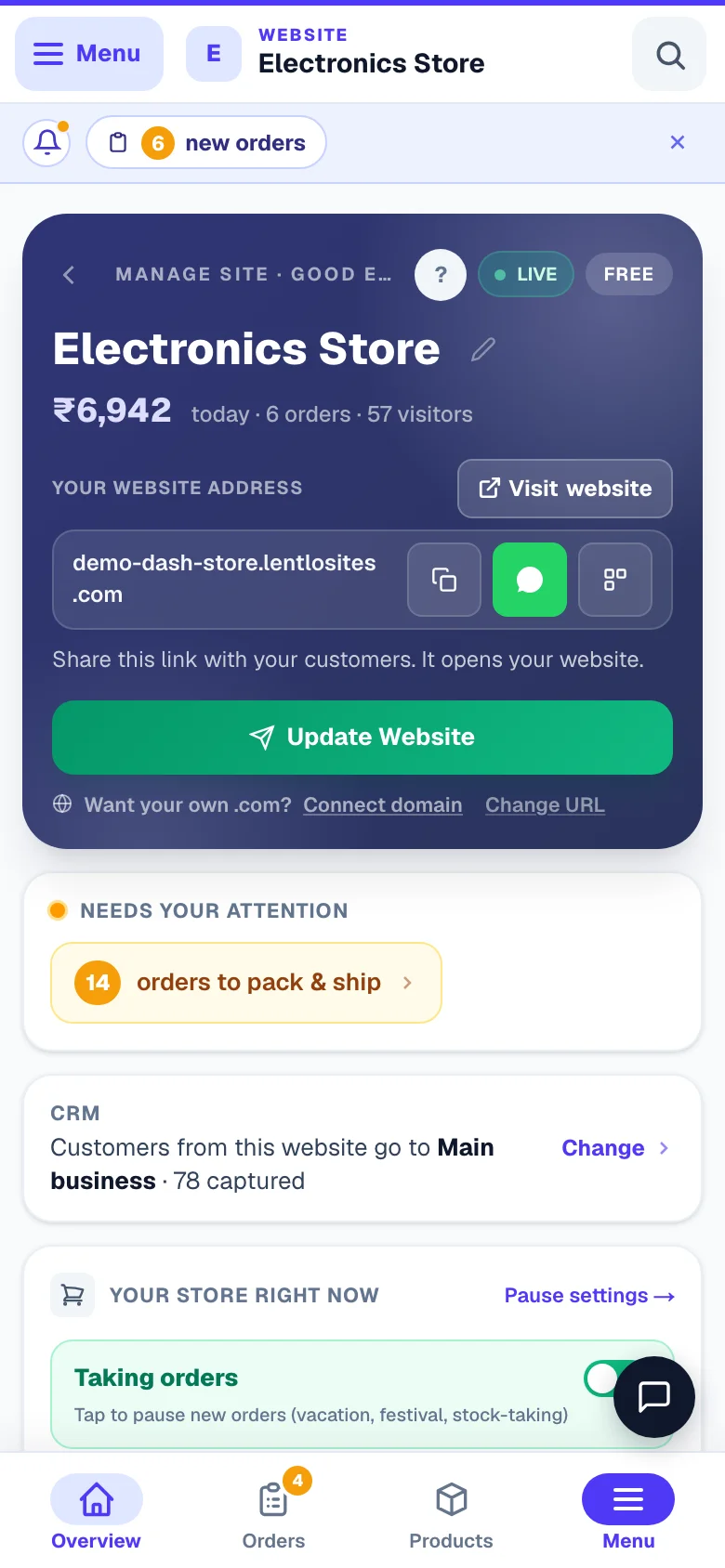
On a phone there are two ways into the full menu, and both open the same list: the Menu button at the top-left of every page (next to the name of the website, CRM or account you’re in), and the Menu cell at the right end of the bottom bar. The bottom bar holds the tools you tap every hour so they’re always under your thumb.
- Inside a store site: Overview · Orders · Products
- Service/business sites: Overview · Bookings · Inbox
- Restaurants: Overview · Counter · Orders · Reserve · Restaurant
- Outside a site: Main Dashboard · Create
The Asha cell sits in the middle of the bar (tap to chat, press and hold to speak), and Menu at the right end. Want different tabs? Customize menu → Phone bottom bar lets you choose which pages sit there for this website.
Everything else is behind Menu — top-left or bottom-right, whichever is closer to your thumb. The menu is colour-coded so you always know where you are: your website’s menu wears that website’s own brand colour, the CRM is teal, and the account menu (all websites, billing) keeps the dashboard’s own colour. The small label at the top of the menu — Website, CRM or Your account — says the same in words.
Installed the dashboard as an app on your phone? A one-time 🔔 “Get new orders & requests as alerts on this device” offer appears under the header — tap Turn on and new orders, enquiries, member and address requests reach your lock screen as notifications even when the app is closed. Dismiss it with ✕ and it stays away on that device.
Site status — draft, live, suspended
The Manage page changes its top section to match your site’s state, so the next step is always obvious.
- Draft — an amber “Ready to go live?” card with a Publish Now button. Your site isn’t visible to anyone until you publish.
- Live — green LIVE pill, your address, and the share buttons.
- Suspended — a red notice with the reason and a support button. Editing is paused until it’s restored — your orders and business data stay safe and viewable.
Where help lives
Help is built into every page, so you never have to leave your work to ask a question.
- The small ? Help button next to most page headings opens quick tips for the page you’re on, a link to the full guide, Ask Asha — she can do it for you and Help & Support.
- The chat helper is one tap away: on a computer Ask Asha sits at the foot of the left-hand menu on most pages; on a phone the Asha cell sits in the middle of the bottom bar — tap it to chat, or press and hold it to speak. Ask in your own words: it checks your orders, settings and site through your dashboard, puts small changes on a card for you to confirm, and sends a genuine technical problem to our team through Help & Support.
- Something looks broken? Start with Troubleshooting.
Deleting a website (Delete Site)
At the very bottom of the Manage page is the Danger Zone — only the site owner sees it (a reseller-managed client never sees it at all).
Delete Site takes your website offline the moment you confirm. The published pages are removed from our servers straight away, your address stops serving, customers can no longer place an order or pay, and your products come off Google and Instagram on the next sync.
What it does not do is throw anything away. Your pages, products, orders, customers and invoices stay exactly where they are, and nothing wipes them on a timer. Changed your mind? For 30 days the website waits under Recently Deleted at the bottom of Main Dashboard with a Restore button and the days left — press it and the website comes back as a draft; open it and publish once to put it live again. After 30 days the Restore button goes, but the website is still kept: ask our team from Help & Support and they bring it back.
A genuine permanent wipe only happens when you ask for one, and it is deliberately hard to do by accident: our team cannot run it until the site has sat deleted for at least 7 days, and the exact site address has to be typed out to confirm. After that it really is gone, and no backup restore is offered for it.
Deleting is rarely what you want. If you are closing for a season use Pause ordering; if you just want the site off the internet for a while, tell us — an unpublished site keeps every order and customer and costs nothing to keep.
Common questions
Why don’t I see Orders and Products? Those appear on store sites. A simple business or service website shows Bookings and Form Inbox instead.
I pressed Update Website — how long until it’s live? Usually a few seconds — the page says Site updated; refresh your site in a new tab to see it. On a busy moment it says Your update is queued and goes live within a few minutes — you can keep working.
Can my staff see everything here? No — each staff member gets an access level you choose, and anything outside it stays locked. Owner-only areas like Team & Staff and Delete Site never show for them. Manage this under Team & Staff (see Add staff to your site).
More in Start here
Did this answer your question?
It takes one tap and it genuinely changes what we write next.