
Create manual orders (WhatsApp/walk-in/B2B)
Customer ordered offline? Create the order from the dashboard — with your own delivery charge, extra charges, or discount. Clone past orders for repeat customers.
Watch0:507 min readUpdated 21 Oct 2026
In this guide
When to use manual orders
A manual order is an order YOU type in, for a sale that happened outside your website's checkout — so your Orders page, stock, and GST records stay complete even for offline sales. Orders you create yourself — typed in, cloned or billed at the counter — carry no platform fee; the fee applies only to orders your customers place on the website.
- Customer placed the order over WhatsApp or a phone call — no online checkout
- Walk-in customer at your shop
- B2B order from a known regular client (there's a GSTIN field for their tax invoice)
- Repeat customer — clone their last order instead of re-typing it
Everything else (online checkout, COD orders, app orders) arrives automatically — you never create those by hand.
Creating a new order
The form lives at Orders → New Order (green button, top right) and takes a minute or two: pick the customer, add products, set payment, create.
Open the form
Open your site from My Websites → Orders → New Order. (Direct link: /dashboard/orders/{siteId}/new.)
Customer
Type a phone number, name, or email in Find existing customer — matches show their past orders, total spend, and wallet balance; tap one to fill everything. New customer? Just type the details fresh. For a B2B client, add their GSTIN so the auto-invoice becomes a proper B2B tax invoice (see GST invoices). Then choose Delivery or In-store pickup — pickup skips the address and delivery charge (see pickup).
Ordering for someone else? Under Who receives it tap Someone else (instead of The customer) and type the receiver's name and 10-digit mobile — the courier label, the packing slip and your delivery boy's screen then carry that name, while the customer stays the one who pays and gets the messages. An Alternate number (a mobile, or a landline with its STD code) is a second number to try at delivery; both are checked when you create the order, so a short or wrong number never reaches a parcel.
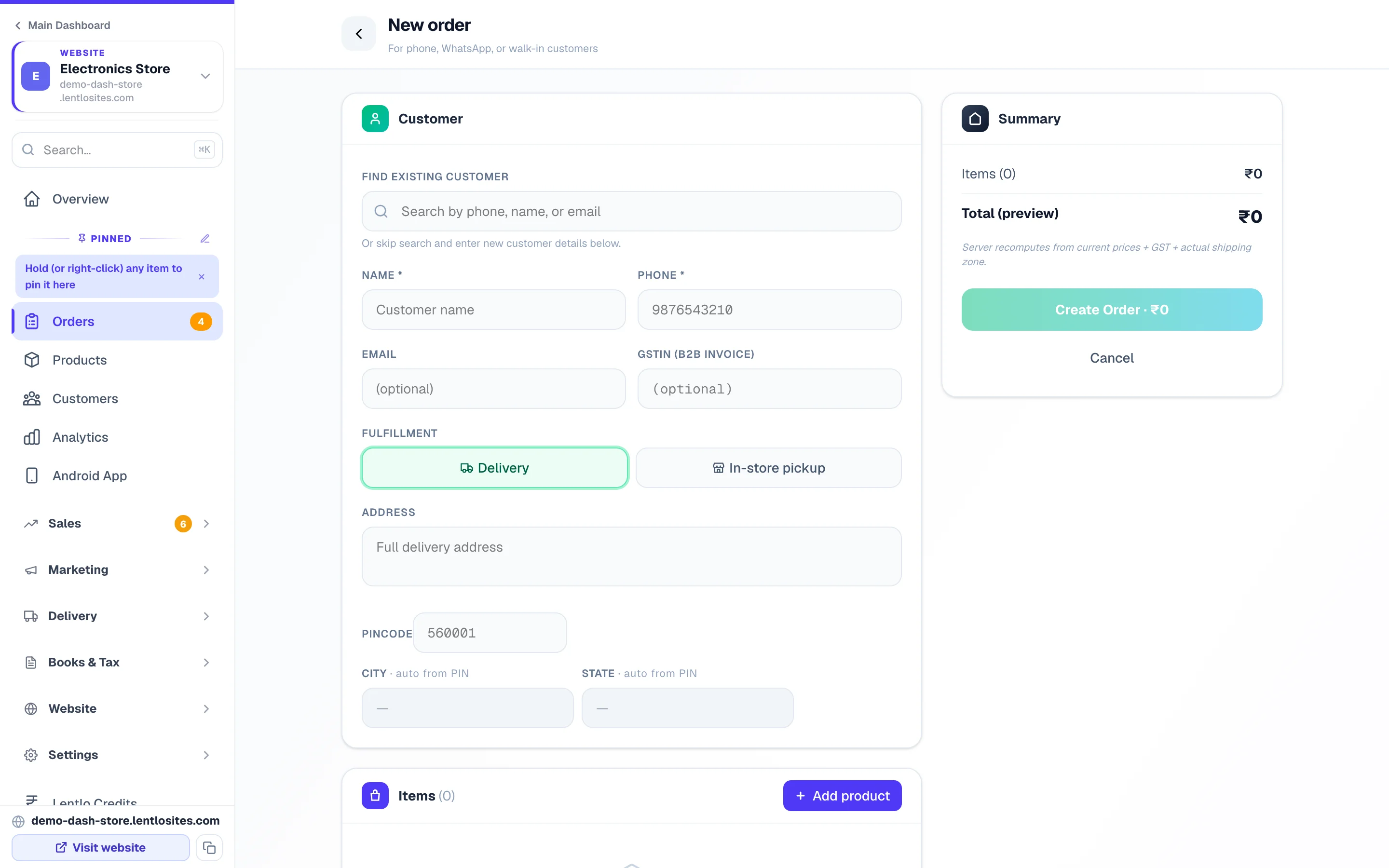
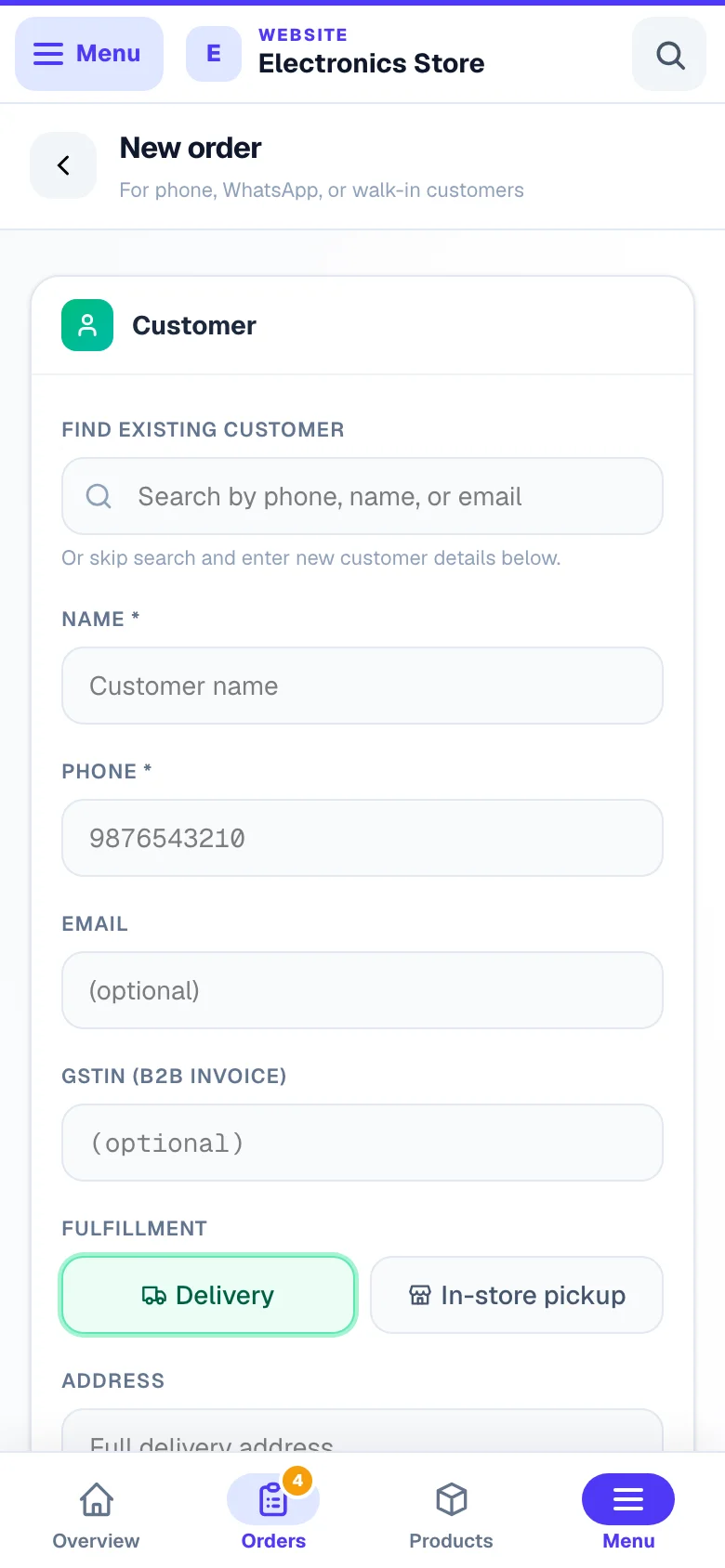
- 1Start with the numberA past customer comes up with their saved address.
Add products
Click Add product and search by name or category. For products with variants (size/colour), a picker opens so you choose the exact one — price and stock shown per variant. Out-of-stock products can't be added: mark them back in stock first from stock management if you have pieces the system doesn't know about.
Delivery day (route-delivery stores)
If your store uses Zone Delivery Days or Delivery Scheduling, a Delivery day box appears under the pincode. It shows the customer's zone and the same days they'd see at checkout — regular days at no extra charge, ⚡ sooner days with the exact extra — plus a date box for any other date (phone orders are your call; closed days and off-list dates are allowed for you). Picking a sooner or off-list day shows a “Charge the sooner-delivery fee” tick — keep it to charge what online customers pay, or untick it to deliver free. The order then appears on the right day in your Orders delivery filters and Delivery schedule.
The zone respects your own assignments: if you've pinned the customer (or their saved address) to a zone, the picker shows that zone with an · assigned tag — the pincode never overrides your call. A customer with several saved addresses gets address chips under the Address box (each with its pincode and zone) — tap the one this order ships to and the days, zone and fees follow it. Days already closed for online orders also appear as chips marked "closed online" — customers can't book them anymore, but you can.
Charges & Discount (optional)
Set your own delivery charge, extra charges, or a discount — details below.
Coupon (optional)
If the customer brought a coupon, type the code and click Apply — the discount previews only after the server checks it, so what you see is what gets charged. Cashback coupons are refused on manual orders (they would credit wallet money the customer didn't earn online).
Payment
Pick the Payment method — including two “collect online” options if you have payments set up (details below) — and the Status: ✓ Paid or Pending. Cash on Delivery and the two collect options always start as Pending.
Wallet (optional)
If the customer has wallet balance, a green card shows it — enter how much to apply toward this order (up to their balance).
Note + WhatsApp
Add an Internal note (up to 2,000 characters — visible only to you, e.g. “paid via UPI, gift wrap”). Notify customer via WhatsApp is on by default — the order confirmation goes from your own WhatsApp number when its Order placed message is switched on in WhatsApp (without your own number, no WhatsApp goes out).
Create
Click Create Order in the Summary card — the button carries the running total (Create Order · ₹1,240), and it reads Clone Order when you got here by cloning. Stock reduces instantly, the invoice auto-generates (if invoicing is on), and you land on the new order's page. The Summary total is a preview — the server recomputes from current prices, GST, and your shipping zone, so the stored amount is always correct.
Charges & Discount — your own delivery fee, extra charges, and discount
This section exists because offline deals rarely match online pricing exactly — you quoted your own delivery rate on the phone, added a packaging charge, or knocked something off for a regular. Each line lands on the invoice with its own GST rate, so the invoice reflects what the customer actually pays — untick Show on invoice on any line you'd rather keep off it.
- Delivery charge — pre-fills from your shipping zones once you enter the pincode (on a store that charges delivery by distance, from your first distance band), but it's fully editable: type your own amount, rename the label (default “Delivery Charge”), pick a GST rate if your site charges GST, and tick/untick Show on invoice. Pickup orders have no delivery charge.
- Additional charges — add rows like Packaging, Installation, or Gift wrap, each with its own amount, GST rate, and show-on-invoice toggle.
- Discount — flat ₹ or a % of the items subtotal, with an optional reason (e.g. “festive offer”) that shows in the summary. It stacks with a coupon if you apply one too; together they can never exceed the items subtotal.
Cloning carries these over. When you clone an order, its delivery charge, extra charges, discount, and who received it (the receiver's name and mobile, with the alternate number) come along (a manual discount has no usage limits, unlike a coupon) — edit or clear them before saving.
Collecting the payment — paid now, COD, link, or QR
The payment method tells the platform how the money moves, so pick the one that matches reality — it drives whether the order shows Paid or Pending and what the next screen offers.
- Mark as paid (offline) — you already collected cash or UPI yourself. Most common for walk-ins. No payment screenshot needed.
- Cash on Delivery — collect at the door; the order stays Pending until you mark it paid.
- UPI / Bank transfer (received) — money already arrived in your account directly.
- Collect via payment link — shown when you have a payment gateway or your UPI ID saved in payment settings. The order is created payment-pending with a secure pay-link ready — share it on WhatsApp from the next screen; the order is marked paid automatically when the customer pays.
- Collect now — show UPI QR — shown when your UPI ID is saved in Payments (sidebar → Settings → Payments). The next screen opens a UPI QR for the exact amount; show it to the customer, then tap Mark paid once the money arrives.
Even if you pick a “pay later” method, every unpaid manual order's page has a Collect payment card — request payment on WhatsApp any time, or send a pay-link if online payments are set up.
Started from a Payment Alert? When you open the New Order form from the Payment Alerts page (“Create order for this payment”), the payment section is locked instead of a picker: the order is created already paid via that gateway with the captured payment's ID attached, the customer's number comes pre-filled, and a banner live-checks that your order total matches the captured amount (a mismatch still saves, with a warning on the order's timeline). Wallet credit can't be stacked on such an order — the money was already collected once.
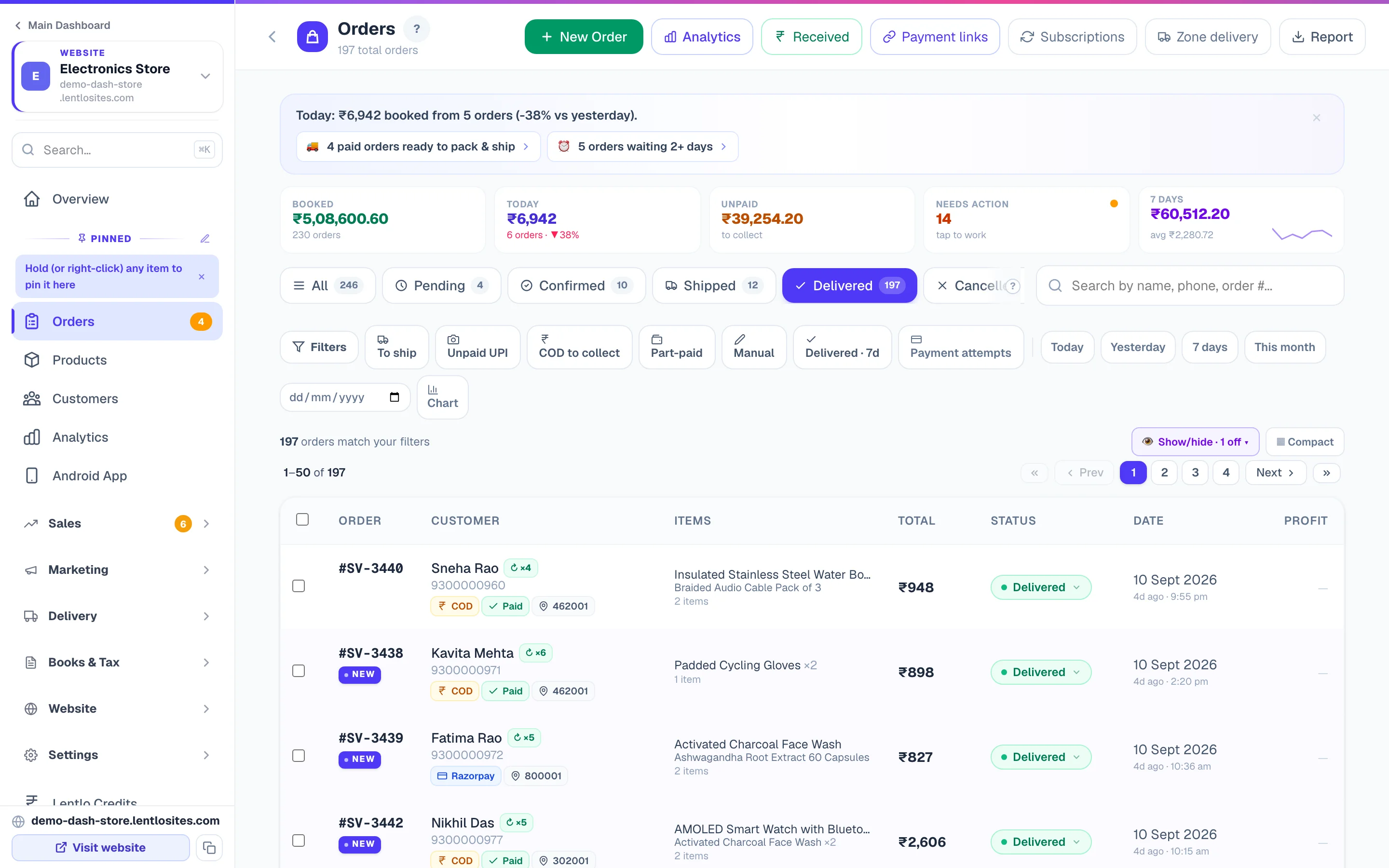
Manual vs Cloned vs Online — the pills on your Orders list
Small pills next to the order number tell you at a glance where each order came from — useful when reconciling your day's sales.
- Online (no pill) — customer placed it through your website's checkout
- Manual (blue pill) — you created it from the New Order form
- Cloned (purple pill) — you copied it from a previous order
- Subscription (green pill) — auto-created from a customer's recurring delivery (see subscriptions)
- 🔨 Auction win (amber pill) — created for the winner when an auction closes
- Edited (indigo pill) — the order was changed after creation, with full history on the order page
All of them count as real revenue in your analytics and reports — the pill is for your reference, the customer never sees it.
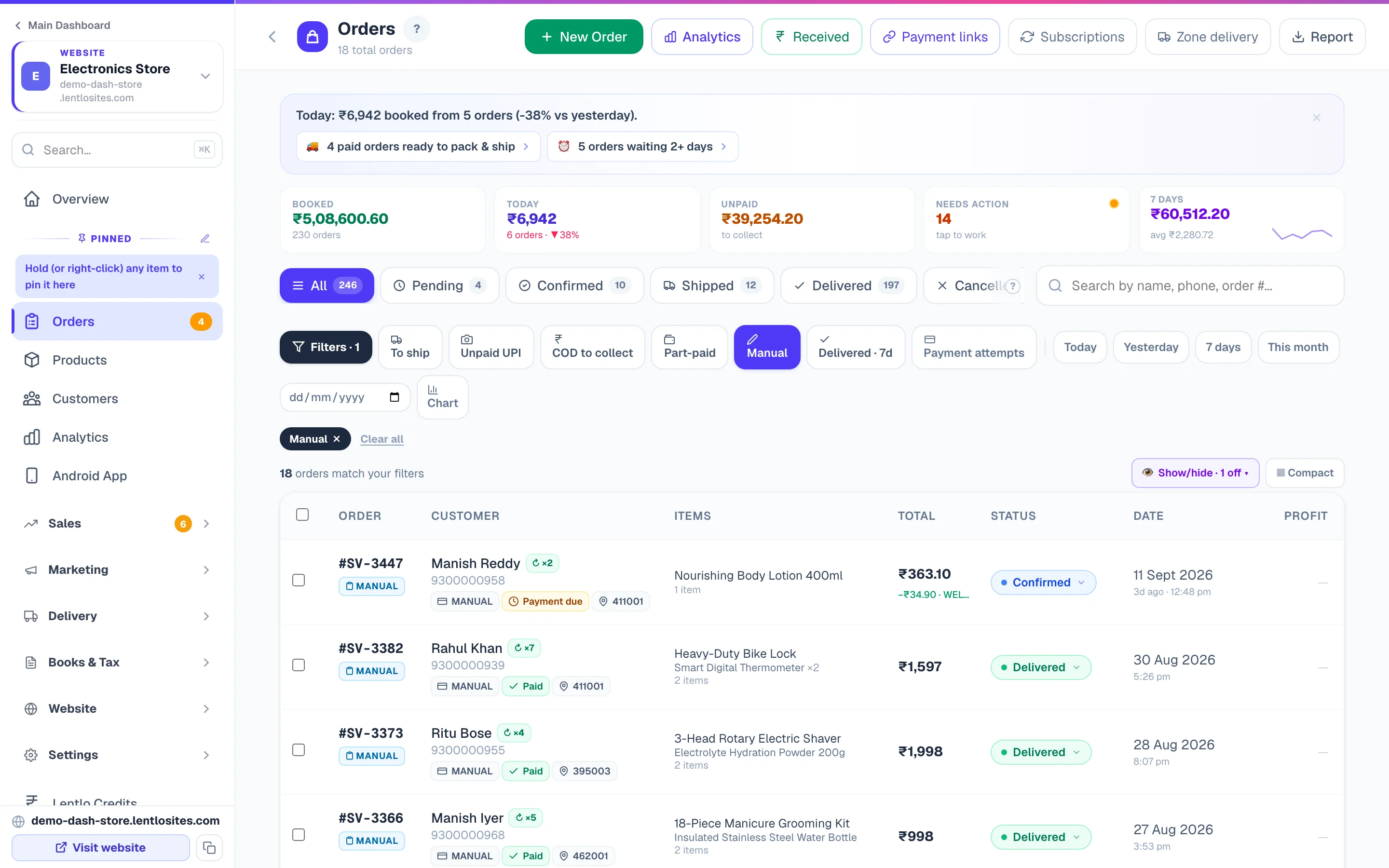
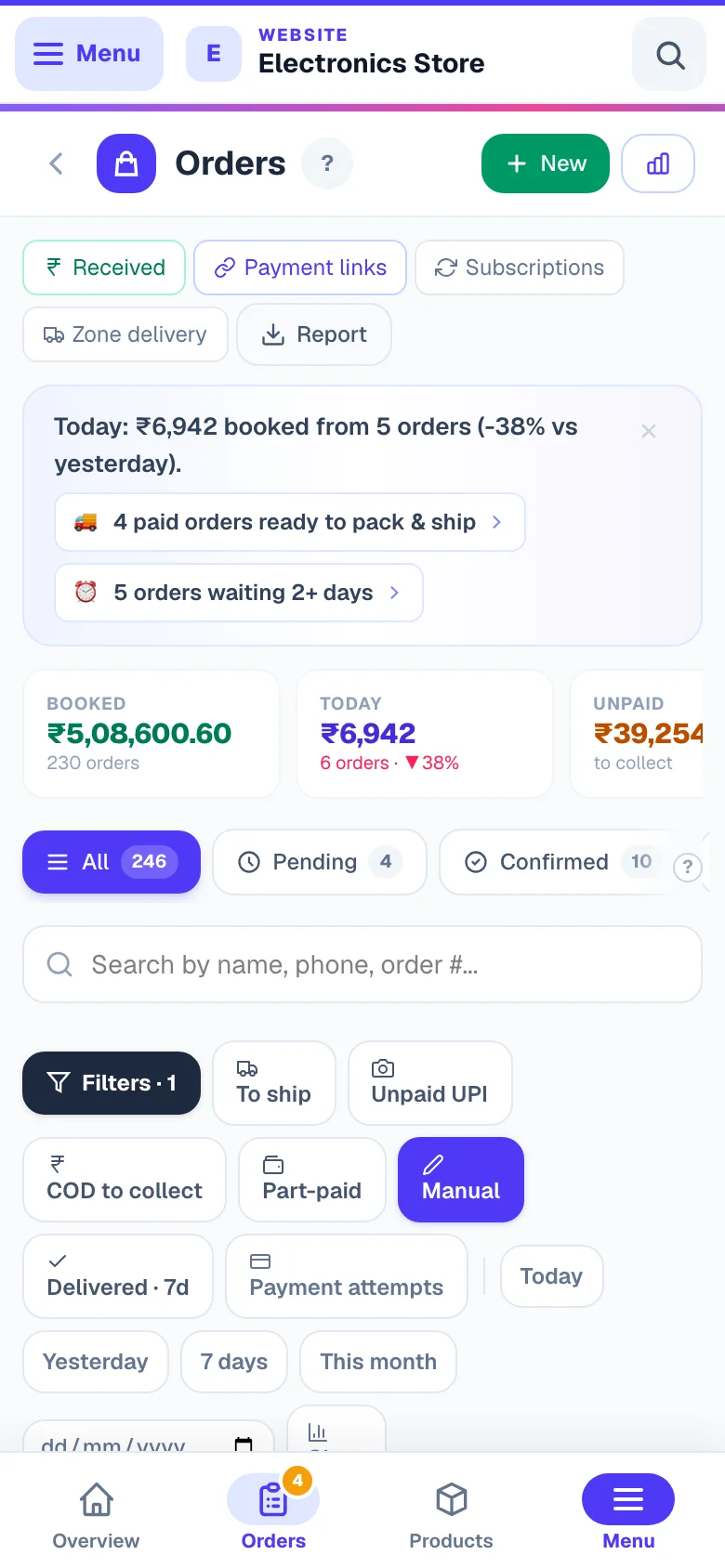
Cloning an existing order
Cloning is for the “usual order, please” customer — it copies a past order's items and customer into a fresh New Order form so a repeat sale takes seconds, with prices refreshed to today's rates (never yesterday's sale price by accident).
Open any past order → Quick actions → Clone order. The form pre-fills with all line items, the customer's current address, and the original order's charges & discount. Coupon, payment method, and wallet are NOT carried over — pick those fresh. Each line shows what changed since the original:
- OK — same as before
- Price changed — the product's price differs from the original order (kept, at today's price)
- Variant updated — the seller re-saved variants; the same option was matched by its label and refreshed
- Variant removed — that size/colour no longer exists; pick a new variant or remove the line before saving
- Deleted — the product no longer exists (strikethrough); remove or replace it before saving
- Out of stock — the product/variant has no stock; restock it or remove the line
What manual orders skip — and what they never skip
Because YOU are creating the order (not the customer at checkout), some online-checkout rules relax — you're trusted to override them — while every money-and-stock rule still applies in full.
Relaxed for you (owner override):
- Coupon usage limits aren't consumed — applying a coupon here doesn't use up its count, and the per-customer rules (first order only, returning customers, signed-in or selected customers, uses per customer) and the way-of-paying / delivery-or-pickup rules don't block you. A coupon's expiry and start date, its minimum order amount and minimum items, its product exclusions — and a coupon whose total uses are already used up — still apply
- Minimum order value — you can create an order below your checkout minimum
- Per-product minimum quantity and sets — sell 1 piece even if the product needs 5 (or sets of 4) online
- Pincode serviceability — deliver to an area your shipping zones don't cover
- Product delivery areas — a product you sell only in some areas (Where you deliver) can be ordered for any address here; once the PIN code is typed, an amber note names the items outside their area for it, so you know before you save
- Loyalty points aren't earned or redeemed, and no influencer commission is attributed — the customer didn't shop through those programs
- No UPI payment screenshot required
Always honored (never skipped):
- Stock — reduced safely, and out-of-stock items can't be added at all
- Variant validation — the exact size/colour is checked against your catalog
- GST, shipping, and charges — recomputed on the server from real prices; the preview total is never trusted blindly
- Invoice auto-generation — a proper tax invoice or cash memo per your GST settings
- Customer record — the sale joins their order history and totals
Not available on manual orders: cashback coupons (refused — they would mint wallet credit), Partial COD, and gateway payment methods as a manual pick. To take an online payment on a manual order, use Collect via payment link or the UPI QR — the gateway then marks it paid properly on its own.
More in Products & orders
Did this answer your question?
It takes one tap and it genuinely changes what we write next.