
AI assistant — train it & add chat to your website
Teach the AI your answers, test it in a free playground, then switch on website chat — it answers customers from your products, store info and what you teach it, uses one Asha answer per reply, and never invents prices.
Watch0:427 min readUpdated 21 Oct 2026
In this guide
What your AI already knows
Before you teach it anything, the assistant already reads your live shop data — so day one it can answer more than you'd expect.
Your products
Names, prices and in-stock status. Ask it "kurti ka price?" and it quotes the real price from your catalogue.
Your store details
Address, phone, working hours and your website link — from your Business Info.
What you teach it
Your FAQs, facts and policies (below). This is what makes it sound like YOUR shop.
Everything you teach is shared: WhatsApp replies, the website chat and the playground all answer from the same knowledge, instantly.
Teach it your answers
Teaching is how you turn a generic helper into your best salesperson — add the questions customers actually ask you every day.
Shortcut: tell Asha in your dashboard chat “teach the website chat: do you deliver on Sundays? yes we do” — she puts up a card that teaches the assistant that answer, and applies it only when you tap Confirm. To put a question on your store's own FAQ page (the page at /faq) say “add to my FAQ page: …” instead — that is a different card; if you only say “add an FAQ” she asks which you mean. A FAQ block on a page of your website is edited in the Website editor.
Open the AI Assistant page
Open your website from Main Dashboard, then AI Assistant under Marketing in its menu. The Knowledge strength bar shows how well-trained it is — Just started, Learning, Getting smart, then Well trained at 10 switched-on answers. Shops with 10+ taught answers get the most accurate replies.
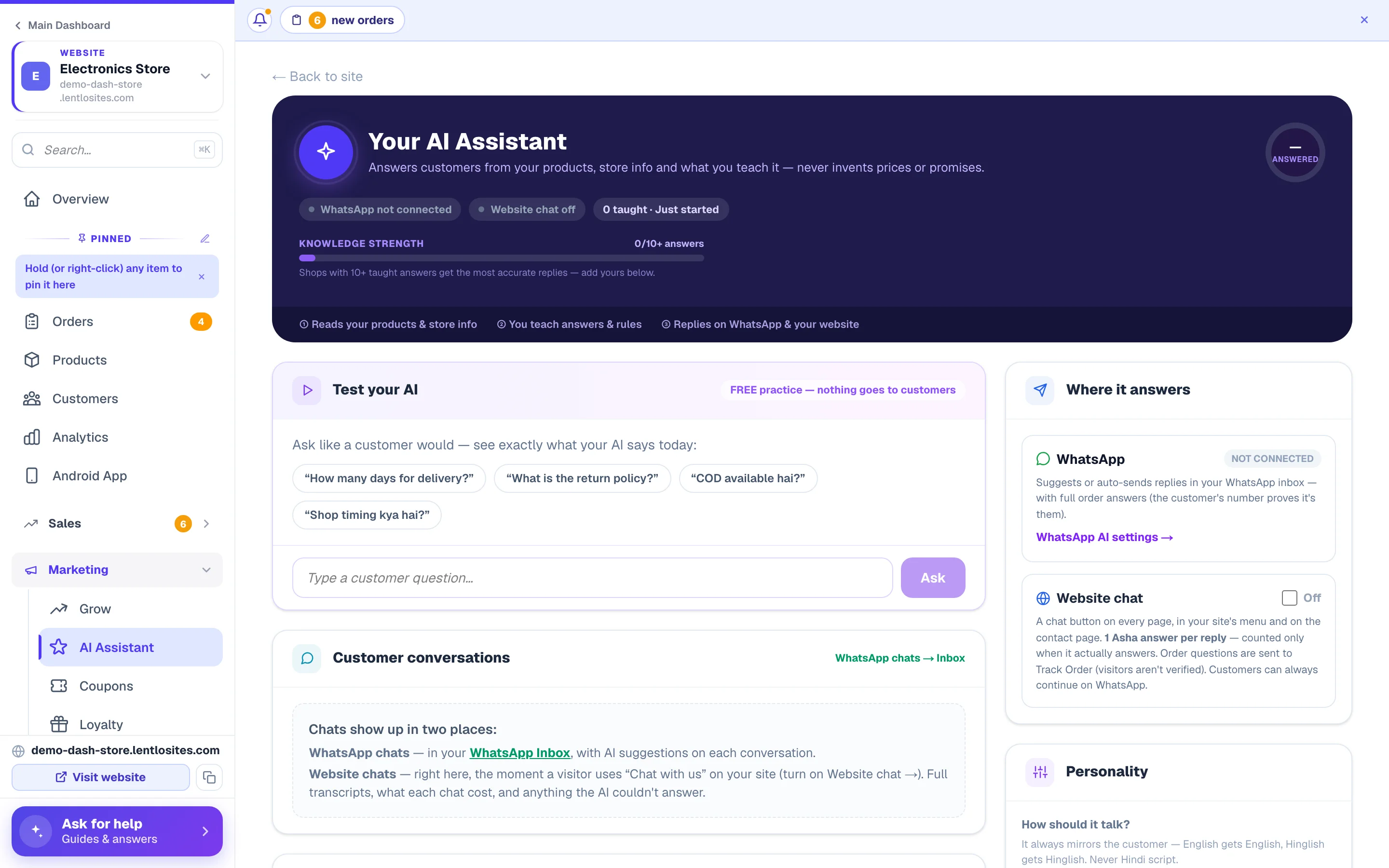
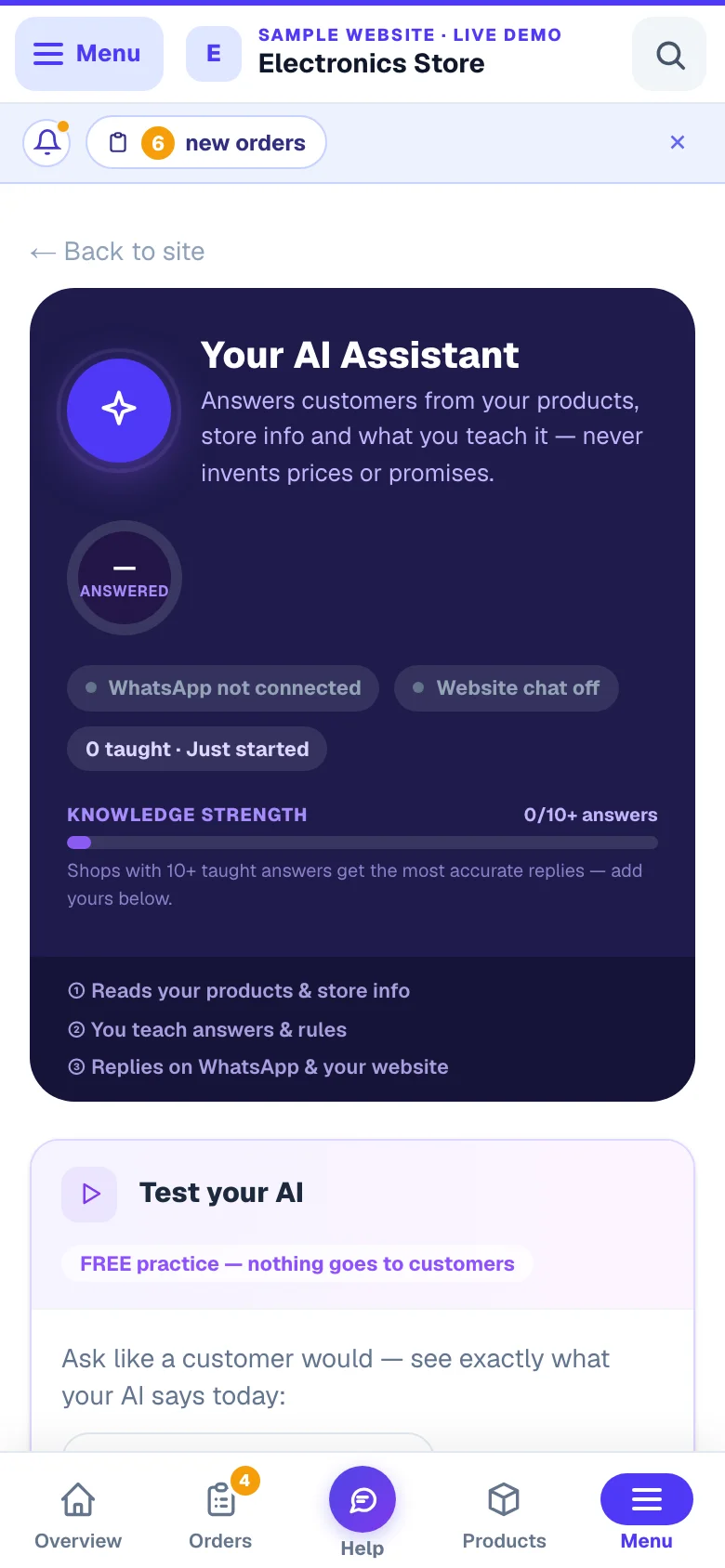
- 1Your own assistantTrained on your answers, not a generic bot.
- 2Try it firstAsk it something before your customers do.
Pick what kind of thing you're teaching
There are three kinds, and the AI treats them differently:
- Customer questions — a question plus your exact answer. Best for delivery, timings, sizes, offers.
- Business facts — things that make you YOU. “Humari shop 1998 se chal rahi hai. Sirf original brands.”
- Policies — returns, exchange, warranty, payment rules. The AI never invents these — it only repeats what you wrote.
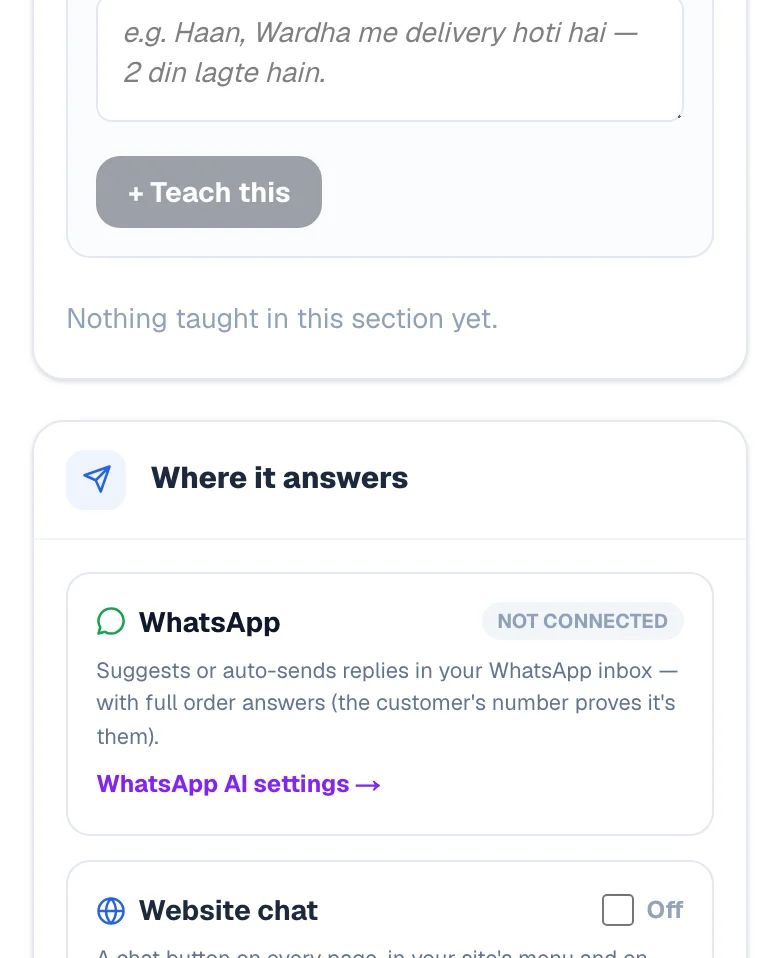
Press + Teach this
Each item saves instantly — no separate save button. You can switch any item OFF for a while (say, a festival offer that ended) or delete it. Once you have more than a few, a search box appears.
Test it before customers see it
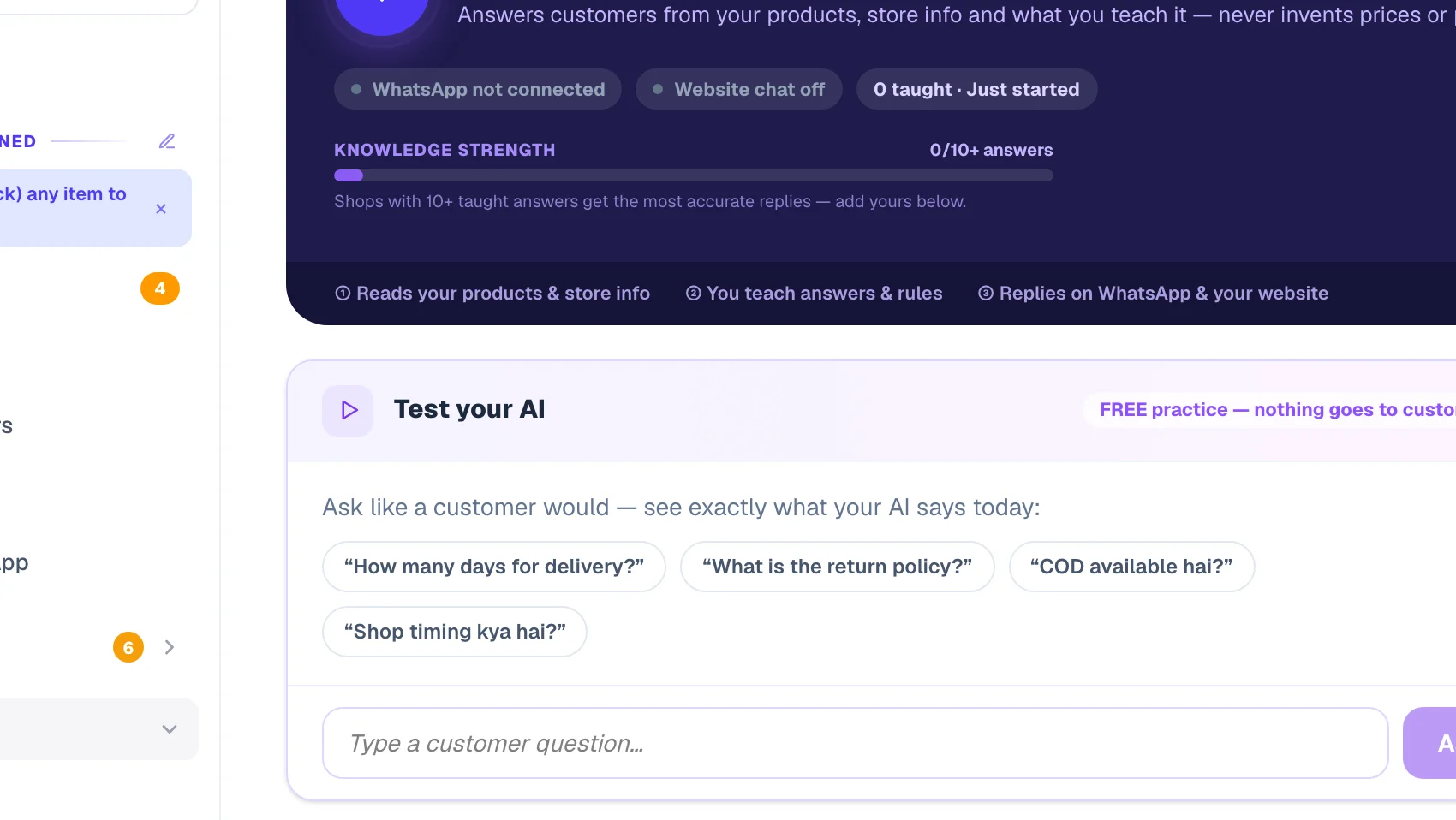
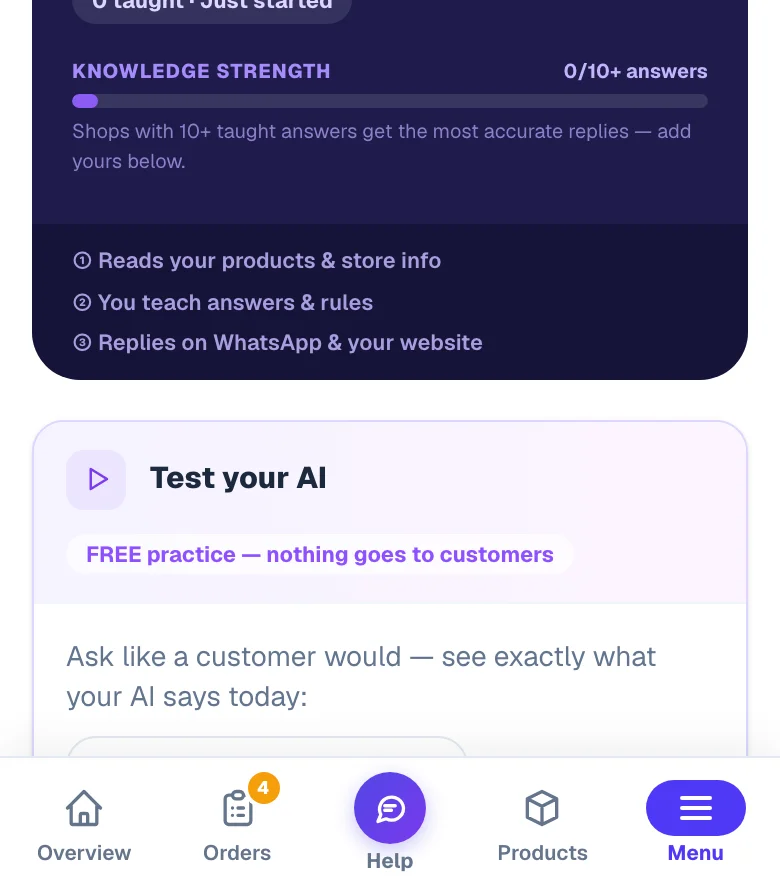
The playground is a private practice chat — ask anything the way a customer would, and see exactly what your AI says today. It's free (up to 60 practice questions a day) and nothing you type there ever reaches a customer.
Under each answer, small chips show where the answer came from — how many taught items and matching products it used, and whether it used your store info. If it couldn't answer, a teach it button appears that drops the question straight into the teaching form. That loop — ask, spot the gap, teach — is the fastest way to train it.
Choose how it talks
The Personality card sets the voice your customers hear — pick what matches how you actually talk in your shop.
- Friendly — warm and simple. Hinglish — jaise dukaan pe baat hoti hai. Formal — professional, aap/ji. Each option shows a live “sounds like” preview.
- It always mirrors the customer's language — English gets English, Hinglish gets Hinglish. It never replies in Hindi script, so you can always read every reply it sends.
- Things it must never do — an optional box for hard rules, e.g. “Kabhi bhi discount promise mat karo.” The AI obeys these on every channel.
Tone and boundaries need the Save AI settings button — teaching items save on their own.
Put the chat on your website
Website chat adds a small chat button to your published site, so visitors get instant answers at 11pm when you're asleep — and hesitant buyers don't leave to search elsewhere.
Switch it on
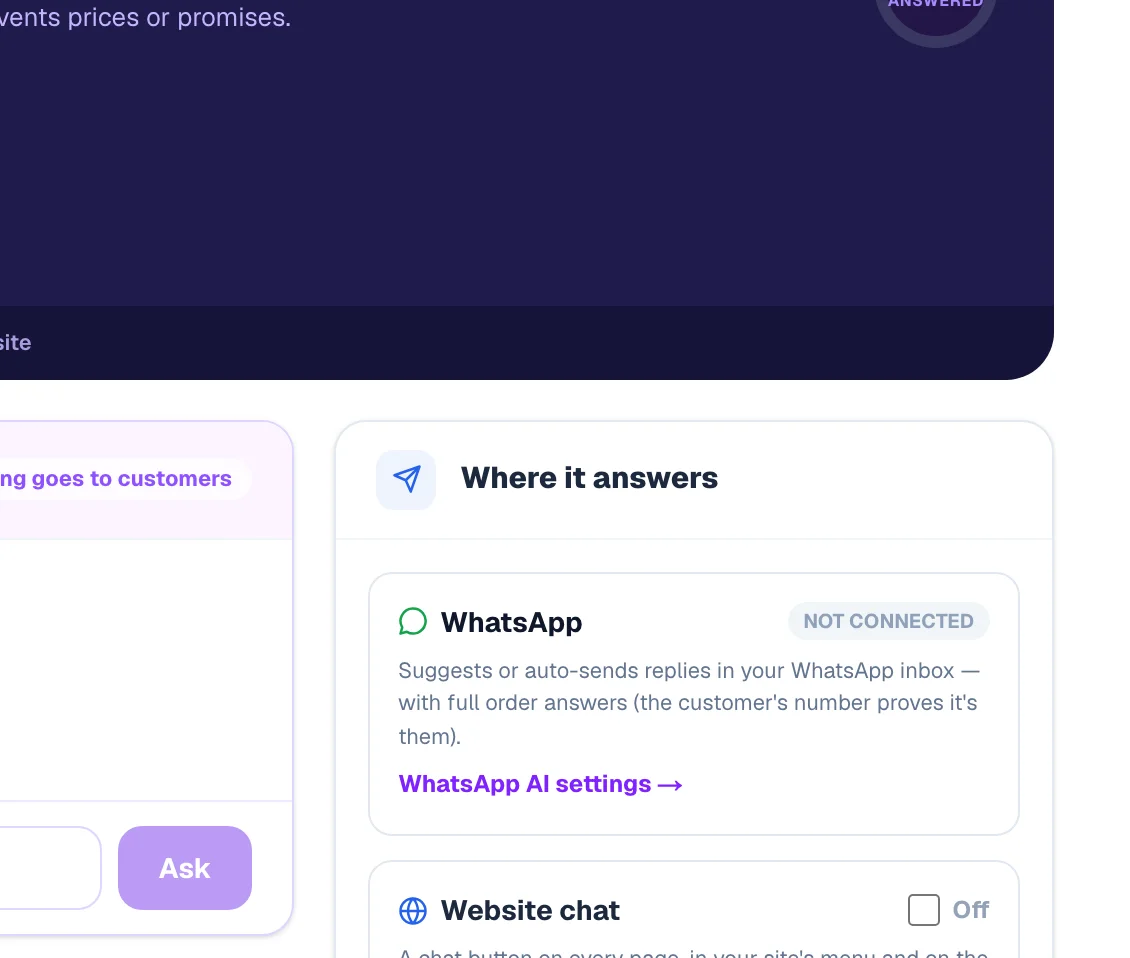
In the Where it answers card, turn on Website chat. Each visitor answer uses 1 Asha answer from your account — counted only when the AI actually answers. A reply that says “I don't know, a person will reply” costs nothing.
Where the answers come from
Your account gets free Asha answers every day; when they are used up, answers come from your packs (Asha answers). There is no separate rupee limit to set — the answers are the limit, and the chat says “a person will reply” when none are left.
Design the widget and save
The Chat widget design panel appears with a live preview:
- Assistant name, the Small line under it, the First message customers see, an icon and a colour (the text colour adjusts itself so it stays readable).
- Works with your WhatsApp button — Stack above WhatsApp (recommended: both buttons stay), Replace WhatsApp button (WhatsApp stays one tap away inside the chat), One combined button (a small menu: Ask AI / WhatsApp) or No floating button (the chat opens from your site menu and contact page).
- Corner, Button style and Button label, and up to 4 Suggested questions customers can tap.
- Auto-open — Off (recommended), or after 5, 10, 20 or 30 seconds or 1 minute. It opens once per visit and never on the checkout page.
- Collect number when AI can't answer (on by default) and Hide chat button on mobile.
Tap Save AI settings. On a live site the saved widget is put live by itself within a few moments; pressing Update Website on your Manage page also puts it live straight away. On a phone the chat opens as a sheet from the bottom of the screen.
Visitors never see money errors. If your answers for the day are used up (or the AI cannot answer a question), customers get a polite “leave your name and number, the owner will reply personally” message with a small form — switch the form off with Collect number when AI can't answer in the widget designer. Those leads land in your Form inbox, free. The AI Assistant page then shows a banner — Your chat couldn't answer some visitors — today's Asha answers were used up — with the way to an answer pack.
Website chat works on our standard designs. Sites built with the drag & drop editor don't support the widget yet — WhatsApp AI still works fully for them.
Why the website chat won't discuss orders
This is a privacy protection, not a limitation — a website visitor hasn't proven who they are, so answering “what's the status of the order on 98xxx?” could leak someone else's order to a stranger.
- On your website, the chat politely sends order questions to your Track Order page, where the customer verifies with their own phone number.
- On WhatsApp, the AI can answer order questions — the sender's WhatsApp number itself proves it's their order. Set that up in the WhatsApp hub.
Read every chat — and teach the misses
The Customer conversations section is your feedback loop: it shows what real visitors asked, what the AI said, and exactly where it fell short.
- Full transcripts of every website chat, newest first, and a 7-day line: how many chats, how many answered, how many missed.
- Customers ask about — chips showing your top topics (prices, store info, wants-to-buy, complaints).
- Questions your AI couldn't answer — each with a one-tap Teach button. Teach it once and it never misses that question again.
WhatsApp conversations live in your WhatsApp Inbox instead, with AI suggestions on each chat.
Common questions
The doubts owners raise most often before switching the assistant on — each with the straight answer.
What does all this cost?
Teaching and the playground are free. Each website-chat answer uses one Asha answer — your free daily answers first, then a pack from the Asha answers page. Nothing is charged for a reply that could not answer, and nothing is charged in rupees. The What AI costs card at the bottom of the page says the same in four lines.
The playground says “Daily practice limit reached (60)”.
Practice questions are free but limited to 60 a day per person, so nobody can run up the AI by accident. Try again tomorrow — your website chat and WhatsApp keep answering customers meanwhile.
Will it invent prices, discounts or promises?
No. It answers only from your products, your store info and what you taught it — and it treats your policies and “never do” rules as law. If it doesn't know, it says so and offers WhatsApp or the lead form instead of guessing.
Do I need WhatsApp connected to use the website chat?
No — they're independent. But together they cover both: WhatsApp for your regulars, website chat for new visitors.
Where do the “leave your number” leads go?
To your Form inbox, like any contact-form enquiry — follow up personally.
More in CRM, WhatsApp & AI
Did this answer your question?
It takes one tap and it genuinely changes what we write next.