
Members Only — private invite-only catalog
Hide your site from the public. Only customers you approve can see your catalog and prices.
5 min readUpdated 21 Oct 2026
In this guide
What it does
Members Only hides your whole site behind a sign-in gate, so only customers you approve can browse — shops use it to keep wholesale rates, trade catalogs, or club-only stock away from the public and from competitors.
- Replaces your homepage with a gate page. Just a phone-OTP sign-in — nothing else.
- Every other page on your site is hidden behind the gate. Visitors who aren't signed in + approved are bounced back to the gate.
- Search engines are told to stay out, and your page list, product feed, news feeds and the site search service are withdrawn too — product and price data from those is only answered for customers who are signed in and approved. (The copy of your catalogue that used to sit in the page itself is emptied as well, so on a members store the shop page's search and filters ask the server each time — a shade slower for your members.)
- How strong is it? The gate is checked in the visitor's browser on every page, so ordinary visitors, search engines and price-watchers are kept out. It is not a vault: someone who already knows the exact address of a page and opens it with a tool that ignores the sign-in check can still read what that page shows. Keep anything truly confidential off your product pages.
- New signups land in a pending queue. You review from the dashboard and click Approve or Block.
- You can also pre-approve known customers by pasting their phone numbers — they skip the queue.
- Once approved, customers sign in once and everything works — catalog, cart, checkout, account — no extra logins.
- The same Members page also lets you put each customer in a pricing group (Wholesale / Dealer / VIP) — see member pricing below.
- Stores using Zone Delivery Days get a Delivery zone dropdown on each row too — approve a member and pin them to their route in the same moment (handy when one big pincode falls across two zones).
Step by step
Setup takes a few minutes: turn the gate on, pre-approve the buyers you already know, and approve new requests as they come in.
Open the Members page
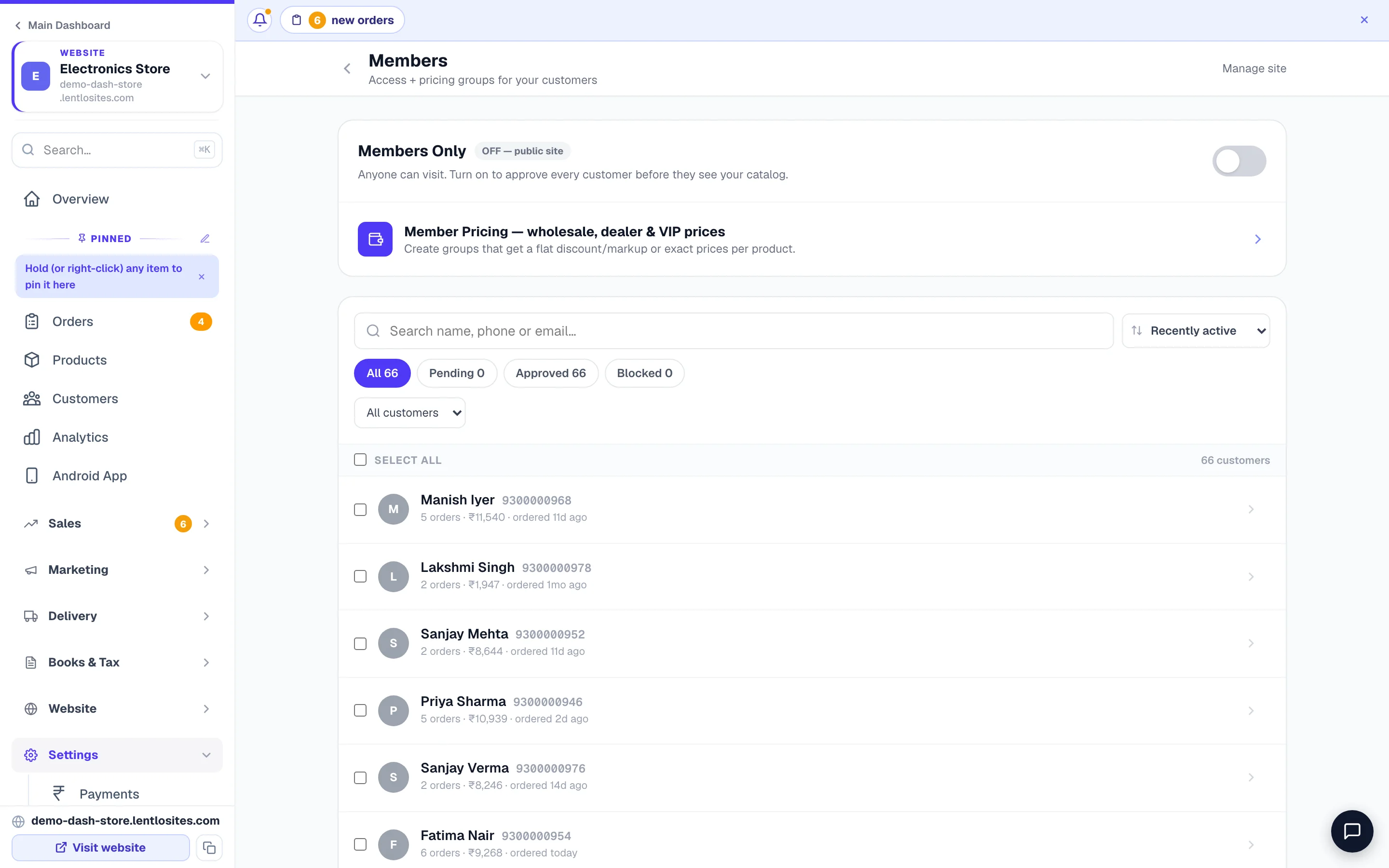
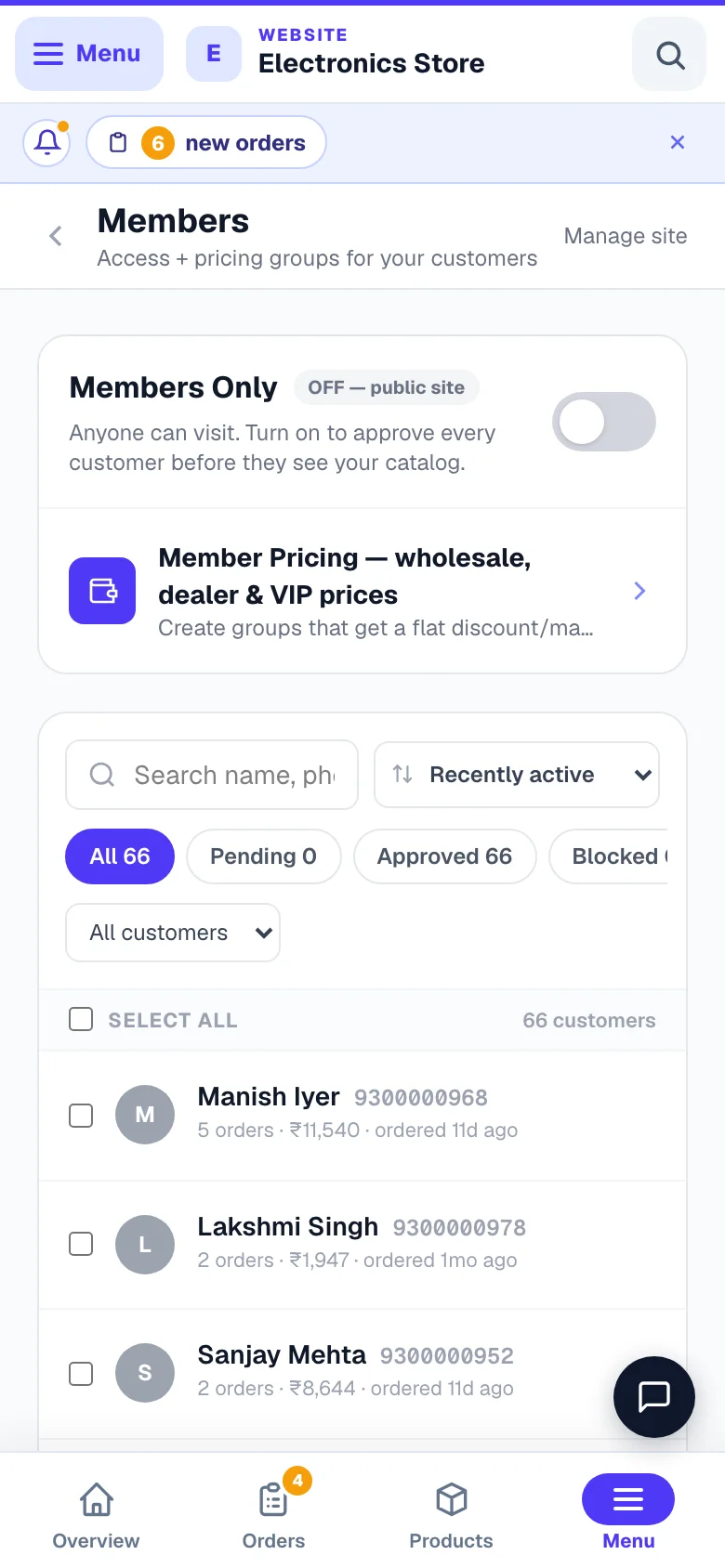
From your site's Manage page, under Settings, tap the Members Access tile (it also sits in the sidebar under Settings). The page itself is headed Members, and the tile reads "ON — invite-only store" once the gate is on.
Turn Members Only ON
Flip the switch at the top of the page — it then reads ON — private catalog. Customise the gate page under Gate page design — headline, subtitle, description, pending-approval message, blocked message. You can also pick colours and add WhatsApp / email support links. Press Save changes.
When someone shares your store link on WhatsApp, the preview card shows your store name and logo with a "members-only store" note — so invited customers instantly recognise it's you.
If your site is already live, saved changes apply to your live site automatically — it republishes in the background. Only a site that was never published needs a one-time Publish from the editor.
Pre-approve your known customers (optional)
If you already know the buyers who should have access — wholesalers, trade partners, your loyal shoppers — paste their phone numbers into the Bulk pre-approve box. One per line, or comma-separated.
When they sign in for the first time, they skip the queue entirely and go straight to the catalog. They never see the "pending" screen.
Check your live site
Give it a minute, then open your site in a private / incognito window (so you're not signed in). Your homepage should now be the gate page, and every other URL should bounce you back to it.
Always test in an incognito window — in your normal browser you may already be signed in as an approved customer, so the site looks open to you.
Approve people as they request access
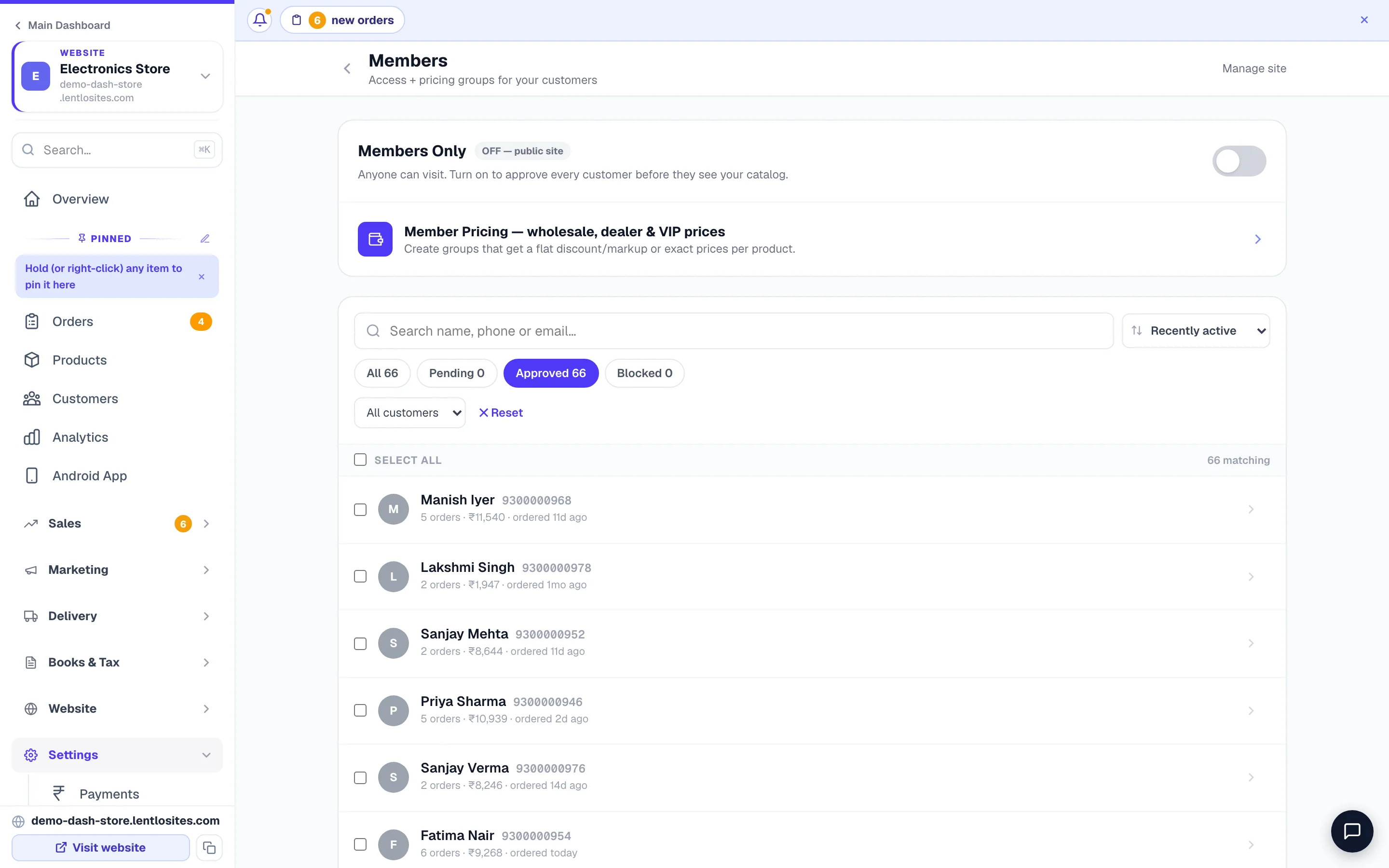
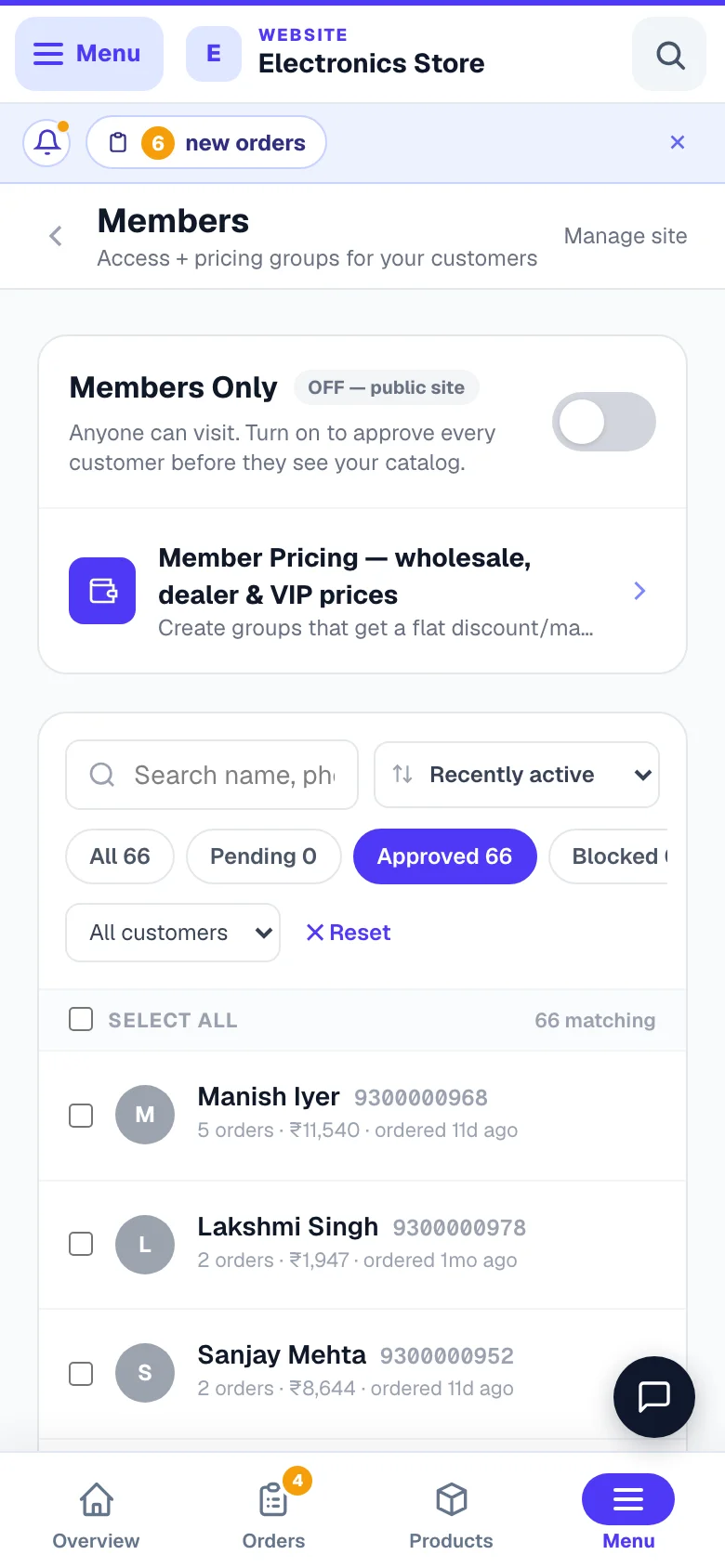
New visitors who sign in land in the Pending tab (the tabs are All · Pending · Approved · Blocked, each with its count). Each row has an Approve and Block button. Approve the ones you want, block fraud/competitors. Approved customers can sign in and browse immediately.
Approve on one person opens a short box: Approve <their name>, any delivery addresses they asked for (tick them and pick their zone), and Allow reward points — ticked, they take part in your rewards programme; unticked, they never see or earn points anywhere on your store (you can change it later from Rewards or their profile). Approving many at once with the ticks skips the box and leaves addresses and points as they are.
You can also Revoke an approved customer later, or Unblock someone you blocked earlier — switch tabs and click the button. Tick the checkboxes to approve or block many at once (the blue action bar stays pinned at the top while you scroll).
Finding people in a big list: search by name, phone, or email; filter by status tab, pricing group, delivery route/zone (including "not on any route"), or customers who have ordered vs never ordered; and sort by recently active, recently ordered, newest/oldest members, most orders, highest spend, or name. Every filter looks through your whole customer list — not just the rows on screen — and ✕ Reset clears everything in one tap.
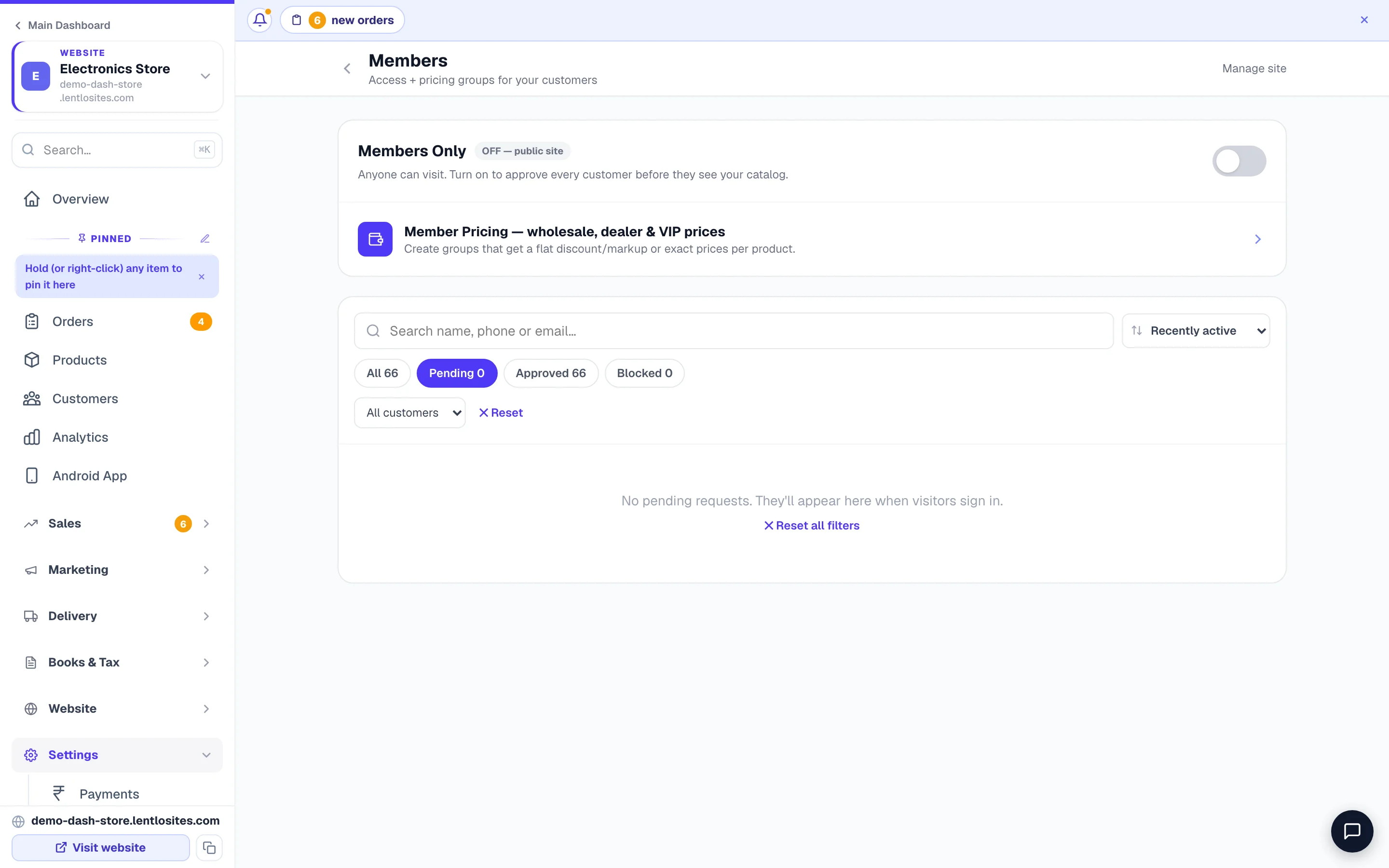
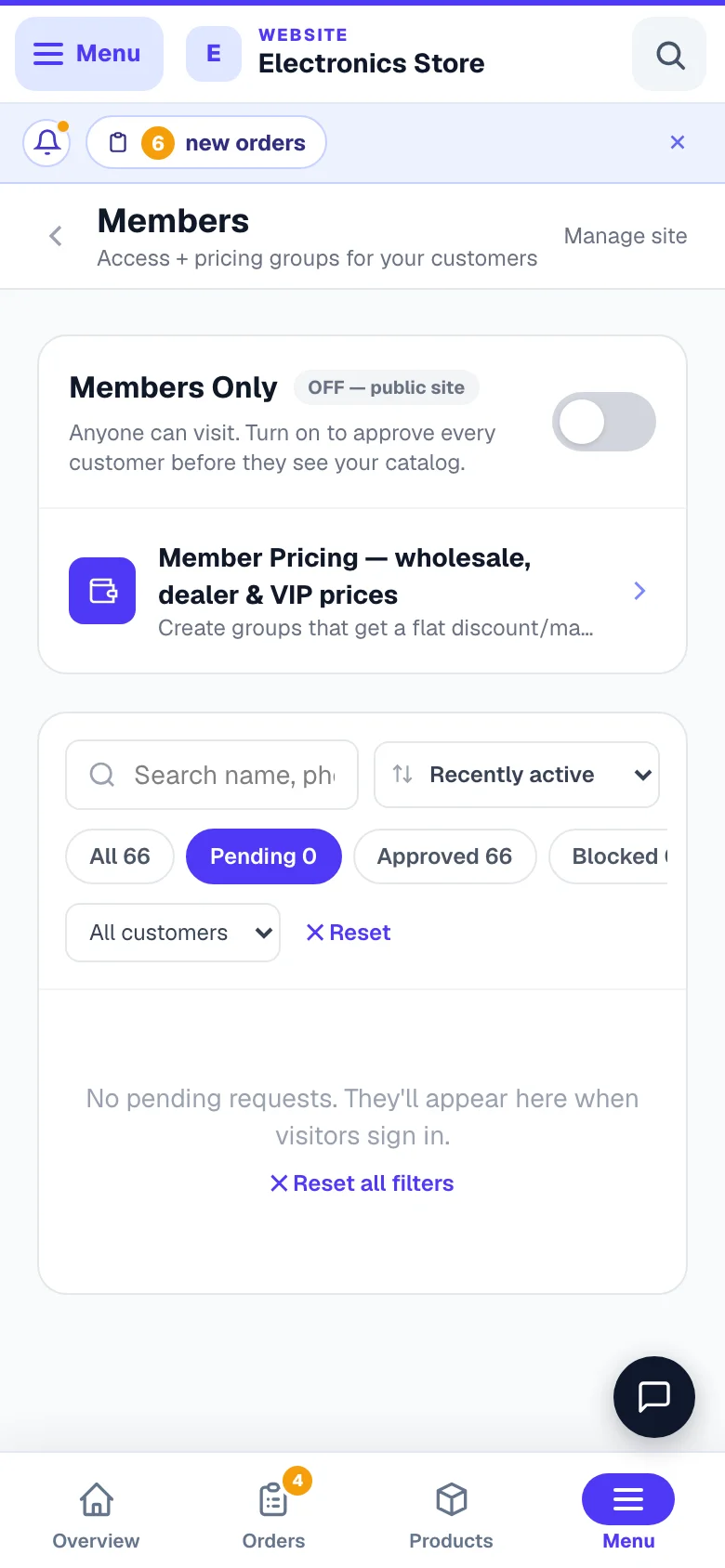
Running auctions? If you set Who can bid on your auctions to "Approved members only" on your Auctions page, new bidders land in this same queue even when Members Only is OFF — your site stays public, people can browse, and only bidding waits for your approval. The switch at the top of this page then reads "OFF — public site · bidder approval ON" so you can tell the two apart at a glance.
What the customer sees
For your customer the whole thing is one simple sign-in — here's the exact journey so you can explain it to them on WhatsApp.
- Visits
https://yoursite.com→ sees your branded gate page with a phone-number field. - Enters their mobile → OTP via SMS → enters OTP.
- If pre-approved → lands on your catalog immediately.
- If new → sees a "Request received — we'll review shortly" screen. They can contact you via WhatsApp/email if you added those.
- If blocked → sees an "Access denied" screen with your support contact.
Special prices for members (B2B / wholesale)
Member pricing lets you charge different customers different rates — a wholesaler sees wholesale price, a VIP sees VIP price, and the public sees your normal product price. It's the natural partner of the gate for B2B shops.
- Create pricing groups (e.g. Wholesale, Dealer, VIP) from Manage → Member Pricing, and flip the switch there to ON — groups do nothing while it's OFF. Each group gets a flat discount — or markup — in % or ₹ on your regular prices, or exact per-product prices where you need full control.
- Assign customers to a group right on the Members page — a dropdown on each row, or tick many and bulk-assign. Each row shows its group as a coloured badge, and you can filter the list by group.
- Member prices are worked out on our server for the signed-in, approved customer only — anonymous visitors, search engines, and feeds never see them. Their cart and checkout automatically charge the member rate.
- Minimum order amount (optional, per group) — a wholesale purchase rule: members of that group cannot place any order below the amount. The Place Order button stays locked until their cart reaches it (store pickup is exempt). It is not a joining amount or membership fee — leave it blank unless you genuinely want to refuse small orders.
Set a minimum only on purpose. When a group carries one, its card shows an amber “Blocks orders under ₹…” chip, your Manage page lists it under Active store rules, turning the feature on asks you to confirm the minimums first, and if customers actually hit the wall you'll see a red “checkouts blocked” alert with the value of the carts you lost. A minimum typed by mistake (say ₹49,999 meant as a “tier”) quietly turns every member away — if you see these warnings and didn't intend a minimum, edit the group and clear the box.
Member pricing works on public sites too — you don't have to turn the gate on to use it. But together they're the full B2B setup: only approved buyers get in, and each buyer sees their own rate.
Turning it OFF
Going public again is one tap — nothing about your members is lost.
Flip the switch back to OFF. On a live site the change applies automatically — your site becomes public again within a minute or two. Approved/blocked statuses are remembered — if you turn Members Only back on later, those customers keep their status.
Delivery address control — who orders to where
Approving a member says who can order. Delivery address control says where they can order to — so a customer you approved for one area can't quietly add a different address at checkout and get delivery somewhere you don't serve. The card is on the same Members page.
- Open (normal) — customers manage their own addresses, exactly as before. This is the default for every store.
- Open, but alert me — nothing is blocked; you get a note whenever an order uses a first-time address or one outside the customer's usual zone.
- Auto-allow inside my delivery zones — new addresses whose pincode falls inside your delivery zones work instantly and take the zone of the address; anything outside comes to you as a request first.
- Only addresses I approve — the strictest level. At checkout, customers pick from their approved addresses; a new address becomes a request you approve (with its own delivery zone) before they can order to it.
An approved address keeps its approval when the customer only changes who receives there — the name, mobile or alternate number on it. To deliver somewhere else they add a new address, which comes to you as a request.
When you switch a stricter level on, you choose what happens to everyone's existing saved addresses: approve them all (nobody's checkout breaks, you review only new ones) or review each one (a clean reset — everything waits for your OK).
Approving a pending member who has also requested an address shows both together — one tap approves the person, their address, and sets the delivery zone. Each member row grows an addresses button — it shows the count ("3 addresses") and turns into "Review N requests" when something's waiting; tap it to open that member's address panel, where you approve, decline, re-zone, add, or remove addresses any time. A banner at the top of the list shows how many address requests are waiting, and the dashboard's event bar (the same one that announces new orders) announces new address requests on every page — tap it to land on the filtered list. Zones can be set two ways: per address (in that panel) or per customer (the row's zone picker — a backup that covers any address without its own zone). An address's own zone always wins at checkout, so once every approved address has one, the row's picker changes into a small "per address" chip — nothing more to set for that member.
Customers always know what's happening. Their saved addresses show "Awaiting store approval" or "Approved for delivery" chips in their account and at checkout, and a refused checkout explains itself and sends the address to you automatically — no confused phone calls.
The stricter levels need Members Only ON (customers must sign in), and the zone level needs delivery zones set up. If you later turn those off, address control safely drops back to alert-only instead of blocking anyone.
The card appears only for businesses that take delivery orders at checkout — e-commerce stores, restaurants with delivery, and canvas sites selling online. Service businesses, enquiry-only catalogues and car dealers don't see it (bookings and enquiries aren't delivery orders, so there's nothing for it to control there). Note the one-time choice when switching a stricter level on is final for existing addresses — it never mass-approves requests customers make later.
Common questions
The questions shop owners ask most before switching their catalog private.
Will Google still have old copies of my site cached?
Yes, for a few days. Submit a URL removal request in Search Console for the URLs you want gone fast. The instructions that keep search engines out are set for you the moment you switch the gate on, so nothing new gets indexed while the old copies age out.
Do my existing customers need to re-approve?
No. Every customer already on your site keeps their approved status. Only new customers who sign up after you turn the gate on land in the pending queue.
What happens when I block someone who's already signed in?
They're out on the very next page they open — the site re-checks every visitor's status on every page load. Block them from the dashboard and their saved sign-in stops working immediately.
What about checkout and payment?
Exactly the same as a public site — the customer is already signed in via the gate, so they go straight from product → cart → checkout → payment. No extra login prompt anywhere.
Can I combine this with a custom domain?
Yes. Members Only works with both yourname.lentlosites.com and your own yourbrand.com. Same gate, same approval flow.
Does Pause Ordering work on a members store?
Yes — if you pause ordering, the notice bar (and the “temporarily closed” screen, if you chose it) also shows on the sign-in gate itself, so members see your message before they even log in.
Good to know. Turning Members Only ON doesn't affect your existing orders, products, or any other feature. It's purely a visibility / access layer.
More in Products & orders
Did this answer your question?
It takes one tap and it genuinely changes what we write next.