
Delivery charges & shipping — zones, pincodes, free delivery
One standard delivery charge or per-area zones, free delivery above ₹X, weight slabs, order-size bands, Express, deliver-only-where-listed, products only nearby, a fee by distance, estimated delivery dates, CSV upload and a pincode tester — plus courier partners.
Watch 5 short videos10 min readUpdated 21 Oct 2026
In this guide
How delivery charges work
Which delivery setup do I need?
Open it from your website's sidebar: Delivery → Shipping — the page itself is headed Shipping & Delivery. When a customer types their pincode at checkout, your store picks the right charge in this order: a specific pincode rate wins first, then a matching custom area zone (state / district / city / pincode group), and finally your standard rate. Pincodes in states you've blocked are refused — unless you've added a specific pincode rate for them yourself. Changes here go live immediately — the store checks your latest rules on every pincode lookup, so you never need to update or republish your website for a rate change. (The "free delivery above ₹X" lines printed on your pages refresh by themselves a few moments after you save.)
Ananya Home Store, Jaipur — which charge applies
- Standard rate ₹60, free above ₹999 — customer in Pune, cart ₹750
- ₹60
- Rajasthan zone ₹40, free above ₹699 — customer in Kota, cart ₹650
- ₹40
- Same Kota customer, cart ₹750 (over the zone's ₹699)
- ₹0
- Specific pincode rate 302001 = ₹0 — the shop's own area, any cart
- ₹0
- The most specific rule wins: pincode rate → zone → standard rate
- —
The first card, What your customers get, shows what a customer meets today — Delivers to, Delivery charge, Arrives in and Cash on delivery — and, under Also on, every extra rule that is switched on. Tap a line to go to the part that changes it. When your settings would stop every order, a red box says so with a Fix it button — for example delivery charges switched on with no standard charge and no charge for any area or PIN code, which refuses every PIN code. You do not have to open this page to find out: the same warning, in the same words, shows on the website's Overview, on your Main Dashboard, and as a red mark on Shipping (or Delivery Days) in the sidebar, until it is fixed. On a computer the card stays beside the steps while you scroll; on a phone it comes first. The extras open on the side of the screen (from the bottom on a phone); one with unsaved changes asks before it closes, and leaving the page with unsaved changes asks too — Save and leave saves every part you changed. If your shop takes pick-up orders only (Pickup settings), the card says delivery is not used; if pick-up itself is switched off as well, a red box says no order can be placed. If your login cannot see the shop's delivery settings, the page says so instead of showing anything.
Deliver only to some PIN codes — Where do you deliver?
A chemist in Dwarka delivers only to the PIN codes near the shop; a bakery only inside its district. The first step on the page, Where do you deliver?, sets that for the whole shop. It works the same whether delivery is free or you charge for it. Three answers:
- Anywhere in India — every PIN code can order. This is where every shop starts.
- Only these places — only the PIN codes and areas you list. A customer anywhere else is told before they pay.
- Everywhere except… — every PIN code except the ones you list.
Pick “Only these places”
The list opens under the three answers.Type or paste your PIN codes
Separate them any way you like — commas, spaces or new lines; a list copied from WhatsApp or Excel works, and a PIN code written in two halves (560 001) is read as one. Press Add (a paste is added by itself). Each PIN code becomes a tag with its area name, and anything that is not a 6-digit PIN code is named so you can fix it. You can also write 1100* for every PIN code starting with 1100, or 110001-110010 for a range. One list holds up to 500 PIN codes — for more, add a whole district instead.Or add a bigger area in one tap
Quick add offers your own district, your state and the PIN codes starting like your shop's (we read your shop's PIN code from your business details). A whole district, A town or locality and A whole state open pickers for any other place.Check the name customers read
Product pages say Delivers only in and the list's name — we suggest one from your PIN codes ("Dwarka and Palam", or "selected areas of South West Delhi" when you listed part of a district; the PIN codes themselves when we cannot find their area names; "Gorakhpur district and 110001" for two different parts, "selected areas" for more). Change it to your own words if you like — when you change a saved list, the card asks whether the name still fits.Try it, then save
The preview under the list is a product page's Check delivery box — type any PIN code and it answers exactly as your shop will. Press Save where you deliver. The checkout uses it at once; product pages show the new line within a few minutes. After saving, the list shows as a short summary — press Edit list to change it — and Try it as a customer (after the three steps) asks our servers the same question an order asks. Both the preview and Try it as a customer also check your delivery charges: when your charge list, a blocked state or your Delivery Days routes would refuse the PIN code, they say so in plain words.Sharma Medicals, Dwarka — free delivery, only nearby
- Listed: 110075, 110077, 110078 — customer at 110075
- Delivers
- Customer at 110045 (not listed)
- Not delivered
- The same customer chooses store pickup
- Allowed
- Delivery stays free — this card decides where, not how much
- —
Turn it on and set your standard rate
The standard rate is the one charge most customers pay — most shops need nothing more.
Choose “Charge for delivery”
In step 2, What you charge, tap Charge for delivery. Free delivery means no charge is added at checkout (choosing it asks first; your charges stay saved for when you switch back). Choosing Charge for delivery the first time creates a starting rate of ₹40 per order, free above ₹999, 5–7 days, and the message at the bottom of the screen says so — change any of it right away.Set your charge and free-delivery amount
Enter the Charge per order (say ₹40) and, if you like, Free delivery above (say ₹999). Leave it blank if delivery is never free. Paise are fine too — type 49.50 for ₹49.50. Free-above removes only this standard charge; a product's or category's own delivery price still applies unless you also switch on Free delivery also drops product and category charges (see Packing fee and a maximum charge).Save
Press Save charge. That's it — your store now charges delivery correctly for every pincode in India. How long delivery takes is set in step 3, When it arrives.What your customers get at the top changes the moment you save, and it turns red when your settings would block every order — so you can check the shop at a glance without opening anything.
With delivery charges on, the product pages of most store designs also show a Check delivery box — a customer types their PIN code and sees whether you deliver there, and when, before adding to cart. With free delivery the box shows on products that go only to some places (set in Where do you deliver?) and answers Delivers to or the reason it cannot — never a made-up number of days. It shows COD only when your shop takes cash on delivery, and the Deliver to location in the phone menu checks the same delivery areas — neither promises what checkout refuses. Don't want it? In the editor, open a product page and switch off Delivery checker under Show or hide parts.
Different rates for different areas (zones)
A zone is a group of areas with its own rate — use it when local delivery is cheaper than sending a courier across India. Example: one zone for Maharashtra at ₹25, another for your own city at ₹15, and the standard rate for everyone else.
Add a zone
Tap Different charge for some areas in step 2 (it opens beside the page, or from the bottom on a phone) and tap Add an area. Name it ("Mumbai", "South India") and set its charge, free-above amount, delivery days and whether Cash on Delivery is allowed there.Pick where it applies
Under Apply this zone to, choose whole states, districts, cities, exact pincodes, pincodes starting with a number (560 = all of Bengaluru), or a pincode range. You can also exclude areas — e.g. all of Maharashtra except one district. Exclusions always win.Special rates for single pincodes
A pincode rate beats everything else — handy for "free delivery in my own pincode" or a remote pincode that costs extra. In the same Different charge for some areas panel, under PIN codes with their own charge, click Add PIN codes — add One PIN code (city/state fill in automatically), Paste a list (any separators, up to 2,000 at a time) or A range. A PIN code already in your list keeps its own charge and settings — it is never added twice (to change several at once, use Upload CSV). Link it to a zone and leave charge or days blank to inherit that zone's values; a pincode with no zone needs its own charge (enter 0 for free). You can also tick Block Cash on Delivery for pincodes where couriers won't collect cash. In the list, each pincode can be switched off (it stops applying but is kept) or removed; tick several rows to Switch on, Switch off or Remove them together.
Charge by weight
For heavy goods, charge by the order's total weight instead of one flat rate. For your standard charge, open More options → Charge by weight: switch it on and set the steps — for example "up to 1 kg → ₹84, heavier parcels → ₹126". Step 2 then shows You charge by weight with your steps instead of a charge per order, because checkout charges the parcel's step, not one number ("Free delivery above" still applies; with Cheaper delivery on bigger orders on, those price bands are used instead). For one area only, open it in Different charge for some areas (tap Edit) and switch on Weight-based pricing — it starts as "up to 500g → ₹40, up to 2kg → ₹60, up to 5kg → ₹100, heavier → ₹150"; change the numbers to yours. Each product's weight is set on its product page (products without a weight count as 500g). The cart's weights add up and the first step the parcel fits applies; a parcel heavier than every limit pays the heavier parcels step.
If a product is sold in packs or sizes, write that pack's own weight on the pack ("500g", "1kg", or plain 500 for grams) — both the customer's charge and the weight declared to your courier then use it instead of the main product's weight. Anything we can't read as a weight ("Large", "Pack of 2") falls back to the product weight — on a money field we never guess.
Cheaper delivery on bigger orders
Reward bigger carts with bands by order value — under More options open Cheaper delivery on bigger orders, switch it on, add bands with + Add a band and press Save: "₹0–499 → ₹80, ₹500–999 → ₹40, ₹1000+ → ₹0 (free)". Switching it on starts from your standard charge (and from your free-above amount, as a free band, when you set one), and What customers pay under the bands spells out each one as you type. A ₹0 band means free delivery above that amount. Bands belong to your standard rate: while they are on they replace its single charge + free-above fields (custom zones and specific pincode rates keep their own charges). For a simple "free over ₹999" you don't need bands at all.
Express delivery (paid faster option)
Let customers pay extra for speed — under More options open Faster delivery (Express), switch it on, set the Name customers see ("Express"), the Express charge (say ₹120) and how fast it Arrives in, then press Save. At checkout customers pick Standard or Express. Express replaces the standard charge; your free-delivery amounts, the packing fee and the maximum charge don't apply to it (only a free-shipping coupon can waive it), and the amount is checked on our servers, so nobody can trick the price. Express is set on your standard rate, so it is offered to customers your standard rate covers — not in a custom zone or on a pincode with its own rate.
Packing fee and a maximum charge
Two small controls in Packing fee and a maximum charge (under More options): a Packing fee added to every paid delivery (not added when delivery is free), and Never charge more than — a ceiling so stacked charges can't shock a customer (leave it blank for no limit). Press Save. The same panel has a switch, Free delivery also drops product and category charges, deciding whether free-delivery offers should also waive per-product and category fees (normally they don't — only the standard charge is waived).
Rates by product type — and per-product overrides
Charge differently by category — free for clothes, ₹80 for heavy appliances — in Delivery price by product type (under More options). A category rule can apply everywhere or only in one zone (the zone version wins). For a single item, open the product in Products and use its Delivery charge tile — Use my standard rate, Free delivery, Fixed price for this product (one price per order, per unit, or "₹50 for the 1st + ₹20 each extra") or Standard rate + extra for a heavy or fragile item; you can also give it a different price in one area. A product's own setting beats every rule on this page (the card Free or extra delivery on single products takes you to Products). When one cart mixes several such products, When a cart has several products with their own delivery price, at the top of the same panel, decides whether their fees Add them all up or Charge only the highest — it saves the moment you pick. A product ticked Always charge THIS item's delivery separately is always added on top.
Some products only nearby, others across India
A sweets shop in Coimbatore sends dry snacks anywhere in India but fresh cakes only within the district. Set that under Shipping → More options → Some products go to fewer places (it does not need "Charge for delivery" to be on), on the Categories page, or on one product under Where it can be delivered. Three choices everywhere: Everywhere you deliver, Only in… and Everywhere except…. A product's own choice wins; otherwise its category's; otherwise the whole shop's.
- Areas — your district, your state or "around PIN 641xxx" in one tap (we read your shop's PIN code), a place you draw with states, districts, cities or PIN codes, any rate zone you already have, or a Delivery Days route.
- Whole shop — set in Where do you deliver? (step 1); this panel shows it and links there. When your charge list also limits orders (below), a customer must be inside both. When more than one is set, each one limits.
- What customers see — "Delivers only in Coimbatore district" on the product page. At checkout, once they type their PIN code, the items that can't go there are named with Remove and, when you offer pickup, Pick up from the shop instead. Our servers refuse such an order too.
- Test a PIN code — the card lists which products can't be delivered to it, the same way an order would be judged, and says when your delivery charges refuse it (not in the charge list, a blocked state, outside your Delivery Days routes). A PIN code our directory does not know is allowed when its first digits match the area, and that order is marked for you to check.
- Check these — an amber box on the card names a place whose district or city our PIN directory does not know (it would match no PIN code — pick it again from the list), a rule whose area no longer exists (treated as "everywhere" until you change it) and a rule on a category with no products.
- Stopped by your areas — a line under the rules counts, for today and yesterday, the customers who saw an item they could not get at checkout and the order attempts that were refused. Nothing shows while nobody was stopped.
- Google & Instagram listings — a product sold only in some areas is kept off the feeds (they list to all of India); "Everywhere except…" products stay listed.
- Never blocked — pickup orders, dine-in, digital downloads, orders you create yourself, and a payment already captured.
When your charge list should also limit who can order
To deliver only to some PIN codes, use Where do you deliver? (step 1) — it works with free delivery and with charges. If you already give every PIN code you deliver to its own charge, the charge list can do the same job: open Different charge for some areas (step 2) and, under Does this charge list also limit who can order?, pick Yes — only PIN codes in this list can order. Then only PIN codes you listed (or covered by a zone) can order; everyone else sees "we don't deliver here", and our servers refuse the order too. While Delivery Days is on, customers on its routes can order as well, with no PIN code charge. With this switched on your standard charge and its days are not used — each listed PIN code or area pays its own (a listed PIN code with no charge of its own and no area delivers free, in 3–7 days); the page notes it beside both forms. No — other PIN codes pay the standard charge is the usual choice.
To stop delivering to a few states, pick Everywhere except… in Where do you deliver? and add those states. Shops that set up Don't ship to these states before keep it in the same place, with its tick Also block PIN codes we can't place (on by default) — a few rare border-area PIN codes can't be matched to one state, and keeping it on means such an order can never slip into a state you blocked.
Test any pincode before your customers do
Try it as a customer sits right after the three steps (or tap Try a PIN code as a customer on the card at the top). Type a PIN code and, if you like, an order amount: it answers whether a customer there can order — every product checked against where you deliver, and your delivery charges' own limits — then what they pay, when it arrives, whether cash on delivery is available and the Express price. Tap Check with products too and pick real products to see an item-by-item breakdown naming which rule priced each one. If a charge ever looks wrong, run this first — it tells you exactly which rule to fix.
With a fee by distance, or a restaurant's own delivery fee, it shows the fee before the customer's location is known (the product breakdown is not offered there). A restaurant that delivers only within a distance answers “marks their location first” — a PIN code alone cannot tell how far away they are, so checkout asks where they are on the map. With restaurant delivery switched off it says there is no PIN code to try.
Bulk pincodes with a spreadsheet (CSV)
Managing hundreds of pincodes? Click Upload CSV in Different charge for some areas (the download link at the top of that window gives you a ready starter file). Columns: pincode,zone,charge,free_above,cod_available,cod_charge,eta_min,eta_max,active,notes — amounts are in plain rupees (₹50 = 50). A row that names a zone inherits that zone's values in any blank cell; a row with neither a charge nor a zone is refused (it would ship free by accident — type 0 if you mean free). A free_above of 0 means "no free-above". Pick a mode: Merge (upsert) updates existing pincodes and adds new ones, Add only skips pincodes you already have, and Replace all wipes your current pincode rates first. You always see a preview (to insert, update, skip, delete) before anything is saved. Download exports your current list the same way — edit and re-upload.
What your customer sees
On the product page, cart and checkout the customer types their 6-digit pincode and instantly sees the delivery charge and arrival dates — plus a "free delivery above ₹X" nudge when you've set one. Unserviceable pincodes get a polite "sorry, we don't deliver here". The final charge is always re-checked on our servers when the order is placed, so the amount you set is the amount collected.
Every page that promises free delivery reads this same setup — the product page line, a design's delivery badge and the note at checkout. They show the free-above amount at which every area you deliver to stops charging (the highest of your amounts). If an area always charges, or a product or category adds its own delivery charge (unless your free-above amount waives every charge), those pages make no free-delivery promise at all. With shipping off, checkout charges nothing, so they say free delivery on every order — or, if you typed an amount in the editor's Site Settings under Free delivery above (₹), they say that amount.
Show an estimated delivery date ("Arrives by 24 Oct")
Your delivery time in days becomes real dates for the customer. Set it in step 3, When it arrives (it shows while Charge for delivery is on), then press Save delivery time. While you charge delivery by distance, or on a restaurant website, customers see no arrival estimate — step 3 says so in place of these boxes.
- Usually arrives in — the fewest and the most days (5 to 7 when you start).
- Orders before this time leave the same day — 2:00 PM unless you change it (India time). An order placed after it counts from the next working day.
- Sundays and holidays — not counted as delivery days unless you switch it; the dates jump over Sundays and the days you close.
- Days your shop is closed — pick a date and tap Add. Nothing is filled in for you, so add the festival days you close. They are skipped while Sundays and holidays are not counted as delivery days.
- Show the arrival estimate on — Product pages, The cart, Checkout; all three are on to begin with.
The same step holds Fixed delivery days for shops that deliver with their own van or staff: let customers pick a delivery day with Same delivery days for everyone, or open Delivery Days for different areas on different days — one of the two at a time.
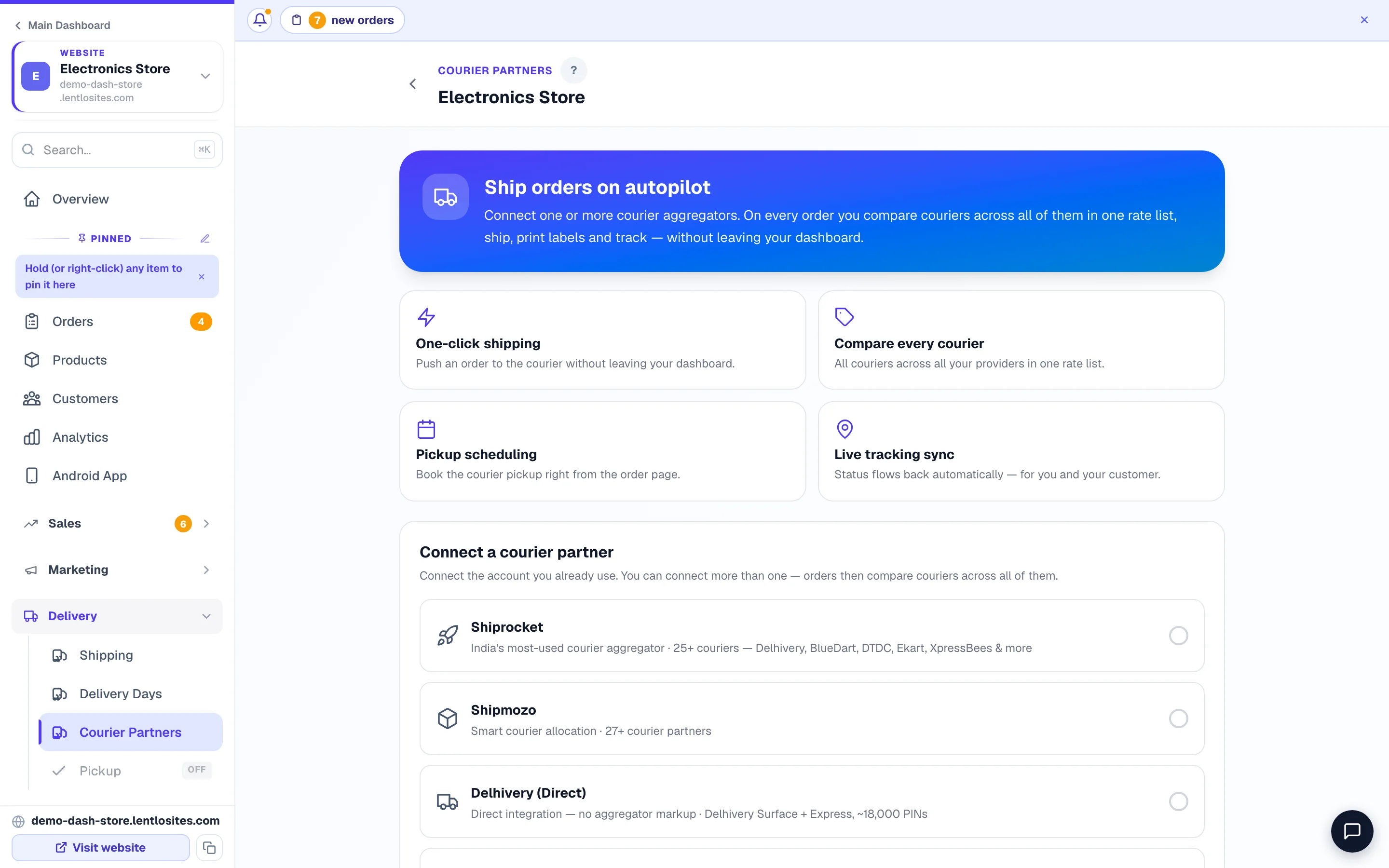
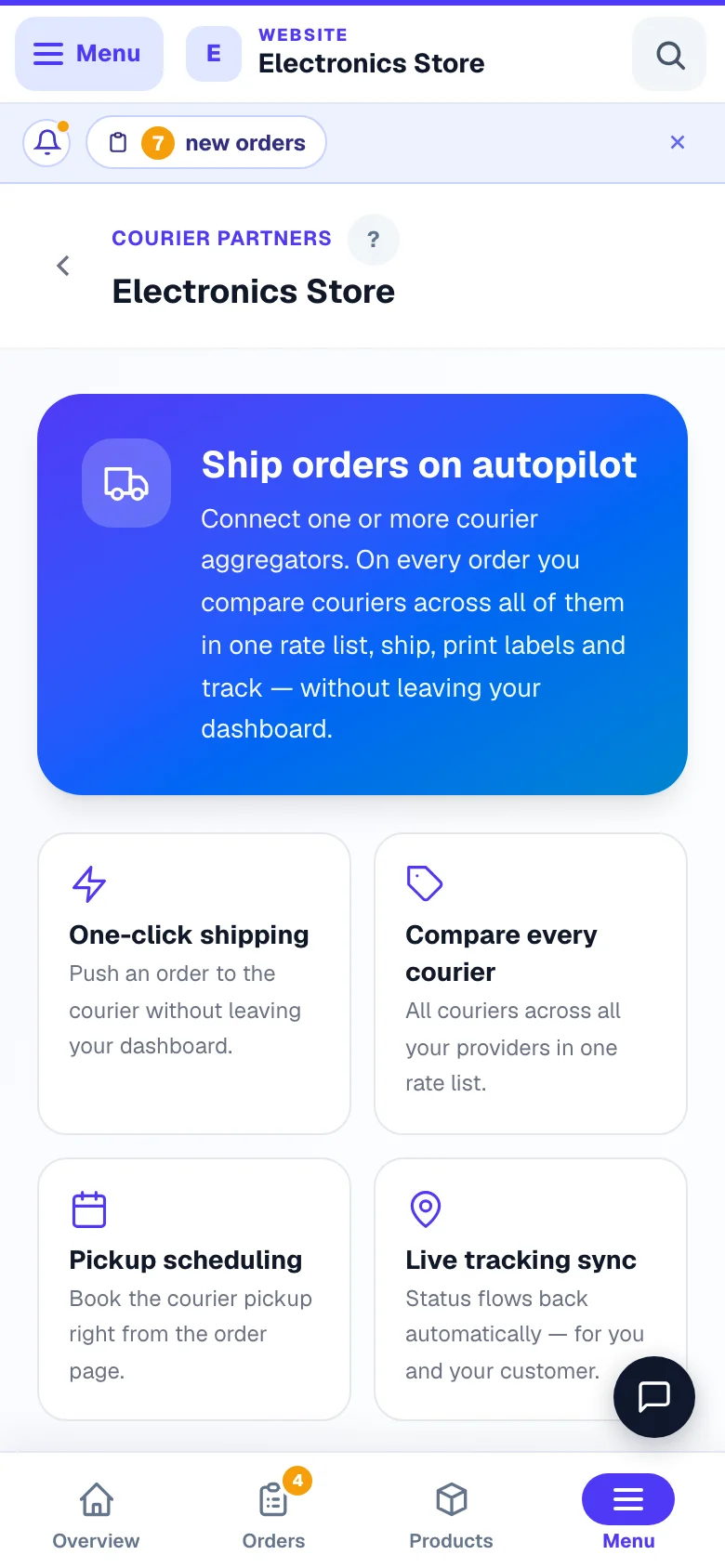
Shipping with courier partners (Shiprocket, Shipmozo, Delhivery One, NimbusPost, Shadowfax, India Post)
Everything above decides what the customer pays you. Courier partners are the other half — who actually carries the parcel. Connect one or more accounts in Delivery → Courier Partners; then on any order, compare live rates from every courier across all your connected partners, pick one, and book the pickup — AWB number and label are created for you, and tracking updates flow back to you and your customer automatically. When the courier reports that a parcel is coming back to you (return to origin) and email alerts are switched on for your shop, you also get one email about it, so a return never goes unnoticed. The two systems are independent: your customer charges never change when you switch couriers. The label carries the person who receives the parcel — when a customer orders for someone else, the receiver's name and mobile go to the courier (Shiprocket also takes the alternate number the customer gave), and a booking whose mobile is not a full 10-digit number is refused before it reaches the courier.
Connecting the others — each partner's card on Courier Partners lists its steps:
- Shiprocket — in Shiprocket open Settings → API → Configure and create an API user; paste that user's email and password (not your own panel login). Keep your Shiprocket wallet funded — the card shows its balance, and a courier is not assigned on an empty wallet.
- Shipmozo — paste the public key and private key from your Shipmozo profile.
- Delhivery One — generate an API token (Settings → API → Token Generation) and type your pickup warehouse as
Name@PIN, exactly as registered in Delhivery One (several: comma-separated).
NimbusPost connects with the same email and password you use for its panel. After connecting, tap + Add warehouse to save your pickup address — it's sent to NimbusPost with every booking, so there's nothing to set up in their panel. When you ship, NimbusPost books your chosen courier, the AWB and label arrive together in one step, and the courier pickup is requested automatically.
Shadowfax connects with the API token your Shadowfax account manager gives you (they issue one for testing and one for live orders — paste the live one). Tap + Add warehouseto save the address the rider collects from; it goes to Shadowfax with every booking as both the pickup and the return address. Shadowfax bills you on your contract, so its row in the courier list says Contract rate instead of a price; the AWB comes back the moment you ship, the rider is assigned to collect, and you print labels from your Shadowfax client portal. Most sellers use the seller-pickup model — tick warehouse-model only if Shadowfax set your account up that way.
India Post — works a little differently
India Post reaches PIN codes no private courier will touch, so it's worth connecting even if you mostly ship elsewhere. It works differently from the others, and it's worth knowing why before you connect: the Department of Posts gives sellers no booking API until it has approved them for one (see below). So you keep booking exactly as you do today — at the post office counter, or on app.indiapost.gov.in under Self Booking.
What connecting India Post does give you:
- Live India Post prices on every order, next to your other couriers — Speed Post, Registered Parcel and Business Parcel, priced for that exact parcel and delivery PIN, straight from the Department of Posts' own rate service.
- One place to record the article number. After you book at the post office, open the order, pick the India Post option and type the 13-character number from your receipt (like
EE123456785IN). We save it as the tracking number, move the order to Packed and give your customer a working India Post tracking link.
To connect: Delivery → Courier Partners → India Post. You need just two things — your 10-digit India Post Customer ID (sign in at app.indiapost.gov.in and open Profile; registering is free) and the post office you book from, typed as Name@PIN — for example MG Road PO@560001. We never ask for your India Post password. We check that PIN against India Post's live rate service before saving, so a typo is caught immediately.
Two things India Post can't do for you: there's no label to print here (the post office prints its own barcode label when it books your parcel — use Print labels on the orders list if you want a packing slip), and tracking doesn't update by itself, so move the order to Shipped or Delivered yourself. Your customer's tracking link works throughout.
Getting India Post to book automatically
India Post does have a full API — booking, address labels, live tracking, the lot. They just don't hand it out on request: you get a test (sandbox) account first, and production access is approved only after the test results are signed off. It usually takes 2–6 weeks, and India Post charges nothing for it — you keep paying only normal postage.
Everything you need is waiting in Delivery → Courier Partners → India Post under "Want India Post to book automatically?" — including the emails to send, already filled in with your store's details. Each one has Open in email app (the message, subject and India Post's address filled in) and Copy. The six phases are:
- Get a contract (BNPL) account — API booking bills to a contract, so a plain retail account isn't enough. Ask the Marketing Executive of your postal Circle.
- Request sandbox access — send email 1. It asks for all of it at once, including whitelisting our server, which is the step people miss and the one that blocks everything else. Wrote to India Post before our server addresses changed in October 2026, or the test says India Post hasn't opened the door yet? Send email 3 on the same thread — it asks them to add every address we send from, plus anything their own systems refused in your last test.
- Sandbox testing — paste what India Post sent you into "Run India Post's test" and press the button. It runs their whole checklist from our server and gives you the test report to download. You never have to send anyone your sandbox password.
- Submit results, request production — send email 2 with that report attached. This is the approval gate: India Post also wants an escalation matrix (who they contact when something breaks), which email 2 already lays out for you.
- Production credentials — India Post sends you your live details. Tell us through Help & Support that they have arrived: we switch on India Post — automatic booking for your shop and you paste the details into it on Courier Partners yourself (next section) — nobody else needs your password. Until then you keep booking at the counter and typing the article number into the order. Your orders, prices and existing shipments are untouched.
- Go-live monitoring — book a few real parcels and check they look right.
While you wait, nothing changes: live rates and article-number recording keep working exactly as they do today.
India Post — automatic booking (being switched on shop by shop)
Once India Post has approved you and automatic booking is switched on for your shop, Delivery → Courier Partners shows India Post — automatic booking as its own courier partner, beside the one you already have. Connect it with the details India Post gave you: your Customer ID, the API username and password, your Speed Post (and/or Business Parcel) contract ID and the article number series they allotted you. Then tap + Add post office and save the post office you drop parcels at — its address goes on every parcel as the sender.
On an order, choose India Post — automatic booking and press Ship. We book the parcel with India Post, give it the next article number from your series (each number is used once, for one parcel), fetch India Post's label for you to print and stick on, and keep the tracking up to date by itself once your post office has scanned the parcel (India Post shows no tracking before that). Hand the labelled parcel in at your post office. India Post bills the postage to your contract as usual.
Two limits for now: it takes prepaid orders only — book a cash-on-delivery order at the counter with your other India Post option — and India Post doesn't cancel a booked article over its system, so if you clear one, just don't hand that parcel in with its label. If India Post doesn't answer while booking, press Ship again after two minutes: we send the same article number again, exactly as your first try (the same parcel weight and post office, even if you reloaded the page), and India Post's own check stops that number being booked twice. If the Ship console now shows a different parcel or post office, we tell you what India Post has — to change it, clear the article from the order and book again. If the customer's name, phone or address changed in between, or India Post still hasn't answered a day later, we use a new number instead and tell you the old one — never hand a parcel in under it. The customer's address must fit India Post's two address lines (160 characters in all) and have a valid PIN code — we fill in the city and state from it.
Delivery charge you can only work out after the order
Sell sofas, fridges, cement — anything where delivery depends on the address and the load? Under More options, open Shop confirms the order first, turn it on and choose Only the delivery charge. At checkout customers see Delivery charge: Added after you order with your own message (a usual range helps, like “Delivery in Pune: usually ₹200–₹800”), and order without it. You add the charge on the order and send the final bill on WhatsApp.
- Which orders — every delivery order, or only orders with products you choose (tick Orders with this product wait for your confirmation in a product's Delivery charge tile).
- How customers pay — cash on delivery, pay after you confirm (from the bill link), or the items online now and the delivery charge later. Part payment (Partial COD) and UPI-screenshot payments are not offered for these orders.
- It works with pincode shipping switched on or off. Your areas still decide where you deliver — only the charge waits. Store pickup orders and free-delivery coupons are never affected, and a store that charges delivery by distance (below) can't use it.
Full walk-through with a worked example: Delivery charge after the order.
Need to check the stock and the address too, before the customer pays anything? Choose The whole order in the same panel: customers send an order request, the items are kept aside, and you confirm it with the delivery charge and the date — see Shop confirms the order first.
Deliver nearby yourself? Get the customer's location and charge by distance
Under More options, Local delivery opens Local delivery — customer location & fee by distance, for shops that deliver in their own town with their own rider. It works with pincode shipping switched on or off, and it has these parts (a restaurant sets its delivery in Delivery fee & area instead — on a restaurant website this tile is not shown, and What you charge links there):
- Ask customers for their delivery location at checkout — adds Choose on map and Use my location as part of the address, with a landmark line. The map opens at the address the customer typed — their street when the map can find it, else their PIN code's area or their town — so they only move it the last few houses. Use my location moves the map to where their phone is, and the customer then puts the pin on their door and confirms it, because a phone's reading can be off by a few houses. On its own it is not required: a customer who skips it orders exactly as before. Every delivery order then shows the customer's spot on its order page, with Open in Maps and Navigate. While Charge delivery by distance is on, this is always on (the fee needs it).
- Don't take a delivery order without the customer's exact location — on the new checkout you can make the location a must. Place Order then waits until the customer moves the map so the pin sits on their door and confirms it, close enough to see the buildings. Their phone's location only moves the map there, because a phone's reading can be off by a few houses. A saved address that only has a phone reading is checked on the map once more. Pickup and dine-in orders are not asked, and orders you add yourself are never blocked. If the map cannot open on a customer's phone, their phone's location or a pasted Google Maps link is taken instead, so nobody is stuck.
- Each saved address has its own spot — at checkout every saved address says Map location saved · near … or No map location yet, and the chosen address opens into its own location part: Adjust on map, See this spot on Google Maps, how far it is and the landmark. When a signed-in customer sets the location for the chosen address it is saved to that address, so next time choosing it brings the spot back and the order goes through in one tap. An older saved address with no spot is marked in amber (“Home” has no map location yet) so the customer sets it once. A new address takes its location as the last part of the address form. In My account → Addresses each address shows its saved spot with See on Google Maps, Change on map and Remove.
- Your shop's location — every distance is measured from here. Set on map opens a Google map: search your shop's name, move the map until the red pin is on your door and tap Save this as my shop's location (Satellite shows the rooftops). Or stand at the counter and tap I'm at my shop now (Use this phone's location), or open Or paste your shop's Google Maps link and tap Use this link — both open the map on that spot for you to check. A short share link (maps.app.goo.gl/…) has no location inside it, so the map searches the shop name that came with it. The spot is saved straight away; the card then shows Saved, View on Google Maps, Change on map and Remove. While your fee is by distance and no spot is saved, your Overview shows a Set your shop's location card that works right there, and the sidebar marks Shipping with an amber !.
- Charge delivery by distance — switch it on, set your shop's location (the card appears right under the switch) and fill the distances, for example up to 3 km ₹20, up to 6 km ₹40. Add Free delivery above a cart value and a Minimum delivery charge if you want them, then press Save local delivery.
While Charge delivery by distance is on, it is your delivery charge. The pincode shipping charges and rules on this page are not used. A customer who does not share a location pays your first distance's fee; a customer farther than your last distance pays the last one's fee. Pickup orders pay no delivery charge, and a free-delivery coupon still makes delivery free.
At checkout the customer sees “~3.2 km from the shop” beside the location button and the fee for that distance. The fee is worked out on our servers from the same distance, so what the customer sees is what they pay — cash on delivery or online.
Who carries those orders? Add your own people as delivery boys and give each order to one of them — he sees the address, the customer's location on the map and the cash to collect, and you see what is out and the cash each one holds. See Deliver with your own delivery boys.
The map on your checkout — Google Maps
At checkout, when a customer sets their delivery spot, a Google map opens: its search box finds apartments, offices and shops by name, and the line under the pin shows the address. If Google ever cannot open on a customer's phone, our free map (OpenStreetMap) opens in its place, so nobody is stuck. You manage it in Map on your checkout, under More options → Local delivery on the Shipping page (it shows once the map is on your checkout). It has two choices: Google Maps (recommended) and My own Google key.
- Free every day — your shop gets a number of Google map opens free each day (the card shows how many). A map open is one customer opening the map; moving, zooming and searching inside it are part of the same open, and so is closing the map and opening it again on the same page.
- The same customer again — when a customer opens the map again on the same day (they reloaded the page, went to their account page, or are tracking their order), it is counted as same customer again: it never uses your free opens and is never charged.
- After the free opens — the card says what happens next for your shop. Choose Keep Google Maps (a small fee per open from your account credits, taken once a day — the next morning — as one line on your statement) or Switch to our free map for the rest of that day. If your credits run below the allowed limit, the free map shows until you recharge.
- My own Google key — Google Maps on your own Google account, with no daily limit from us. Google bills your Google account directly; an India billing account gets about 70,000 free map opens a month. The card walks you through getting a key (about 10 minutes), lists your shop's addresses to copy into the key's website list, and has a Check & use this key button: it draws a Google map with your key and saves the key only when Google answers. Every other choice on this card saves the moment you pick it; switching from your own key back to Google Maps from us asks first, because it removes your key.
- Every map open is shown — today, and every day of the month (tap Earlier for past months): Google map opens (free, charged, same customer again, on your own key), opens of our free map, times Google could not draw the map (those are never charged), Google searches and places named under the pin, and exactly what was charged each day.
Under a Google map the customer sees one line saying the map is by Google, with links to Google's map terms and privacy policy, as Google requires. The location they confirm is used only to deliver their order.
Prefer customers to collect from your shop?
Turn on in-store pickup — customers choose "pickup" at checkout and pay no delivery charge at all. It works alongside delivery or instead of it, and pickup orders skip the minimum-order-value rule too.
Common questions
The map on my checkout was not Google for one customer? Google could not be used for that open — Google did not answer on their phone, your free opens for the day were used and you chose the free map after them (or your credits ran low), or the same person reopened the map many times in an hour. The usage list in Map on your checkout shows each case.
Do I need to publish my site after changing rates? No — pincode checks are live; every change applies the moment you save.
Why is delivery free for one customer? Run Try it as a customer with their pincode — most often the cart crossed your free-above amount, a ₹0 band applied, or a pincode rate says free.
Can I charge more for COD? Yes — the COD fee is set in Payment Settings; here you only choose where COD is allowed.
What if a pincode isn't in the directory? You can still add it manually — the rate works fine; only the auto-filled city/state is skipped.
The courier page says an order has no delivery PIN code? When your store doesn't use per-pincode delivery charges, the courier list reads the PIN straight from the customer's address, so those orders ship normally. If it still says so, the address genuinely has no 6-digit PIN: open the order, edit the address to include it, and retry.
Some customers don't see Express at checkout? Express is set on your standard rate, so customers in a custom zone or on a pincode with its own rate are offered the standard charge only.
Shiprocket says "Unable to create an order please try again after some time"? That is a temporary error on Shiprocket's own server — it happens occasionally even when your account and connection are perfectly fine, and their own message says to try again. Your tap already tries three times over about 10 seconds, and then we keep trying quietly in the background for about the next 15 minutes — when one of those tries goes through, your next tap on Ship books at once. So wait 2–5 minutes and hit Ship again; it clears on its own. There is no need to disconnect or reconnect Shiprocket. Only if it keeps failing over 10+ minutes, check in Shiprocket that your wallet has at least ₹200, your pickup address is verified under Settings → Pickup Addresses, and the delivery pincode is serviceable. Also worth knowing: Shiprocket's system doesn't accept emojis in internal product codes — our platform removes them automatically when booking, so emojis in your product names (🔥, 🎉 etc.) stay on your store and never block a Shiprocket shipment. If a booking still refuses and your product name is full of unusual symbols, try removing them for that order and ship again.
Does connecting a courier here log me out of their website? No. Your courier connection uses a separate API login (for Shiprocket, the dedicated API user you created), and we sign in once and reuse the same access key — it can't end your browser session on their site. If you keep getting logged out of a courier panel, it's almost always because more than one person shares that panel login — each new sign-in logs the previous person out. Ask the courier for separate user logins.
More in Delivery & shipping
Did this answer your question?
It takes one tap and it genuinely changes what we write next.