
Edit your website — the complete editor guide
Text, photos, colours, the page outline, a full-width banner slider, pages, AI, phone editing — then Update Website to go live.
Watch 6 short videos12 min readUpdated 21 Oct 2026
In this guide
Opening the editor
The editor is where you change how your website looks and what it says — open it whenever you want to update text, photos, sections or pages.
From your dashboard
Go to Main Dashboard, open your website, and press Edit Website — the white button beside the green Update Website at the top of that website's Manage page, and also the first entry in its Website menu. The editor opens with your pages on the left, a live preview in the middle, and editing fields on the right.
A few older sites use a different drag-and-drop editor. If your screen doesn't match these pictures, the same ideas still apply — edit, preview, publish.
Added to a website as Words & photos only? The editor opens the same way, but shows just the text and pictures you may change — no Add section, no layout, colour or page controls, no History. Ask the owner for Edit the website if you need more.
If your website's provider looks after its layout, your editor works the same way — words and photos only, with a line saying the layout is set by your provider. Ask them for any layout change.
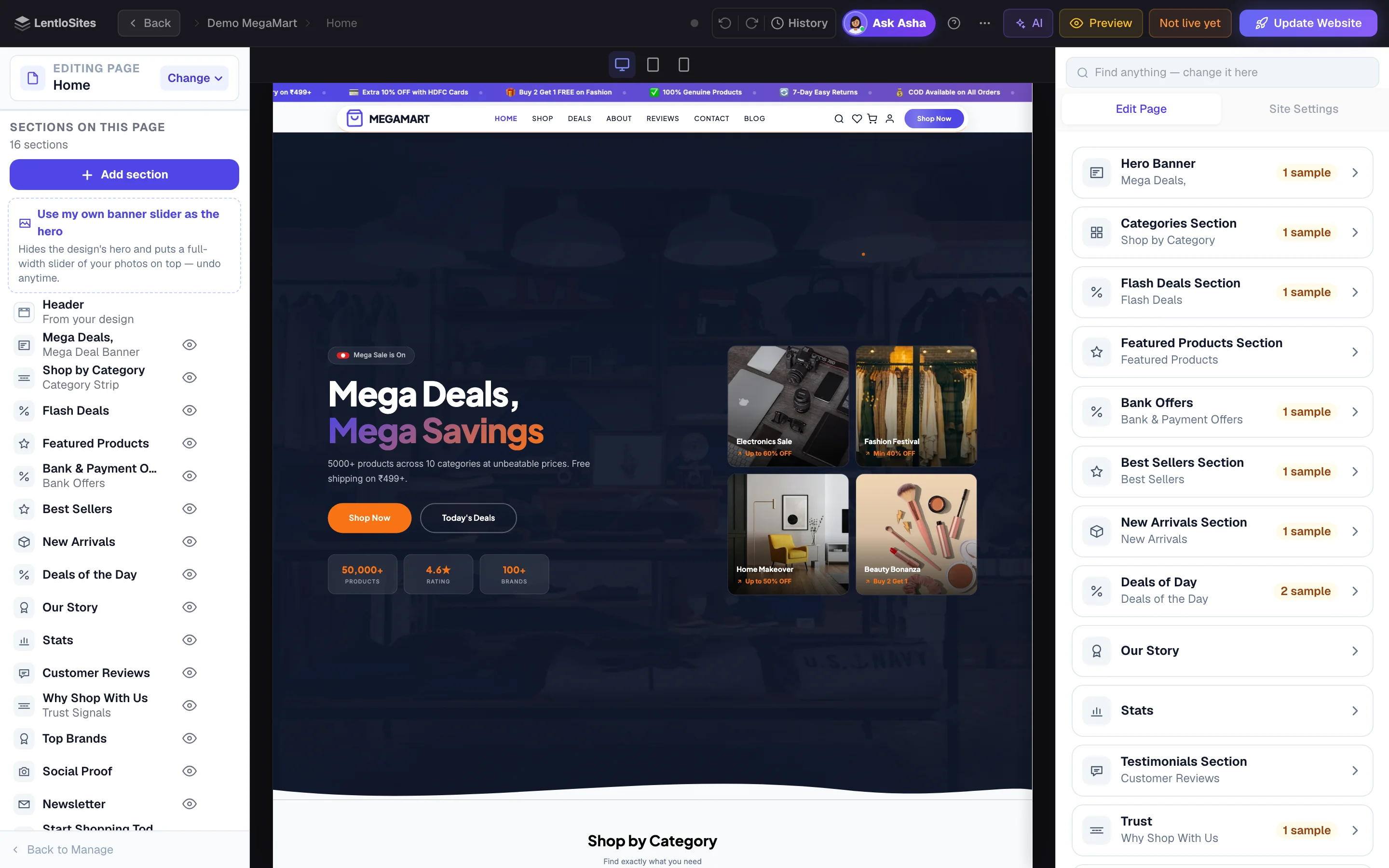
The editor at a glance
Four areas do all the work — once you know them, nothing in the editor will surprise you.
The page outline (left)
The top of the left side is ONE page button — Editing page · Home, with a Change button: tap it to open the page list and pick another page (Add page sits in that list). Under it, Sections on this page lists the open page's sections in order — your header, the design's own sections, the blocks you added (tagged), your footer and bars — each with a small picture of what it is, an eye to hide it, and a tag when you changed it. One Add section button at the top; Only what I changed filters the list; Restore the design's original order puts a moved page back.
Live preview (middle)
Your website exactly as visitors see it. Click any section to open its card; a small bar on the selected section offers Edit, its style (⚙ space, colours and buttons), the eye and a ⋯ menu (move, duplicate, delete, Ask); hover between sections for a + Add section here pill. The device switch above it shows the computer, tablet and phone views.
Edit Page · Site Settings (right)
Edit Page is one card per section of the open page; open a card and the preview jumps to that section and outlines it. Inside a card the controls sit in tabs — Content (words and photos), Look (colours and style), Layout (width, space above and below, which devices show it) and, where a block has them, Advanced. Site Settings holds everything for the whole website: header, footer, colours and fonts, business details, the shop's settings. The Find box at the top finds any control by any word and changes it right there.
Top bar
Back, the page you are editing, Undo, Redo, History, Ask Asha (Ask for help where Asha is not switched on), the ? help panel, AI, Preview, Not live yet when edits are waiting, and the Update Website button (it says Live while nothing is waiting).
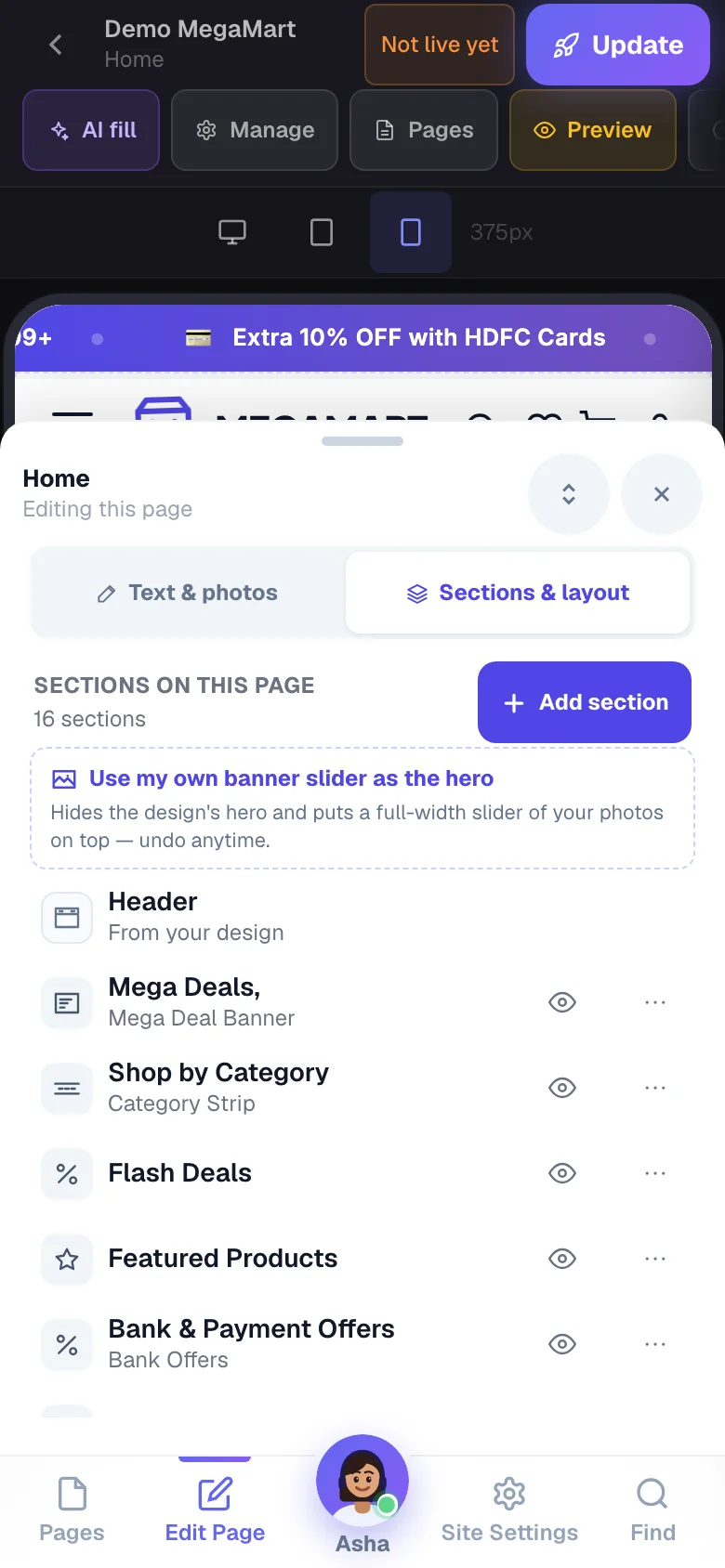
Editing on your phone? The same tools sit in a bottom bar: Pages, Edit Page, Asha (your helper), Site Settings and Find. Tap a tab and the editing panel slides up over the preview — drag its handle to make it as tall as you like. In the Edit Page sheet, Text & photos is the cards and Sections & layout is the page's section list (the same list a computer shows on the left). See Editing on your phone.
A row of buttons that goes past the edge? Some rows in the editor — like Most used at the top of a section's card, or the row of kinds (Brand, Smileys, Food…) at the top of the emoji picker — hold more than fits. On a computer, point at the row and turn your mouse wheel: the row moves sideways. When it reaches its end, wait a moment and turn the wheel again — the panel scrolls on as usual. While your pointer is on a row that has more to show, small ‹ › arrows also appear over its edges — click one to move the row; they leave when you move away, and the same arrows work on every scrolling row of the dashboard and on your live website. On a laptop trackpad you can also swipe sideways with two fingers; on a phone, swipe the row (no arrows there).
Change text, photos and colours
Every visible thing on your site has a matching field — find the field, change it, and the preview updates instantly.
Click the section you want to change
Click it right in the preview, or pick it from Sections on this page on the left. Its card opens under Edit Page on the right, on the Content tab.
Type your new text
Change a headline, button label or paragraph in its field — the preview updates as you type. On blocks you added yourself, you can even click the text on the preview and type right there.
Swap a photo or logo
Click the image field and upload from your phone or computer. We resize and optimise it automatically (four sizes, so phones download the small one), so your site stays fast. No photo of your own yet? Every image box also has Free photos — a library of real Indian business photos (salons, kirana shops, dhabas, coaching classes, festivals…) you can search by a word and filter by Wide or Tall; each tile shows its size and the photographer. Changed your mind while a photo is still uploading? Pick another one, paste a link or remove it — your newer choice stays, and the upload ends with “Photo not added — your newer choice was kept.” A photo you replace by clicking it on the preview goes onto that same photo — never onto another slide if the slides move or you undo meanwhile; if that slide is gone, the photo is not added and a short line says so.
Change colours and fonts for the whole site
Open the Site Settings tab (top of the right panel). Pick your Primary and Accent colours and your fonts — one change updates buttons, links and highlights across every page.
Set where a button or menu item goes
Every link field has a Choose button — press it to pick from your own pages, your product categories, or even a single product. No need to remember addresses like /shop. You can still paste any link (Instagram, WhatsApp, another website) straight into the box.
Made a mistake? Press Undo in the top bar (or Ctrl+Z on a computer). Redo is right next to it.
Empty box, but your site shows text there? The grey text inside an empty field is what your design shows by default. Type your own words to replace it — or leave it empty to keep the default.
“Sample words — replace with yours”. A field that still shows your design's sample text — a tagline, a story, a hero line, a name that isn't yours — carries this small amber note, and each section in the list shows how many it has (2 sample). Customers read those words as facts about your business, so replace them with your own; the note goes away as you type. Buttons and labels (“Shop now”, “Send”) are never marked. If Site Settings still holds your design's sample business name, your website shows its own name (the one you typed when you created it) in that place instead — type your business name there to choose exactly how it reads.
“Site-wide text shown here” chips. When you tap a section that shows your business name, stats or contact details, chips appear above its fields — tap one to jump straight to that text in Site Settings, because changing it there updates every page at once.
“This page changed in another tab”. If the same website is open in two tabs (or on two devices) and both edit the same page, the editor keeps the copy that saved first and asks the other tab to Reload — so nobody's work is silently overwritten. Reload, and continue from the latest version. The message says exactly what the reload loses — what you changed in that tab since its last save, and on which pages — so you know what to do again.
“This page was deleted in another tab”. If a page — or a header or footer block — that you are editing is deleted in another tab or on another device, this tab can't save your changes to it, so it stops trying and asks you to Reload; the message names what the reload loses, the same way.
Some boxes appear only when they can do something (2 Oct 2026). A box that only changes your website once another setting is on now shows up only then — the checkout's terms wording and links appear after you switch on Ask customers to agree to your terms; a sale strip's words and time after Show the countdown strip; a map address hides once you paste a Google Maps embed link, because the link is used instead. Boxes that did nothing at all on a page are no longer offered. Nothing you saved is lost — turn the switch on and your words are still there. When a box depends on something outside the page — a resume link, a brochure link, products running low — its help line says so.
The map box takes any Google Maps link (3 Oct 2026). Paste the Share link (maps.app.goo.gl or share.google), the place page's address bar, Google's “Embed a map” code, or just type the address — the map shows on your contact page either way, free, with no map key of yours or ours. A short Share link cannot be opened inside a page by itself, so it shows the map of your Business Info address; keep that address filled in.
Colours & fonts
Your colours and fonts are set once for the whole website — not page by page. They live in the editor, in the right panel.
Open Site Settings → Colors & Fonts
In the editor, open the Site Settings tab at the top of the right panel (on a phone, Site Settings in the bottom bar), then open the Colors & Fonts group. (On the blank-canvas designs and the block-built ones the same group is named Appearance.)
Set your Primary colour first
Primary is your brand colour — buttons, badges and highlights everywhere. Accent is the second colour, used for headings and dark bars. Change these two and most of the site follows.
Fine-tune the rest only if you want to
Depending on your design there are also backgrounds (page, cards & panels, alternating sections), text colours (headings & prices, body, muted), and the money colours — savings green and sale red. Some designs add a Button colour style switch: solid, or a two-tone gradient.
Pick your two fonts
Heading Font and Body Font are separate, so headlines can have character while the reading text stays plain. Most designs offer a short list (Plus Jakarta Sans, Manrope, Outfit, DM Sans, Sora, Poppins); leaving a font on Default keeps the one your design was drawn with.
An empty colour box is not a bug. Blank means “use the colour this design picked” — the site keeps working exactly as before. Clear a box any time to go back to it.
The preview repaints as you pick, so try a colour and look at the shop page before deciding. Nothing reaches customers until you press Update Website.
There is a second “Colors & Fonts” in Settings → Appearance — that Primary colour is used for your installable app (the splash screen behind your icon), and its Customize colours part is only for your account, checkout and wallet pages. For the website itself, use the editor.
Sections on this page — the page outline
Every page is built from sections. The list on the left (on a phone: the Edit Page sheet's Sections & layout tab) shows the whole page as one ordered list — your design's own sections with the blocks you added shown exactly where they appear. Nothing on this list is hidden in a sub-menu any more.
- Find the section listLeft of the preview on a computer; the Sections & layout tab of the Edit Page sheet on a phone
- Press Add section…or a + pill in the list
- Say where it goesTop, after any section, or bottom
- Pick a block60+ ready-made sections
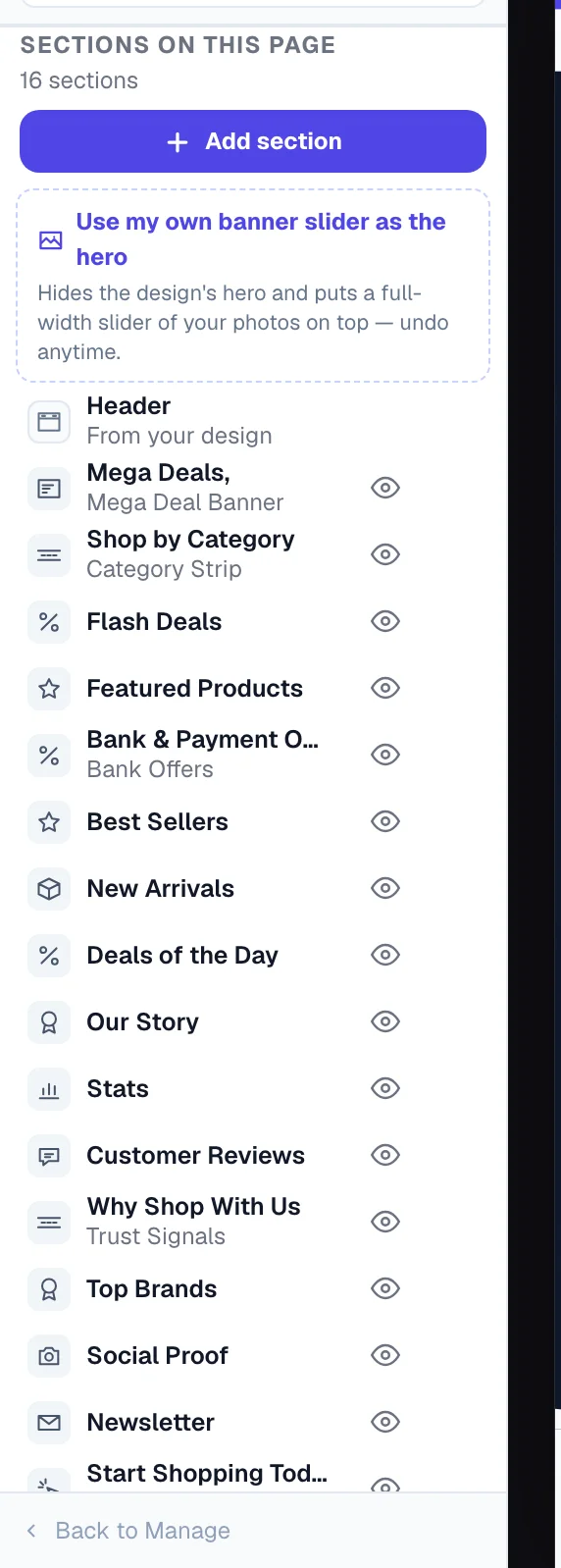
Press Add section — and say where it goes
The picker asks Where should it go? — Top of the page (above your design, perfect for a banner slider), After … any section, or Bottom of the page (just above the footer). The dashed + Top of the page, + After Hero, + Bottom of the page pills in the list do the same thing in one tap.
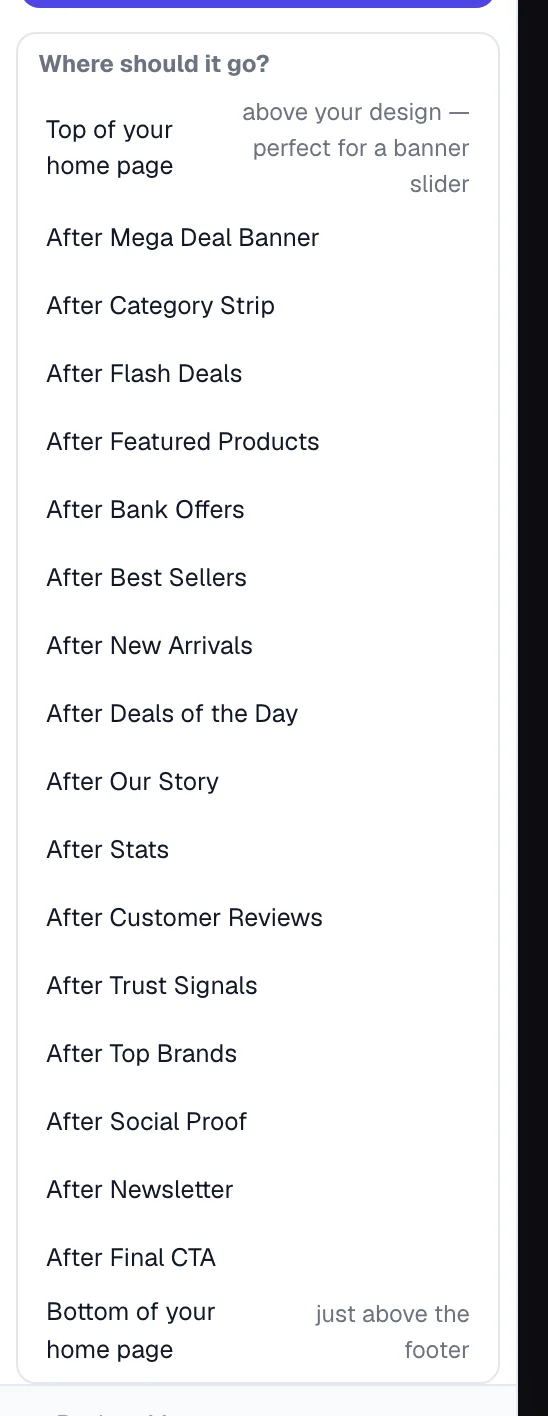
Pick a ready-made block
Search by name (“reviews”, “pricing”, “slider”) or browse the groups. The first group is named after your trade — ✨ Made for your salon, Made for your clinic, and so on (Popular starters on a website with no trade of its own) — and those cards come pre-filled with that trade's copy, one tap and it's in. The new block appears on the preview immediately, in your colours and fonts.
Edit it right there
The block's card opens on the right: a quick bar on top (width, space and which devices show it), then its words and photos on the Content tab, colours on Look and every other layout option on Layout. Click any of its text on the preview to type directly.
An amber “Not on your live site” line on a block means your live website leaves that block out for now, and the line says why — “no photo chosen yet”, “there are no approved reviews yet”, “your blog is switched off”, or “product blocks show only on an e-commerce website” when a Products block sits on a design that is not a store. Its row in the list carries the same tag. Give the block what it asks for and the line goes away; until then visitors simply do not see the block.
On a computer, move your mouse between two sections in the preview — a + Add section here pill appears on the line between them. It opens the same picker aimed at exactly that spot.
Want the deep version — every group of the library, what each block is for, and a worked example? Read Sections & layout — the complete guide.
A full-width banner slider on top (like the Pulse design)
The most-asked change: replace the design's hero with a swipeable slider of your own promo banners, edge to edge. Every design can do it now.
One tap: Use my own banner slider as the hero
In the section list press Use my own banner slider as the hero. It hides the design's hero and puts a Banner Slider at the very top — already full width with square corners, so it touches both screen edges like a real hero. Bring back the design's original hero undoes it anytime.
Upload your banners
Open the slider and add a slide per banner. Banner photo (computer / wide) is the wide version — 1600×600 is a good size. Phone version is optional but worth it: upload a square or portrait cut (1080×1080 or 1080×1350) and phones show that instead of a tiny letter-box strip. A slide can also carry a short video: it plays silently over that slide's photo once the page has loaded, so keep the photo — it is what visitors see first.
Tell it your slides are ready-made banners
Turn on My slides are ready-made banners when the headline, product and price are already designed into the image. Each banner then shows whole — no cropping, no dark wash, no text typed on top. With Banner size: Follow the first banner the slider takes the shape of your first banner and every other banner fits inside it — whole, with a soft blurred copy of itself filling any edges — so the page never jumps as the slides change and there is never an empty band. Leave the switch off when you want to type a heading and button over a background photo.
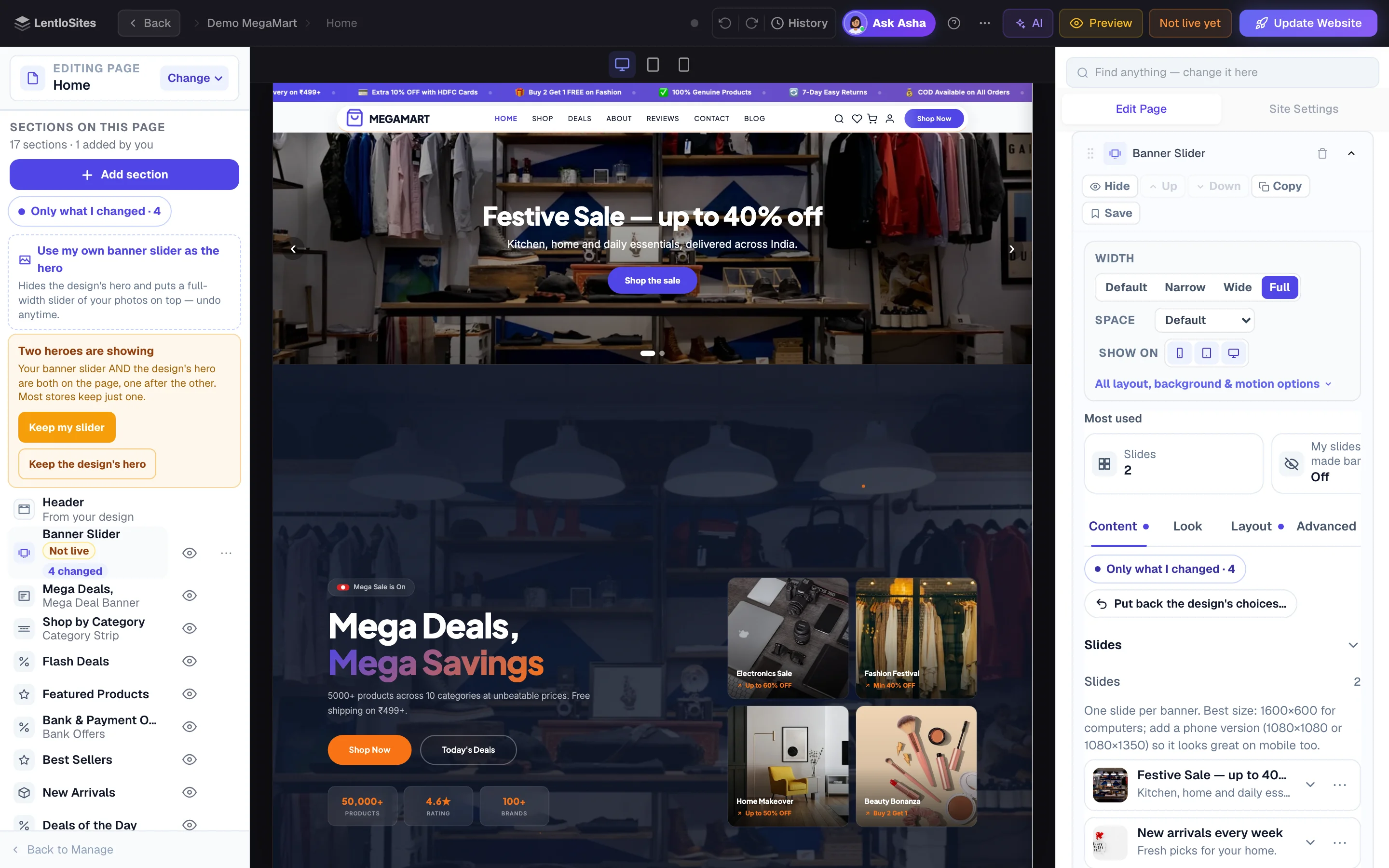
Slide change effect (Fade, Slide, Slow zoom), Auto-advance seconds (0 = manual only), arrows and dots are all under How the slider shows. Make a whole slide tappable with the Make whole slide clickable link field — ideal for “Diwali sale → /shop?cat=gifts”.
Two heroes are showing? That happens when you bring back the design's hero while your slider is still on top. The section list shows a notice with two one-tap fixes — keep your slider, or keep the design's hero.
Shaping the Top Banner on the QuickMart design
On the QuickMart grocery design the home page opens with one Top Banner photo. Its group in the editor now carries the controls to shape it without switching to a slider — every one starts on the design's own look, so a shop that changes nothing looks exactly as before. Under Size & shape: Width (boxed like the page, or edge to edge), Height for computers and, separately, for phones (follows the photo · short · medium · tall · fills the screen), Corners, Photo focus (which part stays in view when the photo is cropped) and Photo fit (fill the banner, or show the whole photo with a colour around it). Under Words: a small line above the title, a badge, a line under the button, where the words sit (left · centre · right, top · middle · bottom), text size, width and colour, the dark wash over the photo (from the text side · even · only behind the words · none) and a panel behind the words (frosted glass · dark · light). Under Buttons: the button's own link, its style (brand colour · white · outline), a second button with its own link, and opening the link in a new tab — with a button link set, the button opens it and the rest of the banner is plain. Under Video & motion: a short silent video that plays over the photo once the page has loaded (the photo stays as the cover; phones show it only when you allow), and a slow zoom on the photo. Under On phones: words below the photo on a colour panel instead of over it, and showing the banner on every device, phones only, or computers and tablets only.
Logo size and position on phones
Open Site Settings → Header (the group that holds your logo). Logo position — phones puts the logo left beside the menu button, in the centre, or right beside the icons — computers keep the design's own layout.Logo image height — phones / computer set the size of your uploaded logo; the header grows to fit it. On computers a large logo (76px or more) turns slim again while shoppers scroll — it shrinks in step with the scroll and is back to full size at the top of the page. Logo text size — phones sizes a text wordmark on phones only. Leave any control empty to keep the design's default.
Payment names and the About line in the footer
On the store designs that show a row of payment names at the bottom of the footer (UPI, Visa, Mastercard, RuPay, COD, Net Banking), the row is yours: open Site Settings → Footer → Payment Methods, remove the ones you do not accept or add your own (Paytm, for example). Remove them all and the row is not shown. On Boutique, Grocery Store and VoltMart, whatever you type inFooter About Text is the line printed under your logo in the footer. Press Update Website to put either change live.
Footer logo size and position
Open Site Settings → Footer — the footer logo controls sit at the top of that group on every design.Footer logo size sets the height of the logo image in the footer on computers and phones alike;Footer logo size — phones gives phones and small tablets their own height. Footer logo position(and its — phones twin) moves the logo left, centre or right inside its footer column — on designs that print your business name beside the logo, the pair moves together. A slider showing Auto is still on the design's own value; tap Auto next to a value you changed to go back to it. Footer Logo (optional)in the same group lets you upload a different version for the footer (a white one for a dark footer, for example).
Header Style and Footer Style show each choice as a small drawing card, so you can see the arrangement before you tap it. With the Soft style, Floating header sits over the top section lets a full-width colour or photo run behind the floating bar instead of leaving a white strip above it. The same group holds the header's finishing controls (all off until you switch them on): Header button on phones — hide the button on phones so a long business name gets the full width (the button stays at the bottom of the phone menu);Menu links in CAPITALS; for the Utility header style, Info-strip links (short links such as Free consultation · Video consultation · Our branches, shown in the thin strip on computers) and the strip's colour;Floating social buttons (a fixed rail on the left edge on computers, using your Social Media links) and aFloating “Enquiry” button (a small pill that stays on screen while visitors scroll). In Footer,Footer background re-colours the Utility footer — pick a deep shade, the text stays white. Long business names also shrink automatically on phones so they never get cut to “Crown H…”.
How a block adapts on phones, tablets and computers
Every added block has a Phones & tablets group on its Layout tab: space above/below on phones and tablets, text alignment on phones, and hide-on-phones / tablets / computers. Leave a control on Default and the block keeps its computer setting. Phones are screens up to 767px wide, tablets 768–1023px.Full width means edge to edge — photo blocks like the Banner Slider touch both edges; coloured bands keep a comfortable reading column inside.
Width, space and devices — the quick bar
Open any block you added and the first thing on its card is the quick bar. Three controls owners asked for on every section, one tap each (the same three sit on its Layout tab with the finer settings):
Width
Default · Narrow (a tidy reading column) · Wide · Full (edge to edge, like a hero). Full-width blocks at the very top or bottom of a page also flush against the header or footer.
Space
None → Extra roomy — the breathing room above and below the block. Exact pixels, and separate phone / tablet values, live in the full options.
Show on
Phone · tablet · computer icons. A crossed icon means the block is hidden on that device — it stays saved, it just doesn't show there. In the editor it wears a small “Hidden on phones” label, and it fades when you switch the preview to that device.
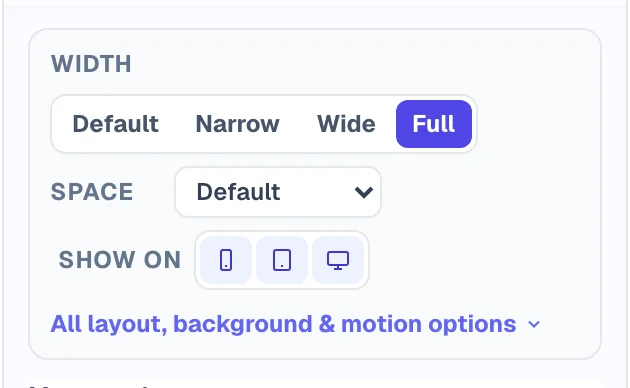
A banner slider, promo banner, video hero or hero showcase you add is Full width automatically. Anything else starts at the page's normal column width — tap Full to stretch it.
Style your design's own sections
Your design's own sections have a ⚙ style pop-up (the row's ⋯ menu → Space & colours…, or ⚙ in the bar on the selected section in the preview): space above and below, text alignment, a background, a text colour (and a Buttons colour where the section has filled buttons), and show-on phone / tablet / computer — for the built-in sections of your design. A blue dot marks a styled row; Reset clears it. Full detail: Styling your design's own sections.
The simple things — solid buttons, sticky header, footer blocks, WhatsApp side
All under Site Settings in the editor, saved with everything else and live on Update Website:
One solid colour instead of gradients
Design system → Button fill → One solid colour. Every filled button — in sections and the header — becomes your brand colour; outline buttons stay as they are.
Header stays visible while scrolling
Header & Navigation → switch it off for a plain top bar that scrolls away with the page.
No header, no footer
Header & Navigation → Header → No header on this site (footer likewise) — or hide them on one page only: tap Header or Footer in that page's section list — one card holds Your design's header · A header you build · No header and Hide the header on this page. An amber line under the choice says what customers lose (no menu bar to reach your other pages, or no contact details at the bottom), and on your home page hiding them asks once first.
Footer blocks
Footer → show or hide the contact block, the page links column and the social icons separately.
Words your footer shows from somewhere else
Some footer words are set in another group — a button's words in Consultation, your address and hours in Business Info. The Footer group (and the Header group) ends with Also in your footer: each one with what it says now and where it lives — tap it and that field opens, highlighted. Below it, Comes from your website names what the footer lists from your own data — your product categories (Categories) and your pages (Header & Footer) — with a link straight to where you rename, reorder or hide them.
The green WhatsApp button
WhatsApp & Chat → Show WhatsApp Button (some designs call the group Social & WhatsApp), with your WhatsApp Number in the same group — or on your dashboard's Social & Links page. It opens a normal WhatsApp chat with you — no API, no Meta account needed. Bottom right or Bottom left, so it never covers a button you placed there.
The message it opens with
WhatsApp Prefilled Message (same panel, under More Settings) is the line already typed for the customer when the chat opens — “Hi, I’d like to know more about your services” unless you change it. Write whatever suits you (“Hi! I want to order”, or ask for their pincode), then Update Website. Leave it empty and the chat opens blank.
Home page settings
The Home page has its own ⋮ menu → Page Settings: rename it, change its menu label, hide it from the header or footer. It stays your front page at /.
Background, corners, motion and more
Press All layout, background & motion options under the quick bar, or switch the block's card to its Look and Layout tabs — the same options:
Width, spacing & visibility
Section width with an exact-pixel option, text alignment (left / centre / right), space above/below (with phone and tablet overrides), show/hide per device, and a jump-link name so a menu button can scroll straight to this block (#go-offers).
Background, corners & motion
A background photo with a light/dark/custom tint, or a brand gradient; a quiet background pattern (dots, grid, lines, rings, a brand-colour glow) and a shaped edge (wave, curve, slant, arrow); five illustrated blocks drawing from a 356-illustration library in your brand colour; rounded corners and a card frame (shadow, border); entrance animation (fade up, slide in, zoom); cards appear one by one; stick-to-top while scrolling; parallax background; card hover effects.
Every one of these starts at Default, which means “leave the design as it is”. Your published pages don't change until you pick something — so it's safe to explore.
Move, duplicate and reuse sections
Move a section
In the section list on the left: on a computer drag a row, or open its ⋯ menu → Move up / Move down (long-press the row on a phone); the bar on the selected section in the preview has the same ⋯ menu. Blocks you added also have Up / Down at the top of their card. A section that sits inside another one on your live website is listed under it with Moves with “…” and cannot move on its own — it moves when that section moves. ↺ Restore the design's original order appears whenever you've rearranged.
Duplicate a block
Open it and press Copy — the copy lands right below with the same content. Handy for a second offer strip or a repeated FAQ block.
Save it for another page — My blocks
Press Save in a block's toolbar and give it a name. It then appears under My blocks in the Add section picker on every page of this site — one tap inserts a full copy. Only you or a Manager can save blocks and add saved ones — a team member who edits the website sees a line saying so in the picker.
Hide instead of delete
Tap the eye icon on any row of the section list (or in the bar on the selected section in the preview) — the section stays saved but disappears from your website. Tap again to bring it back. Your design's own sections can only be hidden, never lost; blocks you added can also be deleted with the bin icon (it asks you to confirm — if you might want it later, hide it instead).
Hiding a design section does not hide the blocks you added after it: your live website shows them right after the nearest section above that is still showing (or at the bottom of the page), and so does the preview. A note above them says where they now show and why, and the page outline lists them in that same place with the same note — under that section, above the blocks you added after it.
Do this
- Hide a seasonal offer strip in the off-season, show it again in a tap
- Hide a heavy section on phones only (quick bar → Show on)
- Use Preview on phone after hiding or reordering
Not this
- Delete a block you spent an hour filling — hide it
- Stack three heroes at the top — keep one
- Leave placeholder slides ("Your headline here") on a live slider
What's in the section library
Over 60 ready-made blocks, grouped the way you think:
Headers & CTAs
Banner Slider, Hero Banner, Hero Showcase, Video Hero, Promo Banner, Announcement Strip, Countdown, Call to action, Lead hero, Animated headline, Split CTA, Quote band, Poster call-to-action, WhatsApp button, Statement hero.
Store (shops only)
Products (hand-picked or by category), Categories, Featured product, Offers board, Reviews rail, Combo Set, Pincode localities, Loyalty explainer.
Content & media
Rich text, Image + text, Gallery (grid, masonry, filmstrip…), Before / After, Reels strip, Features, Icon boxes, Tabs, Process steps, Menu / price list, Portfolio, Content cards, Bento, Photo mosaic, Photo story, Text + photo grid, Numbered list, Chapters, Keyword cloud, Photo timeline, Story walkthrough, Outcome cards, Sticky showcase, Scroll statement, Stacked cards, Reveal cards, Scrolling strip, Embed, Downloads, Pricing table, Team.
Social proof & business
Testimonials, FAQs, Stats, Stat band, Client logos, Awards, Trust badges, Social wall, Comparison, Results wall, Growth chart, Story spotlight, Contact form, Form builder, Services hub, Who we serve, Link tiles, Location & hours, Map, Schedule, Events, Careers, App download.
Ten of them — Headline hero, Service list, Text ticker, Timeline steps, Results reel, Photo tiles, Feature quote, Rate card, Question list and Closing call — also have a Look choice at the top: Poster (bold capitals, square corners) or Editorial (a light serif with italics and arch-topped photos). Put *stars* around a word in their headings to highlight it.
Each block has its own Content tab plus the same quick bar, Look and Layout tabs — so once you know one, you know them all. The full tour is in Sections & layout — the complete guide.
Customise your product pages
Store owners get a Product pages tab of its own — right under Shop in the page list. Whatever you set there shows on every product page — set it once, it works everywhere. (Opening the tab also shows a live product page in the preview automatically.)
See a product page while you edit
Press View a product page — the preview opens one of your products so you can watch your changes live. Tap any menu link in the preview to come back.
Add sections around the product
Use Add sections on top, below the buy area, after the description or at the bottom — offers strips, a before & after photo with a customer review, trust badges, a size chart (a photo block below the buy area — clothing designs have a ready Size & fit guide card), anything from the section library. The pre-filled Made for your … cards at the top of the picker give you ready-filled ideas in one tap.
Show or hide built-in parts
The Show or hide parts switches turn Similar products, Customer reviews or the Delivery checker off everywhere — and back on — without touching anything else.
Your design may offer a few more switches of its own in the same tab — the Order on WhatsApp button, and the share buttons that let a customer send the product to WhatsApp or copy its link. Which ones you see depends on the design you are using.
Design the whole page yourself
Press Customize this product page's layout and the product page turns into blocks you fully control — photos & buy area, description, specifications, delivery, reviews, similar products. Rearrange them, remove what you don't need, change the photo gallery style, and add any section between the blocks. ↩ Back to the original design restores the built-in page anytime — your custom layout stays saved.
The Photos & buy area block is the heart of the page — your layout always keeps it, so customers can always add to cart and buy. Like all edits, nothing goes live until you press Update Website.
Hide the “60% OFF” on your product cards
Most store designs shout the saving twice: a flag on the photo (-60% OFF) and a small green 60% off beside the price. That sells beautifully for a sale-led shop — and reads wrong for a jeweller, a boutique or a brand whose M.R.P. is an anchor, not a discount. Both are now your choice.
Open Site Settings → Product Cards
In the editor, open the Site Settings tab at the top of the right panel (on a phone, Site Settings in the bottom bar) and open the Product Cards group. Quicker still: type discount (or percent) into the Find anything… box at the top and tap the result.
Turn off what you don’t want
Discount % badge on photos removes the flag from the photo. Discount “% off” next to the price removes the small green percentage. Turn off one or both — the change applies everywhere at once: home, shop, search, deals, wishlist and product pages.
Your prices never change. The crossed-out M.R.P. stays, the selling price stays, and every discount, coupon and offer still works exactly as before — only the percentage stops being displayed. Like all edits, it goes live when you press Update Website.
A few designs name this slightly differently — the jewellery and tools catalogues have one switch, Show the discount % (“60% OFF”) beside prices, and the restaurant-ordering design shows the saving only next to the dish price, so it has one switch too. Searching discount always finds it.
Change the words on your checkout page
Every design uses the same checkout, so its words live in one place: open Checkout in your page list (on the car dealership design it is called Payment). Quicker still, tap any part of the checkout in the preview — the delivery form, the payment box or the box with the total — and the group that changes it opens. Searching a word you can see, like easy return, also finds it.
The short lines under the Place Order button
Open Totals and Place Order. Switch off Show the short lines under the Place Order button to remove all of them. Below the switch, Short lines under the Place Order button lists every line your checkout shows — Secure Checkout, Fast Delivery and Easy Returns until you change them.
Tap a line to change its words or its icon: Choose an icon picks a new one, the ✕ beside it goes back to an icon that matches the words, and switching off Show an icon leaves that line with words only. Add line adds another, for example Cash on delivery; the ⋯ beside a line moves it or deletes it. When no icon is chosen and a line's words start with your own emoji, that emoji takes the small icon's place.
Every other word, in the order the page shows them
The groups follow the page from top to bottom: Top of the page, Message at the top, Delivery or pickup choice, Delivery details (the address form), Downloadable products, Offers and coupon, Payment, Totals and Place Order, Terms tick-box, When the cart is empty and After the order is placed. The words under After the order is placed also show when a customer reloads that page.
The order button's own words follow the payment the customer picks — Pay • ₹1,250 when paying online, Place Order (COD) for cash on delivery — so there is no box for them. On the restaurant designs, the names Takeaway and Home delivery are in Site Settings → Restaurant Details.
Let AI write your website text
If writing is the hard part, the AI writer fills your whole website with proper text from a few lines about your business — great for a brand-new site.
Press the AI button in the top bar
Describe your business in your own words — what you sell, where you are, what makes you special. A couple of sentences is enough.
Review before anything goes live
The AI writes your headlines and page text in under a minute. Anything you had just typed is saved first, and your words from before are kept in Version History as “Before the AI wrote your words” — Restore brings them back. Read the new text, edit anything you like, and it only reaches customers when you press Update Website.
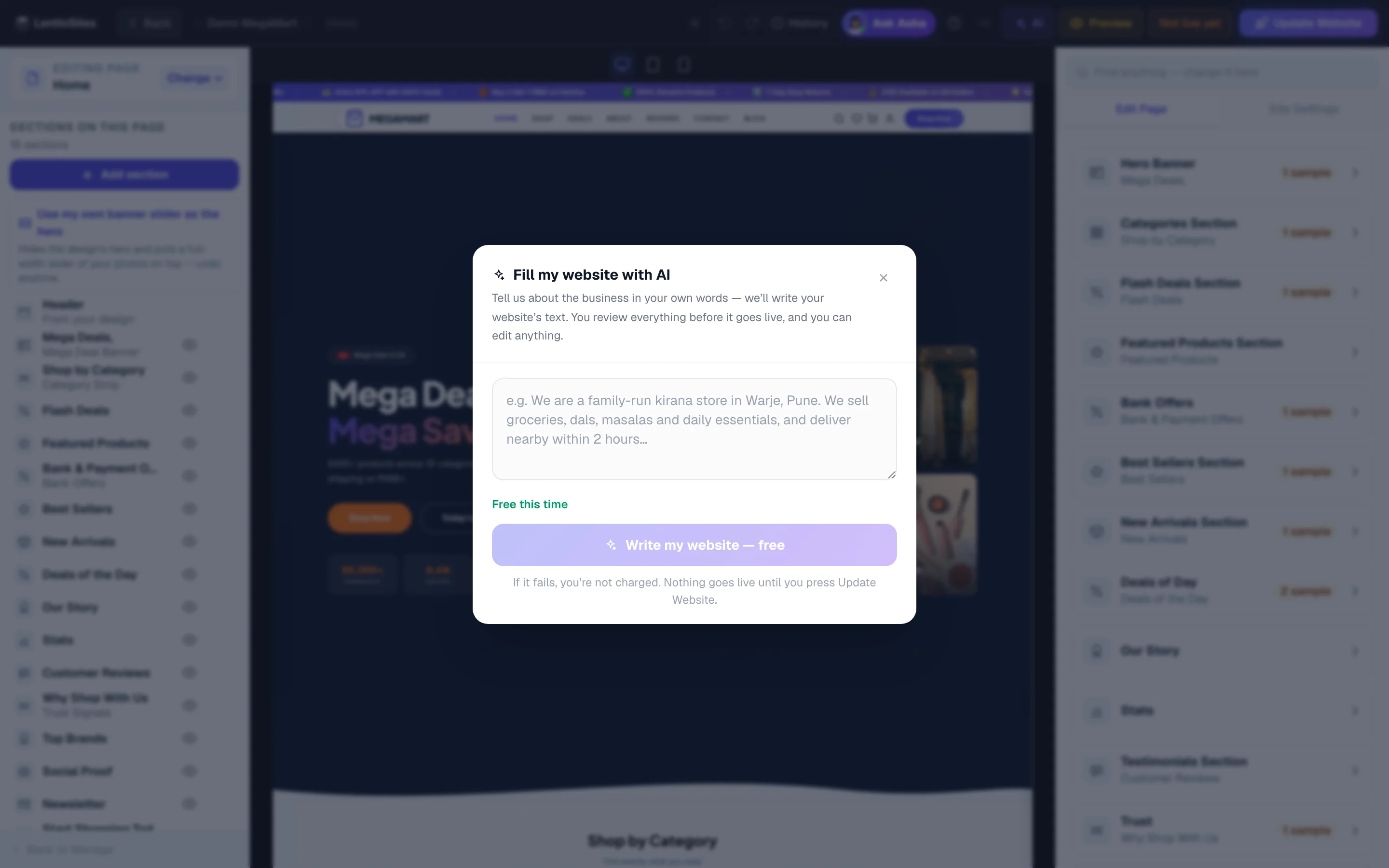
What it costs: your first AI fill on a website is free (the button reads Write my website — free). After that, each fill uses 10 Asha answers — your free daily answers first, then your packs — and only when it works; if it fails, nothing is used. The fill window may still show a rupee figure from your Lentlo Credits beside the button; the fill itself is paid with Asha answers (see Asha answers). Only the account owner can run a fill. (Window says AI fill isn't available for this design yet? Then your design has no AI fill.)
Add and manage pages
Most designs come with the pages a shop needs — Home, About, Contact — and you can add ready-made pages any time your business grows.
Add a page
Open the page list (Change beside the page name) and press Add Page at the bottom of the list. Search or browse ready-made pages — every word and photo on them is editable after you add one, and every one of them takes the same section tools.
Manage a page from its ⋯ menu
Hover a page name and click ⋯ for Page Settings (name, link, menus, and its Google & sharing part: Title in Google, Description in Google, the share image, a How it looks on Google card and a Hide this page from Google switch — the Google & sharing card at the foot of the Edit Page panel opens the same part directly; see Your title, description and share picture), Move Up / Down (changes menu order), and Disable — which takes the page off your site without deleting it. Custom pages can also be duplicated or deleted.
You can still open a disabled page to work on it: an amber line at the top of the preview says it is switched off and not on your website, and the preview's menus leave it out, as your live website does. To put it back, choose Enable in the same ⋯ menu, then press Update Website.
A page can also be on but still not on your website because a switch is off — the Rewards page while your reward program is off, the Blog while it is switched off. Its row then shows a small amber Not live tag, the preview says which switch puts it on the website (Dashboard → Loyalty, or Settings → Appearance → Blog section), and the View links stay hidden until then.
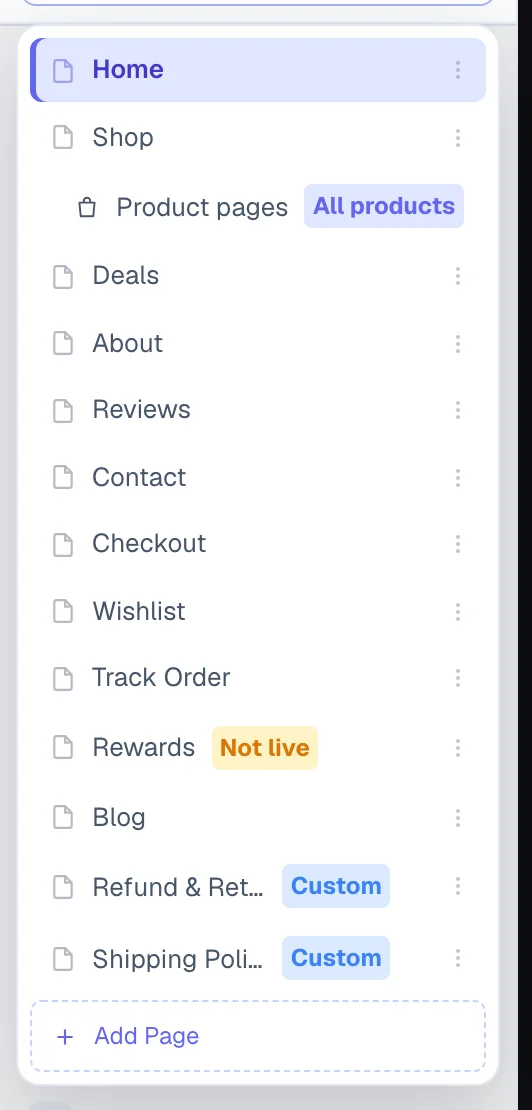
Your Checkout and Cart pages can't be disabled — customers need them to buy, so the editor refuses. For other pages, remember Disable takes the whole page down, so old links to it stop working. If you only want to tidy your menus, use Header & Footer instead.
Drafts vs live — the Update Website button
This is the most important thing to know: nothing you do in the editor is shown to customers until you press Update Website — so you can experiment freely.
Edits save automatically as drafts
A moment after you stop typing, your work is saved — watch the little dot in the top bar (amber = saving, green = saved). Your live website keeps showing the old version.
Check your draft with Preview
The amber Preview button opens your saved draft in a new tab — customers can't see this link. Inside the editor, use the phone / tablet / desktop icons above the preview to check how everything looks on a mobile screen.
Press Update Website to go live
When you're happy, press Update Website in the top bar (it says Publish Website the very first time). It saves any last edits first, then puts everything live in a few seconds.
On a big catalogue at a busy moment you may instead see “Your update is queued and goes live within a few minutes — you can keep working.” That is not an error: the pages are being built in the background, the Not live yet chip stays until they are, and the editor tells you the moment your site is live. Keep editing meanwhile.
Until the update lands, the Visit and View Page links say Going live… — opening them then would only show the old version. An edit you make while an update is going live is saved, but it may not be part of that update: the Not live yet chip stays, the editor tells you so, and one more press of Update Website puts it live.
See what's waiting — or throw a draft away
Whenever your draft differs from the live site, an amber Not live yet note appears beside the Update button — even edits from days ago are remembered. Tap it to see exactly which settings and pages are waiting — page settings too: a page's name, address, menu or search text, a page switched on or off, the order of pages. Rows marked Also goes live when your shop republishes itself (Site Settings, page settings, a page you deleted) go live with a product, price or settings save too; everything else waits for Update Website. Changed one thing by mistake? Press Put back on that row and only that item returns to what your live website shows — page settings too. Changed a lot? Press Discard draft there and your live website stays exactly as it is, page settings included (the draft's words, photos and blocks are kept as a backup in Version History, just in case). A page setting that cannot go back — say another page now uses its old address — stays as it is, and the editor tells you why. Which page is your home page is the one row without a Put back. A team member who may not change the loyalty points, a car dealer's booking amount or the phone and WhatsApp numbers can't discard a draft that changes them — the list tells them so, and they put back their own edits one by one.
And if you press Update Website while older saved edits are waiting, the editor shows you that list first and asks — so an edit you made days ago can never slip onto your live site without you seeing it.
This draft system covers what you change in the editor — text, photos, sections, pages. Things you change from the dashboard, like products, blog posts and settings, go live on their own as soon as you save them.
Two numbers in the editor's Site Settings work like dashboard settings: the loyalty points (what a ₹100 order earns and what 100 points are worth) and a car dealer's booking amount. New orders use a change as soon as it is saved, while your pages keep showing the old number until you press Update Website — the line above those fields says so. When your Loyalty page has its own numbers, those are the ones in use, and the line tells you to change them there.
The Redemption field (₹ per 100 points) takes the rupees 100 points are worth — 20 means ₹20 off for 100 points — or a rate like ₹1 = 100 points (₹1 for 100 points works too). A text with more numbers that is not a rate, like ₹1 = 100 points only, is not saved: the line under the field says why, and nothing else is saved until you change it.
Version history — your safety net
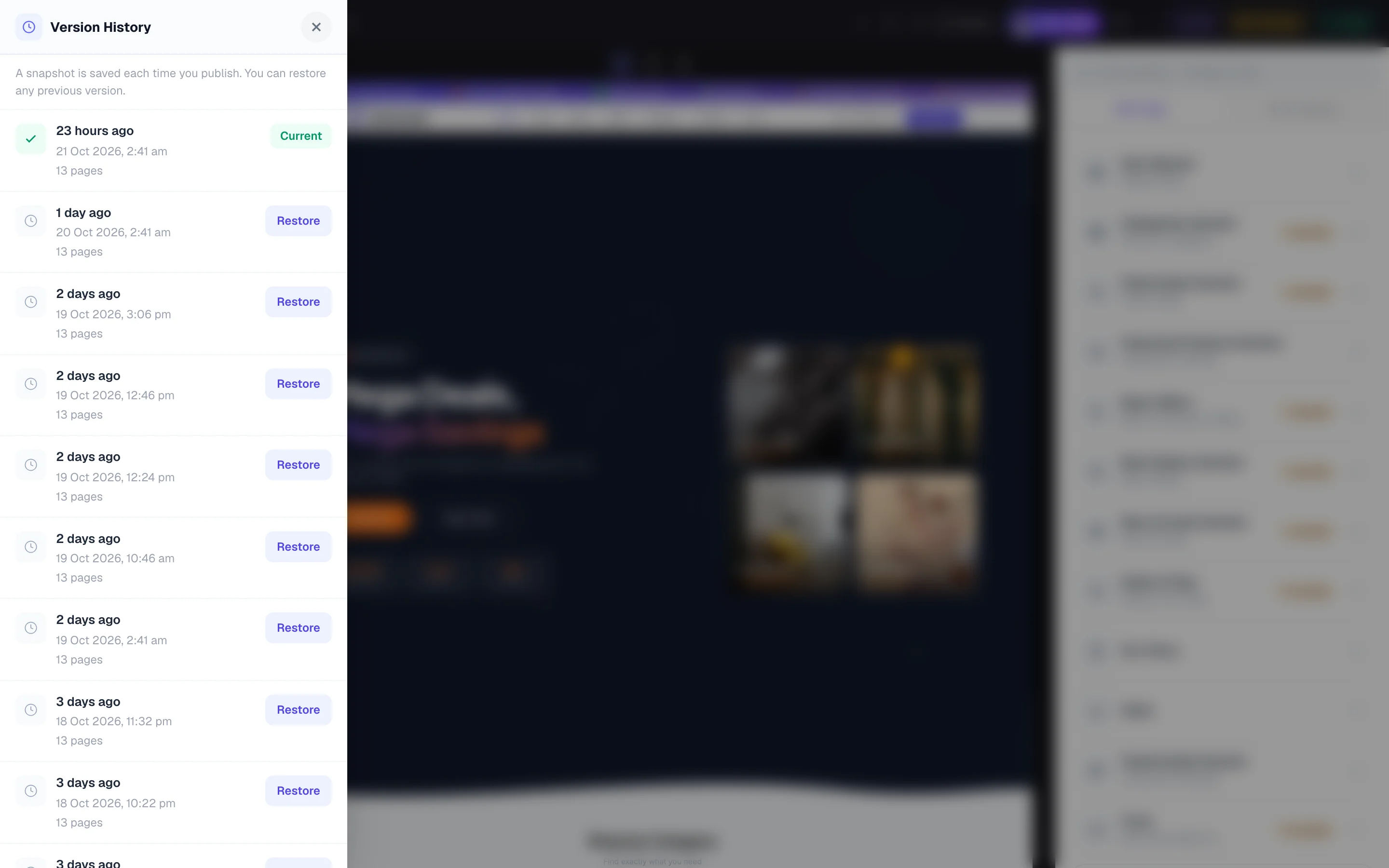
Every time you publish, we keep a snapshot of your whole site, so a bad change is never permanent.
Open Version History
On a computer, click History in the top bar (next to Undo / Redo). On a phone, it's in the chip row under your site name and as a card at the top of the Site Settings tab. You'll see your last 20 versions with dates — the ones you published, and copies saved just before a big change (marked, for example “Before the AI wrote your words”). The version your website shows now says Current.
Restore any version
Press Restore on the version you want. Your current work is saved as its own version first, so even a restore can be undone. After restoring, press Update Website to put the restored version live. A team member who may not change the loyalty points, a car dealer's booking amount or the phone and WhatsApp numbers in Site Settings can't restore a version that would change them — nor one that brings back a phone number, WhatsApp or call link or UPI ID your website no longer uses anywhere. Nothing changes, and the message says who can do it.
Editing on your phone
The whole editor works on a phone. The preview fills the screen; the tools live in the bottom bar — Pages, Edit Page, Asha, Site Settings, Find.
On a phone the preview opens on your website's phone layout, at real size — what your customers see on their phones. The three small buttons above the preview (computer, tablet, phone) switch to the computer or tablet layout whenever you want to check those.
Tap anything in the preview
Tap a section and the editing panel slides up with just that section's fields. The ‹ chevron in the panel header takes you back to all sections; the Text & photos / Sections & layout switch at the top of the panel moves between that section's words and photos and the list of this page's sections (on a computer that list is the page outline on the left). With a header, footer or bar block open, the panel's heading names that block and where it is set to show (the whole site, or the pages you picked).
Make the panel as tall as you like
Drag the grey handle at the top of the panel up or down to any height — it snaps to small, medium or tall and remembers your choice. The ⇅ button next to the close cross cycles the three sizes. Drag it right down to close.
Find anything fast
The Find tab searches every field and every section by name — type “phone”, “offers” or “slider” and jump straight there.
Your phone's keyboard hides the bottom of the panel? Tap a field and the panel scrolls it into view automatically. For long jobs — rewriting an About page, arranging ten sections — a computer is still the more comfortable place, and your draft is the same on both.
Stuck? The ? help panel
The ? button in the top bar opens quick answers without leaving the editor — grouped into Sections & layout (the section list), Text & photos (the cards), Header & logo, Pages, Going live, On your phone and AI.
Type what you want to do (try “slider”, “phone” or “full width”) — answers that point at a field have a Take me there → link that jumps you straight to it, and every answer links back to the matching part of this guide. The foot of the panel carries Open the complete editor guide, Show me around the editor, Replay the welcome tips and — where your website is on LentloSites — Chat with support.
Ask Asha inside the editor
The same helper you have on the dashboard is in the editor too. On a computer the Ask Asha button sits in the top bar, right next to the ? button (on a narrower screen it shows just her face), so it never covers the editing panel; on a phone the Asha button sits in the middle of the bottom bar — tap it to type, press and hold it to speak. Each reply in the editor chat uses 4 Asha answers (see Asha answers). The ? panel's Ask Asha row opens the same chat.
Ask about one section (1 Oct 2026). A section's ⋯ menu — in the page outline, on the bar that shows when you point at a section, or the menu you get by right-clicking a block you added — has Ask Asha about this section. The chat opens with the section and the page already written in (“About the “Hero” section on my Home page:”), so you only type your question; nothing is sent until you press send. When the Find box has no answer for a phrase like “make the hero darker”, its last row Ask Asha: “make the hero darker” opens the chat with your own words. A team member with Words & photos only does not see these — Asha's changes in the editor need Edit the website. On a website an agency looks after, they read Ask about this section and show only when the agency has switched its assistant on.
Ask her what a page contains, to change a heading or a button label, to switch a page off, or what is not live yet. Every change she prepares shows a card first and applies only when you tap Confirm; it goes live when you press Update Website, not before. Close the chat with the × at the top-right, by tapping the page behind it, or on a phone by swiping the chat down or pressing the back button.
“Where do I change this?” (20 Sept 2026). Point at anything you can see on your website — “the © 2026 line in my footer”, “the message my WhatsApp button opens with” — and she finds that control in your own design, tells you where it sits and what it says today, even when no help guide mentions it. If it is a piece of wording, she can also change it for you: a card shows the old words and the new ones, it applies when you tap Confirm, and you can undo it. Prices, fees, phone numbers, addresses, links and passwords are never changed this way — for those she tells you which screen holds them, and you make the change yourself.
Building with her (17 Sept 2026). On a section-built page she can also add a section, duplicate one, change a section's design style (the choices its Look tab offers — never a made-up one), or create a whole new page from a ready-made layout or from the sections you name. A card for any of these shows a small preview of the page as it would look, in your own colours; a new page is created switched off and out of the menus, so nothing shows to customers until you turn it on. She only uses the sections and choices the editor already has — a brand-new kind of section is a design request, not a chat.
Legal pages (17 Oct 2026). Ask her for your Privacy Policy, Terms & Conditions, Refund & Return Policy or Shipping Policy page. A missing page is made with the same standard words as the Legal page maker, filled with your business name, phone, email and address; it is switched on and listed in the footer's policy links. The card shows what those words promise your customers (for example, returns within 7 days) and names any business detail that is missing, so read it before you confirm. Paste your own policy instead and she uses exactly your words. A page you already have changes only to words you give her (or the change you name); Undo on the receipt returns the old words. Like every editor change, it goes live when you press Update Website.
Pictures in the chat. The paper-clip attaches an image two ways: Just look at it (she reads it — a screenshot of where you are stuck, a design you like, a menu — up to fifteen pictures a day) or Use on my website (the picture also goes into your website's photos, the same as an upload in a photo field, and she can place it: on a section from the editor chat; as your logo, on a product or on a category's tile from the dashboard chat). Tell her where it goes. If your message already says so (“use this as my logo”, a product's name and price beside its photo), the picture is saved even when it was left on Just look at it. A photo already in your library is found by its name — the dashboard's Media Library lists every photo you uploaded.
Beyond your dashboard. For a step on another company's screen (Google Play, Search Console, Meta ads, Cloudflare, your domain company) she can read that company's own official help page from our checked list and quote it, with the link under her reply — she never treats such a page as fact about your account. Asked how another builder compares, she quotes their public, dated price page beside your own plan prices and fee, tradeoffs included, and leaves the decision to you.
Putting a change back. Each card's receipt has an Undo button for 10 minutes. In the chat, she puts a change back only when you ask for it in that message and name which one (“put the FAQ layout back”); if two changes could be meant she asks which. A page she created is removed by “put back” only while it is still exactly as she made it — once you have renamed, edited or turned it on, it stays, and you remove it from its Page settings instead.
What's new in the editor (30 Aug 2026)
A round of speed-ups for people who build a lot. Nothing here changes a published page by itself — every one of these is a faster way to do what you already could.
Tabs on every block
Content · Look · Layout · Advanced — the same controls, grouped so a long block is never a scroll; the quick bar's three (width, space, Show on) sit on Layout too, with their finer settings.
Right-click (long-press on phones)
Duplicate · Copy · Paste below · Save as block · Move · Hide · Delete · Copy to page ▸ — on any row of the section list, and in the ⋯ menu of the bar on the preview.
Keyboard
⌘D duplicate, ⌘C / ⌘V copy & paste (across pages), ⌘⇧S save as block, Delete on a focused row, ⌘K find anything.
Drag from the library
Drag a card from Add section straight onto the preview or between two rows in the section list — the line shows where it lands.
Real thumbnails
Hero-class blocks and the header / footer looks preview in your own colours and name before you add them.
Empty page coach
A blank page offers its header and footer slots, the library, a ready-made layout and the capability switches — plus a 4-step tour.
Design system
Site Settings → Design system: fifteen site-wide controls — corners, photo corners, shadows, button fill/shape/text, heading weight and style, content width, space between sections, text links, form fields, page background and body text colour — with a live preview card. Leave everything on Default to keep today's look.
Advanced → Custom CSS
Per block, for your developer: scoped to that block only, checked as you type, never able to touch checkout or your other pages.
Header, footer, announcement bar, phone bottom bar and your own 404 page are blocks now — Header, footer & site-wide blocks. Stores can also build the shop and product pages from blocks — Custom shop & product pages.
Quick questions
Why isn't my change showing on my website?
Edits wait as drafts — press Update Website in the top bar and they go live in a few seconds.
How do I make a section full width?
Open the block's card and tap Full under Width in its quick bar. Only blocks you added have a width control — your design's own sections keep the design's layout.
My slider shows empty bands beside the photo.
Turn on My slides are ready-made banners and keep Banner size on Follow the first banner. Add a Phone version so phones get a square or portrait cut instead of a thin strip. A banner of another shape fits inside the first one's box with soft blurred edges — pick plain colour edges or Fill the box under Banners of a different shape if you prefer.
Can I hide a section only on phones?
Yes — the quick bar's Show on icons (also on the block's Layout tab). Tap the phone icon to hide it on phones; it stays on tablets and computers.
Will editing break my live site?
No. Customers keep seeing your current site until you publish, so you can try things without worry.
I deleted something by mistake.
Press Undo right away, or open Version History and restore your last published version.
Can I edit from my phone?
Yes — the whole editor works on a phone with the Pages / Edit Page / Asha / Site Settings / Find tabs at the bottom, and a panel you can drag to any height.
New to LentloSites? Start with creating your first site, then take the tour of the Manage page to see everything beyond the editor.
More in Start here
Did this answer your question?
It takes one tap and it genuinely changes what we write next.