
Customer notifications — free app push + WhatsApp from your number
Automatic order updates on WhatsApp and free app push, your own wording, offer broadcasts with scheduling, and abandoned-cart reminders — all from one page.
Watch0:456 min readUpdated 21 Oct 2026
In this guide
What the Notifications page does
Notifications are messages that pop up on your customer's phone — like the ones Amazon or Swiggy send. Use them so customers always know where their order is, and to bring them back with offers. Open Notifications in your site's sidebar to find everything below on one page.
Automatic updates
Order placed, shipped, delivered, booking confirmed — sent for you automatically. No typing.
Your own wording
Tap any event and write the exact title and message customers see.
Broadcasts
Festival sale? Restock? Write it once and it lands on every subscriber's phone. Free.
Cart reminders
A free automatic nudge to customers who added items but didn't finish checkout.
Turn on customer notifications
App notifications are off until you switch them on — you stay in control. Once on, your store starts inviting customers to subscribe.
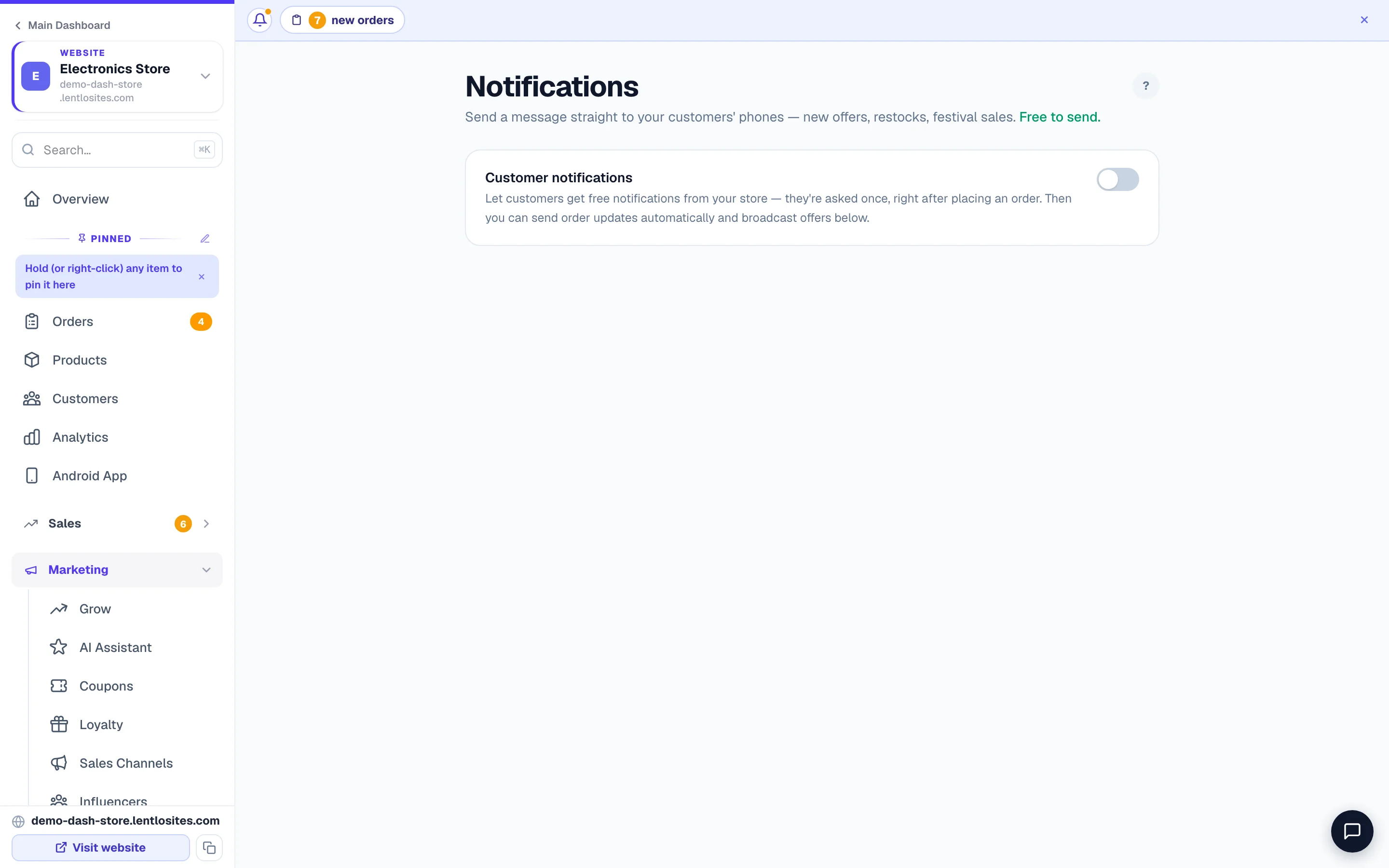
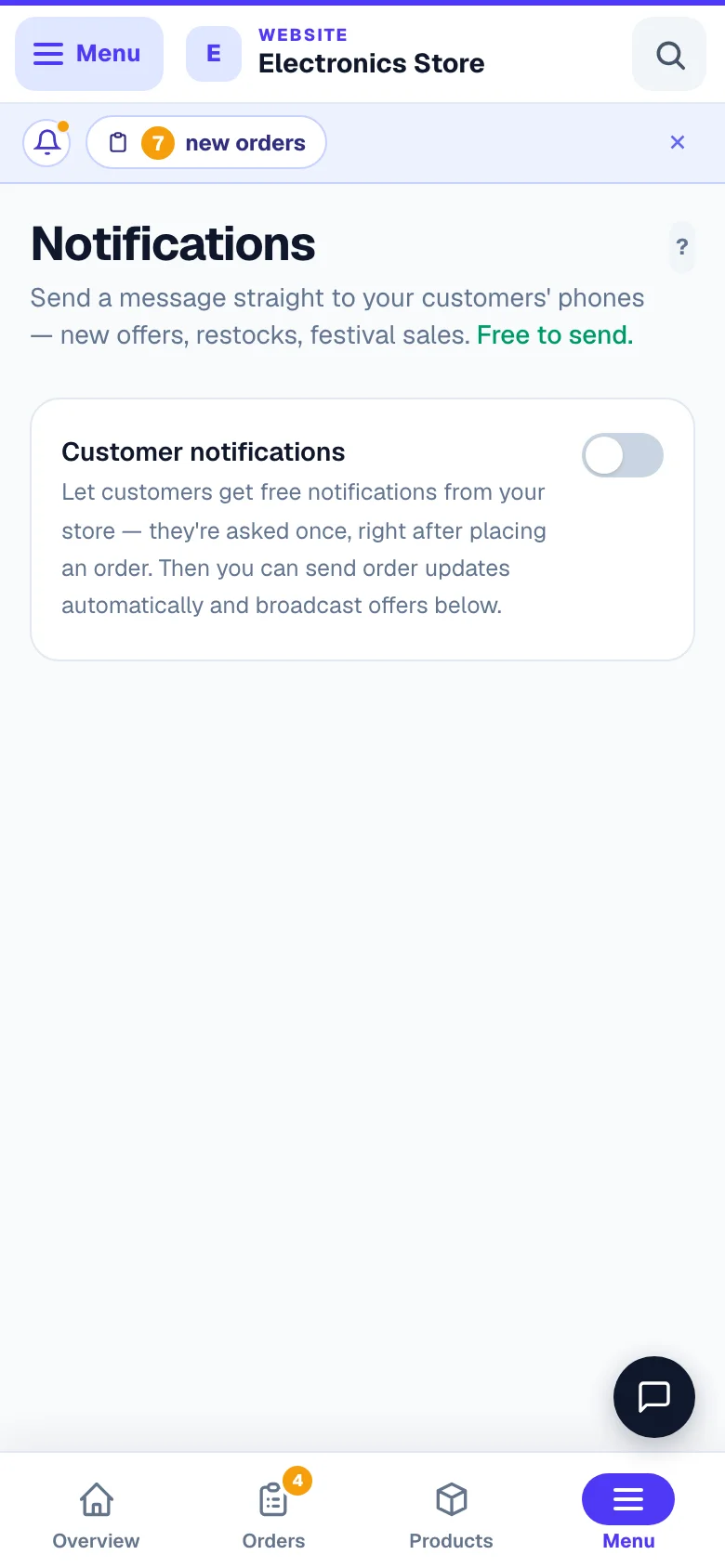
Open Notifications and flip the switch
The Customer notifications switch sits at the top of the page. Turning it on also updates your live store, so the subscribe invite starts working right away.
Customers subscribe on your store — you do nothing
Customers are asked once, right after they place an order — the moment they most want updates. People who install your app can also allow notifications there. Your store never nags visitors on a plain page load.
Watch the subscriber count grow
The page shows how many people have notifications on, and how many of them are signed-in customers you can send order updates to. Want more subscribers faster? Turn on the in-store Install button — see Your own customer app.
- 1Message matrixWhich message goes out on which channel, per event.
On iPhone, notifications reach customers who added your app to their home screen. On Android, they reach anyone who tapped Allow. That's how phones work — not a setting you're missing.
Automatic updates — the WhatsApp + app push matrix
The list is the same on every website — it holds every message the platform can send, so rows for things you don't sell (auctions, rentals, loans, reader passes, prescriptions) simply never fire and can be ignored. It is a simple table: one row per event (Order placed, Order confirmed, Shipped, Out for delivery, Delivered, Ready for pickup, Order cancelled, Booking confirmed, Appointment reminder, Appointment rescheduled, Booking cancelled, New enquiry, Booking change by customer), with a WhatsApp column and an App push column. When an order or booking changes, the app pushes you switched on fire automatically, and so do the WhatsApp messages your own number has switched on — you never type these messages.
- WhatsApp — read-only here, because WhatsApp messages go only from your own WhatsApp number: we never send your customers WhatsApp messages from ours. Each row says On when your connected number sends that message from this website, Off when it does not, and — when there is no WhatsApp message for that row. Tap On or Off to open WhatsApp → Order & store updates, where each message is switched on with its approved layout. The note above the table says it plainly when no number is connected (customers then get no WhatsApp at all), when the number is disconnected, or when WhatsApp is not part of your account. While app notifications are switched off the table is hidden, and that note stays on the page in its own WhatsApp updates to customers card. A customer who replies STOP to your number gets no further messages from it.
- App push — every event has its own switch. Order placed, confirmed, shipped, out for delivery, delivered, Booking confirmed, Appointment reminder, Appointment rescheduled and Booking cancelled start on; Order cancelled, Ready for pickup, Subscription paused (wallet low) and the two alerts you rows for enquiries and booking changes start off. Delivery address approved and Delivery address declined push the customer the moment you decide on an address they requested (for stores using Delivery address control; both start on).
- Auction events — four rows for stores running auctions: Outbid (a higher bid replaced theirs — tap to bid again), Auction won (with their payment link), and Watched auction started / ending soon (only for customers who tapped ★ Watch on a lot). All four start on.
- Vehicle rental — its own set: documents needed / verified / re-upload, pickup and return reminders (3 hours before), vehicle overdue, extension confirmed, payment received, rental settled, no-show and a review request after the ride — plus two that alert you: Vehicle document expiring and Vehicle overdue. All start on.
- Finance websites — two rows: Documents pending — reminder (nudges a borrower whose requested documents are still pending, two and five days later) and Loan Desk morning summary — alerts you (your own morning summary of follow-ups due, files past their time and partners waiting). Both start on.
- Order requests — two rows for stores that confirm orders first: Order request received (the customer hears you are checking it — nothing charged yet) and Order request — can't accept (sent when you decline one, with your reason — never as “Order cancelled”). Both start on. Your own WhatsApp number sends them once you switch on their automations in the WhatsApp hub.
- New enquiry — alerts you — one of the rows that messages you, not the customer: a push to your own phone the moment a contact-form, loan or sell-car enquiry lands. It starts off; turn it on if you want leads on your lock screen (subscribe to your own store's notifications first, with the same phone number you use in Business Info). A WhatsApp version lives in the WhatsApp hub's store-notifications card, sent from your own API number to yourself.
- Google / Instagram listing rejected — alerts you (stores) — also to you: a push the moment Google Shopping or the Instagram & Facebook catalog rejects a product, with the product and the fix in plain words (“2 products need a fix on Google — Steel Bottle: photo too small”). On by default when app push is on; one alert per new problem, at most three a day. Tap it to land on Sales Channels. The WhatsApp version is the listing rejected automation in the WhatsApp hub.
- A model sold out / running low — alerts you (stores) — a push to you when a choice that keeps its own stock (a phone model or a size of blank on a personalised product) sells out or drops to a few left, naming what and how many (“Sold out: Vivo V40 Pro · Only 2 left: Samsung Galaxy S24”) so you can restock or pause it. On by default when app push is on.
- A prescription to check — alerts you (pharmacies) — a push to you when a customer sends a prescription from your shop's private prescription page. It says only how many are waiting (“2 prescriptions are waiting”) — never the medicine or who sent it, because anyone holding your phone can read the lock screen. On by default when app push is on; at most one every 15 minutes and twelve a day (the Pharmacy Desk still counts every one). Tap it to land on the Pharmacy Desk. There is no WhatsApp version yet.
Stores running repeat deliveries also get a Subscription paused (wallet low) row, and Booking change by customer — alerts you pings your own phone when a customer moves or cancels their slot. Each switch saves the moment you tap it, and applies to new orders immediately. Order placed fires on its own at checkout; the rest go out when the order's status changes — on the Orders page or via your courier's tracking — and Booking confirmed when you confirm a booking. Appointment reminder fires on its own for confirmed bookings — once about a day before the slot and once about 3 hours before — so customers don't forget (push is on by default; WhatsApp joins once you switch on its approved layout in the WhatsApp hub). News websites have two of their own: Reader pass ending (3 days before and on the day a reader pass ends, with a renew link) and Reader pass received as a gift (to the person a pass was bought for) — both on by default for push, WhatsApp when mapped.
Edit the wording customers see
Every app-push update has friendly built-in text, but your own voice sells better — a sweet shop and a hardware store shouldn't sound the same.
Tap the event name
In the matrix, tap an event (you'll see a small pencil ✏️). An editor opens with a Title and a Message box. The built-in wording shows as the placeholder.
Write your message with the two magic words
Type {store} where you want your store name, and {order} where you want the order number. Example: “{store} has packed order {order} — it leaves today!” The phone preview beside the boxes shows exactly how it lands.
Save — or reset any time
Press Save wording. Leave a box blank to keep the built-in text for it. Reset to default brings back the original wording whenever you want.
Send a broadcast — offers, restocks, festival sales
A broadcast is one message you write that goes to every subscriber's phone at once — perfect for a Diwali sale, a fresh stock alert, or a weekend offer. Free, every time.
Write the title and message
The Send a notification box appears once at least one person has turned on notifications from your store. Keep the Title short and punchy (“Diwali Sale — up to 40% off 🎉”), write the Message, and under When tapped, open put a page of your store — /shop/ works well — or a full https:// link. An optional Image shows as a wide banner under the message on Android phones. The phone preview shows how it lands.
Choose who gets it
Three choices: Everyone who installed, My customers only (subscribers linked to a customer account), or Win back inactive customers — customer subscribers with no order in the last 30 days.
Test it on your own phone first
Tap Send test to my phone to see exactly how it lands before anyone else does. Then press Send now (it shows how many phones it will reach). Sent notifications can't be recalled, so give it a quick read. If nobody matches the group you chose (for example no inactive customers right now), nothing is sent and the page says so.
Don't overdo it. One or two good broadcasts a week keeps customers happy; daily pings make them switch notifications off. The page also stops you after 5 broadcasts in one hour.
Schedule a broadcast for later
Evening hours get more eyes than a busy morning — write the message now and let it send itself at the right time.
Flip on Send later in the composer, pick a date and time (at least a couple of minutes from now, up to 90 days ahead), and press Schedule. It appears in your history as Scheduled and goes out on its own at that time.
Cart reminders — win back people who almost bought
Many shoppers fill a cart and get distracted. This switch sends them a free automatic nudge — “your cart is waiting” — about an hour after they leave, and at most once per cart. Tapping it takes them straight back to checkout.
Turn on Remind customers who left a cart (it appears under the master switch once notifications are on). To also recover carts over WhatsApp — with the customer's phone number and cart value listed for you — see Abandoned carts.
What's free, and what WhatsApp covers
Short version: everything on this page that says “push” or “notification” is free — automatic updates, broadcasts, and cart reminders, with no per-message charge and no monthly limit on subscribers.
- App push (free) — needs the customer to have subscribed on your store. You control every event and every word here.
- WhatsApp (from your own number) — connect your WhatsApp Business API number and switch each message on in WhatsApp → Order & store updates. Meta charges its own message fees on your WhatsApp account; we add none. Without your own number, customers get no WhatsApp updates.
They work best together: WhatsApp from your number reaches everyone who ordered, push reaches your app subscribers instantly, and the Track Order page always shows where the order is — so your customer never wonders “where is my order?”
Email notices — receipts for customers, alerts for you
When email notices are available for your shop, an Email notices card appears at the top of this page. If you do not see the card, email notices are not switched on for your shop yet — nothing else on the page changes.
- To your customer — a receipt for each order, payment and booking, when they gave an email address at checkout. It is sent under your shop's name; once your own address is confirmed, a customer who replies reaches you.
- To you — an alert for each new order, payment, booking and enquiry. Alerts go only to an address you have confirmed: tap Send me the confirmation link, open the email within 30 minutes and press Confirm my email address. Team members who look after enquiries get enquiry alerts at their own confirmed address.
- Orders that wait for you — the order emails say the same thing as the order's other updates. If your shop confirms orders first, the customer gets “We have your order request” (nothing charged, no total yet) and your alert says New order request — confirm it. If you add the delivery charge after the order, both emails show the total so far and that the delivery charge follows. A pharmacy order that needs a prescription tells the customer where to send it, and your alert opens the Pharmacy Desk.
- Pharmacies — a pharmacy's emails never name a medicine: the order shows one line, “Items”, with the number of items and the amount. Opens and clicks are never counted for a pharmacy's emails.
- Switching it off — the switch on the card stops every email for this shop until you switch it back on. App push, WhatsApp and SMS are not affected.
Email design — how your emails look
Open Email design from the Email notices card. Pick one of six designs — Classic, Banner, Minimal, Boutique, Fresh or Receipt — then make it yours: your main colour (or your website's own colour), a highlight colour, the background, the font, the corners, the button, your logo's size and position, a short line under your shop's name, and the moving picture at the top. The preview beside the controls shows exactly what goes out — switch it between phone and computer, light and dark, and between the order, payment and booking emails. Press Save design and your next emails use it.
- Your words — a line of your own for the order, payment and booking emails, a closing note and a sign-off. They appear only in your customers' emails, never in the alerts that come to you. Plain text only — links are not allowed.
- Ways to reach you — your phone, WhatsApp, address and social links can show under customer emails. They come from your Business Info, so update them there.
- Colours always stay readable — whatever colour you pick, the text on it is chosen to stay easy to read.
- The moving picture plays twice and stops. Outlook on Windows shows it still, and it is hidden for people who have asked their phone to reduce motion. Switch it off if you prefer a still email.
- If your logo already shows your shop's name, switch off Show my shop's name so the name does not appear twice.
- Before your website is published (or while it is offline), emails show your shop's name in place of your logo. The logo appears once the website is live — the preview shows the same, with a note above the logo settings.
- Your logo must be uploaded in Business Info to appear in emails. A logo stored somewhere else (pasted as a link to another website) is not used — emails show your shop's name instead, and the design screen says so.
Email report — what happened to your emails
Open Email report from the same card to see the last 7, 30 or 90 days: how many emails went out, how many were delivered, how many bounced (the address does not exist, or another reason), how many were marked as spam, how many were not sent and why (for example, no email address was given at checkout), and how long they took to reach the inbox. Below that: emails per day, each kind of email, your latest emails with their status, and the addresses that no longer get your emails.
“Delivered” means the customer's email provider accepted the email — not that someone read it.
Opens and clicks (an estimate). For your emails to customers, a tiny invisible image tells us an email was opened, and the email's button goes through a counted link before it opens your page. The report shows how many delivered emails were opened, how many were opened by the mail app only (Apple Mail and some other apps open every email by themselves to protect privacy, so those are shown apart and not counted as opened), and in how many the button was tapped at least once (security software can tap links too). Each of your latest emails says whether it was opened or tapped. Nothing is counted for the alerts that come to you or for the emails that confirm an email address, and no customer's IP address or device is kept. To stop counting, switch off Count opens and clicks on the report — your next emails go out without the image and the counted link.
Alerts for YOU — traffic spikes and your weekly summary
Besides customer notifications, LentloSites sends a few alerts to you, the owner, on your own phone:
- Traffic spike — your site got at least 3× its usual visitors for that hour (and at least 15 people) in the last hour.
- Quiet site — a site that usually sees 15 or more visitors in those hours had nobody for 6 hours, checked only between 11 AM and 10 PM.
- Monday weekly summary (about 9 AM) — visitors, page views, orders and sales against last week, for sites with at least 20 visitors that week.
Each comes at most once a day (the summary once a week). They arrive as app push on any device where you've installed your own site's app and allowed notifications, and on WhatsApp if you've set up the WhatsApp API hub with those events. They're on by default and only ever go to you.
WhatsApp alerts from the LentloSites number
LentloSites can also message you — never your customers — on WhatsApp from its business number +91 95668 68777 (shown as “Lentlo”), at the phone number on your account: a new order a customer placed on your website (orders you type in yourself are not sent), a new enquiry from any form, and a new booking (one waiting for its advance is sent once it is paid), each about a minute after it happens; plus your sign-in link when you sign up and a welcome after your first Lentlo Credits recharge. If your own WhatsApp API number already sends you that alert from the WhatsApp hub, that one goes instead. Your customers never get messages from this number — they hear on WhatsApp only from your own connected number. Reply STOP to the LentloSites number to stop every message from it (sign-in links included); reply START to have them back.
See how past broadcasts performed
The Sent notifications list at the bottom shows every broadcast — when it went, who it targeted, how many phones it reached, and how many people tapped it. Use it to learn which offers your customers actually open.
More in Customers & marketing
Did this answer your question?
It takes one tap and it genuinely changes what we write next.