
Understanding your Analytics
What every number on the Analytics page means — sales figures that come from your real orders (not estimates), the visit-to-order funnel, traffic sources, and your app installs.
Watch0:4510 min readUpdated 21 Oct 2026
In this guide
Where the numbers come from
Analytics mixes two very different kinds of numbers, and knowing which is which helps you trust them. It matters because visitor counts are always a little approximate, while your money numbers are exact.
Money numbers = your real orders
Orders, Sales and Avg bill are counted from actual orders in your Orders page — the same rupees, no estimates.
Visitor numbers = page views
Views, visitors, time spent and traffic sources come from people loading your pages. Known bots are filtered out.
- Every real sale counts — orders placed on your website and orders you added by hand (phone or WhatsApp sales) are both included in Orders and Sales.
- Cancelled, returned and RTO orders are left out — they are reversed sales, so they never inflate your revenue.
- Days follow Indian time (IST) — “Today” means today in India, not some foreign timezone.
- Screen time is real screen time — the clock runs only while your site is actually visible on the visitor's screen; minutes spent in other apps or tabs don't count. “Typical visit” is the middle visit (half stayed longer, half shorter) — more honest than an average that one long visit can distort.
- Your own visits don't count — any device that opens your website from the dashboard (yours or your staff's) is recognised and kept out of every customer number. Those visits appear separately in the Team tab, where you can also see what your staff opened and when.
- Support browsing doesn't count either — if LentloSites (or your website provider) opens your dashboard or site to help you with something, that browsing is kept out of your numbers too.
Why this matters: many analytics tools guess revenue from browser signals, which miss sales when a customer's phone loses connection at the wrong moment. LentloSites reads your order records instead — so the Sales figure here is the truth, matching your Orders page rupee for rupee.
Open Analytics and pick a time range
Analytics is one tap from anywhere in your site's dashboard — check it with your morning tea to see how yesterday went.
Open it from the sidebar
In your website's dashboard, tap Analytics — it is pinned near the top of the sidebar (after your main daily items, such as Orders, Products and Customers on a shop) and also sits in the Sales group. You'll see the tabs Overview, Visitors, Pages, App, Live and Team — and on E-commerce and car-dealer websites a Profit tab too, which follows the same date choices, so you can read profit for exactly the period you pick (its figures need cost prices on your products). On a phone they sit in one neat row under the title, always all visible.
Choose a period
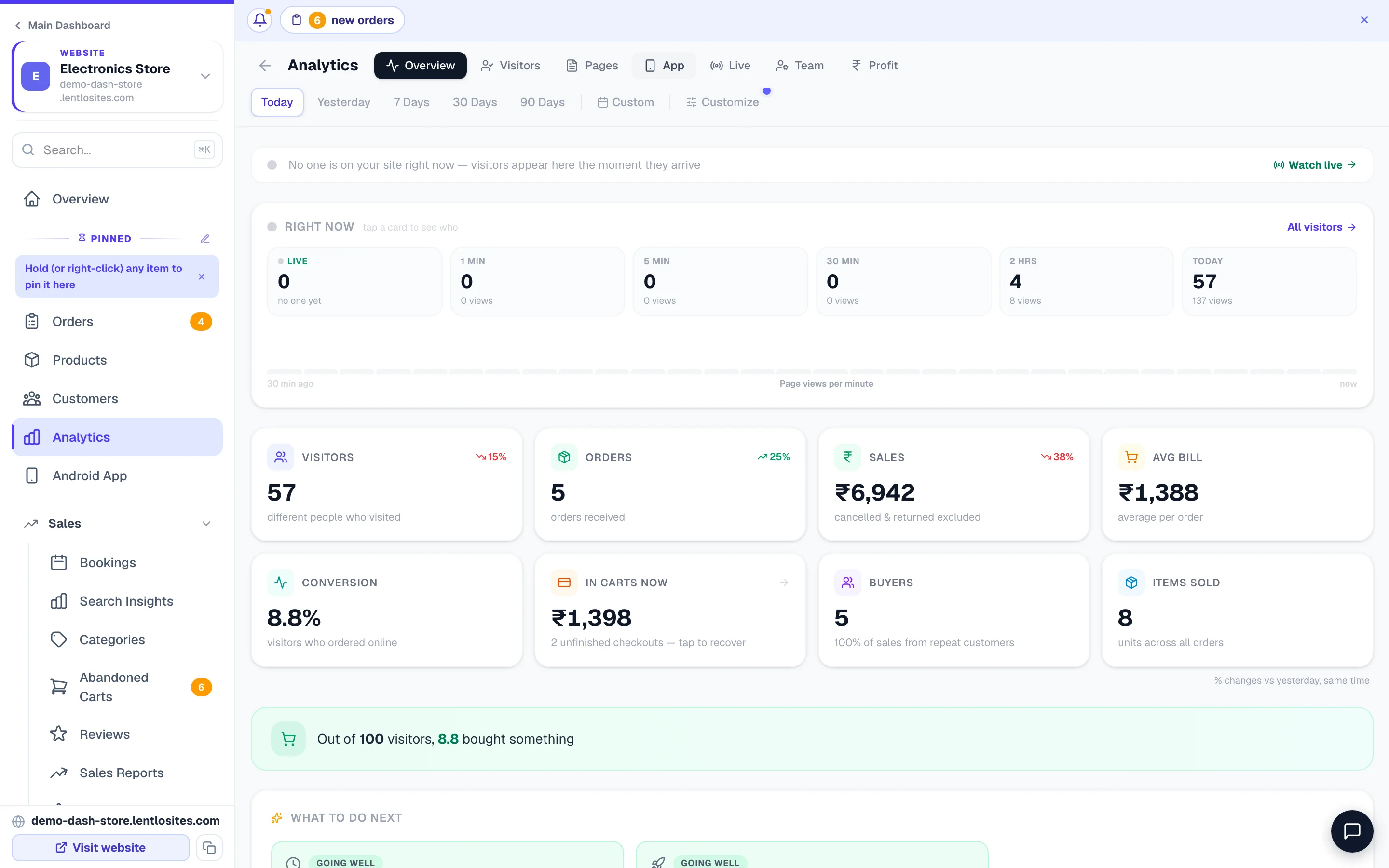
Analytics opens on Today so you always land on what's happening right now. Pick Yesterday, 7 Days, 30 Days, 90 Days or Custom for your own date range. Every card updates to that window, and the small up/down arrows compare it against the period just before it. Today is compared fairly — against yesterday up to the same time, not the whole of yesterday — and Today/Yesterday show an hour-by-hour chart instead of day-by-day.
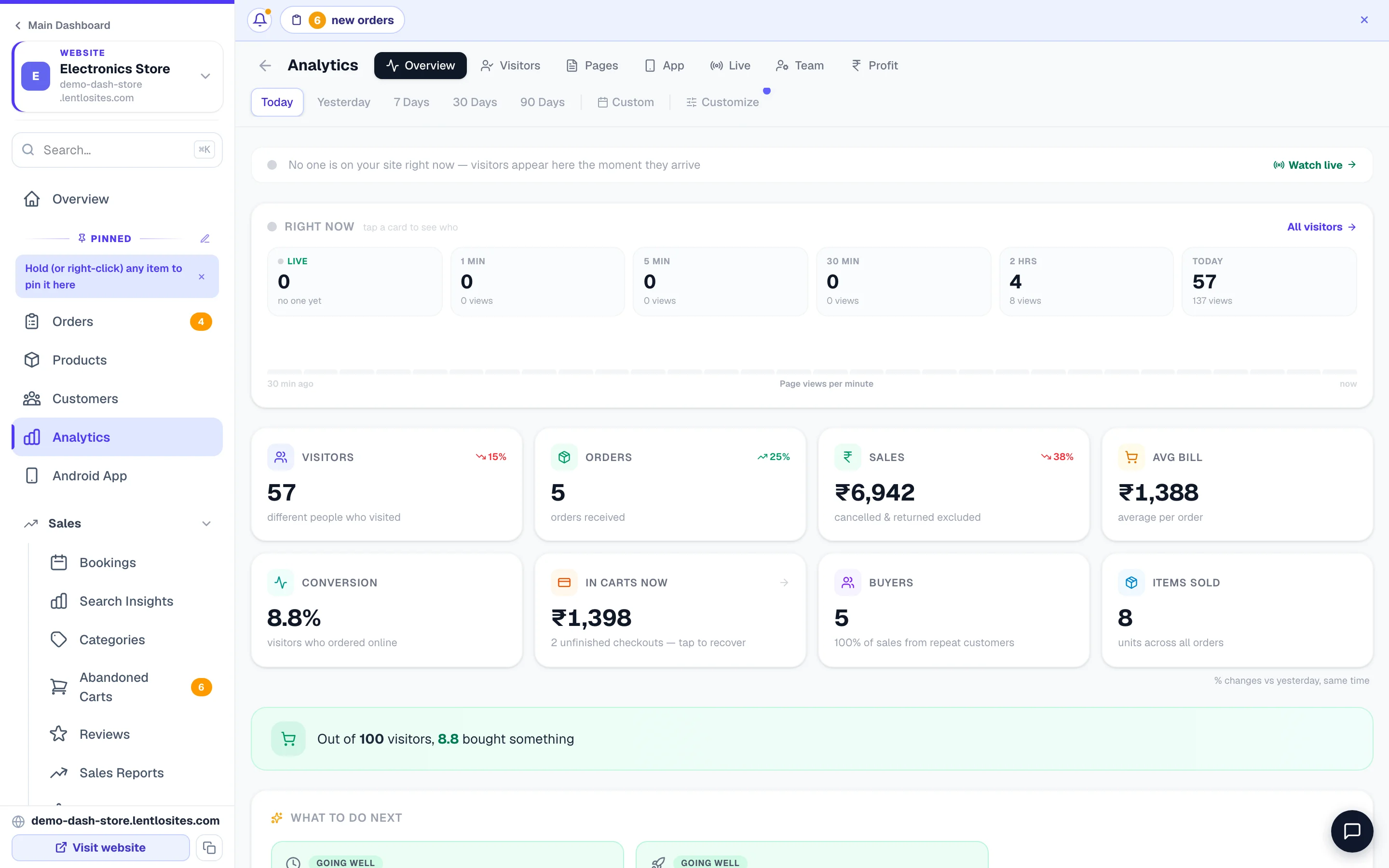
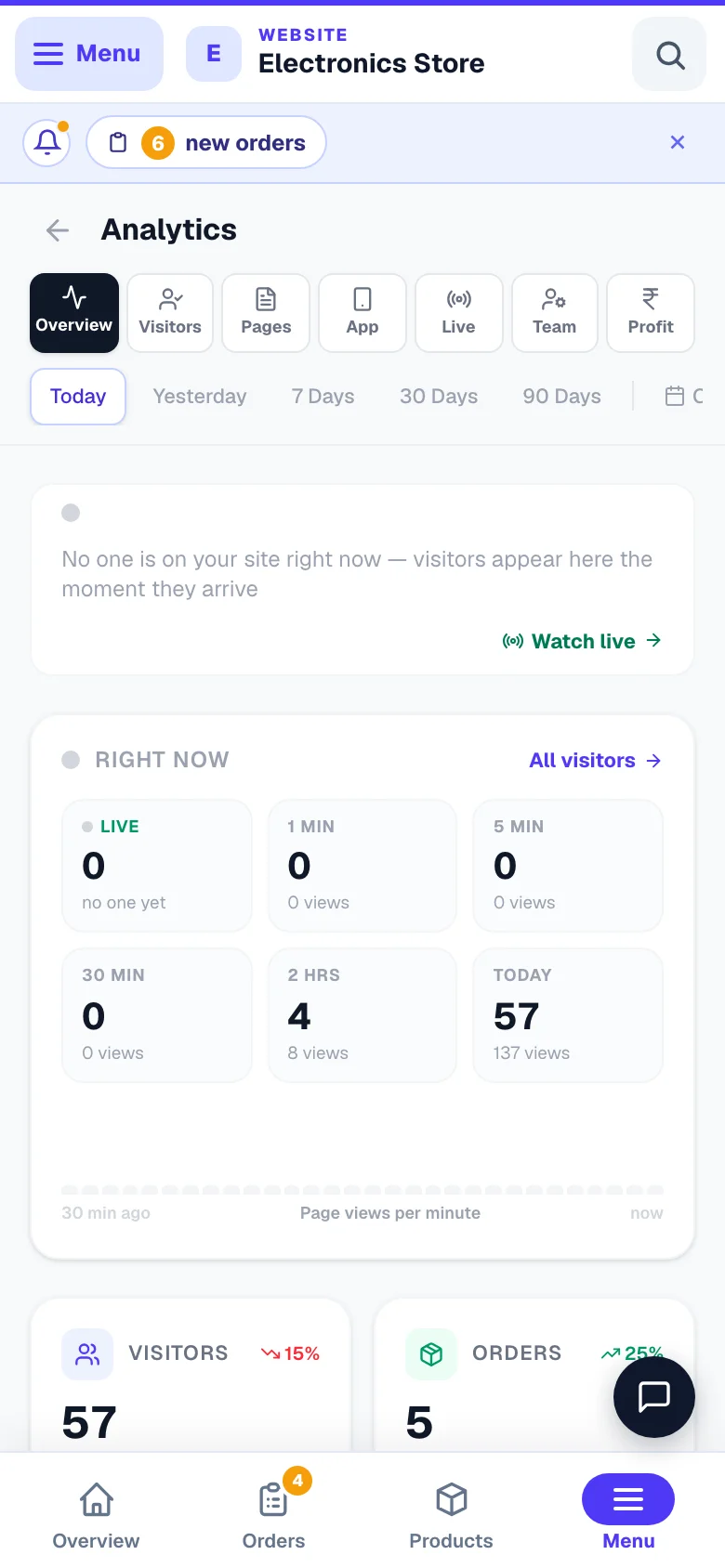
- 1TabsVisitors, pages, app installs, live, team and profit.
- 2Pick a periodEvery number on the page follows this.
Make this page yours — hide, reorder, pick your cards
Every business reads different numbers first. Tap Customize (next to the date choices on Overview) and the page switches to arrange mode: every section gets a small bar with hide and move up / down buttons, and every Key-number card gets its own hide and move controls too. Tap Done when it reads the way you think.
- Hide what you don't use — hidden sections collapse to just their name bar while arranging, and a small “N sections hidden” chip at the bottom of Overview brings them back any time. Hiding only changes your view — nothing is switched off.
- Extra cards to choose from — shops can add COD share (how many orders chose Cash on Delivery), New customers (first-ever orders in the period), Pending orders (orders waiting right now — always the same number as the badge on your Orders menu), Items per bill, Website orders, Repeat buyers, Cancelled & returned, Profit, Profit margin and Monthly goal. Every website — a shop included — can also add Enquiries, WhatsApp, Calls, Page views, Visits, Left quickly and Bookings cards.
- Saved with your site — the arrangement is stored in the site's settings, so it follows you from phone to computer, and your staff see the same layout. The Customize button shows only to the owner and to a manager allowed to edit the website; Reset puts everything back to the standard layout.
- Sections that wait for data (like Coupon performance) still appear automatically once there's something to show — arranging never breaks that.
- Quick layouts — one tap applies a ready arrangement: Simple (just the daily glance — key numbers, suggestions, funnel and chart), Standard (the normal page) or Everything (all sections on). Your card choices, chart style and goal stay untouched.
- Opens on — pick which time range the page opens with (Today, 7 Days, 30 Days…). Handy if you always start your morning on the week view.
- Monthly goal — turn on the Monthly goal card and type your sales target; the card then shows a progress bar of this calendar month's sales against it, whatever period you're viewing.
Extra sections for shops — in arrange mode you'll find optional sections marked New: Profit & margins (gross profit, margin % and product costs — needs cost prices on your products; orders missing any cost are left out, never guessed — plus your most profitable products — each order's discounts & GST are shared across its items by value, so the product list adds up exactly to your gross profit — and a red “Losing money on these” alert when a product earns less than it costs you after discounts & GST, matching Profit and Profit margin cards, and a Profit ₹ line on the trend chart), How customers pay (COD vs online vs UPI, with rupees per method), Order health (delivered / on the way / cancelled & returned — reversed orders appear only here and on the optional Cancelled & returned card, clearly marked as not counted in Sales), When you sell (orders by weekday and by hour, to plan stock and offers), Category performance (sales by product category), Basket sizes (how big a typical bill is — useful for setting your free-delivery limit) and Where your buyers are (orders by delivery pincode with the area named — your buyers' map, which can differ from the visitor cities list). Tap the eye on any of them to add it to your page.
Orders, Sales and Avg bill
The big cards at the top of Overview answer the only question that matters most days: how much did I sell? Shops see two rows — Visitors, Orders, Sales (total ₹) and Avg bill (sales ÷ orders), then Conversion (what share of visitors ordered), In carts now (the ₹ sitting in unfinished checkouts — tap it to recover them), Buyers (how many customers those orders came from, and how much of your sales repeat customers bring) and Items sold. Service businesses see Enquiries, WhatsApp taps and Calls instead.
- Orders counts every booked order in the period — website orders plus manual orders you recorded yourself.
- Sales is the total value of those orders, in rupees.
- Avg bill tells you what a typical customer spends — useful for planning combos and free-delivery limits.
Below the cards, a green sentence puts your conversion in plain words — “5 of your 12 visitors bought something” on quiet days, “Out of 100 visitors, 2 bought something” once there's enough traffic to say so. It counts website orders only — a phone order is real money but not a website conversion, so it never inflates this sentence. Orders and Sales count every order you received in the period (whatever its current status), with cancelled and returned orders excluded.
One chart: visitors, views, orders and sales together
The trend chart draws Visitors, Page views, Orders and Sales ₹ on the same chart, so you can see exactly how many visitors it takes to make a sale — and whether a traffic spike actually turned into orders. Tap the small chips above the chart to show or hide any line (your choice is remembered), and touch or hover anywhere on the chart to read the exact numbers for that day or hour. A Left quickly % chip adds the share of visits that ended within 30 seconds as an extra line whenever you want it.
You can also change how the chart draws (saved for your site): Line, Bars or Area style, Smooth curves, and Total so far — a running total across the period, perfect for “will this week beat last week?” pacing. The vs previous toggle still overlays the previous period as faint dashed lines in any style.
What to do next — automatic suggestions
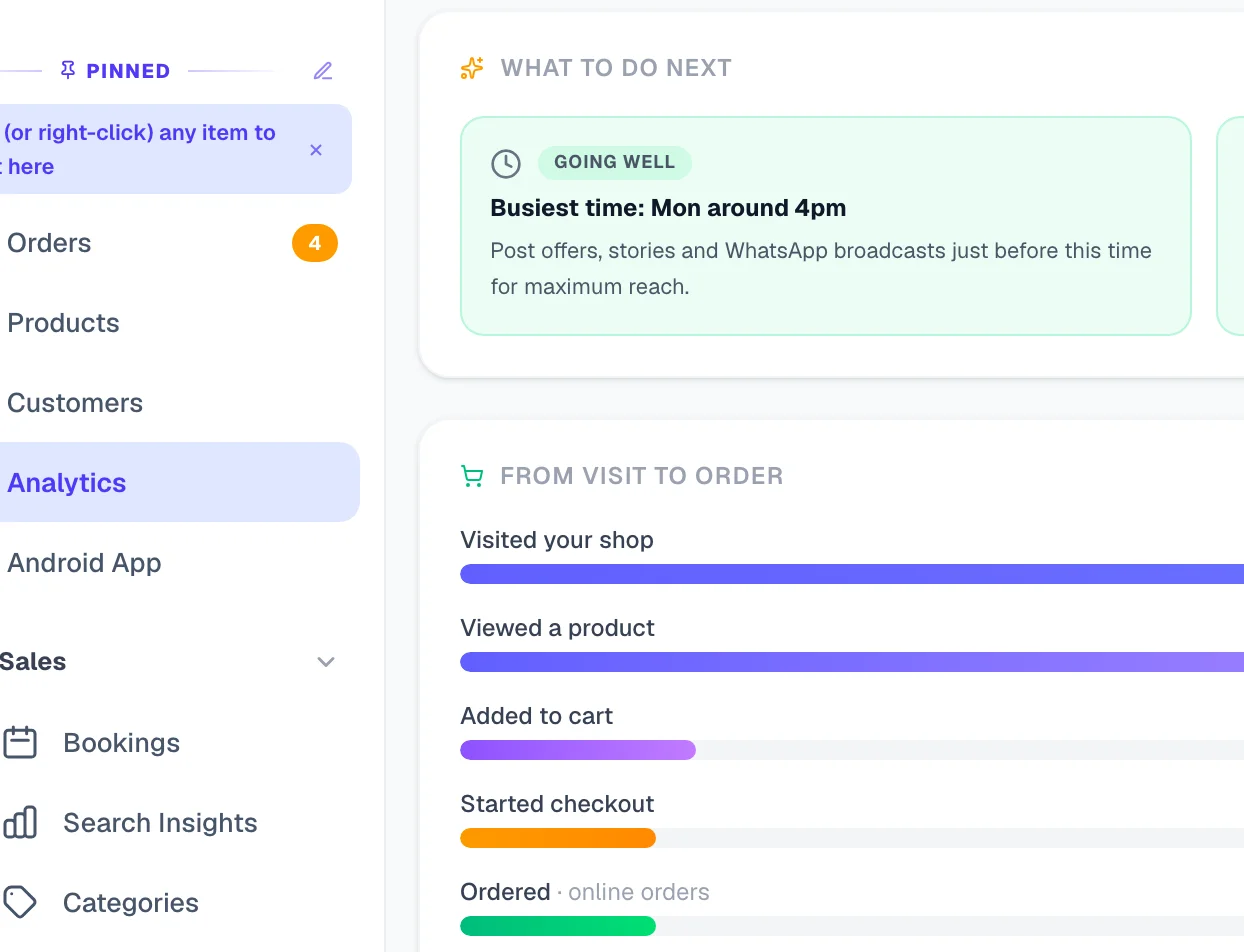
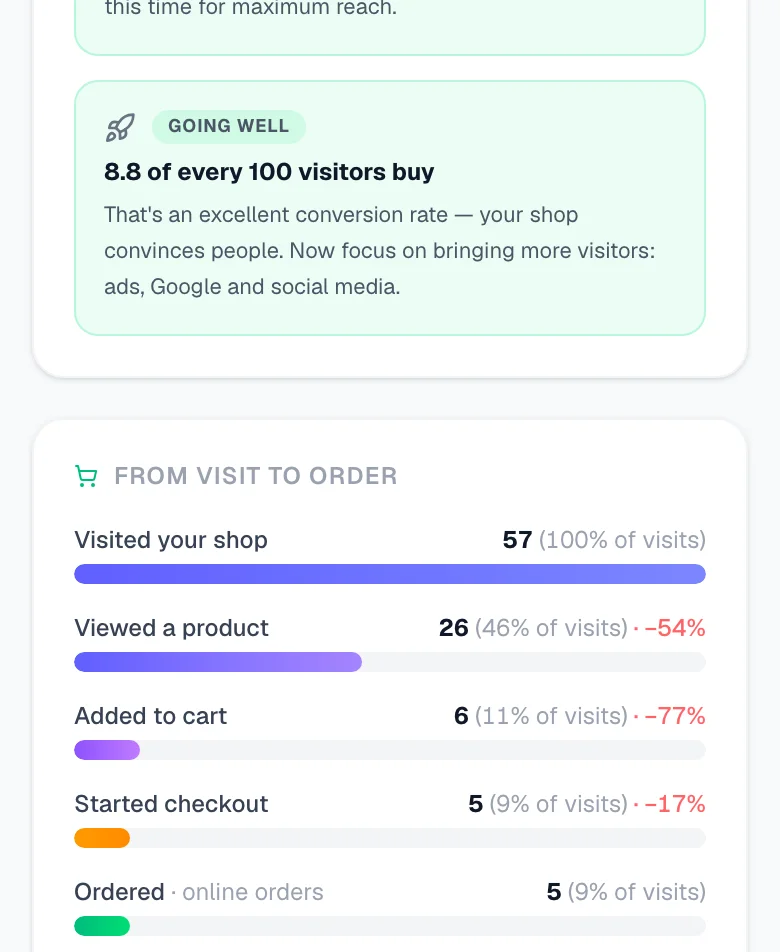
Analytics doesn't just show numbers — it reads them for you. The What to do next cards point out things worth acting on: checkouts left half-way (with a link to recover them), pages people leave too quickly, a product that gets views but no sales, traffic that depends on a single source, your busiest hour to post offers, and more. Cards are labelled Fix this, Going well or Try this, and they change with your data — a new site simply gets one card telling it how to find its first visitors.
Deeper reports — products, customers, coupons, paths
Below the funnel, Overview digs into what sells and who buys:
- Product funnel (shops) — every product's viewers → views → carts → sold → sales ₹ with a View→Buy rate. Products with plenty of views and zero sales get a “views, no sales” tag — those are your photo/price/description fixes.
- New vs repeat customers — how much of this period's revenue came from first-time buyers vs returning ones, plus your top customers by ₹ (tap a name for their profile).
- Coupon performance — uses and revenue per coupon, so you know which codes actually bring money.
- Where people go next — for your busiest pages, the next page visitors open (or whether they leave). A top page where most people leave needs a stronger next step.
- Left half-way, in rupees — the funnel's abandoned-checkout chip now shows the total ₹ value sitting in unfinished checkouts and which products get left behind most.
- vs previous — a toggle on the trend chart overlays the previous period as faint dashed lines, so “better or worse than last week?” is one glance.
Traffic alerts & your weekly summary
Analytics also comes to you: when your site suddenly gets 3× its usual visitors for that hour of the day (an ad taking off, a viral share — and at least 15 people in the last hour, so a small site isn't pinged for 3 visitors) you get an alert on your phone and an orange “3× your usual traffic” chip beside Right now; if a normally-busy site sees no visitors for 6 hours between 11 am and 10 pm, you're warned something may be wrong. At most one of each a day. Every Monday at about 9 am a weekly summary arrives — visitors, page views, orders and sales for the week, with the up/down vs last week — for websites that had at least 20 visitors that week. Alerts reach you as app notifications on a device where you installed your own website's app and allowed notifications with your own phone number, and on WhatsApp if you've connected your WhatsApp API number.
From visit to order — the funnel
The funnel shows where customers drop off between landing on your site and paying, so you know what to fix first. It reads: Visited your shop → Viewed a product → Added to cart → Started checkout → Ordered.
- The final Ordered step counts online orders from your order records — the truthful bottom of the funnel.
- A big drop between “Added to cart” and “Started checkout” usually means surprise charges — check your delivery fees.
- The card also tells you how many people started checkout but didn't finish — recover them from Abandoned carts — and how many customers ordered again in the period.
Traffic — where visitors come from and what they do
The rest of Overview helps you spend your marketing energy where it works. When WhatsApp brings 60% of visitors, share your catalogue there more often.
Where visitors came from
WhatsApp, Instagram, Google, Google Shopping (free), Google Ads, Microsoft Ads (Bing), Facebook or direct visits — and which sources your online orders came from.
Which source brings sales
For each source: visitors, orders, conversion rate and real sales value — perfect for judging whether your ads pay for themselves.
Most visited pages
Your busiest pages, time spent on each, and how many people left quickly.
When people visit
A day-by-hour heatmap (IST) — post your offers just before your rush hours.
Top cities
Which cities your visitors browse from — aim your ads and delivery areas where your buyers actually are.
What customers searched
Words typed into your site's search box — a shopping list of products people want from you.
Best-selling vs most-viewed
Sold units come from orders; views come from browsing. Lots of views but no sales? Check that price or photo.
Ads & links
Websites that linked to you, plus your ad campaign links (UTM) — see which promotion actually brought people.
The Visitors tab goes deeper — new vs returning visitors, how often people come back, and a searchable visitor list showing each person's device, country, where they came from and the exact pages they walked through (tap a row to see their journey). When we recognise a visitor as one of your customers — they logged in, placed an order, or reached checkout with their phone number — the row shows their name and phone, their lifetime orders and spend, and a Profile link straight to their full customer page. Buyers carry a green Bought badge, anyone browsing at this moment shows a pulsing online dot, and filter chips narrow the list to known customers, buyers, or people online now. Recognised customers are also named on the Live tab and the Overview live strip — you can literally watch who is on your site. The Pages tab ranks every page by views, time spent and quick exits — plus where people land first (your first impression) and where they leave from (pages that may need a stronger next step).
Going deeper: Search Insights
Analytics shows your top search words. Search Insights — its own item under Sales in the sidebar, on websites that have products — is the full picture: every search ever, the red found nothing rows, Choose products to decide what a word shows, Fix spelling to teach a typo what it means, and Try a search to see exactly what a customer sees for any word. See Search insights.
The App tab — your app installs
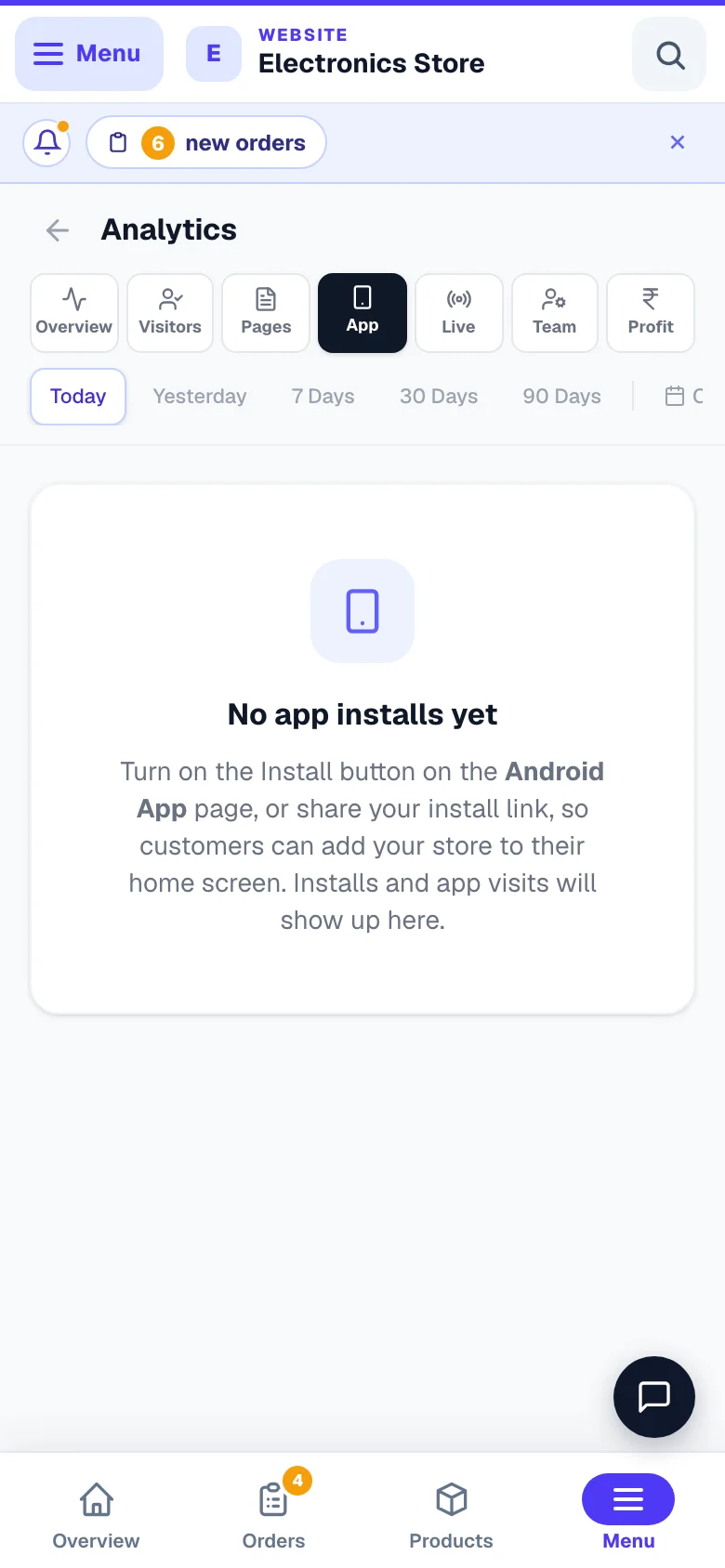
If customers install your website as an app (see Your own customer app), the App tab shows whether that channel is growing — installed customers come back more often.
- Installs — how many people added your app in the period, with a day-by-day chart.
- Active app users and App opens — how many actually open it, and how often.
- From the app — what share of all your visits now come through the installed app.
- Which devices installed — Android, iPhone or computer — and whether installs came from your website's prompt or your shared install link, including how well that link converts.
Right now — Live, 1 min, 5 min, 30 min, 2 hrs, Today
At the top of Overview (and on the Live tab) sit six Right now cards: Live, 1 min, 5 min, 30 min, 2 hrs and Today — how many people were active on your site in each window, with the page views underneath. Below the cards, a small bar chart draws your page views minute by minute for the last 30 minutes, so a WhatsApp status or story you just posted shows up as a visible spike within a minute.
- Tap any card to see exactly who is in that window — their current page, device, city, where they came from, whether they're new or returning, and a green dot if they're on the site this second. Known customers appear with their name and lifetime value.
- Tap a person to open their full journey — every visit, every page in order, and how long they stayed on each page, plus the page they entered on.
- Someone reading one page for ten minutes stays “active” the whole time — the clock follows real screen time, not just clicks.
Live — who is on your site right now
Live shows visitors on your website at this moment — which pages they're reading, their device, and where they came from. It refreshes every few seconds on its own. You don't have to open the tab to know someone's there: the live count sits on the Live tab button on every screen, and the Overview's top strip shows who's browsing right now. It's the fun tab: share a new product on your WhatsApp status, open Live, and watch people arrive.
Connect ad-platform tracking (optional)
Running ads? Connect their tracking in Settings → Tracking and your ads account starts seeing what visitors do on your website. There are fields for Google Analytics (GA4), Google Tag Manager, Meta (Facebook) Pixel, Google Ads conversion tracking, and under More Ad Platforms: Microsoft Ads (Bing), Pinterest, Snapchat, LinkedIn and X (Twitter) — fill only the ones you use, and LentloSites adds the code to your website automatically. Page views, product views, add-to-carts, checkouts and purchases are reported to every platform you connect.
- Just paste whatever the platform gives you. Each field only needs a short ID (like
G-XXXXXXXXXX), but if you copy the whole code block they show you, that's fine — we find the ID inside it and keep just that, with a green tick to confirm. - Each field tells you where its ID lives — for example GA4's is in Google Analytics → Admin → Data streams.
- Don't double-track — if GA4 or your Pixel already load through Tag Manager, leave those two fields empty here.
- Meta: check the pixel ID matches your ads. If Ads Manager uses one pixel and your website carries a different one, Meta shows “no activity” even though everything works. The ID on your site must be the SAME dataset your campaigns optimise for.
Meta sales missing? Add the Conversions API token (recommended)
Many Indian customers pay by switching to GPay/PhonePe/Paytm — their browser often never returns to your website after paying, so the Meta Pixel alone can miss those sales. Fix: in Meta Events Manager open your pixel → Settings → Conversions API → Generate access token, and paste it into the Meta Conversions API token field that appears under your Pixel ID. From then on LentloSites also reports every order placed on your website — cash-on-delivery ones included — to Meta directly from our server, even when the customer's browser never comes back (orders you type in by hand are never sent). Duplicates are removed automatically (the browser and server report carry the same order number), so numbers never double-count. Use the optional Test event code (from Events Manager → Test events) to watch server events arrive live while setting up.
Note: these connections feed the ad platforms' dashboards for your ads. The Analytics page in LentloSites works on its own — you don't need any of this for the numbers explained above.
Common questions
The doubts owners raise most often about these numbers, answered in a line or two each.
Why is Orders bigger than the funnel's “Ordered” number?
Orders counts all sales including manual phone/WhatsApp orders. The funnel's last step counts only orders placed on the website, because the funnel measures your website's journey.
Do cancelled or returned orders reduce my Sales?
They're simply not counted — cancelled, returned and RTO orders are excluded from Orders, Sales and Avg bill automatically.
When does a “visit” end?
A visit continues while the person keeps browsing. If they leave and come back within 30 minutes, it still counts as the same visit; after 30 minutes away, their next look is a new visit — and they count as a returning visitor. This is the same convention Google Analytics uses.
Why don't my visitor numbers match another analytics tool?
Every tool counts visitors a little differently (bots, ad-blockers, repeat visits). Visitor counts are for spotting trends; your Sales number is exact because it comes from real orders.
Can my staff see Analytics?
Only when their role includes Sales numbers & reports. The ready roles that include it are Manager — runs everything, Accountant / GST and Marketing & offers (and the newsroom Editor); roles like Store manager, Orders & delivery staff, Website editor or View only do not — tick it for any person on Team & Staff if you want them to see it. See Staff accounts.
Where do I download these numbers?
Analytics is for reading on screen. For GST-ready files and downloadable statements, use Reports.
More in Payments, GST & books
Did this answer your question?
It takes one tap and it genuinely changes what we write next.