
Import products from Amazon/Flipkart/Meesho
Paste a product URL and we fetch the name, photos, price — no manual typing.
Watch 2 short videos6 min readUpdated 21 Oct 2026
In this guide
Import one product from a URL
Instead of typing a product’s details by hand, paste its link from the site where it’s already listed — we read the page and pre-fill the form for you. Use it when the product exists on Amazon, Flipkart, Meesho or your supplier’s website and you don’t want to retype everything.
Open Products, tap + Add Product
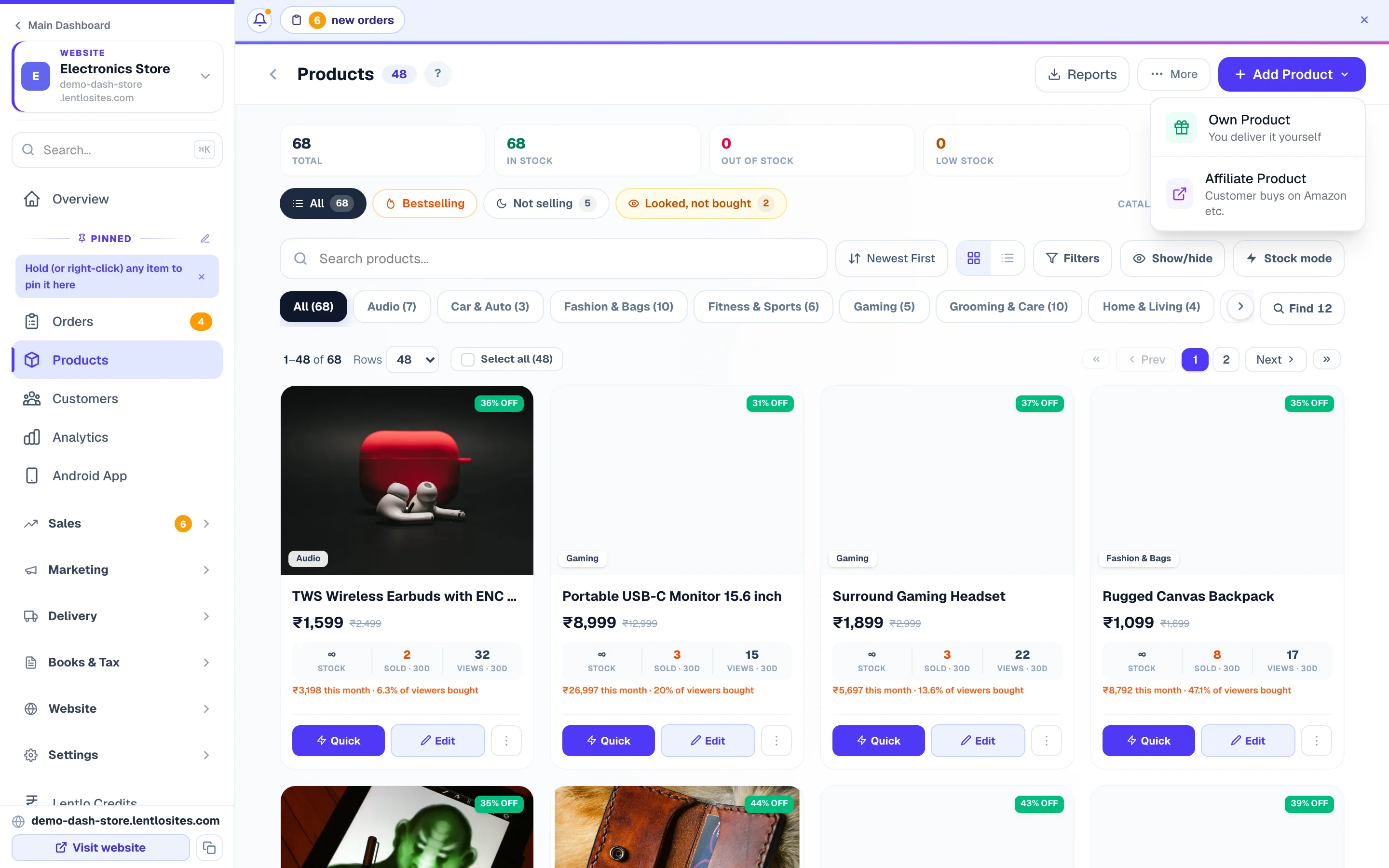
From your site’s dashboard open Products, tap + Add Product and pick Own Product (you deliver it yourself) or Affiliate Product (customer buys on Amazon etc.) — more on that choice below. At the top of the add form, tap Fill this in from a product link and the Import from URL box opens (for an Affiliate Product it is already open). It appears only when adding a new product, not while editing one.
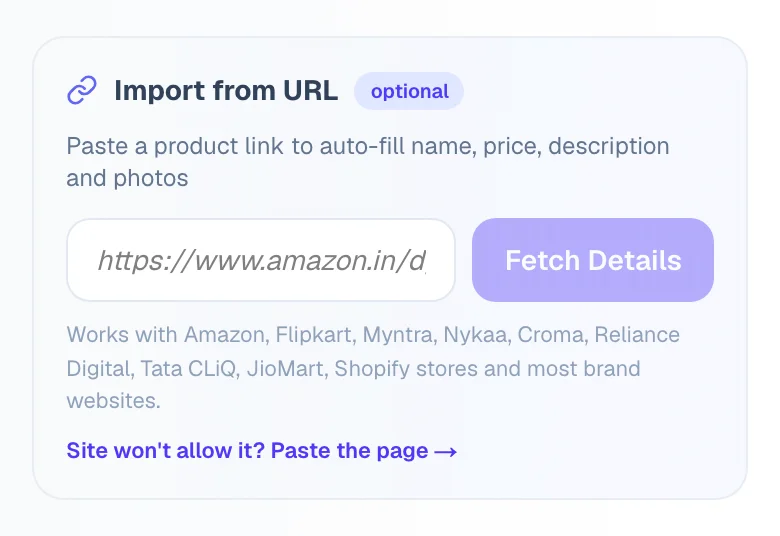
Paste the product URL and tap Fetch Details
Copy the link from your browser’s address bar on the source site. These get our deepest reading — dedicated readers built for their pages:
amazon.in/dp/…(shortamzn.to/amzn.inlinks work too)flipkart.com/…/p/itm…- Shopify-powered brand stores (any
…/products/…link)
Myntra, Nykaa, Croma, Reliance Digital, Tata CLiQ, JioMart and most other shopping or supplier websites work too — we read the page’s standard product data and pull what we can. A few marketplaces (Meesho, AJIO, Snapdeal) don’t accept automated visits at all; for those use Paste the page below, which works every time.
Whatever comes back, we tell you exactly which fields were filled — so you always know what’s left to type.

Review the fetched details
We pre-fill the name, description, photos (up to 8) and price — plus the MRP when the source shows a strike-through price, so your discount badge works out of the box. Double-check everything; descriptions copied from other sites sometimes carry odd text worth trimming.
If the price couldn’t be read for certain, we never guess one. Instead you’ll see the ₹ amounts found on that page as buttons under the Selling Price box — tap the right one and it fills in. This keeps a stray EMI or “customers also bought” price from silently becoming your selling price.
The link you pasted is also saved for you: on an affiliate product it becomes the Affiliate Link (the buy link), and on an own product it’s kept as a Supplier URL on the product form (never displayed to customers) — handy for reordering stock later.
Pricing: the price from the source site is only a starting point. Update it to match your own margins before saving.
Save
Tap Add Product and it’s live on your shop page within seconds — no republish needed. Everything else about the product (categories, stock, GST rate, variants) works exactly like a normal product — see Add & edit products.
About imported photos: photos are copied into your own store during the import — compressed for fast loading and safe even if the source website later changes or removes them. If a photo can’t be copied (rare), the original link is used instead and we tell you — replace that one with your own upload from the photos at the top of the product form. See Add & edit products.
When a website won’t allow importing — paste the page
Some marketplaces (Meesho, AJIO and Snapdeal today) refuse visits that don’t come from a person’s own phone or computer, so no link-based import can reach them. The same applies to supplier portals where you have to log in. For all of these, let your browser do the fetching:
Open the product page in another tab
Open the product exactly as you normally would, on the same device you’re using LentloSites on.
Select everything and copy
On a computer press Ctrl+A then Ctrl+C (on a Mac, ⌘A then ⌘C). On a phone, long-press anywhere on the page, choose Select all, then Copy.
Paste it into the import box
Back in the Add Product form, tap Site won’t allow it? Paste the page, tap inside the dashed box and paste. You’ll see “Page copied” — then tap Import from pasted page. The name, description and photos come across just like a normal import (photos are copied into your store), and the prices found on the page appear as buttons to tap.
This also works for any supplier website that asks you to log in — we never see your login, only the page you already opened.
Own product vs affiliate product
You choose the product type when you tap + Add Product — it decides whether customers buy on your site or on the source site. Pick based on who handles the money and the delivery:
- Own Product — you fulfil and ship. Customers add to cart and pay on your site (COD, UPI or your payment gateway — see Payments setup). The imported link is kept as your Supplier URL.
- Affiliate Product — the Buy button opens your affiliate link (Amazon etc.) in a new tab. The customer buys there; you earn whatever commission that site’s affiliate program pays. No cart, no checkout, no delivery, no stock tracking on your side.
Bulk import with a CSV file
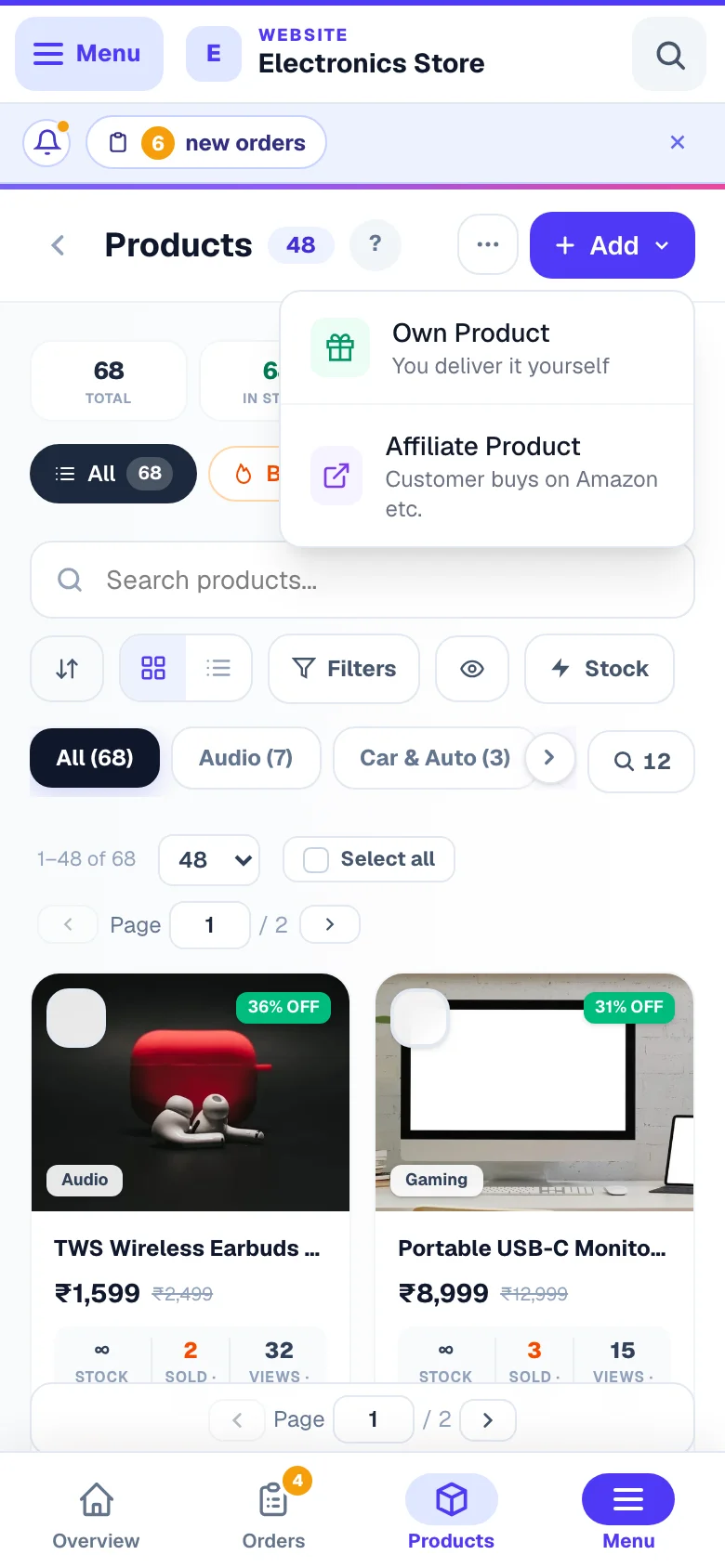
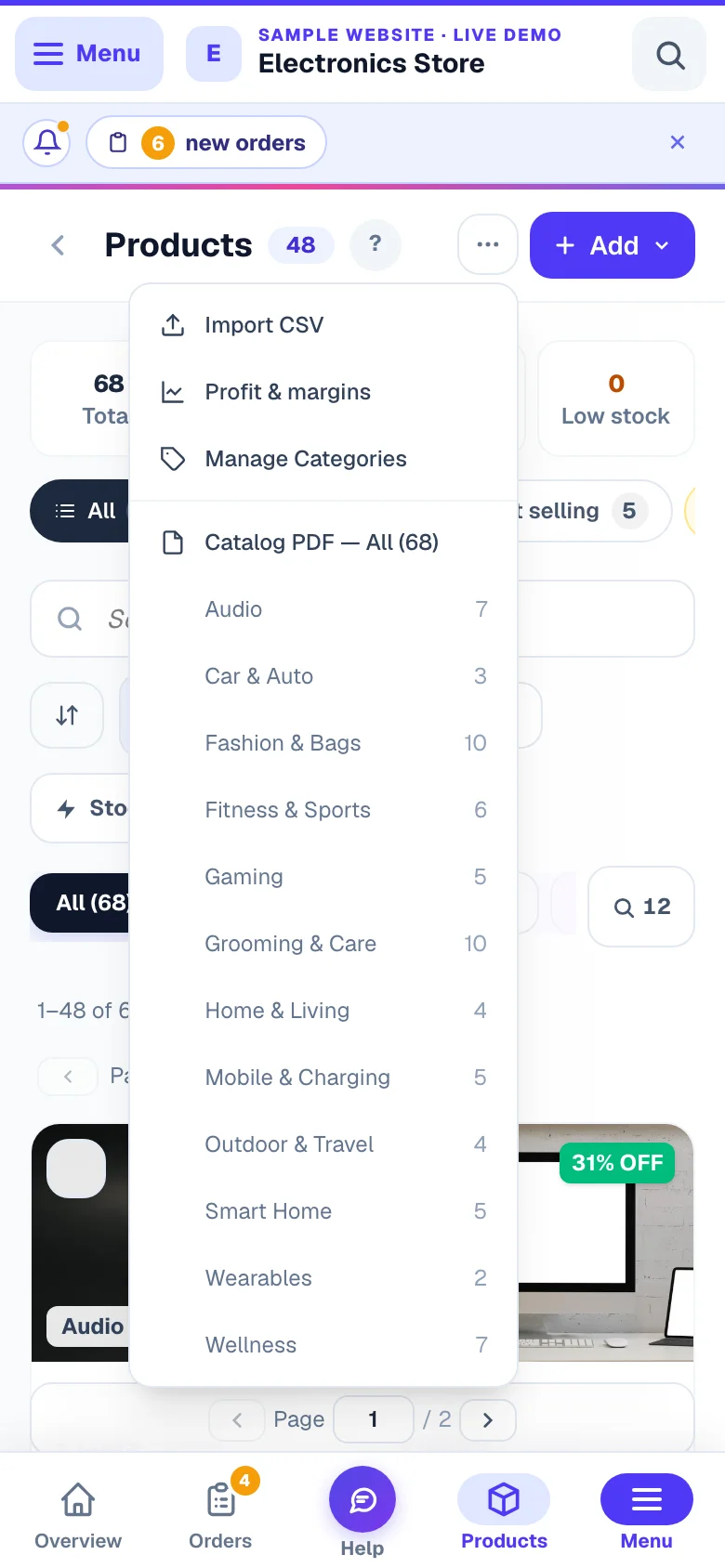
Have your catalogue in Excel, or exporting from another platform? The CSV import adds many products in one go instead of one URL at a time. On the Products page open the More (⋯) menu → Import CSV, upload your file (or drag it in), check the preview — it lists the first 50 rows with their category and price — and tap Import N Products.
Every website design lists a certain number of products well — usually 10,000, unless Lentlo has set a different figure for your shop. A file that would take your shop past that figure is refused whole, with the numbers in the message, and the Products page says where you stand once you are near it. For a bigger catalogue, ask Lentlo to switch on the large-catalogue setup for your shop.
Your CSV needs a header row, and one file can carry up to 500 products. Supported columns: name (or item name, product name, title) and price (or selling price / sale price — 1,299, ₹1,299 and Rs. 499/- are read as the rupees they say), plus description, category, sku, compareAtPrice/mrp/original price, hsnCode (4, 6 or 8 digits — a file with any other HSN is refused whole, naming the rows to fix), GTIN (a maker's barcode) and Barcode (own code) (your in-store code; a file with one plain Barcode, EAN or UPC column is sorted by the code itself), tags (your own group words, separated by commas — up to 50 a product, each up to 60 letters; a file with a longer tag or more tags is refused whole, naming the rows to fix), sizes, colors/colours, stock/quantity/stock qty, inStock, Search words (or keywords) and Search placement. In the stock column write a number, or unlimited for stock you don’t track (blank also means “not provided”); inStock takes yes/no (or true/false). Search words are other words customers type for the product, separated by commas (dabba, lunch box, tiffin — up to 30); Search placement takes Show first, Normal, Show lower or Hidden from search, and a word it does not know leaves the product Normal. These are the same words the ⬇ CSV export writes, so an exported file is read back exactly as it was written. A column with any other name is simply not imported, and a row without a name is skipped.
Give every row a price. The Products screen’s Import CSV does not stop a row whose price is empty or cannot be read — that product is added at ₹0 and shows on your shop at ₹0. Check the preview before you tap Import, and fix any ₹0 product on its page straight after. (Asha’s list card names such rows and never adds them at ₹0 — see below.)
Or send the list to Asha. In the Asha chat, with your website open, tap the paper-clip and attach the same list as an Excel file (.xlsx) or a CSV — up to 500 products, the same columns as above (a title row above the column names is fine). She reads it and puts up one card: how many products, the first few with their prices, the categories, and anything left out. A product with no selling price is never added at ₹0 and one already in your shop is never added twice — she names them, and leaves them out only when you say so; an MRP below the price is left off. Nothing is added until you tap Confirm. Photos are not taken from a file — add them on the product afterwards or send them in the chat. Undo on the card takes back every product from that list you have not touched since; one you edited, gave a photo or that has an order stays. An old .xls file is saved as .xlsx first (in Excel: Save As → Excel Workbook).
The order on your shop is the order in your file. Products added from one list — the Products screen’s Import CSV or Asha’s card — appear on your shop in the file’s order, the first row first (newer products still lead the shop, and the whole list counts as added together).
The import adds new products; it cannot update existing ones yet. If a row’s name matches a product you already have, the whole file is refused and the clashing names are listed — rename them in the file, or delete the existing products first. (Two rows with the same name inside one file are both added, the second with its own web address.) So an export of your own catalogue is for a backup, for price work in Excel, or for moving products into a different store; to change products you already have, use Quick edit, Stock mode or the bulk price action.
Photos aren’t part of the CSV. After importing, open each product and add its photos — the products list highlights items that are missing a photo, description or category so you can finish them off quickly. Categories from your CSV are created automatically; organize them later in Categories.
Have hundreds of product links rather than a spreadsheet? The link import works one product at a time, so for a big catalogue a CSV (or the list sent to Asha) is the fast way in. For help with a large move, write to us from Help & Support.
What about product legality? You’re responsible for confirming you have rights to resell or promote each product. Brand trademarks and manufacturer images sometimes require permission — check before you publish at scale.
More in Products & orders
Did this answer your question?
It takes one tap and it genuinely changes what we write next.