
Reseller dashboard tour
Fifteen pages, one job each: Overview, Clients, Client requests, All Sites, Client businesses, Client WhatsApp, Demo Center, Feature brochure, Client Portal, Block library, Wholesale & billing, Asha orders, Your prices, Settings and Guides — plus Client CRM once it is on.
9 min readUpdated 21 Oct 2026
In this guide
Overview — Reseller → Overview
Everything that needs you today, without clicking deeper:
- Header line — how many clients you have and how many of their websites are published.
- Your live demo link — a read-only dashboard demo with sample businesses, branded with your name and WhatsApp. Copy it or share it on WhatsApp; the Demo Center puts the same demo on your own domain.
- Your discount — the % off every client plan in force, and how many more live client websites reach the next tier.
- What needs you — new demo leads at the top, then claim requests still waiting for a client's answer (when you asked to manage an account that already existed) and drafts untouched for 30+ days; All caught up when there is nothing.
- Numbers — Published websites, Client plans / month (your wholesale for the plans running) and Orders this mo with their value across all client websites.
- Bill your clients — your credits balance, how much your clients hold, any client below zero, and doors to Your prices, Client credits and the invoices you raised. The AI credits for clients card beside it now opens Asha orders — clients' AI runs on Asha answers (Your clients' AI).
- Recent Activity — publishes, orders and new clients, newest first.
Clients — Reseller → Clients
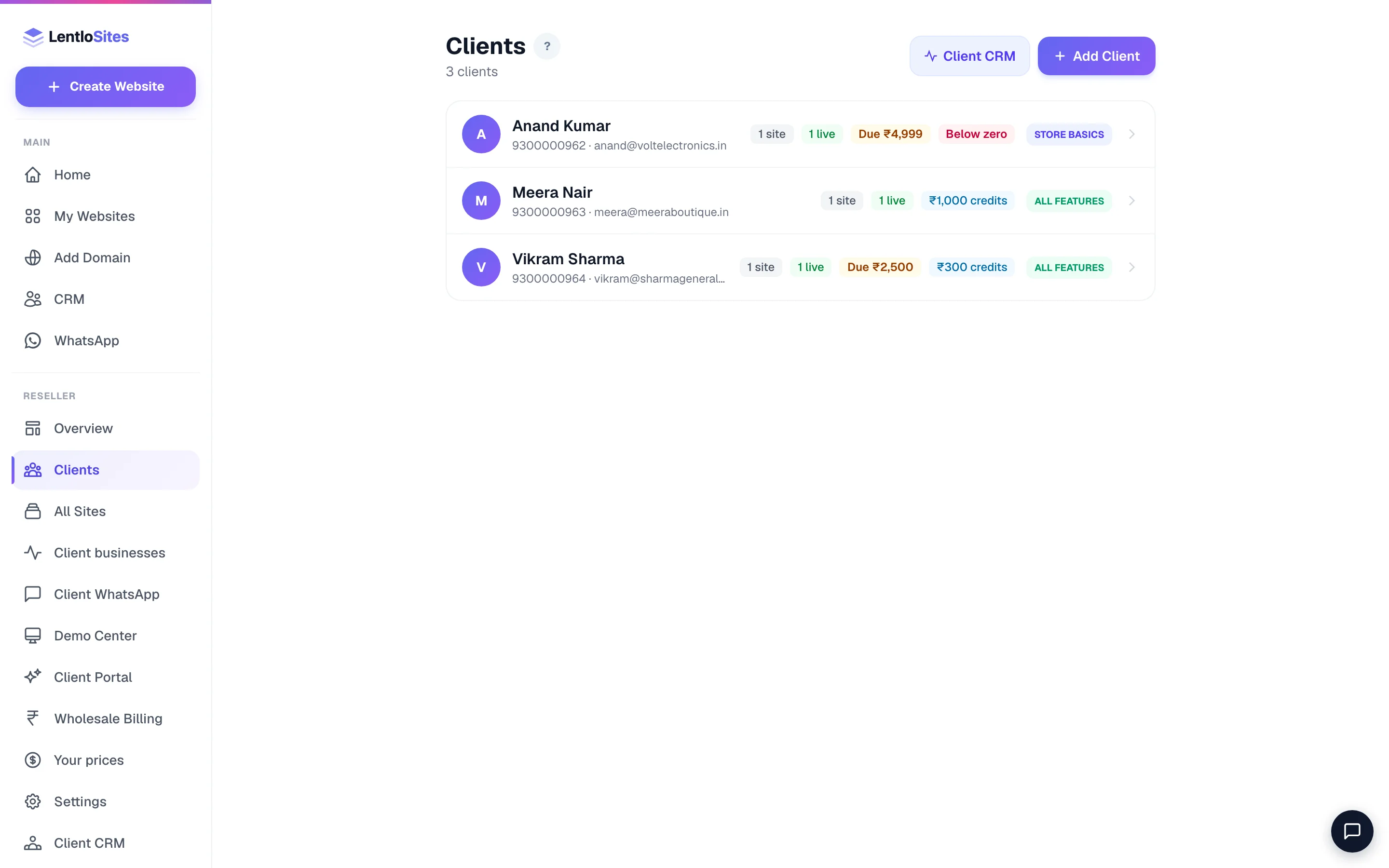
One row per client: name, phone and email, then the chips that matter — how many websites and how many are live, their package, Due ₹… when an invoice you raised is unpaid, their credits (or Below zero), Renew by… when a plan you sold ends within 30 days and Plan ended once it has. CRM and WhatsApp chips appear once those are set up. A client you asked to manage, who has not approved yet, shows Waiting for approval with a Cancel. Tap a row to open the client's page; Add Client starts the add flow; Client CRM opens your own customer list.
When we ask clients to give their domains the direct road (a domain that still reaches its website through a record kept at the client's domain company), a Client domains that need one change box sits above the list. Each domain shows where its change stands — Old road or Change started; Copy message copies a ready message in your agency's own name (it never names the platform), and Open opens that website's Domain page, which explains the change and walks through it. We never message your clients about it ourselves.
A client's page
The one place to run a client: their websites (Plan, Features, Transfer, Manage, New site, Add existing site), their CRM card, their WhatsApp API card, Billing & credits, Plan & Features, Asha answers (their free answers a day, and packs you give), and the “What this client gets” card that decides whether they are a CRM-only client or a websites client. Detail in Add and manage clients.
Inside a client's website
Manage on any website opens its site hub as their manager. You see what the owner sees, plus a few things that are yours:
- Team & Staff and the Activity log are in the site's menu for you, so you can add the client's cashier or check who changed what (Staff on client sites).
- The money items say whose they are: Your Lentlo Credits and Your Asha answers are your agency's own (the client is never billed from them), and Plan is this client's plan, which you buy at your wholesale rate.
- On a pharmacy website you open the Pharmacy Desk's setup side — what each product is, batches, the licence and the switches — and the number of orders waiting. Prescriptions are health records: only the owner on their own sign-in, or a team member the owner gave the Pharmacy Desk to, ever opens one. Until products are marked, the pharmacy shows Not selling yet (or “N not marked”) on your All Sites and client page, and first on its manage page.
All Sites — Reseller → All Sites
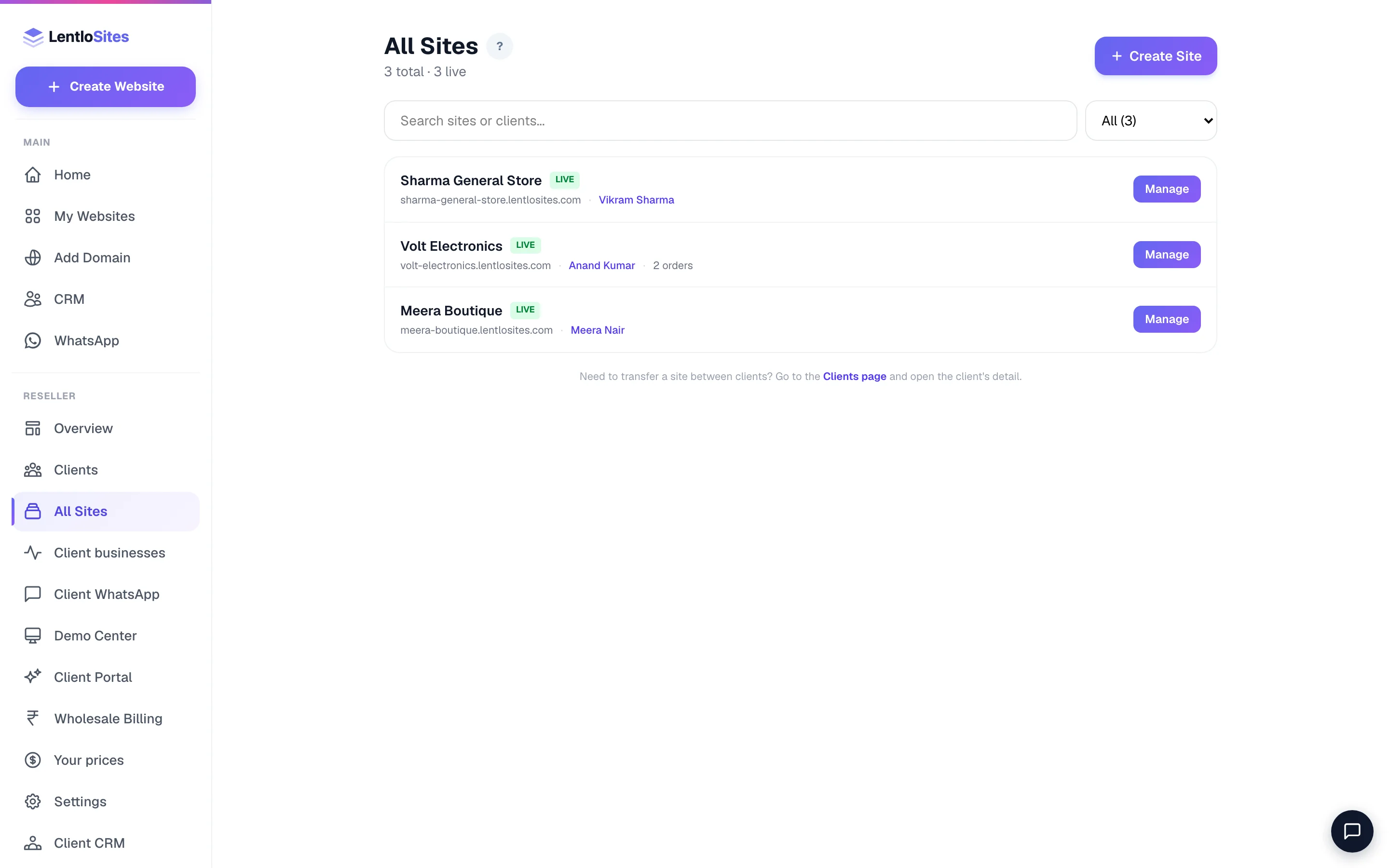
Every website across every client and your own account, searchable by site or client, with a Live / Draft badge, the address, the client and an order count. The dropdown beside the search box narrows the list — All, Live, Drafts, Client sites or My sites, each with its count — and the line under the heading reads “12 total · 9 live”. Manage opens that site's hub; Create Site starts a new one. Transfers between clients happen from the client's page, not here.
Client businesses — Reseller → Client businesses
Every client's CRM as a card — business type, contacts, bills, last activity, whether you manage it, and a “CRM only” tag for clients without a website. See Client CRM.
Client WhatsApp — Reseller → Client WhatsApp
Every client's WhatsApp API number, 30-day traffic and what needs attention (test number, missing WABA ID, a failed send). See Client WhatsApp API.
Demo Center — Reseller → Demo Center
Your domains (up to three — each verified hostname is a portal for demos and client sign-in), the share links, the demo dashboard theme, the designs gallery, the marketing pages, your packages in your own words, and demo leads. See Demo Center.
Feature brochure — Reseller → Feature brochure
A guide to everything your clients get, in your name and colours, to show a prospect on screen or hand over as an A4 PDF. Nothing in it names us: no platform name, no platform prices, no links to our site.
- What it lists — every website type (E-commerce, Restaurant, Kirana, Business website, Vehicles, Finance, Catalogue, News, Travel, Vehicle rental, Landing page) as its own chapter, what every website includes, and the CRM and WhatsApp API tools. New features appear on their own as they are added; the page tells you how many are new since your last download.
- Match what your clients get — the brochure follows your client feature packages. Features your new clients do not get are left out, and a line tells you which. Pick one of your packages, or Show everything.
- Your controls — logo, colours, three covers, two lettering styles, your headline and words, which website types and pages to include (and their order), a note per website type, features or sections to hide, and several saved brochures (for example a Restaurant pitch and a Full catalogue).
- Pages that win the client (each one off until you switch it on, except Questions and answers) — your services and how you work, your own plans and prices (read from Your prices), live demo links from your Demo Center, websites you have built, what clients say, an offer with an end date, and your contact page with a WhatsApp QR code.
- Share link (being switched on for agencies step by step; it needs your own web address connected in Demo Center) — a private link to one of your brochures, made for one client: their name on the cover, an optional note, which website types, and when it stops working. It opens on your own web address with no login, and WhatsApp shows your logo and name. Sent links lists every link you made: copy it, send it on WhatsApp, keep it open longer, edit, stop or delete. Keep it open longer only makes a link end later; to end a link sooner, or to give a link with no end date one, use Edit. Deleting a brochure you have sent asks whether its links keep showing it as it is now until they end, or stop. If your account is on hold, the hold page lists your open links so you can still stop one.
- When a client opens a link — the page shows I'm interested and Chat on WhatsApp. A call-back request appears under that link on Sent links (Call, WhatsApp, Open in your CRM, Delete); when your CRM is on it is also added to your own CRM as a lead from “brochure”, and a line says why when it was not. Sent links also shows how each link was read, for example “Opened 3 times · last opened 2 hours ago · looked at Restaurant and Prices”. With notifications on, you are told about each request, the first time a client opens a link made for them, and when they come back after three days or more. Opening the link yourself counts as your client opening it — use Preview to look at it; requests you send from Preview are real and reach your CRM. The page tells your client that you can see when it is opened, which parts are read and for how long, and which buttons are tapped. Erasing a customer in your CRM also removes their brochure requests.
- Download PDF — the whole brochure or one website type, a short or detailed edition, and “Prepared for” with the client's name. Present opens it full screen for a meeting; present from your own domain so the address bar shows your name. Share on WhatsApp gives you a ready message to send.
Client Portal — Reseller → Client Portal
Your brand: portal address, logo and favicon, support contacts, the credit line on client websites, colours, the login greeting, what the login page shows, the name of your clients' assistant (the helper in their dashboard chat answers under it — this is not the chat box on a website, which each website sets for itself), and the per-site /admin switch for clients with their own domain. See Client portal & whitelabel.
Block library — Reseller → Block library
Sections you build once and reuse on every client website. In the website editor, open a section you added and press To library (or right-click it → Save to <your agency name> library). It then appears under Add section on every website you manage, in its own group, <your agency name> blocks — your clients and their team can add it too, but only you can rename or delete it, here. Adding a block puts a copy on that page (the business name and city fill in for that website), so renaming or deleting a library block never changes a website that already uses it. Up to 100 blocks.
Wholesale & billing — Reseller → Wholesale & billing
This is your one money page: the discount in force (50% off every client plan, 60% above 20 live client websites, 70% above 100), your Lentlo Credits balance, the plan table (owner price vs yours), the usage fees your Free-plan client websites carry at retail, Asha packs, client plans that renew by themselves, every client website with its plan and a Buy / Renew / Upgrade button, and your recent debits. Guide: Wholesale.
Below zero. Your balance may go below zero: client plans keep renewing, and your clients' websites and dashboards are never affected. A balance left unpaid can be put on hold by us — your own reseller dashboard then opens on one page that shows exactly what to pay, with Recharge and your statement still open, and the hold lifts by itself the moment a recharge reaches that figure.
Client requests — Reseller → Client requests
When one of your clients asks the assistant in their dashboard for a person, the request lands here — who, which website, what they asked and their number, with Call and WhatsApp buttons. Mark it answered (a short note is optional) or close it; a new one also shows as a notification on your dashboard app. Our support team sees a read-only copy and never contacts your clients.
The credits you allot to clients for your own usage fees are managed from each client's page. See Billing.
Asha orders — Reseller → Asha orders
The Asha answer packs your clients asked for, at the prices you set on Your prices. Each pack shows what clients see, what you pay us and your margin. Tap Money received — add the pack once you have their money: the pack lands on the client that second and our retail price is debited from your credits; Reject closes a request and charges nothing. Detail: Your clients' AI.
Your prices — Reseller → Your prices
What clients pay you: a price for each website package, for the CRM and for the WhatsApp API; the optional usage fees (a % of each website sale's product amount — shipping not counted — and a ₹ fee per lead) paid from client credits; and your “how clients pay you” note. Clients see this list on their Plan & billing page.
Settings — Reseller → Settings
Your wholesale discount in force (the full plan table, your clients' plans and every debit live on Wholesale & billing), your Client feature packages (the bundles you sell, and what new clients start with), reseller-since date, a WhatsApp line to our support, and the “Leave Reseller Program” option.
Guides — Reseller → Guides
Every agency guide in one list, in the order the work happens — starting a client, billing them, your portal, your clients' CRM and WhatsApp. These guides are for agency eyes only, so they are behind your login and this page is the door to them. Two more doors to the same place: the small ? button beside a reseller page's heading opens the guide for that page, and Contact Us carries an Open reseller guides card.
Client CRM — Reseller → Client CRM
Your own agency CRM: your clients as contacts (added automatically), follow-ups, quotations, GST invoices and what is still to collect. Every invoice you raise to a client from their page lands here. Set your business profile (name, GSTIN, address) under Invoices → Settings so your invoices carry your details. It sits at the end of the Reseller list and appears only once your agency CRM is switched on. Detail: Your agency CRM and Billing your clients.
Which page do I open?
Find the right page in one step
On a phone
Everything works one-handed. The menu becomes a slide-in drawer — open it with the labelled Menu button at the top-left of any page (a client's CRM on the new menus has none — its Menu cell at the bottom right is the menu) or the Menu cell at the right end of the bottom bar, which also keeps Main Dashboard, Create and Help one tap away. On your reseller pages everything turns amber and says Reseller hub · Clients & billing — in the phone's top bar and on the card at the top of the drawer (tap that card to jump to Overview) — so it never looks like a client's website menu. Main Dashboard is the way back to your own account level.
What is not in a reseller's sidebar, and why
- No Pricing or Referrals — those are for regular users; your client websites are on wholesale.
- Billing is called My Site Billing — it covers websites you own under your own name, so it is never confused with Wholesale Billing.
- No Become a Reseller — you already are.
Never share your Reseller pages with clients. Clients use your portal (clients.youragency.in/dashboard) or their own domain's /admin. The permission gates keep them out of your back-office even if a link leaks.
More in For agencies
Did this answer your question?
It takes one tap and it genuinely changes what we write next.