
Personalized & printed products (photo cakes, mugs, t-shirts…)
Collect names, messages, photos and videos from the customer BEFORE the order — with extra charges for add-ons and print-ready file downloads.
6 min readUpdated 21 Oct 2026
In this guide
Setting it up (2 minutes)
Open the product and turn on Personalization
Go to Dashboard → Products → edit the product → under More you can do tap the Personalization (custom orders) tile → Turn on personalization. First choose how you want to collect: Ask on the product page (recommended — nothing to chase later) or Collect on WhatsApp after the order.
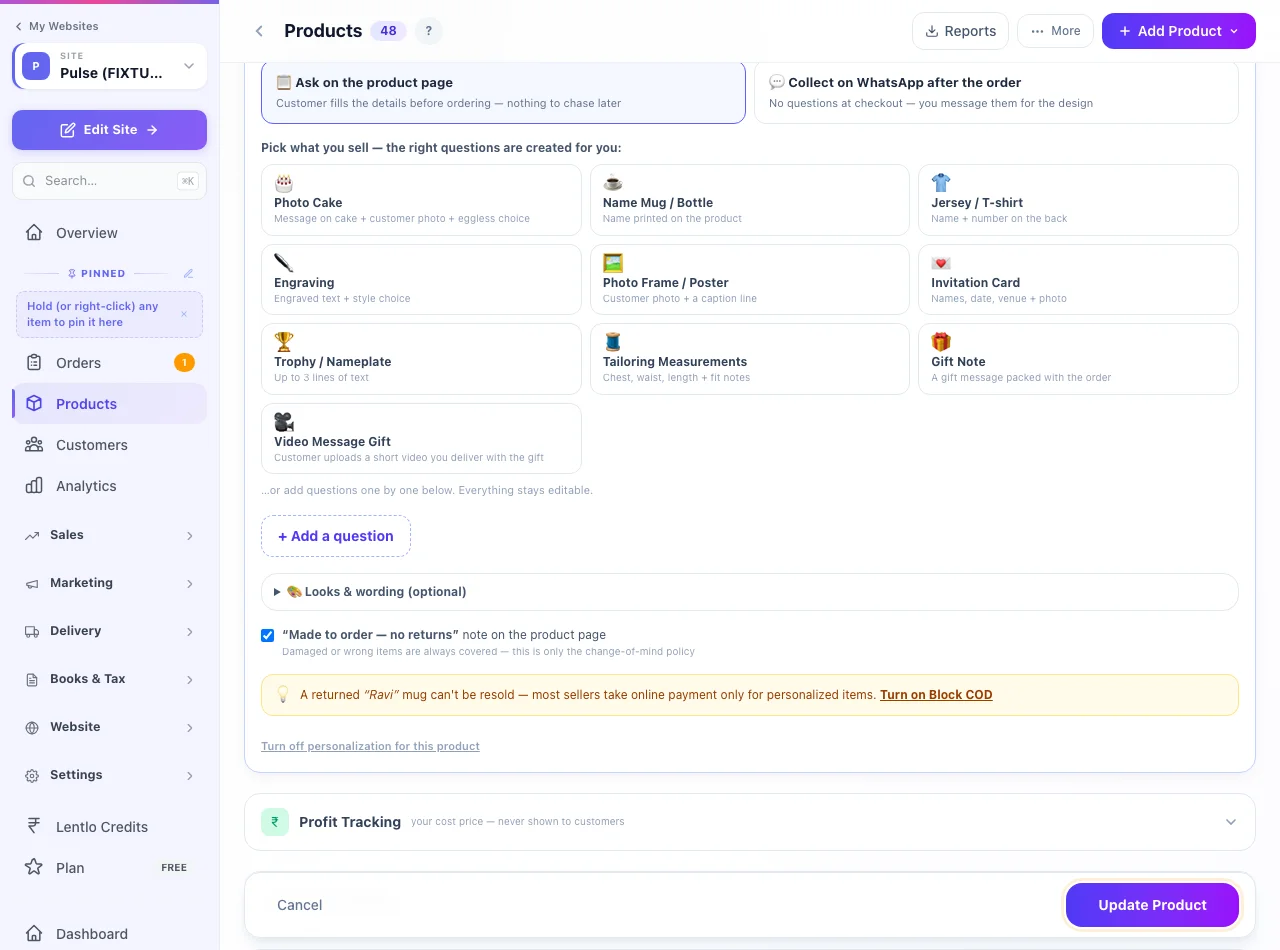
Pick what you sell — the questions are created for you
Tap a ready-made set — Photo Cake, Name Mug / Bottle, Jersey / T-shirt, Engraving, Photo Frame / Poster, Invitation Card, Trophy / Nameplate, Tailoring Measurements, Gift Note or Video Message Gift — and the right questions appear instantly. Food sets too: Pizza add-ons, Make it a meal, Spice level, Thali / combo picks and Drink options. Everything stays editable afterwards.
Shape each question (or add your own)
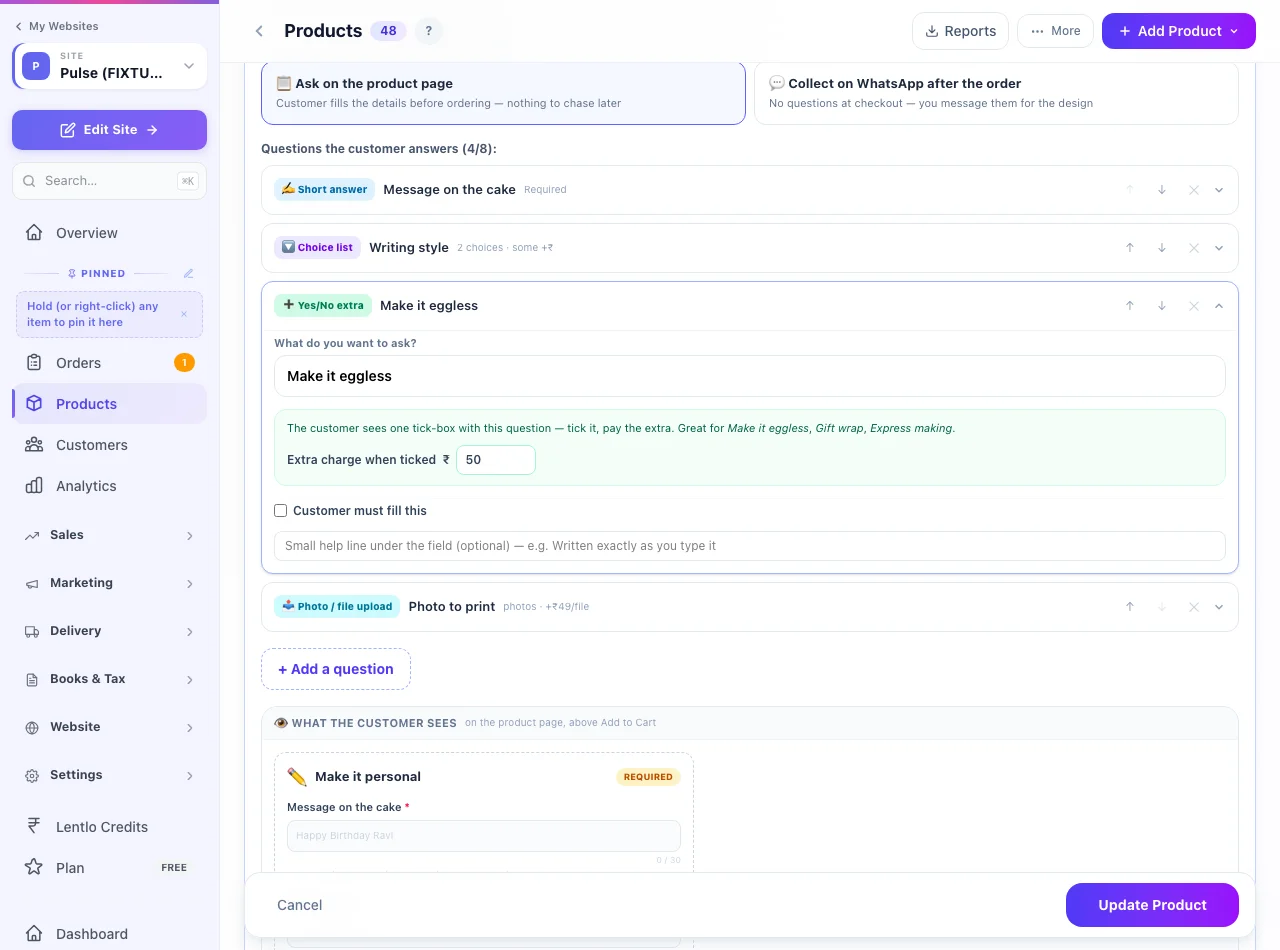
Each question is a card — tap it to open. + Add a question offers nine kinds, each with its own controls: Short answer (letter limit + example text), Long answer, Choice list (the customer picks ONE of a few options, each can carry its own +₹), Several choices (the customer ticks a few — toppings, add-ons — each with its own +₹; set the Fewest and Most they may pick and the card shows what customers will read, like “Choose up to 3”), Long list (search box) (hundreds of choices — phone, car or bike models — pasted one per line, up to 2,000; the customer searches instead of scrolling; see below), Yes/No extra (a tick-box add-on like Make it eggless +₹50), Number (lowest/highest allowed), Date (for the design — not a delivery date), and Photo / file upload (photos, PDF or video · up to 25MB each · optional ₹ per file · a “warn if photo is small” check against blurry prints). Mark any question Customer must fill this and add a help line under it.
Check the live preview, then Save
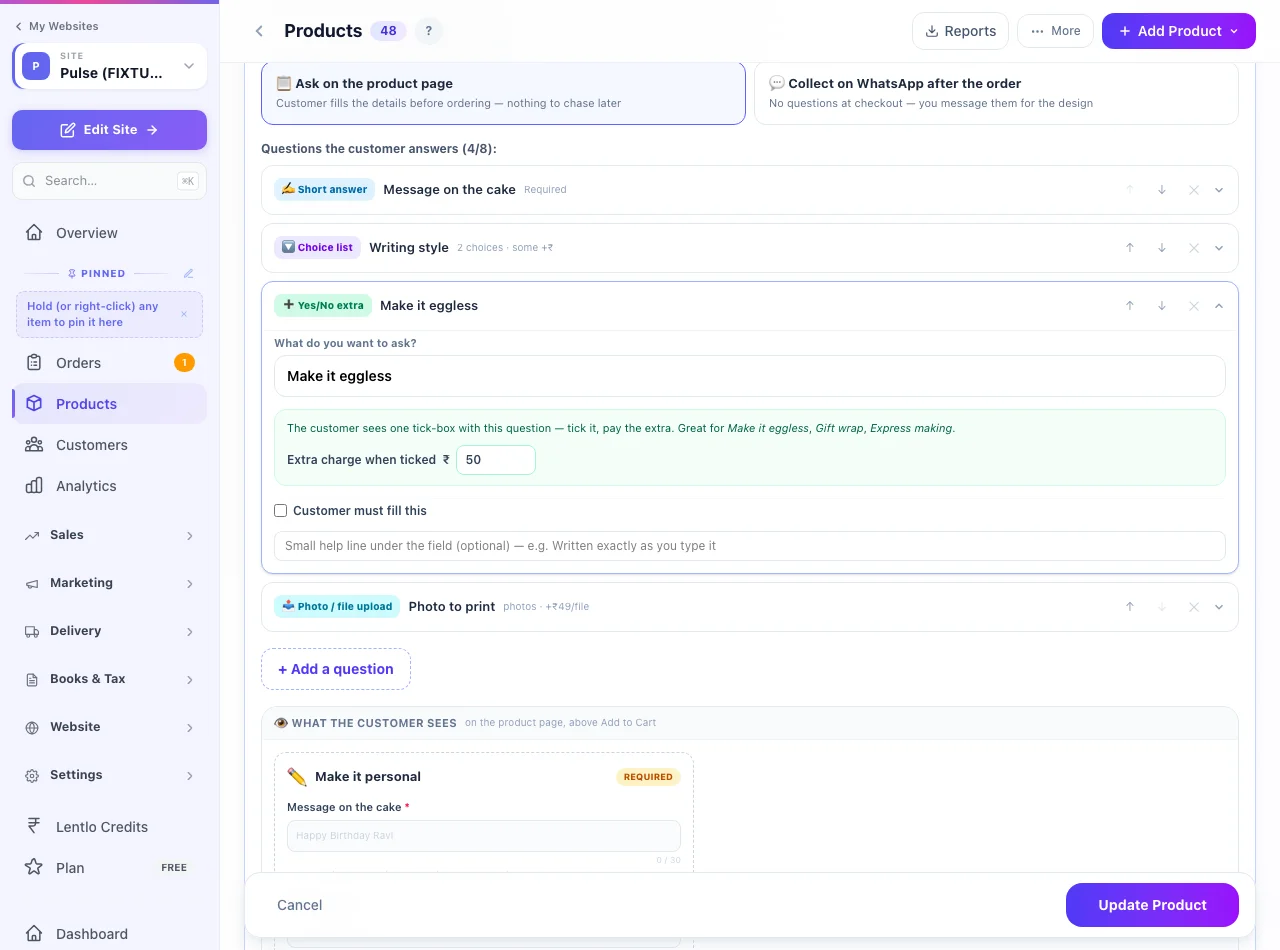
The What the customer sees box under your questions is a live mirror of the product page — labels, required stars, +₹ chips, help lines, letter counters, your warning note. If it looks right here, it looks right on your website. Save the product and the page updates itself.
On a restaurant menu — the Customise sheet
On the restaurant online-ordering design, a dish with questions is customised right on the menu: tapping ADD opens a sheet with your questions, a running total, a quantity and an Add item ₹… button — the customer never leaves the menu. Required questions must be answered before it adds, and a Several choices question stops at its Most. The price is worked out exactly as on the dish page, and your website checks it again when the order is placed.
- The menu card counts every line — two pizzas with different crusts sit as two lines in the cart; the card shows 2.
- + on the card asks Repeat last (one more with the same choices) or I’ll choose (the sheet again).
- − on the card lowers the dish when it has one line; with different choices in the cart it opens the cart, where each line has its own − and +.
- Which dishes use the sheet — choices, several choices, Yes/No extras, short or long answers and numbers. A dish with a photo upload, a long list, a date or sizes (Half / Full) still opens its own page, where those are asked.
- Words — the sheet’s button and the “Choose” in “Choose up to 3” are yours to change under Looks & wording → Every word, editable; the food sets label the dish Customisable — on a restaurant menu that word sits just under the dish’s ADD button (the button covers the bottom of the photo), elsewhere on the photo.
Long list (search box) — phone, car & bike models
For products that fit hundreds of models (a back cover, a screen guard, car mats), add a Long list (search box) question and paste the models one per line — from Excel, a supplier list, anywhere (up to 2,000). Write +50 after a model to charge ₹50 extra when it is picked. Duplicates are ignored, Sort A→Z tidies the list, and the question is required by default so no order arrives without a model.
- Where it shows — a list added here is asked inside the Personalize panel with your other questions. For a pick that should sit with the size & colour options (one more option row, no “Personalize” bar or photo tag) — a phone model, or brand → model steps that filter each other — add it from Variants & packs → + Add a choice list instead; such lists are edited there.
- Search that forgives spelling — v30pro, V30 Pro and vivo v30-pro all find Vivo V30 Pro 5G; every word typed must match. Sold-out or unavailable rows are dimmed.
- Not listed? — tick Let the customer type a choice that isn’t listed and a “use what you typed” row appears when nothing matches. Such orders show typed by customer on the order page, and a typed choice is never charged extra.
- Same list on many products? — save it as a shared list from the question card and pick it on the other products; editing the shared list updates every product that uses it.
Variants or Long list? If each model needs its own price, keep it as a variant option (and switch Customers pick with to Search box once it passes ~8 values). If the models only need to be recorded on the order — or counted — the Long list is lighter, unlimited and never hits the 100-combination cap: open Stock per choice under the list to give any model a quantity and a Selling switch (see Products → Choice lists).
What the customer sees
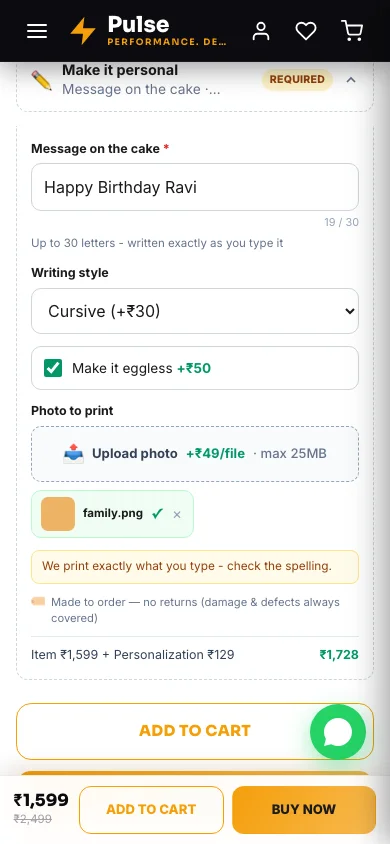
A “✏️ Personalize your order” bar sits above Add to Cart. Tapping it opens your questions with live Item + Personalization = Total maths, an upload box with a progress bar and a green-tick animation, and a small-photo warning if their picture may print blurry. They can't order without answering the questions you marked required — and quick-adds from product cards bring them to the product page first, so nothing is skipped.
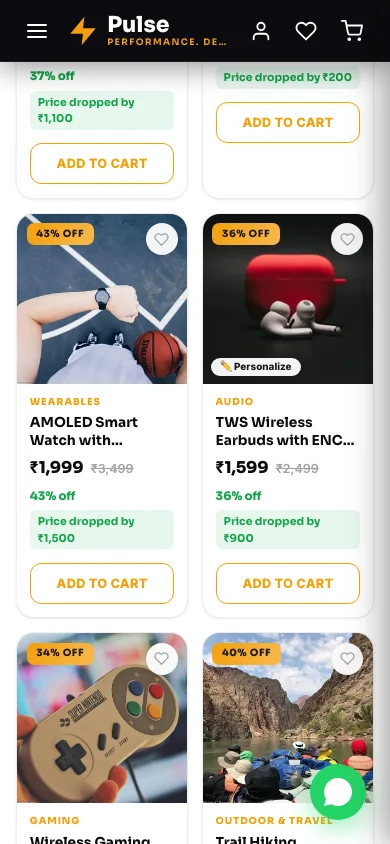
Shoppers discover it from the photos too: a Personalize tag on product-card images, a tappable tag on the product gallery, and a “Make it yours” tile at the end of the photo strip — all of which open the questions.
Their answers appear again in the cart (with an Edit link — typos get fixed before paying), at checkout under a “check your spelling — we make it exactly as you typed” reminder, on the order-success screen with a “Need a change? WhatsApp us” button, and later in My Account and Track Order.
Where you see the answers & files
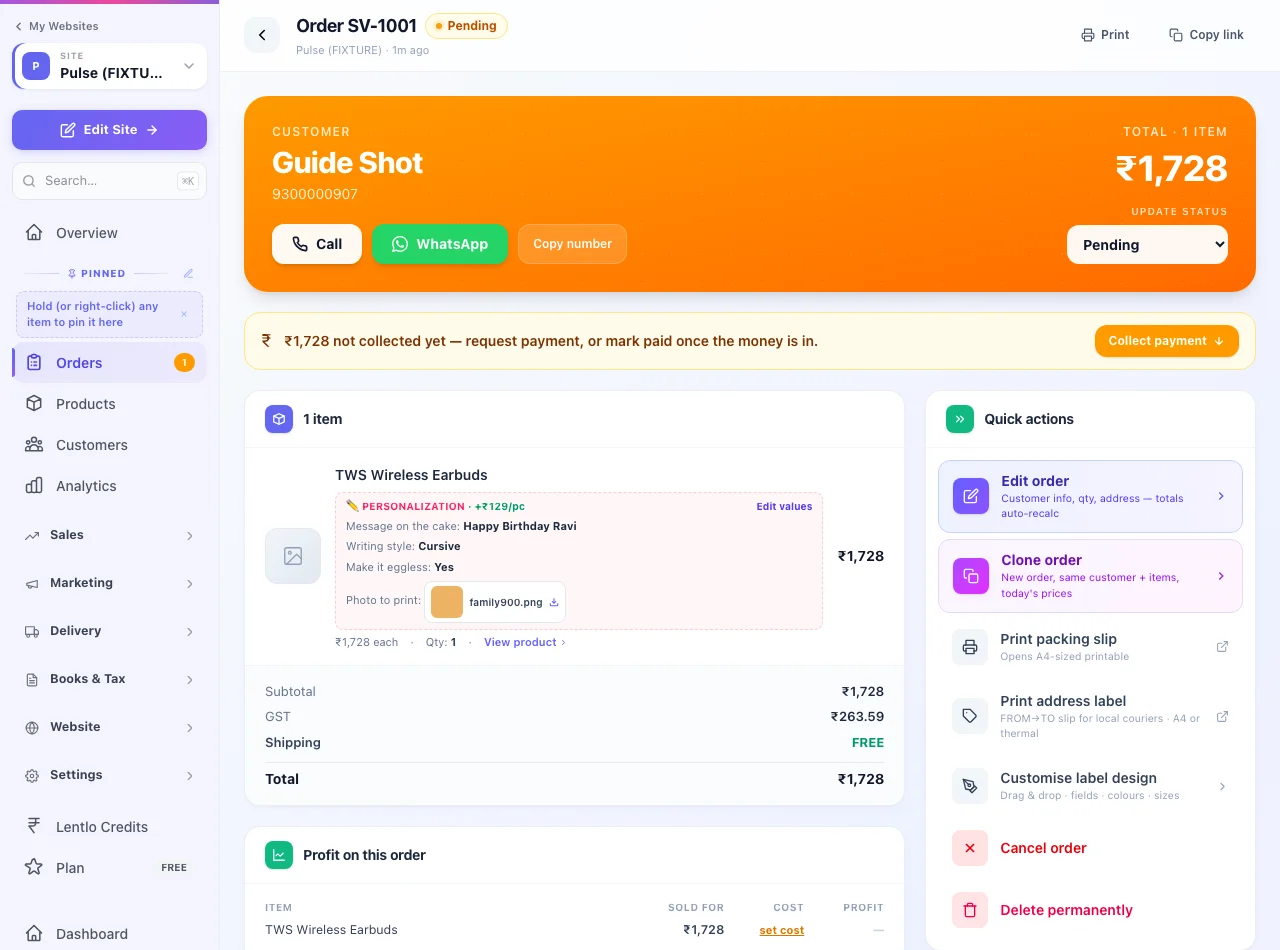
Open the order — every personalized line shows a Personalization box with the typed answers, the per-piece add-on amount, and the uploaded files. Photos show a preview; one tap downloads the original full-quality file for printing (iPhone HEIC photos also get a ready-to-print JPG). Files are private — only you and staff with order access can open them. They are never public links.
Charging extra for add-ons
Any question or choice can carry an Extra charge ₹ per piece — eggless +₹50, cursive engraving +₹30, extra photo +₹49 per file. The customer sees the price change the moment they pick it, the gateway charges it, and it lands inside the same line on the GST invoice automatically. Prices are always checked on our servers — a tampered page can never underpay you.
Make it speak YOUR language
Open Looks & wording inside the section: pick the icon (🎂 for a bakery, 💍 for a jeweller, 🧵 for a tailor — or type any emoji), the photo-tag text and colour (white or dark pill), the box title and style, and the message shown after adding to cart. Under Every word, editable you can rewrite all the small words too — the REQUIRED pill, the upload button, the checkout reminder, the WhatsApp button, the made-to-order note — in English, Hindi or your own mix. Anything you leave blank keeps the sensible default.
“Collect on WhatsApp after order” mode
Prefer collecting designs in chat? Switch the product to Collect on WhatsApp after the order — the product page shows your note (e.g. “Order now — we'll message you for your design”), no questions are asked at checkout, and you collect the file on WhatsApp once the order lands. Also the right choice for files over 25MB or CorelDRAW/AI formats.
Good to know
- Uploads: JPG/PNG/WebP/HEIC photos, PDF, or MP4/WebM video — up to 25MB each, up to 5 files per question.
- Limits: up to 8 questions on a product (choice lists added under Variants & packs count too), up to 20 options in a Choice list or Several choices question (a Long list takes up to 2,000), an extra charge of up to ₹5,000 on one add-on and up to ₹10,000 of add-ons on one piece.
- Works with variants: sizes and colours stay in Variants; personalization is what the customer types or uploads on top. The price line always shows the picked variant's price.
- A Combo Set block (a set bought in one tap) leaves personalized products out — they need the customer's answers first, so they are bought from their own page.
- Half-filled forms survive browsing — if a customer goes to compare another product and comes back, their answers and upload are still there.
- Files clean themselves up: abandoned uploads after 7 days, order files 6 months after delivery — customer photos are personal data and are treated that way.
- The “Made to order — no returns” note covers change-of-mind only — damaged or wrong items are always your responsibility to replace, as usual.
- Google & Instagram listings keep working normally — feeds carry the base price; add-ons are charged at order time.
More in Products & orders
Did this answer your question?
It takes one tap and it genuinely changes what we write next.