
Your website as an app
Customers install your site like an app — share an install link and QR, build a free Android app, and get on the Play Store and App Store.
Watch0:417 min readUpdated 21 Oct 2026
In this guide
Not the app you meant? This guide is about the app your customers install. The app that puts your dashboard on your phone is a different one — see The dashboard app on your phone.
Start here: the Apps page
On the Main Dashboard menu there is an Apps item. It exists to answer one question — “how do I make an app?” — in three plain steps:
Create your website
Every app is built from a live website; the app shows the same products, prices and orders. No website yet? The page hands you the Create a website button.
Share the install link
One link installs your website as an app on any phone — Android or iPhone — in a tap. Free, no app store needed.
Build the Android app
A real Android app file for sharing on WhatsApp or listing on the Play Store, from the same page.
Below the steps, every website you own is listed with the state of its install link (Live · install link ready, install link off, or Draft · publish the website first) — tap one to open its app page. With exactly one website you land there straight away.
Android App — where it all lives
Android App (in your website's menu under Marketing, and behind Apps on the Main Dashboard) is the page that turns your live website into something customers install — useful the day you want repeat customers one tap away instead of searching for you. Open your site's dashboard and click Android App in the menu.
The page starts with "Your store as an app — 3 ways" — a small map of everything on the page: 1. the instant app (the install link — every phone, no app store), 2. the Android app (a real APK file + the Play Store path) and 3. the iPhone app. All three open the same store — tap any row to jump to it.
Two switches sit at the top:
Make my site installable
On by default. Customers can add your site to their phone like an app — your own icon, full-screen, no browser bar. Also creates your shareable install link.
Show an Install button to customers on my store
Off by default. A small, dismissible 'Install our app' card appears once for phone visitors — Android installs in a tap, iPhone gets a short guide.
If your site was published before this feature arrived, you'll see a Switch on my app button — tap it once and everything goes live.
Share your install link & QR
The install link is the easiest way to get your app onto customers' phones — one link works for everyone, no app store needed. Share it when a customer asks "do you have an app?", after their first order, or on your shop counter.
Copy the link or save the QR
On Android App, tap Copy next to your install link, or Save QR to download the QR code as an image.
Share it anywhere
Tap Share on WhatsApp to send it to customers, or print the QR on bills, packaging and your counter — one scan installs your app in seconds.
Customers install in one tap
The link shows each customer the right way for their phone: an Install button on Android, and a quick Add to Home Screen guide on iPhone. Either way, your icon lands on their home screen.
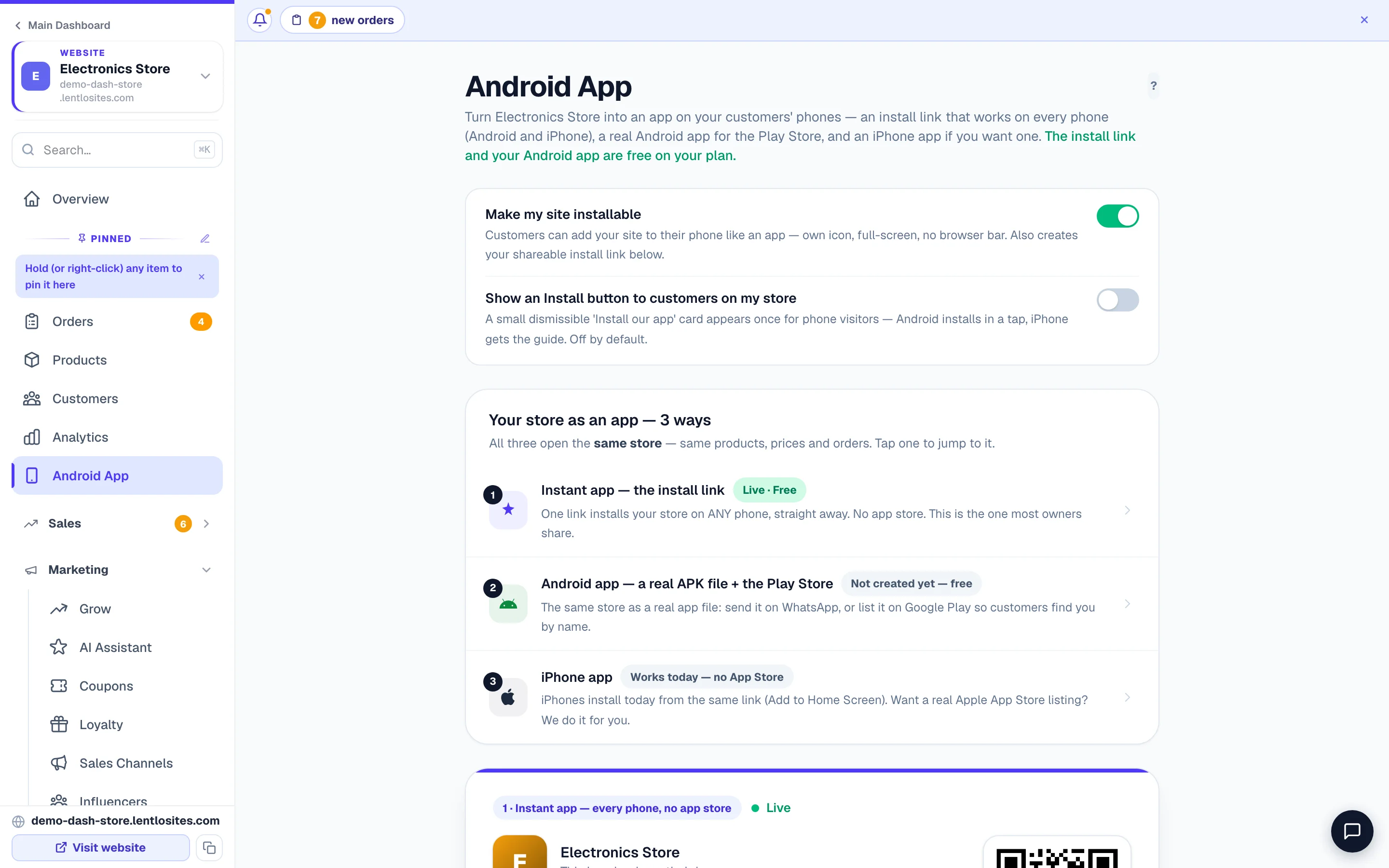
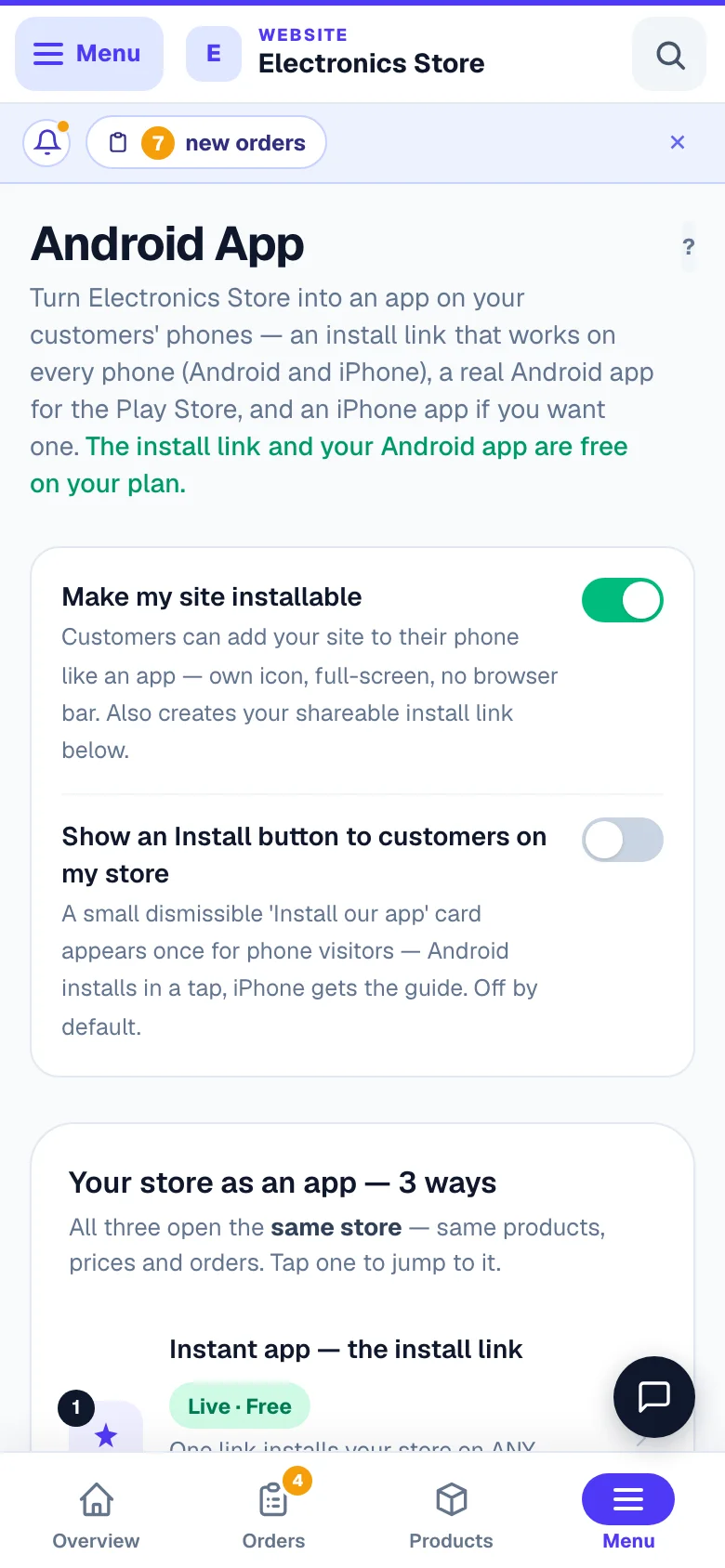
- 1Three waysInstall link, Android app file, and the iPhone App Store route.
Customers who install your app can also receive your push notifications — order updates and offers straight to their phone. See Customer notifications.
App look & branding — name, icon, opening screen
By default your app uses your website's name, logo and brand colour automatically. The App look & branding section on Android App lets you change every part of it — with a live phone preview so you see exactly what customers get.
App name & icon label
The name shown on install screens, and the short name under the icon. Phones fit about 10–12 letters before cutting the label with …, so keep it to one or two short words — the studio warns you when it is too long. Already-built apps pick the new label up on their next build.
App icon
Keep your logo (choose its background colour and size in the tile) — or upload a special icon made just for the app, including full-tile designed icons.
Opening screen
The splash customers see for a moment while your app opens — pick white, your brand colour, black or any colour. Works on Android and iPhone.
Long-press shortcuts
Quick links (Shop, Track Order, My Account…) that appear when customers press and hold your app icon. Automatic, or choose your own — up to 4.
How the app behaves
The installed app acts like a real app out of the box: it stays portrait, pages don't pinch-zoom, and pull-down doesn't reload the page. Here you can pick Portrait only — like most apps, Rotates with the phone, or Sideways only, and switch pinch-zoom or pull-to-refresh back on — they apply only inside the app, never to your website in a browser.
Behaviour changes reach everyone's already-installed app the next time they open it — no rebuild, no re-install. (Product photos still zoom in the photo viewer even with pinch-zoom off.)
Under More options you'll also find: full-screen mode, the iPhone status-bar style, an app description, install screen photos (up to 3 store screenshots that make Android's install popup look like a real app-store listing), and the install popup's message.
Tap Save app look and your install link updates within a minute. If you've already built the Android app file, you'll see a Rebuild Android app nudge — rebuild once so APK / Play Store customers get the new look too. Use automatic look takes everything back to the defaults.
Build your Android app (free)
This creates a real, signed Android app file for your store — the same kind of file that goes on the Play Store. Build it when you want to share an app file directly, or as the first step towards a Play Store listing.
Tap Create my Android app
On Android App, in the Android app file section. If your website is still on its free address, the page first asks “Getting your own domain (yourbrand.com)? Add it first.” — Add my domain first takes you to the Domain page, Continue with yourshop.lentlosites.com builds on the address you have now. Then tap Create my Android app. The build takes 2–5 minutes (the very first one can take up to 15) — you can leave the page, it keeps building.
Download and share
When it's ready you get two files: the APK — an app file you can send on WhatsApp — and the AAB, which is only for the Play Store (next section).
Planning your own domain (yourbrand.com)? Connect it first. The app is tied to the web address it's built with — change the address later and the app must be rebuilt, and everyone who installed it needs the new version. See Connect your own domain.
When someone installs an APK sent on WhatsApp, Android asks a couple of security questions — normal for any app from outside the Play Store, but some customers get nervous and stop. For most customers, the install link above is better — it installs with zero warnings. The APK is best for regulars who trust you, or your own shop's phones.
Put your app on the Google Play Store
A Play Store listing makes your app searchable by name and installs with zero warnings — worth it once your app is a real part of how customers buy from you. The listing goes under your own Google account (Google's rule — and it means the app is truly yours).
The Android App page has a built-in step-by-step wizard with everything ready to copy-paste: your app name, descriptions, icon, privacy policy link and the AAB file. In short:
Create a Google Play developer account
Google charges a one-time US$25 (about ₹2,200), paid to Google directly. New personal accounts must first share the app with 12 testers for 14 days — family, staff and regular customers count.
Follow the wizard
Create the app in Play Console, paste the ready-made listing text, upload your AAB, and fill Google's questionnaires. The wizard walks you through every screen.
Link the Play app back to your website
After the first upload, copy the SHA-256 fingerprint from Play Console and paste it into the wizard — this removes the browser bar for customers who install from the Play Store. Google usually reviews within a week.
Don't want to do the steps yourself? Our Play Store Launch service does it for you — we create the listing, upload, and handle Google's tester and review steps. ₹1,499 one-time; you still need your own Google Play account. In the Play Store part of the Android App page, tap Request it — we'll do it for you: it opens a WhatsApp chat with your request already typed, and the team replies with the next steps.
Selling digital products? Google requires Play apps to use Google's own billing for digital goods, so a normal website checkout isn't allowed for them inside a Play app. Either keep digital products off your website, or skip the Play Store and share the install link / APK instead.
Google's review — what they check, and what to do if the app is rejected
Google reviews every new app and every update. A rejection on the first try is common and is not a mark against you — the email names the policy, and for a store app the usual causes are a questionnaire answer or a listing detail. The wizard on the Android App page has ready answers for the parts we control; here is what each check means. Google's own pages are linked below — what they say wins over this summary.
- Data safety form. Declare what your app actually collects and shares — Google judges the real behaviour of the app, its web pages and any SDKs, not a summary. For a store app built here that includes what a customer types to order or sign in (name, phone number, address, email), shared with you as the seller and never sold. Declare analytics or advertising data if you have added any tracking or ad tags (Settings → Tracking) or any other third-party tag on your site. Every website here is served over HTTPS, so data is encrypted in transit; only say what is true for your own set-up. A form that says “collects nothing” while the app has a checkout is a common rejection.
- Privacy policy link. Google needs a working privacy policy page on the listing AND inside the app. The wizard gives you the link — paste it in both places and never delete that page from your website.
- Content rating and target audience. Answer the rating questions honestly (a shop normally comes out as suitable for everyone) and state the audience your app is really for — a shop for the general public is not designed for children, so it is normally listed for adults; never pick an audience to make review easier. If children are part of your intended audience, Google's Families policy applies with stricter rules.
- Testers for a personal account. A personal developer account created after 13 November 2023 must run a closed test with at least 12 testers opted in for 14 days before it can apply for production (Google's page below has the exact rules; older accounts are not affected). Family, staff and regular customers count; each tester must accept the invite AND install the app, and the count has to stay at 12 for the whole 14 days — invite a few extra people so one drop-out does not restart the clock.
- “Minimum functionality” feedback. Google expects the app to do something useful and work properly — load, respond, and offer real value beyond a plain web page. The wizard's description explains what the app does (browsing products, ordering, tracking orders, notifications); the app must actually do those things when the reviewer opens it, so publish your website first and make sure ordering works before you submit.
- Digital goods. As above — a Play app cannot sell digital products through a normal checkout.
- Brand rights. Use only your own brand name, logo and photos. A listing built on another brand's name or product photos is rejected and can cost you the developer account.
Rejected? Read the email down to the policy name, fix that one thing, and resubmit the same release — do not create a second app. If you believe the decision is wrong, the email carries an appeal link (Google does not promise a fixed time to answer). Repeated identical resubmissions count against the account, so fix first and resubmit once.
After approval. Paste the SHA-256 fingerprint into the wizard (Step 3 above) — until you do, customers who install from Play see the app with a browser bar at the top.
Official Google Play help pages
Google's own pages for the checks above. Their screens change from time to time; the ready answers always come from the wizard. Links checked on 17 September 2026.
- Provide information for Google Play's Data safety section
- App testing requirements for new personal developer accounts
- Prepare your app for review
- Google Play Developer Program Policies
iPhone — Add to Home Screen now, App Store if you want it
iPhone customers can already install your app today — the install link shows them a short Add to Home Screen guide, and that covers almost everyone. A real listing in Apple's App Store is a separate, bigger step for shops that want to be searchable there.
For the App Store we offer a done-for-you service: we build a real iPhone app for your store and submit it under your own Apple account. It costs ₹9,999 for the first year, then ₹4,999/year to keep it live — paid from your Lentlo Credits. It usually takes 1–2 weeks including Apple's review, and you can follow the status right on the Android App page. To buy it, tap Get my iPhone app in the iPhone part of the page, check the price against Your Lentlo Credits and confirm; if your credits are short, the same box lets you recharge through CCAvenue and brings you back to finish.
Before you buy, know these three things: the fee is non-refundable (you confirm this before paying); only the account owner can purchase it (staff can't spend your credits); and your site must be published first — the app is built from your live website. Apple charges about ₹9,000/year for the developer account, paid directly to Apple (not to us).
See who installed — the App tab
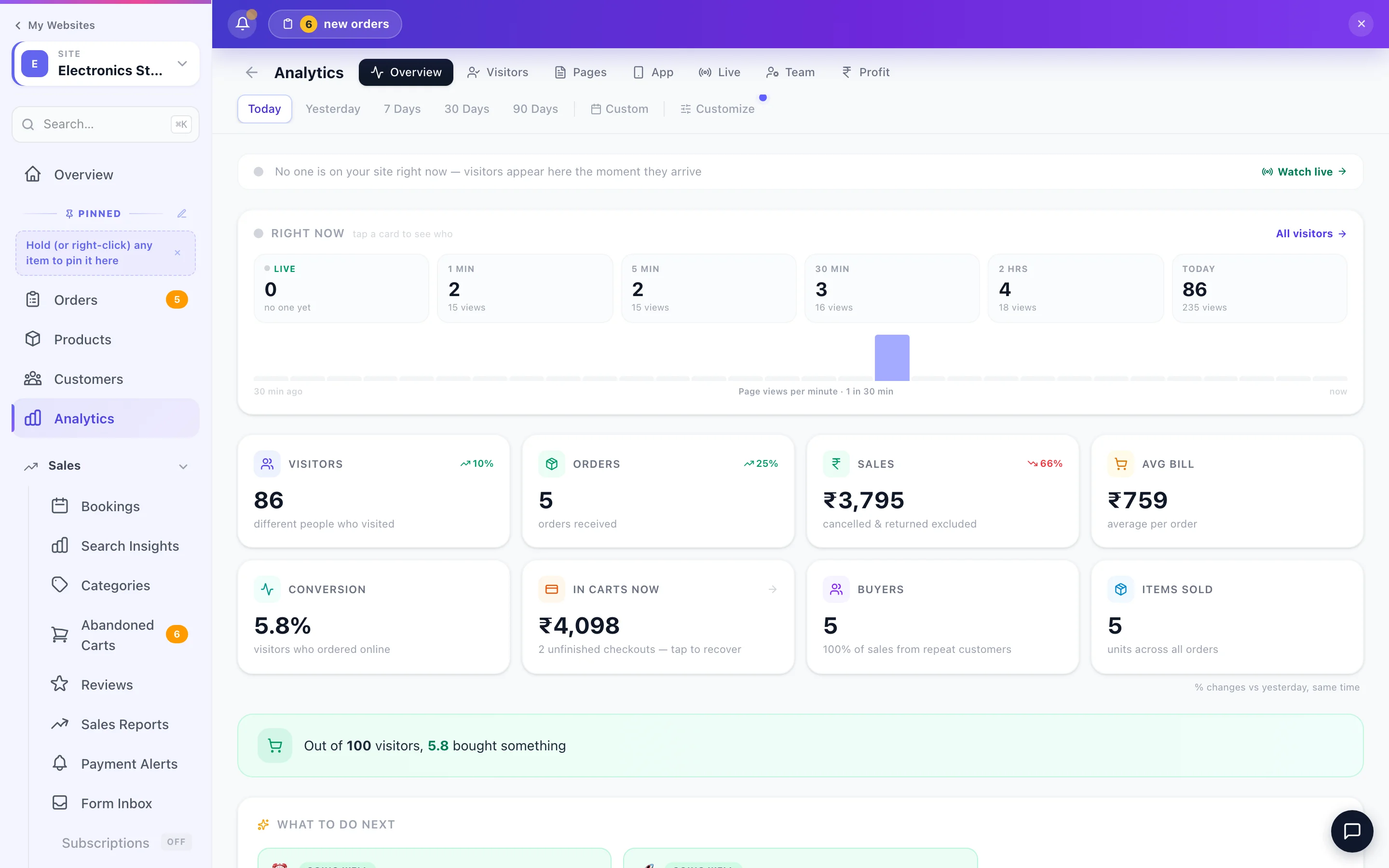
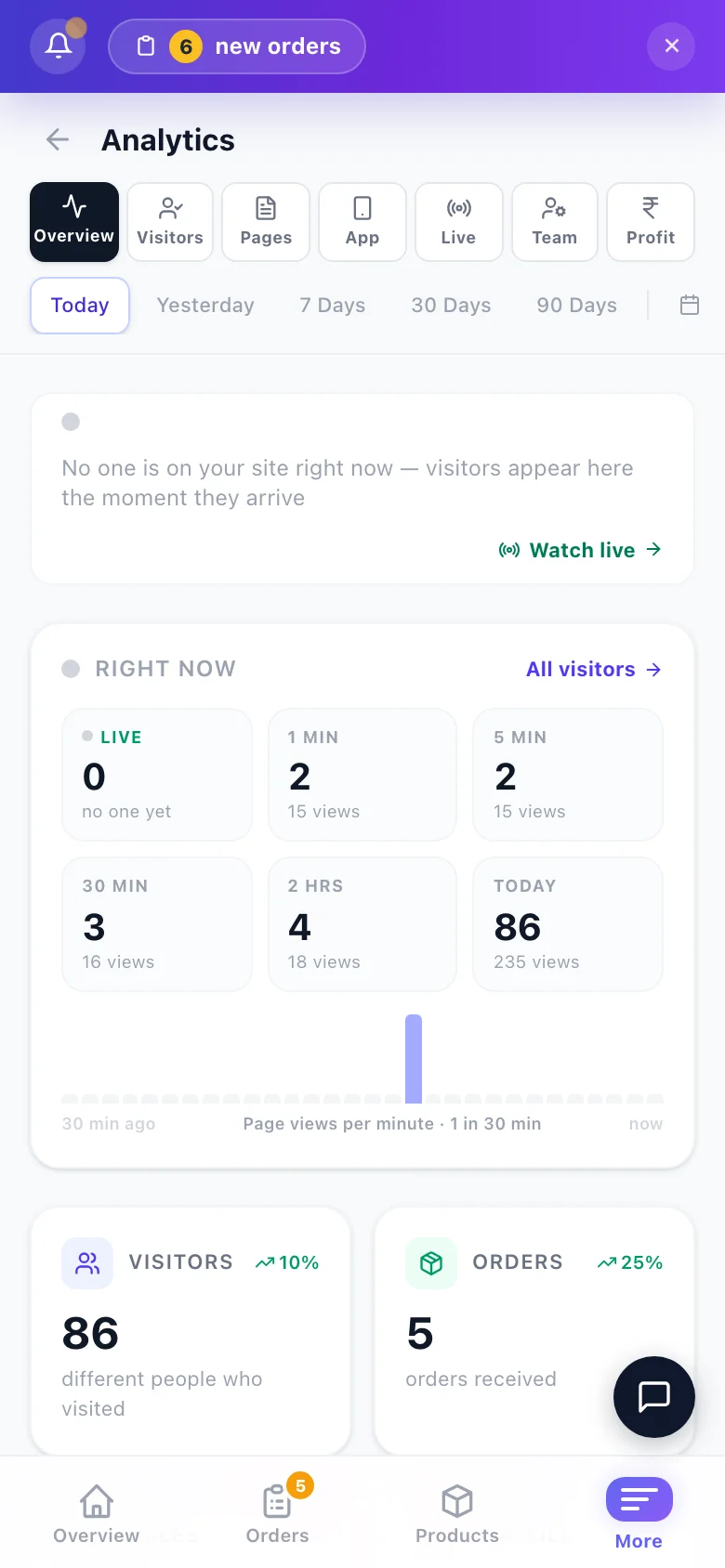
Install numbers tell you whether the QR on your bills and the install button are actually working — check them the same way you check sales. Open Analytics in your site's dashboard menu and tap the App tab.
- Installs — how many customers added your app in the period, with a day-by-day chart
- Active app users — how many opened the installed app; App opens — visits that came from the app; From the app — the share of all your visits that came through it
- Which devices installed — Android, iPhone / iPad or a computer
- Where installs came from — the Store pop-up (the Install button on your store) vs the Share / install page (your install link)
- Install link performance — Install link views next to Installed from link: of the people who opened your install link, how many installed
Quick answers
The three questions owners ask most about their app, answered in a line each — check here before anything else.
Does the app update when I change my website? Yes — the app shows your live website, so new products, prices and pages appear instantly. You only rebuild the Android app if your web address changes (or to refresh the icon after a logo change).
Why doesn't the app zoom or rotate like the website? That's on purpose — real apps stay portrait and don't pinch-zoom, so yours does too. Want it different? Both choices live under App look & branding → How the app behaves.
Do I need to publish first? Yes — the app is created from your live website. See Publish your site.
What does it cost? The install link, QR, in-store Install button and the Android app file are free on every plan. You only pay for optional done-for-you services: Play Store Launch (₹1,499 one-time) and the iPhone App Store service (₹9,999 first year).
More in Your website
Did this answer your question?
It takes one tap and it genuinely changes what we write next.