
GST invoices & reports
Auto-generate Rule 46 invoices — or simple cash memos without GST — on every order, style them with the invoice designer, print A4 or thermal, and export GSTR-1/3B for filing.
Watch 5 short videos10 min readUpdated 21 Oct 2026
In this guide
How invoicing works
Invoicing turns every order into a numbered bill your customer (and your CA) can rely on — you set it up once, and each new order gets its invoice made for it. The document adapts to your registration:
- Tax Invoice — you have a GSTIN. Full GST breakdown, HSN codes, place of supply.
- Bill of Supply — you're a Composition Scheme dealer. No tax columns, as the law requires.
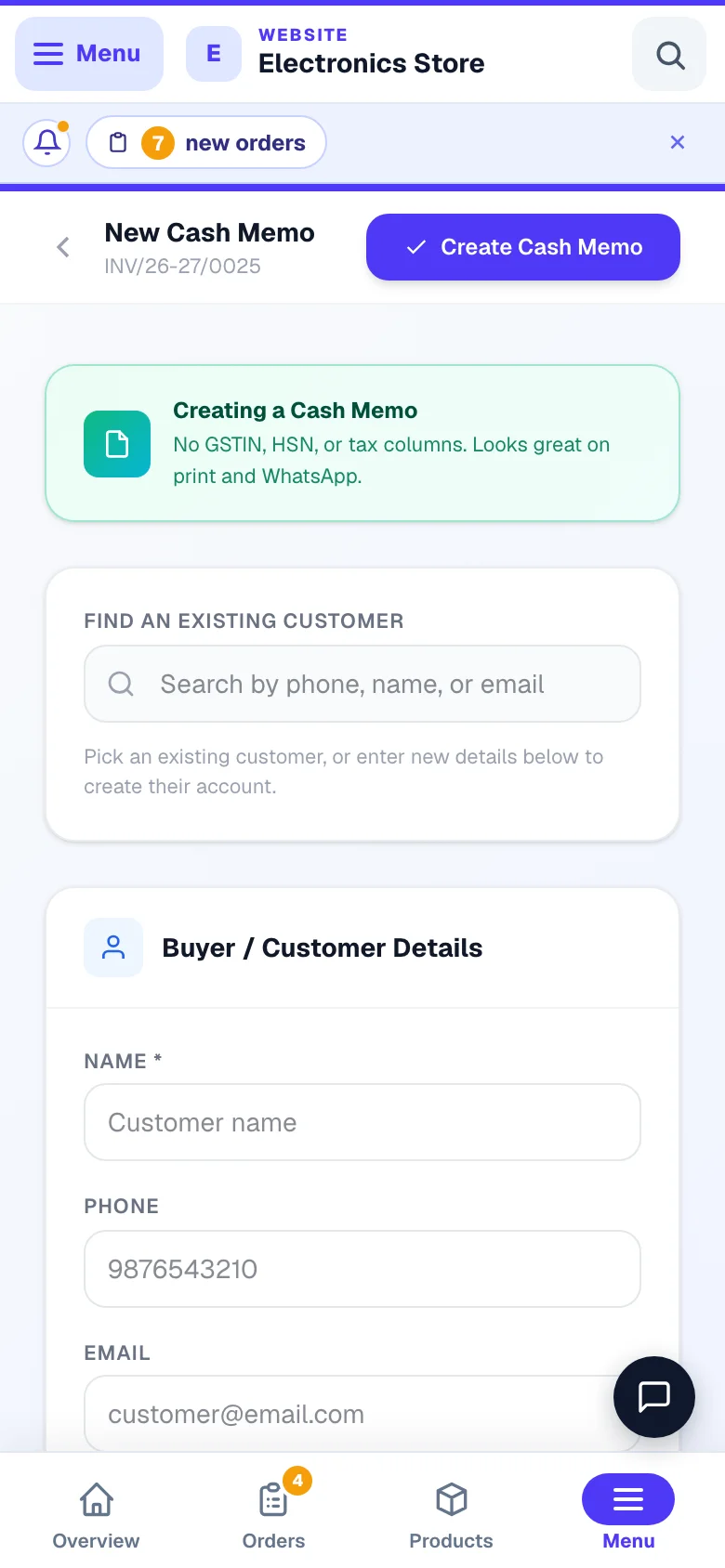
- Cash Memo — no GST registration at all. A neat printed bill with no GSTIN, HSN, or tax columns — a proper replacement for the paper bill book.
Invoice numbers follow the Rule 46 format INV/25-26/0001 — your prefix (up to 5 characters), the financial year (it rolls over every April), and a running serial. Numbers run in sequence and are never reused — a cancelled bill keeps its number in your records.
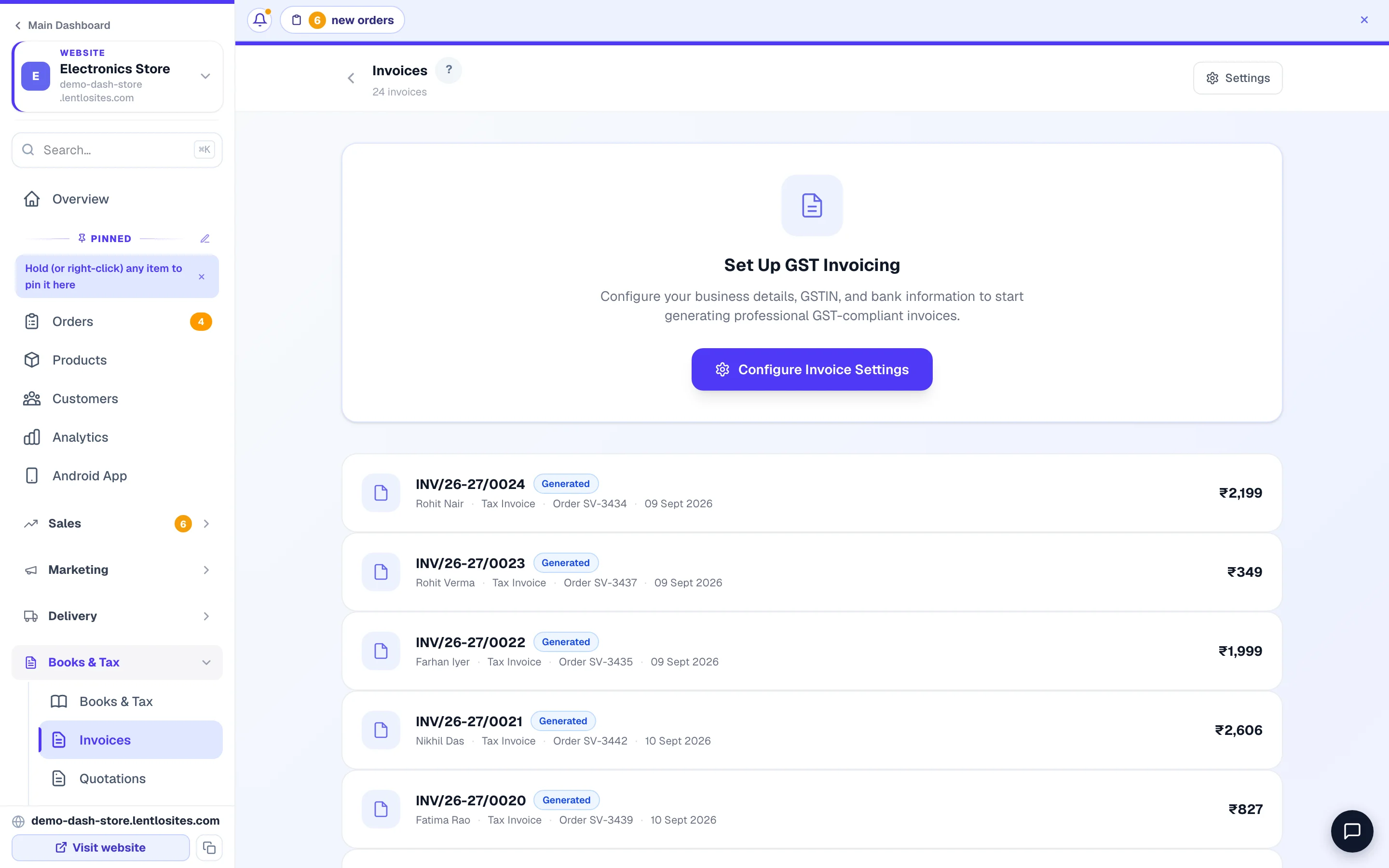
Billing customers who didn't order on your website? You can also raise invoices by hand — from any order via Generate Invoice, or from scratch with New Invoice on the Invoices page. And if you bill mostly across the counter, see CRM billing for the standalone billing counter.
One-time setup
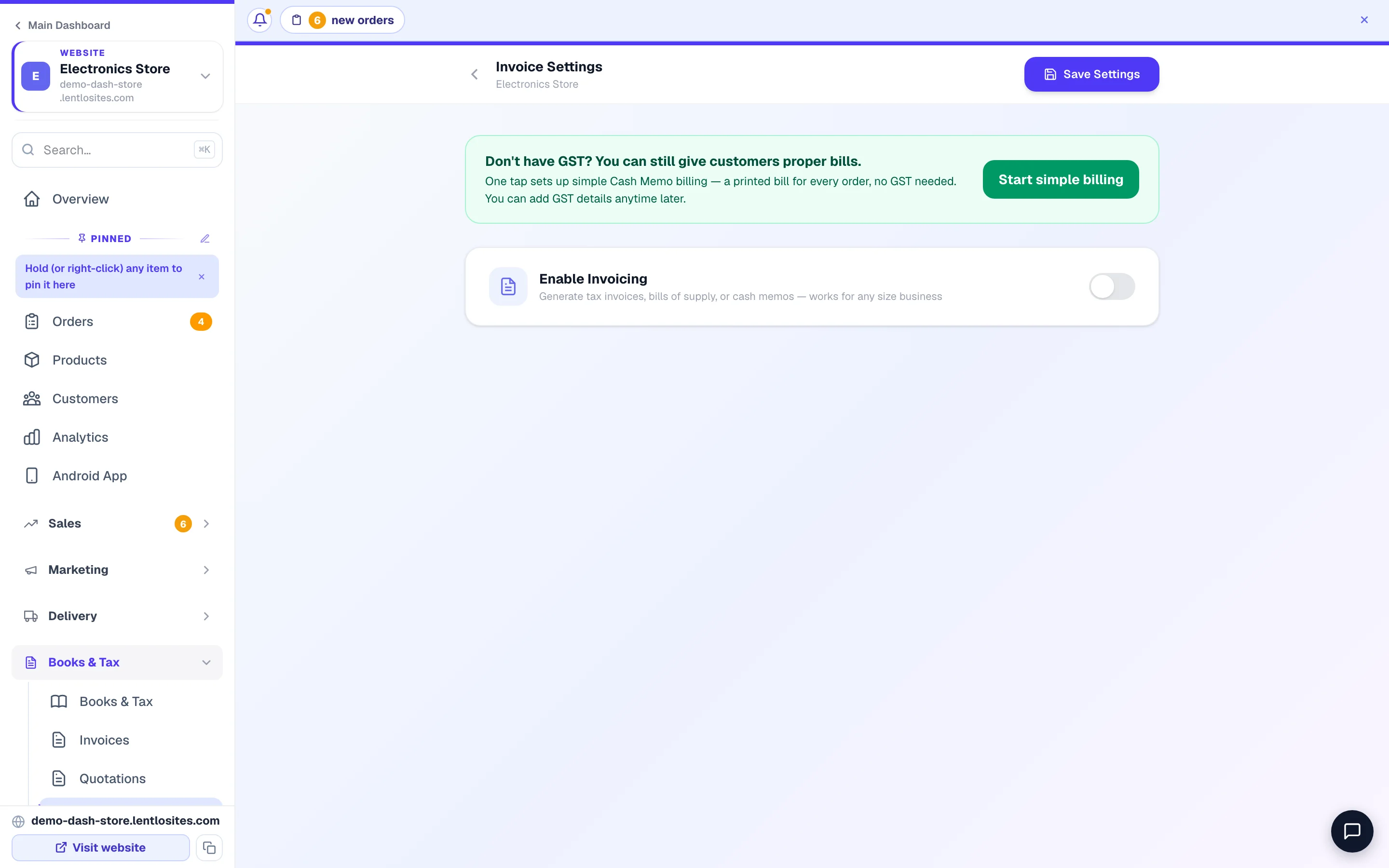
Everything lives on one page: Books & Tax → Invoice Settings in your website's sidebar (the same page opens from Invoices → Settings; until invoicing is on, the Invoices page shows Set Up GST Invoicing with a Configure Invoice Settings button). Two switches matter most — Enable Invoicing (switches the whole system on) and Auto-generate Invoice on Every Order (it reads Cash Memo instead of Invoice when you have no GST number), which makes each order bill itself. Nothing is kept until you press Save Settings (top right or at the bottom).
Turn on Enable Invoicing
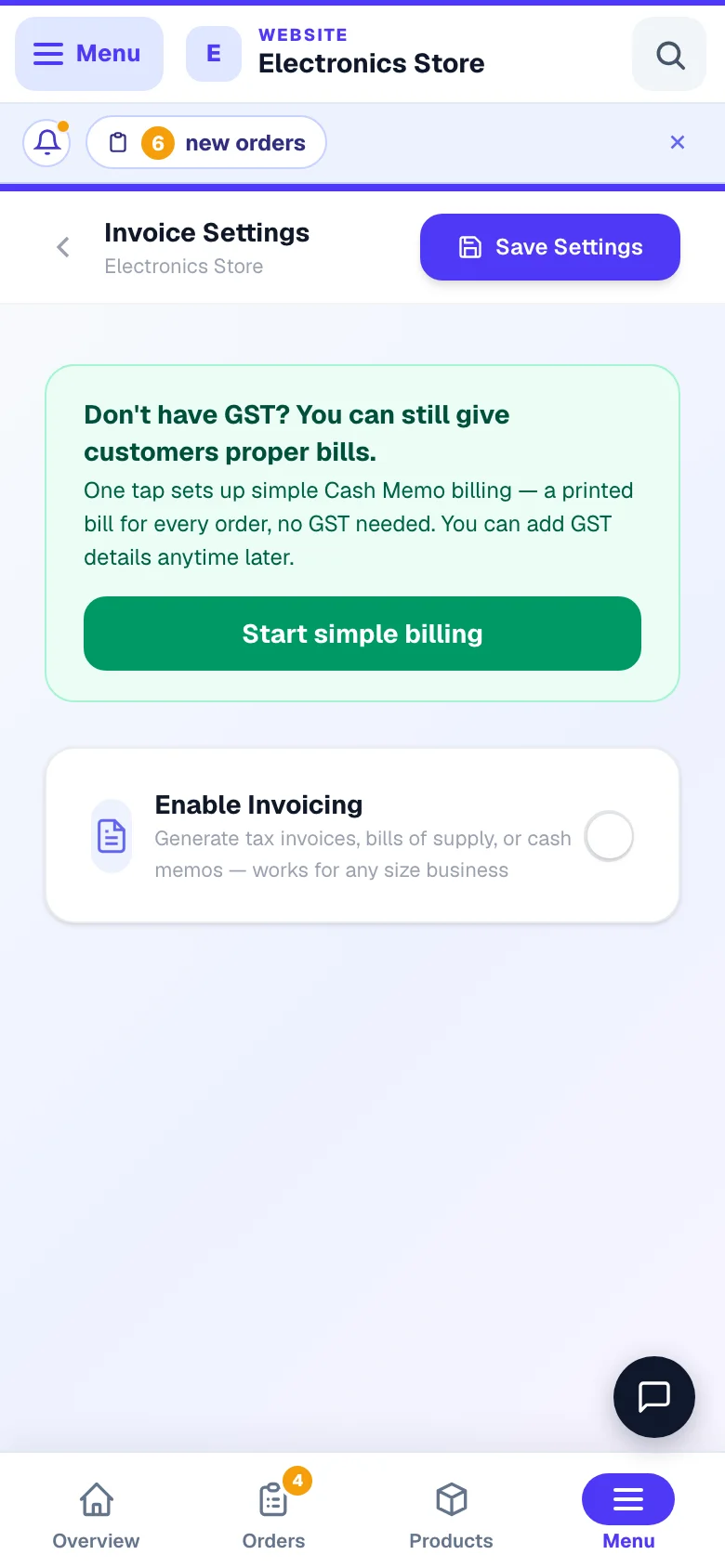
The master switch at the top. Not registered under GST? Flip I don't have a GST number too — or, on a fresh page, just tap the green Start simple billing card, which turns on all three switches for Cash Memo billing in one go; then press Save Settings.
Fill your business details
Business name, GSTIN, PAN, phone, email, address and state — these print on every invoice. City / town and pincode are what e-invoices and e-way bills need (the portals reject a bill without the seller's pincode). The Yearly turnover (all GSTINs under your PAN) choice decides whether e-invoicing applies to you — see E-invoicing. Bank details and a signature image are optional sections further down; both can be hidden from the printed bill later if you prefer.
Set your preferences
- Invoice prefix — up to 5 letters/numbers (default
INV; many cash-memo shops typeBILL). - Default GST rate — used for any product or service line that doesn't set its own rate (see below). The page suggests the usual rate for your kind of business — 5% for salons, gyms and restaurants, exempt for clinics and schools, 18% for most shops and services — and saves that suggestion the first time you save with your GSTIN. Pick another rate any time; confirm it with your CA.
- Product Prices Include GST — keep this ON if your prices are MRP-style with tax already inside (the Indian retail standard); the invoice shows the GST portion broken out of each price. Hand-made invoices also carry their own Prices include GST switch, so a service bill can add GST on top without changing your store setting. Switch it OFF (your prices are before tax and checkout adds GST) and the price shown on Google Shopping, Instagram and in your product page's search data is the with-GST price — those places must show the final amount a customer pays, and it is worked out by the same engine your checkout uses, so the two always agree.
- Input credit on purchases — leave it on Follow the rule for my business type. Restaurants, salons, gyms, budget hotels and tour operators charging 5% cannot claim credit on purchases, and your GST reports show that reversal for you.
- Composition Scheme Dealer — tick if that's you; invoices become Bills of Supply. A composition dealer may not sell to customers in other states.
Turn on Auto-generate, then Save
With Auto-generate Invoice on Every Order ON (and saved), an invoice (or cash memo) is created the moment a customer places an order — website orders and orders you add by hand alike. Two waits, so the invoice is made once with the final amount: an order whose delivery charge you add after the order gets it when you save the charge, and an order request when the customer accepts your final bill (a request you decline never gets one). Making an invoice by hand from such an order waits the same way. For GST invoices, your GSTIN and default GST rate must be filled first — without them auto-generation stays quiet (Cash Memo and Composition modes don't need them).
Put HSN codes on your products
Each product's HSN code prints on its invoice line. Fill it on the product edit form — if you don't know yours, ask your CA, or use the CBIC lookup at cbic-gst.gov.in. An HSN is 4, 6 or 8 digits (a code of any other length is refused in words); with a turnover over ₹5 crore, use 6 digits — the HSN codes row under What Shows On Your Printed Bills says so too.
What's on the invoice (Rule 46)
Rule 46 of the GST rules lists what a tax invoice must carry — LentloSites fills all of it for you, so a GST officer or a B2B buyer never finds anything missing:
- Sequential invoice number (max 16 characters), invoice date, and your GSTIN, name, and address.
- Buyer details — and if your customer typed their GSTIN at checkout, it prints in Bill To, making it a proper B2B invoice they can claim credit on.
- HSN code, quantity, and rate per line; CGST + SGST or IGST worked out automatically from the place of supply — the buyer's GSTIN or delivery pincode decides whether the sale is within your state or interstate. Store-pickup orders always bill in your own state.
- Amount in words, your signature, and a QR code the customer can scan to verify the invoice is genuine.
From 10 September 2026, a delivery, COD or priority charge on a tax-inclusive bill carries GST at the rate of the goods it accompanies (the law treats it as part of the sale) — the total your customer pays is unchanged; the tax inside the charge is simply shown and reported. Delivery charges, extra charges, and discounts appear on the invoice too. The Extra Charges & Discount on the Invoice box in Invoice Settings has four switches if you'd rather keep any of them off the printed bill: Show delivery / shipping charge, Show extra charges, Show discount and Show per-product discount column (the total discount still shows in the summary either way). Show delivery / shipping charge covers shipping on website orders and the delivery charge on hand-made orders; Show extra charges and Show discount set the starting choice for the charges and discount you add on a hand-made order, which you can still change per order (coupon and loyalty discounts on website orders always show). A charge or discount switched off is left out of the invoice altogether — not just hidden — so that invoice's total no longer matches what the customer paid; keep them on unless your CA tells you otherwise. Discounts are spread across the product lines so GST is charged on what the customer actually paid.
The invoice designer — make it yours
Your invoice is often the only paper a customer keeps, so it should look like your brand — the Invoice design section in Invoice Settings controls the look of every invoice and receipt, without ever touching the tax math.
- 16 full-page (A4) designs — Modern, Classic, Minimal, Bold, Elegant, Corporate, Letterhead, Compact, Black & White, Soft, and six newer looks: Regal (violet bands), Midnight (navy & gold), Crimson (maroon ledger), Saffron (warm orange), Graphite (quiet slate) and Copper (bronze warmth for jewellers).
- 10 receipt styles for thermal roll printers — Classic, Minimal, Bordered, Double line, Dotted, Centred, Framed, Compact, Ruled, and Bold — plus a Line between each product switch for long counter bills.
- Brand colour — recolours the header and total bar; the text on it flips automatically so even a dark colour stays readable.
- Fonts — separate heading and body font choices (print-safe, so they render the same on paper and PDF).
- Logo — size slider and left / centre / right position.
Leave the Make it yours — optional part alone and the design keeps its own colours and fonts (Reset to design default clears a brand colour). Below the designs, the Bill Number & Receipt Options card holds What Shows On Your Printed Bills, which lets you switch individual pieces off: logo, QR code, amount in words, terms, HSN codes, place of supply, signature, bank details, the tax-summary tables, the order-source line, the business name in the header (turn it off when your logo already carries your name — your name always stays in the seller details for GST), the UPI scan-to-pay QR, and an optional Prepared by line that prints who made the bill (off unless you switch it on — useful when staff raise invoices). And Bill number on receipts can print a big daily counter number (restarting at 1 each morning — handy for a busy counter or restaurant) alongside or instead of the official number, which always keeps counting in your dashboard for GST.
Credit tracking on hand-made bills
A hand-made (free-form) bill can carry a payment due date (set it on New Invoice) and record part-payments: open the bill and use the Payment card — enter the amount, pick how it came (UPI, Cash, Bank or Other), add a note if you like and press Record payment. The bill flips between Not received → Part received → Fully received, an Overdue tag appears once the due date passes, and Seen by customer shows when they opened their copy. The list shows an amount-due chip on each open bill (red when overdue) plus a strip totalling everything still to collect. Each recorded payment has a Receipt button that prints a small payment acknowledgment slip (✕ removes an entry made by mistake), Remind on WhatsApp sends a polite balance reminder, and Add to CRM saves the customer as a CRM contact with a note linking the bill. The scan-to-pay QR always asks for the live balance — never money already received. Order bills don't use this card: their money is tracked on the order itself.
Scan-to-pay UPI QR
Invoices with an amount still to be paid can print a Scan to pay UPI QR next to the verify QR — your customer scans it with any UPI app and the amount comes pre-filled. Add a UPI ID in Invoice Settings → Bank Details (or leave it blank to automatically use your store's UPI ID from Payment settings). For order invoices the amount is the real balance due — money already received by wallet, part-payments you recorded, or an online prepayment is subtracted automatically. Fully paid invoices, credit notes and proformas never print a pay QR, and you can switch it off under What Shows On Your Printed Bills.
Printing — A4, thermal, PDF, WhatsApp
Open any invoice from the Invoices list and printing is two buttons, no settings (whichever paper you saved as your default comes first):
- Print bill prints the thermal receipt — on your computer it opens the print dialog; on your phone it opens the share menu so you can send the bill to your Bluetooth receipt printer's app (works with every printer brand). The bill prints dot-for-dot in a fixed POS bill font — dark, razor-sharp like a counter bill — and cuts right after the last line, no wasted roll. A small Bill font choice lets you pick Big letters (the classic POS-machine look) or Small letters (fits more per line) — both always print crisp.
- POS print (Android phones only) sends the bill through the free RawBT printer app using the printer's own font, with auto-cut — exactly like a POS machine. Without RawBT installed the page tells you to get it from the Play Store or use Print bill; a bill with non-English text should use Print bill, which prints it as an image.
- Line between items — the button next to the bill font prints a thin line separating each product on the receipt, so a long bill is easy to read at the counter. Tap it again to remove the line. Your choice is saved for every bill you print (the same switch is Line between each product under Invoice Settings → Invoice design). Full-page A4 invoices are unaffected — their products already sit in a table.
- Design — pick how the receipt looks (Classic, Minimal, Dotted, Double line, Centered, Compact or Ruled) without leaving the simple view. Every design offered here prints exactly as sharp as the others, so you can choose freely on looks alone.
- Reset to default — if anything in Design & paper was changed, a bar appears above the bill listing exactly what is different, with a one-tap reset. It turns amber when a change is actually making the print less sharp (large text, or one of the three designs that cannot use the sharp bill font). Your paper size and roll width are never changed by the reset — only how the bill looks.
- Print A4 prints the full-page invoice on normal paper.
- The Payment line names how the bill was actually paid — Razorpay, Cash on Delivery, UPI and so on. A bill paid through a payment app shows that app's name, since that already tells you it was paid online.
- WhatsApp (shown when the bill has the customer's phone) sends the invoice straight to the customer.
- Kitchen copy (restaurants) appears when the order fired a kitchen ticket — it reprints that ticket with its original KOT number. It is a separate button on purpose, so reprinting a customer bill never wastes kitchen paper. An order that had items added mid-meal has one ticket per round, and all of them reprint together.
Need more control? Tap Design & paper at the end of the same row — the page remembers your choice for the whole shop and always opens that way afterwards:
- Paper size: A4 (classic), A4 Compact (long bills on one page), and 80mm / 58mm thermal receipts — with a Roll … mm box (45–120) for odd roll sizes — plus Set as default so every invoice opens on your paper. In this view the print button is simply Print (your device's print dialog — system, Wi-Fi or AirPrint printers).
- Download PDF saves a copy; Share / print app sends the bill image to your printer's app.
- Text size, Bold, Currency (₹, Rs or none before amounts) controls, and for thermal receipts Quality → Crisp print (beta), which redraws the bill with a pixel-perfect font for the sharpest text.
- You can also switch the design right here while viewing a bill (the ten original A4 designs and all ten receipt styles; the six newer A4 looks are picked in Invoice Settings) — it applies immediately and is saved as the design for all your invoices. Simple print takes you back to the two-button view any time.
Per-product GST rates
Different products often sit in different GST slabs — so each product can carry its own rate instead of one store-wide number. On the product form, set the GST rate; leave it blank to use your store default from Invoice Settings. Products with variants can even set a rate per variant. The rate a customer was billed at is frozen into the order, so an invoice never changes retroactively when you edit a product later.
Service charges, exempt items and money paid for the customer
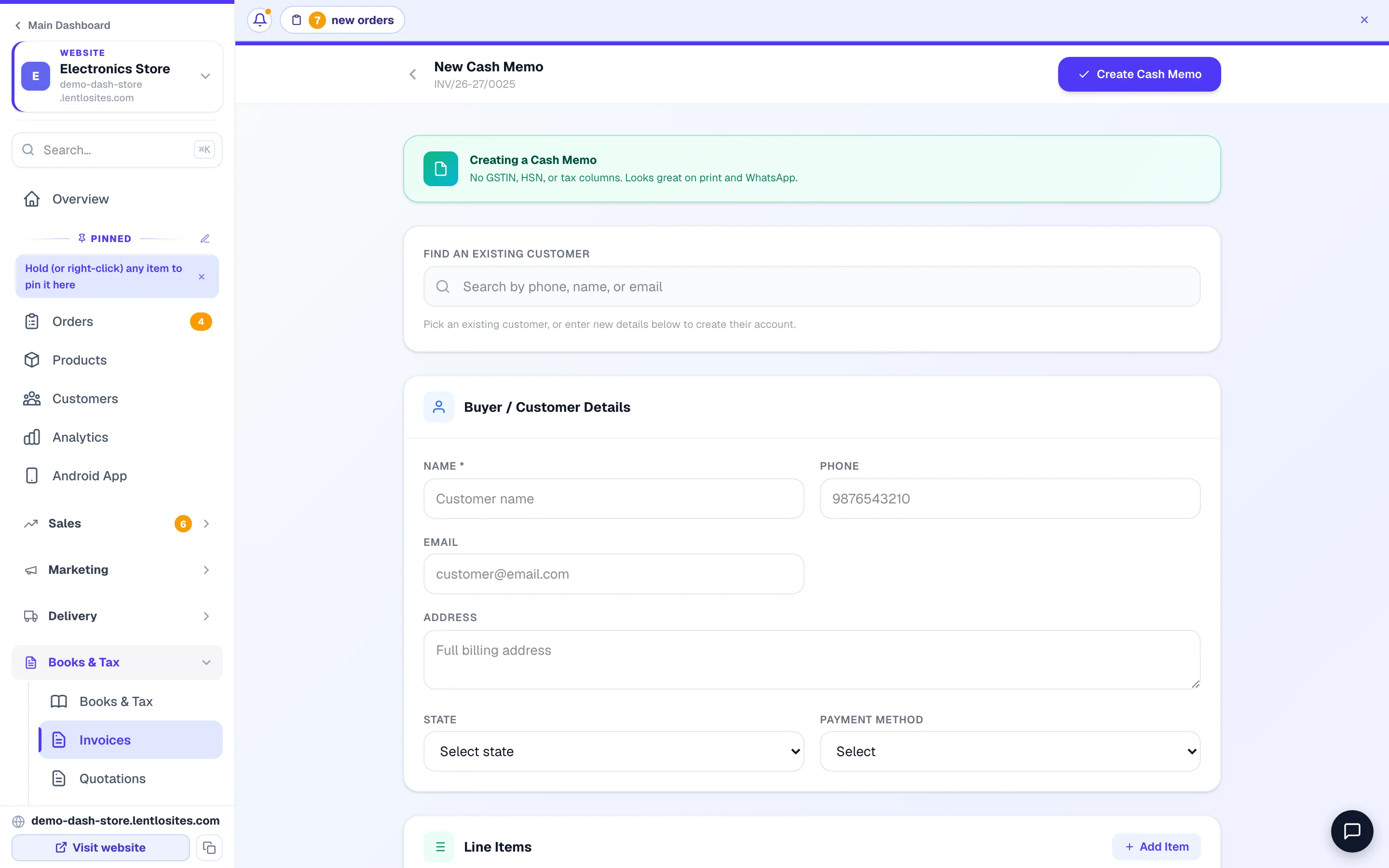
A bill you make by hand (New Invoice on the Invoices page — it reads New Cash Memo without a GST number) starts with Find an existing customer (search by phone, name or email, so the bill also shows in their account), then the buyer details and the lines. With a GSTIN you also pick the Invoice Type — Tax Invoice, Proforma or Credit Note. Each line can be one of three kinds, because different businesses tax different things:
- Taxable — the normal line: its own GST rate, and you choose per document whether prices already include GST or GST is added on top.
- Exempt / nil-rated — items the law does not tax (a clinic's consultation, loose grains, a school's fees). Shown on the bill with no tax and reported as an exempt supply in your GSTR-1. If every line is exempt, the document prints as a Bill of Supply, as Rule 49 requires; a mix of taxable and exempt lines to a consumer prints as an Invoice-cum-Bill of Supply.
- Paid for customer, at actual — an air ticket, visa fee or courier you paid on the customer's behalf and recover at cost. It sits outside your taxable value (the “pure agent” rule) and never enters your GST returns.
Two helpers sit under the line items: Service charge adds your own fee as a line at 18% — a fixed ₹ or a percentage of the items — and Discount on the whole bill spreads a ₹ or % discount across the lines so GST is worked out on the discounted amounts.
A travel agency example. Musafir Tours books a Delhi–Goa ticket for ₹10,000 and charges ₹500 for the service. On the bill: Air ticket ₹10,000 — Paid for the customer, at actual; Service charge ₹500 — Taxable at 18% with Prices include GST off. GST is ₹90 on the ₹500 only, and the customer pays ₹10,590. A holiday package sold as a tour operator is one taxable line at 5%.
More than one GST number?
Some shops sell under two legal entities — say, a proprietorship and a private limited, each with its own GSTIN. The Businesses & GST Numbers section in Invoice Settings handles this: add the second business, then tag products to it with the Billing entity picker on the product form (there's a bulk action for many products at once). Each added business has its own page — name, its own Invoice Prefix (each keeps its own continuous number series), GSTIN, PAN and state (or This business has no GST number, which issues Cash Memos), a Composition dealer switch (Bills of Supply), the address and phone printed in its From block, its own bank details and its own signature.
When one order mixes products from two registrations, each registration issues its own invoice — with its own prefix and its own serial — exactly as GST law expects. The order page shows all of them together. Shops with a single GSTIN never see any of this.
Credit notes — fixing a bill the legal way
GST doesn't allow editing or deleting an issued invoice — the correction document is a credit note, and LentloSites raises them for you at the right moments:
- Returns and RTO — approving a return on an order creates the credit note automatically, with the returned lines and their GST reversed.
- A second return, or any other correction — an order can be returned once with Process return / RTO. If more items come back later, the returned order shows Return more items, which opens Create Credit Note pre-filled with the customer and lines from the original invoice, so you only change what's wrong. For any other bill, tap New Invoice, pick Credit Note as the type and type the Original Invoice Number — it must be an invoice on this website, and the note can never be more than what is still left to credit on it (tick This invoice was issued outside LentloSites for an older paper bill).
- Cancelled orders and bills — cancelling within the same tax month voids the invoice; it stays visible in your list (filter by Credit Note / Cancelled) because GST records must never have gaps. Cancelling after the month has closed raises a credit note instead, since that month's return may already be filed — the invoice stays on record and the note reverses it. A note is only ever raised for what is still uncredited: if a return or an earlier credit note already reversed part of the bill, the new note covers the rest, and a bill that is already fully reversed gets no second note. If you cancelled a bill after its month had closed before this rule existed, its page shows a yellow notice with one button, Restore and issue credit note — press it only for a month you actually filed with that bill in it. A bill past the legal deadline for credit notes (30 November of the year after its financial year) gets a commercial credit note instead: it corrects your books and the customer's account but no longer reduces GST. After you cancel an order's invoice, the order shows Reissue Invoice, which issues a fresh number. A bill that a credit note has reversed says so on its page (with a link to the note), shows no balance or pay QR any more, and its customer copy stops asking for payment.
- Cancelled bookings — if you keep part of the money as a cancellation charge, that part stays taxed at the booking's rate (the law treats it as consideration) and a credit note reverses only the refunded part.
An invoice made from an order always mirrors the order — its Edit button changes only the buyer details, notes, terms, due date and payment method, never the items. To change what was sold, edit the order and the invoice regenerates. A hand-made invoice is not rewritten either: its Edit button opens Revise Invoice, and Issue Revised Invoice makes a corrected invoice with a new number, linked to the old one. Within the same tax month the old number is voided; once that month is over the old invoice stays on record and a credit note reverses it. Editing an invoiced order after its invoice's month has closed works the same way — a fresh invoice for the edited order plus a credit note for the old one — the way a CA expects a correction to look. The same rule applies to CRM bills.
Your customers get their invoices themselves
No more "please send my bill" messages — customers can always reach their own invoices, which saves you the back-and-forth:
- A Download Invoice button appears right on the order-success page after they buy.
- Your site's
/accountpage grows an Invoices tab (only when invoicing is on) where a signed-in customer sees every bill of theirs. - The WhatsApp message you send from an order carries their phone-verified invoice link — and for unpaid orders it can lead with a secure payment link (card / UPI / netbanking) that marks the order paid automatically.
- Anyone can scan the QR printed on the bill to verify it's genuine.
GSTR reports — filing time, sorted
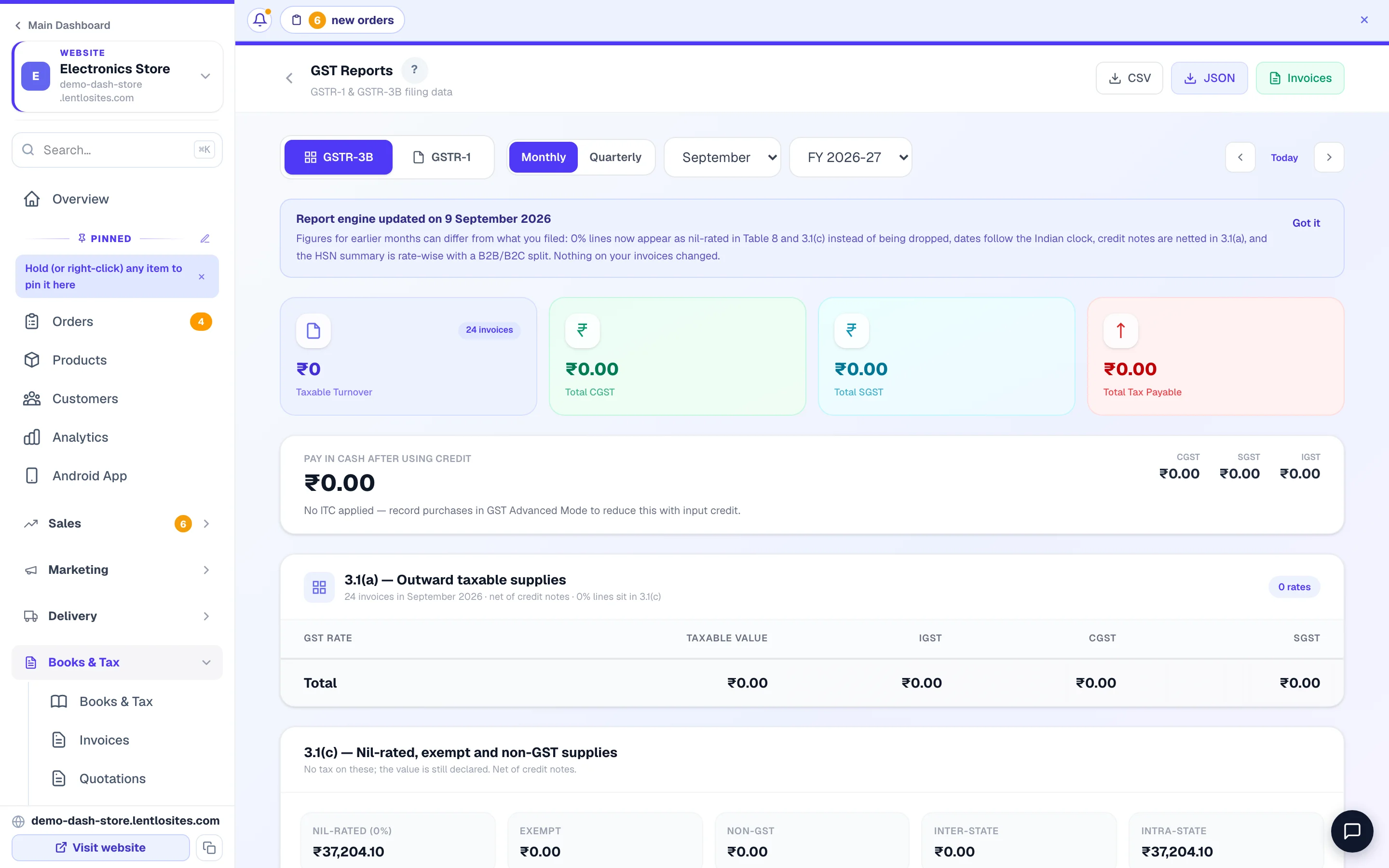
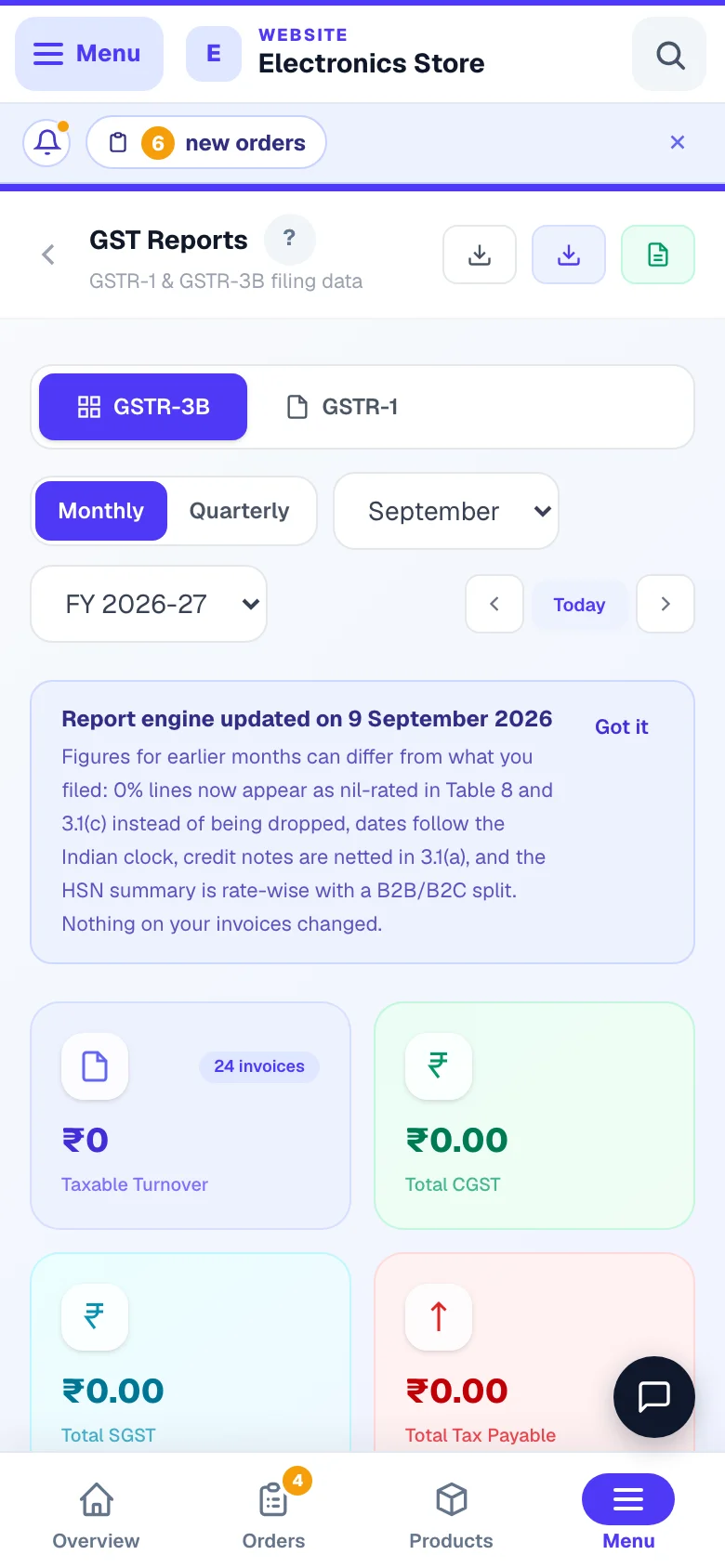
When the month ends, your sales data has to reach the GST portal as GSTR-1 (invoice-wise sales, due the 11th) and GSTR-3B (the summary, due the 20th) — the GST Reports page (Books & Tax → GST Reports) builds both from your invoices, per GSTIN if you have several (a picker beside your GSTIN chooses which one). Switch between the GSTR-3B and GSTR-1 tabs, pick Monthly or Quarterly (QRMP filers), the month or quarter and the financial year; Today jumps back to the current period. The JSON button at the top downloads the portal's own format, ready for the offline tool, and CSV gives your CA a spreadsheet; credit notes are netted exactly as the forms expect. The GSTR-1 tab ends with a Before you file list when something would stop a clean filing — bills to unregistered buyers with no state, or lines with no HSN code.
The GSTR-3B tab also shows “Pay in cash after using credit” — your tax minus the input credit (ITC) you can use, applied in the legal set-off order (IGST credit spends first; CGST and SGST credit never cross into each other), with any reverse-charge amount noted separately since the law says RCM is always paid in cash. Input credit is applied only when GST Advanced Mode is on — switch it on in your website's sidebar under Settings → Advanced → Enable GST Advanced Mode (marked Beta; its line-by-line credit checks are added to purchases you save or edit after switching it on). Then the 3B tab adds a Table 4 — Input Tax Credit card built from your purchase bills and GSTR-2B matches. Without it, the cash figure is simply your full tax and the card says so.
JSON for the portal
Download the month's JSON and upload it on gst.gov.in — the portal's own format.
CSV for your CA
The same data as a spreadsheet, for your accountant to verify before filing.
GSTR-9 annual
The Annual Return card at the bottom: pick the financial year (this one or the two before) and download a roll-up of sales, ITC and HSN summary as CSV or JSON, to cross-check your annual return (due 31 December; optional up to ₹2 crore turnover). Composition dealers get a GSTR-4 roll-up of their four CMP-08 quarters instead (due 30 June).
e-Invoice & e-way bills
Turnover crossed the e-invoicing limit? Connect your NIC credentials under e-Invoice to generate IRNs and e-way bills.
Exempt lines appear in GSTR-1 Table 8 and in the 3B summary as “nil rated, exempted”; if your business type charges 5% without input credit, the 3B tab shows that credit reversed rather than claimable. All months are reckoned on Indian time, so a bill made just after midnight on the 1st belongs to the new month. Composition dealers see a CMP-08 card in place of GSTR-1 / 3B — a flat rate on turnover every quarter, with a Download CMP-08 summary (CSV) button. With GST Advanced Mode on, purchases you haven't paid within 180 days have their input credit reversed in that month's 3B and come back once you pay the supplier.
Also billing from the CRM under the same GSTIN? GSTR-1 is filed once per GSTIN, so if that GSTIN issued CRM invoices this month too, the GSTR-1 tab shows a notice with Combined JSON (website + CRM) and Combined CSV buttons that put both sets in one file (the plain downloads cover website invoices only). If the two series ever share an invoice number, the export refuses and lists the colliding numbers instead of producing a wrong file — change one series' prefix and export again.
The purchase side — the GST you claim back — lives in Purchases and GSTR-2B reconciliation; Books & Tax ties both sides together, and Reports & exports has the wider download library.
- 1Filing figuresThe numbers your accountant needs, per month.
We prepare the data. Your CA files the return. Have your accountant verify the CSV against the JSON before anything is submitted on the portal — filing has legal fine print that software shouldn't decide for you.
More in Payments, GST & books
Did this answer your question?
It takes one tap and it genuinely changes what we write next.