
Buy buttons on product pages (phone) — both, bottom bar only, or in-page only
Some designs show Add to Cart / Buy Now twice on a phone: under the price and in a bar at the bottom. Choose which your customers see.
2 min readUpdated 21 Oct 2026
In this guide
The three choices
Here is the same product page on a phone under each setting.
Both (default)
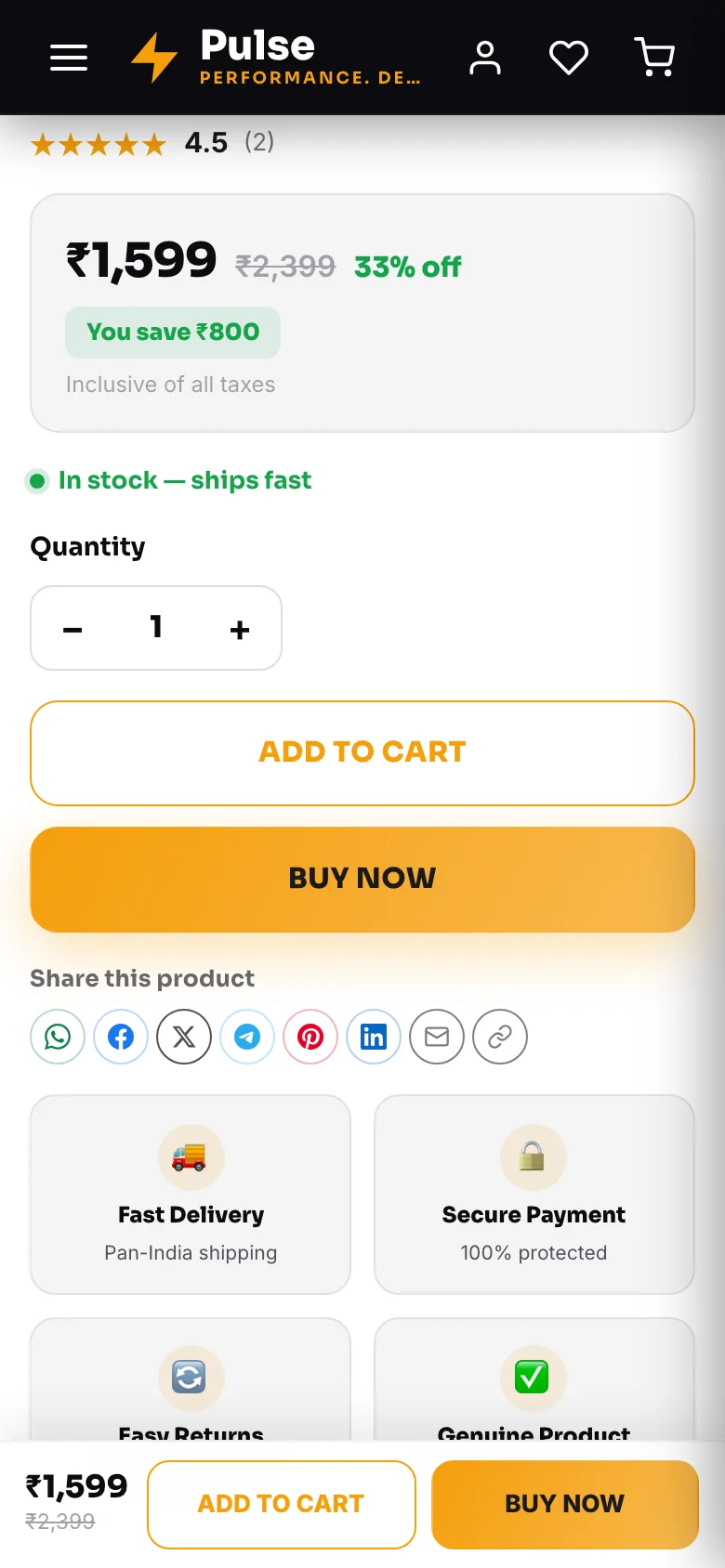
Buttons under the price and the bar at the bottom. Nothing changes for you if you leave it here — every website starts on this option.
Bottom bar only
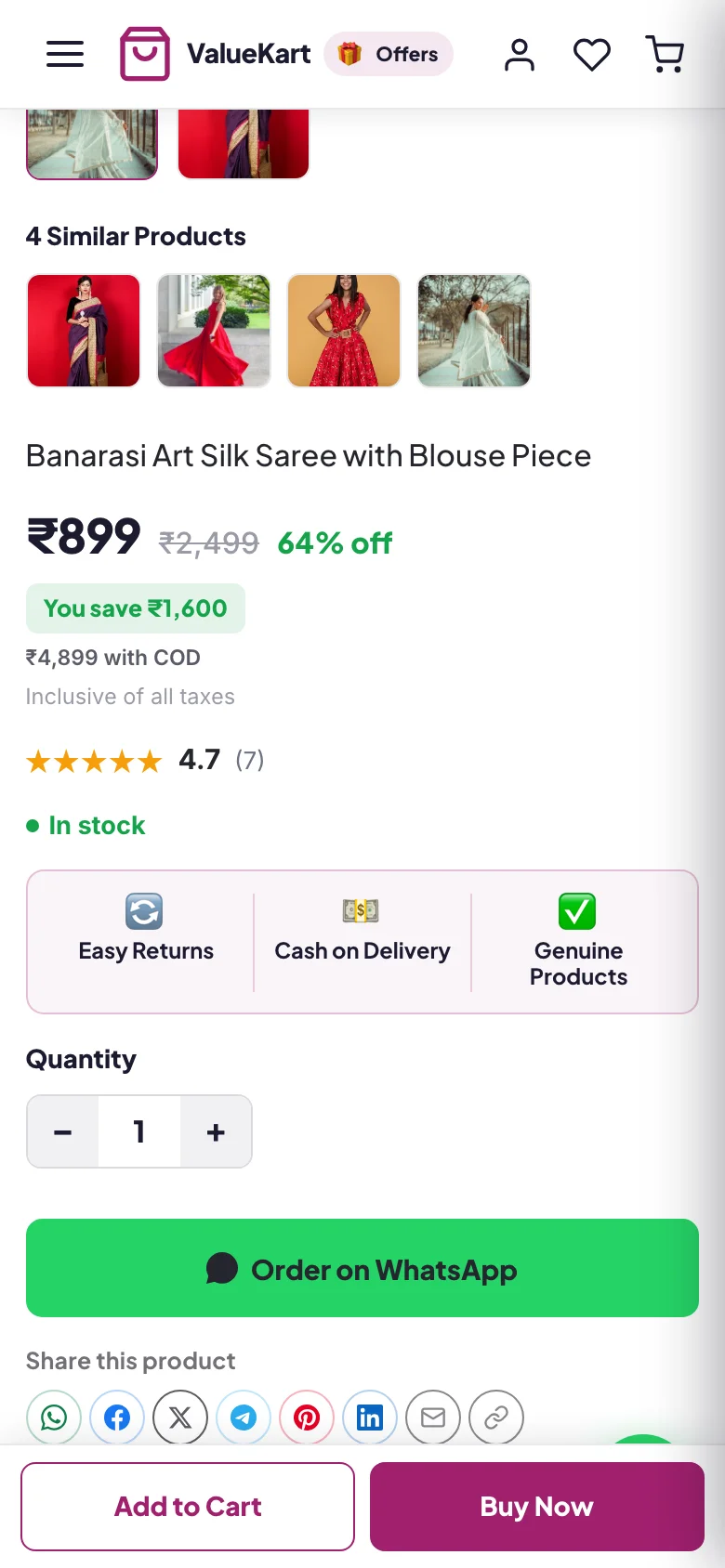
The buttons under the price are hidden on phones; the bottom bar does the work. The page reads cleaner and the buy button never scrolls away. Customers still pick size, colour and quantity in the page — the bar uses what they chose.
In-page buttons only
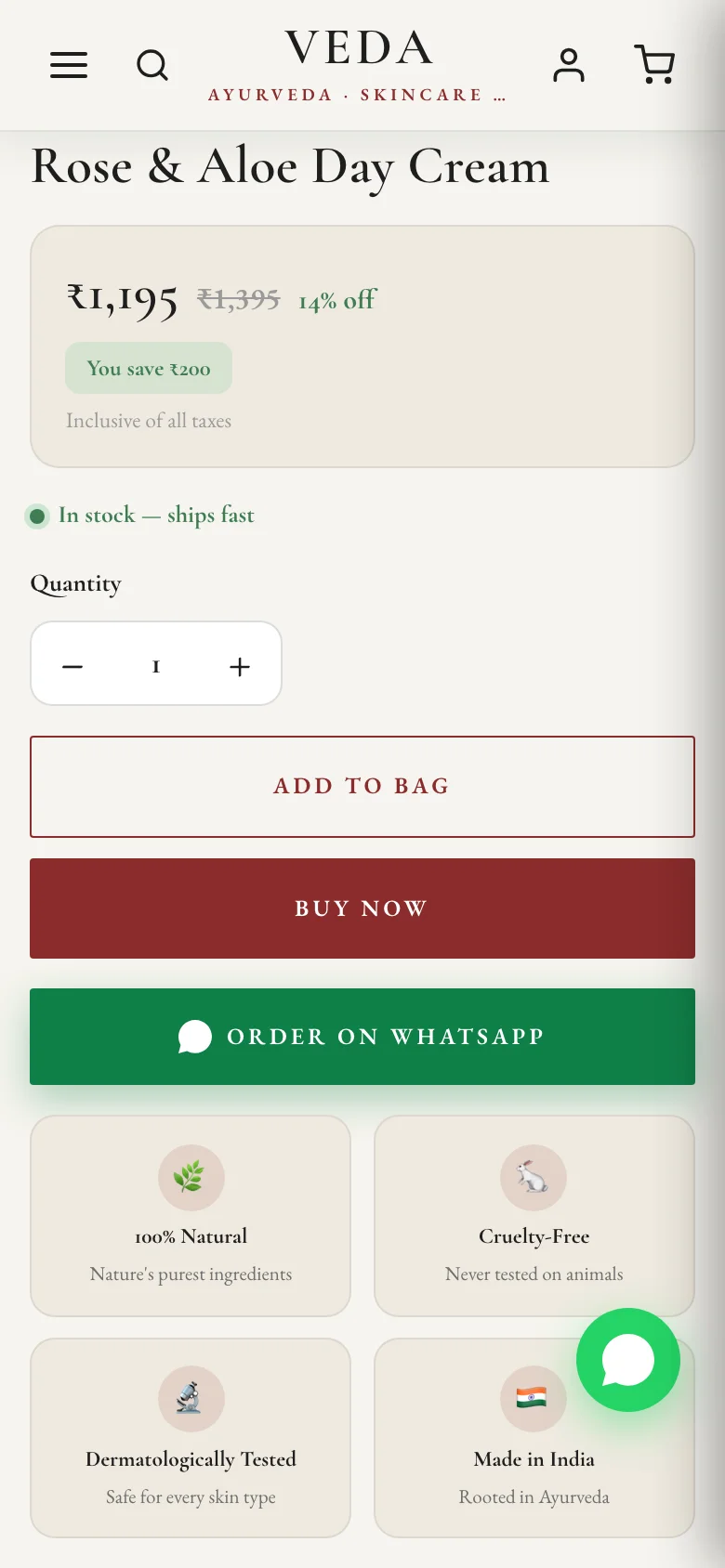
No bar at the bottom. Customers scroll back up to the buttons under the price to buy. Pick this if the bar covers something important on your page, or you simply want the classic look.
Where to change it
Open Appearance
In that website's menu, under Website, open Appearance. The setting is inside “What customers see”, right under the Add to Cart button on product cards switch.
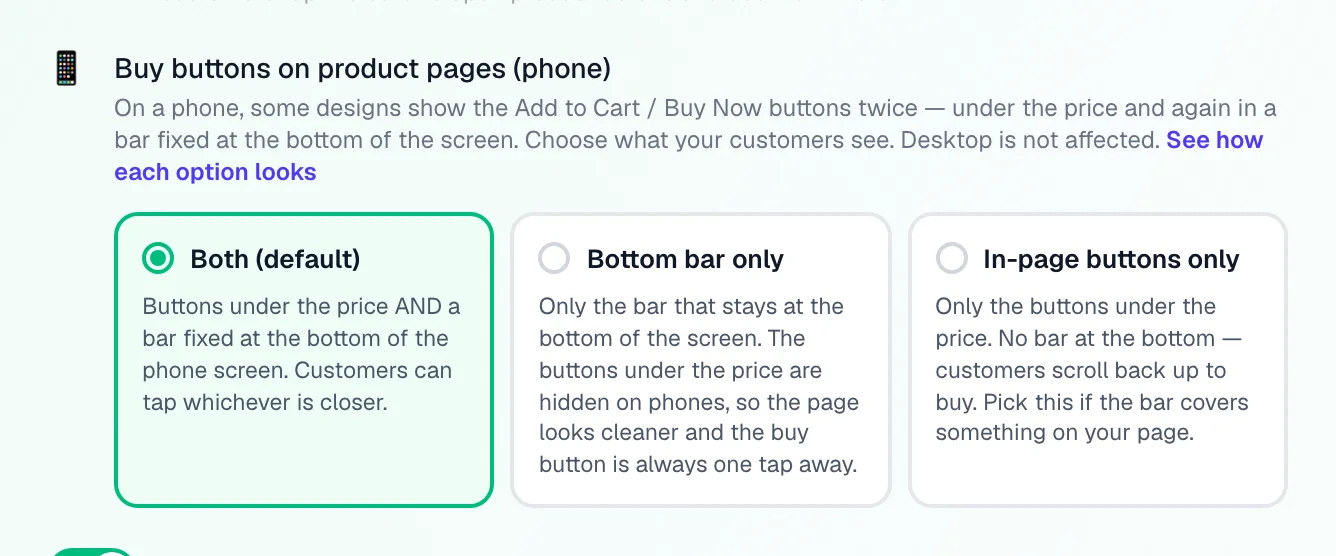
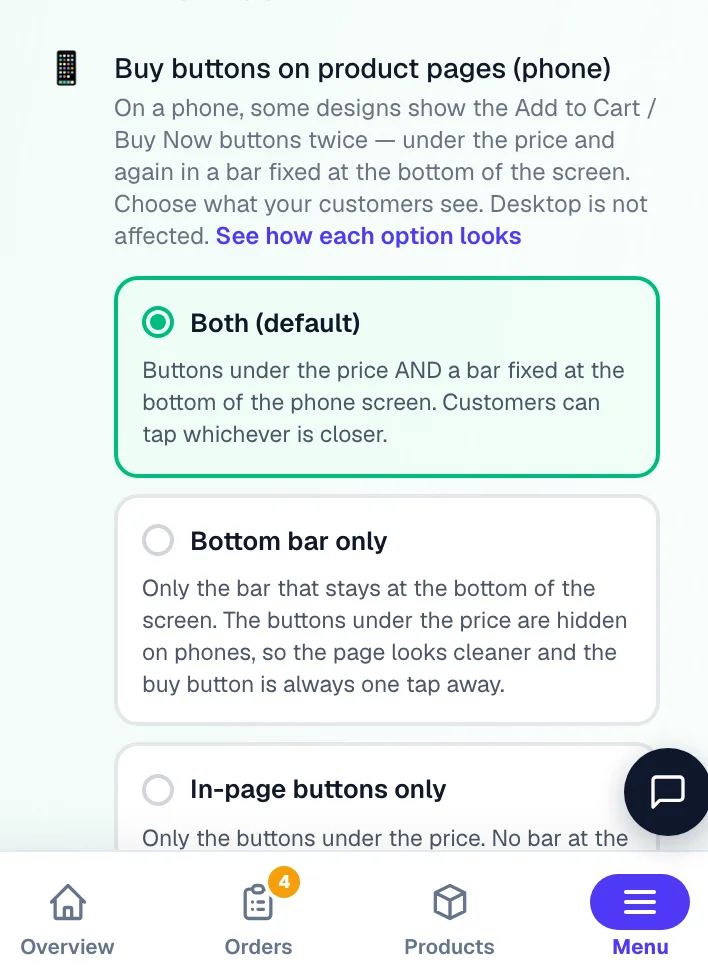
Tap an option
Both, Bottom bar only or In-page buttons only. Press Save (top right, or at the bottom of the page).
Check your phone
Your website republishes on its own within about a minute. Open any product page on your phone (or narrow the browser window) to see the result.
In a hurry? The same choice sits on the Manage page under What customers see — a one-tap row that saves instantly. Both places change the same setting.
Which should I pick?
Match it to how your customers shop
Example · Meera runs Glow Basket, a beauty store in Coimbatore on the ValueKart design
Her product pages had two pairs of buttons on a phone — one under the price, one in the bottom bar. She switched to Bottom bar only: the page shows the photo, price, offer and description without a second pair of buttons, and the bar at the bottom still lets shoppers add or buy from anywhere on the page.
Good to know
- Phones and tablets only (screens narrower than 1024 px). Desktop and laptop screens never show a bottom bar, so they always keep the in-page buttons whatever you pick.
- Sold-out products keep their “Sold Out” button on every setting — the bottom bar only appears for items in stock, and the in-page button is hidden only when a bar is actually there.
- Some designs already show one at a time. On designs like MegaMart, Bazaar and QuickMart the bar slides up only after the in-page buttons scroll off screen, so “Both” never shows two pairs at once there. “Bottom bar only” keeps the bar up from the start; “In-page buttons only” removes it.
- Designs without a bottom bar are not affected — the setting is there for consistency and does nothing until a bar exists.
- Your Add to Cart / Buy Now wording is edited in the website editor, not here. This setting only decides where the buttons appear.
Related: the other switches in What customers see — Track Order, Wallet, Blog, out-of-stock products and Add to Cart on product cards.
Questions
I chose Bottom bar only but I still see both on my phone
Give it a minute — the website republishes after you save. Then reload the product page. If your phone browser kept an old copy, open the page in a private/incognito tab once.
Will Bottom bar only hurt my sales?
No — the bar is the button most phone shoppers use anyway, and it is always visible. Owners choose this for a cleaner page, not for fewer buttons.
Can I set it per product?
Not yet — it applies to every product page on the website.
More in Your website
Did this answer your question?
It takes one tap and it genuinely changes what we write next.