
Activity log — who did what
Every price change, refund, cancellation and settings edit, with who did it and when. Nobody can erase it.
6 min readUpdated 25 Sep 2026
In this guide
Why you want this
The moment someone else touches your dashboard — a son helping with orders, a shop boy adding products, an accountant raising invoices — you need a way to answer questions without accusing anyone.
Example · Imran, an electronics shop in Hyderabad
A ₹18,000 order shows as cancelled and the stock came back. Imran opens Activity, filters to Needs a look, and sees it in four seconds: cancelled by his evening staff member at 7:42pm, with the note the customer gave. No argument, no guessing — and he knows to re-train, not to suspect.
What gets recorded — and what doesn’t
The line is deliberate. Recording every page view would bury the twelve entries that actually matter under thousands that don’t — and it would cost you speed for nothing.
Where to find it — one console, two books
It is the same screen in both places, showing a different book. Nothing to learn twice.
The websitelog covers that one site: orders, products, pages, settings, staff and payments, with the before → after, the device and the time. It sits on the owner’s own menu — staff don’t see it. The CRM log covers your customer book: contacts, invoices, payments recorded (and, with Money records on, receipts, payouts, money entries, advances and loans (and the interest the morning run adds to a loan), cheques and payment proofs — a payout's figures show only to logins with Mark payments received), expenses, case files, vehicle records, merged duplicates, team and setup changes. Each row links straight to the document it is about, so “which order was that?” is one tap, not a search.
The customer-book console adds a Needs your attention strip: when someone other than you deletes, exports, cancels, merges or changes access or settings, it waits at the top of Activity (and pings your phone if you installed the dashboard app with notifications on). Only the owner can clear those — a manager cannot silence an alert about their own action, and your own actions never alert you.
Reading the log
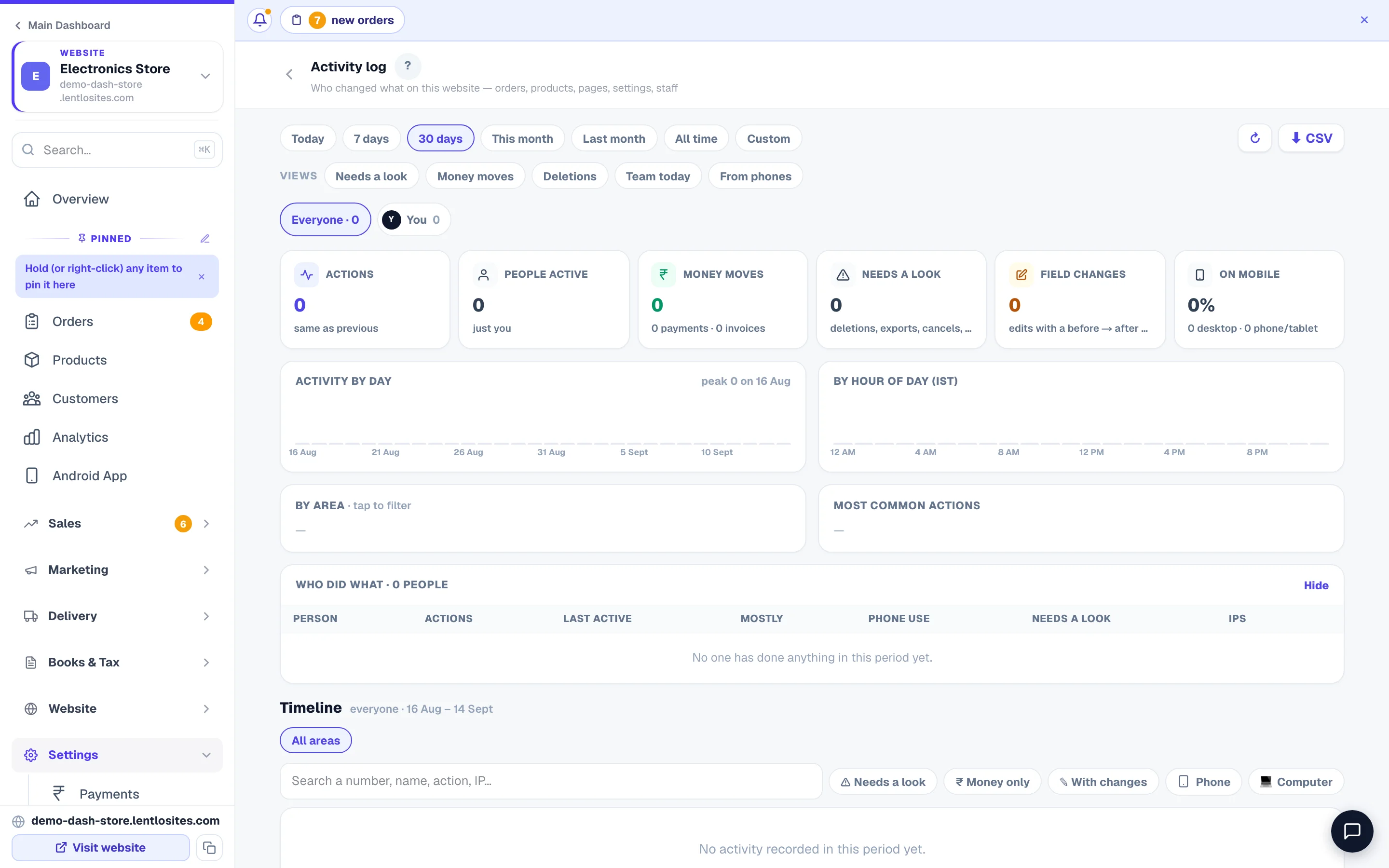
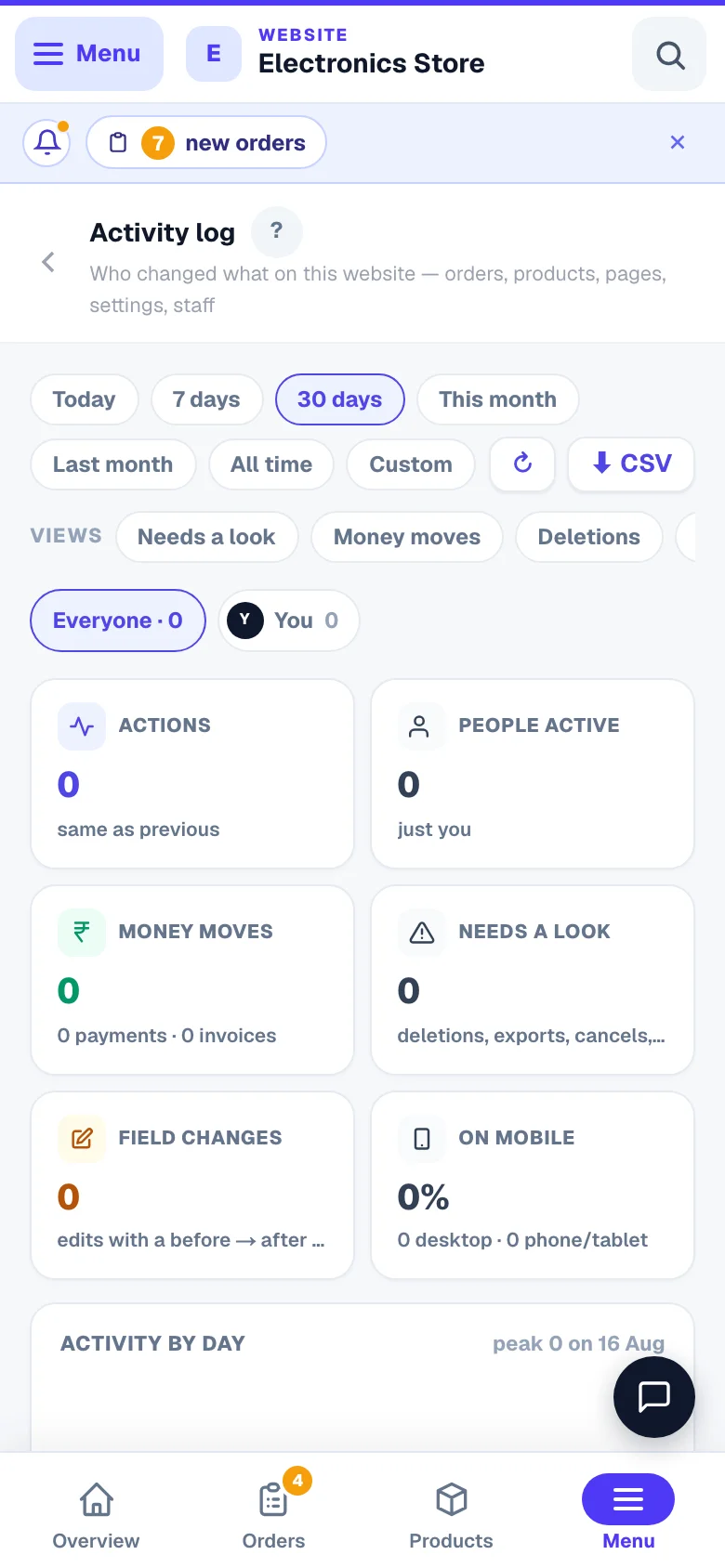
Open Activity log from Settings in your sidebar.
- 1The risky onesDeletions, cancellations, exports and access changes.
- 2MoneyPayments and invoices only.
Pick a period
The period chip on the left — Today, 7 days, 30 days, This month, Last month, All timeor custom dates (a sheet on a phone; the chips sit side by side on a computer). Today is the right default for “what just happened”.
Read the tiles before the list
Above the timeline sit the numbers for that period — actions (and how that compares with the period before), people active, Money moves, Needs a look and Field changes. Each tile is a button: tap it and the list below narrows to exactly that.
Use the one-tap views
Filters opens one sheet; its first group, Views, holds the ready-made filters: Needs a look(deletions, cancellations, exports, access and settings changes, a plan's dues written off or brought back, and an advance or loan written off), Money moves, Deletions, Team today and From phones. Set your own filters and name them under Save this viewto keep one of your own — saved views are shared with everyone who can open Activity. Whatever you applied shows as chips under the top line; a chip's × takes it off.
Filter to one person
People in the Filters sheet lists everyone active in the period with a count; the Who did what list below the charts adds their last-active time, what they mostly do, how much of it came from a phone and how many risky actions they took (a card per person on a phone, a line each on a computer; Networkshows how many addresses they came from). Tap a name in the sheet — or Showon a person — and the whole page narrows to them.
Search for the specific thing
Searchin the Filters sheet takes an order number, a customer name, a phone number, an action name — even a network address. This is how you go from “something is wrong with order SV-2841” to the exact entry. The sheet also carries Device (Phone / Computer); Clearunder the top line gives you the whole picture back. A row's Network shows the address it came from.
Seeing exactly what changed
For edits, the entry carries a before → aftertrail. You don’t just learn that a price was edited — you see it went from ₹1,299 to ₹129, which is usually the whole story (a missing zero, not mischief).
Tap the Field changes tile (or the With changes chip) when you suspect a typo rather than a deliberate change. It shows only entries that carry a before/after pair.
Nobody can edit the log — including you
Entries are append-only. There is no delete button anywhere, for any role. That is the point: a record you can quietly edit is not a record.
- Someone actsAny role, any device
- Written onceWith who, when and from where
- You can read itFilter, search, export
- Nobody can change itNo edit, no delete
When our support team looks at your account with your permission, that is recorded too — and any action taken, in the CRM as everywhere else, is attributed to the support person, never to you.
Using it well with a team
Do this
- Tell your team the log exists — it prevents far more than it catches
- Check 'Needs a look' once a week; it takes two minutes
- Use it to find training gaps, not to catch people out
- Give each person their own login so entries mean something
Not this
- Share one login across the whole shop — then the log can't help you
- Confront someone before reading the before → after values
- Treat every cancellation as suspicious; most are genuine
One login per person. If four people use the same account, every entry says the same name and the log is worthless. Adding team members is free — see Add team members.
Common questions
How far back does it go?
Entries are kept for a year, then removed automatically.
Can my staff see the log?
A website’s Activity log is on the owner’s menu only. In the customer book you decide: the ⚙ Activity settings (owner only) choose whether team members see everyone’s activity or only their own — admins and managers always see everything. What nobody can do, at any level, is delete or alter an entry; and salary figures stay hidden from anyone without payment access, in this log too.
Why does one entry show an IP address?
So you can tell “done from the shop” from “done from somewhere else”. It matters for access changes and exports.
I run a CRM too — is that logged separately?
It is the same console, showing your CRM book instead of a website. Find it at CRM → Activity.
More in Your account & plan
Did this answer your question?
It takes one tap and it genuinely changes what we write next.