
Common issues & fixes
Site not loading or slow, changes not showing, payment or ₹500 recharge missing, customer can't order, a domain that won't add, WhatsApp not sending — 60-second checks for each, plus Asha and the ? buttons that answer while you work.
9 min readUpdated 21 Oct 2026
In this guide
Four ways to get help, right where you are
Help is built into the dashboard itself, so you never have to stop what you're doing to search for an answer. The fastest order is: the guides, then Asha, then our team — our team looks after real technical problems.
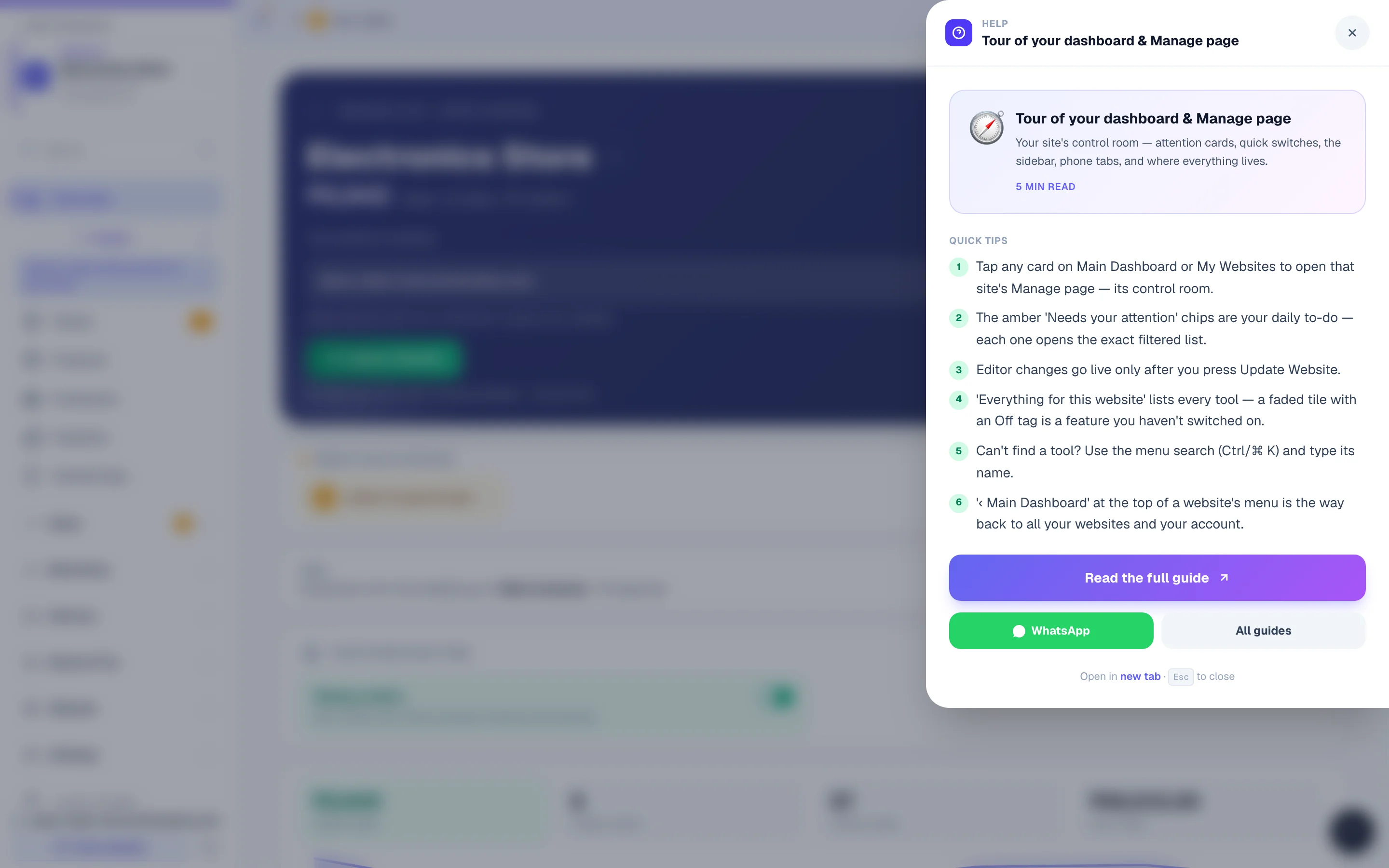
- Asha, the support chat (fastest) — Ask Asha at the foot of the left-hand menu on a computer, or the Asha cell in the middle of the bottom bar on a phone (in the editor, the Ask Asha button in the top bar). Ask in plain words — "why is COD not showing at checkout?" — and she answers in seconds, reading your own settings and these very guides, with links to the guide she used. Every day brings free answers (how answers are counted), and in your own account Asha can make the change for you (you confirm each one). If something is genuinely broken, she gives you a Report it to our team button to Help & Support instead of guessing.
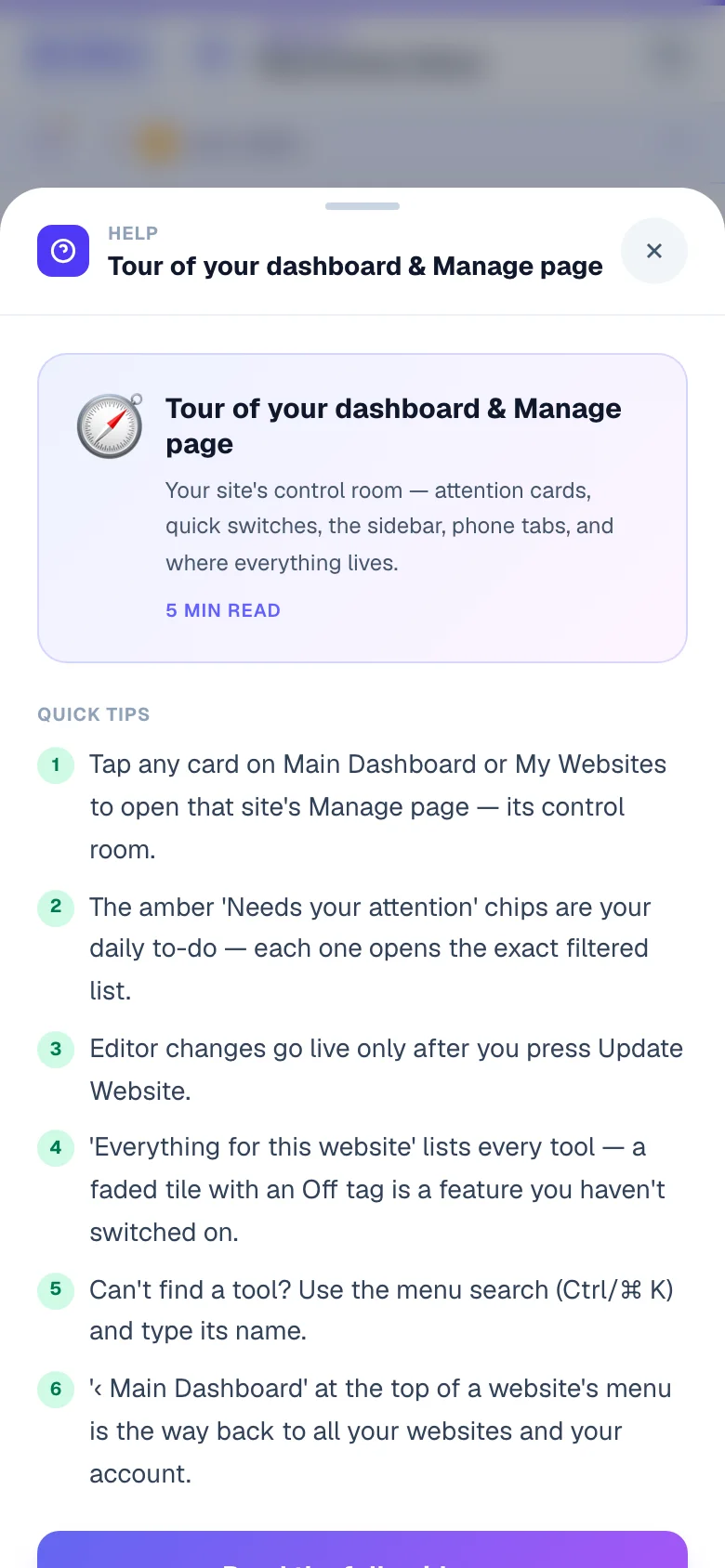
- The little ? buttons — a ? beside most page headings opens quick tips for that page, its full guide, Ask Asha and Help & Support; smaller ones beside section headings on pages like Settings, Shipping, Orders and Products explain that exact section, with Read full guide and Ask in chat right there.
- Help & Support — Help & Support under Account in the menu. It puts the guides search, Asha and our team on one page. For a technical problem — something not working, an error message, money taken without an order, a web address that is down — tap Describe it, pick what kind of problem it is and which website, say what happened and add a screenshot if you have one. Press Send to our team — it becomes a support ticket, and our team's reply comes back on that ticket in My tickets, with a notification on your phone. This works on every plan, because a real fault on LentloSites gets fixed whoever reports it. A paid plan can also ask for a call; on the Free plan, Asha and the Help Center are your support for everything else — how-to help and calls from a person come with a paid plan.
- Our developers (optional, paid) — a custom feature, or your whole website built for you, is a separate service: open Done For You, tell us about your project, and we continue on WhatsApp with your details. Building it yourself always stays free.
Website set up by an agency or provider? Your Help & Support page shows their name, WhatsApp and phone instead of ours — they look after your website, so they are the right people to ask. If no contact shows there, ask the person who built your website for their support number.
Don't confuse this with the chat bubble on your own website — that one talks to your customers and is set up separately. See AI assistant — add chat to your website. Inside the CRM there is no Asha button — the CRM has its own menu; the ? buttons still work there.
Can't find the menu on your phone
Everything in the dashboard lives behind one menu, and on a phone there are two ways in — both open the same list:
- The labelled Menu button at the top-left of every page (it scrolls away with the page, so scroll up if you can't see it). Inside a CRM on the new menus there is no top-left button — the top shows your business name and Search; use the Menu cell below.
- The Menu cell at the far right of the bar fixed along the bottom — always in thumb reach. The other cells there are Main Dashboard, Create and Asha (it reads Help where Asha is not switched on); inside a website they become that website's own daily pages.
Not sure which part of the dashboard you are in? The small line above the title says it — Your account, Website, CRM or Reseller hub — and each one wears its own colour (inside the live demo it reads Live demo · sample account and Sample website · live demo, under a purple bar: nothing there is yours). Main Dashboard is always the way back out to the account level.
Site not loading / shows an error
Your website address shows an error, a blank page or an old site — nine times out of ten this is a publish state, a plan strip or a domain record, not an outage. Run the checks in order:
- Check the status chip first — open My Websites. Draft means the site has never been published: open the editor and press Update Website (see Publish your site). Suspended means we took it down — the site's Manage page shows a red banner explaining why; editing is paused while suspended, so press Contact Support beside the Suspended heading on Main Dashboard (or on that red banner) to sort it out. Your orders and business data stay readable meanwhile.
- "Has my plan ended? Is that why the site looks wrong?" — no. Your website never shows anything about your plan to visitors, and a plan ending never changes a single page. A plan you bought renews by itself from your Lentlo Credits — even when they are short, in which case only your own editing and publishing pause until you recharge. See Billing & plans.
- Low Lentlo Credits never takes your live site down. Customers can browse and order as usual — only your own editing and publishing pause once the balance runs past the grace allowance. See Lentlo Credits.
- "This site can't be reached" on your own domain — DNS hasn't propagated yet. Wait 15 minutes, then check at whatsmydns.net. Both records —
@andwww— must point to us; the domain card names any missing one. See Connect your domain. - "Site not secure" — the SSL certificate is still being issued after a DNS change. Wait 5 minutes and reload.
- Blank white page — open the browser console (F12 → Console), screenshot any red errors, and report it from Help & Support (the report then opens in WhatsApp, where you can attach the screenshot).
- "502 Bad Gateway" — rare; the app server is restarting. Refresh in 60 seconds. If it persists, report it from Help & Support.
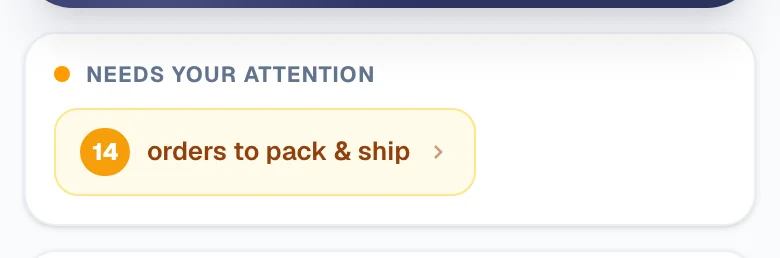
- Look at Needs your attention on the Manage page. It counts what is waiting on you, and a red chip such as customers could not pay online names a fault before your customers do. Tap a chip to open the exact list it counted.

Editor is slow, stuck or won't save
The editor is a full design studio running in your browser — when it crawls or refuses to save, the cause is usually the browser or an account state, and each has a quick fix:
- Hard-refresh: Ctrl/⌘ + Shift + R.
- Close unused browser tabs — the editor is memory-hungry.
- Use a recent Chrome, Safari or Firefox. Very old browsers are unsupported.
- One specific page freezing usually means a huge photo on it — compress images to under 500 KB before uploading.
- "Editing is paused" or saves failing with a recharge notice — your Lentlo Credits balance has run past the grace allowance. Your live website is unaffected; recharge and editing resumes immediately. See Lentlo Credits.
- Suspended sites block editing on purpose — see the red banner on the Manage page.
Changes don't appear on the live site
LentloSites deliberately saves changes at two speeds — knowing which is which resolves almost every "my change vanished" scare:
- Editor changes wait for you. Text, photos, colours and sections save as private drafts — they go live only when you press Update Website in the editor. That's by design, so you can experiment freely. See Publish your site.
- Dashboard changes go live on save. Products, stock, blog posts and settings need no publish — they appear on your shop within a minute or two of saving, and never take your editor drafts with them (the editor's list of waiting changes marks the few that do go along).
- Old page still showing? Clear your browser cache or open the site in Incognito — you're likely looking at a cached copy.
- Give it a minute. There's a brief lag while updates spread. Wait 60 seconds and refresh — don't publish twice.
- Live on your website but not on Google yet? That is Google's own timetable, not a publish problem — every publish already tells search engines about your pages. See Not showing on Google.
- "Update on its way" instead of "Your changes are live"? Your update is queued behind other websites publishing at that moment. Nothing failed and nothing is lost — it goes live by itself within a few minutes, and you can keep working meanwhile. Pressing Update Website again does not make it faster.
Payment failed or money looks missing
A payment problem is almost never money lost — every online payment sits in your own gateway account and is auto-matched to orders, so the fix is usually just knowing where to look:
- You paid the ₹500 first recharge (or another recharge) but Lentlo Credits do not show it — do not pay again. When the bank takes the money but the payment page did not finish, the amount is added to your Lentlo Credits automatically, usually within a few minutes. Tell Asha “I have paid 500” and she reads your own recharge attempts and says whether it reached us, is still open, or never completed. Still missing after that? Report it from Help & Support → A payment or order problem, with your bank's reference. See Lentlo Credits.
- "Payment gateway error" when the customer tries to pay — check your Razorpay / Cashfree / PayU dashboard. The gateway may have blocked the payment (risk rules, limits, pending KYC). Their support resolves it.
- "Invalid signature" — the Key Secret (or Salt) you pasted in Settings is wrong. Copy it fresh from the gateway dashboard and re-paste. See Accept payments.
- Customer paid but there's no order (or it looks unpaid) — don't panic and don't make a duplicate order. We check your connected gateways every 5 minutes for captured payments with no matching order and create the order automatically. If a payment still can't be matched, a red alert strip appears at the top of your Orders list with the amount and the customer's contact — full list under Payment Alerts. See the payment safety net.
- Can't mark a gateway order paid by hand? That's intentional — orders paid through a gateway have their payment status managed automatically (by the gateway confirmation and the 5-minute recovery), so a manual flip is blocked to keep your money records honest. Mark paid is for COD, UPI-screenshot and phone orders you collect yourself.
- UPI QR orders — the customer's screenshot alone is not proof. Match it against the actual credit in your bank/UPI app, then mark the order paid. See Managing orders.
- Booking advance paid but the booking still shows "awaiting"? A gateway advance confirms automatically within minutes (the same 5-minute recovery watches these payments too). A UPI advance always waits for YOU — open the booking and tap Money received after checking your UPI app. See Bookings — advance payments.
Customer can't place an order
When a customer says "your website won't let me order", the block is nearly always one of these deliberate rules protecting you — check them in order:
- "Add to Cart" is dead / shows Sold out — the product's Selling switch is off, or its stock count is 0 (on a product with sizes or colours, the choice the customer picked). Switch Selling on, restock, or clear the stock count for unlimited. See Stock & inventory.
- "We do not deliver to <pincode> yet" — your shipping serviceability rules refused that pincode ("only my listed pincodes" mode, an excluded state, or zone settings). Test the customer's exact pincode with the simulator on the Shipping page — it names which rule fired. See Delivery charges & shipping and Zone delivery days.
- "Add ₹X more for delivery — Minimum order: ₹Y" — your minimum order value is doing its job. Store-pickup orders are exempt from it, so pickup customers can still order below the minimum.
- COD option missing at checkout — check the Cash on Delivery toggle in Settings → Payments. COD also hides automatically for digital-only carts, and while Partial COD is on it replaces plain COD at checkout. On orders whose delivery charge you add after the order, checkout offers only the ways to pay you ticked in that setting (plain COD, never Partial COD). See Accept payments.
- "My cart emptied itself" — carts live in the customer's own browser. If they cleared browsing data or switched devices, the cart is gone. Not a bug.
- "This item can't be delivered to 600042" at checkout, or "Delivers only in …" on a product page — that product (or its category, or your whole shop) is set to deliver only in some areas, or everywhere except some, under Where you deliver. The card names the items and offers Remove (or Pick up from the shop instead). Test the customer's PIN code on the Shipping page to see which products it refuses.
- "Couldn't check delivery — tap to retry" at checkout, or "Couldn't load the delivery days for this pincode" — the customer's phone lost its connection to our server for a moment while the delivery charge or the delivery days were being fetched. Nothing is wrong with your settings: the order is held (Place Order simply retries) so nobody is charged a wrong delivery fee, and it goes through the moment they tap Try again. If it happens on every attempt, report it from Help & Support.
- "This store is not open for orders yet" / "This store is currently unavailable" — the website is unpublished (or was taken down by the platform) and the customer still had an old tab open. Publish it again from Manage and orders resume immediately.
- "Search is unavailable right now" (news websites) — the story index could not be fetched on that reader's device; a tap on Try again reloads it. Your stories are unaffected.
A delivery boy can't sign in
A delivery boy signs in at your shop's own address ending in /admin — not on the login page you use. Check these in order:
- He opened the wrong page — send him the link from his card on Team & Staff (Send on WhatsApp or Copy link). If he signs in on the main login page he sees a card with an Open my deliveries button that takes him to the right address.
- "This number is not on the delivery team" — the number he typed is not the one on his card, or his job is not Delivery boy. Open his card, check the 10 digits, and check the job. A person who handles orders and delivers keeps using the normal login.
- He was signed out — you paused or removed him. Tap Resume on his card (or add him again) and ask him to sign in once more.
- No OTP arrived — he waits a minute and taps resend; the number must be able to receive SMS.
- You changed your website's address or connected your own domain — his old link forwards to the new address, but he has to sign in once on the new address. The Team page always shows the current link.
More: Deliver with your own delivery boys.
WhatsApp not sending / not opening
Three different WhatsApp features can "not work", each with its own one-check fix — first figure out which one you're looking at:
- The WhatsApp chat button on your website doesn't open WhatsApp — the saved number isn't a valid Indian mobile. Fix it in your website's Social & Links page (Website group of the menu) → WhatsApp Number: any normal format works (with or without +91 — we clean it up), but landlines and short numbers can't receive WhatsApp. A red "Not a valid mobile" pill appears on the field when the number won't work. The fix goes live on its own within a minute or two.
- A broadcast isn't going out — broadcasts can only use a message template that Meta has Approved. Check its status in the Templates tab (Pending / Approved / Rejected), and on a finished broadcast tap Details for a plain-English failure reason per customer, then Retry failed. Customers who texted STOP are skipped by design. See WhatsApp broadcasts.
- Customers aren't getting order updates from your own number — that needs your WhatsApp API connected and the order updates switched on in the hub's Automations → Order & store updates. See WhatsApp hub and Customer notifications.
"Something went wrong" page
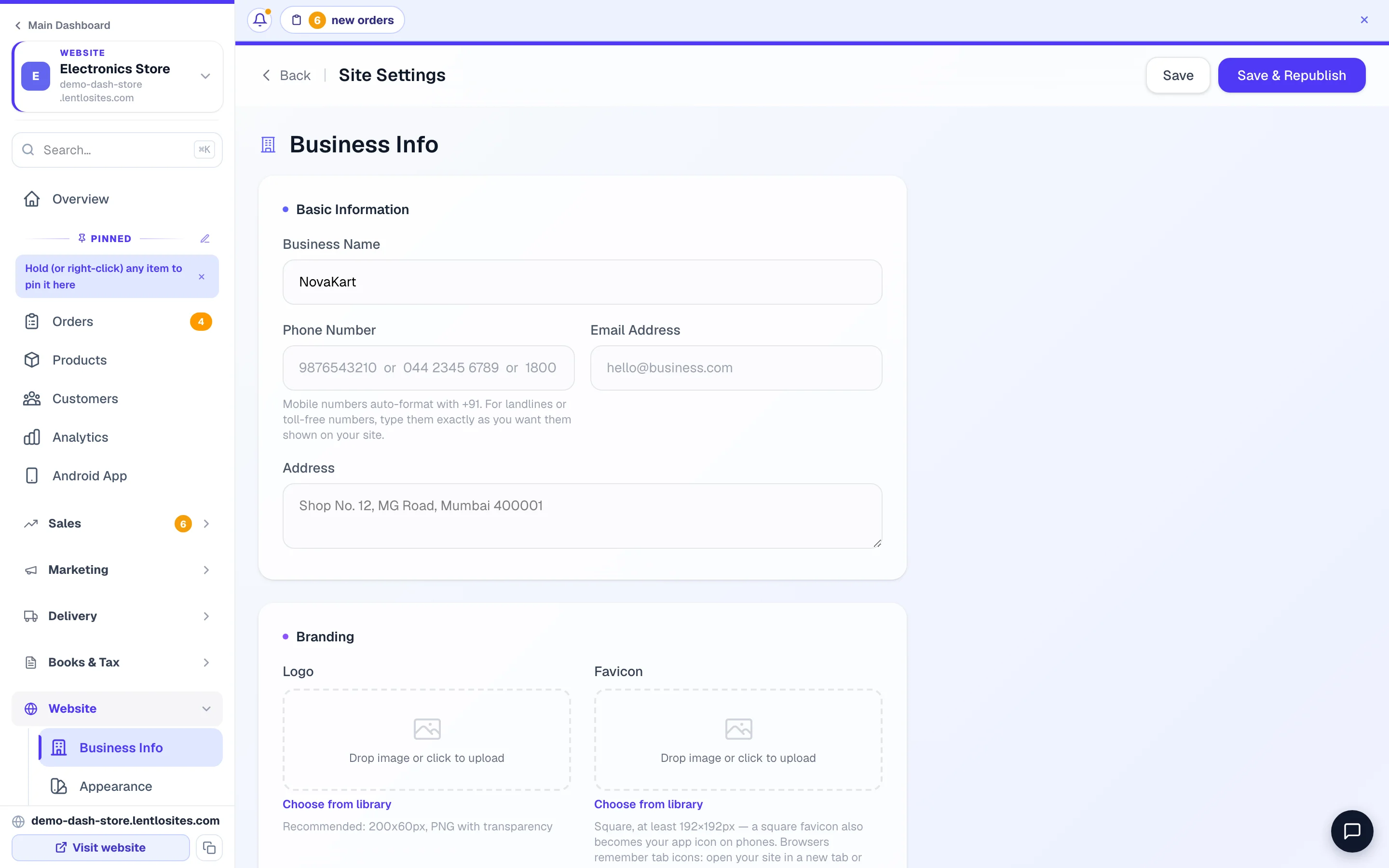
This page appears when something unexpected breaks on one screen — your data is safe. Click Try Again; it almost always recovers. If it keeps happening, report it from Help & Support with the page address so we can fix the root cause.
“Your browser is blocking cookies for this website” — the browser on that phone or computer is set to refuse cookies and site data for your website, so logging in cannot work there (the login page shows the same note). Allow cookies and site data for your website's address in the browser's settings (in Chrome: ⋮ → Settings → Site settings), then reload the page — or open it in a different browser. Your shop keeps working for customers on such a browser, but their cart is only kept until they close the page.
Site looks black / dark on a customer's phone
Some Android phones with dark mode on repaint light websites dark (Chrome's “auto dark theme”) — white headers turn black, logo plates go dark, photos stay. It is the phone, not your colours. Since 16 September 2026 every published page tells the phone to keep its own light colours, so the fix is:
- Open the editor and press Update Website once (a page published before that date carries the old file until it is republished).
- Ask the customer to reload the page or close and reopen the app.
If it still looks dark after that, send the page link to support with a screenshot — if you chose dark section colours yourself, that is the design, not a phone setting.
Images look stretched or blurry
Blurry images are almost always uploaded too small — the fix is a bigger original, not a setting:
- Use photos at least 1200 px wide for hero banners and 800 px for products — we generate all the right sizes from your original automatically.
- Product photo cut off at the edges? Product photos are shown whole by default (Auto), and you choose the frame shape of your product cards — see Product photos — shown whole, never cut off. A banner or section background photo still fills its box, so keep the important part of it near the middle.
Website feels slow, or checkout fails for customers
Your pages are built ahead of time and every photo is made in several sizes, so phones download the small one. When one customer says the site is slow, it is nearly always their connection or an old browser — check these in order:
- Open the page yourself on your phone, on mobile data and then on Wi-Fi. Fast for you? Ask the customer to try again on another network, or in Chrome.
- A very heavy photo or video at the top of the page slows only that page — replace it with a smaller file (under 500 KB for a photo).
- Checkout says it cannot go ahead — read the exact words: a pincode you do not deliver to, a minimum order, a sold-out choice or a delivery area are rules you set (see Customer can't place an order); “Couldn't check delivery — tap to retry” is the customer's connection.
- Customers cannot pay online — look for the red customers could not pay online chip on the Manage page and press Test now (under Test connection) on your gateway in Payments. See Accept payments.
- Slow for everyone, or checkout failing for many customers? Report it from Help & Support → Something stopped working, with the page address and the time it happened.
A domain will not add, or will not connect
The Domain page says in its own words why a domain was refused. The common ones:
- “Invalid domain format” — type only the name, like
krishnabakery.com: nohttps://, no/at the end. - “That's the free address this website already has” — your .lentlosites.com address works without any setup; connect a domain you bought.
- “This domain is already connected to your website …” — remove it from that other website first.
- “We can't find … at the domain registry” — the domain is not bought yet, or there is a typo. Buy it from any domain company first; just bought it? Try again in a few minutes.
- “Already connected to a website in a different account” — if that is your own other account, remove it there first; if someone else set it up for you, write to our team with proof the domain is yours (the invoice, or a screenshot of it in your domain company's account) and they move it to you.
- A well-known brand's or a government domain — refused on purpose, so nobody can put a website on a name that is not theirs.
- Added, but not connecting — both your domain and its
www.must point to us, and the card names the record that is still missing. See Connect your own domain.
Roll back to a previous version
Every time you press Update Website we snapshot your whole site — so any mistake (deleted section, wrong text, broken layout) is reversible in under a minute:
- Open the editor and click Version History in the top bar.
- Pick the version from before the mistake and click Restore — the editor reloads with that content.
- Check the preview, then press Update Website to take the restored version live.
Fastest route to a fix: ask Asha first — she knows every guide here and can usually fix it with you in a minute. Still broken? Open Help & Support and describe it — what you pressed, on which page, and the exact message you saw.
More in Your account & plan
Did this answer your question?
It takes one tap and it genuinely changes what we write next.