
Add & edit products
Add a product with photos, price, stock and a category; then sizes, colours and packs, a minimum or sets per order, delivery areas, GST, videos, downloads — every tile on the product page explained, plus Quick edit, Stock mode, bulk actions and profit.
Watch 3 short videos20 min readUpdated 22 Oct 2026
In this guide
How the product form is laid out
The form reads top to bottom in the order you think about a product: first what it is, then what else it can do.
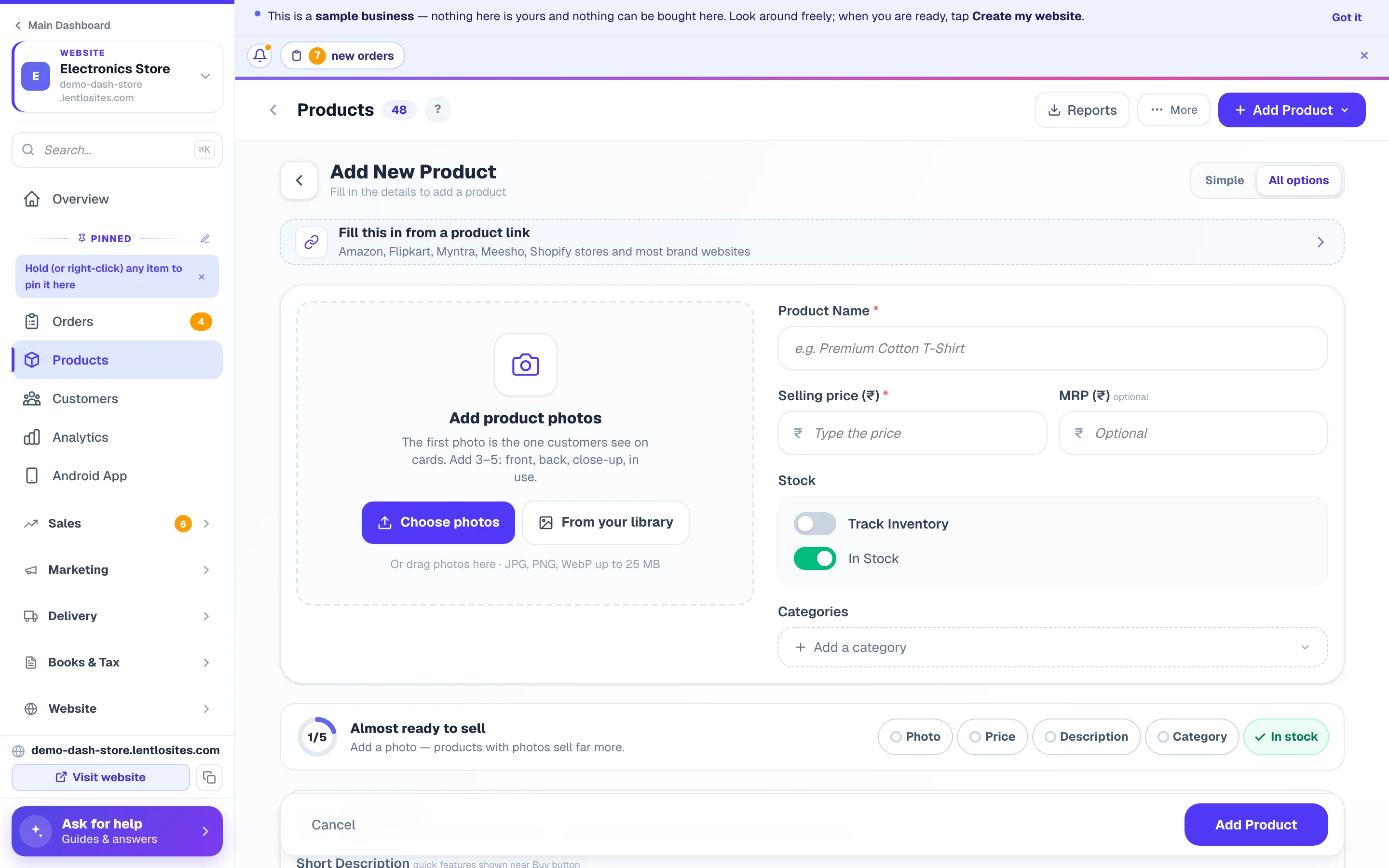
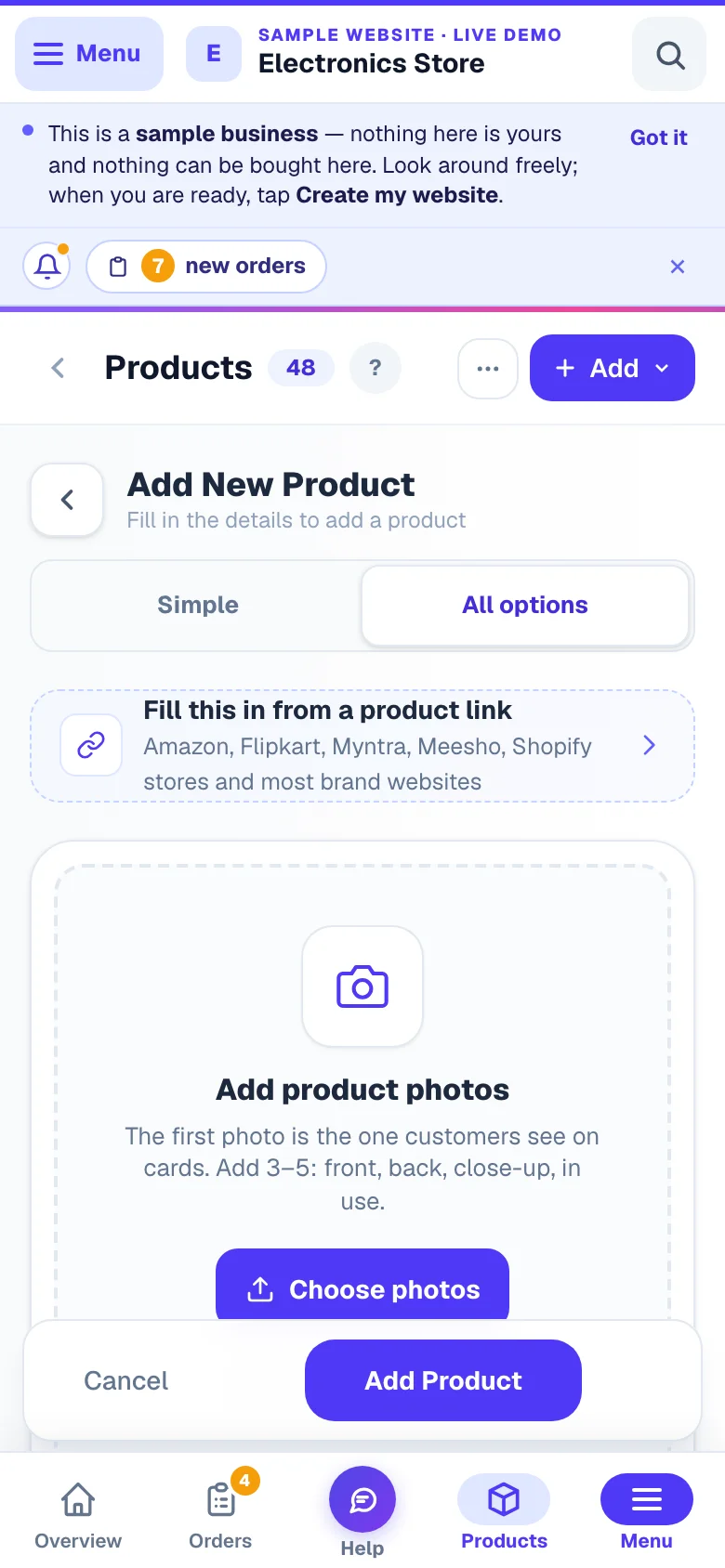
- The product card at the top — a big photo, shown whole and never cut off (tap it to view it large), with Remove on its top corner, the small photos underneath (tap one to show it big) and Add / Library beside them. With two or more photos, ‹ › (move the chosen photo earlier or later) — and Make main photo when the chosen one is not already the main photo — sit under the big photo. Then the name, the price and MRP, stock and categories. On a phone the photo frame is wider than it is tall, so the name and price come up sooner; on a computer the photo sits on the left and everything else on the right. When the product has sizes, colours or packs, the price there becomes the range (“₹280 – ₹550”) with Go to prices, because each size has its own price further down.
- Ready to sell — at the bottom of the product card (on a computer, on the right under the categories): a ring and up to five checks: photo, price, description (at least a line — 20 letters or more), category and in stock (a product with sizes or packs keeps its stock per size, and a digital or affiliate product has no stock, so those have no stock check). A missing one is a button that takes you straight to its box. It never stops you saving.
- Describe it — the Short Description and the Full Description (on a restaurant, also Food type and Serving time).
- Variants & packs — always open, because how a product is sold decides its price. With sizes, colours or packs switched on, it starts with Price on product cards: the one price customers see on your shop’s product cards before they pick a size. Use the lowest size price fills it in one tap.
- More you can do — every optional tool as a tile, in three groups: Selling rules (How many per order, Who can buy & how much, Where it can be delivered, Delivery charge, Low-stock urgency — shown once you count stock or the product has sizes — Subscription (repeat deliveries), Auction / Bidding), Make the page richer (Videos, Specifications, Product note, Personalization (custom orders), Digital Product) and Tax, profit & listings (GST & tax, Profit tracking, Google & Instagram listing, Google & sharing, Search words, Codes, SKU & tags). Each group has its own colour — the dot beside its heading and its tiles’ icons — so you can tell the three apart at a glance. A tile you have not touched says what happens on its own (Any number, Anyone, Usual areas, Standard, Store setting, Store rate, Automatic, Not set, Not added or Off); once you set something it shows that instead, with a green dot on its icon. A tile that does nothing for your kind of website is not shown: a catalogue website has no quantity, buying or delivery tiles (there is no cart), a restaurant has no Where it can be delivered, an affiliate product has no quantity, buying, area, subscription or auction tiles, and a digital download has no delivery tiles. On a car dealer’s site, Inspection report sits right under Ready to sell.
See it as your customers will. Wherever a setting changes what shoppers see, the panel shows the result right under it in the same dark What customers see frame: the short description under the name, the specifications table, the product note in its Please Note box after the description (rename or remove that heading with Product note heading in the website editor’s Site Settings — it is the same for every product), the photo’s frame on the product page (and whether it is cut), the quantity lines under the quantity box (Minimum order: 5 pieces, Max 2 per order — and a red line when a minimum above the maximum means nobody can buy it), the Subscribe box under the Buy button, and the delivery line under Check delivery. Under the price, MRP says Customers see ₹250 crossed out — 12% less. After choosing Buttons or Search box for an option, See it as a customer ↓ takes you to the preview.
Tap a tile and a panel opens — from the bottom on a phone, from the right on a computer — with a small moving picture of what your customers will see, three short lines (What it does, When to use it, For example) and then the tool’s own boxes. Done closes it. Nothing in a panel is saved until you press Update Product (or Add Product), and what you typed is still there when you open the panel again. If a save is refused because of a box inside a panel, that panel opens on the box with the reason written at the top. After a save the button shows Saved with a tick, and you are back on your list with the product you saved outlined for a moment.
Every tile in More you can do — at a glance
| Tile | What it does | More |
|---|---|---|
| How many per order | A minimum, sold only in sets (4, 8, 12…), a maximum per order, what you call one piece. | Below |
| Who can buy & how much | Limits per customer over time, members-only buying or seeing, no coupons on this product, your own message. | Below |
| Where it can be delivered | Everywhere you deliver, only in some areas, or everywhere except some — for this product. | Below |
| Delivery charge | Weight (grams), how it ships (your standard rate, free, a fixed price, or standard + extra; per order, per unit or 1st unit + extra each), a different price for an area, charge it separately, Block Cash on Delivery, wait for your confirmation. | Shipping |
| Low-stock urgency | Hide the “Only 3 left” note on this one product. | Below |
| Subscription (repeat deliveries) | Let customers get it again every day, week or month — buy or subscribe, or subscribe only. | Subscriptions |
| Auction / Bidding | Sell to the highest bidder instead of a fixed price. | Auctions |
| Videos | A product video and up to ten reels, and where they play. | Below |
| Specifications | Details as a name and a value (Weight: 500 g, Shelf life: 6 months), shown as a table on the product page; some designs let customers filter by them. | — |
| Product note | One short line right after the description (“Made to order”, “Ships in 3–5 days”). | Above |
| Personalization (custom orders) | Ask for a name, message, size, photo or video before the order, with ₹ add-ons. | Personalized products |
| Digital Product | Sell a file the customer downloads after paying. | Below |
| GST & tax | HSN code, a different GST rate, which of your GSTINs bills it (shown once GST is set up). | Below |
| Profit tracking | What you pay for it (never shown to customers), and a cost per size or pack. The cost updates itself from your Purchases (an average of what you paid); type over it any time. | Below |
| Google & Instagram listing | Brand, retail barcode, MPN, condition, keep it off the channels, and each channel’s listing status. | Below |
| Google & sharing | The title and description Google shows, the picture when the link is shared, hide this product from Google. | Below |
| Search words | Other names customers type, the words our AI added, and where it shows in your shop’s search (first, normal, lower or hidden). | Below |
| Codes, SKU & tags | SKU, search tags, your own counter code (at least 4 letters or digits) and a private supplier link. | Below |
Simple form — see only what you need
The product form can do a lot — variants, GST, auctions, videos, delivery overrides. If you only ever fill name, price and photos, switch the toggle at the top of the form to Simple. Tools you have not used disappear from More you can do (How many per order, Who can buy & how much and Where it can be delivered always stay); the product card, Ready to sell and Describe it stay too.
Auctions — switch on Auction / Bidding on any product to sell it to the highest bidder: set a starting bid, minimum step and end time, plus (optionally) a scheduled start, a hidden reserve price, a Buy Now price (available until the first bid lands) or sealed bids. Customers bid on the product page instead of adding to cart; late bids extend the clock so nobody snipes, and when time runs out the winner automatically gets an order and a secure payment link. Track everything — live bids, winners, payments, relists — on the Auctions page in your sidebar. A product can't be an auction and have variants at the same time. You control who bids: everyone, approved members only, or specific member groups (per lot, or as a site-wide default in Auctions → Auction settings — members are the customers you approve under Members Access). Full guide: Auctions. A lot can also be Unlisted — off your homepage, shop and search; only people you share the link with see it. Bidder names on the site are your choice too: partly hidden (“Rahul S•”), fully anonymous (“Bidder 1”), or full names — you always see full names and phone numbers.
- Nothing is lost. A tool that already has details (say, a product with variants or a GST rate) always stays visible — Simple never hides real data.
- "Show all options" at the bottom brings every tool back for the product you're editing, without changing your saved choice.
- The choice is saved per site — set it once, it sticks on every device. Switch back to All options anytime.
Adding a product
A product is anything you sell — a saree, a phone cover, a jar of pickle. Every product you add appears on your shop page the moment you save it.
Open Products and tap Add Product
From your site’s dashboard, open Products, then tap Add Product (top-right; just Add on a phone). Pick Own Product (you deliver it yourself) — or Affiliate Product if the buyer should be sent to another website to buy.
Already have the product listed somewhere? Tap Fill this in from a product link at the top of a new product’s form — paste a product link and the name, price and photos are fetched for you. For many products at once, use the Import CSV option or send your list (Excel or CSV) to Asha in the chat — see Import products.
Name and describe it
Give it a clear name customers would search for (the name box sits under the photo). In Describe it, the Short Description (one line of key features, up to 300 characters) shows near the product’s name and price on every design — a line that only repeats the name is left out on designs that show it under the name, and the preview tells you so — and when the product is linked with an item in your CRM, it is that item's words too: change one and the other follows. The full description stays on the website only. The Full Description is a rich-text editor — headings, bullet points, bold, photos, even YouTube videos. Adding a photo inside the text is easy three ways: tap 📷 to upload, drag a file straight in, or simply paste a copied image/screenshot. Keep paragraphs short; buyers scan.
Set the price and MRP
Type prices in plain rupees — 299, not 299.00. MRP is optional: when it’s higher than your selling price, customers see it struck through with the discount percentage worked out automatically. Every store design has two switches for that discount — Discount % badge on photos and Discount “% off” next to the price, in the editor's Site Settings under the product-card group — so you can keep the struck-through MRP and hide the percentage, or the other way round.
The selling price is never above the MRP. In the full form, a price above the MRP shows “Above the MRP — the MRP will be removed” under it, and Save removes that MRP. Quick and the list's price box refuse the change instead: “The selling price is above the MRP (₹699). Lower the price or raise the MRP.” Products already priced above their MRP are counted at the top of the list (“3 products are priced above their MRP · show”) — nothing changes them until you do.
Upload photos
Add photos at the top of the form — on a new product tap Choose photos (or drop files on the box on a computer) or From your library to pick ones you uploaded before; once there is a photo, the Add and Library tiles beside the small photos add more. The Main photo is the one customers see first on cards: pick another small photo and tap Make main photo, or Remove to take one off. Tap the big photo to view it full size. Three to five photos — front, back, close-up, in use — is what the form suggests. Any photo works — JPG, PNG, WebP, AVIF or a phone’s HEIC (iPhone, or an Android camera set to high efficiency), up to 25 MB; when a photo cannot be added, the reason shows in a red line under the photos. Don’t worry about file size: every photo is automatically compressed and resized into four sizes so your shop loads fast even on slow mobile networks. A wide or tall photo is shown whole in its frame, never cut off — and in Photo descriptions & fit under the photos, How these photos fit their frame and Photo frame on the product page let this one product differ from the site-wide choice (see Product photos).
Set stock
In Stock on the product card, turn on Track Inventory and type the Stock Count — it goes down with every order, and at 0 the product shows “Out of Stock”. Leave tracking off if you never run out (services, made-to-order items); then the In Stock switch is all there is — switch it off the day you run out. A counted product you marked Out of Stock from the list while it still has a count shows Paused here — customers see Sold out, the count is kept, and Mark in stock puts it back on sale. More on counts: Stock & inventory.
Save
Tap Add Product at the bottom. Your live shop updates automatically within a few seconds — no republish needed.
Also keep your stock and bills in the CRM? Link this website's products with your CRM items once (CRM → Items & prices → On your websites) and a change on either side follows on the other — name, short description, price (if you choose), photo, category, HSN, GST and code (a maker's barcode goes to Retail barcode; any other code, like the one the CRM's Generate makes, goes to Your own code) — and, once you pick One count for both, the stock too: a website sale takes it from the CRM item, a CRM bill takes it from the website. Full guide: Link your items with your website's products.
How many products can a shop hold?
Every website design lists a certain number of products well — 10,000 for most shops (a shop can be given a different figure). Adding a product past that figure is refused with the numbers in the message, and from 90% of it the Products page shows a quiet line with your count. For more, ask support to switch on the large-catalogue setup for your shop.
Product videos — in the photo gallery, like Flipkart
Open the Videos tile on the product. A product video shows as a play tile in the photo gallery, right after the first photo (the way Flipkart and Amazon do it) — customers tap the tile and the video plays inside the big picture box, muted, with a Tap for sound button. You can add one main video plus up to ten more (reels, shorts, extra demos).
- Upload a video — MP4, MOV or WebM, portrait or landscape: up to 100 MB and 10 minutes free, and bigger or longer videos up to 500 MB and 20 minutes for ₹29 (up to 250 MB) or ₹49 (up to 500 MB) once, from your credits — the price shows and waits for your yes before anything is charged: usually before the upload starts, or at its end when your phone cannot read the video's length. Phone videos are fine, even 4K or HDR: we convert every upload to a crisp, fast-loading copy (720p at up to 30 frames a second, plus 1080p for full screen when a 1080p or 4K video is landscape or longer than a minute) that plays on every phone and browser, and take a cover frame automatically. The upload shows its real progress, speed and time left; if the connection drops, pick the same video again and it continues where it stopped. Keep the page open until the preview card shows the cover.
- Paste a YouTube or Vimeo link — it plays inside the page, free, at any length. Longer than 20 minutes? Put it on YouTube and paste the link.
- Instagram links cannot play inside a website — the tile opens the reel in Instagram.
- Where it plays — every product follows Settings → Appearance → Product videos (gallery tile after photo 1 by default; you can pick the tile position, whether it starts on its own, the caption on the tile, and whether reels also repeat as a strip under the details). A single product can override this in its own Videos panel: in the gallery after a specific photo, below the photos, or below the product details.
Videos never slow the page down: nothing downloads until a customer taps the video — the tile only carries a small cover image. Removing a video from the product does not delete the file from your media library.
Google & sharing — how the product shows on Google and WhatsApp
Open the Google & sharing tile on the product (in the simple form it appears under Show all options). Everything here is optional — a product with nothing set gets sensible words on its own:
- Title in Google — the blue line in Google. Left blank, Google gets the product name and your shop name.
- Description in Google — the grey lines under it. Left blank, the first lines of the product description are used.
- Share image (WhatsApp / Facebook preview) — the picture on the card when the product link is shared: First photo, any other photo of the product, or Another photo… from your library.
- How it looks on Google — a preview card that redraws as you type. What it shows is exactly what the product page publishes.
- Hide this product from Google — it stays on your website and in Sales Channels; Google just stops listing its page (a bulk-only line, a product you sell only to people who have the link). The section’s badge reads Hidden.
Describe each photo is in Photo descriptions & fit, right under the product photos: one box per photo, in photo order, answering “what is in this photo?” (Fresh alphonso mangoes in a crate). Google reads those words, and a screen reader reads them aloud. Left blank, the product name is used. A photo you already described in Media is offered as a one-tap suggestion. Duplicating a product copies its photo descriptions with the photos; the Google title, description, share image and Hide switch are never copied.
Search words — how customers find this product in your search box
Open the Search words tile (in the simple form it appears under Show all options until the product has search words). It has three parts:
- Words customers search for — other names a customer might type that are not in the product name: a Hindi or local name, a common spelling, what people call it (dabba and lunch box for a steel tiffin box). Type one or several separated by commas and press Add; up to 30 words. They are found just like the product’s brand.
- Words our AI added — a few extra words written in the background after you save, usually within a few hours. Tap ✕ on a wrong one and it is never added again; removed words are listed underneath, tap one to bring it back. If the shop has AI words switched off (Search Insights → Search rules), this part says so.
- Where it shows in your shop’s search — Show first, Normal, Show lower or Hide from search. Show first and Show lower only reorder products that match a search equally well — a product whose own name matches better still comes first. Hide from search keeps the product out of the search box only; it stays on your shop and category pages.
The tile’s badge reads Automatic until you set something, then the number of words, Shown first, Shown lower or Hidden from search. See what customers find when they search opens Try a search for this product’s name. Your words work in the search box within seconds of saving. Duplicating a product copies your words and placement but not the AI’s words. The full picture of how search orders products: How search decides the order.
In a pharmacy shop, the AI never guesses what a medicine contains. Add the medicine’s contents (salts) in your Pharmacy products: the AI’s words are then written again from those contents, so a customer searching the salt finds it — usually within a few hours, unless AI words are switched off. To make it work at once, type the salt here as one of the product’s own search words.
Categories — one Main, up to 8 total
Categories group products so customers can browse (“Sarees”, “Snacks”, “Gifts under ₹500”) — and one product can sit in several. Under Categories on the product card, tap Add a category (Add another category once it has one), then pick from your list or type a new name and press Enter to create it. You can add up to 8.
The first chip carries a Main badge — that’s the category used for the product’s breadcrumb, shipping rules and SEO. Tap any other chip to make it the main one. More on organizing your shop: Categories & shop organization.
Sizes, colours & packs (variants)
Variants let one product page sell many versions — Small/Medium/Large, Red/Blue, 50ml/100ml, 500g/1kg — each with its own price, MRP, stock and photo. Open the Variants & packs section and answer one question: How is this product sold? (Not sure? Tap Not sure which to pick? See examples right under the four cards — each example is tappable and selects the right one for you.) On the Calibre tools catalogue design the product page has no size picker, so this section shows only on a product that already has sizes or packs (to change or switch them off).
- Sizes, colours & options — anything sold in choices: clothing sizes, colours, material, or your own option. Each choice can carry its own price, MRP, stock and photo.
- Pack sizes — one product in different sizes: 50ml / 100ml serum, 500g / 1kg atta or achar, 1L / 5L oil. Each size gets its own price & MRP, and customers can compare price per kg or litre.
- Buy more & save — the same item multiplied into packs of 2, 4, 12; customers see the per-unit price and how much a bigger pack saves.
- Just one price — a plain product with no options (the default).
Grey slanted text inside a box is only a hint — the box is empty until you type. On this form hints are written as words (“Size”, “Type the price”, “Optional”) or as “e.g. 500”, never as a bare number, so a hint can never pass for something you filled in.
Filling in Pack sizes and Buy more & save
Each row is one size (or one pack). Fill it in this order: Size (type 500 and pick g — or simply type 500g, 1 kg or 1.5 ltr and the unit is picked for you), Price, then MRP if you want a crossed-out price. Stock left blank means unlimited; Your cost is private and only powers your profit figures. The fastest way in is the row of chips above the rows — tap + 500 g and + 1 kg, then type the two prices.
Every row says what it still needs while you type: Needs a size, Needs a price or Same size twice in amber, with one line under the box that needs you; a finished row is headed by what customers will see — its size and price, like 500 g ₹220 — on a violet band with its number and a green Ready. Below the rows come the How prices show to customers switches and, right under them, What customers see in a dark frame like a phone screen — a preview of your shop, nothing to fill in. Change a switch and the part of the screen it changed lights up for a moment. If you tap Update Product (or Add Product for a new one) with something still missing, nothing is saved and the screen lands on the exact box — for example “the ₹220 row has no size” when a price was typed but the size was left empty. An empty row is simply skipped. For Buy more & save, first type the size of One single item at the top (like 750 ml, or 1 piece) — every pack is made of it — then tap + Pack of 2, + Pack of 4 and type each pack’s price.
Serum in 50 ml and 100 ml? That’s Pack sizes, not Buy more & save. Buy more & save multiplies ONE item — a “× 2” pack means two of the same single, and its crossed-out price is worked out automatically (pack × single price) unless you type an MRP on the row. Pack sizes treats each size as its own thing, with its own printed MRP.
Compare the sizes by price per kg (or per 100 g, per litre, per 100 ml, per piece, per metre — the first switch in How prices show to customers) decides how each size’s price is worked out for comparing: 500 g at ₹280 is ₹560/kg. The line under it does the sum with your own first size. For Buy more & save it reads Compare the packs by price per 1 piece (or 100 ml…).
The “Best value” tag (both pack kinds, on by default) is placed automatically on the size that costs the least per unit — the switch names it (“Customers see it on 1 kg”). It needs no setup; untick the box to hide it.
The price-per-unit line (“Show that price under each size” in How prices show to customers, on by default) prints the rate under each pack so customers can compare sizes: a 25 g pack priced ₹40 shows ₹1,600/kg, a 750 ml bottle at ₹27 shows ₹3.6/100 ml. For small sachets, gift packs or honey sold by the jar that number can look alarming — untick the box on that product and only the pack sizes and prices show (the ★ badge still works, it is worked out from the same maths). To switch the line off for every product in one go, use Settings → Appearance → “What customers see” → Hide price per unit or the matching quick switch on the Manage page; the site-wide switch wins over the per-product box (the product’s switch then says so and the preview hides the line), and either way the change is live on your website within about a minute.
Add your options
The section reads top to bottom in the order you think: 1 · What does the customer choose? (options with their own price & stock per combination, then any choice list), 2 · Price & stock for each combination, 3 · Try it as a customer (a real preview of your unsaved draft with the store’s own rules: a version at quantity 0 shows sold out, a typed name that is in your list becomes that choice, a name from another brand offers the switch, and a choice that no longer fits is dropped when the earlier pick changes). With nothing set yet you get three starters — Sizes & colours, Phone / device model, Something else — tap one and go. Name an option in its box (or tap a suggested name: Colour, Size, Material, Type…), then type each value and press Enter (or + Add), or paste a whole list at once — a value still sitting in the box when you tap elsewhere is added for you, never lost. Colour names get an automatic swatch — tap it to fix the shade. Every option carries an own price & stock badge; if its values need no separate price or stock (a long list of models), tap No separate stock? Make it a list and the values move across in one tap. If every size and colour sells at ONE price, tap Every size and colour costs the same? Just list them and fill the plain Sizes / Colours boxes instead of per-option pricing. An option left without a name is outlined in amber, and the Save lands on it.
Set price, stock and photo per variant
Every combination gets its own row: photo, the values, price, stock and a Selling switch. Price blank = uses the Price on product cards at the top of this section (the empty box says so: Same: ₹220). Stock blank = you don’t track quantity; 0 = none left, customers see sold out. Flip the switch to Paused to stop selling a version without losing its quantity — it stays paused however you change the count, until you switch it back on; a version that sold out on its own (quantity 0) goes back on sale the moment you type a quantity (turning it on at 0 asks for the new quantity: a whole number, or blank to stop tracking — anything else changes nothing). A save never puts back a quantity customers have since bought: only the counts you actually changed are sent — the same for Buy more & save and Pack sizes rows, and a paused pack stays paused however you edit the others. Select… applies a bulk edit to the versions you tick only — with nothing ticked the Apply button stays off, it never falls back to all. Tap the photo box to assign one of your product images (so choosing “Red” shows the red photo). Tap More on a row (⌄) for MRP, cost, SKU, barcode, weight and a per-variant GST rate.
Each variant can carry its own MRP. A variant that has its own price shows a crossed-out MRP on the store only when it also has its own MRP (expand the card ⌄ to set it) — the product-level MRP is never shown against a different variant’s price, so customers never see a made-up discount. The buy bar at the bottom of the phone screen follows the same rule: it shows the price of the variant the customer picked, and hides the crossed-out MRP and the “% off” when that variant has no MRP of its own. Use Quick edit → Set MRP to fill many at once.
Give each option its own Cost ₹ when you pay differently for it (a single sachet vs a full carton). That cost is private and powers the profit shown on orders — an option that sells at its own price with no cost recorded shows profit as a dash. Pack rows (Buy more & save / Pack sizes) have the same Cost ₹ box; a “× N” pack left blank automatically counts N × your product cost. The Profit tracking tile (under More you can do) shows the same Cost per option list in one place — options still needing a cost are marked with an amber dot and counted on the tile.
Try it as a customer
At the end of the section is a real, tappable copy of what the customer gets, built from what you have typed so far (nothing is saved or sold there). Tap a Type and watch which Brands stay available, tap a Brand and see its models, pick a sold-out pair and read the “Available instead” taps, watch the price change — exactly the rules the store applies once you tap Update. A combination with no price & stock row says Not offered together, a required list with nothing in it for that pick says so in amber; fix it above and the preview follows instantly. Start over resets it to a new customer.
Renaming is safe. Tap a value’s ✎ to rename it, or change an option’s name (Colour → Material) — prices, stock and photos stay attached, and the saved variants follow the new name. Every order also records exactly which variant was bought at what price, so later changes never disturb old orders. Give every option a different, non-empty name — the form refuses to save two options called “Size”, and an option with a single value shows a hint (customers cannot choose from one).
Don’t leave variants half-done. If you switch variants on but never finish adding options, customers who try to order get a “refresh and re-pick” error instead of a successful order (the Products page shows you an amber warning when this happens). Either finish the setup or tap Just one price.
Choice lists — long lists and step-by-step picks (brand → model → size)
A back cover that fits 600 Vivo models is not 600 variants. Variants multiply into combinations (3 colours × 600 models = 1,800), and only the first 100 combinations can carry their own price and stock — the form tells you the moment your options cross that line. Anything with hundreds of names that needs no separate stock — phone, car or bike models, book titles, design numbers, fabric codes — goes in a choice list at the bottom of Variants & packs. The rule of thumb: own price or stock per choice → an option; many names at one price → a choice list. And lists can follow each other: the customer picks a brand, then sees only that brand’s models, then only that model’s sizes — the first pick is the way to the next.
Keep only real variants as options
Colour, material, size, type of cover — the things with their own price, stock or photo. If you already typed the models as an option, tap Move “Model” to a choice list in the amber notice — the values move across in one tap.
Add a choice list
Right under your options (still inside 1 · What does the customer choose?), tap + Add a choice list. Name the choice (“Your phone model”, “Car model”, “Design number”), then paste the names one per line (from Excel, a website, anywhere — up to 2,000). Up to 16 choices show as buttons like any other option; more become a search box (the customer types a few letters and taps the match — nothing piles up on the page). Prefer one compact list box? Set Customers pick with to Dropdown — brands become headings inside it, and if you allow typed choices a “Type your own…” entry sits at the end. Add +50 after a choice to charge ₹50 extra when it is picked. Duplicates are ignored, Sort A→Z tidies the list, and Customer must choose this before Add to Cart is on by default so no order arrives without it.
Phone covers, guards, skins? Tap Phone brand → model (ready-made): two steps in one tap — a Phone brand list (16 brands) and a model list of 700+ models grouped by brand that shows only the brand they picked. Delete the brands you don’t serve, add any model that is missing, save.
Filter a list by an earlier pick (the chain)
On the list’s card, use “Show the choices for the customer’s…” and pick either a variant option above (Brand as an option with its own price/stock per brand) or an earlier list (Brand as a plain list). Write one heading per value of that pick — Vivo:, Oppo: — and the choices under each. The card tells you what the customer will get: “Headings cover 3 of 4 Brand values”, what is missing (Add the missing headings types the empty blocks), and how many choices sit above any heading. Choices without a heading show for every pick — so a list you typed before adding headings keeps working the day you switch the filter on, and “Universal” items stay visible under every brand. For phone lists, Sort them under the brands automatically files your existing models under Vivo / Oppo / Samsung… using the built-in catalog (unrecognised ones stay above the headings and are listed back to you). Chains go as deep as you need: Type option → Brand list → Model list → Storage list. Steps show in the order of the cards — ▲▼ reorders them; a step can only be filtered by a step above it.
No grammar to learn: once a list is narrowed by Brand, the card shows one box per brand — “VIVO”, “Oppo”, “Moto” — plus a “For every Brand” box for choices that fit all of them. Paste each brand’s models into its box, one per line; the headings are written for you. Edit everything as one list switches to the single big box (handy for one paste from Excel with Vivo: heading lines).
When your headings already match an option’s values, the filter switches on automatically (the card says so). Pick Nothing — always show the whole list to turn that off. The reverse move exists too: a short list whose choices need their own price or stock has a Needs its own price or stock? Make it an option link (refused past 100 combinations, with the count).
Buttons or a search box — your call. Customers pick with on the card: Automatic shows up to 16 choices as buttons and turns a longer list into a search box; Buttons keeps buttons whatever the count (up to 200); Search box always shows the type-to-search box — the right pick for hundreds of models.
Typed a choice from another brand? If a customer types “Galaxy S24” while Brand is VIVO, the store offers the switch and says what it means first — “Switch to Samsung” when that pair is on sale, or “Choose Gel + Samsung instead · ₹199” when the current type is sold out for Samsung; a brand sold out for every type shows as unavailable, never as a dead switch. A listed choice of another brand is never recorded as a typed one, on the page or at checkout. For variant options shown as a search box, a value that doesn’t pair with the other choices is still listed (it says so) so every offered combination stays reachable.
Track stock per choice (optional)
Sell covers, glasses or blanks per model? Under the list, open Stock per choice. Type a quantity next to the models you count (blank = never runs out), or tap Paste from Excel and paste two columns — V40 Pro, 12 one per line. A Selling box per choice pauses one without touching its number. Save once. From then on every order takes one from the picked model, a cancel or return puts it back, customers see Sold out on a model at 0 (they cannot pick it) and Only 3 left under six, and you get a push when a model sells out or runs low. The Products list shows Models out / low and each card says how many models are sold out. Shared list? The numbers are shared by every product that uses it — one stock of blanks for all your designs.
What the customer sees
One more option row beside the colour buttons (“Your phone model: …”). A small list shows as buttons; a big one opens a search box (v30 pro finds V30 Pro 5G). A filtered step first waits for its parent (“Choose Brand first”), then shows only that block — a model from another brand is never allowed; changing the brand clears the model. The pick shows on the product page, in the cart, at checkout, on the order and in your order alerts. Tick Let the customer type a choice that isn’t listed if you can serve models you haven’t listed yet; those orders arrive marked typed by customer. (The same list can also be asked inside the Personalize panel — add it from Personalization instead.)
Same list on many products? Tap Save as a shared list once; on other products pick it from Use a shared list. Editing the shared list updates every product using it. A variant option with many values (10–100) can also be a search box — next to the option name, switch Customers pick with from Buttons to Search box; the same price/stock per value stays.
Changing variant prices, cost & stock fast
The Products list counts a product as Low stock when any of its versions is down to 5 or fewer, and the card says how many versions are low or sold out — so a shop with 40 sizes never misses the one that is nearly gone.
For daily updates you don’t need the full form. On the Products list, tap Quick on any product — for a variant product you get a small list of every option with its price, cost (what you pay — private, makes order profit accurate) and stock. Change the numbers, save, done. Only what you touched is updated; photos, SKUs and everything else stay exactly as they were.
Turning variants off safely
Changed your mind and want a single price again? Open Variants & packs and tap Just one price. Your whole setup — options, prices, stock — is quietly saved, and an amber ↩ Restore options banner appears in the same section so one tap brings it all back. Nothing is lost by trying.
Products from your supplier
If your store sells a supplier’s products, they sit in your Products list with a Supplier label. Their name, photos, description, options, stock, tax and price come from your supplier and stay as your supplier keeps them — open one and they are shown read-only. You set what you earn under Supplier prices (the Margin button on the row goes there); your own short description, tags and page title stay yours to write. A supplier’s product cannot be copied or deleted here, bulk actions leave it out (the bar says how many), a category your supplier’s products use cannot be renamed, and a purchase bill that names one does not add to its stock. Once your supplier no longer offers it in your store, it stays as not available and its screen offers Remove from my store.
Stock, sold-out behaviour & minimum quantity
Honest stock counts stop you from taking orders you can’t fulfil. Stock reduces automatically on every order; at 5 or less, customers see an “Only 3 left” style note on the product page, in the cart and at checkout. Switch it off for one product in its Low-stock urgency tile (Hide low-stock urgency), or for the whole shop in Settings → Appearance → What customers see → Hide low-stock urgency — site-wide.
The minimum, sets and maximum per order live in their own tile, How many per order (next section), so they stay reachable for products with sizes or packs too.
How many per order — minimum, sets and maximum
Every shop sells differently. A kirana shop may sell Sooji only 4 packets and up, a vest combo only in full packs of 4, a wholesaler chips by the carton of 12 and then 6 more at a time. Open the How many per order tile on any product and set it the way you sell:
- Where buying starts — Minimum per order (1 means no minimum) and, if you want, Maximum per order (leave it blank for no limit).
- After that, each + adds — One more each time (4, 5, 6, 7 …: any number above the minimum) or A fixed number each time (4, 8, 12 …: only full sets). With a fixed number you type what each + adds or tap a quick choice (Same as minimum, 2, 3, 5, 6, 10, 12); the line under it shows exactly which numbers customers can buy. Then say what you call a group — set, pack, box, combo, carton, dozen or your own word — so customers read “Sold in packs of 12 pieces” in your words. If the product has no minimum yet, choosing a fixed number starts at one full set — sets of 6 means 6, 12, 18 — and the minimum follows the set until you type a different one (a minimum of 12 with sets of 6 gives 12, 18, 24).
- How sizes count (only for a product with sizes, versions or personalised lines — the heading uses your option’s own name, like How colours count) — Each size on its own (4 of Size 80, or 4 of Size 85: each size needs its own 4 — this is how every product with a minimum already works) or All sizes together (2 of Size 80 + 2 of Size 85 counts as 4).
- What do you call one? — pieces, packets, boxes, bottles, pairs, dozens, sets, or your own word, so customers read “Minimum 4 packets”. The quantity a customer chooses is always counted in these units, and the price is per unit — a set, pack or box is only a way of saying the rule, never a second unit. Beside every number customers also read the groups it makes (“8 pieces = 2 sets”), so nobody takes 40 pieces for 40 sets.
- A line for customers (optional, up to 120 letters) — like “Packed in sealed boxes of 4”, shown under the quantity on the product page.
Under the controls, What customers see draws the product page card with a working − and + (tap them to try your rule) and the cart chip, and What happens says it in sentences. An amber note warns you when the maximum is below the minimum (nobody could buy it), when the maximum does not fit your sets (customers can take only the nearest full set below it) or when the stock you track is less than the minimum.
What your customers get, on every website design:
- On the product page, under the quantity: a small card with the rule in words (“Sold in sets of 4 pieces — Quantity is in pieces · + adds 1 set (4 pieces)”), the numbers they can buy with the sets each one makes under it (4 · 1 set, 8 · 2 sets, 12 · 3 sets …) and the current one lit up as they tap + or −, and your line. The quantity box starts at your minimum and moves through the allowed numbers only.
- Tapping ADD on a card, the product page or the size list puts your minimum in the cart (4, not 1) and the message says so in units and groups (“8 pieces (2 sets) of Vest in your cart”; “4 pieces of Sooji in your cart · minimum 4”). Each + adds the next allowed number; − below the minimum takes the item out of the cart. In the cart drawer and at checkout − stops at the minimum and Remove takes it out. On the QuickMart design, the small line under the product’s name also shows the rule (“Sets of 4 · Size 80”).
- In the cart and at checkout each line carries a chip that reads the line’s own number in units and groups (“40 pieces = 10 sets”; “Min 4 pieces”), next to the line total, so 40 can never be taken for 40 sets. If a cart ever holds another number — an old cart, or you changed the rule after a customer added it — it is raised to the next allowed number and the line shows “Changed 6 → 8 pieces” with a message, so the customer sees the new total before paying. For All sizes together the cart never picks a size for them: a card under the product says “You have 6. Add 2 more of any size to make 8” with Add 2 more and Make it 4 buttons, and Place order asks for the same fix first.
- At payment our servers check the same rule. A quantity that does not fit is refused before any payment starts, with a clear title (“Sold in sets of 4 pieces”), the sentence in units and groups (“You have 6 pieces — make it 8 (2 sets)”) and a Make it 8 button that fixes the cart in one tap — the customer is never left with an error they cannot act on.
- After the order — the order confirmation, Track Order, your orders page, a WhatsApp from your own number and the invoice all count pieces at the per-piece price, exactly as every order always has (“Vest × 8 at ₹46 = ₹368”). The invoice is a tax document and lists what was sold: 8 pieces, never “2 sets”.
Orders you create yourself are not held to this rule. A product with a minimum and stock you do not track has no stock ceiling, so a minimum of 100 or 500 works even when you do not count stock. On your products list, products with a rule show a small “Sets of 4” or “Min 4” chip. Asha can change a product’s minimum for you too; when the product is sold in sets, her card names the numbers customers will be able to buy.
Who can buy & how much — limits, members and areas
Open the Who can buy & how much tile on any product to control exactly who may order it and in what quantity. Every control is optional — leave it untouched and the product sells to everyone with no limits, exactly as before. A live summary at the bottom of the panel spells out, in plain words, what your customers will experience. After you save, products carrying limits also show a small blue chip on your products list (like “Max 2/order”) — so if a product shows no chip, no limits are saved on it yet.
- How many can one customer buy over time? — rolling caps for the last 24 hours, 7 days, 30 days, a year or ever. (The minimum, sets and maximum per order are in How many per order — the first line of this panel shows what is set there and opens it.) Perfect for scarce stock, festival offers (“one box per family”) and wholesale packs. These are rolling windows (the last 24 hours, not “since midnight”), and we count only real orders — cancelled and returned ones never use up a customer’s limit.
- Who can see it / who can order it — two separate choices. Show a product to everyone but let only members buy it (a great “sign up to order” hook), or hide it from non-members entirely. You can also name specific customer groups — useful for dealer-only or B2B stock. Customers must be signed in with their registered number for us to recognise them; a guest is always treated as a normal shopper. Limiting who can see a product also keeps it out of your site’s search box and your Google/Instagram product feeds — signed-in members find it by browsing your shop. Its product page stays reachable by direct link, so share that link with your members.
- Where it can be delivered has its own tile, right beside this one — see Where you deliver.
- No coupons on this product — discount codes skip this item while still applying to everything else in the cart. Ideal for loss-leaders and already-discounted stock.
- Your own message — write the exact words a customer sees when a rule stops them (“One pack per family, please”). Warm beats technical — it appears at checkout.
Quantity limits are enforced in the cart itself — the product page, product cards, the cart drawer and checkout all stop at your maximum with a friendly note, and the cap counts the product’s sizes and options together (2 of a 500g pack + 1 of a 1kg pack counts as 3). Everything is also enforced on our servers at checkout, so the limit holds even if someone edits the page or reuses an old link — and a blocked customer is told clearly what to do (how many are left, or to sign in), never shown a dead error. Orders you create yourself are exempt: you can always sell as you wish over the phone or counter.
Sold-out products still show on your shop with a “Sold Out” badge by default. To hide them from listings — or manage counts day-to-day — see Stock & inventory and What customers see.
Where it can be delivered
Open the Where it can be delivered tile on any product. (A car dealer’s site has no such tile: booking a car is never checked against delivery areas, so it shows only on a car that still carries a choice, to clear it.) By default a product follows its category's choice (the panel says so: “Follows Cakes: Only in Coimbatore district”), otherwise the whole shop's. Tap Change to give this product its own choice — Everywhere you deliver, Only in… or Everywhere except… — and pick its areas: your district, your state or around your PIN code in one tap, a rate zone or Delivery Days route you already have, or a new place drawn from states, districts, cities or PIN codes. Try a PIN code shows the answer a customer would get. You can also write your own sentence for customers outside the area.
Chose “Only in…” for one cake? Use this for all of Cakes moves the choice to the category so every cake follows it — and this product follows the category again. Customers outside the area see “Delivers only in …” on the product page and, at checkout, a card naming the items that can't go to their PIN code with Remove (or Pick up from the shop instead). Pickup, digital downloads and orders you create yourself are never blocked. Full detail: Where you deliver.
Per-product GST rate
If your store charges GST, most products just use your store’s default rate — but some items are taxed differently (5% food staples in an 18% store, 3% jewellery). Open More you can do → GST & tax to set an HSN code (4, 6 or 8 digits — spaces and dots you type are taken out; anything else is refused in words, and an old code you leave untouched never blocks a save) and pick this product’s own GST rate; leave it on Use store default otherwise. If you’ve registered more than one business (GSTIN), you can also choose which one invoices this product. This tile only appears once GST is set up — see GST & invoices.
Personalization (custom & printed products)
Selling photo cakes, name mugs, printed t-shirts, engraving, invitations or tailored items? Open the Personalization (custom orders) tile on the product to collect the name, message, sizes, choices — and the customer’s photo, PDF or video — right on the product page before they order, with optional ₹ add-on charges. Ready-made recipes (Photo Cake, Jersey, Engraving…) set it up in one tap. Full guide: Personalized & printed products.
Digital products (downloads)
Sell PDFs, courses, music or design files — no delivery needed. In More you can do → Digital Product, switch it on, then either upload the file (up to 5 GB; files over 10 MB upload in pieces) or paste a link from Google Drive/Dropbox that’s shared with “anyone with the link”. The delivery tiles disappear for a digital product.
Each order gets its own download link, shown on the order-success screen and in Track Order once the customer is signed in with the same number. It opens as soon as the payment is confirmed (or you confirm the order), works for 30 days from the order and up to 10 downloads. Cash on Delivery is hidden at checkout when the cart has only digital items, and the address form is skipped. Full guide: Selling downloads.
Google & Instagram listing (Sales Channels)
In More you can do → Google & Instagram listing you control how this product appears when your store is connected to Google, Instagram, Facebook or WhatsApp via Sales Channels: the brand shown on listings (set the real maker for branded goods — blank uses the default from Sales Channels → Listing settings, else your store name; on Google a code-less product with only the store-name fallback lists as unbranded, which Google accepts), the Retail barcode (GTIN / EAN / UPC) printed on the pack by its maker (optional, but listings with barcodes perform better — a code from the in-store range, starting with 2, is never sent: the box says so and offers Move it to Your own code), an MPN (blank = your SKU), the condition (New / Refurbished / Used), and a “Don’t show on Google & Instagram” switch that keeps just this product off the channels while it stays on your website. Digital and affiliate products are kept out automatically — Google and Meta only allow physical products sold on your own site.
Your own code (in-store barcode), in Codes, SKU & tags next to Tags, is for a code you made for the counter or your labels — on a product linked with a CRM item, the code the CRM's Generate makes lands here. It needs at least 4 letters or digits, the product search finds it, and it never goes to Google or Instagram. The CSV export and import carry both: GTIN and Barcode (own code).
Once a channel is connected, the same section shows a Listing status line for each one — Google and Instagram & Facebook separately — in plain words: Approved, Under review, Needs a fix, Rejected on push, Hidden by you or Kept out by policy. When something is wrong it names the reason and what to change, with a link to the full list on Sales Channels; a freshly saved product reads “Pushed within seconds of your next save”. If nothing is connected yet, the line points you to Sales Channels instead.
Open a product fast: tap its photo or name anywhere (grid or list) to open the full editor — the page gets its own link, so Back returns you right here. While you’re bulk-selecting, tapping a photo selects instead (so the checkbox and the photo never fight). The list view is now a proper table on desktop: aligned Price / Stock / Sold / Views columns whose headers you can tap to sort, with all action buttons always visible.
Editing — three speeds
- Full edit — tap Edit on any product to open the complete form. Your changes go live on save. If the product changes while the form is open — on another phone or computer, by a bulk price change, or by Asha — Update Product never puts your older copy back over it: the form says Not saved yet, shows what changed, keeps everything you typed, and you press Update Product again.
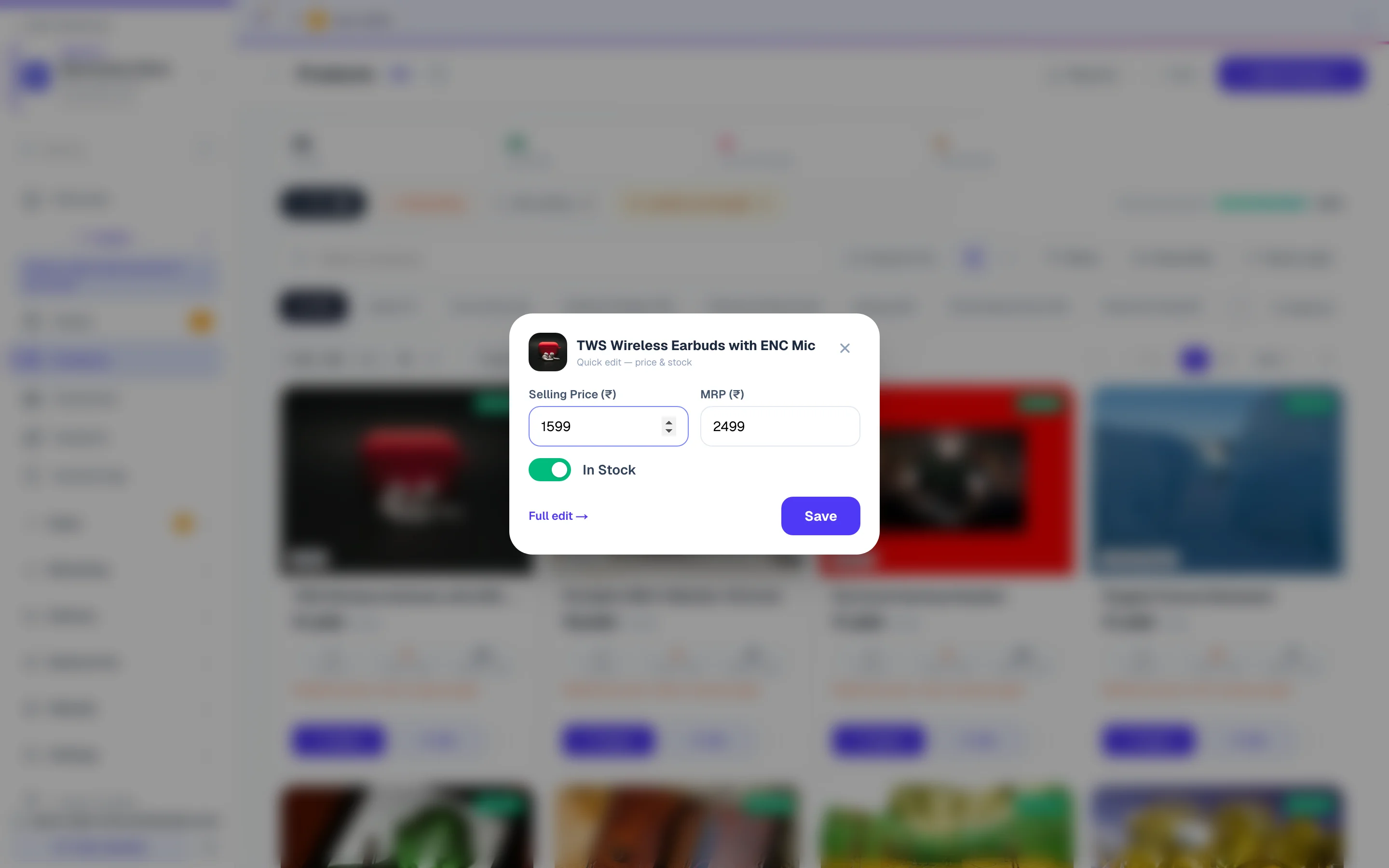
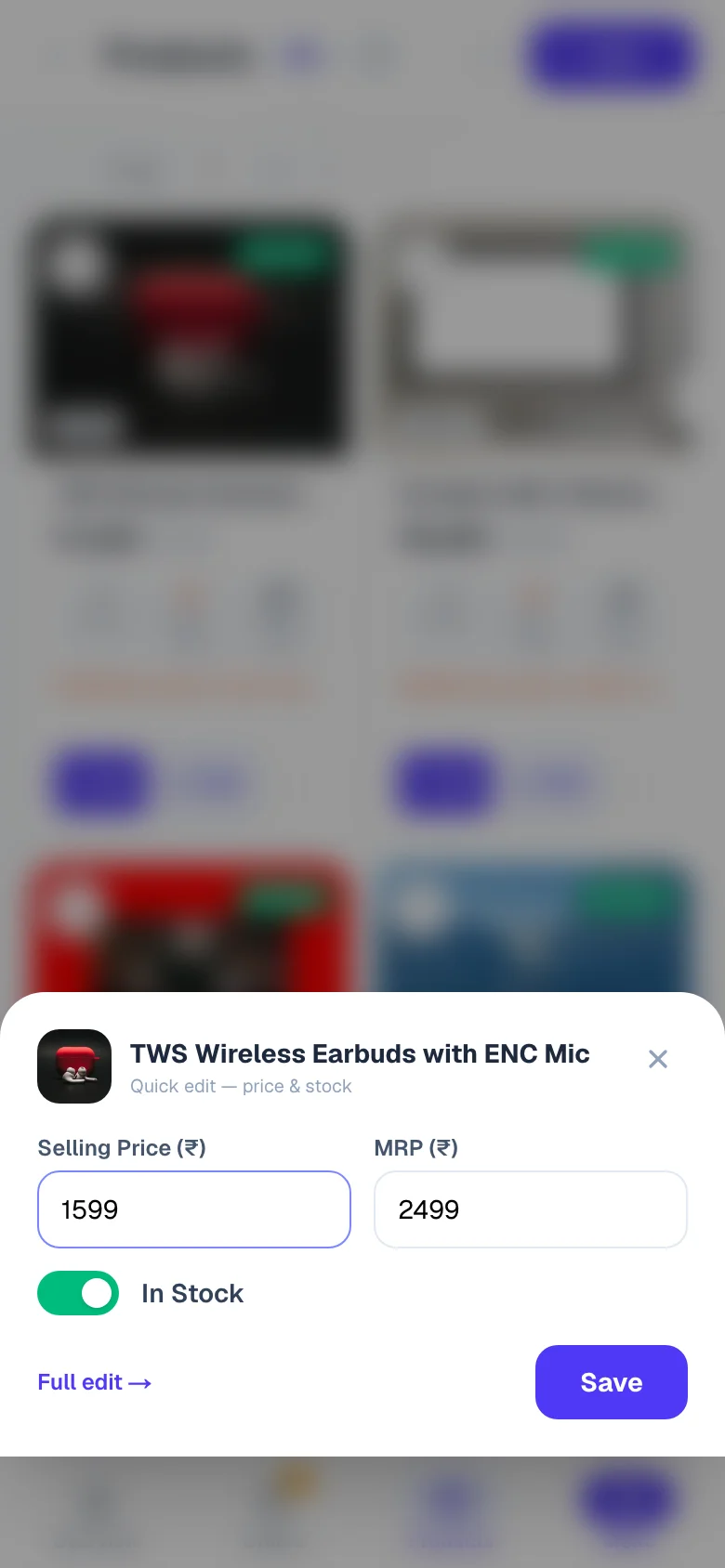
- Quick — price, MRP and stock in a small popup, without leaving the list.
- Stock mode — tap Stock mode in the toolbar: each product becomes one row with its price box (it saves when you leave the box) and +/− steppers for a counted product, or a Selling switch for one you don’t count. Each tap saves instantly; if a sale or another phone changed the count since the list showed it, the tap is not applied — the list shows the latest count and you tap again, so a sale is never written over. Products with variants show an ⚙ Options shortcut instead (their stock lives per option); digital and affiliate products have no stock controls. Perfect for the end-of-day stock round.
The ⋯ menu on each product card (on a narrow phone it is the More button under Quick and Edit, and it opens from the bottom of the screen) also gives you Performance, Share on WhatsApp, View on site, Copy link, Duplicate (a copy with a fresh SKU, ready to tweak) and Delete; in the row view, Quick, Share on WhatsApp, Edit, Duplicate and Delete are the small buttons at the end of each row. Deleting a product linked with a CRM item says so beside Yes, delete: “It stays in your CRM as an item.”
The category row under the search box shows one category per pill. If you have more categories than fit the screen, you never have to drag it sideways: while your pointer is on the row, small arrows appear at either end (they leave when you move away) and your mouse wheel scrolls the row, and the Find button beside it opens a search box listing every category with its product count — type a few letters and pick it. Choosing a category there also slides the row across so the pill you picked is in view.
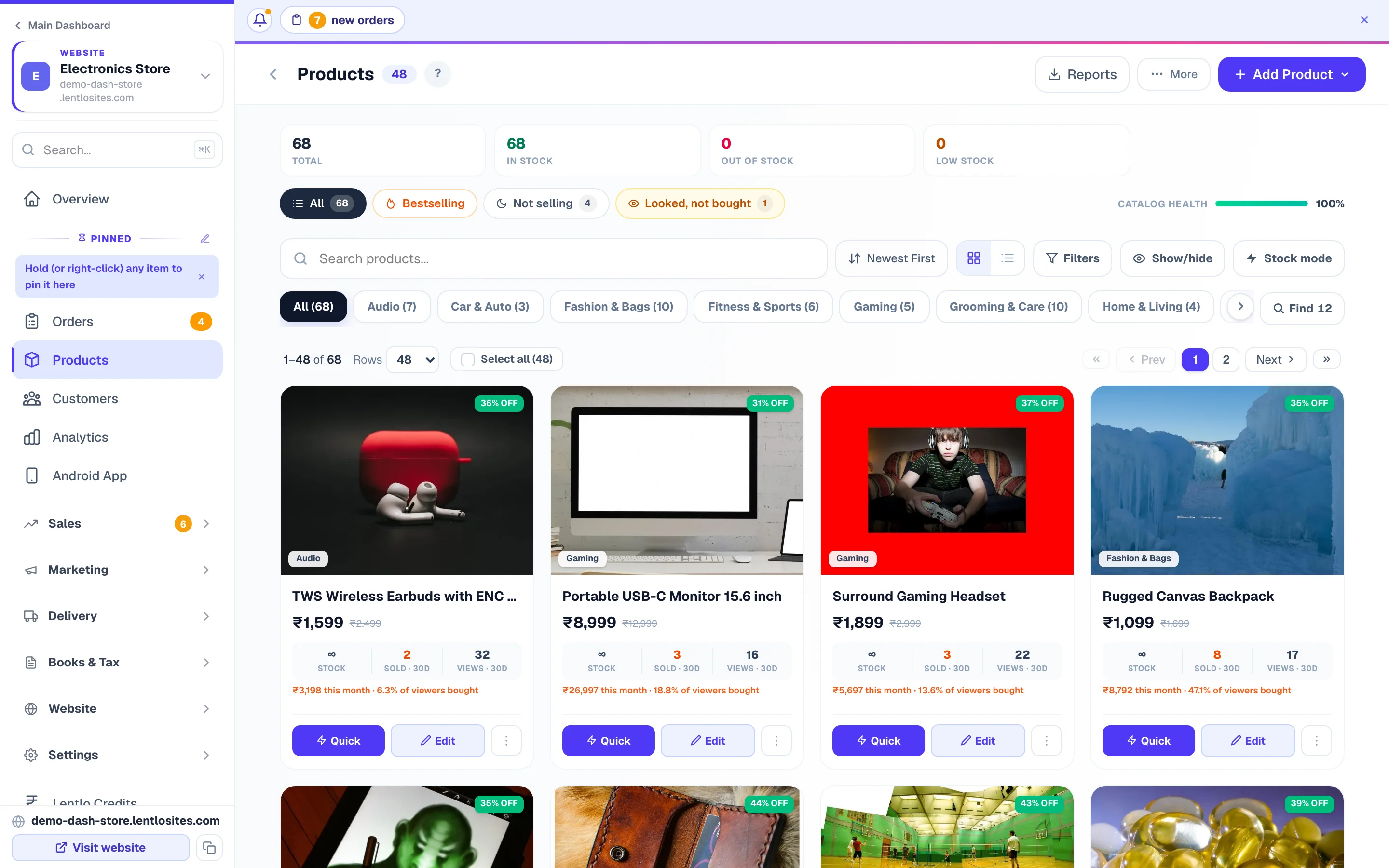
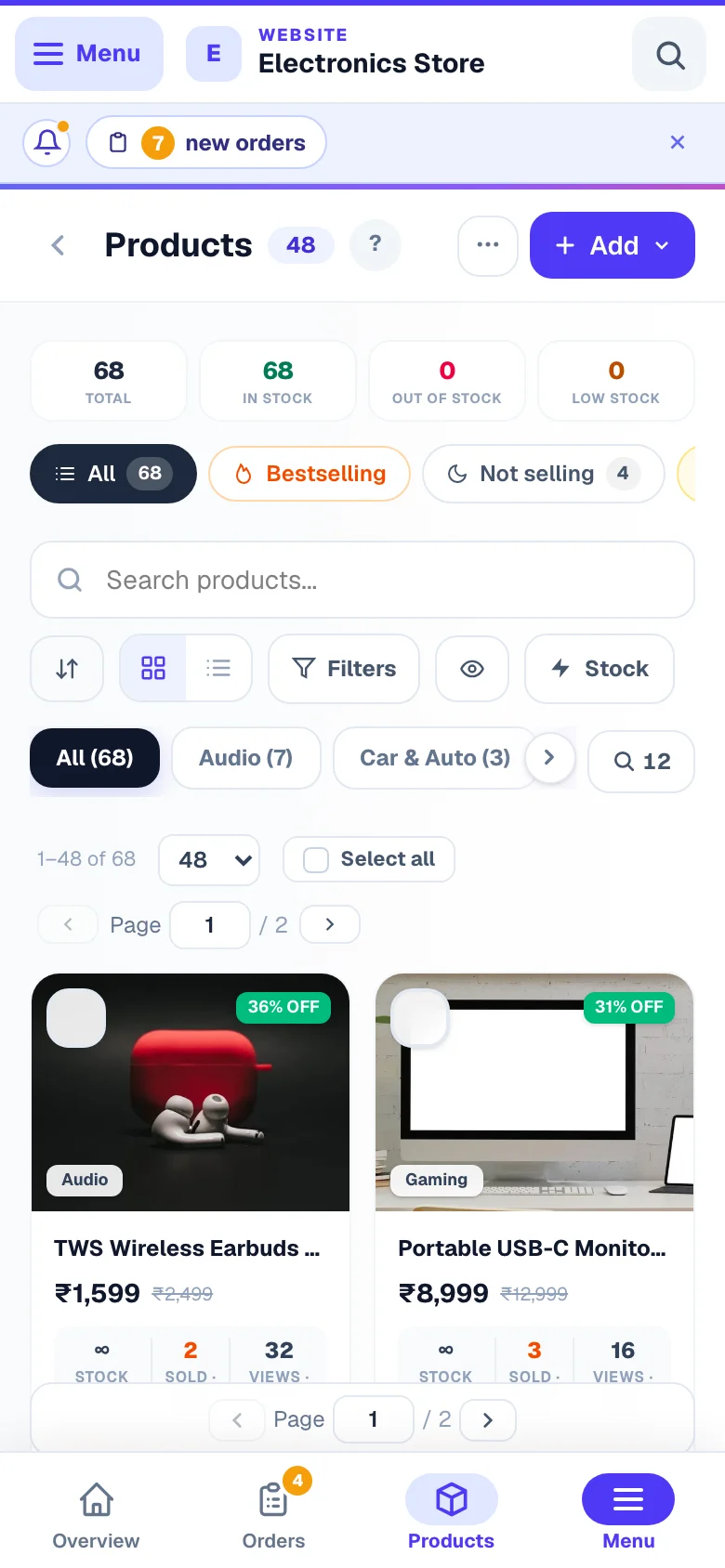
- 1Add a productAdd what you sell — photos, price, stock, GST.
- 2Stock at a glanceIn stock, out of stock and low stock, as filters.
- 3Find anythingSearch by name; the category chips below narrow it further.
Bulk actions — fix many products at once
Tick the checkbox on each product’s card (or Select all), and a dark bar appears with one-tap actions:
- In Stock / Out of Stock — flip availability for everything selected.
- Category — move them all into one category, or Remove category.
- Delivery area (stores; not on restaurant or catalogue websites) — choose where the selected products can be delivered, the same choice as the product’s own Where it can be delivered tile (see Where you deliver).
- ₹ Price — set one exact price, or raise or lower every selected price by a percentage; Update prices applies it.
- Min Qty — set where buying starts for every selected product and what each + adds after it: One more each time or A full set each time (presets like Min 5 or Sets of 12). Only the minimum and the set change — each product keeps its own unit word, note and size counting.
- Google & Instagram (stores) — hide the selected products from your Google Shopping and Instagram & Facebook listings, or show them again. They stay on your website; hidden ones carry a small Not on Google tag.
- Business (only when you have registered more than one GSTIN) — set which of your businesses invoices them.
- Delete — with a confirm step, so a stray tap can’t wipe your catalogue. When some of the selected products are linked with CRM items, the step says how many stay in your CRM as items.
- ⬇ CSV — download the selected products as a spreadsheet, including each one’s last-30-day sales, revenue and page views. Stock shows a number or unlimited, In stock shows yes/no, and each product’s own Search words and Search placement (Show first, Normal, Show lower or Hidden from search) come along too — the same words the CSV import reads back. Remember that the import adds products: re-importing the same file into the same store is refused (it names the products that already exist), so use the export for a backup, for price work in Excel, or to move a catalogue into another store.
The More menu and Reports — imports, catalogue PDF, downloads
Two buttons at the top of the Products page hold the tools you use now and then:
- More (⋯; on a phone only the dots show) — Import CSV (add many products from a spreadsheet — see Import products), Profit & margins (below), Manage Categories, and Catalog PDF — one for all your products, or one per category, ready to send on WhatsApp.
- Reports (on a computer) — four downloads: Product catalog, Product performance, Low-stock reorder list and Inventory valuation. See Reports & exports.
The Add Product button (just Add on a phone) asks one thing first: Own Product (you deliver it yourself) or Affiliate Product (the customer buys on Amazon or another site — not offered on catalogue websites).
The focus rail — your daily triage
One row above the list sorts your day for you. Every chip is a one-tap filter over your whole catalogue (tap again to clear), with live counts:
- Bestselling — sorted by last-30-day units sold.
- Running out — will run out of stock within a week at the current selling speed (each card also shows “~N days of stock left”). Restock these first.
- Not selling — in stock 14+ days, zero sales in the last 30 days, with the stock value sleeping in them (when cost prices are set). A small discount or WhatsApp broadcast usually wakes them up.
- Looked, not bought — 25+ page views this month but nobody bought in that time. Interest exists; the price, photos or description is stopping people.
- Incomplete — missing photo, description or category. The Catalog health bar on the right shows what share of your catalogue is complete.
Each card carries a small Stock · Sold · Views strip (last 30 days), plus this month’s revenue and the % of viewers who bought when there are sales. Every number is 30-day scoped and says so — a product that sold two months ago but not this month reads “none bought this month”, never “no sales”. Out-of-stock products show their photo faded so you spot them at a glance.
📈 Performance — one product’s full story
Open any product’s ⋯ menu → Performance for its last 30 days on one small card: units sold, revenue, page views and buy-rate, a views-vs-sold trend line, and its most recent orders (each one tap away). Use it before deciding a discount, a restock, or a price change.
💰 Profit & margins — which products actually earn
Open Products → More (⋯) → Profit & margins for a full page on what each product really earns you — Today, Yesterday, the last 7, 30 or 90 Days, 1 Year, This month, Last month, or Custom dates.
- The headline — gross profit (with the change vs the period before), your margin, what the sold items cost you, and how many of your orders could be counted.
- Profit day by day — a trend line you can hover for any day’s profit and how many of that day’s orders had costs recorded.
- Losing money on these — products that earned less than they cost after discounts and GST. Usually a wrong cost entry or a discount that went too deep; worth checking the same day.
- Your profit engines and profit by category — where the money actually comes from, which is rarely the best-selling list.
- Every product — a searchable table you can sort by profit, margin, sales, units or profit per unit.
Profit here means: sales minus discounts, minus GST (you remit that), minus each item’s cost price. Each order’s discounts are shared across its items by value and its GST by each item’s own GST rate, so the product rows add up exactly to the headline figure — and match the Profit column on your Orders page. Orders where any product has no cost price are left out completely rather than guessed, and the page tells you how many products still need a cost.
Quick answers
Do I need to republish after changing a product? No — product saves update your live shop automatically within a few seconds.
Running a restaurant? Dishes get two extra controls in Describe it: Food type (the veg / non-veg FSSAI mark) and Serving time — keep the dish on its category’s timing, make it All day, or give it Specific timings (breakfast-only vada pav inside an all-day menu). Serving time is also in Quick edit, so the daily flip takes two taps. Timings themselves are created in Restaurant → Menu timings.
Can two variants of one product have different GST rates? Yes — expand the variant card and set its GST rate; otherwise it follows the product.
What does “Incomplete” mean on the Products list? The product is missing a photo, a description or a category — the three things buyers look for first. Tap the Incomplete chip to list them all.
How do I stop selling a product for a while without deleting it? Tick it on the list and tap Out of Stock in the dark bar (for a product you don’t count, the In Stock switch on the product or in Stock mode does the same). Its page stays up with a Sold out badge, any count you track is kept, and In Stock puts it back on sale. Deleting removes the product and its page.
Where do shipping charges per product live? Under More you can do → Delivery charge — see Shipping.
A heavy item whose delivery you can only price after the order — or one you must check before you sell it? In Delivery charge, tick Orders with this product wait for your confirmation. When your shop's Shop confirms the order first setting is on for “products I choose”, any order with this product waits for you: you add the delivery charge (Delivery charge after the order), or check the whole order before the customer pays (Shop confirms the order first), and send the final bill.
More in Products & orders
Did this answer your question?
It takes one tap and it genuinely changes what we write next.