
Profit & Loss
See whether your shop actually made money — sales minus cost of goods minus expenses, for any period you pick.
Watch0:355 min readUpdated 21 Oct 2026
In this guide
What the P&L shows
Profit & Loss is your books summary — it pulls together three things you already record on LentloSites and does the maths for you.
Revenue
All your orders in the period — online, manual, everything except cancelled ones.
Cost of goods
What the items you sold cost you — from your purchase bills or product cost prices.
Expenses
Rent, salaries, ads — whatever you record in the Expenses tracker, grouped by category.
GST summary
GST collected on sales minus GST you can claim back on purchases (ITC) = net payable.
The sum is simple: Revenue − Cost of goods = Gross profit. Gross profit − Expenses + other income = Net profit (before income tax). Other income is anything you recorded in Expenses as Income — a cash sale, a commission, rent from a tenant — and it shows as its own Add: Other income line. A green card means profit, a red card means loss — with the margin percentage next to it.
Open it and pick a period
The period buttons let you check this month's health in one tap, or review a full financial year before meeting your CA.
Open Profit & Loss
In your website's sidebar, open the Books & Tax group and tap Profit & Loss (the page is marked Beta). It's also the second tile in the File box on Books & Tax. A team member needs the invoices / books permission to see it — it's money data.
Pick your period
Tap This Month, Last Month, This Quarter or This FY — the FY button follows the Indian financial year, April to March. Or pick Custom and set any range with the two date boxes.
Read the statement
The big card shows Net Profit (before tax) in green — or Net Loss (before tax) in red, or Breakeven — with the margin beside it, then tiles for Revenue, COGS, Operating Expenses and Gross Margin and a Cost composition bar. Below it you get the Income Statement — Gross Sales (incl GST), Net Revenue, less cost of goods sold, Gross Profit, less operating expenses, plus other income — ending in the net profit. Beside it sits the GST Summary (Output GST Collected, Input GST Claimable (ITC), Net GST Payable) and Operating Expenses by Category.
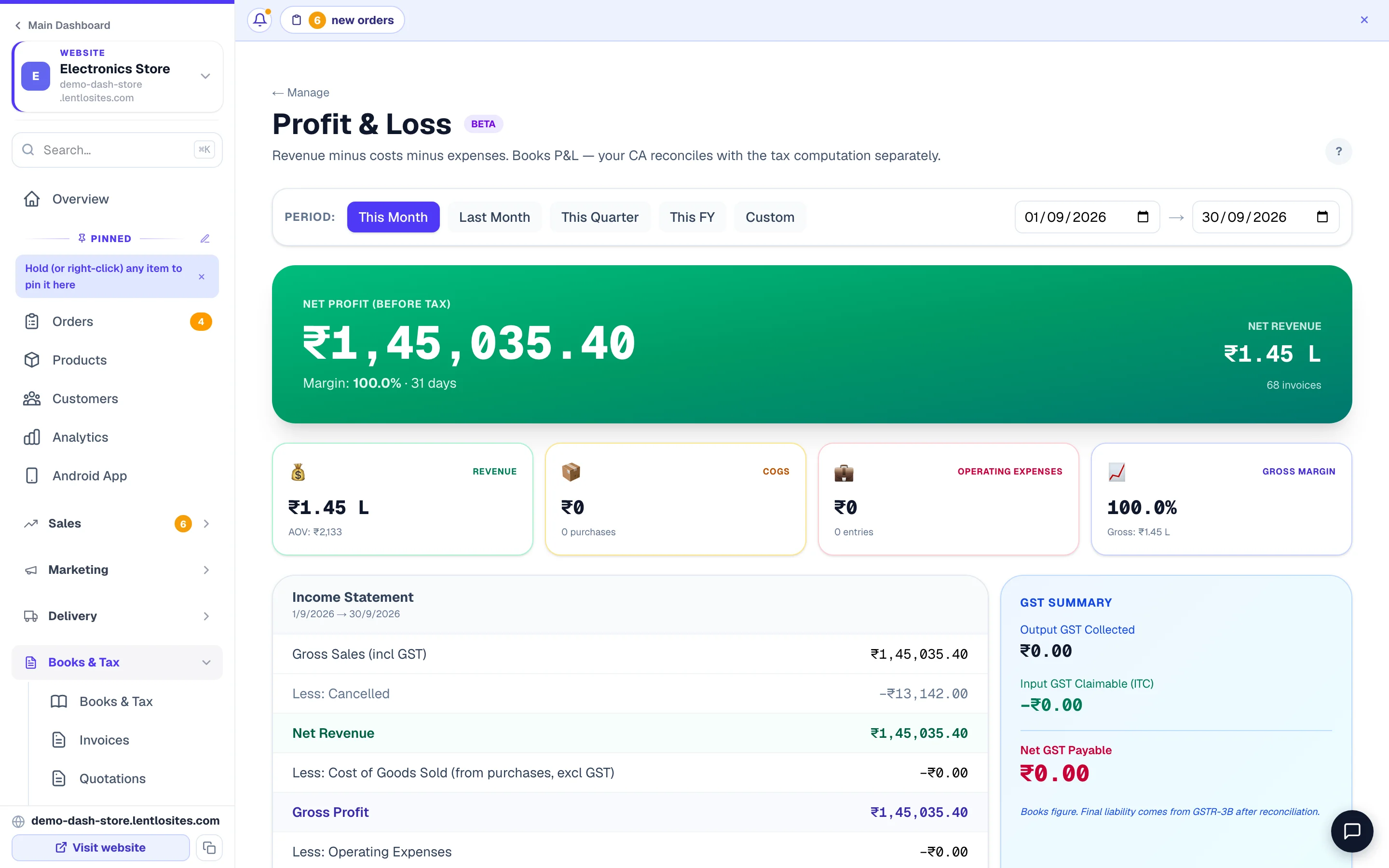
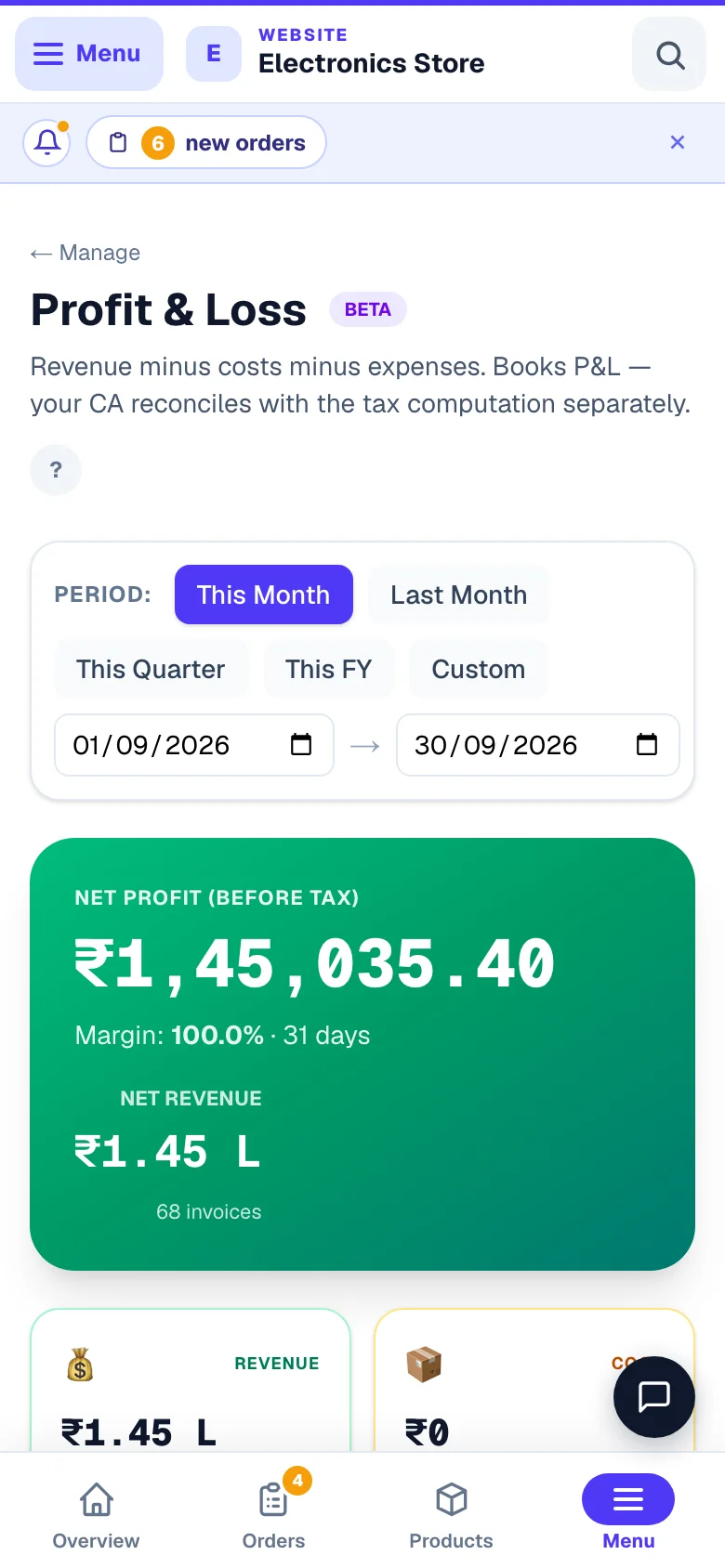
- 1Change periodThis month, last month, the quarter or your full financial year.
What counts as revenue
Knowing exactly which orders are counted saves you from “why don't my numbers match?” confusion later.
- Every order in the period counts — including manual orders you typed in for phone and WhatsApp sales. A sale is a sale, whichever way it came.
- Cancelled orders are left out — Gross Sales already excludes them, so revenue is never inflated by orders that never happened. The “Less: Cancelled” line under Gross Sales only tells you how much was cancelled; it has already been kept out of the figure above it, which is why Net Revenue equals Gross Sales — don't take it off a second time.
- Figures include GST — the top line is gross sales as billed, GST inside. The cost of goods is taken without GST (that part comes back to you as input credit), but the GST you collected on sales is not taken off revenue — so the profit on this page still holds that tax. Subtract the Output GST Collected figure in the GST Summary to see your profit without GST, the way your CA works it out.
Example · Ananya Home Store, Kochi — October
Orders worth ₹1,18,000 including ₹18,000 GST (one ₹5,900 order was cancelled and is left out). Purchase bills from suppliers: ₹60,000 before GST. Expenses: rent ₹15,000 and a salary of ₹10,000. A ₹2,000 commission was recorded as income on the Expenses page.
How the page works it out
- Net Revenue (incl GST)
- ₹1,18,000
- Less: Cost of Goods Sold (purchases before GST)
- ₹60,000
- Gross Profit (49.2% margin)
- ₹58,000
- Less: Operating Expenses
- ₹25,000
- Add: Other income
- ₹2,000
- Net Profit (before tax) — 29.7% margin
- ₹35,000
- Of which GST collected on sales (Output GST Collected)
- ₹18,000
Why P&L can differ slightly from your Orders stats: the sales numbers on Orders and Analytics use “booked revenue”, which also removes returned and RTO orders. The P&L subtracts only cancelled ones — a returned order stays in the total, and its reversal is recorded precisely by the credit note in your books. If you had returns in the period, the P&L will read a little higher. That's expected, not a bug.
How cost of goods works
Cost of goods (COGS) is what the sold items cost you — the P&L picks the most accurate source it has.
- Starting out: it uses your purchase bills for the period — the bill amount before GST, since the GST part comes back to you as ITC. Vendor returns (debit notes) reduce it.
- Once your products have cost prices: when the cost is known for at least 80% of what you sold, it switches to the real cost of the exact items sold — a much truer picture. The statement tells you which basis it used: the cost line then reads actual cost of items sold · cost known for N%. The cost is the one saved on each order line when it was placed, so changing a cost price later never rewrites old months.
Add a cost price to your products and record purchases as they come in — your gross profit line gets sharper every month.
Common gotchas
Three things owners most often misread on this page — worth thirty seconds now.
- Delivery charges collected vs delivery you pay. What customers pay you for delivery is inside your order totals, so it's inside revenue. What you pay the courier is NOT deducted automatically — record courier bills in Expenses so they show up as a cost.
- Other fees aren't auto-deducted either. Payment gateway charges, packaging, Lentlo Credits fees — the P&L only reads orders, purchases and expenses. If you want a fee counted, add it as an expense.
- It's a books figure, not a tax filing. Net profit here is before income tax, and the GST payable shown is books-derived — your final GST comes from GSTR-3B after GSTR-2B reconciliation, and your CA handles depreciation and deductions for income tax.
If a period shows No financial activity in this period, that just means no orders, purchases or expenses were recorded in those dates — start recording and the page fills itself.
More in Payments, GST & books
Did this answer your question?
It takes one tap and it genuinely changes what we write next.