
Customer reviews
How customers leave reviews, which ones go live at once (Verified — a delivered order) and which wait for you, approving, replying and removing them, the sample reviews on a new shop, and the /reviews page.
Watch0:435 min readUpdated 21 Oct 2026
In this guide
How customers leave a review
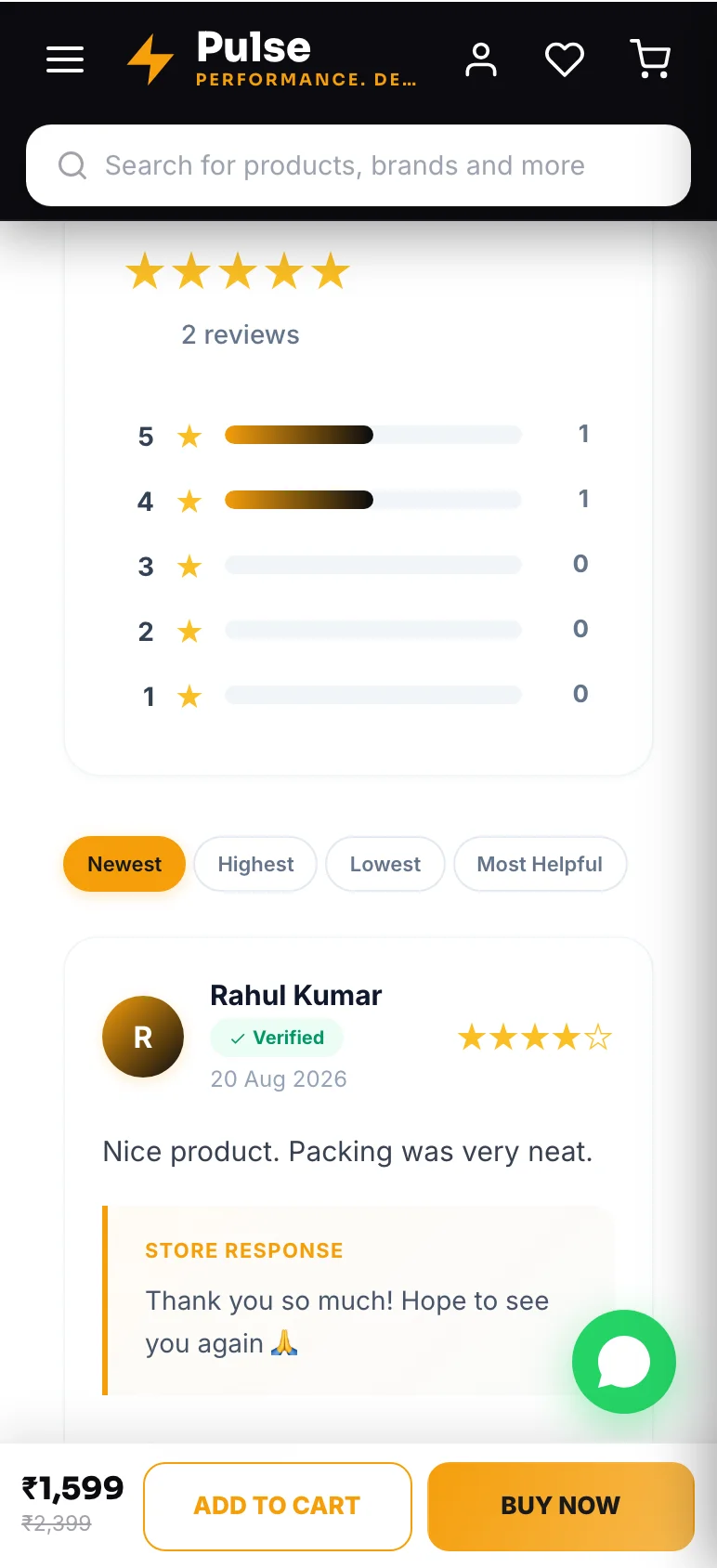
A customer taps the stars on the product page (Tap a star to start your review), writes what they thought, can add up to 5 photos, then verifies their phone with a 4-digit code (skipped when they are already signed in) and gives their name the first time. Then:
- If that phone number has a delivered order from your shop, the review is marked Verified and appears straight away (“Review published!”). The check looks for any delivered order to that number on your shop, not only an order of this product.
- Otherwise it is saved as Pending (“It will appear after approval”) and shows only once you approve it.
- 1Find a reviewSearch by customer, product, or words inside the review.
- 2Approve firstNothing shows on your site until you approve it.
Moderating
Open Reviews
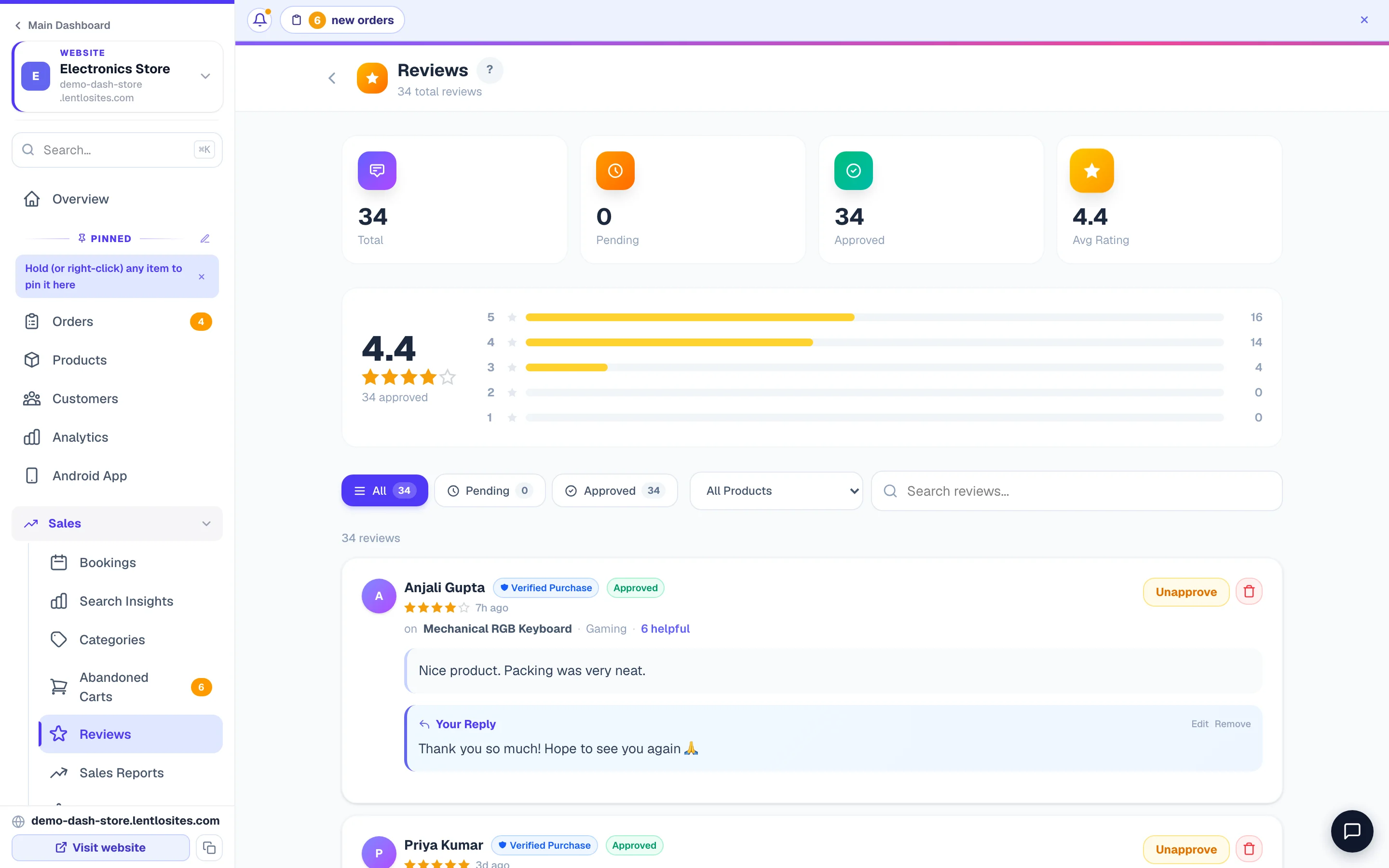
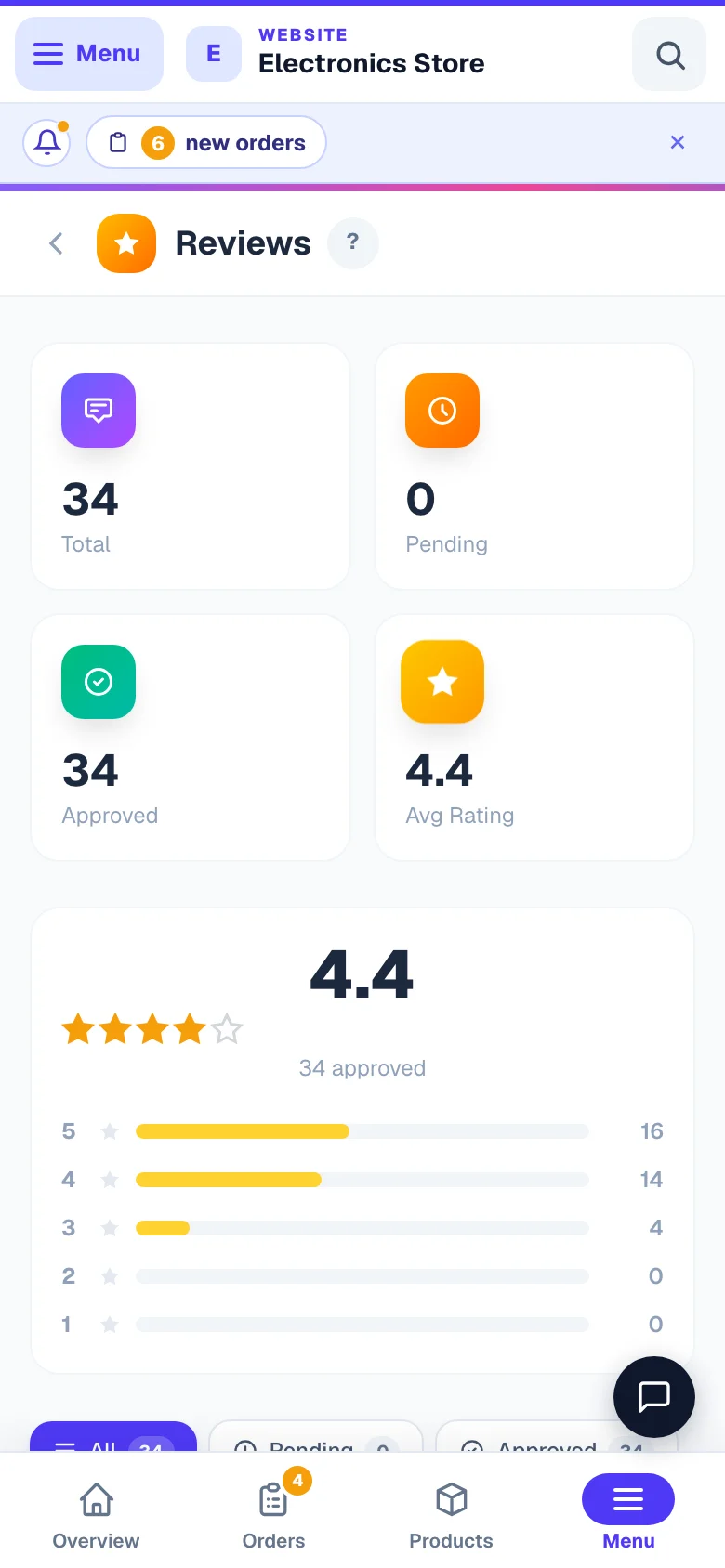
Open Reviews from your sidebar (or its tile on the Manage page). The badge beside it counts reviews still pending your approval, and the tabs across the top are All, Pending and Approved.
Approve, reply, or delete
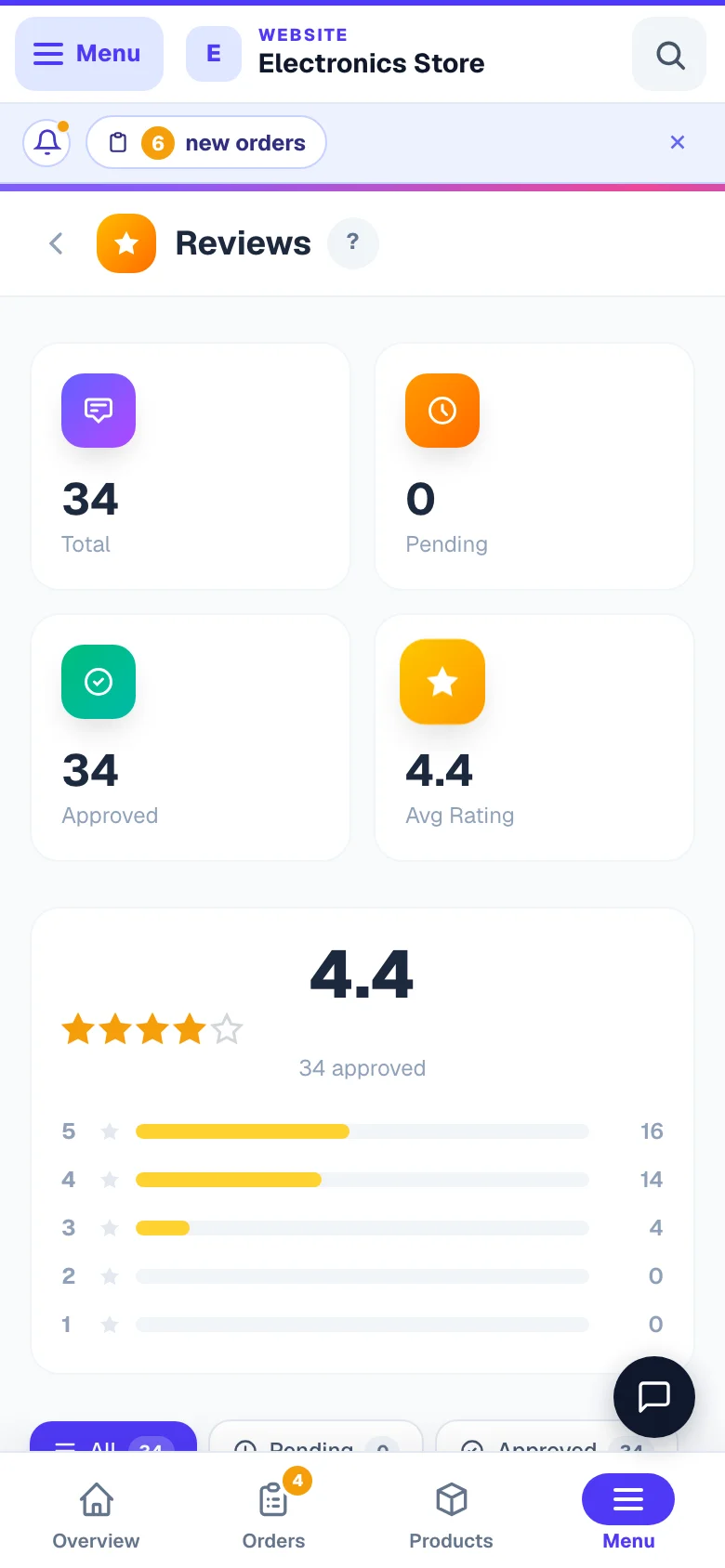
On each review: Approve (makes it visible on the product page) or Unapprove (hides an approved one again), Reply (your reply shows under the review, headed Store Response — you can edit or remove it later), and the bin button to Delete (removes it for good — use for spam / abuse).
Filter by stars or product
Use the star bars down the side, the All Products dropdown and the search box (it looks inside the review text too) to find what you need. Active filters show as chips you can clear with one tap, and the address bar follows them — so you can bookmark a view or send it to a staff member.
Proactively ask for reviews. A few days after Delivered, send a WhatsApp: “Hi [name], hope you’re enjoying the product. A 30-second review on our site would mean the world: [product link]”. Because that customer has a delivered order, their review goes live with the Verified tag.
Where they show up
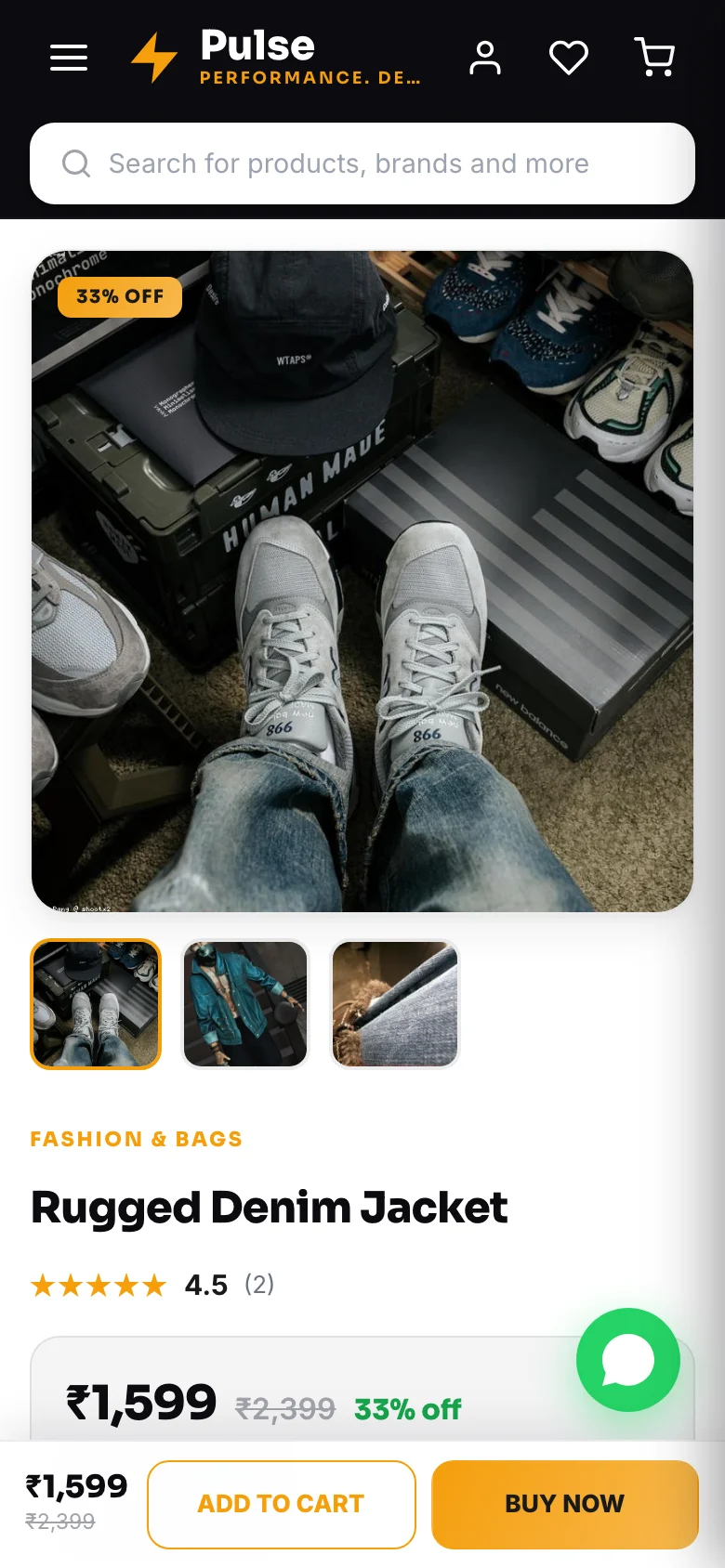
- The product page — a star summary near the top and the recent reviews below the details.
- Homepage — some designs include a “What customers say” section.
- /reviews page — a site-wide reviews page every store design has; switch it off or rename it from the editor’s page list, and add or remove its menu link in Header & Footer. Its words are yours: open the Reviews page in the editor to change the heading, the “share your experience” box at the bottom and its button, the small badge at the top (Small label above the title), the “All Reviews” filter and the “Verified” tag. Under the star rating sits one short line. By default (Facts from your reviews) it counts facts from the reviews on the page — how many are verified purchases, what share rated 4 stars or more, and whether you reply — and it shows nothing while you have no reviews. To write your own words (My own words, up to 4 short lines) or hide the line, change What the line under the rating says beside the page’s heading settings. A review card says Verified only when that review is verified.
Catalogue websites — reviews still need approving
On a catalogue website that shows customer reviews (the Calibre and Cobalt designs), reviews behave exactly as above with one difference worth knowing: there are no orders on a catalogue site, so nothing is ever auto-approved. Every review waits for you. If you have turned reviews on and none are appearing, this page — reachable from your Manage page and your sidebar — is where they are sitting.
Sample reviews on a new shop
A new shop that starts with the design’s sample products also gets seven or eight sample reviews on each of them, so the pages look finished while you set up. They are already approved, never carry the Verified tag, and belong to the sample products: delete a sample product and its reviews go with it, or delete any single review in Reviews. Your own products start with no reviews.
Fake reviews?
Don’t write reviews yourself or pay for them. You can ask real customers — friends and family who actually bought from you — to leave one. A review from someone with a delivered order carries a Verified mark; the others show without it — customers can tell.
More in Products & orders
Did this answer your question?
It takes one tap and it genuinely changes what we write next.