
Sign up & log in
Create your LentloSites account with just a phone number — no password needed.
Watch 2 short videos6 min readUpdated 21 Oct 2026
In this guide
Create your account
Signing up takes about a minute. All you need is your mobile phone next to you.
Open the sign-up page
Visit lentlosites.com and tap Get Started Free in the top right (on a small phone it reads Get Started), or Sign in beside it. Both open the same page, headed Sign in or create your free account — enter your number and we figure out the rest.
Enter your 10-digit mobile number
Indian numbers only — the +91 is already filled in for you. Double-check the digits before tapping Continue.
Tip: Use a number you'll keep for the long run. This number is your account — you'll log in with it every time.
Type the 4-digit OTP
The code arrives by SMS within a few seconds. Type it in (or paste it) and tap Verify & Continue.
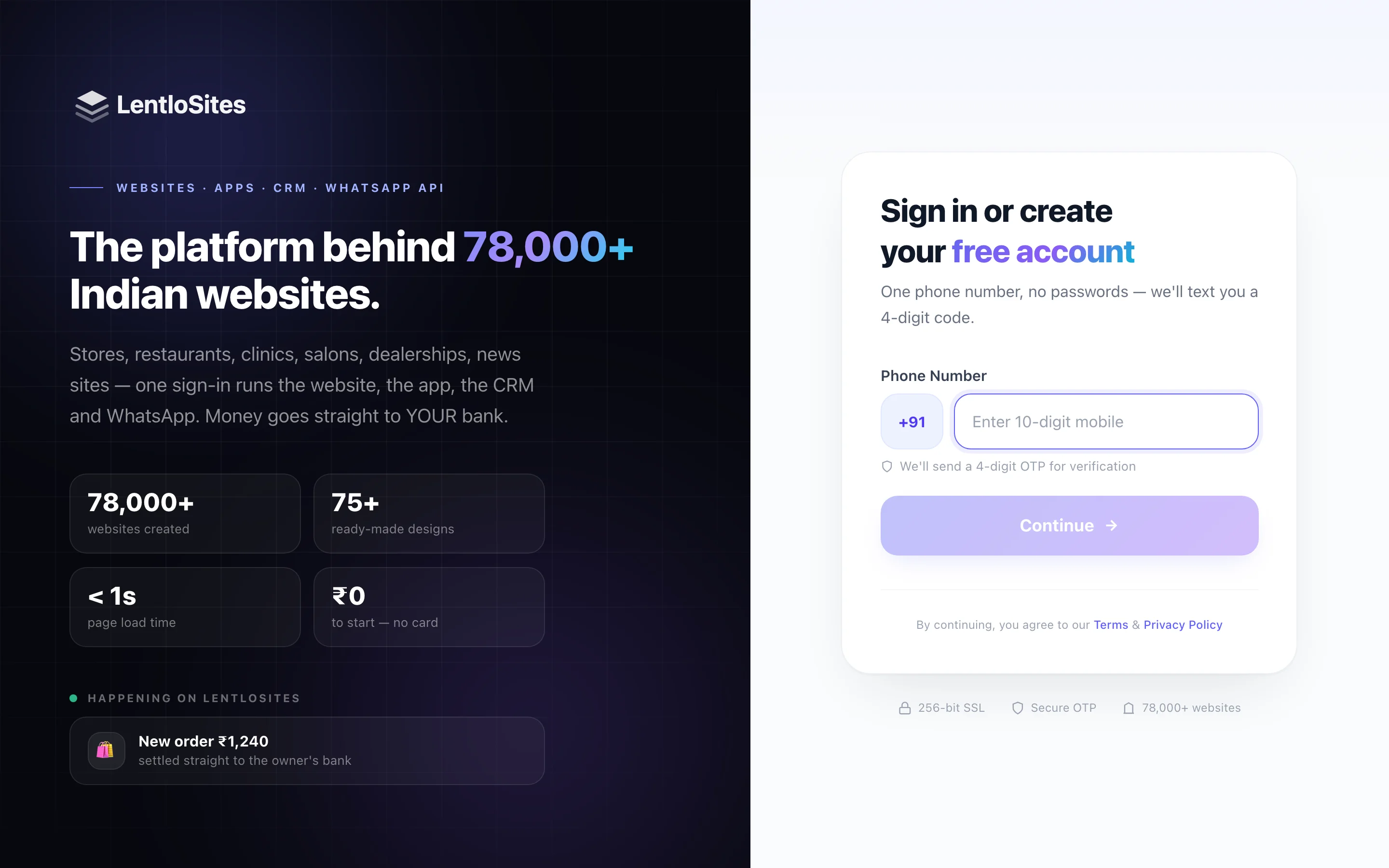
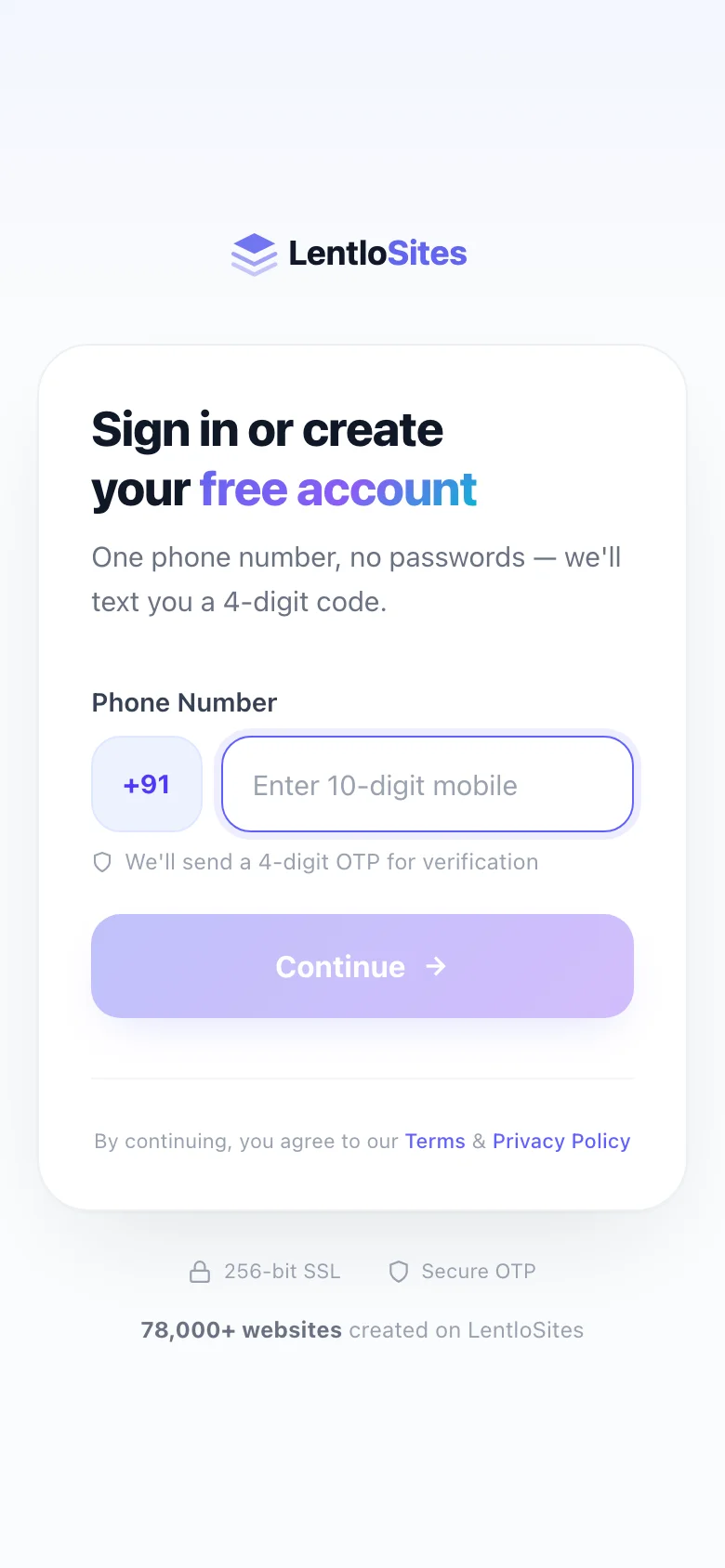
Didn't get the code? Wait 30 seconds — the Resend OTP button unlocks and sends the code again. If more than one SMS arrives, always type the code from the newest one. Typed the wrong number? Tap Change Number and try again.
Tell us your name
First time here? We ask for your name so we know what to call you — type it in plain English letters (the bank's payment page reads it later and refuses symbols like - or |). Tap Continue.
Add your email
Next, your email address — your payment receipts, GST invoices and account-recovery emails go here, so it's required. No spam, only receipts and important account emails. Tap Get Started and your account is ready (typed the name wrong? ← Change name sits under the button).
Invited by a friend? If you opened a friend's referral link, the sign-up page shows who invited you and your welcome bonus — free Lentlo Credits that arrive automatically when you activate your account. Nothing extra to do.
Your first recharge (₹500)
Stuck on any step? An Ask Asha button sits at the top-left of the wizard — she explains the recharge, what your Lentlo Credits pay for, plans and prices for your kind of business and which design suits it. Ask her for a person and she gives you a WhatsApp button to our team inside that chat. (The button appears only when Asha is switched on for your account.)
Right after sign-up a short welcome wizard runs in three parts — Welcome, What you get and Your recharge. It asks you nothing and stores nothing: the welcome screen says what you can build here (any website, a free CRM for any business, the WhatsApp API hub, a free Android app) and its button reads Show me what I get; fifteen quick cards show what you get — tap Next through them; then a run of short story screens — each one screen, nothing to scroll, with Back and a Continue button — shows why the platform is built the way it is (the 1-second load guarantee, the three specialist servers, photos stored in two datacentres, the engine room and its 48 daily backups, the security layers, bringing a domain you bought anywhere and connecting it free, a line-by-line comparison with ₹199 hosting, what is unlimited, everything included, hosting that stays free for life, every kind of business, what the same costs elsewhere, a side-by-side comparison, real stores taking orders, and an invitation to the live demo). The last chapter explains the money: your Lentlo Credits balance starts at ₹0, a passbook example shows exactly where the ₹500 goes, the costs screen gives the fee for your kind of business, Ask Asha answers anything in her own chat, one more screen says what happens after you pay, a short film explains it in your language — then the ₹500 recharge.
- WelcomeAny website, free CRM, WhatsApp hub, free Android app — nothing to choose
- Fifteen quick cards₹3 lakh+ of software, free · ₹0 a month · your money never passes through us · unlimited websites, apps & CRMs — tap Next through them
- The story1-second guarantee → specialist servers → two-datacentre media → engine room & backups → security → your own domain → vs ₹199 hosting → unlimited → everything included → free for life → any business → costs elsewhere → compare → real stores → live demo
- Your balance is ₹0our small fee comes from your own Lentlo Credits — never from your customers' payments
- How the ₹500 worksa passbook example: today +₹500 · a ₹1,000 order → ₹1,000 to your bank, ₹25 from your credits · a month with no sale → nothing taken
- What it actually costs₹0 a month; the fee for your kind of business (2.5% an order, COD too · ₹5 an enquiry · ₹25 for cars, property & loans); See full pricing opens the pricing page
- Ask Ashashe asks what you sell or offer and answers for your business — or tap Continue and skip it
- What happens next₹500 into your Lentlo Credits → pick a design and build → nothing is public until you publish
- The ₹500 filmchoose English, Hindi or Tamil — a 90-second film shows where the ₹500 goes and every charge; Continue appears as it ends
- Your first recharge₹500 — one button, then your billing address and the secure payment page
Along the way the wizard invites you to open a live demo dashboard — 16 real sample businesses (electronics, kirana, fashion and Meesho-style stores, a restaurant with dine-in QR ordering, a hotel, a clinic, a salon, coaching classes, real estate, a car dealer, astrology, a finance site, a news website, a jewellery catalogue and a tools catalogue) you can explore freely before paying anything. Opening it shows a short “setting up your demo” screen (a few seconds; Skip is always there), then Your demo is ready — tap View the demo, or tap one of the 16 businesses to start inside that one. A one-line laptop-vs-phone tip sits below with a Copy the laptop link button (your phone runs the business day to day; a laptop is easier for designing the website and app — both work).
Inside, the purple bar at the top always says Live demo · sample businesses, read-only, and the header reads Live demo · sample account — nothing in there is yours, and nothing can be bought there. Press Finish my setup (top bar, or the floating button on phones; it reads Back to <your name>’s account once your first recharge is done, and Create my website for visitors who are not signed in) whenever you like: two quick questions, then you are back on your setup page with everything you entered still saved. Tapping anything to do with money inside the demo — Lentlo Credits in the menu, Choose a plan, Upgrade — opens a card that says the same thing with the same button: paying happens in your own account. If the wizard page is still open in another tab (or you pressed the phone’s Back button) while the demo is open, it shows This browser switched to the live demo with a Back to my account button — one tap, no new OTP, and your Pay button works again. Wandered off to the homepage instead? Tapping Sign in or Get Started while the demo is still open brings up the login page with a Finish my setup (or Continue as <your name>) button — one tap takes you straight back to your own account, no new OTP (entering your number works too). Signed in with the wrong number, or sharing a phone? Sign out sits at the top right of every wizard screen.
Before the costs screen, a passbook example shows the ₹500 as your own balance: today you add it and nothing is cut for joining; on day 12 a ₹1,000 order puts ₹1,000 in your bank and takes 2.5% of it — ₹25 — from your credits; in month 2 with no sale, nothing is taken and nothing expires. After the costs screen, Ask Asha opens her chat right on the page — she asks what you sell or offer and answers for your business, in English or Hinglish; you can tap Continue without chatting at all.
Right before you pay, a short film explains the ₹500 in your language. Tap English (recommended), हिंदी or தமிழ் and it plays in full view with sound: the ₹500 goes into your own Lentlo Credits with nothing cut for joining, there is no monthly bill, your customers pay your bank directly, the only fee is taken when you earn, and the balance can't be withdrawn or refunded. The sound starts by itself because your tap on the language button is the permission browsers ask for — turn your phone's volume up; if your browser still starts it silent, a yellow Tap for sound button appears (or just tap the film). Every spoken word is also written on screen, so it works with the sound off. Language at the top-left takes you back to pick another language; When the film ends, one big Next: add ₹500 button fills the screen and opens the recharge screen by itself after five seconds — the countdown is shown, and Hold on stops it if you want to stay (Watch again replays the film). If the film cannot load on your connection it tries again, then plays the English film instead, and only if that fails too does Continue unlock by itself — and once you have watched it, you are never held on that screen again.
The costs screen fits on one page: a wall calendar shows ₹0 a month as your monthly plan fee; your ₹500 stays as your balance and never expires; our fee comes only when a sale or an enquiry comes in — 2.5% of each order (COD orders too), or ₹5 per genuine enquiry for services (₹25 for cars, property & loans) — taken from that balance; and unlimited websites, the CRM and the WhatsApp hub are included, with paid plans optional. Want every number? See full pricing opens the full pricing page in a new tab — every kind of website, every plan, monthly or for 1 to 4 years — and your setup stays where it was.
The fee is not forever, though the costs screen does not show this part: a paid plan lowers it. On Pro (₹999/month) an e-commerce store pays 0% — you keep every rupee of every sale — which works out cheaper than the Free-plan fee once a store sells about ₹40,000 a month. Plans are bought later, website by website, from your Lentlo Credits — see Plans & billing.
The last screen adds your first ₹500 — one amount, one button (the credits have lifetime validity and are non-refundable once added; you can recharge more any time later from your dashboard). When you tap Add ₹500 & create my first website, we collect your billing address step by step — type your pincode and the city & state fill in automatically. The last check, Confirm & pay securely, shows the amount, where the receipt goes and your billing address (each with Change); a GSTIN line is optional — add it and your tax invoice carries it. Because we already have these details, the secure payment step only asks you to pick how to pay: UPI, card or net banking. Nothing to type there. The payment is collected by one of our RBI-authorised partners — Cashfree (the checkout opens right on the page, with your UPI apps listed) or CCAvenue (the bank page opens in the same tab). If an attempt fails or you close the checkout, the screen says exactly what happened, nothing is charged, and it offers Try again — and, when both partners are available, Pay through the other partner instead.
Once the payment confirms you land on the Payment successful screen: it shows your ₹500 landing as Lentlo Credits, lists the three things to do next (pick a design, add what you sell, share your link), asks how smooth the setup was (1–10) with room for one line of feedback, introduces Asha, your assistant — ask her for help, or ask her to do things (add your first product, set up delivery charges, write your About page); each example opens her chat with the question already typed — and asks once how you heard about us. Tap Continue to my dashboard whenever you are ready; left untouched, the screen moves on to your dashboard by itself after about 45 seconds (any tap holds it). The payment reference at the bottom is the one to quote if you ever ask about this payment.
This is not a fee — the full ₹500 lands in your account as Lentlo Credits, and it never expires. Your credits are only ever spent on:
- Small per-sale fees — for example, an e-commerce store on the Free plan pays 2.5% when a customer orders. No sale, no fee.
- Paid plans — if you later upgrade a website, the plan is paid straight from these credits.
Before you pay, know this: Lentlo Credits are prepaid — the balance is yours for life and never expires, and it is non-refundable once the payment succeeds. A paid plan, if you buy one later, renews from these credits until its website is deleted — the full picture is in Billing & Plans. The full picture is in Lentlo Credits, and the formal wording in our Refund Policy.
Logging in again later
Coming back is the exact same flow — there's no password to remember because we never store one. Enter your number, type the fresh OTP, and you're in.
If the login page says Your browser is blocking cookies for this website, logging in cannot work in that browser as it is set now: allow cookies and site data for the website in the browser's settings (in Chrome: ⋮ → Settings → Site settings) and reload the page, or open it in a different browser.
Changed your phone number? Don't create a second account — the number cannot be changed from your own settings (Account says so under the phone box), because it is your login. While you can still sign in with the old number, open Help & Support, choose Another technical problem, write your old and new numbers, then send it on WhatsApp; our team moves your account to the new number. Lost the old SIM and cannot sign in at all? Use the WhatsApp button at the top of lentlosites.com.
What happens next
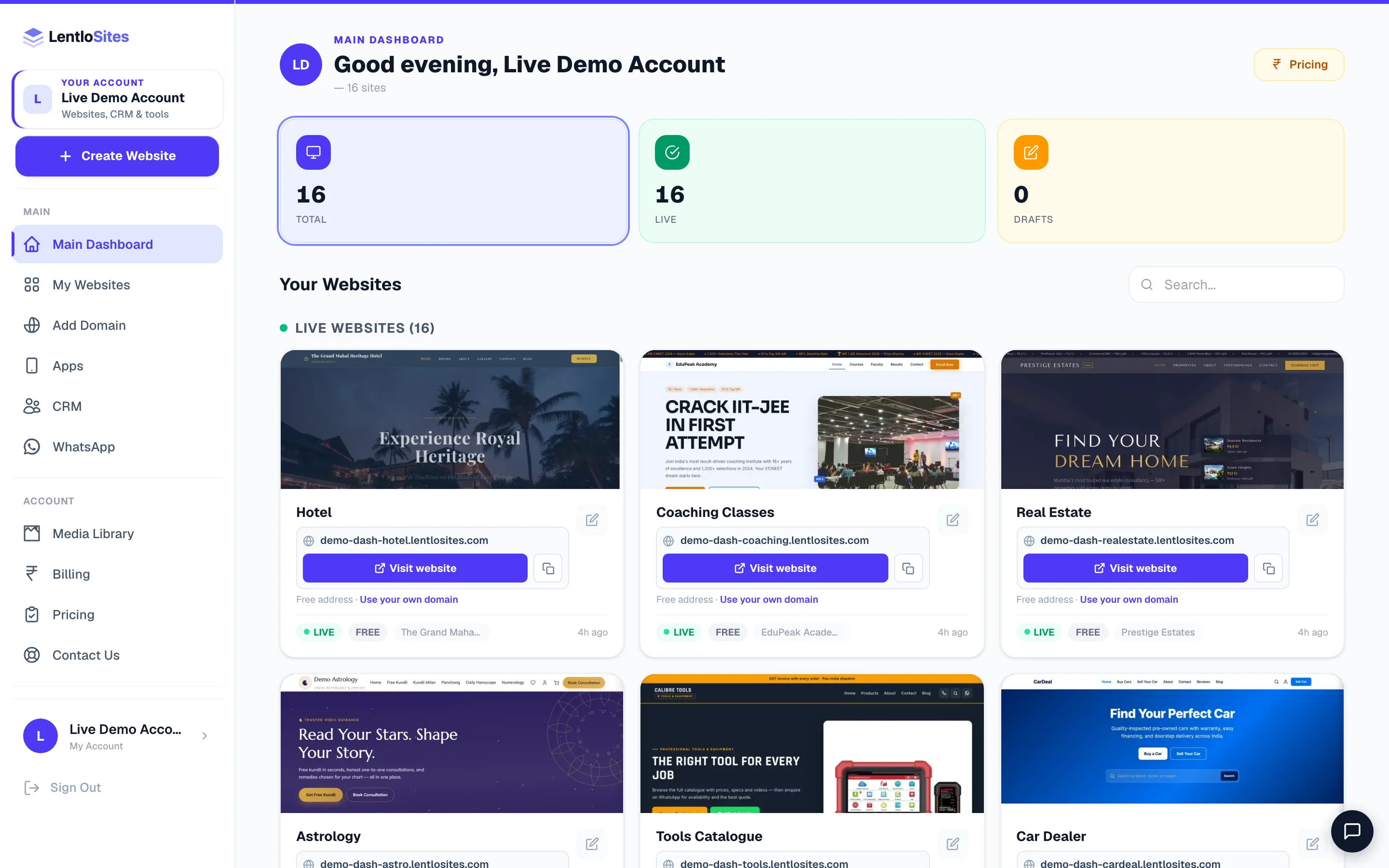
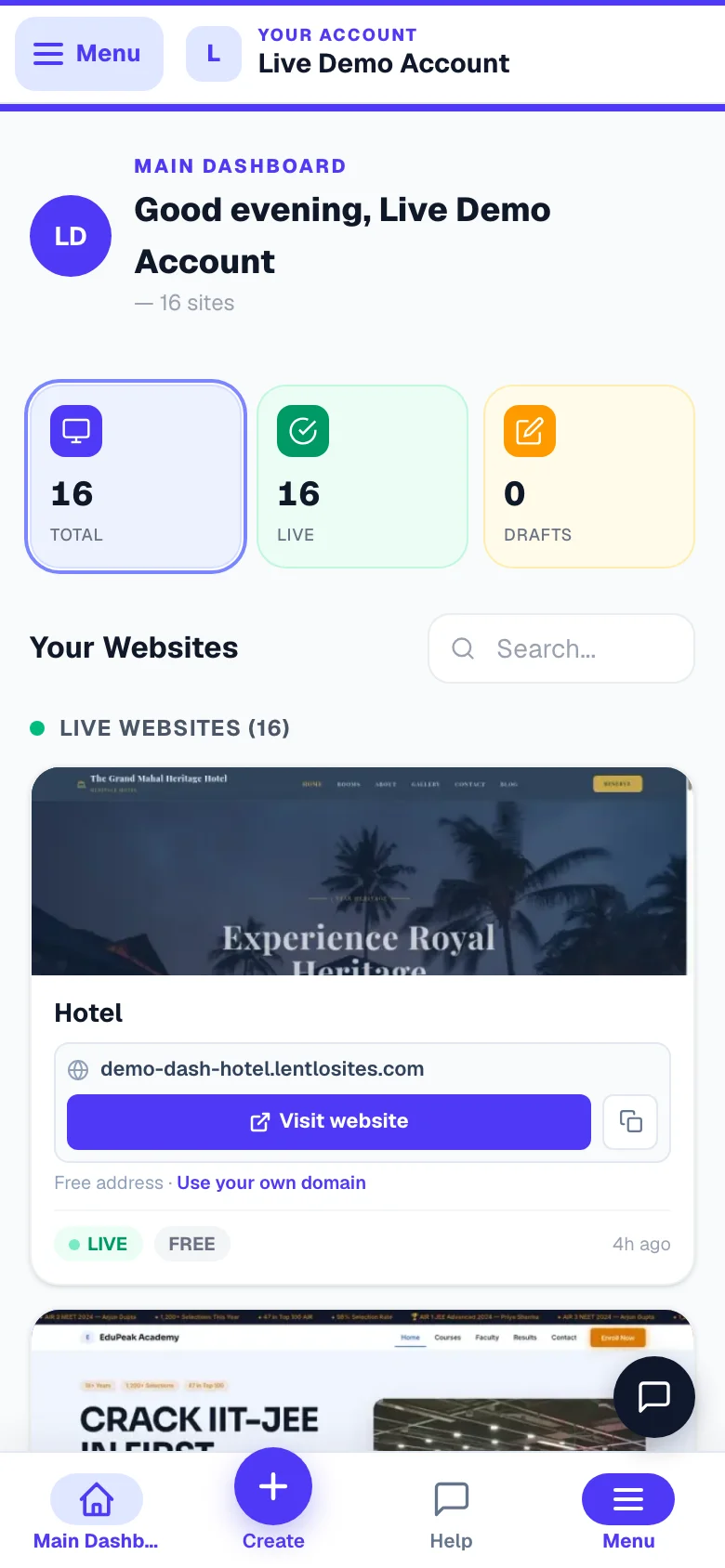
After the payment you land on your dashboard — this is home base for everything. Two things to do first:
- Create your first website — pick a ready-made design and your site can be live in minutes. See Pick a design & create your site.
- Look out for your receipt — the payment receipt and GST invoice arrive on the email you gave at sign-up.
Common questions
Quick answers to the things new owners ask most about signing up.
Why phone-only sign-up? Most of our sellers run their business on WhatsApp already. OTP log-in matches how you use the internet — nothing to forget, nothing to reset.
Is my number shared anywhere? No. Your sign-up number is your private log-in identity. The phone number shown on your website is a separate setting you fill in when creating your site. The login page does say we may send your sign-in link and account updates to this number on WhatsApp.
Can I use the same account for two shops? Yes — one account can hold multiple websites, each with its own design and plan.
More in Start here
Did this answer your question?
It takes one tap and it genuinely changes what we write next.