
Bill counter (POS) & barcodes
Turn any phone or computer into a shop till — tap or scan items, take cash/UPI/card, print thermal receipts, and every sale lands in your GST books automatically.
6 min readUpdated 14 Sep 2026
In this guide
What the Bill counter is
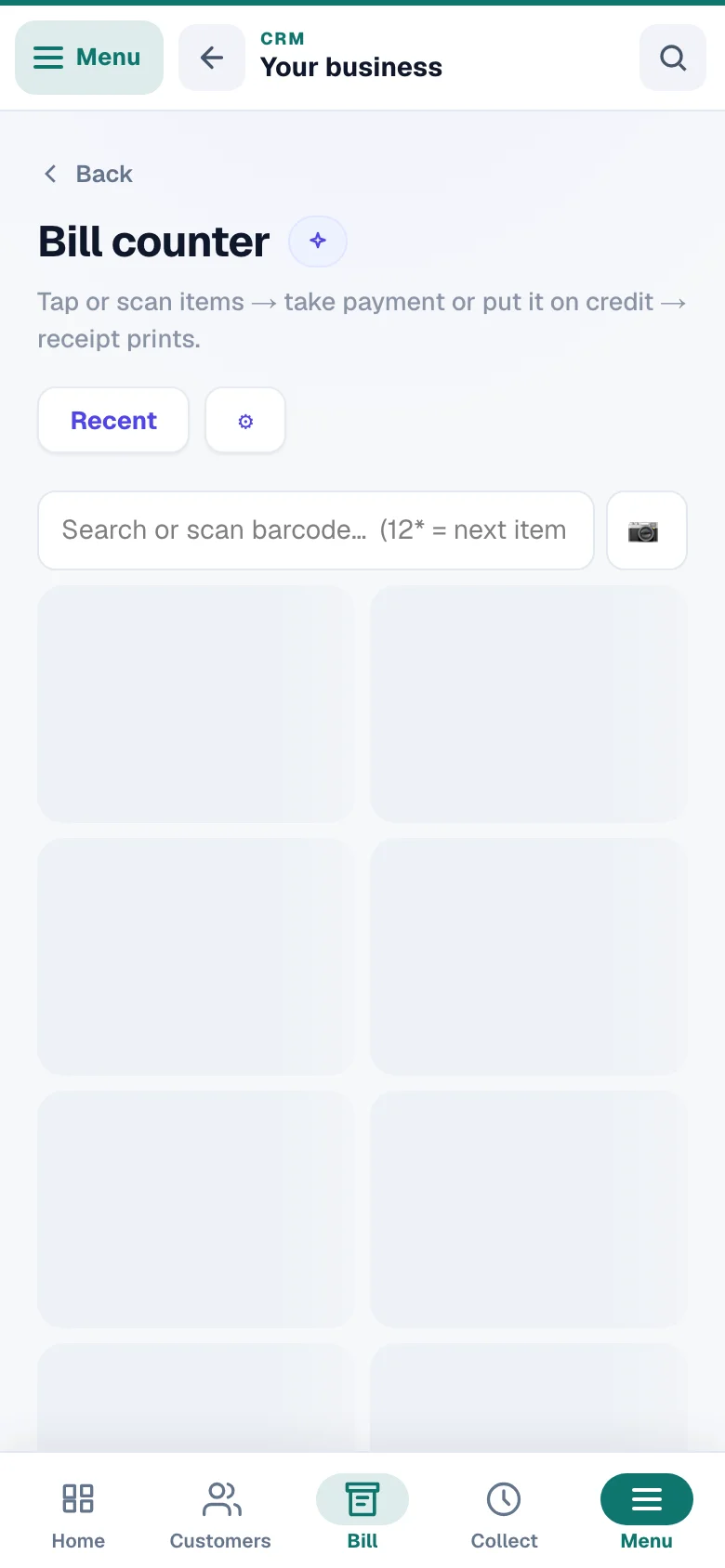
It's the fast way to bill a walk-in customer — built for a busy shop counter where every sale must take seconds, not minutes. Open CRM → Bill counter. Your items appear as tiles — photo tiles when most of your catalogue has pictures, otherwise compact name-and-price tiles three across a phone — under a Most sold row and your category chips; tap to add, press Charge, done. Underneath, it makes the same legal GST invoice as CRM billing — with a real bill number — so nothing is “informal” about it.
- 1Tap to billTap an item, take the money, print — built for speed.
Set up in a minute
The counter needs just two things before your first bill: your shop name and some items with prices.
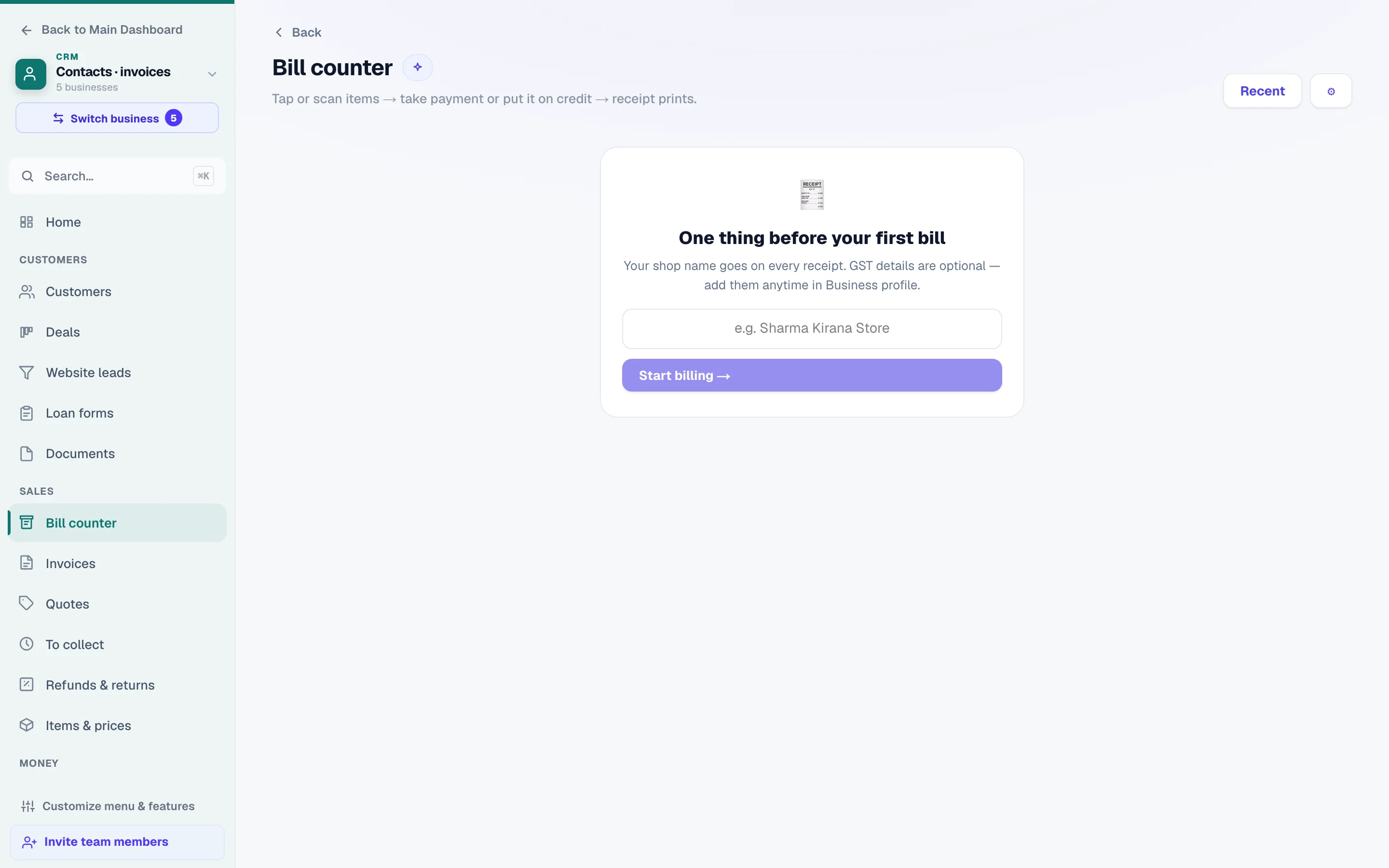
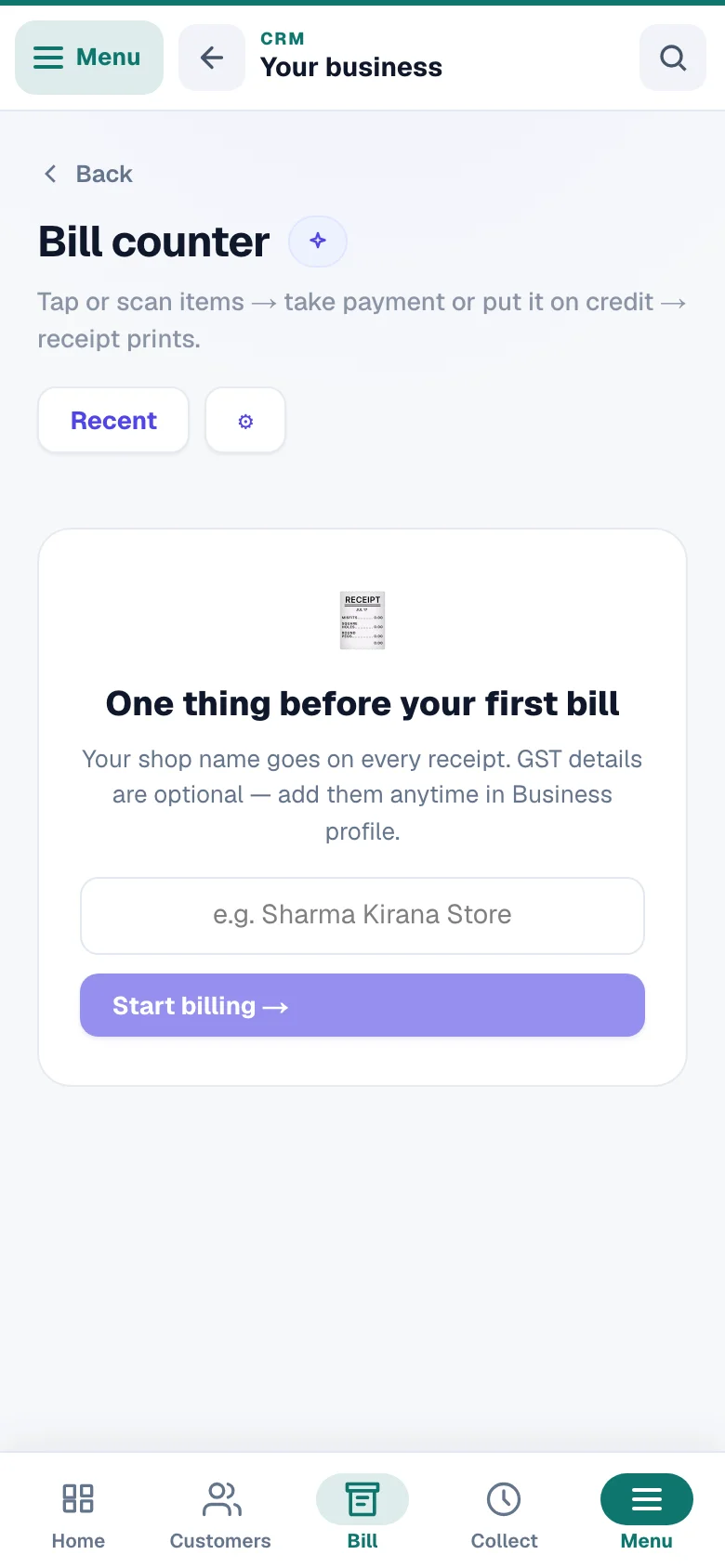
Tell us your shop name
The very first time you open the counter, it asks one question — your shop name. It goes on every receipt. GST details are optional; add them anytime later in your Business profile.
Add your items
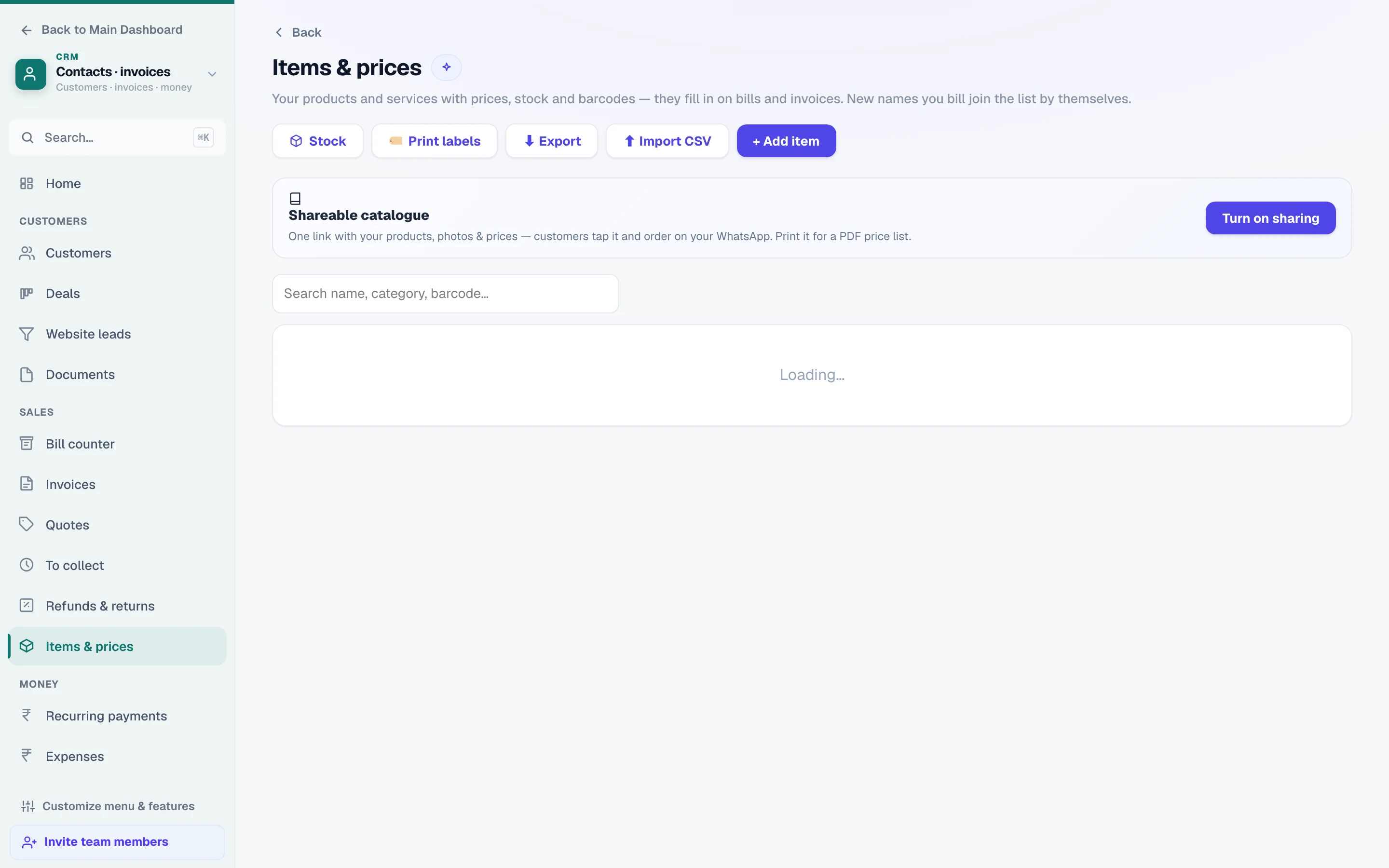
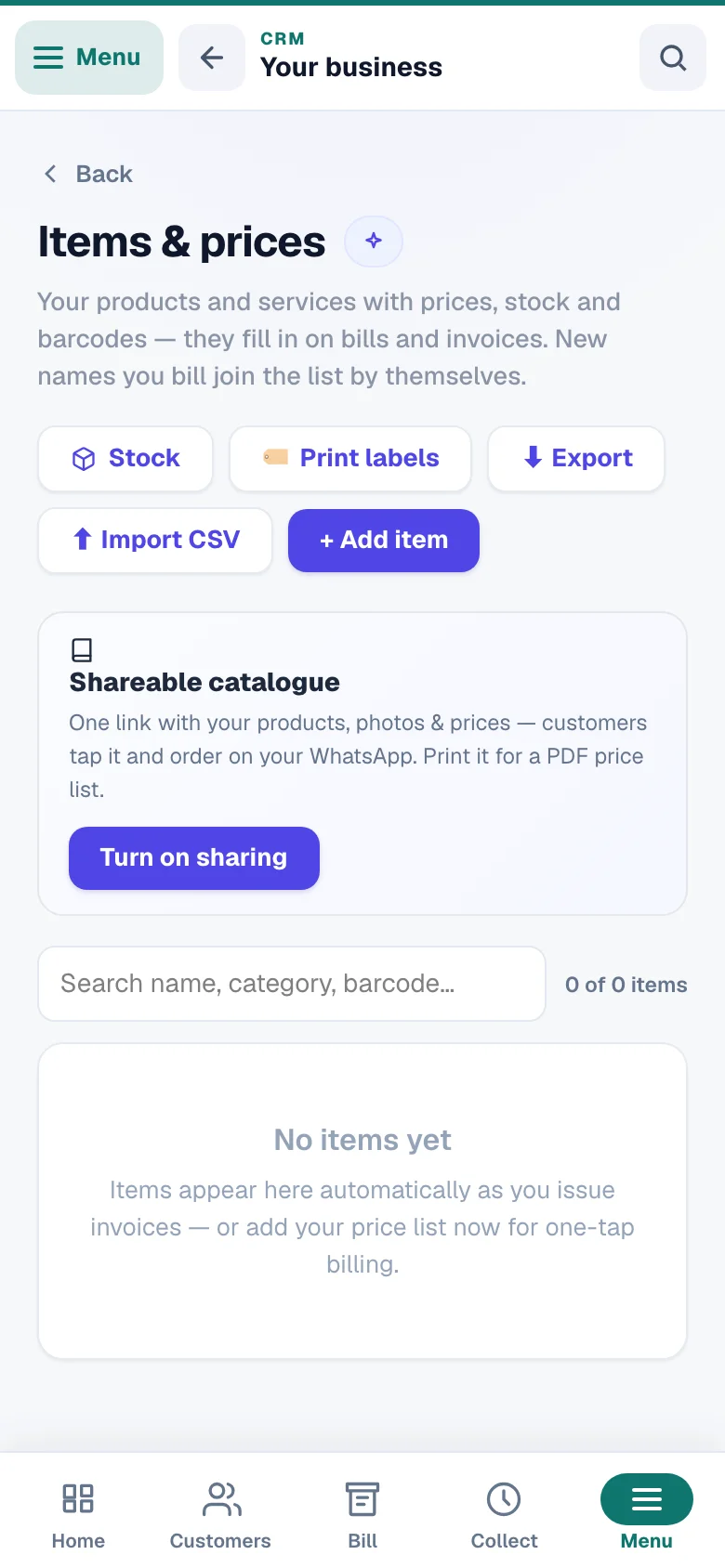
Items live in CRM → Items & prices — name, price, and optionally a photo, GST rate, category, stock count and barcode. Only items with a price show on the counter. Photos and categories make tap-billing much faster in a real shop.
Save your UPI ID (optional but handy)
Add your UPI ID in the same business profile. Then whenever you pick UPI as the payment, the counter shows a QR with the exact bill amount pre-filled — the customer scans it with any UPI app. Money goes straight to you; we never touch it.
Bill a customer
A full sale is tap → charge → receipt. On a phone, the bill rides a bar at the bottom in your accent colour — tap it to open the bill sheet; on a tablet or a computer the bill sits beside the items. Here's the flow you'll repeat all day:
Add items to the bill
Tap item cards to add them — tap again for one more, or use the + / − buttons in the bill. The search box is always ready: type a few letters to filter, or tap a category chip. Tap an item's name in the bill to change its price for this bill only (the catalog price stays), and use + Item for something that isn't in your catalog yet — it joins the catalog by itself after the sale.
Selling in bulk — 24 bottles, 200 pieces? Three ways, none of them 200 taps: hold the item card (or right-click on a computer) to open a quantity box with presets like 12 / 24 / 50 / 100; tap the quantity number in the bill line to type a new one; or, with a scanner, type 12* in the search box and then scan — the next item lands ×12 (typing 12*<barcode> and Enter works too). A plain tap is still always +1.
Attach the customer (optional)
Tap + Customer — search your saved customers by name or phone, or type a new 10-digit number and name. Picking a saved customer also shows their old credit balance right there, so you can collect old dues while they're at the counter. Skip it for a quick Cash Sale with no details.
Selling to a shop or company? Type their GST number in the same box — the bill becomes a proper B2B tax invoice their accountant can claim, and the number is saved on the customer for next time. A typo is caught before the bill is made.
Pick the payment and Charge
Choose Cash, UPI, Card or Credit, then press Charge. A short confirmation shows the bill first — every line with its quantity, the discount, GST, the total and how it's being paid — and one more tap creates the bill and records the payment in one step. GST is calculated exactly on the bill itself, and the button always shows the final total.
Prefer one-tap billing on a busy counter? Open Counter settings (the sliders button at the top right) → Before charging and choose Charge instantly; it's remembered on that device.
Closing-time check: the line under the title shows today's total — how much you've billed, how many bills, and how much of it went on credit — so you can tally the cash drawer at night without opening reports.
Salons, clinics, studios — mark a service done and who did it
If your business keeps a customer profile (switched on in CRM → Personalize — salons, clinics and studios get it first), every line on the bill carries a small Mark done button. Tap it on a service the customer has just had — a haircut, a facial, a session — and the visit is recorded on that customer's card the moment the bill is made. An item you have set as a Service (under What is it? on the item) starts ticked as Done now the moment it is added, so a haircut needs no extra tap; untick it if that service was not done today. A product they bought stays an ordinary line, and you can still tick any line by hand.
Once a line is marked, Who did it opens your team — the people on your Staff page — and you can pick up to four. The bill then prints their first names under that line (By: Asha) and the customer's card keeps the same history, so next time you know who did their last colour.
A held bill keeps its marks. A bill with no customer attached records no visit — there is no card to put it on. The marks never change the money: a service with nobody picked is still recorded, just without a name. Cancelling such a bill later asks one more thing — Was the service done? — No takes the visit off the customer's card (a walk-in that did not happen), Yes keeps it; the bill is cancelled either way.
Sell by weight, volume or length — sweets, oil, cloth, cable
Items priced per kg, g, litre, ml, metre or cm get a measuring screen instead of plain +1. Tap the item and pick the amount:
- Quick buttons — one tap for the common amounts. Out of the box: 100 g–1 kg for weight, 250 ml–2 L for volume, 50 cm–5 m for length.
- Your own quick buttons: every item has a One-tap amount buttons box in Items & prices — just type the amounts you want, like 250g 500g 1kg 2kg 5kg for rice or 1g 2g 5g 10g for dry fruits sold by the gram. Spaces or commas, any order, plurals fine (“5kgs”, “2 litres”) — a live preview under the box shows exactly the buttons the counter will get (up to 8), and it tells you plainly if it couldn't read something.
- Two linked boxes — type in g or in kg (ml/L, cm/m) and they stay in sync: 340 on the g side reads 0.34 on the kg side. No more converting in your head for a 2.5 kg order.
- “₹ amount” — the customer asks for ₹100 of mixture: type 100 and the counter works out the amount at your rate.
The button shows the exact price before you add — e.g. 250 g = ₹140 at ₹560/kg. Tap the amount chip on the bill line any time to change it.
Credit sales & advances
Regulars don't always pay on the spot. Pick Credit as the payment and the bill is saved as due on that customer's account (their credit balance) — it needs a customer with a phone number, so the amount lands on the right person's credit balance.
- Part payment now: use Received now to record an advance — say ₹200 of a ₹560 cake order — and only the balance goes on credit.
- Collect later: when they pay up, open Recent and press Mark paid on the bill, or do it from Invoicing.
- Old balance at a glance: picking a saved customer shows what they already owe before you add more.
Discounts & held bills
- Discount: tap % Off and give either a percentage or a fixed ₹ amount — it's spread across the bill's items so GST is worked out on the discounted value, the legal way. The exact discount shows in the totals.
- Hold: a customer forgot their wallet in the car? Press Hold — the bill is parked in a strip above the items and the counter is free for the next customer. Tap the held chip to resume it exactly as it was. Up to 8 bills can wait on hold at once — finish or discard one to hold another (a held bill is never dropped to make room).
- Recent: the Recent button lists today's bills — reprint any of them, see which are still due, and mark them paid.
Barcodes — print, stick, scan
Barcodes make billing near-instant: scan a product and it jumps into the bill. You can use the barcode already printed on a product's pack, or print your own labels for loose and unpacked items.
Give each item a barcode
In Items & prices, open an item and find the Barcode field. Either click into it and scan the product's existing pack barcode (the scanner types it for you), tap Scan beside it to read the pack with your phone's camera, or press Generate to create a fresh 13-digit in-store code (it starts with 2 — the range shops use for their own labels, so it never clashes with a maker's barcode; every scanner reads it, and on a linked website product it goes to Your own code, never to Google or Instagram). On the Items page the camera button beside the search finds an item by its code — a code no item has yet opens Add item with the code already filled.
Print label stickers
On the Items & prices page open More (the ⋯ button beside Add item) and press Print labels — or open an item's own menu and press Print label for just that one. A print sheet opens with a label for every item that has a barcode — name, price, and a scannable Code-128 barcode — laid out 3 per row for standard sticker sheets. Print from your browser, stick them on your products.
Scan at the counter
Any ordinary USB barcode scanner works — plug it in, no setup. It behaves like a keyboard: point at the barcode and the item drops into the bill with a confirmation beep. (Technically, the scanner types the code into the search box and presses Enter — so you can also type a code by hand.)
No scanner? Use the phone's camera. Tap the camera button beside the search: point at each pack and it lands on the bill with a beep — iPhones and Android phones alike. Holding a pack still counts it once; to add the same pack again, move it away and back (or type 12* first). A code that is not in your items is said on screen, never guessed.
No scanner? Use your phone camera
On phones that support it (Chrome on Android — most shopkeepers' phones), a camera button appears next to the search box. Tap it, point the camera at the barcode, and the item is added. It reads shop labels as well as common pack barcodes (EAN-13, EAN-8, UPC-A) and QR codes.
Printing your own labels? Use the Generate button (or any all-number code). Printed labels encode only the digits of a code, so a barcode with letters in it may not scan back correctly from a printed sticker.
Receipts — thermal, A4 or WhatsApp
After every charge a receipt sheet slides up over the counter with the amount received (a paid bill gets a PAID stamp) and three ways to hand over the bill — pick whatever fits the customer; Next sale takes you straight back to the tiles. Counter settings (the sliders button) sets how printing behaves on this device: A bill for a named customer also prints any of their fields ticked Show on invoice under Custom fields (a PO number, say) under their name — on the roll, through the printer app and on the A4 bill alike.
Thermal printer (RawBT)
On Android with a Bluetooth/USB thermal printer, install the free RawBT app once — bills then print instantly and silently, like a POS machine. Desktop Chrome can instead print over USB/serial.
Browser print
The ordinary print dialog, sized for your roll — pick 80mm or 58mm paper in Counter settings. On a counter PC, Chrome kiosk mode makes it one-click.
A4 invoice
Opens the full GST invoice on a normal page — for customers who want a proper printed invoice, or to save as PDF.
WhatsApp the bill
If you entered the customer's phone, one tap opens WhatsApp with the bill link — and if money is still due, the message says how much.
Prices include GST? If you're GST-registered and your tapped prices are MRP-style (tax already inside), switch on Item prices include GST in Counter settings — the bill total then equals the prices you tapped, with the tax shown inside. Off means GST is added on top.
Where counter sales land in your books
Every counter sale is a real invoice, not a side note — so your books stay complete without any extra typing.
- Invoices: each sale appears in CRM → Invoices with its own bill number, already marked paid. No GSTIN yet? You automatically get a legal Bill of Supply instead of a tax invoice — details in CRM billing.
- Customer credit & history: if you attached a phone number, the sale shows on that customer's contact page and credit balance.
- Stock: if you track stock counts on your items, each sale reduces stock by itself. Items that hit zero show an OUT mark on their tile.
- Reports: counter sales are counted in CRM → Sales reports (billed, collected, outstanding) for any date range.
- GST: when filing time comes, these bills are already inside your CRM → GST report summary and exports for your CA.
Does it work offline?
No — the Bill counter needs an internet connection, because every bill is saved to your account the moment you press Charge (that's what keeps your books and GST records safe and complete). A normal mobile hotspot or 4G connection is plenty. If the connection drops just as you press Charge, the counter says “No answer came — the bill may have been made” and the bill stays on screen. Charge it again from there: if the first charge did go through you get that same bill back, never a second one (unless that bill was cancelled or replaced in between) — and if you changed the bill in between, the counter shows the bill that was made and keeps your changed one on screen (charge it only if it is a separate sale). Before a charge is sent, the counter keeps a note of it on this device — and a charge is never sent without that note. If this device cannot keep it (its storage is full or blocked), the counter first clears its own saved copy of your item list (it loads it again from your account) and tries once more; if the note still cannot be kept, nothing is charged and the counter says so — free some space on the device or allow this site to keep data, then press Charge again. If no answer comes and the note was lost meanwhile, the counter tells you this device no longer holds it — charge it again from that screen before you close it. If the bill on screen changes before the charge leaves this device, nothing is sent — check it and charge again; once it has left, a change no longer stops it: the counter shows the bill that was made and keeps your changed work on screen as a new sale. If the page closes before the answer comes, the counter remembers that charge on this device and checks it when it opens again (a charge from the last two minutes is checked once those two minutes have passed, in case another tab is still sending it): a bill that was made after all is listed under “Billed after all” and stays listed until the counter has matched it with the bill on screen or on hold (or you tap Got it); a found bill that was revised or replaced in the meantime is listed on its own (“Made, then revised or replaced since”) and clears nothing — check your bills before charging that sale again; if none has been made yet it says so — but one can still come through, so check your bills before ringing that sale up again from scratch. A bill cancelled or changed afterwards no longer counts — the next Charge then makes a new one. If your sign-in has ended when you press Charge, nothing is billed — sign in again and press Charge.
Common questions
Quick answers to what shopkeepers ask most before their first counter sale.
Do I need a website to use this?
No. The CRM and the Bill counter work on their own — see Getting started with the CRM.
Do I need a barcode scanner?
No. Tapping item cards is fully enough for most shops. Add a scanner (any USB model) or use the phone-camera button when you want more speed.
Which printer do I need for receipts?
Any printer your device can print to — an 80mm thermal receipt printer for shop-style receipts, or a normal printer for the A4 invoice. Both go through the ordinary browser print dialog.
Can I bill without any customer details?
Yes — leave phone and name blank and it's recorded as a Cash Sale. Only Credit needs a customer, because dues must land on someone's account.
What if the shop closes with a half-made bill on screen?
The bill you were building (and any held bills) stay on that device, and they are right there when the same person opens the counter again. They belong to the person who made them: on a counter where several CRM team members sign in (each with their own mobile number, at the sign-in address your Team page shows), each person sees only their own held bills. They are removed from the device if that person's access changes (the owner changes what they may do, or switches the CRM off for them) or if their sign-in ends while the counter is open — so finish or charge held bills before you close for the day. If the counter opened without a connection, the kept bills come back once the connection and the access check recover — a bill you started meanwhile stays on screen, and the saved one is kept as a held bill, never overwritten. Two tabs of the counter on one device each keep their own bill — neither writes the other's away, even a copied tab — a tab closed with a bill on it gets that bill back on screen when the SAME tab opens the counter again, and any other counter tab you open picks it up as a held bill (on an older browser, about three minutes after that tab closed). A tab that is still open keeps its bill however long it sits — with one exception on an older browser: if the browser freezes a background tab for more than about three minutes, another counter tab may treat it as closed and copy its bill into the held strip; when you come back to the frozen tab, its bill is still on screen and the tab keeps it again by itself — the held copy is the same sale, so charging either one bills once, never twice. If the counter ever cannot open the bills kept on this device, it says so under the items — finish the bill on screen before you close the page. A held bill you resume is the same sale: charging it again never makes a second bill while the first one stands; a held bill already finished or discarded in another tab is not brought back. If the device cannot save a resumed bill, it stays on screen and its held copy stays in the strip too, until it can. If this device's storage is full or blocked, the counter says so — a bill you try to hold stays on screen, the bill on screen should be finished before you close the page, and a bill saved earlier on this device is never written over until it can be kept as a held bill. The counter's own settings — the printer, the roll size and prices with GST inside — stay the same for everyone on that device.
Does the counter charge any commission?
No. Payments go directly to you — cash in hand, UPI to your own UPI ID, card on your own machine. LentloSites only keeps the record.
More in CRM, WhatsApp & AI
Did this answer your question?
It takes one tap and it genuinely changes what we write next.