
Publish your site & go live
Take your site live, learn what Update Website does, and see which changes go live on their own.
Watch 2 short videos5 min readUpdated 21 Oct 2026
In this guide
Draft vs live — who sees what
A new site starts as a draft: only you can see it, and publishing is what puts it on the internet for everyone.
- Draft — visible only to you, inside the editor and its Preview. Customers who type your address see nothing yet.
- Live — anyone in the world can open your address, browse, and order.
Once your site is live, it stays live. Editing never takes it down — customers simply keep seeing the last version you published.
Publishing for the first time
Your first publish takes your site from draft to live on your free address — it takes one click.
Open the editor
From Main Dashboard, tap your site to open its Manage page, then Edit Website. Check your text, photos and phone number one last time.
Press Publish Website
It's the coloured button at the top-right of the editor — it reads Publish Website the first time and Update Website afterwards. It shows Publishing... for a few seconds while we build your pages.
Done — your site is live
Your site is now on the internet at yourshop.lentlosites.com. You'll also find a Publish your website step in the Set up your business list on the Manage page, and a Publish Now button in the amber “Ready to go live?” card there — all three do the same thing.
Search engines are told automatically. Every publish sends your pages to search engines and rebuilds your sitemap for Google — nothing to set up. New websites usually start appearing on Google in 3–14 days. Track it (and your SEO score) on the Grow page in your sidebar.
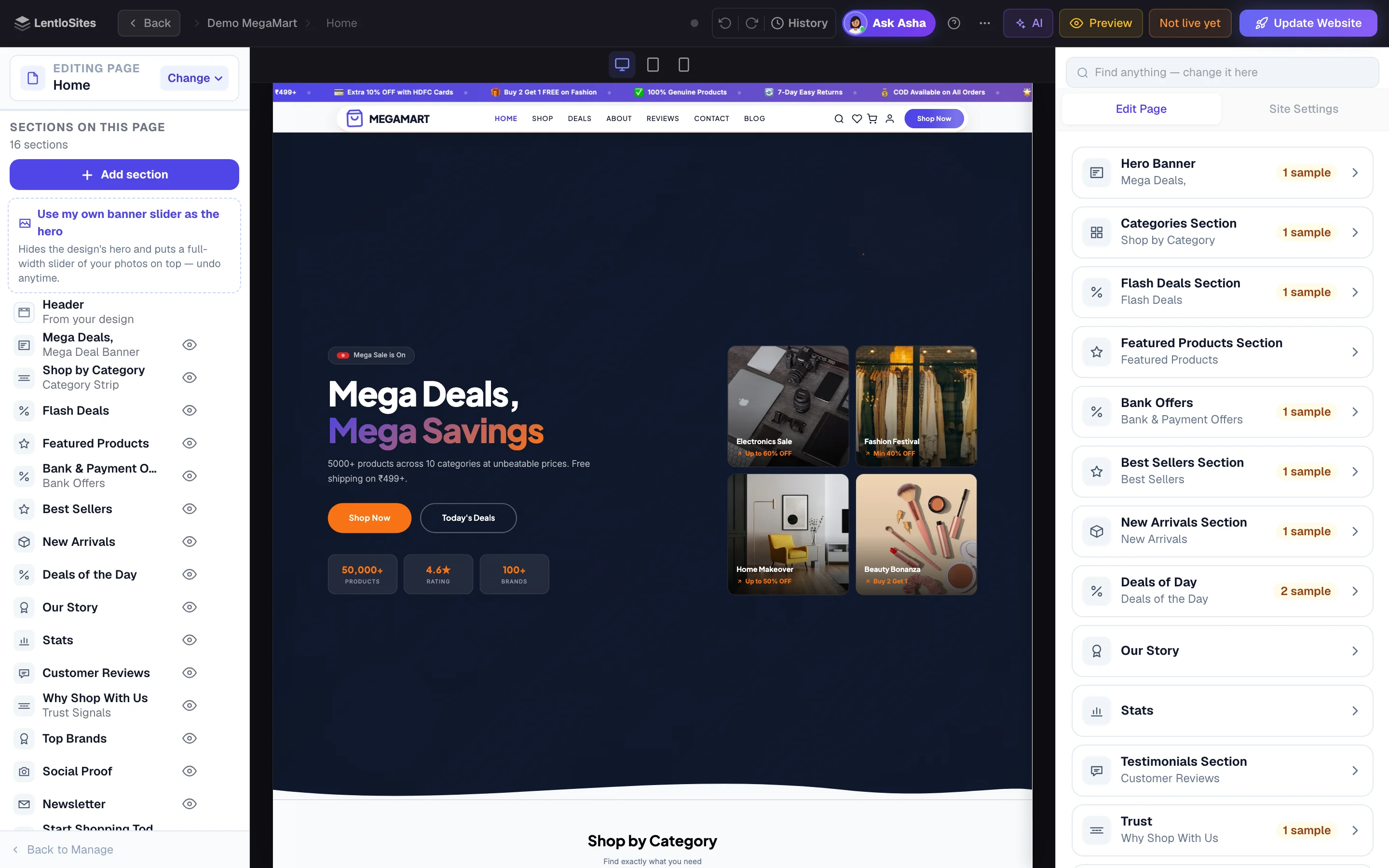
The Update Website button — edits are safe until you publish
After your site is live, everything you change inside the editor stays private until you press Update Website — so you can try things without customers seeing half-finished work.
- Your edits save automatically as you type. Nothing is lost if you close the editor.
- When you have unpublished edits — even from days ago, and including a change Asha made for you in the chat — an amber Not live yet note appears next to the button. Tap it to see exactly what's waiting — page settings too (a page's name, address, menu or search text, a page switched on or off, the order of pages) — and Put back any one item, or discard the draft and keep your live site as it is. Discard puts page settings back too.
- Pressing Update Website while older saved edits are waiting shows you that list first and asks before anything goes live — forgotten edits can't slip through. Edits you just made publish in one tap as usual.
- Want to check first? Tap the Preview link in the editor's top bar — it shows your saved changes exactly as they'll look. Customers can't see this preview.
- Happy? Press Update Website. Your changes go live in a few seconds. Very occasionally — a big catalogue behind a busy queue — you get Update on its way instead: your update is queued and goes live within a few minutes. Nothing is lost, you can keep working, and it turns into the usual “Your changes are live” by itself once it lands. Until then the editor's Visit and View Page links say Going live…. An edit you make while an update is going live may not be part of it — the Not live yet note stays and the editor says so; press Update Website once more.
Experiment freely. Change colours, rewrite your homepage, try a new photo — the live site doesn't change until you press the button. If you don't like an edit, just change it back before publishing.
Add your own sections to your pages. Checkout, Account, Track order and Wishlist stay as the design made them, so buying always works. The editor lists the whole page as one list on the left (Sections on this page; on a phone, the Sections & layout tab) — press Add section and pick where it goes (top, after any section, bottom). There's also a one-tap Use my own banner slider as the hero option that swaps the design's hero for a full-width slider of your own banners. See Sections & layout.
A few older sites use our drag-and-drop editor instead — if your editor looks different from these pictures, that's you. There, edits reach your live site on their own shortly after saving, without pressing Update Website.
What goes live on its own — no publish needed
Day-to-day shop work updates your live site automatically, because customers need fresh prices and stock right away.
Products
Add a product, change a price, mark something out of stock — live within a minute of saving.
Blog posts
Publish or edit a post and it appears on your site by itself.
Store settings
Payments, delivery charges, COD, business info — live within about a minute of saving.
Menu & links
Changes on the Header & Footer page update your live site on their own.
Simple rule of thumb: dashboard = live on save; editor = waits for Update Website. Some dashboard settings pages (Business Info, Appearance and the other Site Settings pages) show a Save & Republish button beside Save: plain Save already updates the live website within about a minute, and Save & Republish does it straight away. One exception: the loyalty points and a car dealer's booking amount in the editor's Site Settings — new orders use a change there as soon as it is saved, while your pages show the old number until you press Update Website. The editor says so above those fields.
Saving a product, a price or your stock never puts your editor changes live — only Update Website does. A few editor changes are the exception and go live with any update of your shop: Site Settings, a page's own settings (its name, address, menu or search text, a page switched on or off), the order of pages and a page you deleted. The editor's list of waiting changes marks each one.
Stores also get category pages built for them automatically — every product category gets its own page (like /category/sarees/), and yoursite.com/category/ lists all of them on one "All Categories" page. Shops with many categories show a View all tile at the end of the category strip that opens it. Nothing to set up — these rebuild on every publish.
Auto-updates only apply to a site that's already live. A draft stays private — nothing shows until your first publish.
Your free web address
Every site gets a free address like yourshop.lentlosites.com — it comes with the secure padlock (https) and costs nothing, ever.
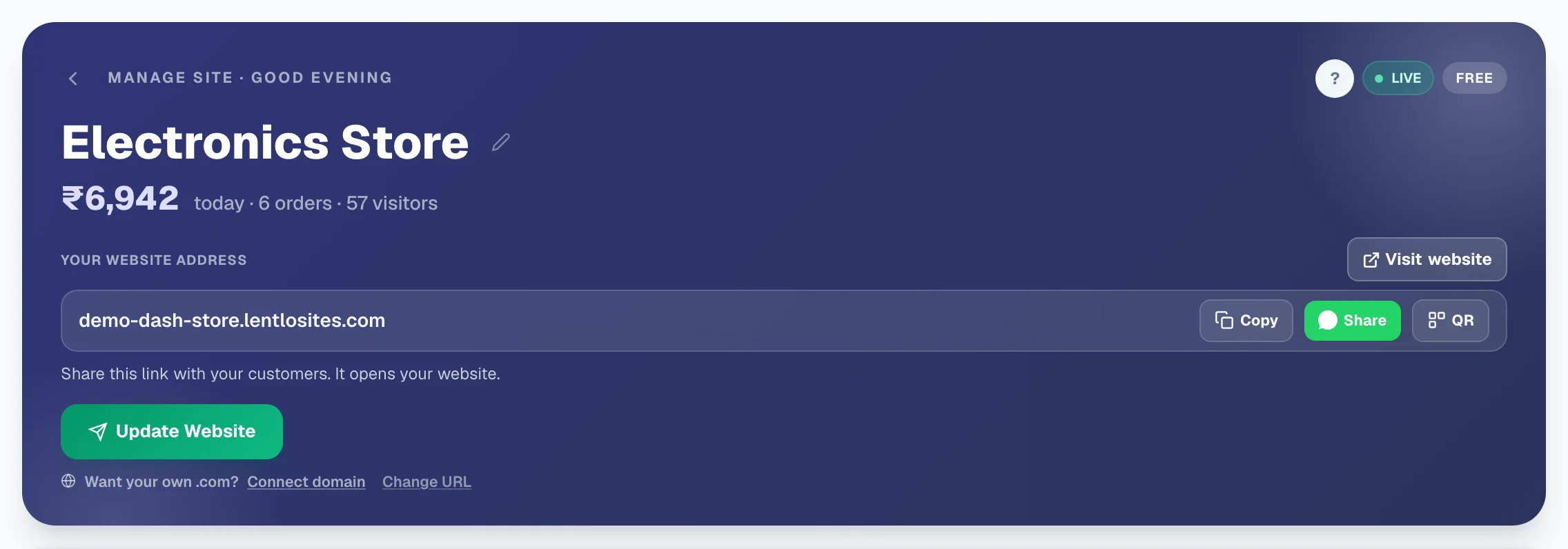
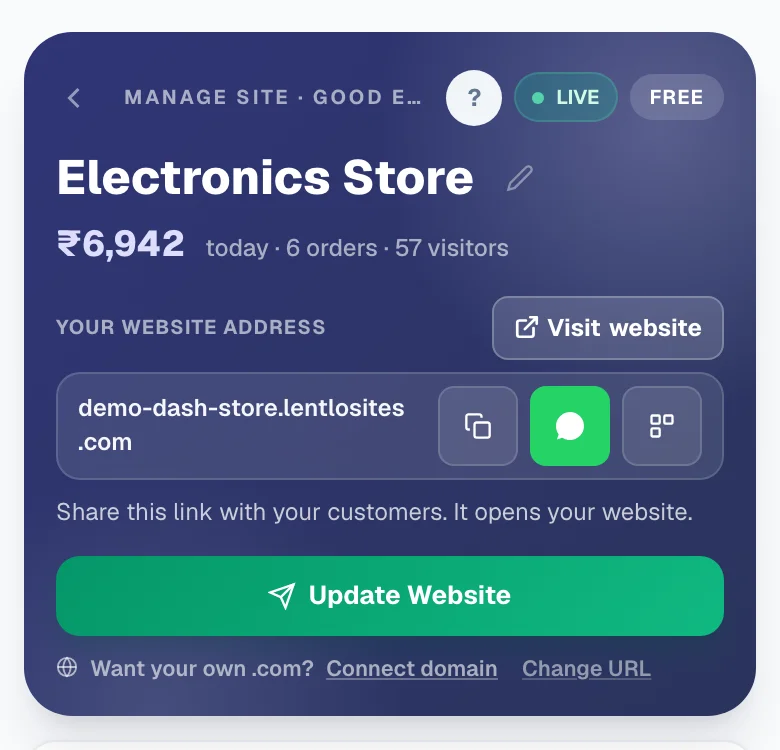
The Manage page shows it under the label Your website address, with Visit website beside the label and Copy, Share (WhatsApp) and QR next to the address itself. The same address, with Visit and Copy, also sits in one slim row pinned at the bottom of that website's menu. You can change the free address from the Manage page (Change URL). Links you shared earlier still bring visitors to your website (usually within 5 minutes of the change), but share the new address from now on.
Want your own domain like yourshop.com instead? Connecting one is free on every plan — see Connect your own domain.
Checking your live site
Publishing takes only a few seconds, and it's a good habit to look at the real site once after every update.
Wait for the button to finish
The button shows Publishing... while we rebuild your pages. Bigger stores with many products can take a little longer — usually still under a minute.
Open your address in a new tab
Use the open button on the Manage page pill, or type your address in the browser. Check the homepage and one or two other pages on your phone too — most of your customers will visit on a phone.
Still seeing the old version?
Phones sometimes keep an old copy of a page for a minute or two. Wait a moment and refresh again — no need to publish twice.

After your first publish
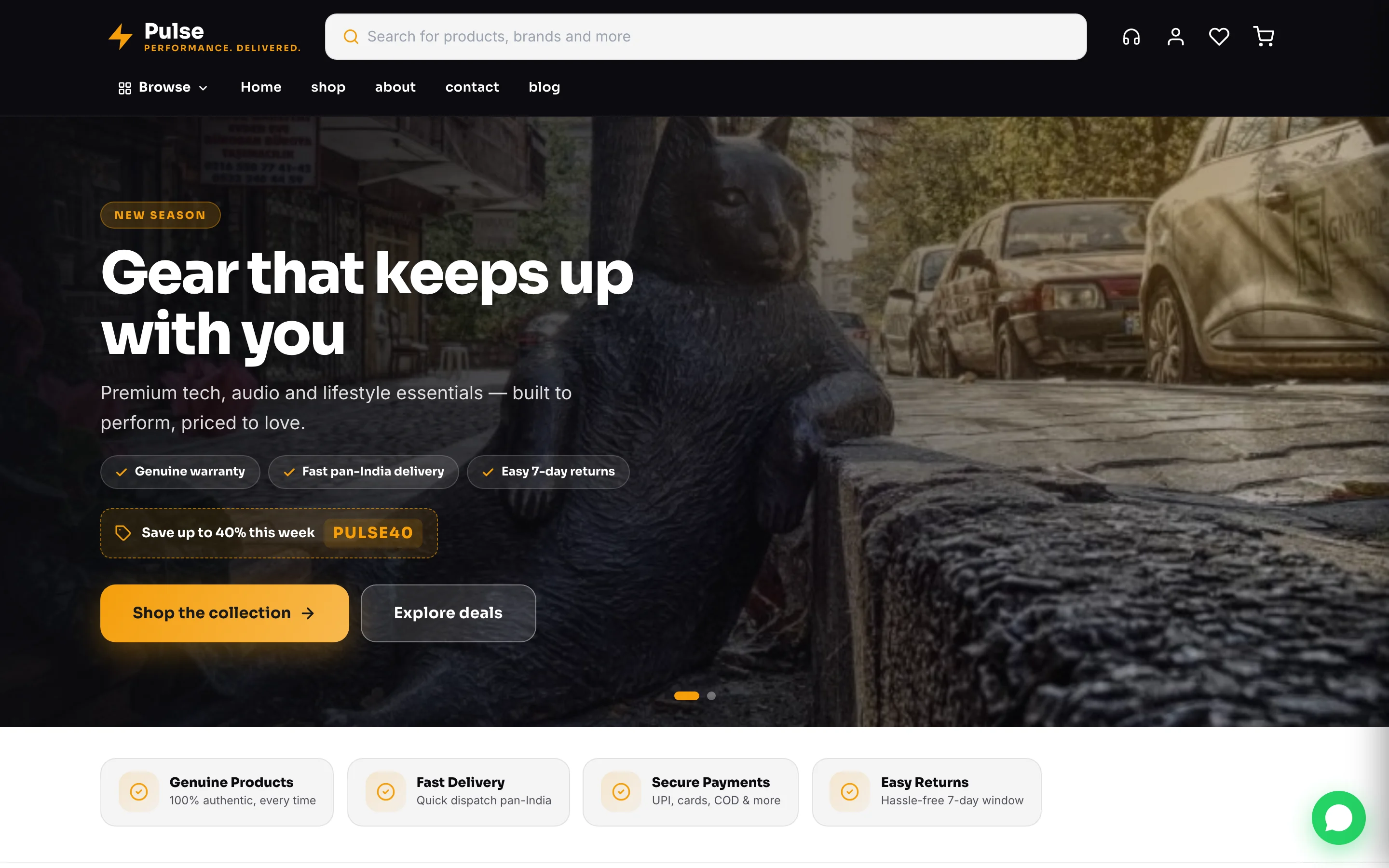
The very first time a website goes live we take you to a short congratulations page instead of dropping you back in the editor — “Your site is LIVE”, with your address on a card.
- Copy, Open site and Share (WhatsApp) — send the link to your first customers while you are there.
- Next steps tiles — connect your own domain, open the Manage page, keep editing, or go back to Main Dashboard.
- A short Get visitors on day 1 list (WhatsApp groups, Instagram bio, printing the address on cards and invoices) and a Polish your site list (real logo and favicon, your phone number, a blog post, a look on a phone).
It appears once per website — later updates just show the small “Your changes are live” note in the editor. The same page also greets you when your own domain finishes connecting.
Your site is an app too
Every published site can be installed on a customer's phone like an app — free, automatic, nothing for you to set up.
Your site gets its own /install page with simple steps for iPhone and Android, and on that website's Android App page you can also switch on a small "Install our app" card for visitors — it stays off until you turn it on. Once installed, your shop sits on their home screen with your logo — one tap and they're back to buy again. Want a real Play Store app as well? The same page builds one. From the main menu, Apps lists every website with a door straight to its Android App page.
Quick questions
Does publishing cost anything? No. Publishing, updating, and your lentlosites.com address are all free.
Can customers see my site while I'm editing? Yes — they see the last published version. Your in-progress edits stay private until you press Update Website.
I pressed Update Website but my change isn't showing. Refresh the page after a minute. If it's a product or price change, remember those go live on save — no publish needed. Still stuck? See Troubleshooting.
I switched the Shop page off and the category links disappeared. That is expected — the category pages belong to the Shop page, so its links, the category strip and the category pages are hidden together (nothing is deleted). Switch the page back on and press Update Website to bring them back. To hide only the menu link, use Header & Footer.
It says editing & publishing are paused. That means your Lentlo Credits balance needs a recharge. Don't worry — your live site stays up and keeps taking orders; recharge to continue editing.
Can I change the “This site built with LentloSites” line in my footer? Yes, on any paid plan — set your own text in the Header & Footer’s Footer tab (“Footer credit line”), then publish.
New here? Start with Pick a design & create your site, then Edit your site — publishing is the last step of both.
More in Start here
Did this answer your question?
It takes one tap and it genuinely changes what we write next.