
Restaurant mode — ordering, hours & table bookings
Take food orders on your own website: run them on the kitchen board, set kitchen hours, pause anytime, set your delivery fee and how delivery is paid, serve time-limited menus and accept table reservations.
Watch0:508 min readUpdated 21 Oct 2026
In this guide
Swiggy and Zomato. Orders from Swiggy or Zomato are not pulled in here, and your menu is not sent to them — this website is your own ordering counter, with no commission app in between. Walk-in and phone orders go on the Billing Counter; orders placed on your website arrive in Orders.
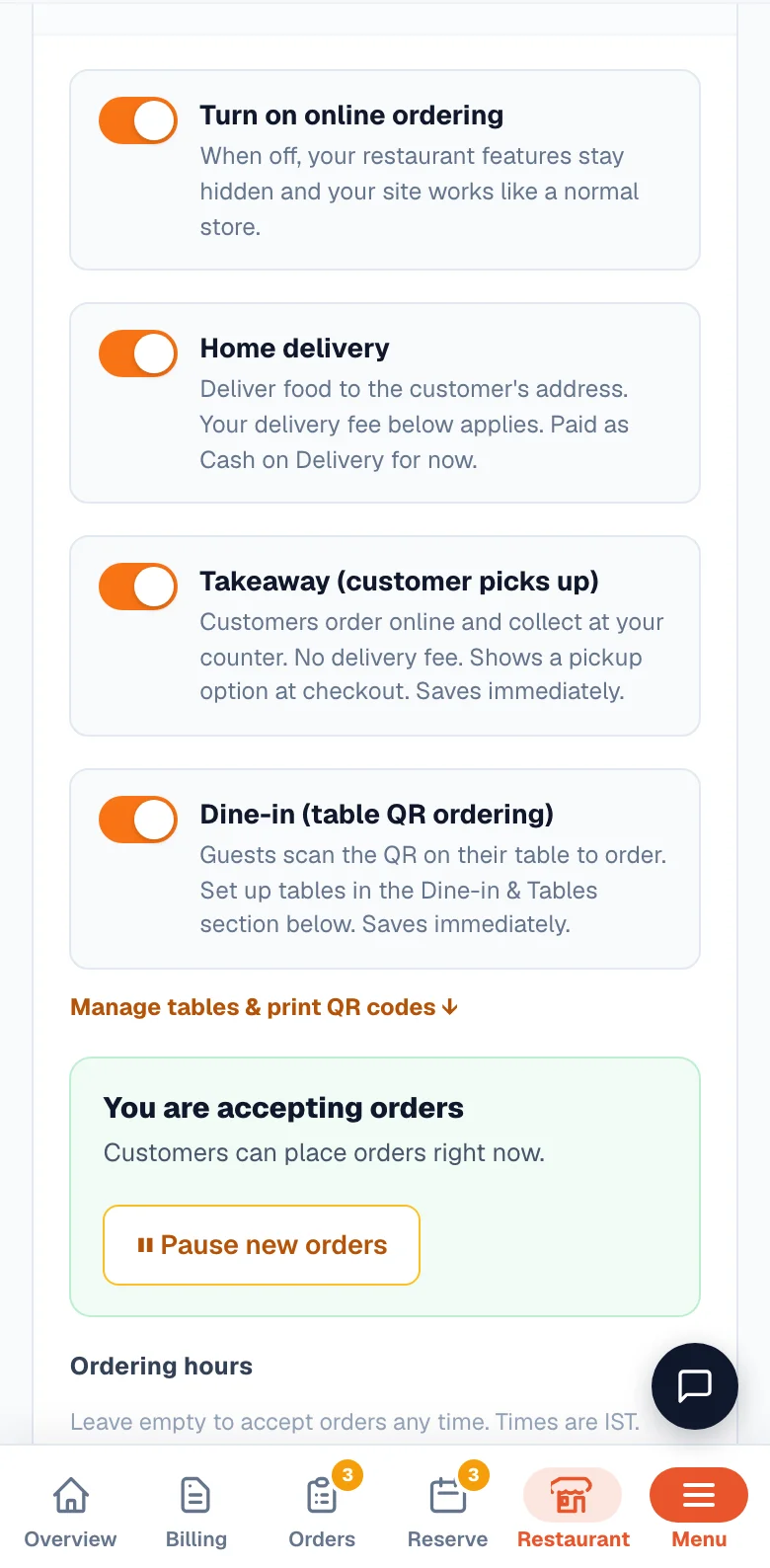
Turn on online ordering
Online ordering is one master switch — off, your site behaves like a normal store; on, the ordering features come alive on your website.
Start with the restaurant design
Restaurant mode is built for the restaurant online-ordering design. If your site uses a different design you can still save these options, but they only take effect on the restaurant design.
Open the Restaurant page
From your site's dashboard, open Restaurant in the sidebar. The home screen shows today's sales (with the counter / table-QR / website split), how many tables are occupied, a pause switch and quick buttons for the Billing Counter, the Kitchen board and Tables & QR. Below them, Dish availability opens your dish list so you can tap a dish OFF the menu the minute the paneer finishes (tap again to sell it), and Latest orders shows today's tickets with an unpaid mark. All configuration lives in Restaurant settings — the button at the top of the Restaurant page, and the Restaurant settings panel on it with one tile per area: Ordering, Delivery fee & area, Payments, Outlets, Dine-in, Menu timings, Reservations and Compliance. Tap a tile and that tab opens; the same names sit as tabs across the top of the settings screen, in one row — on a phone swipe it, on a computer the arrow at its end shows the rest. While your shop's location is missing, the Delivery fee & area tile turns amber.
Flip the switch and pick how you serve
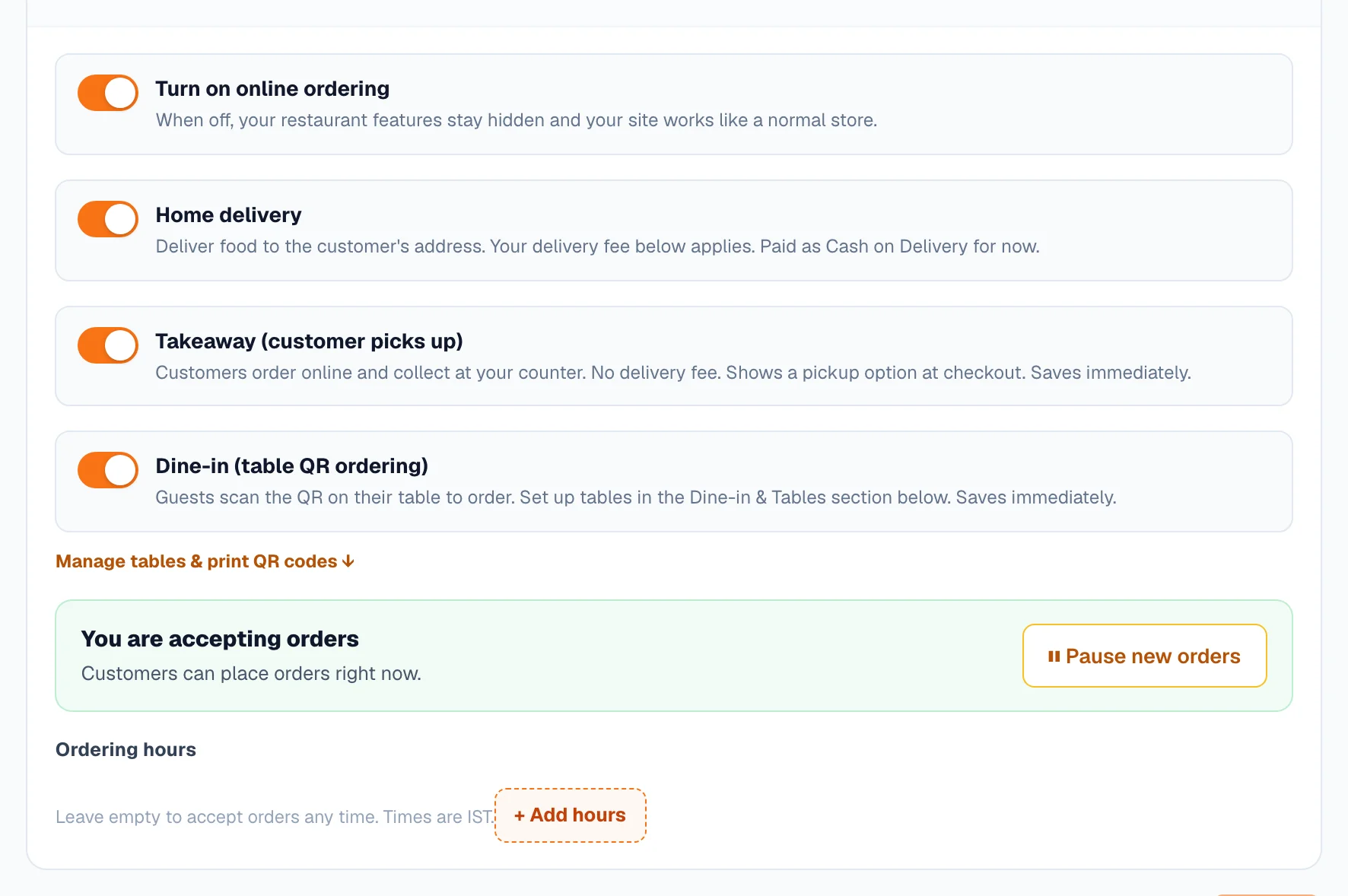
Turn on Turn on online ordering, then choose Home delivery, Takeaway (customer picks up), or both. Press Save changes.
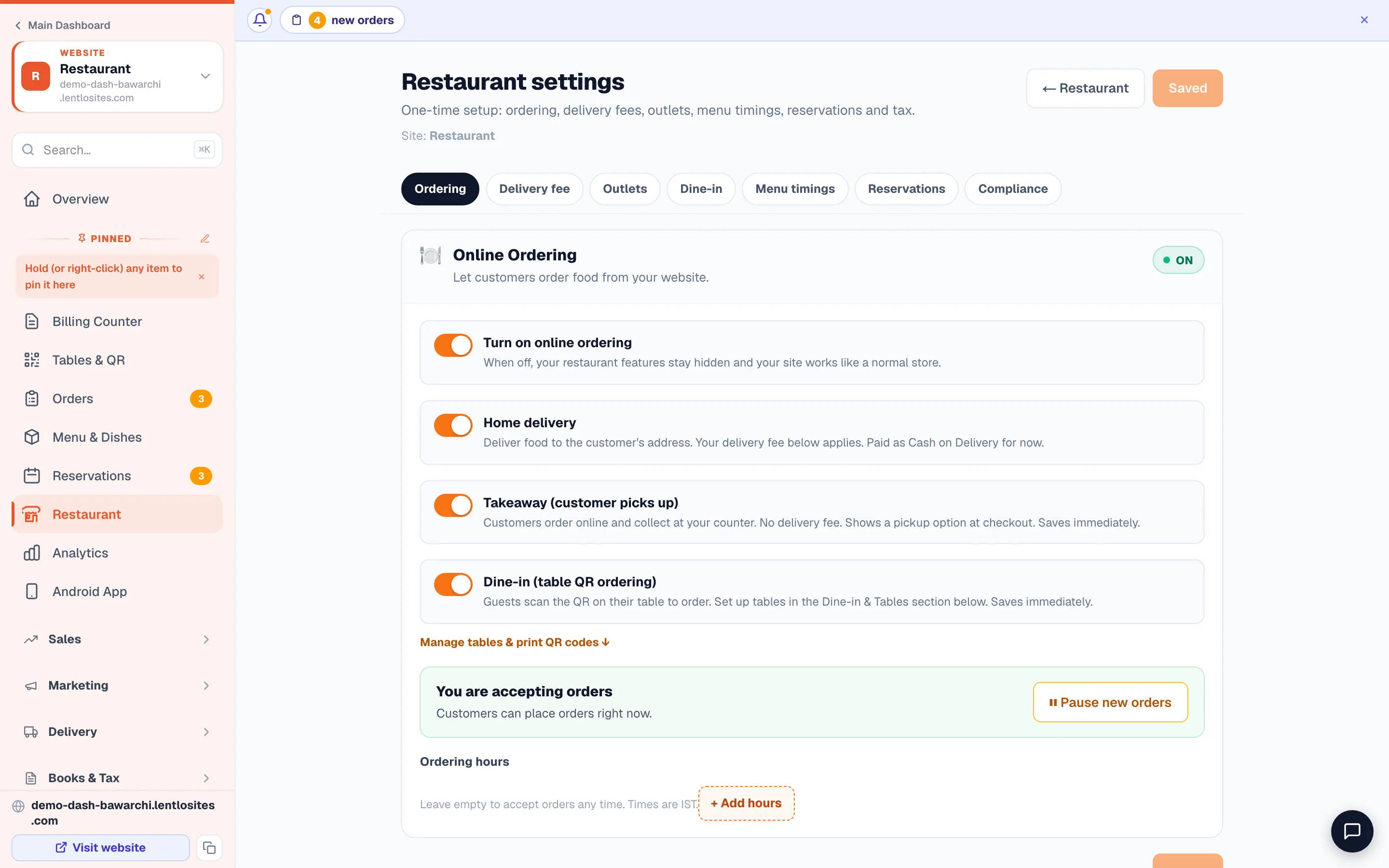
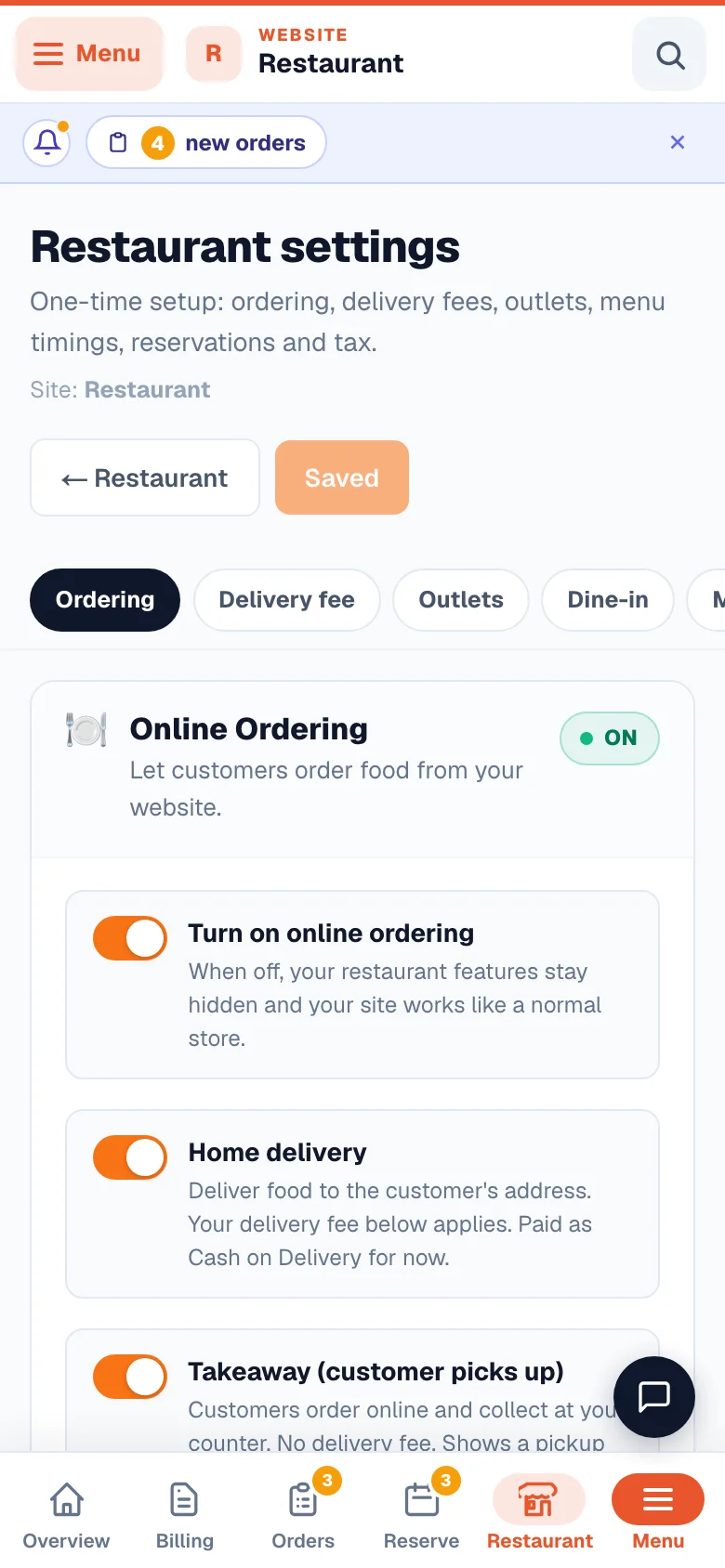
- 1The channelsDelivery, takeaway and dine-in, each with its own switch.
Compliance lives on the same page. Add your FSSAI licence number (it shows in your website footer) and pick your tax setup — restaurant GST at 5%, composition scheme, or not registered. The tax choice saves instantly.
How saving works on Restaurant settings. There is one Save changes button. On a computer it sits at the top right, beside the tabs, and stays there while you scroll; on a phone a bar with Save changes appears at the bottom whenever something is not saved yet (when everything is saved, the top right says All changes saved). Leave the page with changes still unsaved and you are asked first: Save and leave, Leave without saving or Stay on this page. A few things save the moment you change them and never wait for the button: your shop's location, the map choice, Pause new orders, the takeaway and dine-in switches, the tax setup, outlets and tables.
Ordering hours & the pause switch
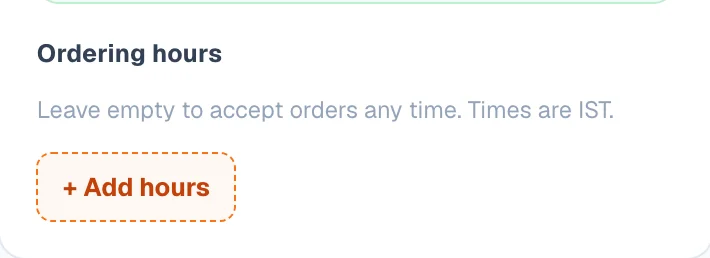
Ordering hours tell your website when the kitchen takes orders, so you never get an order at 2 AM you can't cook.
- Set your hours in the Ordering section under Ordering hours — tap + Add hours, for example 11:00 to 23:00. Add a second row for a split day (lunch 12:00–15:30, dinner 19:00–23:00). Leave it empty to accept orders any time. All times are IST, and the same hours apply every day of the week — on your weekly off day, press Pause new orders before you close and Resume orders when you open again.
- Outside hours, customers can still browse your full menu, but ordering is switched off and your site shows a “We are currently closed” notice with the time you open next. Ordering resumes on its own when your hours start — see What customers see when you're closed.
- Need to stop right now? Press Pause new orders — it saves immediately, no separate Save needed. Customers see your menu but can't place an order until you press Resume orders. Great for a packed kitchen or a gas-cylinder emergency.
The block is real, not just cosmetic. Even if someone keeps an old checkout page open, the order is politely refused when your restaurant is closed or paused — nothing slips through.

What customers see when you're closed
Whenever ordering is off — outside your hours or while paused — your website makes it plain, so nobody thinks an order can still go through:
- A notice at the top of every page with a small moving clock, your heading and the next opening time, for example “Opens today at 9:15 AM · in 25 min”. The countdown shows only in the last six hours and updates by itself. While you are paused it shows your own line instead of a time.
- Dish photos turn black and white, and a small tag hangs on each photo with the opening time.
- The ADD button becomes a grey “Closed” badge, and tapping it does nothing. On a dish page, Add to cart becomes a grey box with the opening time.
- The main button on your home banner says “See the menu” instead of asking for an order.
A dish that is outside its own menu timing while you are open gets the same black-and-white look, with its serving hours on the tag and “Later” where ADD was. Its dish page shows a card with “Not being served right now” and the hours.
Change the words and the look
Open the website editor → Site Settings → When you're closed. Pick the Notice colours (the design's own, Cream, Dark or your main colour), switch Say when you open next on or off, and write your own heading, “Opens today at {time}” and “Opens tomorrow at {time}” lines, the countdown words (clear them to hide the countdown), the photo tag, and the badge words (“Closed”, “Later”). Keep {time} where the time should go — Hindi or any language works.
The home banner button
The words on the banner's main button while you are closed sit with the banner's other buttons on the home page: Hero primary button while closed (on the Tadka design: Main button while closed).
Fast on every phone. The notice is drawn with the page itself — no extra download — and the moving clock and tags stop when a customer's phone asks for less motion, or when you switch animations off.
Menu timings — breakfast, lunch & dinner menus
Menu timings let you serve some menu sections only at certain hours — so idli-vada shows in the morning and biryani at lunch, automatically.
Add a timing
In Menu timings, tap a one-click preset like Breakfast, or + Add timing and set its start and end (times can cross midnight). You can also limit a timing to certain days — say, a Sunday-only special.
Link your menu sections to it
Under When does each category serve?, pick which timing each of your menu categories belongs to. A category left on all-day stays available all day.
One dish can have its own timing too. Open the dish in Menu & Dishes (or its Quick edit sheet) and set Serving time: keep it the same as its category, make it All day (say, filter coffee inside a breakfast-only section), or give it Specific timings of its own. The dish setting wins over the category.
Choose what customers see outside the hours
Outside its hours, a dish should… — choose Stay visible, greyed out with its hours (recommended: it tells customers what to come back for) or Disappear from the menu until its hours start. Either way, out-of-hours dishes can never be ordered — the kitchen is protected. The menu is never left empty: when nothing is in its hours right now, dishes show greyed out with their timings even on Disappear.
A day with no serving time at all — say every timing runs Mon–Sat and today is Sunday — serves the whole menu all day; only your ordering hours and the pause switch decide. Leaving a day without timings never closes it — ordering hours are the same every day, so on a day you are shut, press Pause new orders.
Delivery vs takeaway — how customers pay
You choose how food leaves your kitchen: delivered to the customer's door, collected at your counter, or both — the customer picks at checkout.
Home delivery
You (or your rider) deliver. Your delivery fee applies. Customers pay cash on delivery, online, or either — you choose on the Payments tab. Turned off? The checkout stops offering delivery and delivery orders are refused.
Takeaway
Customers order online and collect at your counter. No delivery fee. Online payment works normally. This toggle saves immediately.
Dine-in (table QR)
Put a QR on each table — guests scan, order and pay from their phone (at the counter or online). The switch saves immediately; your table list, QR cards and the live who's-seated board are on Restaurant → Tables & QR. “Design & print QR cards” opens a card designer: pick one of 7 card looks, your colours, the QR pattern, a centre badge (table number, food emoji or your logo) and the wording — in any language, with one-tap Hindi/Tamil/Telugu fills — then print an A4 sheet (poster to 16 small cards) or download PNGs. Your design is saved for next time.
Turning on Takeaway also switches on your site's store-pickup option — see In-store pickup for how pickup looks to customers. Every order, however it arrives, lands in your Orders page.
The checkout speaks restaurant language. Customers see Takeaway and Home delivery (not the generic store wording), and a guest who scanned a table QR sees Dine-in · their table everywhere — including the order summary — with delivery hidden for them. If Home delivery is off, the checkout simply never offers it. You can reword the Takeaway, Home delivery and Dine-in labels in the website editor's Site Settings.
Dine-in only? Turn Home delivery and Takeaway off and keep Dine-in on — the checkout then asks guests to scan their table QR instead of asking for an address. With manual table entry allowed (Restaurant → Dine-in), the checkout's “Dining here?” panel first asks, then shows your real tables as tap-to-pick buttons — no typing exact names; with it off, the panel simply says to scan the table QR. Adding your first table turns Dine-in on automatically, and if a guest ever scans a table QR while Dine-in is off, the menu tells them table ordering is unavailable instead of silently offering delivery.
You choose how delivery is paid. In Restaurant → Settings → Payments, keep Cash on delivery, Pay online (cards, UPI, wallets), or both switched on for home delivery, then press Save changes. The checkout shows only the ways you left on that can work, and an online payment includes your delivery fee. Cash on delivery works only while your store's Cash on Delivery switch is on, and online payment only once a payment partner or a UPI ID is set up — both in Settings → Payments; a way that cannot work shows off on this tab with the reason. If no way to pay works, the checkout says so and does not take the delivery order. The same tab holds Takeaway's Allow “Pay at store” switch and the two Dine-in payment switches.
The takeaway “Usually ready in ~X minutes” line is yours to set — Manage → In-Store Pickup → How fast is an order ready?: tap 30 minutes, 1 hour, 2 hours, 4 hours, Same day or Next day, or type it your own way. The checkout shows whatever you set there (30 minutes until you change it).
The delivery fee
The delivery fee is what customers pay you to bring the food over. You set it in Delivery fee & area — in the sidebar under Delivery, or Restaurant → Settings → Delivery fee & area:
- By distance: customers farther from your shop pay more. Two things are needed — your shop's location (the card right under By distance, see the next section) and Fee for each distance: rows like “up to 1 km ₹35, up to 2 km ₹45”. Tap + Add a distance for another row. A customer farther than your last row pays the last row's fee — unless you set a delivery limit (below). Until your shop's location is set, no distance can be measured and every customer pays your first row — the card says so in amber, with the amount.
- One flat fee: the same delivery charge for every order, however far.
- Free delivery above ₹X: reward bigger orders. Leave it blank for no free-delivery offer.
- Minimum delivery fee: no delivery is ever charged less than this.
How far you deliver — a delivery limit in km
Under the fee, How far do you deliver? takes a number of kilometres — “Up to 5 km from your shop”. Leave it empty to deliver to any distance (that is how every restaurant starts). Press Save changes to keep it.
- It needs your shop's location (the next section) — the kilometres are measured from it. Without one the box says so in red and the page will not save the limit, because every delivery order would be refused. For the same reason the location cannot be removed while a limit depends on it: clear the limit first.
- Customers mark their location at checkout. With a limit set, the checkout always asks for the delivery spot on the map, and Place Order waits for it. The delivery row then shows the fee for that distance — or, when the spot is farther than your limit, “Sorry, this restaurant delivers within 5 km — this location is about 6.9 km away” (with Choose pickup when your Takeaway is on). This is checked again on our servers before any payment is taken, so nobody pays for a delivery you cannot make.
- Your dish pages say it too. A customer who checks a PIN code on a dish page reads “Delivers within 5 km of the restaurant — mark your exact location at checkout”, because a PIN code alone cannot tell how far a home is.
- The distance is a road estimate from your shop (or the outlet the customer chose) to the spot on the map — the same number the fee rows use. If your fee rows go further than your limit, the rows beyond it are never used, and the screen tells you so.
- Orders you type in yourself (Manual orders, the counter), takeaway and dine-in are never checked against the limit.
The fee is worked out on our servers, not the customer's phone. What the customer sees at checkout is what they pay — cash on delivery or online — and what you collect.
Your shop's location
Every delivery distance is measured from Your shop's location. Set it once — there are three ways, and each one ends on a map where you check the pin is on your shop's door:
- Set on map — a Google map opens near your town. Type your shop's name in the search box (Google knows most shops), tap it, then move the map until the red pin sits on your door. Satellite shows the rooftops if the street map is not enough.
- I'm at my shop now (Use this phone's location) — the map opens where your phone is and says how sure the phone is (“within about 20 m”). Move the pin onto the door.
- Or paste your shop's Google Maps link — paste the link from Google Maps, or a location you copied there (long-press your shop, then copy the numbers), and tap Use this link. The map opens on that spot for you to check. A short share link (maps.app.goo.gl/…) has no location inside it, so the map searches the shop name that came with it instead.
Tap Save this as my shop's location on the map and it is saved straight away — no other Save button is needed. The card then shows Saved with View on Google Maps to check it, Change on map and Remove. With more than one outlet, distances are still measured from this one shop location — the Add outlet form has no map spot of its own.
You don't have to look for it. While your fee is by distance and no location is saved, your Overview and your Restaurant page show a Set your shop's location card that works right there (the same three ways), and the sidebar marks Delivery fee & area with an amber !. The card says what happens meanwhile: every delivery is charged your first distance's fee — or, if you deliver only up to a set distance, customers can't choose home delivery at all, because the checkout can't tell who is inside it. Once saved, the Restaurant page keeps one small line with Change.
Customer's location
- Ask customers for their delivery location at checkout — customers pick their door on the map, which opens at the address they typed; Use my location moves the map to where their phone is and they confirm the exact spot (a phone's reading can be off by a few houses). A landmark line goes with it. When your fee is by distance this is always on and cannot be turned off: the fee cannot be worked out without it. A customer who skips it pays your first row. With one flat fee it is your choice, and a customer who skips it orders exactly as before.
- Don't take a delivery order without the customer's exact location — at checkout you can make the location a must. Place Order then waits until the customer moves the map so the pin sits on their door and confirms it; their phone's location only moves the map there, because a phone's reading can be off by a few houses. Takeaway and dine-in orders are not asked, and orders you add yourself (the counter, the dashboard) are never blocked. If the map cannot open on a customer's phone, their phone's location or a pasted Google Maps link is taken instead.
- Each saved address has its own spot — at checkout every saved address says Map location saved · near … or No map location yet, and the chosen address opens into its own location part: Adjust on map, See this spot on Google Maps, how far it is and the landmark. When a signed-in customer sets the location for the chosen address it is saved to that address, so next time choosing it brings the spot back and the fee is ready — a repeat order goes through in one tap. An older saved address with no spot is marked in amber (“Home” has no map location yet) so the customer sets it once. A new address takes its location as the last part of the address form, and My account → Addresses shows each address's spot with See on Google Maps. A customer opening the map again on the same day never uses your free map opens and is never charged.
With your shop's location set, the checkout shows “~3.2 km from the shop” beside the fee, the fee follows the row that distance falls in, and every delivery order carries the customer's spot: the order page shows how far it is, Open in Maps and Navigate, the landmark they typed, and whether it came from their phone, the map or a pasted link. A spot dropped on your own kitchen cannot make a far delivery cheap — the fee uses the larger of the shared spot and the typed address when both are known, and the Minimum delivery fee always stands.
The map on your checkout. Below that, Map on your checkout sets which map customers pin their door on: Google Maps (a number of opens free each day, then what the card says for your restaurant) or your own Google key, with every map open listed day by day. If Google ever cannot open, our free map opens instead. Full details: The map on your checkout.
Your own delivery boys. Add each rider on the Team page with the job Delivery boy, then give him orders from Deliveries in the sidebar. On his phone he sees only his orders — a Call button, the map at the customer's location, the items and the cash to collect — and you see what is out and the cash each rider holds. Full guide: Deliver with your own delivery boys.
Table reservations
Reservations let customers book a table from your website, so your Saturday-night rush is planned instead of chaotic.
Turn on Accept table bookings
In the Table reservations section, flip the toggle. Turning it on sets up lunch and dinner time slots (12–3 PM and 7–10:30 PM) automatically — change the days, hours and slot gap any time in Reservations → Settings — on a restaurant site the sidebar row is called Reservations, and the link on the settings page reads Bookings → Settings; it is the same screen.
Set your limits
Bookings per time slot stops you getting more tables booked than you can seat — leave it blank for unlimited. Largest group size caps how big a party the form accepts. If you've added dine-in tables, slot availability can follow your real table count instead — and slots starting soon even subtract tables occupied right now.
Tell it how long a table takes (optional but powerful)
In Restaurant settings → Dine-in, set “How long does a table typically take?” (say, 45 minutes). Booking slots then free up the moment a seated table is expected to finish — instead of every seated table blocking the next two hours — and the Live tables board shows “~free 8:05 pm” on every occupied table. Next to it, “Hold tables when a booked party is about to arrive” banners the board and marks free tablesHold shortly before a confirmed booking's time, so walk-ins don't take the last table — a reminder for staff, never a block. Tables free themselves automatically too: after the bill is settled, after quiet time, and with a fresh start every night — all tunable in the same place. Using Menu timings? Each timing can carry its own table time — quick lunch turnover, longer dinner tables — and the time that applies is the one when the party sat down.
Watch the bookings arrive
Every reservation lands in Reservations in your sidebar — the same inbox the rest of the platform calls Bookings — with the date, time and party size. The section shows today's count at a glance, and the reservation page's text is edited in the website editor (Reserve a Table page).
The Reserve a Table button on your home page shows only while that page is switched on, so it never leads to a missing page. In the editor's Top Banner you can also hide it yourself, and the delivery-time chip next to it (on a restaurant that does not deliver, the sample “Quick delivery” hides by itself).
More than one outlet? Add branches
Branches are for restaurants with several locations — customers pick their nearest outlet on your website, and orders carry that outlet's name. One location? Skip this section entirely.
- + Add outlet with its name, address and phone. One outlet is marked Main; you can hide an outlet temporarily without deleting it.
- Each outlet can keep its own opening hours — a customer ordering from that outlet is checked against its hours, not the main store's.
- Dine-in tables can be assigned to a branch, so each outlet prints its own table QR codes.
Billing at the counter
For walk-in and phone orders, use the Billing Counter — a POS-speed screen: tap dishes, take Cash/UPI/Card, and the GST bill prints instantly (on Android via the free RawBT app + any Bluetooth thermal printer). It's in your sidebar as Billing Counter. Full guide: Billing Counter. Repeat customer? Type their phone — the counter pulls their name and saved delivery addresses so nothing is re-typed.
The kitchen board — new, cooking, ready
Open Kitchen in your sidebar (or the Kitchen tile on the Restaurant home) and keep it on a tablet or phone in the kitchen. Every open order sits in one of four columns — New, Cooking, Ready and On the way — and new orders appear by themselves. Each card shows the dishes, how many, every choice the customer made (size, spice level, extras, cooking note), the customer's note, delivery, takeaway or the table number, and whether it is paid.
- One tap moves an order on: Accept & start cooking → Food is ready (takeaway: Ready for pickup, a table: Ready to serve) → Out for delivery → Delivered (Handed over / Served). It is the same as changing the order's status on the order page — the bill, the customer's messages and everything else follow exactly as they do there.
- Can't make it? Pick why — an item is not available, the kitchen is too busy, you are closing, or something else in your own words. The order is cancelled, the customer is told the reason, and stock goes back like any cancelled order. A paid order's money is returned from the order page.
- Sound: tap Turn on sound once on the kitchen device and a new order rings. The browser tab also shows how many new orders are waiting.
- On a phone the four steps are tabs; on a computer they sit side by side.
- Still open from before lists orders older than a day that nobody closed — move each to its last step so your board stays clean.
- Your staff need the Food orders & billing permission on the Team page to use the board — the same one that runs the Billing Counter.
Your usual cooking time. Under Restaurant settings → Ordering, fill in Usual cooking time (minutes) — say 20. After you accept an order, the customer's Track Order page says “Cooking — ready in about 20 min” and counts down; past that time it says “Almost ready”. The board shows the same countdown, and turns red when an order is past it. Leave it empty and no time is promised.
What customers see. On your website's Track Order page a food order shows the kitchen's steps — Order placed · Cooking · Ready · On the way · Delivered (takeaway: Ready for pickup · Picked up; a table: Ready to serve · Served) — and the page refreshes on its own. Words you set for the Track Order page still win.
Toppings, spice level, make it a meal — the Customise sheet
Give a dish questions under Menu & Dishes → the dish → Personalization (custom orders) — start from Pizza add-ons, Make it a meal, Spice level, Thali / combo picks or Drink options. On your menu, ADD on that dish opens a sheet with the questions and a running total, and the card’s + offers Repeat last or I’ll choose. See Personalized orders → On a restaurant menu.
Suggest add-ons — “Complete your meal”
Show dishes that go well together — naan with a curry, a drink with a burger — right after a customer adds something, on dish pages, in the cart and at checkout. A dish your kitchen is not serving right now is never offered. Turn it on under Add-on Suggestions (Marketing) — see Add-on suggestions.
Meal deals — combo prices
Sell a burger, fries and a drink together for less, or any thali-plus-sweet pairing. Set it up under Combo Deals (Marketing): pick 2 to 6 dishes and the ₹ or % off. The saving applies by itself once all the dishes are in a customer's cart on your website — no code to type — and the order shows it. Bills you make on the Billing Counter do not get it automatically; add a discount there yourself. See Combo deals.
Your menu page — what customers see
Your Menu page reads from your restaurant as it is right now, so there is nothing to keep up to date by hand. Change the words, or switch any part off, in the editor: open the Menu page and use the Live info line and Top picks groups.
Open now or closed
The first chip under the menu title follows your ordering hours and the pause switch.
How you serve
Delivery, Takeaway and Dine-in — only the ones switched on. Fill in Usual cooking time in Restaurant settings and the line also says “Ready in about 25 min”.
Your rating
Worked out from the reviews you approved. It appears once at least one customer has rated a dish — never a made-up number.
Pure veg
Shows on its own when every dish that carries a food mark is veg.
Offers
Lists your coupons that have “Show on checkout” switched on. A customer taps a coupon to copy its code. With no such coupon the button stays hidden.
Top picks
A row of big dish cards above the menu. Pick up to 12 dishes yourself, or leave it empty: once 8 or more dishes have a photo, your best-rated dishes appear on their own. The row steps aside while a customer searches or uses the Veg / Non-veg switch.
Photos on the category bar. Each category shows a small round photo: the one you chose under Categories, or else the photo of the first dish in that category. A category with no photo at all shows its name only.
Badges on dishes. Give a dish one of these product tags and the menu shows it as a small badge: Bestseller, Chef’s special, Must try, New, Spicy or Popular. Stars on a dish come from its approved reviews, and the few best-rated dishes (at least 3 ratings, 4.3 or more) are marked Highly rated.
Category pages. Every category has its own page — a photo band with the category’s name and dish count, its dishes, then the rest of your menu as photo tiles. Share one on WhatsApp to promote just your thalis or desserts.
Your home page — what customers see first
On the Restaurant — Online Ordering design the home page also reads from your restaurant as it is right now. Every part below can be reworded or switched off in the editor on the Home page.
Live chips on the banner
Open now or Closed now, your rating from approved reviews, and Pure veg when every dish you marked is veg. Type your own rating line instead if you prefer (for example your Google rating).
A search box on the banner
Customers type a dish and land on your menu showing only the matching dishes. The hint rolls through your category names — or up to 5 words you choose. On the home page it is the one search box; the header keeps a search button.
Offers for you
Your coupons with “Show on checkout” switched on, as tickets a customer taps to copy. No such coupon — the row hides itself.
What our guests say
Reviews you approved with 4 stars or more and a few words. Nothing shows until you have one.
Visit us
Your address, opening hours and phone from Business info, with Get directions, Call and WhatsApp buttons — each button shows only when its detail is saved.
Dish cards with words
Every dish card shows two lines of its description, its badges and its stars. Switch the words off under Site Settings → Dish Card Design → Show dish descriptions on cards.
Category circles. Each circle shows your category photo, or else a dish photo from that category. A category with no photo anywhere shows its first letter — never the same picture repeated. The banner photo drifts slowly like a film; switch Slow zoom on the banner photo off to keep it still (phones set to reduce motion always see it still).
The header and the moving parts. Both restaurant designs keep the header to one slim row on every page, on phones and computers.
Page links on computers
From a laptop width the header lists your pages (Menu, About, Contact…) and underlines the page the customer is on; the header's search becomes a search button beside the cart. Every page is still in the phone menu.
The location chip
The “Order online · Deliver to” chip carries a drawn location pin with a soft ring. Type your own emoji under Site Settings → Delivery / Location Chip (Top Bar) → Chip icon, or leave it to keep the pin.
Outlets
With two or more outlets the outlet chip shows a small shop sign and the outlet's name. On Tadka it sits in the thin info line above the header, so the header never grows a second row; on a small phone the outlet chip takes the location chip's place.
The moving dish ribbon
Under the home banner, a band of your category and best dish names slides slowly past. Use your own words, choose the speed or switch it off on the Home page → Moving dish ribbon.
Gentle motion
A light runs along the header, your logo tile and Order button catch a shine, the banner's words rise in, and a dish's photo flies into the cart when someone taps ADD. Switch it all off under Site Settings → More Settings → Enable Scroll Animations (Tadka: Colours & Look → Gentle motion as people scroll). Phones set to reduce motion always stay still.
Drawn icons
The phone menu, the About page's promise cards and the Contact page's cards draw clean line icons. A card's emoji that matches a common one (phone, e-mail, WhatsApp, location, chef…) is drawn; any other emoji shows as you typed it.
The search page. Searching from the phone menu opens a page headed Find a dish; its results look exactly like your menu’s dish cards — photo, veg / non-veg mark, two lines of the dish’s description, price and ADD. Change its heading, the line under it and what it says when nothing matches under Site Settings → Search Page.
Each dish’s own page. Under the dish’s name: its badges, its stars from approved reviews and “Ready in about 25 min” from your Usual cooking time (reword or clear it under Site Settings → Dish Page → Dish page — cooking time). The four “why order from us” cards draw clean line icons for the usual chef, plate, salad and lock emoji; any other emoji you type shows as you typed it.
Insights & reports
Restaurant → Insights is your whole business on one screen — today, 7 days, 30 days or any date range, per outlet too. The top always shows revenue, orders, average order and customers with ▲▼ comparison against the previous period, quick chips (discounts given, delivery fees, money to collect, cancellations) and “what we noticed” highlights written in plain words. On a computer the whole report lays out on one wide screen and the pills jump straight to each part; on a phone, six tabs keep it light:
- Sales — a touch-for-detail revenue & orders chart (hour-by-hour on Today) plus the busy-hours heatmap.
- Menu — bestsellers with when-each-dish-sells bars, category mix, veg/non-veg split, and “Not selling”: dishes that sold zero times in the range.
- Customers — first-time vs returning split, repeat rate, average spend, and your top customers with one-tap call.
- Channels & payments — dine-in / takeaway / delivery with per-channel average order value, delivery fees + top pincodes, the counter 🧾 / table-QR 📱 / website 🌐 split, payment mix and money still to collect across all unpaid bills.
- Tables & bookings — per-table performance plus reservations: confirmed / pending / cancelled, guests expected, most-requested times and a Coming up list for the next 7 days with one-tap call.
- Win back — customers who reached checkout but didn't finish (including failed payments), with a one-tap jump to recover them on WhatsApp.
Each of those has more in it than one paragraph can hold — Restaurant insights walks through what every number means and which ones are worth acting on this week.
Common questions
Quick answers to the things restaurant owners ask most about ordering hours, payments and the menu.
Can I still take phone orders when I'm paused or closed?
Yes. Orders you add yourself from the dashboard are never blocked by hours, the pause switch or menu timings — see Billing Counter for the fast way, or Manual orders for the full form.
Can delivery customers pay online?
Yes. In Restaurant → Settings → Payments choose Cash on delivery, Pay online, or both for home delivery. What the customer pays online includes your delivery fee. Online payment needs a payment partner or a UPI ID set up in Settings → Payments.
Do customers see my menu when I'm closed?
Yes — the full menu stays browsable, with a “We are currently closed” notice that says when you open next, black-and-white dish photos and a grey “Closed” badge where ADD was. Only ordering is switched off, and it comes back automatically when your hours start.
I turned everything on but nothing changed on my website.
Check two things: your site uses the restaurant online-ordering design, and the Turn on online ordering master switch is on. Then save and reload your site.
More in For your kind of business
Did this answer your question?
It takes one tap and it genuinely changes what we write next.