
Appointments & bookings
Take appointments from your website — services with prices, verified phone numbers, advance or full payment online, reminders, rescheduling and GST invoices.
Watch0:597 min readUpdated 21 Oct 2026
In this guide
Where customers book
Your site has a /book page (and a “Book Now” button on the designs made for bookings). It asks one thing at a time: the customer's mobile number with a 4-digit code (unless you switched the code off), then the service, the day, the time, and their name and notes.
- 1Needs a decisionConfirm or decline — the customer is told either way.
Managing requests
Open Bookings
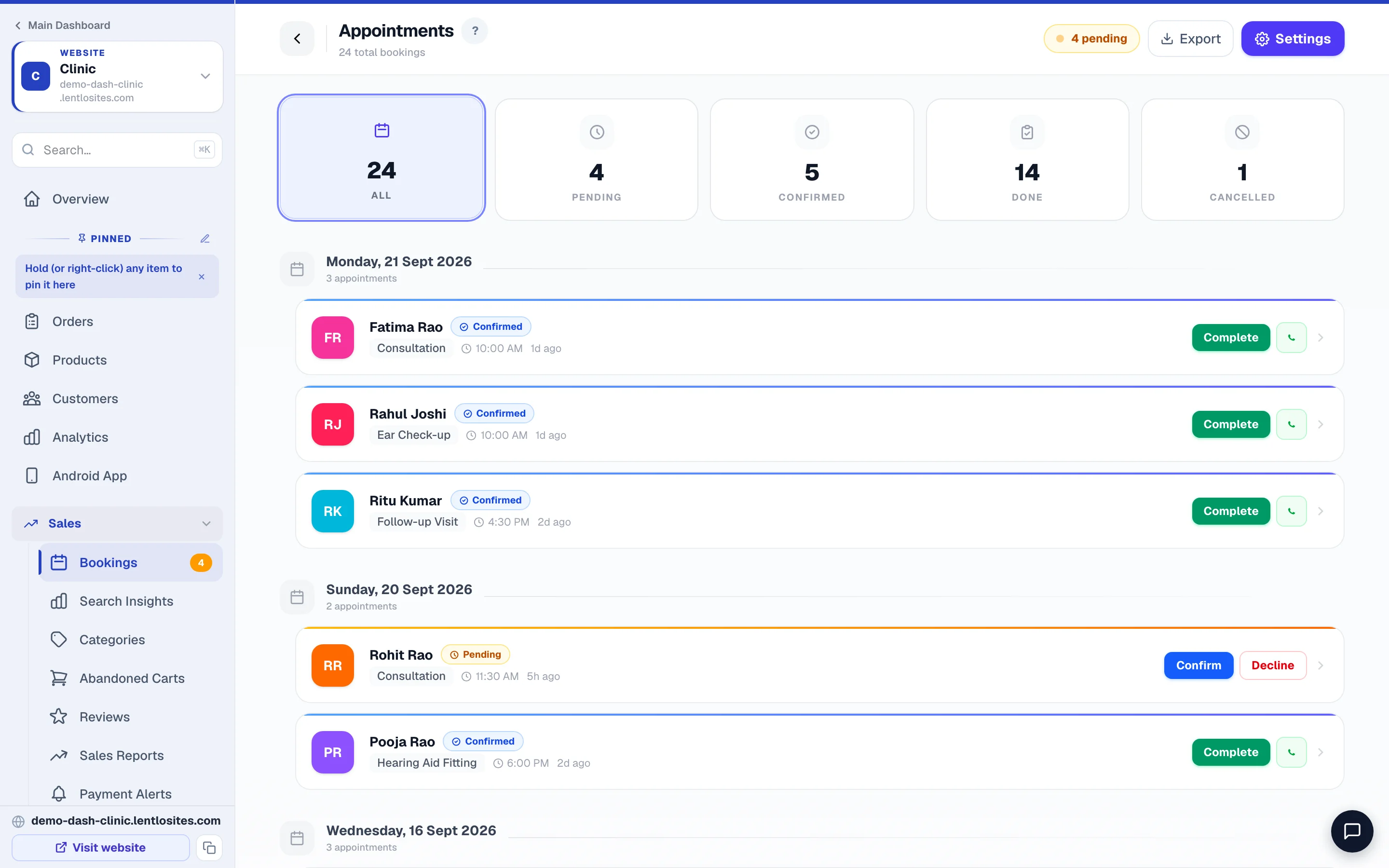
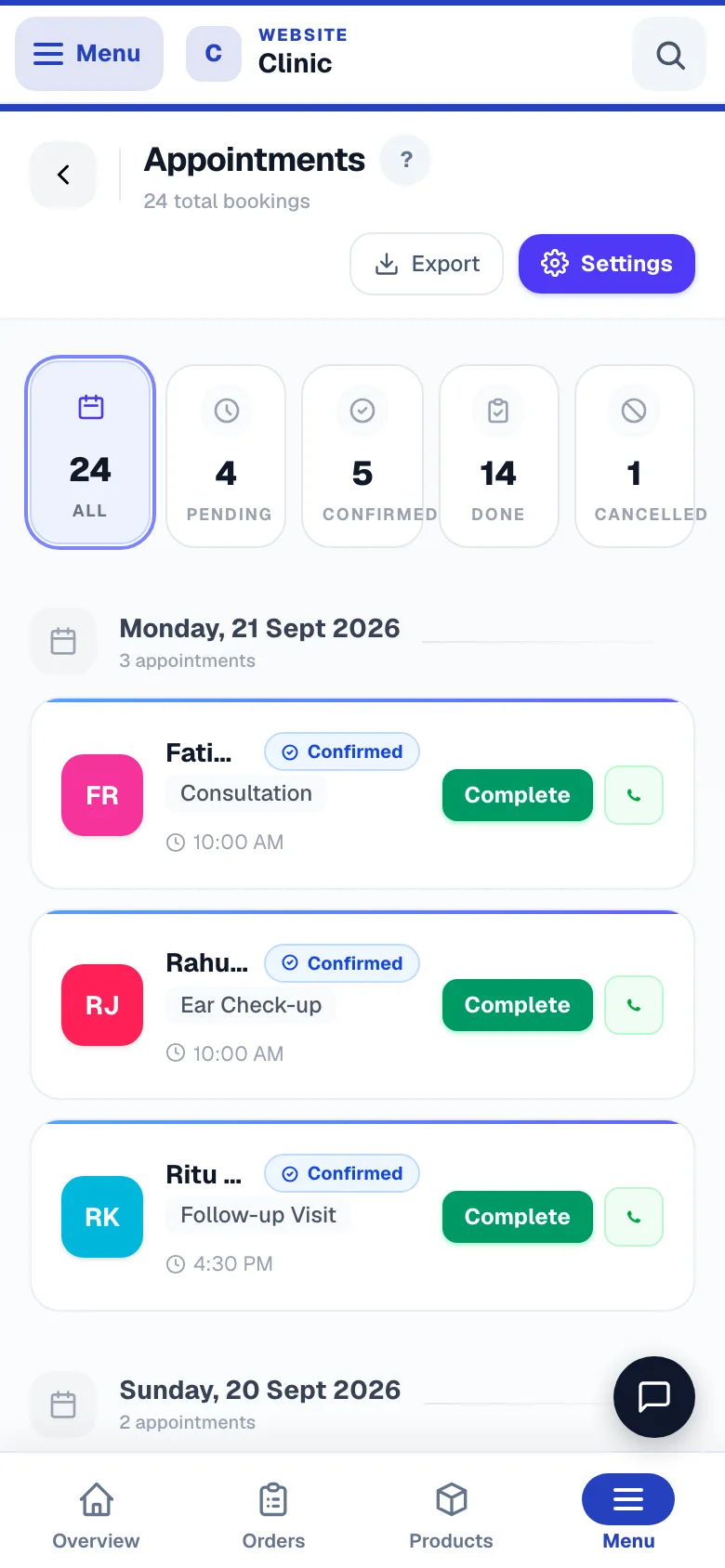
Open Bookings in your website's sidebar (under Sales). The list is grouped by day (Today, Tomorrow, …); the filters All, Pending, Confirmed, Done and Cancelled show the rest, and Export downloads the list.
Confirm or decline
Tap Confirm on a pending booking (or open it and tap Confirm Booking) — the customer gets an app notification, and a WhatsApp from your own number when its Booking confirmed message is switched on. Decline cancels the request (no reason is asked) and the customer is told.
Mark as completed or cancelled
After the appointment, tap Complete (or Mark as Completed inside the booking). Customer coming at another time? Use Reschedule this booking. Didn’t turn up after paying an advance? Use No-show — keep advance (or Record refund if you return the money). The Bookings page has no separate Cancel button for a confirmed booking — cancel one from Appointments in the CRM (Cancel appointment). On most appointment businesses the GST bill charges CGST/SGST: a salon, gym, clinic, hotel or restaurant serves the customer at your premises, so your own state decides the tax even when the customer's GSTIN is from another state. For other kinds of booked service — coaching, a photographer, a consultant — a customer who gives you a GSTIN from another state is billed IGST instead. Either way the amount is the same; only the tax split changes, and their GSTIN still prints on the bill.
Using the CRM? Turn on Appointments there (Customize menu & features) to see these bookings day by day next to your customers, and confirm, finish, move or cancel them from the CRM — see Appointments in the CRM.
Configuring available slots
Open Bookings → Settings (the button at the top of the Bookings page). Set your Weekly Schedule (e.g. Mon–Sat 10am–7pm with a lunch Break, Sun closed), then under Slot Configuration: Slot Duration (15 minutes to 2 hours; 30 minutes unless you change it), Max per Slot (1 unless you change it), Advance Days — how far ahead people can book (7, 14, 30, 60 or 90 days; 30 to begin with) — and Min Advance. Add your services, and Blocked Dates for holidays; press Save Settings. Customers can only pick slots within those windows. Times that have already passed today, and times closer than your minimum notice (2 hours unless you change it), are greyed out — always judged on India time. A booking for a day or a time that has already passed is refused with a message asking the customer to pick another slot.
Slot duration matters. If a haircut takes 45 min, set that — the system caps how many customers can book the same slot (based on “max bookings per slot”) so you’re not over-committed. If you don’t need slot precision, leave services empty and let customers describe what they need in the notes field.
Services with prices — and advance payments
In the same Settings page, the Services & prices list is what customers pick from while booking — each service shows its price right in the dropdown ("Haircut — ₹250"), and the booking you receive records which priced service was chosen. Use the Show toggle to hide a service without deleting it; removing a service never changes past bookings (they keep the price from when they were booked).
Below it, Advance payment lets you ask for a part payment — or the whole price — while booking, the proven no-show killer. The quickest way is the How customers pay row at the top of the card: Pay at the visit, Full price online, or at the visit, Full price online to confirm, or Part now, the rest at the visit. One tap sets the controls under it, and customers see the exact price they pay (when it is the whole price, every screen calls it the fee, not an advance). Underneath, three settings: Off (bookings arrive as requests, like today), Optional (customers can pay to confirm instantly), or Required (the slot holds ~15 minutes while they pay). Pick a fixed ₹ or a % of the service price — the live example line shows exactly what a customer would be asked. You'll need a payment gateway or UPI ID saved in Settings → Payments first.
Meera Beauty Lounge — default advance 20%, bridal package set to 50%
- Haircut ₹250 — default rule, 20% online to confirm
- ₹50
- Bridal package ₹5,000 — its own Advance for this service, 50%
- ₹2,500
- Left to pay at the bridal visit (record it on the booking)
- ₹2,500
Choosing how customers pay — and per-service advances
In the Advance payment card you control the payment methods for bookings separately from your store: tick Payment gateway (auto-confirms, zero work) and/or Your UPI QR (you confirm after checking your UPI app), and when both are on, pick which one customers see first. A method you untick isn't just hidden — the server refuses it too. Each service row also gets its own Advance for this service control: keep your default rule, or set a custom ₹/% for that one service (a ₹5,000 bridal package can ask 50% while a ₹250 haircut asks nothing special).
Your Bookings page shows a green money strip once advances start flowing — collected in the last 30 days, what's awaiting, how many UPI claims need your confirm — with a one-tap link to Payments received, your date-wise cash-drawer ledger. Lost-link customer? Open the booking and tap Copy payment link or Send on WhatsApp.
What the customer sees
Every booking — advance or not — gets a tracking link the customer can reopen anytime (the success screen shows it, and notifications open it). It shows a status timeline (Booked → Advance → Confirmed → Your visit), the full receipt (what they paid, when, by which method, with a booking reference), the price breakup with what's left to pay at the appointment, Add to Google Calendar / save-reminder buttons, and one-tap Call / WhatsApp / Directions to reach you. Reminder notifications also open this page.
How the customer pays — and how you confirm
Right after booking, the customer lands on a secure payment page. If you have a payment gateway connected, they pay by card/UPI/netbanking and the booking confirms automatically — you'll see a green advance paid chip on it. If they scan your UPI QR instead, they upload their payment screenshot (same as your store checkout — no reference numbers to type) and the booking shows an amber UPI — confirm? chip with the screenshot attached: check your UPI app, then tap Money received (or Not received if nothing arrived). With AI screenshot check turned on (Settings → Payments), the screenshot is also read automatically — amount, your UPI ID, reused screenshots — and the verdict shows right on the booking; it advises you, but only YOUR tap records the money. On a very busy day the automatic check has a daily limit per website: past it a booking simply carries no verdict, and your own check decides as usual. Every advance you collect also appears in Orders → Payments received, on the day the money came in.
Customer paid you directly? If someone pays the advance in cash or straight to your UPI (outside the link), open the booking and use Mark received — it records the money and confirms the slot the same way. At the appointment, record the remaining balance on the booking too (cash/UPI/bank) — it lands in Payments received with everything else.
A payment that arrives late is never lost. If a customer's online payment lands after the booking was cancelled, completed or already refunded — or they pay twice — the booking keeps its status, the money is recorded, and a note on the booking tells you exactly what happened (for example “booking is cancelled — refund the customer”). Notes on a booking are kept when you confirm, complete or cancel it.
GST note for registered businesses: under GST law, money received before a service can itself create a tax point for services. Advances you collect here show date-wise in Payments received — share that with your CA at filing time. Separate receipt-voucher documents for advances are not issued here.
Regulars, reminders and rescheduling
- Ask only first-time customers — tick this in the Advance payment card and your regulars (anyone with a confirmed visit or a paid advance before) book without being asked for an advance. New faces still pay.
- Automatic reminders & updates — confirmed bookings get an appointment reminder about a day before and again ~3 hours before the slot; declining or cancelling a booking notifies the customer too, so nobody travels to a cancelled slot (see Notifications to edit wording or turn any of it off).
- Reschedule — open the booking and tap Reschedule this booking: pick the new date/time and the customer is notified automatically; reminders reset to the new slot. If the customer didn't turn up, use No-show — keep advance; if you're returning the money, Record refund keeps your books straight.
Verified booking & recovering drop-offs
Your booking page walks customers through one question at a time — phone first, verified with an OTP (on by default in Bookings → Settings; you can turn it off). No fake numbers, and because we know who they are from the first step, you get a "Tried to book" strip on your Bookings page listing people who verified but didn't finish — with how far they got and one-tap WhatsApp / Call to win them back. Verified customers also see all their bookings under My account on your site.
Call it what your business calls it. In Bookings → Settings you can pick the word customers see — appointment, reservation, session, class, consultation, or your own word — and every customer screen uses it.
Letting customers cancel or move a booking themselves
Off by default — you stay in full control. In Bookings → Settings → Let customers change bookings you can allow online cancellation and choose how rescheduling works: they request, you approve (a purple card appears on the booking with one-tap Approve / Decline; their old slot stays booked until you approve) or instant (free slots only). You decide how close to the appointment changes are allowed (e.g. up to 12 hours before, counted on India time) — after that, customers see your phone/WhatsApp instead of change buttons. Every change notifies you, and if a customer cancels after paying an advance inside your free-cancellation window, the booking is flagged advance refund due so nothing slips.
GST invoices for bookings
Once invoicing is set up (see Invoices & GST), every booking can be billed: tap 🧾 Generate / view invoice on a completed (or advance-paid) booking and a GST-compliant invoice is created with the booked service's price — using the SAC code and GST rate you set per service in Bookings → Settings (services use SAC codes, not HSN). The advance already paid and any part-payments you recorded count toward its payment status, and the invoice appears on the customer's tracking page as a download. Prefer hands-off? Turn on Auto-generate when a booking is completed in the same settings.
If an invoiced booking is later cancelled, the paperwork follows on its own. Cancel it and the bill is reversed — inside the same month the invoice is simply cancelled, and once the month has closed a credit note is raised instead, so a month you have already filed is never rewritten. Use No-show — keep advance and the advance you keep stays on the bill as the cancellation charge (it is taxed, as the GST rules require) while the rest is credited back. Record the refund afterwards and the remainder is credited too — never twice.
More in For your kind of business
Did this answer your question?
It takes one tap and it genuinely changes what we write next.