
Connect your own .com domain
Point yourbrand.com at your website — one nameserver change (recommended) or 2 DNS records, connected automatically, usually within minutes, with free https. Free on every plan.
10 min readUpdated 23 Oct 2026
In this guide
yourbrand.com instead of the free yourshop.lentlosites.com. Open Domain in your website's menu, type the domain and tap Add Domain. The recommended way is then one change where you bought the domain — its 4 nameservers, within 2 days — after which we manage the DNS for you; adding 2 records yourself stays available as the other option. Either way we connect it automatically, usually within minutes of your change, with free https (the browser padlock). Custom domains are free on every plan — you only pay your domain company.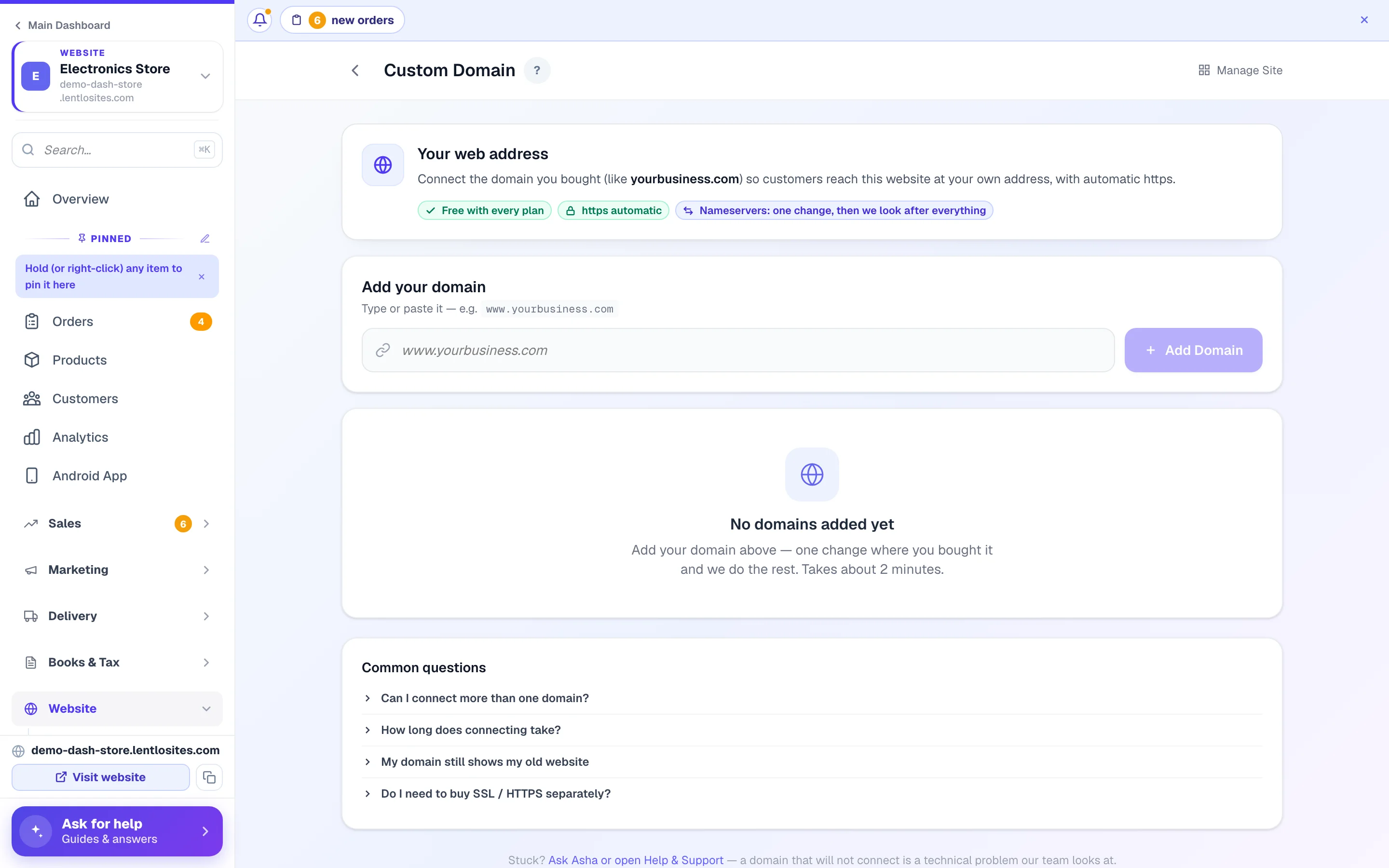
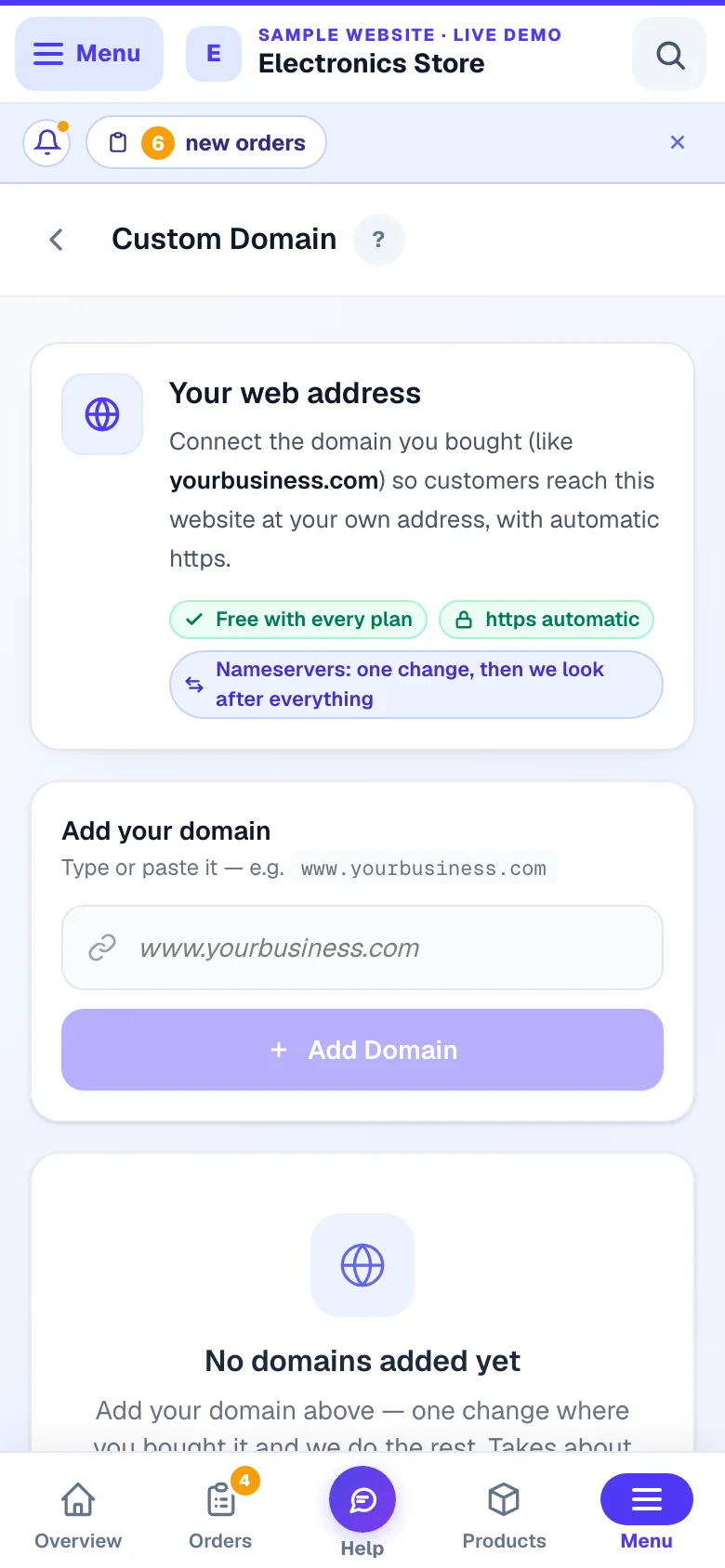
- 1Start hereType the domain exactly as you bought it.
What you need
Connecting a domain takes about 2 minutes of work on your side — the rest happens on its own.
- A domain you own — bought from GoDaddy, Hostinger, Namecheap, BigRock, or anywhere else.
- Login access to that company's website, to change your domain's DNS settings.
- Don't have a domain yet? Buy one first — a
.comor.intypically costs under ₹1,000 a year. Customers trust those endings most.
Add your domain in the dashboard
First, tell us which domain is yours — this creates the card that guides the rest of the setup.
Open the Custom Domain page
Three doors, all the same page:
- Your site's Manage page → Connect domain, right under your website address (it reads “Want your own .com? Connect domain”).
- Add Domain in the main menu — it asks “Which website do you want to add a domain to?” and lists your websites with their current address; tap one. With only one website it opens that website's page straight away.
- Domain in the website's own menu, under Website.
If you typed your domain while creating the website, the Manage page also shows a calm card — “Connect yourbrand.com to this website” — with a Connect domain button. It stays until a domain is actually connected; typing it at creation reserves nothing and costs nothing.
Type your domain and tap Add Domain
For example www.yourbusiness.com. Pasting a full link like https://www.yourbusiness.com/ is fine too — we clean it up. With or without www doesn't matter; we set up both forms for you and show them as one card. The page is titled Custom Domain. Already have a domain on this website? Your domains come first on the page; the form sits below them as Add another domain.
A domain that belongs to a well-known company or a government body (like instagram.com, gmail.com or a .gov.in address) can't be added — only a domain you bought for your business.
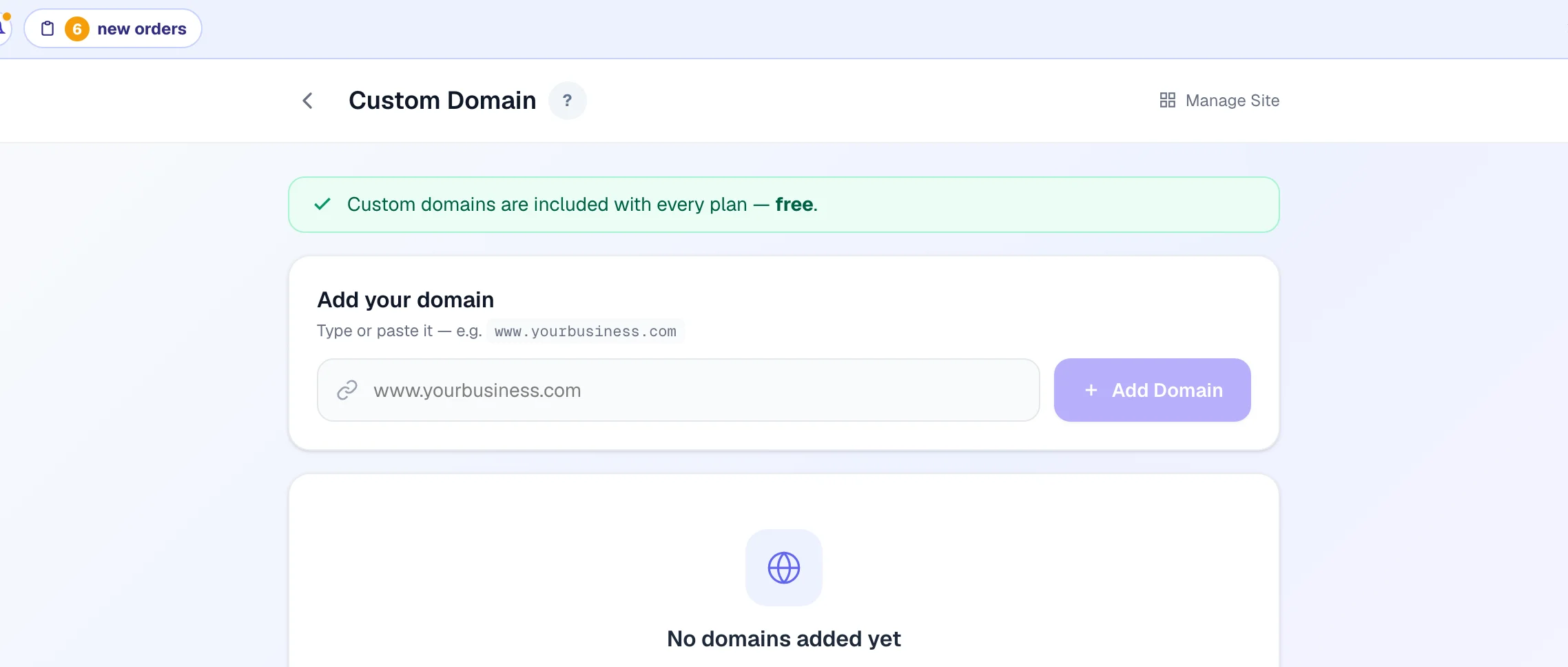
The recommended way: let LentloSites manage your domain's DNS (nameservers)
Every new domain uses ONE way: pointing the domain's nameservers at LentloSites (the names that tell the internet who answers for your domain). There is no choice to make first — the card opens straight on it and reads your records by itself. It asks for a single change where you bought the domain, and after that you never touch DNS records again: we host them on two independent DNS providers, carry your email records exactly as they are, move everything for you when servers move, watch the domain around the clock (both DNS providers every 10 minutes, the registry daily at first and then weekly), and your visitors are served from Cloudflare's edge with automatic https.
Already connected with records? The domain's card carries a RECORDS SETUP tag — or OLD ROAD when it still reaches your website the old way — and a panel titled Move yourbusiness.com to nameservers. It compares today with after, row by row: when our servers move (you edit the records yourself / your domain follows by itself), a record changed or deleted by mistake (the website stops opening until someone fixes it / we hold the records and check them every 10 minutes), and your email and other records (yours to look after at your domain company / copied across exactly, kept on two DNS providers); on an old-road domain it adds how fast pages open. Under it are the same four timed steps as the guided change. Tap Switch to nameservers to start them, or Keep my records setup to put the panel away for this visit — the 2-record setup keeps working exactly as before.
Asked to give your domain the direct road? Your website moved to new, faster servers. A domain connected with records you keep at your domain company still reaches it the old way, over a bridge we keep open for you — it works, but it is the long way round. When we ask you to make the change, the top of the Custom Domain page explains it: the two roads side by side, what changes for your visitors (in our tests from India on 15 October 2026 the time for a page to open fell by about 80%), what the direct road gives you, and where each of your domains stands — Old road, Change started or Direct road. Start the change opens that domain's card on the same 4 steps below; Show less folds the explanation to one line. Your website and email keep working the whole time.
Add the domain — the card reads its records by itself
How long it takes: we check your records (about 1 minute), we prepare your DNS (usually 8–12 minutes — you can leave), you change 4 names at your domain company (about 2 minutes), and your domain switches over — usually within about 15 minutes for .in / .co.in and within the hour for .com. The plan shows on the card with your current step highlighted once you tap Connect.
Open the domain's card. We read your domain's current records from its own servers — a few seconds — and the card answers at the top, for example “Everything on yourbusiness.com is ready to move”, with one short list: your website (opens your new website), your email and other settings (copied exactly). If an email setting has to change so your mail keeps working after the move (for example an SPF that names your old website server), the email line says so — tap What changes? to see it. Anything tied to your old DNS company that stops after the move (for example Namecheap's free email forwarding) gets its own line with what to do. The full list is folded under See all records — a catch-all under a sub-domain (a *.shop line, which sends every address under shop to one place) is read and copied too.
Your email can get better on the way. If your domain sends mail but is missing a setting that keeps it out of spam folders, we check it live and the email line lists each setting we can add — each with its own tick and the exact record: your email service added to a sender rule (SPF) that leaves it out (everything else in the rule stays exactly as it is), a report-only email policy (DMARC) that never blocks or reroutes a message, and a sender rule for your email service when there is none. That last one starts unticked: tick it only if that service is the only one that sends mail as your domain. Only what you leave ticked is added when you tap Connect, and only after we check again that it is still exactly what you saw. Anything that needs a person — two sender rules, a rule with parts we do not check automatically, a policy published above your domain — is listed as Not changed with the reason. We never replace or join sender rules, never change a DMARC you already have, never guess an email service we cannot name, and never push a sender rule past the 10-lookup limit receivers allow. While automatic email fixes are paused (we pause them while we improve the check), the move lists no email lines at all — your records move exactly as they are, and after the move the Email delivery box on the domain's card says what is missing.
You normally paste nothing. We recognise the email that domain companies set up by default and the common email services — Google Workspace, Zoho, Microsoft 365, Hostinger / Titan, GoDaddy email, BigRock's Mailhostbox, Namecheap and WordPress.com forwarding, Rediffmail, Proton, Fastmail, iCloud — and the mail server of your own hosting (cPanel), whose records all live inside your domain. A setting your email provider asks for but your domain does not have today is simply named on the card (there is nothing to carry over), never a reason to stop. Some domain hosts even let us read the exact list in one go.
Only when your email runs through a service we cannot fully see from outside (a provider we do not know, or a sending service such as Amazon SES whose signing keys have random names) does the card add one email note — and Connect still leads: we carry every record we found, and if something stops working after the switch (usually an email signing key) you add it in one tap on the DNS records panel. Want to be extra sure? Tap Add your DNS list now (optional), copy your records from your DNS company (the card shows the taps for GoDaddy, Namecheap, Hostinger, BigRock or Cloudflare), paste them and tap Check my list — any table shape works and an export file can be uploaded instead.
Domain was parked or for sale? The old company often left a “no email” mail record that points at localhost. That is not email, so it never asks you for an email list. We publish it in the standard form, 0 ., which means the same thing, and the review tells you so. When you start using email, pick your email service under + Add a record; it replaces that line.
Two cases still need a step from you. If your DNS company was too slow to answer for a name that matters, we ask it again by ourselves; if it is still silent, tap Read again after a minute. The same happens when the company where you bought the domain does not tell us clearly whether DNSSEC is switched off — a domain is never moved while that is unknown, because a leftover DNSSEC key would stop the website and email for many visitors. And if your DNS is at Cloudflare with the orange cloud on for a sub-domain, Cloudflare hides that sub-domain's real address — export your records from Cloudflare (DNS → Records → Import and Export → Export) and upload the file on the card.
Tap Connect
Tap Connect yourbusiness.com. There is no box to tick: the line under the button says what it means — we run the domain's DNS, and the domain stays yours where you bought it. Nothing changes for your visitors until you switch the nameservers, and you can undo it any time. We copy your records to two independent DNS providers. The first time usually takes 8–12 minutes — the second provider loads your domain onto its servers around the world — and the card shows the time left as a range that counts down (“about 5–9 min left”, then “almost ready”). You don't need to wait on the page: the card already shows where to change the nameservers, so sign in at your domain company meanwhile. The 4 names unlock with a green tick the moment your DNS is ready (entering them earlier would send some visitors to an unfinished copy), and the dashboard app sends you a notification. If one of our providers refuses the name for good (a protected brand name, or a copy in another account there), the card says so plainly and offers the 2-record setup instead — nothing changes for your domain.
Change the nameservers where you bought the domain
Once the green tick appears, the card shows the 4 names (tap to copy) and the exact taps for your company — GoDaddy: DNS → Nameservers → Change → “I'll use my own nameservers” (it shows 2 boxes: tap Add nameserver twice for the other two). Hostinger: Domains → DNS / Nameservers → Change nameservers. BigRock: Manage Orders → Name Servers. Namecheap: Domain List → Manage → Nameservers → Custom DNS. Enter all four exactly. Someone else manages your domain? Tap Send the steps on WhatsApp.
Change them within 2 days — the card shows the date. If the registry still doesn't name our servers by then, the setup is removed and the domain is taken off your website; the Custom Domain page says so, and you add it again whenever you're ready. Changed them after it was removed? Add the domain again straight away — until you do, it opens nothing and carries no email.
Then tap Check now, or simply wait — we check the registry (the central list of all domains, which your domain company updates) every 2 minutes while the page is open, every minute in the background for the first two days, and every hour after that — and the moment it names our servers, your website is connected on the spot. A .in or .co.in domain shows up within about 15 minutes; a .com can take up to 2 days for everyone in the world to see, though the site usually switches within the hour. Leave your old DNS records at your previous host untouched for 7 days.
Your DNS is at Cloudflare today? The change is still made where you bought the domain (GoDaddy, Namecheap, Hostinger, BigRock…) — only a domain bought from Cloudflare itself cannot change its nameservers; use the 2-record setup for that one. Records that pointed at Cloudflare's proxy are read from an export, never guessed.
Connected
The card reads Connected — DNS managed by LentloSites with three health tiles (both DNS providers answering, the registry pointing at our names, https + edge delivery) and your 4 nameservers. Two boxes explain what is managed for you (the website rows, the nameservers, the certificate, every future server move) and what stays yours (email, verification codes, sub-domains).
Adding records is one tap. Under Your DNS records tap + Add a record and pick a set: Google Workspace email, Zoho Mail, Microsoft 365 or Titan / Hostinger email (each adds the provider's mail servers in one go, with a box for the DKIM key or verification code and a hint of where to find it), Verification code (Google, Meta, Zoho…), Sub-domain (blog, app — an address or a hostname), or Custom record for anything else. The card lists exactly what it will add or update before you confirm; switching email providers replaces the old mail servers so two sets never fight. An email set never adds the sender rule (SPF) or the email policy (DMARC) — the card says so under the list: once the mail servers are in, the Email delivery box checks your domain live and offers exactly what is safe to add, and it never replaces a sender rule you already have. Your records are grouped as Email, Verification codes, Sub-domains and Other, each with copy, edit and delete. A change to your domain's own TXT lines that would leave it with two sender rules (SPF) is refused — mail providers reject both — so keep one line and put all its include: parts into it.
Email delivery. When your domain uses email, an Email delivery box sits under the health tiles and names your email service. We check your domain live — from our own name servers and two public ones — and each line says where you stand in plain words: the sender rule (SPF), the email policy (DMARC) and each signing key (DKIM). A line is in order; can be fixed, showing exactly what changes (the record now and after); could not be read just now (tap Check again); needs a person, with the reason; or run by another service. Each fix has its own button — Add the rule, Update the rule or Add the policy — and a brand-new sender rule first says that it suits only a domain whose mail all goes through that one service. Before saving we read everything again and save nothing if anything changed since you looked; from your shop's own address we first ask for the code we send you. Changes we made lists each fix with its date and an Undo, which puts back what was there before as long as nobody changed it since — Undo works even while automatic email fixes are paused. Once a fix is live we check it again, and if mail could be affected the box says so first; a fix whose record someone changed afterwards shows Changed since and has no Undo. A signing key is only reported, never made by us: the line says whether it is published and answers correctly (only a message you send proves your email service signs with it); where none is set up it carries the exact taps at your email service (for example Zoho Mail: Admin Console → Domains → your domain → Email Configuration → DKIM) — for Hostinger mail, the three lines to copy into + Add a record → Custom record. If your mail came through your domain company's free forwarding (Namecheap, WordPress.com), the box says first that it may have stopped after the move, so you can test it and switch to a mail service. While automatic email fixes are paused, the box only says what is missing — no button and no suggested record — and you add a setting yourself with + Add a record.
A sub-domain for another of your websites connects instantly. When we manage brand.com's DNS, adding shop.brand.com on any of your websites (its Custom Domain page → Add Domain) needs no record from you: we write the website record into brand.com's DNS ourselves, the card says Instant connect — nothing to add anywhere, and it goes live usually within 2–3 minutes once brand.com's nameserver change is complete. For the first minute its check reads Adding to your DNS while both of our DNS providers publish it; nothing is needed from you, and we only test the address once both are ready, so it opens on the first try. The same row can be started from brand.com's card: + Add a record → Sub-domain → One of my websites. The record then shows under Managed for you and cannot be edited by mistake; removing the domain from that website removes it. A name you already point elsewhere in your own records (say shop → Shopify) is never overridden — the page asks you to delete that record first.
Prefer to manage DNS yourself? opens the way back: download your records, put your previous nameservers back where you bought the domain (they stay listed on the card), add the 2 website records there, and tap Stop managing this domain's DNS — we keep checking and connect automatically.
Later changes are watched for you: if the nameservers ever stop pointing at us, the card shows a red notice and gives you 3 days to put the 4 names back before we stop serving the website records (your email records stay); if DNSSEC is switched on where you bought the domain, the card explains the order to switch it off (remove the DS record first, wait an hour, then turn signing off). Stop managing hands the domain back — download your records first; the 2-record setup is always available again on the card.
Can't change the nameservers? (A corporate IT team or an agency controls your DNS, or the domain was bought from Cloudflare itself.) Tap I can't change the nameservers under the card. Before showing anything, the card lists in a Before you choose box what the 2-record way leaves with you: if our server address ever changes, your website stops opening until you edit the A record; a record changed or deleted by mistake (by you, a web designer, or your domain company during a renewal or transfer) takes the website offline until someone puts it back; and your email, verification codes and sub-domains stay with you at your DNS company — we cannot add, check or repair them. Stay with the recommended way is the main button there; I understand — show me the 2 records continues. Only a domain we cannot host at all goes to the 2 records directly. On the 2-record setup we still read your email settings once you open the card: if one is missing, an Email delivery box lists the exact lines to add at your DNS company (tap a value to copy it) and the signing-key steps for your email service — or one tap on Let us manage this domain's DNS and we add all of it for you. If your mail comes through your domain company's free forwarding (Namecheap, WordPress.com), the box says so instead: that forwarding works only on their DNS, so set up a mailbox (Zoho Mail's free plan works) or a forwarding service that works with any DNS before you move.
Started the recommended way but added the records too? It happens. The card then says so at the top — “You started adding records” before you connect (those records are not needed), “opens today through records you added” (your website works, but on the do-it-yourself way until you finish), or “A record you added sits beside the old ones” (visitors land on one or the other at random). Either way the fix is the same: change the nameservers to the 4 names. The records you added can stay — after the switch they are no longer used. If you added our 4 nameservers next to your old ones, the card lists the old names to remove: while they stay, some visitors and emails still reach your old DNS at random.
Where the DNS settings are at popular domain companies
Every domain company hides the same screen under a slightly different name. Log in, open your domain, then follow the row for your company. Menus change now and then — if a name below is not exactly what you see, look for anything called DNS, Records or Zone.
| Domain company | Where to click | What the add-record form calls the fields |
|---|---|---|
| Hostinger | hPanel → Domains → your domain → DNS / Nameservers → Manage DNS records | Type · Name · Points to · TTL. Use @ for the main domain and www for the www record. |
| GoDaddy | My Products → next to the domain tap DNS (or Domain Settings → Manage DNS) | Type · Name · Value · TTL. If an old record with the same Name exists, edit it instead of adding a second one. |
| Namecheap | Domain List → Manage → Advanced DNS → Host Records → Add New Record | Type · Host · Value · TTL. Namecheap writes @ for the main domain. Remove any "URL Redirect" or parking record first. |
| BigRock | Manage Orders → List/Search Orders → your domain → DNS Management → Manage DNS → A / CNAME Records | Host Name · Destination · TTL. Leave Host Name empty for the main domain, type www for the www record. |
| Cloudflare | Websites → your domain → DNS → Records → Add record | Type · Name · Content · Proxy status. Keep SSL/TLS on Full (not Full (strict)); if Bot Fight Mode is on, turn it off while the check runs. |
| HostGator | Customer Portal → Domains → your domain → Manage → DNS Records (or cPanel → Zone Editor) | Name · Type · Record/Address. @ = the main domain. |
| Google Domains (now Squarespace) | Squarespace Domains → your domain → DNS → DNS Settings → Custom Records | Host · Type · Data. @ = the main domain. |
Whatever the company calls the columns, the two records are the same: copy each row from your card. Changes usually show within a few minutes and can take up to an hour. Your Domains screen re-checks on its own.
The other option: add the 2 records yourself — BOTH are needed
For domains whose nameservers cannot change: tap I can't change the nameservers under the domain's card, read the Before you choose box, then I understand — show me the 2 records (the card keeps a short reminder of those jobs above the records). DNS records are the lines that tell the internet where a name goes. Your card shows the exact 2 lines — an A record for yourbusiness.com (without www) and a CNAME record for www.yourbusiness.com pointing at our connection name. Remember that if our server address ever changes you must update the A line yourself, and a typo takes the website down until you notice.
Open DNS settings where your domain's DNS is hosted
Usually that is the company you bought the domain from (GoDaddy, Hostinger, Namecheap, BigRock…) — unless you moved your DNS to another service such as Cloudflare or a web host; then add the lines there. The card names the company it detected. Look for "DNS settings", "Manage DNS" or "DNS records"; the exact menu at popular companies is in the table below.
Add both records exactly as shown
| Type | Name | Points to |
|---|---|---|
| A | @ | the server address your card shows |
| CNAME | www | connect.domainrelay.net |
Tap a value on your card to copy it. The @ line is an address (A record) because DNS does not allow an alias at the bare domain; the www line is an alias (CNAME) to our connection name, which lets us move servers without you editing anything for www. If your DNS is hosted at Cloudflare, the card shows @ as a CNAME too (Cloudflare flattens it). After you add the lines the card reads Almost there for a few minutes while the secure certificate is issued, then Connected.
A sub-domain (like shop.yourbusiness.com) is one CNAME line to the connection name connect.domainrelay.net. Older setups pointed www at an address too; they keep working, and the card offers the nameserver upgrade. Newer setups point www (or a sub-domain) to the connection name and keep @ as an A record. Always follow exactly what your own card shows — every row has its own copy button. Both setups work; the CNAME one keeps working even if the server address ever changes. If a note at the top of the Domains page asks you to update a record on a domain that is already connected, nothing is broken: your site stays live, there is no deadline, and the note simply goes away once the record is changed.
Adding only one record is the #1 mistake. If you add just the @ record, visitors who type your domain get forwarded to www — which still points at your old website or an error page. Your card shows a live status line for each form, so you can see exactly which one is still missing.
Delete old A records first. If your domain already points somewhere else (an old website), remove those records — keep only the new ones. Leftover extras show as "Extra records found" on your card and cause certificate errors and a site that works only sometimes.
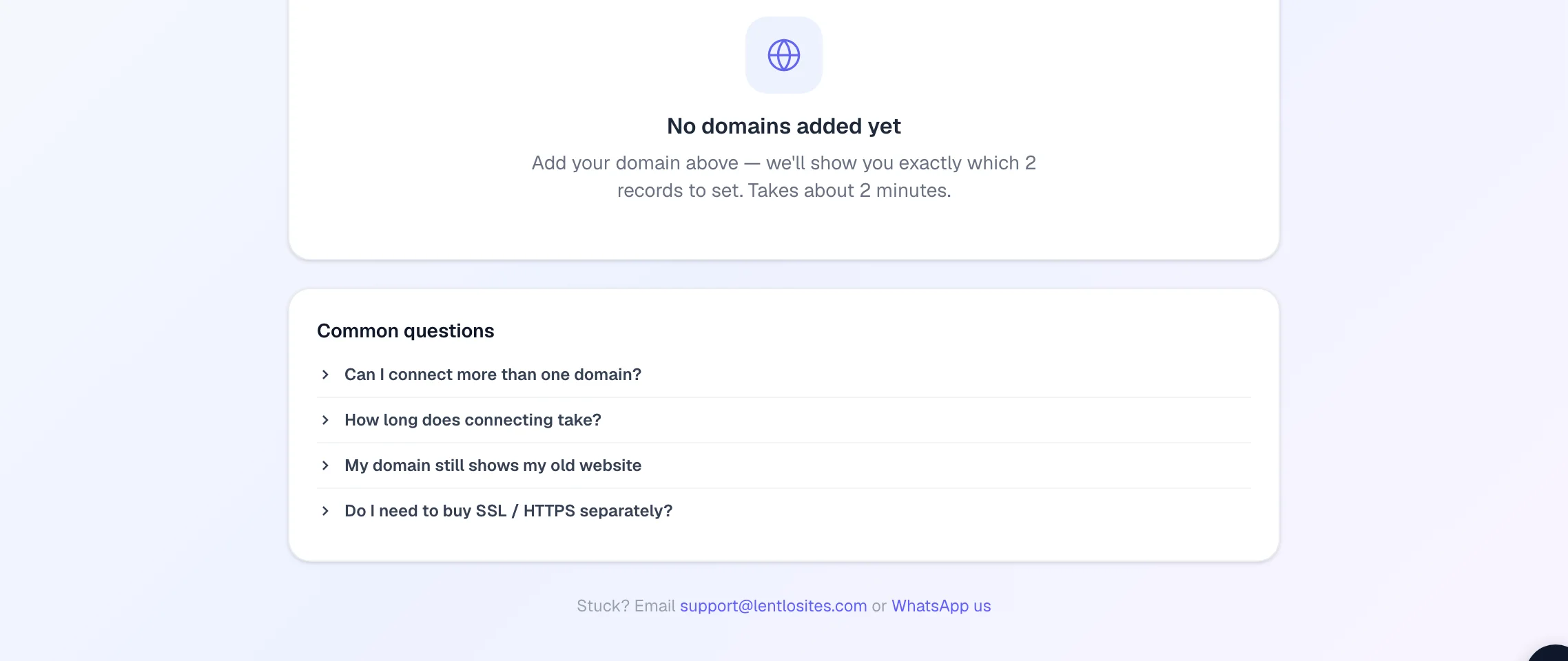
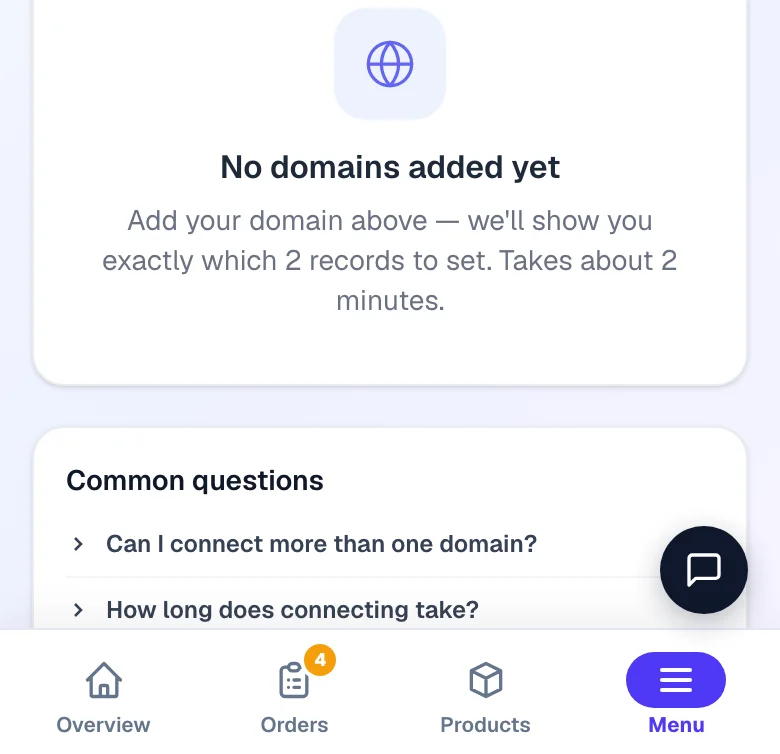
We connect it automatically
Once the records are saved, you're done — there's nothing to submit. We keep checking your domain — about every half-minute while this page is open, every 10 minutes in the background on the day you add it (even after you close the page), and every hour after that — and connect it the moment the records are live. New records usually work within a few minutes; occasionally up to 1 hour.
- Record found ✓ — that form is ready.
- Waiting for record — not visible yet. Re-check what you saved, or just wait a few minutes.
- Extra records found — old records are still there; delete them.
The moment it connects we show you a short “You’re on your own domain” page with the new address, ready to copy and share. Impatient? Tap Check now on the card to check instantly. The automatic checks continue for 3 weeks after you add a domain. If the records still aren't set after 3 weeks, background checking stops and the card shows a notice — plus a reminder appears on your dashboard, so a domain never sits half-connected without you knowing. Fix the records and tap Check now: that restarts automatic checking for another 3 weeks. Not using the domain anymore? Remove it with the bin icon on the card.
What your domain card says — every status and what to do
Each domain is one card on the Custom Domain page. A domain that is not connected yet shows one line under its name: where it stands, what happens next and how long it takes. A connected one shows tags beside its name.
| The card says | What it means | What you do |
|---|---|---|
| Check what moves, then tap Connect | The domain is added; we have read its records for the nameserver way. | Read the short list and tap Connect yourbusiness.com. |
| Setting up your DNS | We are copying your records to our two DNS providers (usually 8–12 minutes; the card counts down). | Nothing — you can sign in at your domain company meanwhile. |
| Your turn: change the nameservers | Your DNS is ready; the registry still names your old nameservers. | Replace them with the 4 names on the card, by the date shown. |
| Some nameservers need fixing | Our names are listed next to old ones, or only some of them are there. | Keep only our 4 names and save. |
| The registry is updating | Your change was saved and the registry is publishing it. | Nothing — it turns green by itself. |
| Finishing the secure setup | The registry names our servers; the https certificate is being issued (usually a few minutes). | Nothing. |
| Waiting for your 2 records | The 2-record way: the records are not visible yet. | Add both lines exactly as the card shows them; we keep checking. |
| Adding it to your DNS | A sub-domain of a domain we already manage is being written into its DNS (usually 2–3 minutes). | Nothing. |
| Never connected | Three weeks passed without the records showing; automatic checking has stopped. | Fix the records and tap Check now, or remove the domain. |
| Held by another account | Another account here already runs this domain. | See “This domain is connected to a different account” below. |
| We can't host this domain's DNS | One of our DNS providers refused the name. | Use the 2-record setup the card offers. |
| Setup waits on one record / One record needs you | A record you added holds a character DNS cannot save. | Tap Fix it for me or Delete this record on the card. |
| CONNECTED | Your website opens on this domain. | Nothing — share it. |
| MAIN | With two or more connected domains: the one Google, share links and QR codes use. | Nothing. |
| DNS MANAGED / NAMESERVER SETUP | The nameserver way is finished / started but the registry does not name our servers yet. | Nothing / change the nameservers. |
| RECORDS SETUP / UPDATED ✓ / OLD ROAD | Connected with records you keep at your domain company — working; OLD ROAD means it still reaches your website the long way round. | Optional: Switch to nameservers. |
| not working / www not working / DNS host failing | A connected domain (or one form of it) stopped pointing here, or the company hosting its DNS is not answering reliably. | Read the note on the card — it names the record or the fix. |
A domain the 2-day nameserver cleanup took off your website shows at the top of the page as “yourbusiness.com was removed” for 30 days, with the date — add it again whenever you are ready and change the nameservers straight after.
Free SSL — automatic
SSL is the security certificate that puts the padlock in the browser and makes your site https://. You don't buy or install anything — it's issued free and automatically, usually within a few minutes of your domain connecting. If the browser says "Not secure" right after connecting, wait 5 minutes and refresh.
Both forms of your domain open your website
After connecting, yourbusiness.com and www.yourbusiness.com both open your website — this works the same for .com, .in, .co.in, .info and every other ending, including two-part endings such as yourbusiness.in.net or yourbusiness.uk.com (the two records are still named @ and www).
- The www form is your website's main address — for
.co.inand other two-part endings too — and the short form forwards to it. That's what search engines index and what your share links, QR codes and catalogs use. (If your Android app was first made before the www form was connected, the short form keeps opening directly so the app keeps working full-screen.) - Your old free address (
yourshop.lentlosites.com) starts forwarding to your new domain within a few minutes — links you already shared on WhatsApp or Instagram keep working. - Your published pages update on their own so sharing and search results use the new address.
Using more than one domain
You can connect several domains to the same website — for example yourbrand.com and yourbrand.co.in. Every connected domain opens the same website: same pages, same products, same orders.
With two or more domains the Custom Domain page lists them as Your domains, with a count of which need you, which are setting up and which are connected. Each domain is one row with a one-line status and the time the next step takes (for example Your turn: change the nameservers · about 2 minutes at Namecheap). Only one opens at a time — the one that needs you first opens by itself; tap any other name to open it. Nothing you typed is lost when you switch between them.
- One of them is your main domain (marked MAIN on the Custom Domain page when you have two or more) — Google listings, share links and QR codes use it. It's picked automatically.
- Extra domains never hurt your Google ranking — every page tells Google your main address, so duplicate domains are never counted against you.
- Good reasons for extra domains: protecting your brand name (own both
.comand.in), an old domain customers still remember after a rebrand, or a short address that's easy to say out loud. - Want a specific domain as the main one? Keep only that domain connected — remove the others with the bin icon, and Google plus your share links switch over automatically.
Using Cloudflare?
Cloudflare is a DNS service some owners use in front of their domain. It works fine with LentloSites — three things to know:
- In Cloudflare → DNS, add exactly the rows your card shows. On Cloudflare the card may show a CNAME for
@as well as forwww— Cloudflare accepts a CNAME on@and flattens it automatically, so your DNS then holds no server address at all. If your card shows A records instead, point them to the server address the card shows. The orange cloud (proxy) can stay ON. - Set SSL/TLS mode to "Full" — not "Full (strict)". Your own certificate for the domain is issued a few minutes after it connects, and until it arrives your domain is served on a temporary one. "Full" is happy with that and never breaks; "Full (strict)" refuses it, so visitors would see an error during those first minutes — and again for a few hours if an old IPv6 (AAAA) record delays the certificate. "Full" is the setting we support; leave it there.
- We check right through Cloudflare's proxy and connect automatically. If Cloudflare is still sending visitors to your old website, your card says so and names the exact records to change. If you use Cloudflare's Bot Fight Mode, it can block our check — turn it off (or use DNS-only / grey cloud) and check again.
Common mistakes
- "My old website still shows up" — usually only one of the 2 records was added, or old records weren't deleted. Check the status lines on your card; they name the exact form that's wrong. If both records are correct and your card says CONNECTED, it's just memory: phones and networks remember your domain's old address for a few hours after a switch. It fixes itself — try mobile data instead of your usual Wi-Fi to see the new site sooner.
- "Nothing happens after 1 hour" — open your DNS settings again and compare each record letter-by-letter with your card. A common slip: the record was added to a different domain you own.
- URL forwarding at the registrar — if you set up "domain forwarding" or "redirect" at GoDaddy etc., remove it. Only the 2 records are needed; we handle all forwarding.
- "This domain is already connected to your website …" — the domain is on another of your sites. Remove it there first, then add it here.
- "My domain worked before, but now shows an error or ‘You're offline’" — the DNS records at your domain company were changed or removed (it happens when editing, transferring or renewing a domain). We watch every connected domain: within about half an hour we stop sending visitors from your free
lentlosites.comaddress to the broken domain — so your site stays reachable there — and show a note on your dashboard. Re-add the 2 records from your card and everything reconnects on its own.
Not sure which screen you are on? A 2-minute decision guide
Every domain company names things differently, but the same five questions decide what to do. Go down the list and stop at the first one that matches.
- Is it a domain (yourbrand.com) or a subdomain (shop.yourbrand.com)? A domain needs the 2 records on your card — Name
@and Namewww. A subdomain needs ONE record, named after the subdomain part (shop), added inside the DNS panel of the main domain. There is no www pair for a subdomain. - Are the nameservers somewhere else? In your domain company's panel look for “Nameservers”. If they carry the company's own name (GoDaddy, Hostinger's dns-parking, Namecheap's registrar-servers), edit the DNS right there. If they say cloudflare.com, wix.com, shopify.com or another company, the records live THERE — adding them at the registrar does nothing. Either add the records at that company (the simplest, safest route), or — only if nothing else uses that DNS — switch the nameservers back to your domain company's default and add them there. Switching nameservers moves the WHOLE zone: first copy every record you rely on (email MX and TXT, verification records, other subdomains) to the new place and switch DNSSEC off at the old one, or email and other services stop; the switch can take up to a day.
- Do old records already use these names? An existing A record for
@orwww, an AAAA record, a CNAME onwww, or a “forwarding / redirect / parking” setting pointing at an old website — delete or replace those. Two records for the same name fight each other and the old site keeps showing. Leave MX and TXT records (SPF, DKIM, DMARC) and anything named “mail” alone — those are your email. - Is Cloudflare's orange cloud on? Fine either way — see Using Cloudflare? above and set SSL/TLS to “Full”.
- Added everything and still nothing? Wait 10–30 minutes, then read your card: its status lines name the exact form (
@orwww) that is not pointing here yet. Most companies apply a change within minutes; a few take up to 24 hours. Never delete and re-add the records repeatedly — that restarts the wait.
Screen names that all mean the same place: “DNS Management”, “Manage DNS”, “DNS Zone”, “Zone Editor”, “DNS records”, “Advanced DNS” (Namecheap), “DNS / Nameservers” (Hostinger). The record TYPE is A for @ and CNAME for www, the NAME (some panels say “Host”) is @ or www, the VALUE (“Points to”, “Address”, “Target”) is the server address your card shows for @ and connect.domainrelay.net for www. Leave TTL as it is.
Stuck on a screen? Take a screenshot of the DNS page and send it to us from Help & Support (the link at the bottom of the Custom Domain page) — we tell you exactly which row to change. Never share your domain company's password or an OTP with anyone, including us.
Can't add your domain? What each message means
When Add Domain refuses, the box above the form says why. The usual ones:
| Message | Why | What to do |
|---|---|---|
| That doesn't look like a domain | A space, a missing ending (.com, .in) or an email address was typed. | Type just the domain, like www.yourbusiness.com. |
| This domain isn't registered yet | Nobody has bought it, or there is a typo. | Buy it first, then add it; bought a moment ago? Tap Try again in a few minutes. |
| Couldn't add that domain — “We could not read where this domain points” | Nothing answered for the domain. When it keeps happening, the company you bought it from has usually not set up its DNS yet. | Try again in a few minutes. Still there? Ask that company to set up the DNS for your domain, or tap Contact us under the message. |
| … belongs to a well-known company / … is a government domain | Names like instagram.com, gmail.com or a .gov.in address can't be connected here. | Connect a domain you bought for your business. |
| Already added here | The domain is already on this website. | Look for its card on the same page. |
| Already connected to another of your websites | It is on one of your other websites (the message names it). | Remove it there first, then add it here. |
| This domain is connected to a different account | Someone else's account here holds it. | See the answer in Quick questions below. |
| That name already points somewhere else in your DNS | A sub-domain of a domain we manage already has its own record (for example shop → Shopify). | Delete that record on the main domain's card first. |
Your free lentlosites.com address is not accepted as a custom domain — it already works.
Quick questions
Does it cost anything? No — custom domains are included free on every plan. You only pay your domain company its yearly fee for the domain itself.
Can I use a subdomain like shop.mybrand.com? Yes. Add it the same way — your card shows a single record (Name = shop, added in the DNS panel of mybrand.com) instead of two. There is no www pair for a subdomain, and nested names keep every label (shop.food). Your free lentlosites.com address is not a custom domain — it already works, so the Domains page won't accept it there.
Does my domain's ending matter? No. Every ending can use either way — .com, .in, .co.in, .net, .org, .info, newer endings like .store or .shop, two-part endings like .in.net or .uk.com, and endings in Indian scripts. Only how long the switch-over takes depends on the ending: the card shows the time for yours (for example, .in usually within about 15 minutes; .com and .net usually within the hour, everyone within 2 days).
“Your previous DNS host still serves records we do not have”? For the first week after the switch we read your old DNS company now and then. A record listed there is one we did not see when we read your domain — usually something added at the old company after you changed the nameservers (a Google or Meta verification code, say), which nobody sees any more because your domain now answers from us. If you still need it, add it on the DNS records panel here; otherwise ignore it. Records we already showed you before Connect — the ones we carried, updated so mail keeps working, or left out with a note — and the domain company's own leftovers are never listed.
“One record could not be saved to your DNS”? A record you added holds a character our DNS service cannot save — usually because a whole line was pasted into the Value box (name → value, arrow included), or the value was copied from a web page or a document and brought a curly quote, a special space or an invisible character with it. Until it is put right, none of your later changes are published (and a new setup cannot finish), although everything published before keeps working. The card names the exact record and shows the record you meant: tap Fix it for me to save it correctly, or Delete this record to remove it. When you add a record, type the name in the Name box and paste only the value — the records editor now refuses such a value and says what to type instead. If you had asked us to stop managing the domain, the records are locked: write to support and we finish it with you.
Asked for an extra TXT record that “proves the domain is yours”? This appears only when the domain was connected to a different account before, or was already pointing here before you added it. Add the TXT record exactly as the card shows (Name _lentlo-verify, in the DNS panel of your main domain) — it only proves you control the domain, and we connect automatically once it is found. Nobody can take over a domain you removed just by adding it to their own account.
“This domain isn't registered yet”? We could not find the domain at the registry — nobody has bought it, or there is a typo. A domain must be bought before it can be connected: buy it from any domain company (GoDaddy, Namecheap, Hostinger, BigRock…; a .com or .in is usually ₹500–1,500 a year), then come back and add it — the page then shows the next step. Bought it a moment ago? The registry lists a new domain within a few minutes; tap Try again.
“We could not read where this domain points”? Before connecting a domain we look up where it points, and nothing answered. A short hiccup clears within a few minutes, so try again then. If it keeps showing, the company you bought the domain from has usually not set up its DNS yet: the domain is set to use their nameservers, but those servers do not answer for it — so the domain opens nowhere at all, not only here. Log in where you bought it and ask them to set up the DNS for your domain (or to put the nameservers back to their default ones), then add the domain here again.
Stuck on an error you cannot fix? An error on the Custom Domain page that you cannot fix by retyping the domain shows a Contact us button under the message. It opens Help & Support with your domain and the exact message already typed in, so our team can check it with you.
“This domain is connected to a different account”? Another account on this platform already connected it. If that is your own other account: sign in there, open that website's Custom Domain page, remove the domain, then add it here. If someone else set it up for you (a previous owner, an agency, a colleague): write to support with proof the domain is yours (the invoice, or a screenshot of the domain inside your account at the company you bought it from) and it is moved to you. Nobody can take a domain just by typing it — that is what protects yours.
“This domain's DNS is already hosted by LentloSites for another account”? The domain's nameservers already point at LentloSites for a different account (a previous owner, or a colleague's account). Nobody can claim it just by typing it — write to support with proof from the company you bought it from (an invoice, or a screenshot of the domain inside your account there) and we move it over.
Connected, but the browser says “Not secure”? The secure certificate could not be issued yet. Two causes are common when your DNS is with another company: an old IPv6 (AAAA) record that still points at your previous host, or a CAA record that allows only other certificate companies. Delete the old AAAA record, or add 0 issue "letsencrypt.org" (and 0 issue "sectigo.com") to your CAA record, at your domain company. We then try the certificate again by ourselves, usually within about an hour, and the Domains page tells you while it is pending. When we manage your DNS (the nameserver way), a CAA record you already had is kept, and we add those two certificate companies to it for you — the DNS records panel shows a note when we did.
How do I disconnect a domain? Tap the bin icon on its card. Both forms disconnect together, and your free lentlosites.com address takes over again — your site republishes by itself so search engines and link previews switch back too (the same happens automatically the moment a new domain verifies).
My site isn't published yet — should I connect the domain first? Publish first, then connect — see Make your site live. Something else acting up? See Troubleshooting.
“Set up correctly, but the company hosting its DNS is not answering reliably”? Your records point here — we read them straight from the nameservers that answer for your domain — but those nameservers are slow or fail some of the big public resolvers (a zone that publishes no NS records at its top, or overloaded servers), so visitors on those networks see an error page or wait a long time before the website opens. There is nothing to add on your card. Either ask the company hosting the DNS to fix it, or press Move the DNS here and change the nameservers once where you bought the domain — we then answer for it from reliable servers.
Official help pages at the domain companies
The companies' own instructions for adding a DNS record. Add exactly the type your card shows — an A record with the address on the card for most domains, a CNAME when the card says CNAME (a subdomain, or a connect address). Their screens change from time to time; the record type and values always come from your card here. Links checked on 17 September 2026.
- Hostinger — How to manage DNS records at Hostinger
- Namecheap — How can I set up an A record for my domain
- Cloudflare — Create DNS records
- GoDaddy — open GoDaddy Help and search “Add an A record” and “Add a CNAME record” (their article addresses change, so we do not link one).
- BigRock — Support → Knowledge Base → “Managing DNS records”.
More in Your website
Did this answer your question?
It takes one tap and it genuinely changes what we write next.