
Managing orders
Every order in one place: check the payment, move it Pending → Delivered (the customer is updated by itself), collect unpaid money with a pay-link, record part payments, edit, cancel, return and ship.
Watch 3 short videos12 min readUpdated 21 Oct 2026
In this guide
- 1Everything soldEverything you have sold in the period, cancellations excluded.
- 2Work on theseOrders waiting on you — tap to open just those.
- 3One-tap viewsSaved views: paid-and-ready, unpaid UPI, COD to collect.
The order journey
Every order moves through simple stages, and each stage you set updates the customer by itself — you never need to type "your order is shipped" yourself. The update shows on their Track Order page and as an app notification; it also goes on WhatsApp, but only from your own WhatsApp Business API number, once it is connected and that message is switched on (WhatsApp → Order & store updates). We never send your customers WhatsApp messages from our number — Notifications shows, message by message, what your number sends.
- PendingJust arrived — check payment
- ConfirmedYou accepted it; invoice created
- PackedBox is ready
- ShippedOut for delivery
- DeliveredDone — and counted as revenue
- Pending — the order just arrived. Check payment, then confirm.
- Confirmed — you accepted it. If auto-invoicing is on in your GST settings, the invoice is created automatically (at order time, or here if it wasn't already).
- Packed — the box is ready.
- Shipped → Out for Delivery → Delivered — the courier leg. Pickup orders skip it: after Packed they go Ready for Pickup → Delivered. Ready for Pickup puts “Ready! Show order SV-1042 at the counter” and your pickup hours on the customer's Track Order page, and the Ready for pickup WhatsApp (from your own number, when switched on) names where to collect it.
- Cancelled — stock goes back to inventory, any influencer commission is reversed, and the invoice is voided (kept in records for GST). See cancelling.
- Returned / RTO — set by the return flow, not the dropdown. See returns.
Example · Ravi, a kirana store in Indore
His whole morning is four taps: open To ship, pack those, tap each status pill to Packed, then open COD to collect before the delivery boy leaves. The customers get every update — on WhatsApp too, from his own connected number — without him typing a word.
Finding orders fast — filters, saved views, CSV
Which list should I open first?
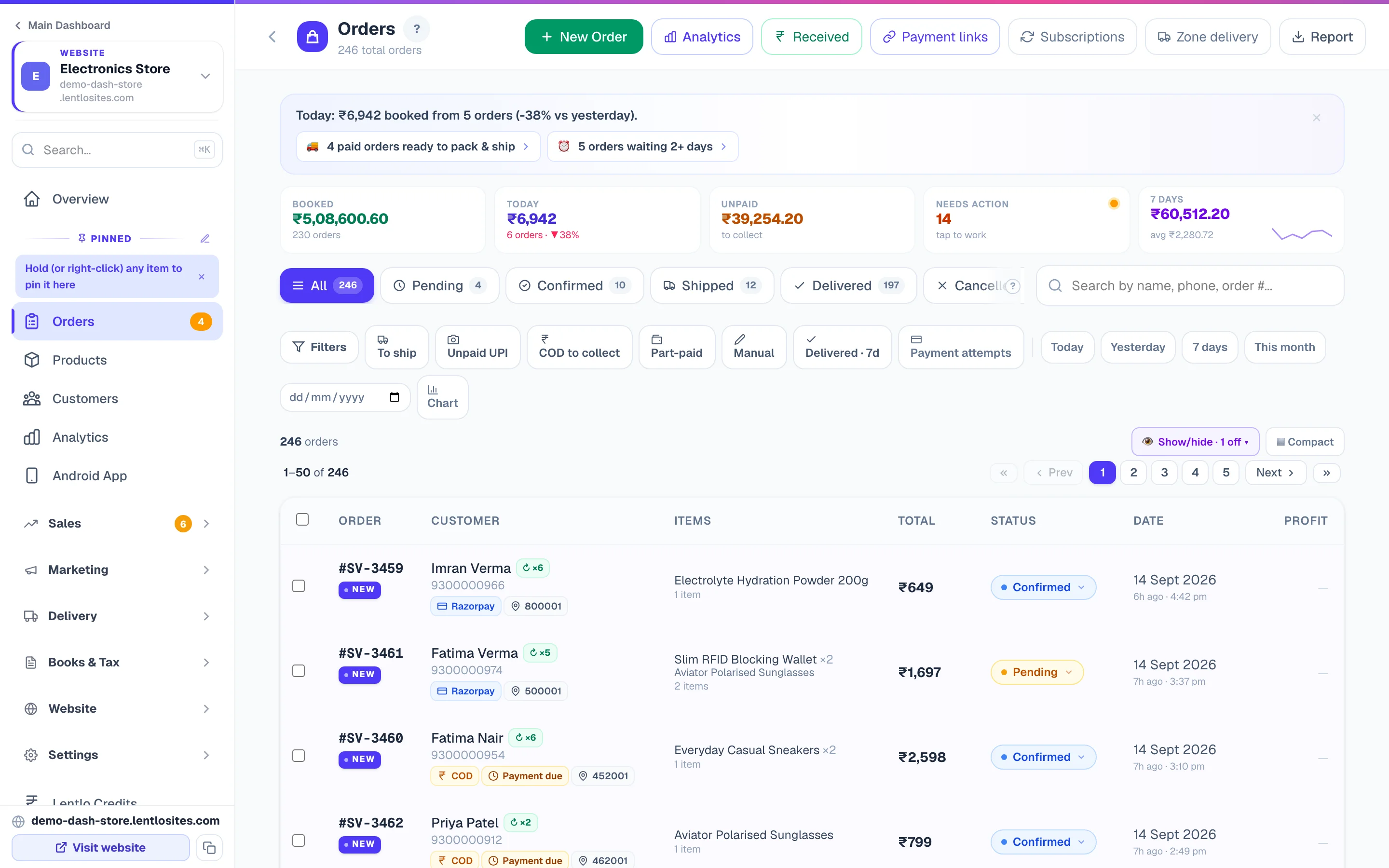
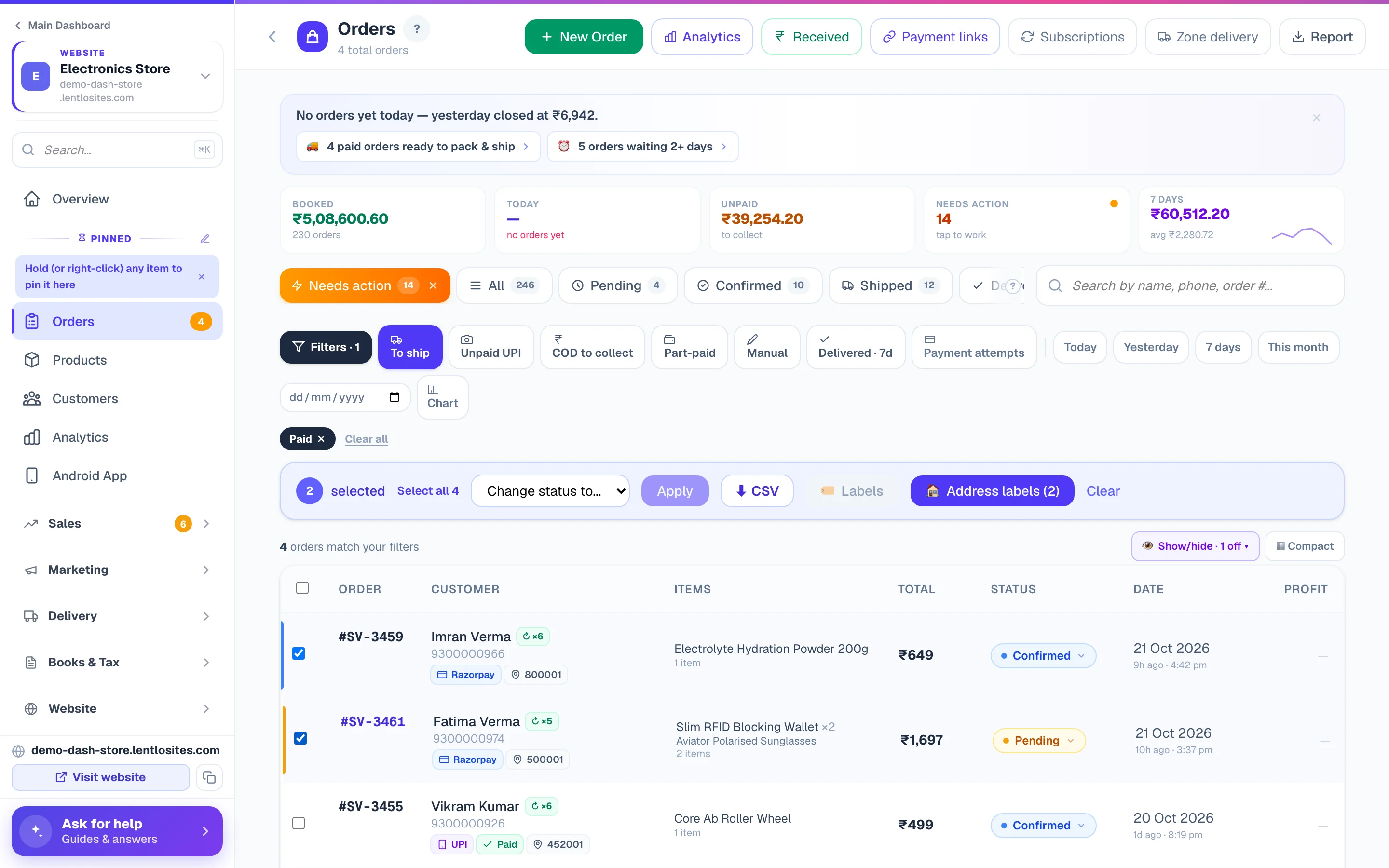
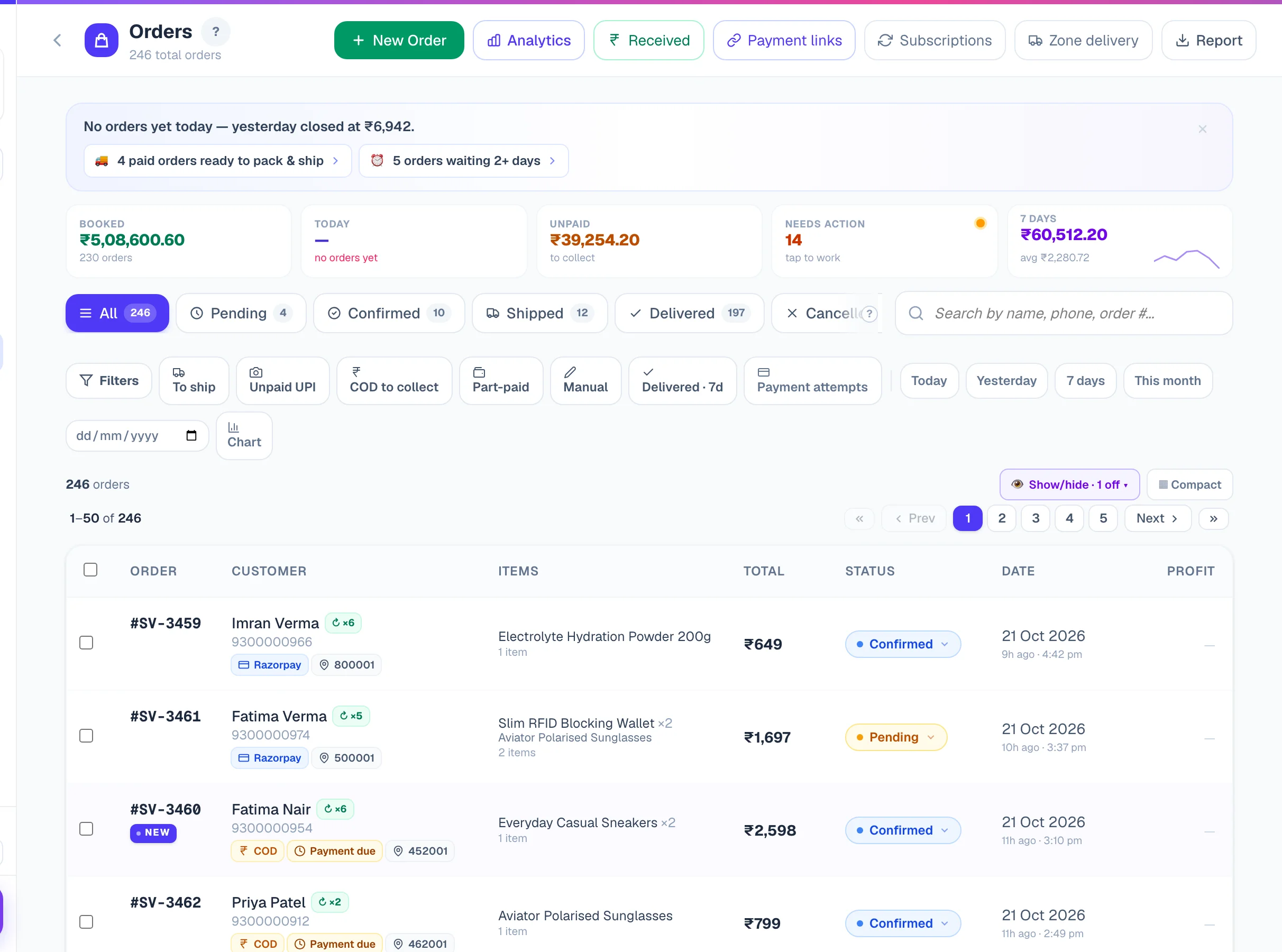
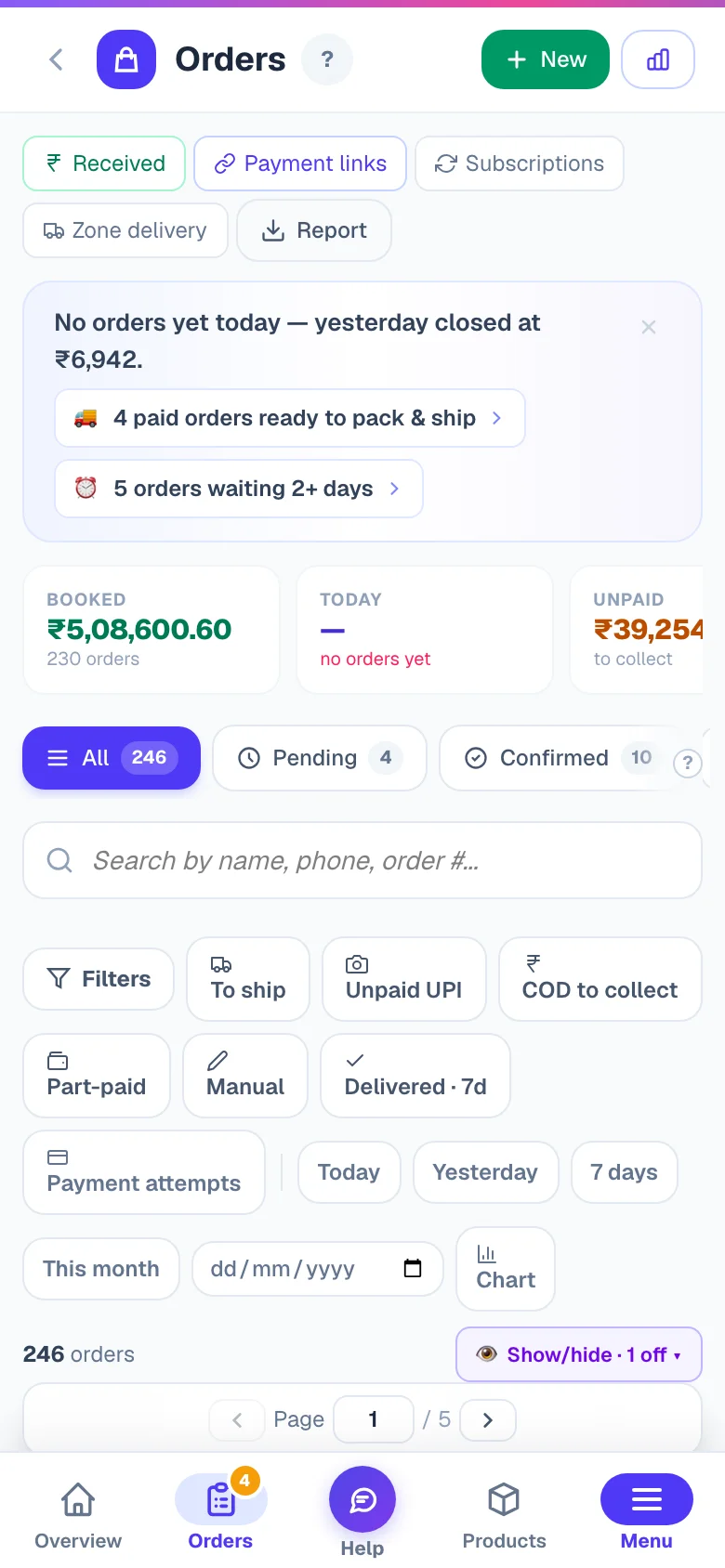
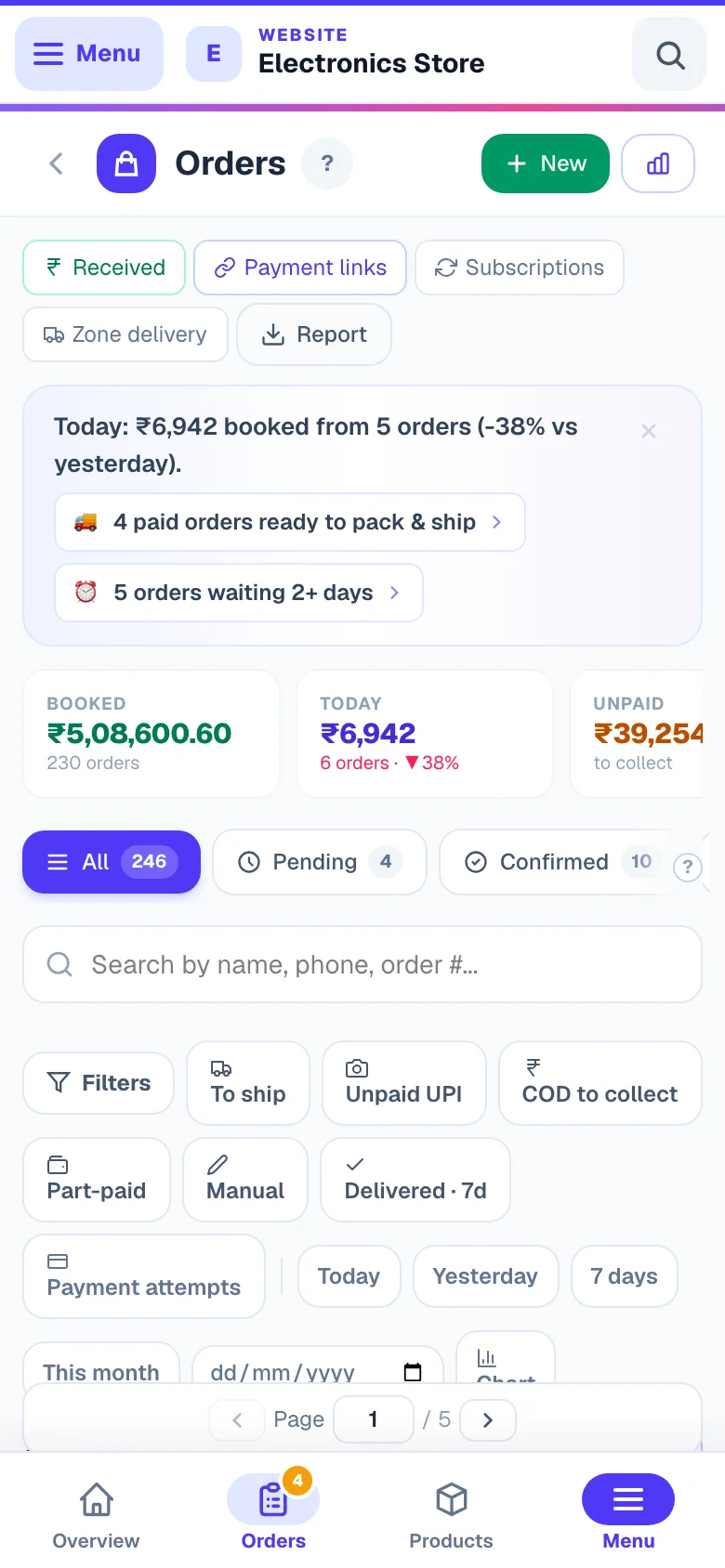
Above the order list you have one-tap saved views, each with a small icon — To ship (paid, not yet packed), Unpaid UPI, COD to collect, Part-paid, Manual, Delivered · 7d, (on route-delivery stores) Sooner, and — when you add delivery charges after the order — Delivery charge to add (details), and when the shop confirms orders first, Requests to confirm and Waiting for the customer (details). Tap once to apply, tap again to clear.
The Filters button opens more: payment status, payment method, delivery/pickup, source, a date range and an amount range. Every active filter shows as a small chip you can remove with one tap, and the address bar updates — so you can bookmark or share a filtered view with staff.
🔨 Auction win — if you run auctions, the winner's order is created for you the moment the auction closes, at the winning bid amount, and wears an amber 🔨 Auction win badge on the row (there's an Auction win choice under the source filter too). The winner gets a secure payment link on the site (and on WhatsApp from your own number, when its Auction won message is switched on) — you'll be reminded if it stays unpaid, and you can offer the lot to the next bidder from the Auctions page.
Route-delivery stores (Zone Delivery Days) get more: each order row shows a zone tag and, for off-schedule orders, an amber Sooner tag with the extra the customer paid. The Filters panel adds Delivery zone and Delivery day type (Sooner vs Regular), and a one-tap Sooner saved view sits with the others. Every row also shows the exact order time next to the “2h ago” age — e.g. 2h ago · 2:34 pm.
No delivery day — a delivery order in one of your zones that has no chosen day wears this amber tag (it can happen when a customer's checkout page was open from before you set up delivery days). Such an order sits on no route-day list, so it's easy to forget — open it and tap Set delivery day in the Customer details card. You'll see the customer's real zone days as one-tap chips (or pick any date), add an optional time window, and the change is noted on the order timeline. Setting a day yourself never charges the customer anything.
Possible duplicate — the same customer ordered the same items (or the same amount) within 15 minutes. Sometimes it's a double-tap; sometimes the customer paid twice — their first UPI payment looked stuck, so they paid again, and both went through. The second order also carries a note on its timeline when this looks likely. Always confirm with the customer before packing both, and refund one payment if they were charged twice. The store now also protects against this on its own: if a payment looks stuck at checkout, the customer's page checks with the bank and shows the order confirmation instead of letting them pay again.
A setting changed while the customer was paying — if you switched off delivery or pickup, excluded a state, limited delivery to your routes, switched on delivery charges, switched off Partial COD, turned off coupons for a member group, or changed, limited or even deleted the coupon they were using while someone was already paying online, their order still arrives; a line on its timeline says what changed (and that the delivery charge they paid, or the coupon discount they paid for, was kept), so you can settle it with the customer. If a price, a rate or a charge changed in those minutes and the order now adds up to a different amount than the customer paid, another line names both figures (“paid against ₹330 at checkout; priced ₹430 now”) and what moved (“mug ₹300 → ₹400”), and the money that came in is recorded on the order. Money already paid is never turned away. You can still add an internal note; name or address corrections remain subject to the usual edit restrictions, including the restriction on orders that used wallet credit. A paid order's total cannot be edited down — refund the difference to the customer's wallet, or cancel and re-create.
To change an order's status from the list, tap its status pill — it's a dropdown. Select a few orders with the checkboxes and the blue bar also offers ⬇ CSV — a spreadsheet of exactly those orders for your accountant or courier. An order placed for someone else carries the receiver's name, their mobile and the alternate number in their own columns.
Choosing Shipped from the list opens a small Mark as Shipped box: pick the courier, type the tracking number and tap Ship with Tracking — the customer's Track Order page then shows the tracking number, with a link to that courier's own tracking page for the couriers in the list (Delhivery, BlueDart, DTDC, India Post and the rest). No number yet? Ship without Tracking moves the status only. The status tabs across the top show only the stages that have orders right now (a tab with zero orders hides itself and comes back the moment it has one).
The Payment attempts chip opens your hottest recovery list — customers who reached the payment page but never completed paying. See the abandoned carts guide.
Ask in your own words: type a request into the search box — “unpaid upi orders yesterday”, “COD above 2000 this month”, even Hinglish like “kal ke pending orders” — and tap ✨ Ask. AI turns it into the right filters instantly (it only picks filters — the numbers always come from your real orders). It's free.
The daily brief — the small card at the top opens with today's takings (“Today: ₹8,400 booked from 12 orders, +18% vs yesterday”) and then your morning to-do: screenshots to verify, paid orders ready to ship, anything waiting 2+ days, and customers who tried to pay. Every line is a tap to the matching list. Tap ✕ to hide it for the day.
Date shortcuts — Today · Yesterday · 7 days · This month, or pick any single date. ▦ Compact (desktop) fits twice the orders on screen.
NEW tag — a customer order you haven't opened yet wears a small violet NEW tag (and a light violet row). Open the order once and the tag clears on its own. Orders you created yourself (manual or cloned) never show it.
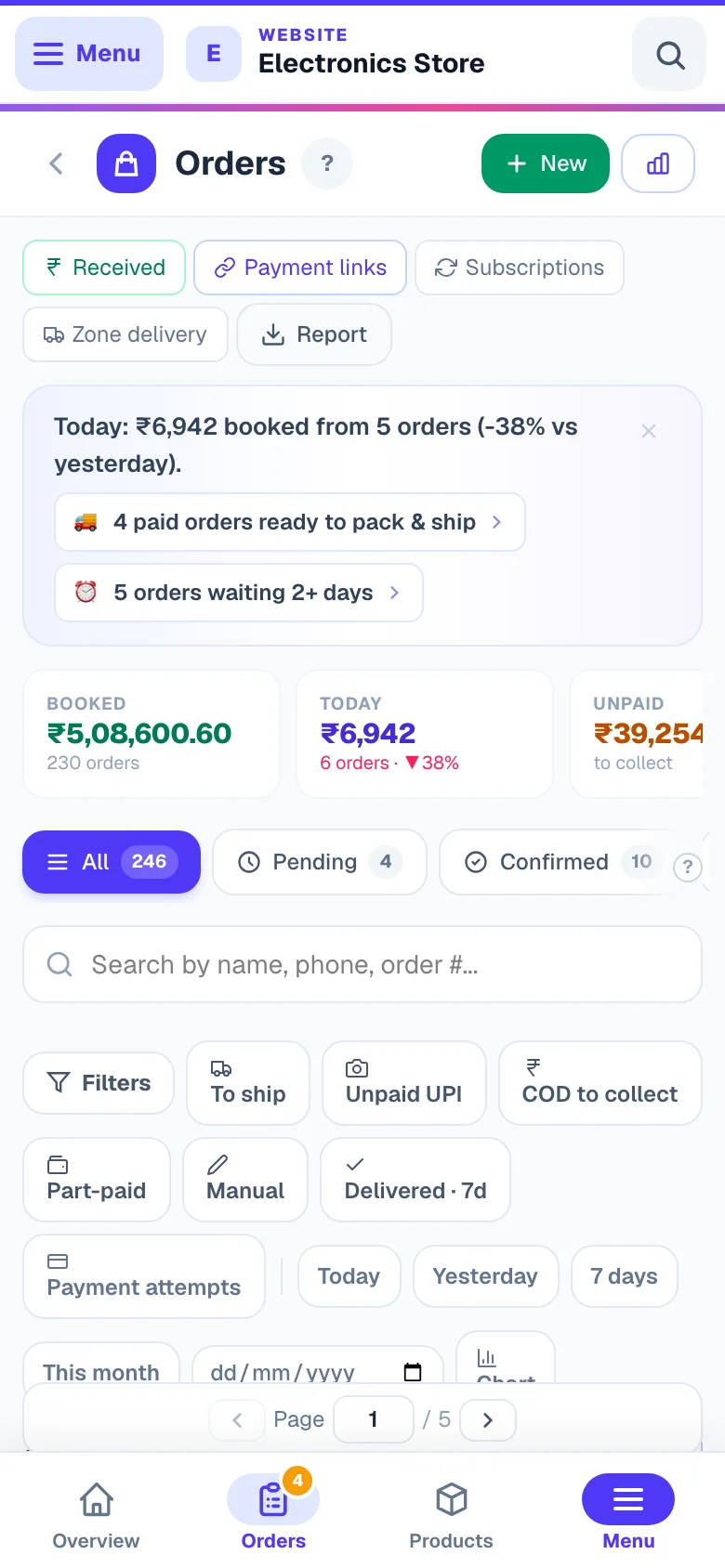
Make the page yours — tap 👁 Show/hide (next to the Compact button, just above the list) and untick any block — Daily brief, Stats, Chart, Quick views & filters — to remove it from the page completely; the same menu brings it back anytime. The count just left of that button always tells you how many orders match your current filters. The chart starts switched off — tap the Chart chip beside the date chips (or tick Chart in 👁 Show/hide) to show it, and it stays until you hide it. It has ⿻ Both (both lines together — called ⿻ All once your orders carry cost prices and a profit line joins), ₹ Revenue and # Orders modes, and it follows your date filter — pick Today or any single date and it turns into an hour-by-hour line. Hovering an order's items shows the full dish/product list when it doesn't all fit on the row.
The buttons at the top of Orders — New Order (a manual order), Analytics, Received (the cash book, below), Payment links, Subscriptions, Zone delivery, Delivery days (only when you take orders for chosen delivery days) and Report. On a phone the same buttons sit as a row of small chips under the title.
Restaurant orders — on restaurant sites the list speaks restaurant: a dine-in order shows its table right on the row (with Counter pay instead of COD wording), and counter-collection orders show Takeaway.
Sales Analytics — the Analytics button at the top (your sidebar calls the same screen Sales Reports) opens the full picture for any period you pick (Today · Yesterday · 7/30/90 days · This month · Last month · any custom range): revenue and orders with a comparison to the period before, plain-word Insights (your peak hours, biggest day, month-end projection, warnings when cancellations or returns cross healthy marks), the trend line (hour-by-hour for a single day), a day-by-hour heatmap of when customers buy, the checkout journey (reached checkout → tried to pay → ordered, with one tap to recover abandoned carts), cash-on-delivery vs prepaid money with per-method rupee splits, discounts & rewards (coupon codes with what they cost and brought in, loyalty, wallets, GST), money lost to cancellations/returns/RTO with healthy-store benchmarks, customers (new vs returning buyers, your top spenders, how often people reorder), speed (average time to accept and deliver, % delivered within 48h), order-size price bands, best sellers with quantity and profit, top variants, and top delivery states + pincodes. On restaurant sites it splits dine-in / takeaway / delivery and says “Top dishes”. Every number is from your real orders, cancelled orders excluded from revenue.
Processing a new order
A typical order takes four small actions from you — everything else (customer messages, invoice, tracking page) happens on its own.
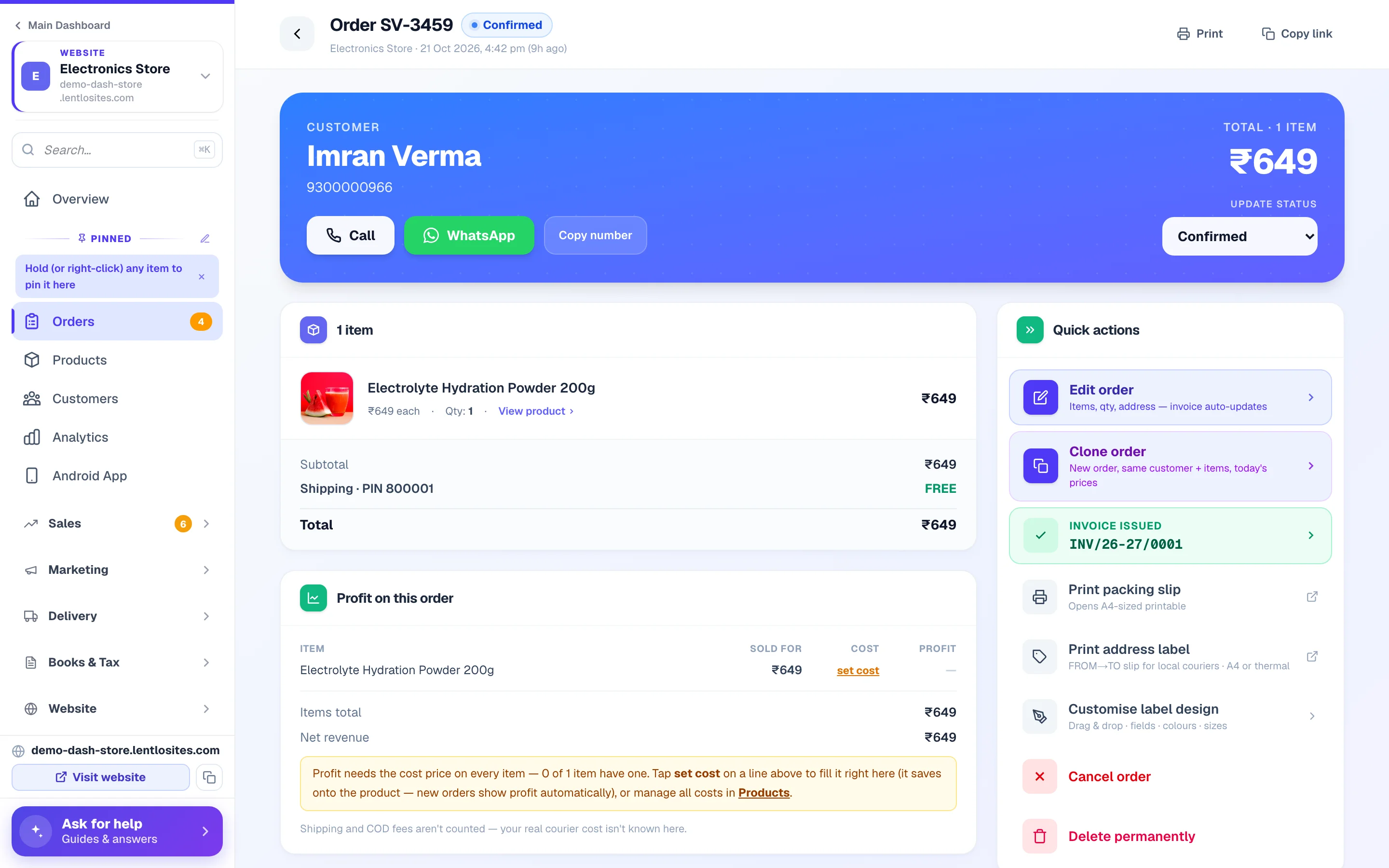
Open the order
New orders sit in the Pending tab. Click any row to open the full order — customer details, items, payment, and one-tap Call / WhatsApp buttons at the top. A coloured strip under the header tells you the next step and takes you to it: verify the screenshot (Review proof), ₹… not collected yet (Collect payment) or, with a courier partner connected, Payment received — this order is ready to pack & ship (Ship it).
An item the customer added from one of your add-on suggestions says Added from a suggestion under its name.
A customer can order for someone else. The order then shows Deliver to with the receiver's name and mobile under the customer, and that is the name and mobile the courier label, the packing slip and your delivery boy's screen carry — the customer stays the one who paid, tracks the order and gets the messages. AnAlternate number, when the customer gave one, sits beside it. On a phone, tap the receiver's number or the alternate number to call it. Every mobile on an order has all ten digits: the checkout refuses a short or wrong one before any payment, and you can correct the receiver or the alternate from Edit order.
Check the payment
Gateway orders (Razorpay, Cashfree, PayU, PhonePe, Easebuzz, Zoho Payments, CCAvenue) show Paid automatically. COD and UPI orders need your eye — see verifying payment below.
Confirm, pack, ship
Use the Update status dropdown on the order. Each change saves instantly and updates the customer (app notification, Track Order, and WhatsApp from your own number when that message is on). To ship, see shipping & tracking.
Mark delivered
When the parcel reaches the customer, set Delivered. For COD, collect the cash; for Partial COD, tap Mark COD balance collected (details).
Verifying payment
How you confirm the money depends on how the customer chose to pay — some methods verify themselves, others wait for you.
- Payment gateway (Razorpay / Cashfree / PayU / PhonePe / Easebuzz / Zoho Payments / CCAvenue) — verified automatically the moment the gateway captures the money. The order page shows a green Payment received block under the total — the amount paid online, the gateway, and the payment ID (handy when matching payouts or processing a refund in your gateway dashboard). You can't (and don't need to) mark these paid or pending by hand — their status is managed by the gateway and our automatic checks.
- UPI QR — the customer scans your QR and uploads a payment screenshot at checkout. The Payment proof — needs your check card sits at the top of the order with the screenshot (and, when the customer typed one, their transaction ID). Open your UPI app, match the amount and the transaction, then tap ✓ Money received — Mark paid. Money not there? ✗ Not received — ask customer to pay opens WhatsApp with a polite message and your payment link (or your UPI ID). With the AI screenshot check on, the card and the list also show what the AI found — AI: genuine — confirm or AI: failed check — but you still confirm in your UPI app before marking paid.
- COD — stays unpaid until delivery. Mark it paid once you have the cash, or share a pay-link so the customer can pay before delivery (next section).
"Mark paid" works only on orders where YOU collect the money (COD, UPI, manual, WhatsApp orders). On gateway orders the button isn't offered — this protects your money records from accidental flips.
Red alert: "A payment was captured but NO order was created"? The money IS in your gateway account — the customer's browser just closed too early. Tap Review & fix →: the Payment Alerts page lets you create the order for that payment (recommended — it opens a manual order already marked paid by that gateway) or close the alert with a reason, for example after refunding from your gateway dashboard. The alert clears itself if the order appears later.
Collect pending payment with a pay-link
A customer chose COD but you'd rather be paid before dispatch? Every unpaid COD/UPI/manual order has a Collect payment card that turns it into an online payment — no new order needed.
Open the unpaid order
Scroll to the amber Collect payment card. It shows exactly how much is due.
Share the link
Tap Request payment on WhatsApp — the message to the customer already contains a secure payment page link — or Copy payment link to send it anywhere. Customer standing at your counter? Show UPI QR (shown when your UPI ID is saved) opens a QR for exactly the amount still due; once the money shows in your UPI app, mark it paid from the same box.
Customer pays, order updates itself
The customer opens the link and pays by card, UPI, or net banking through your gateway — the order is marked paid automatically, no screenshot needed. (If they instead use the page's plain UPI-ID option, they confirm on WhatsApp and you mark it paid.) Track every link from Orders → Payment links.
The amount on the payment page is worked out on our server — the customer can't change it, and it is the real balance, with wallet credit and any part-payment you recorded already taken off. You need at least one payment gateway or UPI ID set up for the link to work.
If your gateway refuses to open a payment, the customer sees a plain “couldn't start the payment, please try again or contact the store” message rather than a broken page — and the same problem is reported to you in Settings → Payments. Its Test connectionbutton runs a ₹1 check against your gateway so you can prove the keys work again before telling the customer to retry.
Orders waiting for your delivery charge
If you switched on Delivery charge after the order, some orders arrive without a delivery charge — the customer was told at checkout that you will add it. In the list they wear an amber Add delivery charge tag, and a one-tap Delivery charge to add view sits with the saved views. Customers who chose Pay after confirmation show a Pay later payment chip.
Add the charge
Open the order. The card at the top asks for the delivery charge — type it (or tap Free delivery) and press Save delivery charge. You see the new total before you save. The order total and the cash to collect update together. If invoices are made automatically on your store, the invoice waits for the charge and is made the moment you save it — once, with the final amount.
Send the final bill
The same card then offers Send bill on WhatsApp (from your WhatsApp API number, when connected), Open WhatsApp (WhatsApp on your own phone with the bill already written) and Copy bill link. The customer's bill page shows the items, the delivery charge and how to pay — a cash-on-delivery customer taps Confirm, and the card shows Customer confirmed the bill.
You can add or change the charge while the order is Pending, Confirmed or Packed — not after it ships. And it cannot ship before: booking a courier, giving it to a delivery boy, marking it shipped or delivered, Mark paid and payment links all wait for the charge (tap Free delivery when there is none). Full walk-through with a worked example: Delivery charge after the order.
Order requests — the shop confirms first
If you chose The whole order in Shop confirms the order first, customers send an order request: nothing is charged and the items are kept aside. In the list a new request wears a Confirm order tag, and one you confirmed that the customer has not answered yet wears Waiting for the customer; the views Requests to confirm and Waiting for the customer show only those.
Open the request: the card at the top walks you through the items and stock, the address, the delivery charge and the date, then Confirm order. The customer's screen changes to the final bill at once. It becomes an ordinary order — invoice, packing, shipping — only when they pay or confirm cash on delivery (or you record their yes). Until then it cannot be packed or leave the shop. Can't accept it? Can't accept cancels it with your reason, nothing charged and the items back in stock.
Customer paid in parts? Record each payment
Customers often pay a little now and the rest later — ₹500 by GPay today, cash on delivery for the balance. The Collect payment card records each part so nothing gets asked for twice.
Tap ➕ Record part payment
Enter the Amount received (₹) and pick How they paid — UPI, Bank, Cash or Other — with an optional note (e.g. "GPay to my number"), then Save payment. Add as many entries as it takes; the two small buttons beside an entry edit it or remove it.
The balance updates everywhere
The card now shows received so far and still to collect — and that balance is what the courier is told to collect, what the payment link charges, and what the UPI QR asks for. Recorded money is never collected again.
Mark fully received
When the last rupee is in, tap ✓ Mark fully received. The order turns Paid with the full part-by-part history saved on it.
Made a mistake? Fix it anytime. Edit or remove entries whenever you spot an error (after marking fully received, tap Mark pending instead, correct the entries, and mark it received again). Every change is saved in the order's activity trail, so your money history stays honest. Part payments work on COD/UPI/manual orders only; gateway and wallet payments are tracked automatically.
Finding part-paid orders: tap the Part-paid chip on the Orders page (or Filters → Payment → Part-paid, balance due) to see every order with money still to collect. Each row shows ₹received · ₹left under the total, and the sales report carries Received and Balance Due columns plus a "Balance still to collect" total — your receivables sheet.
Payments received — your daily cash book
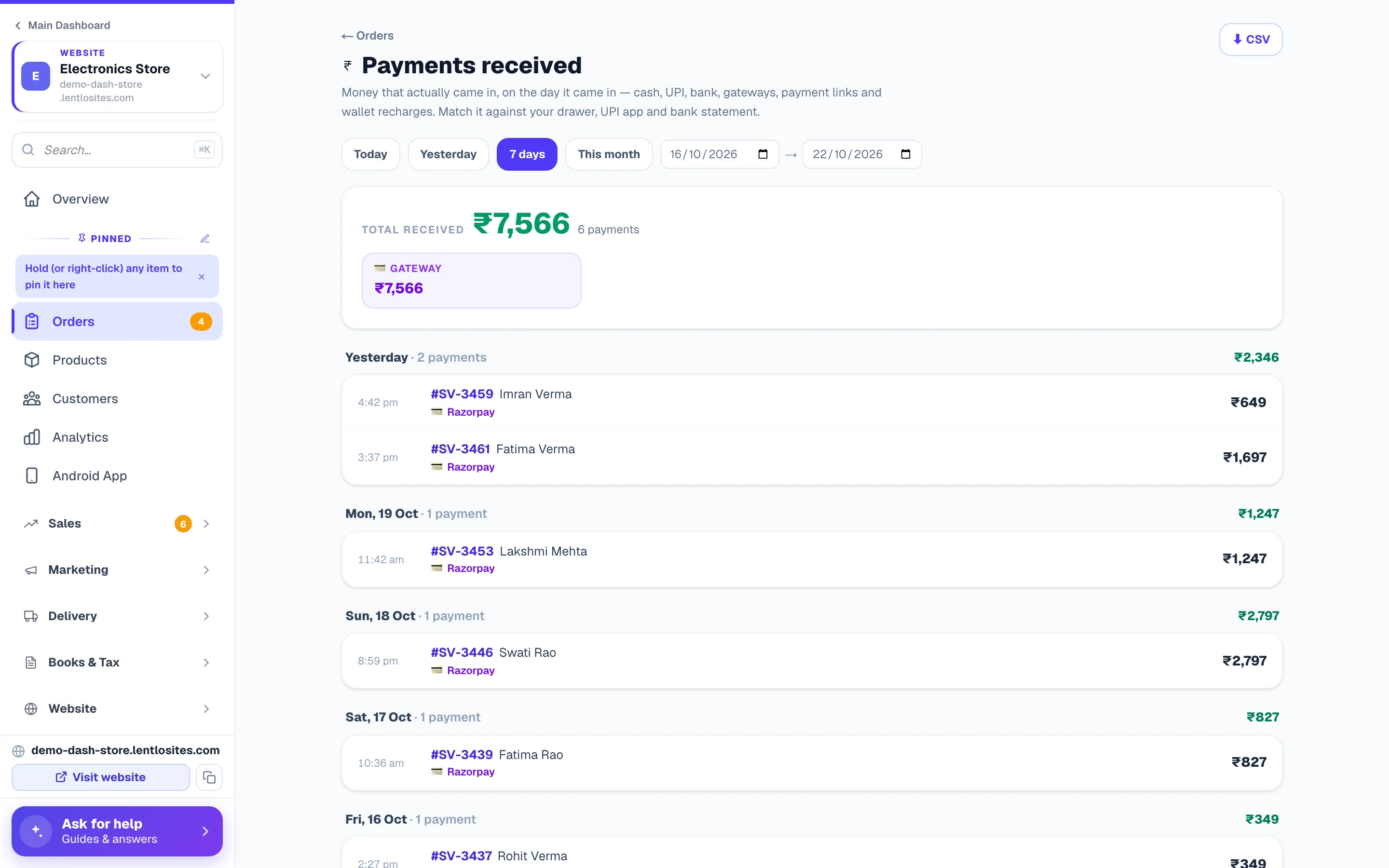
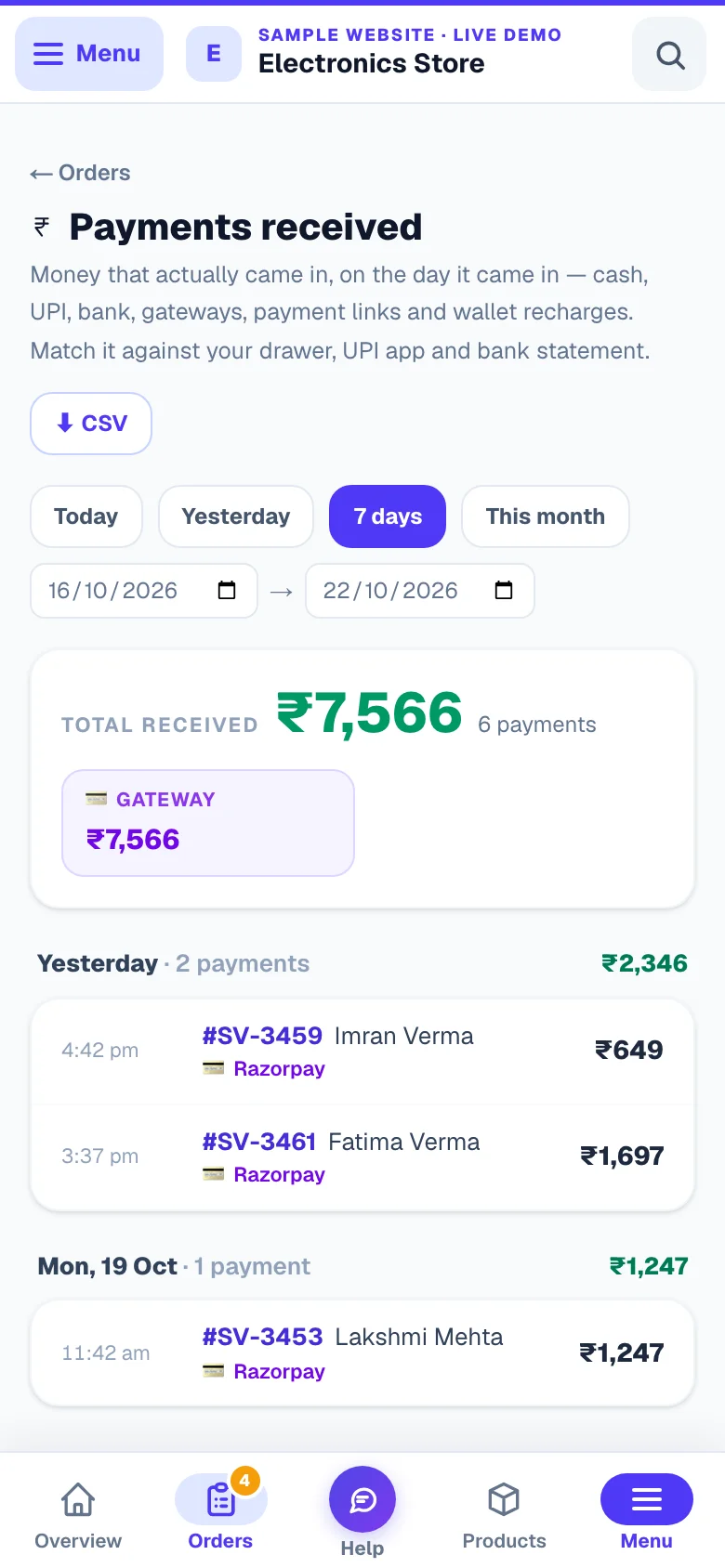
Orders → Received opens Payments received — a day-wise ledger of money that actually came in — a different view from your order list: an order booked Monday but paid Thursday shows here on Thursday. Use it at day-end to match your cash drawer, UPI app and bank statement.
- Every rail in one place — cash/UPI/bank parts you record, gateway payments at checkout, payment-link collections, booking advances, and wallet recharges (that's when that money actually reached you — wallet spends on orders are deliberately not repeated here).
- Day totals with a method breakup — how much cash vs UPI vs gateway came in each day, plus a period total on top. Pick Today / Yesterday / 7 days / This month or any custom range, and download it all as ⬇ CSV.
- Honest edges — money received on an order that was later cancelled stays listed with an order cancelled tag (check your refunds); old orders marked paid before dates were tracked sit in a separate "no date recorded" box, never guessed into a day's total.
- Tap a method card to filter — tap Cash to see only cash entries while you count the drawer (tap again for all); the CSV downloads whatever you're looking at. A ⚠ big cash tag appears on any single cash receipt of ₹2,00,000 or more — income-tax law (Sec 269ST) bars taking that much in cash from one person in a day, so switch large amounts to bank/UPI.
For GST filing, use your invoices, not this page. Tax applies when you bill (Time of Supply), not when money arrives — your GSTR figures come from Books & Tax. This page is the cash-book side: what came in, when, by which method.
See your profit on every order
Set a cost price on your products (Products → Edit → Cost) and every order shows what you actually made:
Products with options or packs (Single / Cartoon, 1 kg / 5 kg, ×4 packs) each carry their own cost — set it per option in Variants & packs or straight from ⚡ Quick on the Products list. An option that sells at its own price but has no cost yet shows profit as a dash (never a made-up number); a “× N” pack without its own cost automatically counts N × the product’s cost.
Fill a missing cost without leaving the order: in the Profit on this order card, any line showing a dash has a set cost link — tap it, type what you pay for that exact option, save. It writes onto the product (new orders show profit automatically) — and, when the product is linked with an item in your CRM, onto that item's purchase cost too — and this order’s profit updates on the spot.
- Orders list — the last column shows the profit (green) or loss (red) per order with its margin %. A dash means some item in that order doesn't have a cost price yet.
- Order page — the Profit on this order card breaks it down item by item: sold for, cost, profit — then items total − discounts − GST − item costs = gross profit.
- Sales report — the downloadable report carries Net Revenue, Items Cost, Gross Profit and Margin % columns per order, plus a profit summary.
- Stat band & trend chart — once your orders carry costs, the Orders page grows a Profit · 30d cell (with margin % and how many orders it covers) and the trend chart gains a ₹ Profit view — profit day by day, hour by hour on a single-day filter. Date-filter the page and the band shows that period's profit too. Stores without cost prices see no change.
- The site's Analytics page (Analytics in the sidebar — not the Sales Analytics screen above) — tap Customize there and turn on the Profit & margins section (gross profit, margin, product costs, coverage, your most profitable products with discounts & GST included, and a “losing money” alert), plus optional Profit cards and a profit line on the main chart. Same formula everywhere — always only orders where every product's cost is known.
Profit here is your merchandise margin: items revenue minus discounts, minus GST (you remit that), minus product cost. Shipping and COD fees you collected aren't counted — your real courier cost isn't known here.
Partial COD — collecting the balance
With Partial COD, the customer pays a deposit online at checkout and the rest in cash at the door — so the order shows Partial, not Paid.
- The order shows exactly how much was paid online and how much is left to collect at delivery — the same figure goes to your courier as the COD amount.
- In the orders list, these orders wear a violet chip like ₹100 paid · ₹669 due so you can see the balance at a glance. Once everything is collected it changes to Paid.
- When the deposit came through a payment gateway (Razorpay, Cashfree…), the order page says Verified online payment with the gateway's payment ID — that money is confirmed automatically, no screenshot to check. A screenshot only appears when the customer paid the deposit by UPI QR — then you verify it like any UPI payment.
- Once you (or the courier) receive the balance, open the order and tap Mark COD balance collected. That completes the payment — don't use Mark paid on these orders.
- Some orders also carry an Automatic note in Customer details (e.g. the partial-COD amounts) — that text is added by the system for your records, not written by the customer. The customer's own words, when they leave any, appear separately under Customer note.
Editing an order
Customer called to add one more item or fix the address? Edit the order instead of cancelling and re-creating it — the totals and invoice update themselves. If the invoice belongs to a tax month that is already over, it is not rewritten: a credit note reverses it and a fresh invoice is issued for the edited order, the way GST requires. On the printed invoice, an order that still has money to collect can also show a Scan to pay UPI QR with the exact balance pre-filled (wallet money and part-payments you recorded are already subtracted) — set it up in Invoice Settings.
Open Quick actions → Edit order
Editing is available while the order is Pending or Confirmed (before goods move). You can change the customer's name, phone, email and GSTIN, the receiver and the alternate number, the address and pincode, item quantities (set a quantity to 0 to remove an item), add products, and apply, change or remove the coupon. Items already on the order keep the price the customer ordered at unless you tap Use today's price on that line; a product you add comes in at today's price. Write an optional Audit note to say why.
Some orders can't be edited: one where the customer paid part with their store wallet or already received cashback (cancel and create it again instead), one with a live government e-invoice, an order your supplier already has (on a store whose products come from a supplier — cancel it instead), and any order after it is packed. A paid order's total can never be edited down — refund the difference to the customer's wallet first, or cancel and create a fresh order. Adding items to a paid order is fine; the customer pays the difference separately.
Review and save
The server recalculates the subtotal, discount, GST, shipping, COD charge and total — you'll see a preview before saving, and if something needs your word first (for example a coupon that no longer fits the new cart, so its discount will be removed) the box lists it and asks you to tick I understand and want to save anyway. A new pincode you don't deliver to is refused outright. (On a store that charges delivery by distance, the delivery fee stays as it was booked — an edit does not change it.) Rupees the customer paid with reward points stay on the bill through every edit, and a combo deal is worked out again with the combo exactly as it was when they ordered — remove one of its items and its saving goes; add a second set and it is given twice. If the total changed, the customer sees the new amount on their Track Order page and invoice — tell them yourself if it went up.
If the order already has an invoice, the invoice is regenerated automatically to match the edit. Exception: an order with a live government e-invoice (IRN) can't be edited — cancel the IRN first or issue a credit note.
Cancelling an order
Fake order, out of stock, or customer changed their mind — cancel it and the platform cleans up after you.
- Pick Cancelled in the status dropdown, or tap Cancel order under Quick actions on the order. Stock returns to inventory automatically (on by default — switch off Auto-restock when order is cancelled under Settings → Advanced if you prefer manual stock counts), influencer commissions reverse, and the invoice is voided but kept for GST records — unless its tax month is already over, in which case a credit note reverses it instead (the invoice stays on record); the confirmation message names the note.
- If the customer paid part of the order from their store wallet, that wallet money goes back to them automatically on cancellation (it's recorded in the order history).
- Gateway/cash refunds are in your hands — if the customer paid online, refund from your payment gateway dashboard. We never move money out of your account.
Cancel, never delete. Delete permanently (at the bottom of Quick actions) removes the order for good and cannot be undone. Deleting breaks invoice numbering and your GST audit trail — the system refuses to delete an order that still has a live invoice until you cancel it, and a pharmacy order that is part of your medicine records can only be cancelled. Cancelled orders are excluded from your revenue numbers anyway.
Everything on the order page — Quick actions
The Quick actions card (on the right on a computer, further down on a phone) holds every action for one order:
- Edit order — while Pending or Confirmed (editing).
- Process return / RTO — once the order is packed or beyond; after one return, Return more items takes you to a credit note for anything else that comes back (returns).
- Clone order — a new order for the same customer and items at today's prices (cloning).
- Generate Invoice (a Cash Memo on a shop without GST) — when the order has no invoice yet; Reissue after a cancelled one, with a fresh number. An issued invoice shows here with its number — tap it to view or print.
- Generate E-Way Bill — on shops with e-way bills set up, or an invoiced order of ₹50,000 or more (e-invoice & e-way bill).
- Print packing slip, Print address label and Customise label design (labels). On restaurant sites these three sit under More printing options.
- Cancel order and Delete permanently.
Below it, Customer summary shows their total spent and total orders, and the Activity log lists every status change. When the order has been edited, an Edit history card shows each change — who made it, when, from what to what, and the note they wrote. Internal notes are for you and your team only; the customer never sees them.
Returns & RTO
When a customer sends items back — or the courier returns an undelivered parcel (RTO) — process it properly so your stock, refund, and GST paperwork all stay correct in one step.
Open Quick actions → Process return / RTO
Available once the order is packed or beyond. Choose Customer return (pick which items and how many) or RTO (the whole parcel came back).
Choose restock and refund
Per item, decide whether it goes back into stock (damaged goods — leave it out). Then pick the refund: to the customer's store wallet, cash/UPI you handle yourself, or no refund. You can include the delivery fee too.
Review the credit note
The preview shows the refund and the credit note that will be issued against the original invoice — your original bill stays untouched, which is exactly how GST wants it. Confirm, and the order status changes to Returned / Partially Returned / RTO.
Shipping & tracking
Two ways to ship — with a connected courier partner (rates, label, and live tracking handled for you) or on your own.
- Courier partner connected (Shiprocket, Shipmozo, Delhivery, NimbusPost, Shadowfax): a Ship console appears on the order — it compares every serviceable courier across all your connected partners in one list. Pick one to book, download the label, schedule pickup, and tracking updates flow in automatically. Setup: Shipping guide.
- India Post: shows live Speed Post / Registered Parcel prices in the same list, but books differently — the Department of Posts has no booking API, so you book at the counter (or on app.indiapost.gov.in) and then type the 13-character article number from the receipt into the Ship console. We record it as the tracking number, move the order to Packed and give your customer a tracking link. Status updates are yours to move — there's no India Post tracking feed. Details: Shipping guide.
- Your own delivery boys: when you have added a delivery boy, the order page shows a Delivery by your team box under the shipping address — Give to a delivery boy, then Change delivery boy or Take back, and the history of earlier tries. He marks the order picked up and delivered from his own phone, and the cash he collects is tracked for you. Full guide: Deliver with your own delivery boys.
- Shipping yourself (local courier / own delivery): once the order is packed, a Courier & tracking card appears — type the courier name, tracking number, and optional tracking link. That's what the customer sees on your site's Track Order page.
- Your supplier sends it (a store whose products come from a supplier): the supplier books the courier, and the order moves to Shipped with their courier and tracking number by itself. Such an order can't be booked with your own courier or edited; to stop it, cancel it — your supplier stops it if it has not left yet.
Parcel journey — see exactly where the parcel is. For courier-partner shipments, the order page shows the courier's scan-by-scan trail ("Bag added to trip — Noida hub, 5 Aug 4:06 am") just like the courier's own website — newest scan first. The orders list shows the same thing at a glance: a small 📍 line under the status pill with the parcel's last known location and how long ago it was scanned. Your customer sees the same journey on your site's Track Order page — no need to send them courier links. Updates arrive automatically every couple of hours (or instantly via the courier's webhook); the Refresh nowbutton on the order pulls the latest scans on demand. Signed-in customers also see it in My Account → Orders: each shipped order shows "📍 Your parcel is at …" right on the card plus a Track Your Package button that jumps straight to that order's journey.
Restaurants: your bill prints from the green Print bill row on the order (it opens the invoice — one tap to print). The parcel prints — packing slip and address label — sit folded under More printing options, since they're for courier parcels, not table bills. Dine-in bills also print the table name big at the top.
Bulk actions & downloading reports
Busy day? Handle many orders at once instead of opening each one.
- Tick the checkboxes on multiple orders → a bar appears: change status for all of them in one go (bulk-cancelling asks first, since it restocks and reverses commissions), ⬇ CSV for exactly those orders, and 🏠 Address labels — your own address label for every selected order on one sheet, for any courier (labels). 🏷️ Labels prints the courier's own labels four to an A4 sheet, for orders booked through Delhivery only.
- The Report button downloads your orders as an Excel/CSV file — this month, last 7/30 days, all time, or any custom date range. Perfect for your accountant.
Finding orders — search & filters
The list is built to get you to the right order in seconds, even with thousands of orders.
- Status tabs at the top (All / Pending / Confirmed / Packed / Shipped …) — your daily worklist is the Pending tab.
- Search by customer name, phone number, or order number — or by the receiver's name or number on an order placed for someone else. Such an order shows a small for <name> tag beside the customer's name in the list.
- Delivery-day filter (Today / Tomorrow / This week / Overdue) appears when you take orders with chosen delivery days.
- Filters live in the page link — copy the URL to share the exact same filtered view with your staff, and the Back button returns you to it.
- 1Still to collectMoney owed on COD and unpaid orders.
Customer updates on WhatsApp
Customers stop calling "where is my order?" when updates reach them first. WhatsApp updates go only from your own WhatsApp number — we never message your customers from ours.
- Connect your WhatsApp Business API number, then switch on the messages you want in WhatsApp → Order & store updates: order placed, confirmed, shipped (with tracking), out for delivery, delivered, ready for pickup, cancelled and more. Each status change then sends the matching message from your number.
- Without a connected number, customers follow their order on the Track Order page and get app notifications if they allowed them — no WhatsApp goes out. The Notifications page shows, row by row, which messages your number sends.
- An edit that changes the amount sends no message by itself — tell the customer the new total yourself.
- Connected a WhatsApp API number? The order page gets a WhatsApp card (and a Send details / invoice button at the top that brings you to it). Send order details sends the items, the total, what is still to pay, the status and the tracking link from your business number; Send invoice (PDF) sends the invoice as a PDF file (or its link, if the PDF can't be made at that moment). You see the exact message before you tap Send, and it appears in the customer's chat in your inbox — Open chat takes you there. WhatsApp allows these free messages only within 24 hours of the customer's last message; outside that window, pick an approved layout at the bottom of the same card. A customer who replied STOP is never messaged.
- Want app-style push notifications too, or sending from your own WhatsApp Business number with your own wording? Set that up in your site's Notifications page.
Common questions
Why can't I mark a Razorpay order as paid? Gateway orders are verified by the gateway itself — hand-editing them would falsify your money records. If a gateway payment looks stuck, our 5-minute automatic check usually resolves it on its own.
Where's the invoice? On the orders list, the invoice number links straight to it; from the order page you can view or print. Setup and rules: GST & invoices.
Customer ordered on WhatsApp or in the shop? Create it yourself — see manual orders, including cloning a past order for repeat customers.
Can I edit a delivered order? No — editing stops once goods move. Use Process return / RTO for anything coming back, which issues a proper credit note.
Can a customer cancel an order themselves? No — there is no cancel button on the customer's side. They call or message you, and you cancel it from the order (cancelling). If they paid online, refund it from your payment gateway's dashboard.
Why don't I see a Confirmed (or Shipped) tab? Status tabs show only when at least one order is at that stage. Tap All to see everything.
More in Products & orders
Did this answer your question?
It takes one tap and it genuinely changes what we write next.