
CRM billing — GST invoices & customer credit
Make GST invoices from your CRM, keep every customer's credit balance, and collect with WhatsApp pay links, online Collect links through your own gateway, and reminders — money goes straight to your UPI, bank or gateway account.
6 min readUpdated 3 Oct 2026
In this guide
How billing in the CRM works
CRM billing is a record-keeper, not a payment company — you bill, the customer pays you directly by UPI, cash or bank transfer, and you tick it off. Open CRM → Invoices to see everything in one place. Every billing page — Invoices, Quotes, To collect, Recurring payments, Supplier bills and purchase orders — starts with a How … works card: tap it for the steps in order and one worked example in rupees (it opens by itself while the page is still empty). (New to the CRM? Start with CRM getting started.)
GST invoices
Proper invoices with your GSTIN, HSN codes and CGST/SGST/IGST worked out for you — same tax engine your website orders use.
Credit book (dues)
Every customer's page shows one number: how much they owe you right now, with a printable statement.
Pay link on WhatsApp
One tap sends the customer a page with the invoice, a UPI button and a QR — paying you takes seconds.
Reminders
Overdue bills and recurring dues turn into follow-up tasks automatically, and clear themselves when paid.
One-time setup — your business profile
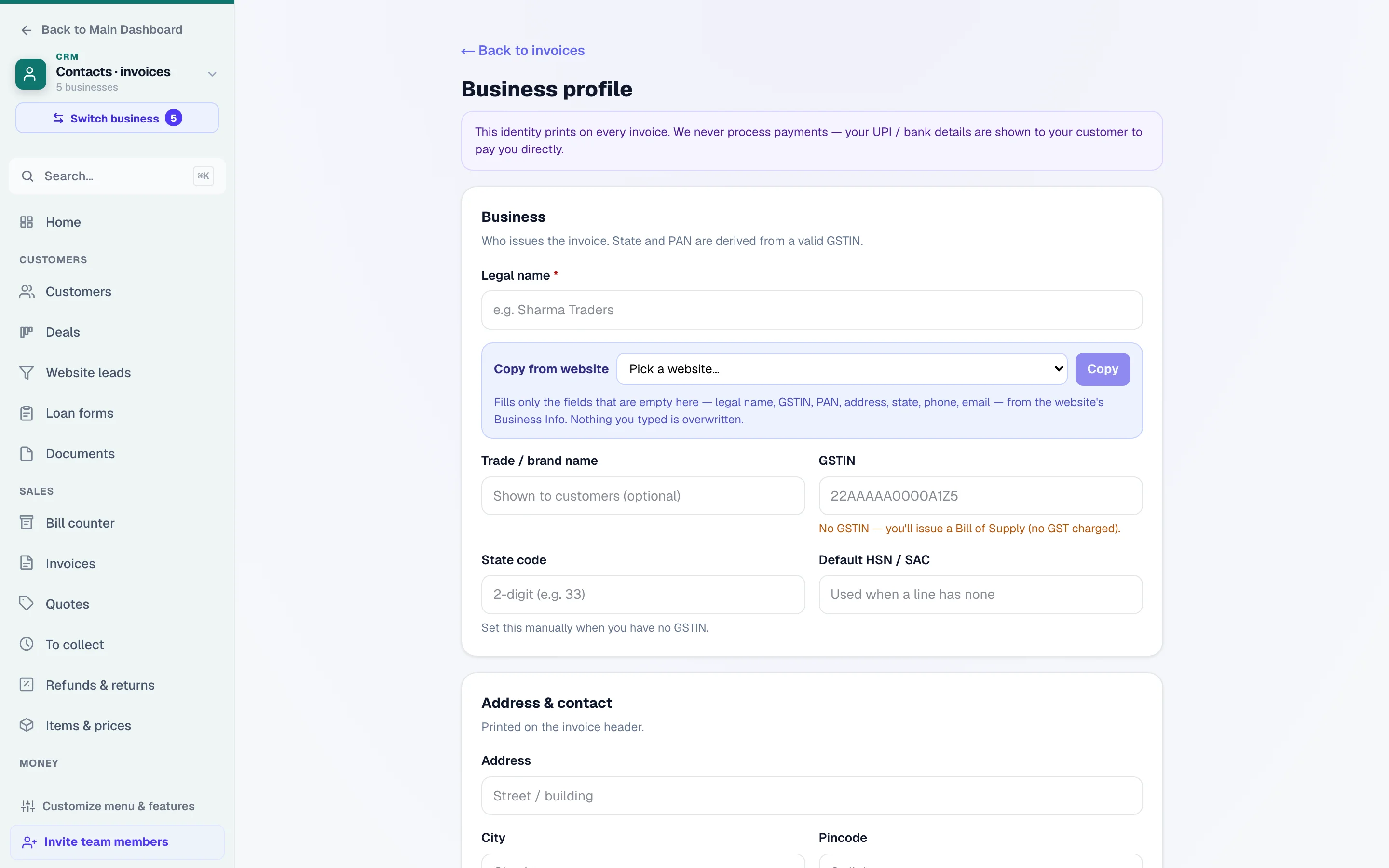
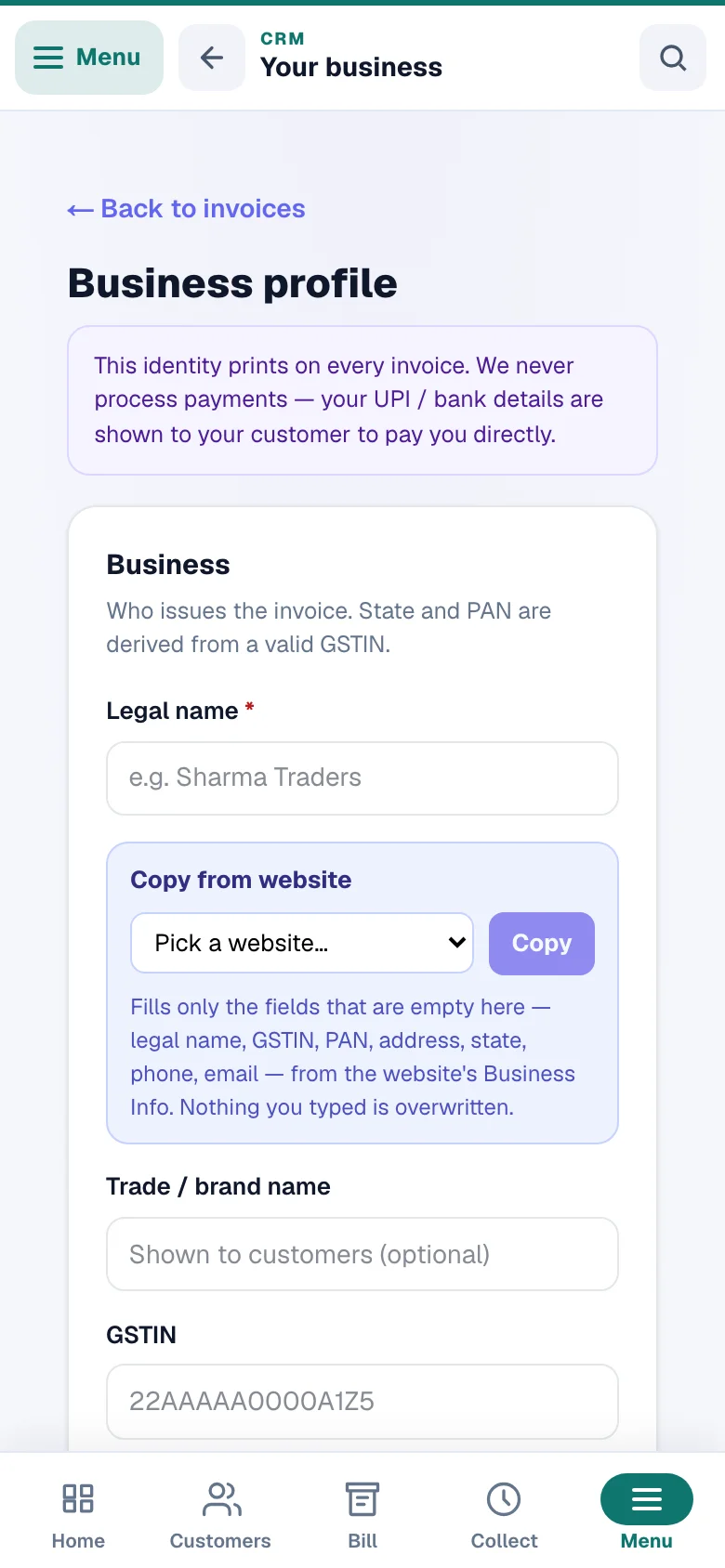
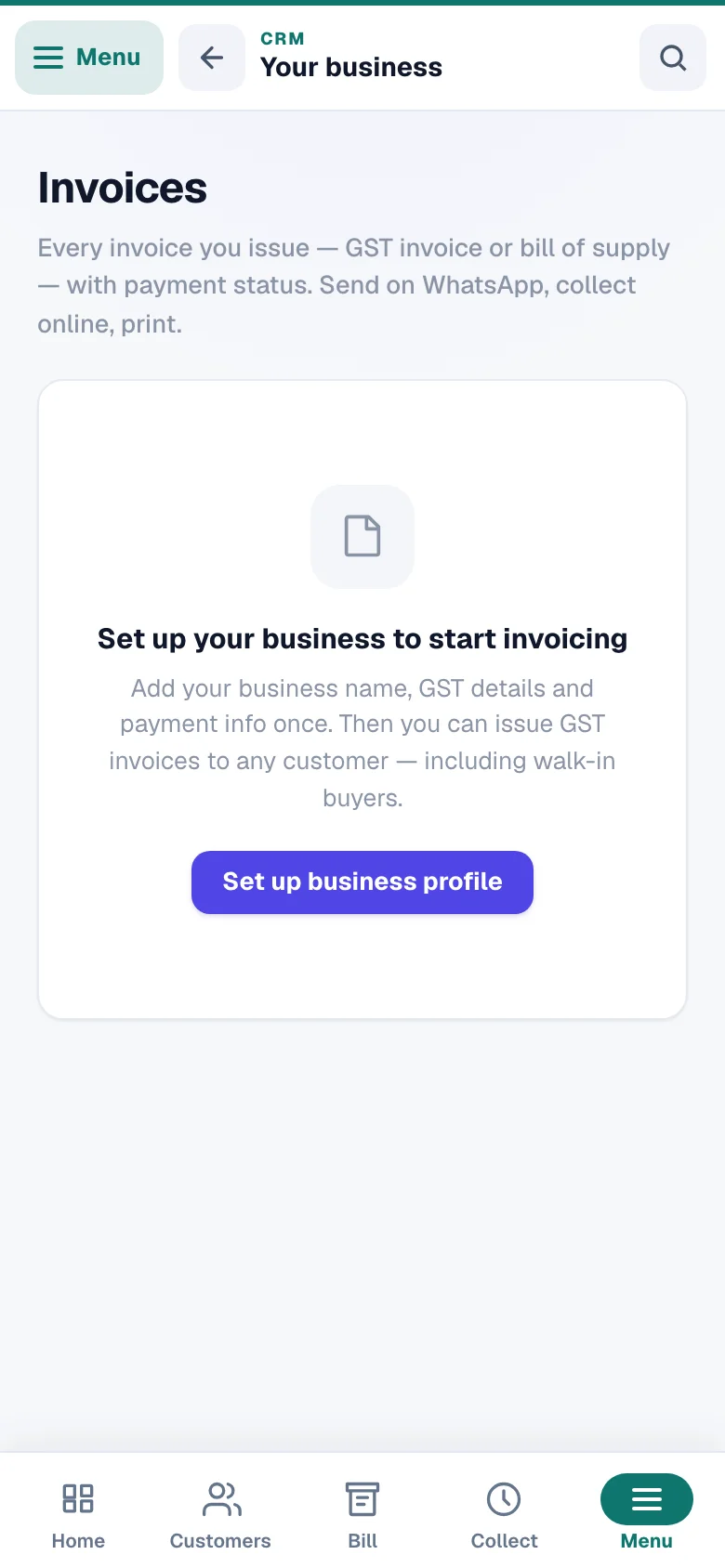
Before the first invoice, tell us who is billing: your shop's legal name, GSTIN if you have one, and how customers should pay you. This takes two minutes and every invoice after that is instant.
Open Invoicing → Settings
Go to Business profile. Fill your business name, address and state. (A team member without the Create invoices & quotes permission sees this page as View only, and a new invoice, quote or credit note tells them they need that permission before they type anything.)
Add your GSTIN — or leave it blank
With a valid GSTIN we make Tax Invoices with GST worked out line by line. No GSTIN? You get a Bill of Supply with zero tax — that's the legally correct document for unregistered sellers, and we enforce it so you can never charge GST by mistake. Composition scheme dealers also get Bill of Supply.
Add how customers pay YOU
Enter your UPI ID, bank account + IFSC, or a payment page link you already use. These print on every invoice and power the WhatsApp pay page. This is why the money never touches us — customers pay into your account.
Making a bill is now click-on-the-document: the New-invoice screen shows your REAL bill — your design, your watermark, your letterhead — updating live as you type. Tap any part of the document (buyer, items, notes, terms) and the matching editor opens; parts that come from your Business profile say so and link you there. A Payment received? choice (Not yet / Part payment / Paid in full) records the money on the invoice the moment it's issued — the document previews Amount Received and Balance Due before your eyes. The Display button switches any printed piece on or off without leaving the page — plus text size, a compact layout that fits more per page, and a gentle nudge with one-tap fixes when the bill runs past one page. Add a photo on any line (it prints as a small thumbnail and rides catalog items automatically), draw your signature right on screen with the Signature button, and tap ☆ Save as my default beside Notes or Terms to reuse them on every future bill — or just type for this bill only.
Open any invoice and you get a Refrens-style workspace: the document in its real printed design (the Designed view — a live preview that updates the moment you change anything), and a Document settings panel beside it with show/hide switches, a design carousel, your bank & UPI status, linked documents (revisions, converted quotations, credit notes) and payment records. Every switch saves instantly.
The same Business profile page is also your design studio: pick from 16 print designs in a visual gallery — tap Change design to see them bigger (violet Regal, navy-and-gold Midnight, maroon Crimson ledger and more), set an accent colour, heading and body fonts, choose how amounts show (₹ / Rs / plain), and switch any printed piece on or off. You can also add a faint diagonal watermark (e.g. ORIGINAL), switch the tax-summary tables on or off, and upload a letterhead banner and footer strip that print across the top and bottom of every document. Under Words on your documents you can rename every heading and column on the bill — “Bill To”, the item columns, the signature line, even a closing thank-you line — in your own words or your own language — including the document titles themselves (Tax Invoice, Bill of Supply, Cash Memo, Credit Note). Empty boxes keep the GST-correct defaults; check renamed statutory titles with your CA. Any invoice's 🎨 Design & text button jumps straight here.
Make a GST invoice
An invoice is for any sale or service you want on paper — a customer order, a repair job, a month's tuition. Click New invoice on the Invoices page.
Workshop job cards bill themselves. If you use the Workshop module, a job card's Make the final invoice button opens this screen with the customer and the line items already filled from the card — spare parts and labour as separate lines with their amounts (or the final-bill amount when you recorded just one figure). Check, adjust if needed, and issue.
Pick the customer — or bill a walk-in
Search your contacts by name or phone, or just type a buyer name for a walk-in sale. Linking a contact is what feeds their credit balance. The contact's saved address fills in automatically (it prints on the bill), so does any of their custom fields you ticked Show on invoice under Custom fields (a PO number prints as “PO number: PO-4512” under the buyer — saved on the bill as it was that day), and for B2B, add the buyer's GSTIN — we check it and put it on the invoice. Typed a GSTIN or address the contact didn't have yet? It saves to the contact too, so the next bill fills itself.
Add the items
Type an item name and your saved catalogue items (from CRM → Items) pop up as suggestions with price, GST rate, HSN and unit pre-filled. Each line has quantity, a unit of your trade (Nos, Kg, Ltr, Hrs, Sq.ft, Dozen — pick one or type your own; it prints next to the quantity), price, GST rate, an optional discount, and an optional description that prints in small text under the item name (sizes, work details, warranty — whatever the customer should see). An optional due date sets when the bill counts as overdue.
New lines start at your usual GST rate — set it on your business profile, or accept the suggestion for your business type (5% for a salon or restaurant, exempt for a clinic, 18% for most services). Each line also has a tax treatment: Taxable, Exempt / nil-rated (no GST, reported as an exempt supply) or Paid on the customer's behalf at actual (a ticket or fee you recover at cost — kept outside your taxable value). Under the lines, Service charge adds your fee as an 18% line (fixed ₹ or a % of the items) and Discount on the whole bill spreads a ₹ or % discount across the lines. If every line of a Tax Invoice sits at 0%, the form asks whether those items are exempt before you issue.
The catalogue itself lives at Items & prices — now with Import (it opens Import & export → Items: bring your whole price list from Excel or CSV in one go, every row checked before it is saved; existing items update by name, a blank cell never erases anything, and any import can be undone for 7 days) and Export (the same columns work as the import template; it shows with the team permission Export / download data), a purchase cost on every item that customers never see — and read-only team members don't either (each item shows its margin, the header shows your total stock value), plus category filter chips and search by name, category or barcode. An item picked from the list (or scanned) takes its stock down with the bill, and every change is written in that item's stock history (cancelling or crediting puts it back, never twice); an item typed by hand moves stock only when exactly one item has that name.
Save — the number and tax are automatic
The invoice gets the next number in your series (it resets every financial year, and no number is ever skipped or repeated), and CGST/SGST or IGST is worked out from your state and the buyer's. Once saved, the invoice is frozen — that's what makes it a proper tax document. Cancelling or revising a bill after its tax month is over never voids it — a credit note reverses it and, for a revise, a fresh invoice is issued (Section 34). That note only ever covers what is still uncredited: if you had already issued a credit note against part of the bill, the new one covers the rest, and a bill that is already fully reversed gets no second note. CRM invoices number as BIL/26-27/0001 by default — deliberately a different series from your website invoices (INV/…) so the same GSTIN never issues two documents with the same number. You can change the prefix in Invoicing settings; pick the same one your website uses and we'll warn you about the collision there.
Two things on the bill itself are yours to set right on the create page: the date (tap it to backdate a sale you're recording late — lists, ageing and GST reports all follow the date you pick) and the number prefix (tap the dashed prefix next to the number — the very next serial is previewed live; changing it moves the whole series from that document onward, and we refuse a prefix another document family already uses so numbers can never clash). A due date you set now also prints on the invoice as “Due: …”, and a quotation's validity prints as “Valid till: …”.
Billing a shop counter all day? The Bill counter is the fast version of this — tap items, take cash/UPI/card, receipt prints. It makes the same GST invoices underneath. Full guide: Bill counter (POS).
Items & prices opens with a How Items work card — one worked example: a steel almirah sold at ₹12,000 that cost ₹9,000 shows a 25% margin and ₹3,000 profit on each one, and with 3 left (low at 5) its stock chip turns amber.
Link your items with your website's products
If you also sell on a website made here, the CRM can pair each of your items with the same product on the website, so you never keep two lists. Open Items & prices — under the list you see On your websites (also in the page's More menu). It lists every website of yours that sells products and sends its customers to this business.
Match products
We pair items and products that carry the same barcode or SKU first, then the same name — “Basmati Rice 1 KG” and “basmati rice 1kg” count as the same. A product with sizes or colours is matched one size at a time (“Kurta — M / Blue”). Nothing is guessed: when two items or two products share a code or a name, they wait under To check and you pick the pair.
The sample products a website design starts with (the ones made with the website) stay out of the lists — the review says how many (“12 sample products hidden · show”) and one tap shows them, tagged Sample; they are never ticked for you and never added on their own. Some products can't join a CRM at all and wait under Cannot be shared, each with the reason: medicines and items with batches (they are sold from the pharmacy desk, where the batch is recorded), and a product sold under another GSTIN (make a separate business book for it).
Link, or add what is missing
Matches found start ticked — untick any you don't want, then tap Link. Only in your CRM lists items the website doesn't sell yet: tick them and tap Add to your website — we ask once, then they appear on the website with the item's price, photo and stock. Only on the website lists products your CRM doesn't have: tick and add them as items. A row that changed while you were looking is refused in words, never linked wrongly.
From then on, change it once
Once linked, an item and its product keep the same details: change the name, words, photo, category, HSN, GST rate or code on either side and the other follows by itself (a product with sizes keeps its own name — each size's price, cost, GST and code follow its item). The item's words are the product's short description; the website's long description, with its formatting, stays on the website. A code reaches the website as a Retail barcode only when it is a maker's barcode; any other code — like the 13-digit in-store code Generate makes — goes to the product's Your own code and never to Google or Instagram. A CRM price above the website product's MRP is not sent (the save says so: “Price not sent to the website — above its MRP ₹699”); everything else in that save still goes. An imported price list follows to the website the same way, and the import's result says how many products it updated. If someone changed the item while you had it open — on the website or in another window — your Save is held: the sheet says what changed and who changed it (“Changed meanwhile — the price is now ₹470 (changed on the website by Ravi). Your other edits are kept.”), shows the new figures, keeps your other edits, and you save again. How this website shares, at the top of the list, decides three things: whether the website's prices follow your CRM or the website keeps its own; what happens to a new item you add in the CRM — we ask each time, add it to the website straight away, or don't add it; and whether a new product added on the website joins your CRM. Items your team adds always wait under Only in your CRM for you to decide.
One stock count for both — when you want it
Under How this website shares, Stock starts on Separate counts: the website and your CRM each keep their own number. Tap One count for both and we ask which count is right today — your CRM's or the website's — and set the other side to match, item by item. From then on a sale or a change on either side moves both: a website order or return reaches the CRM item (and any other website it is linked to) within a minute, and a bill, a stock move or a count you type in the CRM changes the website at once. The website shows whole units — 12.75 kg in the CRM shows as 12 — and never goes below 0. Each change from the website is a line in the item's stock record, with the website's name — and each change from the CRM is a line in the website's Stock Journal, with the bill, credit note or stock move it came from. If the two counts ever differ, the list says how many, each linked pair shows both numbers, and Match the website to your CRM or Match your CRM to the website puts them right. Switch back to Separate counts whenever you like — nothing is moved back.
Unlink whenever you like
The Linked list shows every pair; unlinking never deletes the item or the product, it only stops them following each other. Removing a linked item says “It stays on your website as a product” before you confirm, and deleting a linked product on the website says “It stays in your CRM as an item”. A product deleted on the website takes its link with it, and a removed item frees its product to be linked again. A product that later gets sizes or options sells per option — its old link stops working and the list says so: unlink it, then link each option. Only the owner of the business can link, add or change how a website shares; team members see the lists.
Send it on WhatsApp — the pay page
Instead of printing and waiting, send the customer a link where they can see the bill and pay you in one tap. On a paid bill, Send on WhatsApp is under Print / share; on an unpaid bill it is under More; on a quotation the big button is simply Send.
We create a private link and open WhatsApp with a ready message — “Invoice INV/26-27/0042 for ₹1,250. View & pay: …”. The customer's page shows the full invoice, a Pay via UPI button, a QR code with the exact amount pre-filled, your bank details, and your payment link if you added one. The money lands in your UPI or bank account directly. The link's WhatsApp preview shows your business name and the amount, so the customer instantly recognises who's asking.
Send by email sits right beside it (same menu, same permission) for customers and accountants who live in email. It makes the same private link and opens your own email app — addressed to the customer when their card has an email — with the subject (“Invoice INV/26-27/0042 from Your Shop”), a short message with the amount and what is still due, and the link. You read it and press Send from your own address; we never send email for you, so nothing is marked as sent. A quotation or a credit note gets its own wording and never asks for money; “pay here” is said only when your page shows a way to pay (UPI, a payment link or bank details).
Collect online — card, netbanking & UPI through your own gateway
If any of your websites has a payment gateway (Razorpay, Cashfree, PayU, PhonePe, Easebuzz, Zoho Payments) or a UPI ID set up, you can collect a CRM bill through it — and the invoice marks itself paid the moment the money lands. Still fully direct: the customer pays through your gateway account into your settlement, we never hold the money.
Press “Collect online” on the invoice
On any unpaid invoice (or any row on the To collect page), press More → Collect online (payment link) — on To collect the row keeps its own button. Pick which of your sites' payment setups to use, tick the methods to offer, and choose how long the link stays valid (30 days unless you change it). Tick “use this next time” and the picker remembers your choice. The same link can be sent from the customer's Statement → Send with pay link — when more than one bill is open you pick the bill; a bill that was replaced by a revision or fully reversed by a credit note is never offered, and the link itself refuses one in words.
Send the link
Send on WhatsApp opens a ready message with the amount and the link — or copy the link and send it anywhere. If your WhatsApp API hub is connected, you can also send it straight from the hub inbox. The preview card the customer sees carries your business name and the amount to pay — never ours.
Paid — books update themselves
The customer's page shows secure card/netbanking/UPI buttons and your UPI QR with the exact amount pre-filled. A gateway payment confirms itself: the invoice turns Paid, the credit balance updates, and you get a task saying the money arrived. A direct UPI scan works too — the customer taps “Paid by UPI? Tell us” (with an optional screenshot), and you confirm with one tap of Mark received after checking your UPI app.
The link always collects the bill's current balance. If you edit, part-settle or cancel the bill after sending it, the old link politely refuses and asks the customer to request a fresh one — nobody can ever pay a stale amount.
Mark it paid
UPI, cash and bank-transfer payments come to you directly, so you confirm them — one tap keeps your books true. On an unpaid invoice press Record payment (the big button): Mark paid in full, or type the total received so far and press Save — the line under the box says exactly what the bill will show. + Add how it was paid keeps the payment's details with it — cash, UPI, bank transfer, cheque or card, the day, the UTR / transaction id, the reference number, the bank or UPI ID, a note, and (with the Mark payments received permission) a photo of the slip; the bill then lists it under Payments received and the customer's statement shows it. A plain Mark paid keeps no such details — only what you type there is kept. A payment recorded on the bill's own sheet follows the bill: lower the figure and it shrinks to match, mark the bill unpaid and it is removed; a payment recorded on Money records and matched to the bill stays, and the page tells you how much of it is no longer matched. Each line under Payments received has Remove this payment (a reason is required — it stays on record) for money that never came in. More holds Mark as paid in full, Mark as unpaid and Record or correct a payment; a bill fully reversed by a credit note offers only Mark as unpaid there. The same sheet opens from Mark received on every row of To collect (for anyone allowed to record payments). If someone else recorded a payment on that bill a moment earlier, nothing is overwritten: you see “This bill changed — check the amount and try again.” with the fresh figures. (Gateway payments through a Collect online link mark themselves — no tap needed. Bills made at the Bill counter record their Cash/UPI/Card payment in the same moment they're created, and a counter Credit sale with an advance lands here already marked Partial.) The remaining balance keeps showing on the invoice, the pay page and the customer's credit balance until it's settled. Any reminder task for that bill clears itself automatically.
A part-paid bill shows the arithmetic right on the document: below the Grand Total you'll see Amount Received and Balance Due — on screen, on the printed/PDF copy, and on the customer's pay page. The invoice list and To collect show the balance too, and the WhatsApp reminder asks only for what's still due — never for money you've already received.
Find any bill in seconds
The Invoices page is built for a full drawer of bills, not just five. Type any part of a bill number or customer name — or their phone, the amount (24500 or ₹24,500), an item on the bill, the issue day (15 sept) or paid / unpaid — in the search box and it looks through all your invoices, not only the ones on screen. The chips in one row filter by All / This month / Unpaid / Partial / Paid; when a bill goes past its due date, a red Overdue chip appears with the count, and the Unpaid tile shows how much of it is overdue. Every row reads the same on a phone and a computer: the bill number with its kind (Tax Invoice, Bill of Supply…), the customer, the issued date, the due date with “5d late” in red when it has passed, the amount and the balance still to collect. Tap a row to open the bill; the ⋯ at its end gives Open · Edit · Print (on a computer those sit right on the row). Under the head's ⋯ More menu, Columns & rows lets you hide the issued date, the due date or the balance and pick 30, 50 or 100 rows at a time — remembered on this device.
Cancelled a bill? It's never lost — the Cancelled chip shows every cancelled or revised document, kept for your GST records (their serial numbers are never reused). If the bill recorded a service visit at the counter (Mark done), cancelling first asks Was the service done? — No takes the visit off the customer's card, Yes keeps it.And the CSV button (it needs the team permission Export / download data) downloads exactly what you're looking at — the current filter and search — as an Excel-ready file with totals, received amounts and balances, handy for your CA or a quick tally. Quotations get honest labels of their own: Open, Accepted, Declined, Invoiced or Expired — no more guessing which estimate went where — and the Quotes page's chips filter by exactly those states: Waiting for an answer · Accepted · Declined · Expired · Invoiced.
Credit — who owes you what
The credit balance is the running total every shop keeps in a diary (the khata) — here it writes itself. Open any contact (see CRM contacts) and the line under their name says it — Owes ₹4,200 · last paid 5 Sept, Nothing owed or In credit ₹500 (a tap opens the Statement; only a login that may see money gets the line). The coloured Credit balance card below shows the same number: unpaid invoices, minus credit notes, plus any open recurring dues. Positive means they owe you; it even shows when you owe them credit.
Tap Statement — print or send on WhatsApp on that card for the full account. Pick the period at the top — This month · Last month · This FY · All time — and the statement opens with the balance carried in from before it, lists the period's bills, dues and payments, and closes on Balance on <day> for a period that has ended (In credit on <day> when you owe them); All time closes on today's figure, green only when every bill is paid. Print it, download every bill as an Excel file (the button reads Excel, or Excel (all bills) once a period is picked — with the team permission Export / download data), send it on WhatsApp — the message lists what's open, the total due, and your UPI ID so they can settle right from the chat — or tap Send with pay link to put a payment link for an open bill into that message. A dealership with Money records switched on (Business type & features) gets a fuller statement under Money → Money records → Statements — every bill, payout, salary line, entry and payment with its UTR, the running balance, money held for a customer, and Excel / CSV downloads. Each line says what it is — They owe ₹X or You owe ₹X for a record, ₹X received or ₹X paid for money that moved, Returned ₹X for held money given back (it can never be matched to a record) — and the download keeps four money columns: owed to you, owed by you, received, paid. A payment your login may not open (a payout's or a salary's money) still shows on the record it settled as Payment recorded with its amount and day, so the statement always adds up. Every payment line has Remove this payment for money that never moved (a reason is required), and in the cheque register a cancelled cheque can be put Back in hand, so its number is never locked out.
Share link on the Statement gives the customer a page of their own account (it needs the Add & edit contacts, notes, tasks permission and a login that may see money). It opens on their phone with no sign-in and shows your business name, what is due, the bills still open — each with Pay this bill when you made a payment link for it — a Pay by UPI button to your own UPI ID, and every bill and payment for This month · Last month · This FY · All time, closing on the same figure your Statement shows. It says only what concerns them, in plain words: never your notes, a payout's file or loan number, or a payment's UTR. Each customer has one link at a time and it works for 30 days — or pick 7, 30 or 90 days under Keep this link working for in the sheet: counted from today, on the SAME link, so the copy the customer already has keeps working; the sheet shows how many times it was opened (a chat app building its preview does not count). New link stops the old one at once, Stop this link ends it, Send on WhatsApp adds the link to the statement message, and Send by email opens your own email app with the same link, what is due and the customer's email filled in from their card. A stopped or expired link — or a customer you moved to Trash — shows one sentence asking them to contact you, and nothing else; merging two customers stops the link of the one merged away, so share again from the one you keep.
Reminders — never chase from memory
Money slips when reminders live in your head, so the CRM writes them down for you. Every day it checks your books and creates a follow-up task — “Collect ₹2,500 — Invoice INV/26-27/0038” — for each overdue bill (a bill with no due date gets 7 days' grace) and each recurring due, starting 3 days before the due day — or when you choose: Recurring payments → When is each due reminded? — on the due day, or 1, 2, 3, 5, 7 or 15 days before (it needs the Manage staff, attendance, branches & setup permission; changing it never reminds a due twice, and your automations' WhatsApp for a due goes out at that moment too) — a due that is auto-invoiced is followed up through its invoice instead (one reminder, when that invoice falls overdue), never twice for the same money. Each bill or due gets one reminder: once you tick it done or snooze it, it doesn't come back the next morning — only a due date you move later, or a payment you mark as not received after all (a bounced cheque, say), earns a fresh one. Paid bills clear their own reminders, a cancelled plan never raises one — nor does the plan of a customer you moved to Trash from their own page — and customers who've asked not to be contacted are skipped automatically. A customer you move to Trash from the Customers list keeps their plans: new dues, their reminders and any auto-invoices carry on until you cancel those plans in Recurring payments. With Money records → Cheques on, a cheque you deposited that has not cleared is chased with one follow-up after 5 working days (Monday to Saturday) — pick 2, 3, 5, 7 or 10 in What Money records shows; the sheet names the day (a cheque deposited on Monday 5 Oct is chased on Saturday 10 Oct at the usual 5).
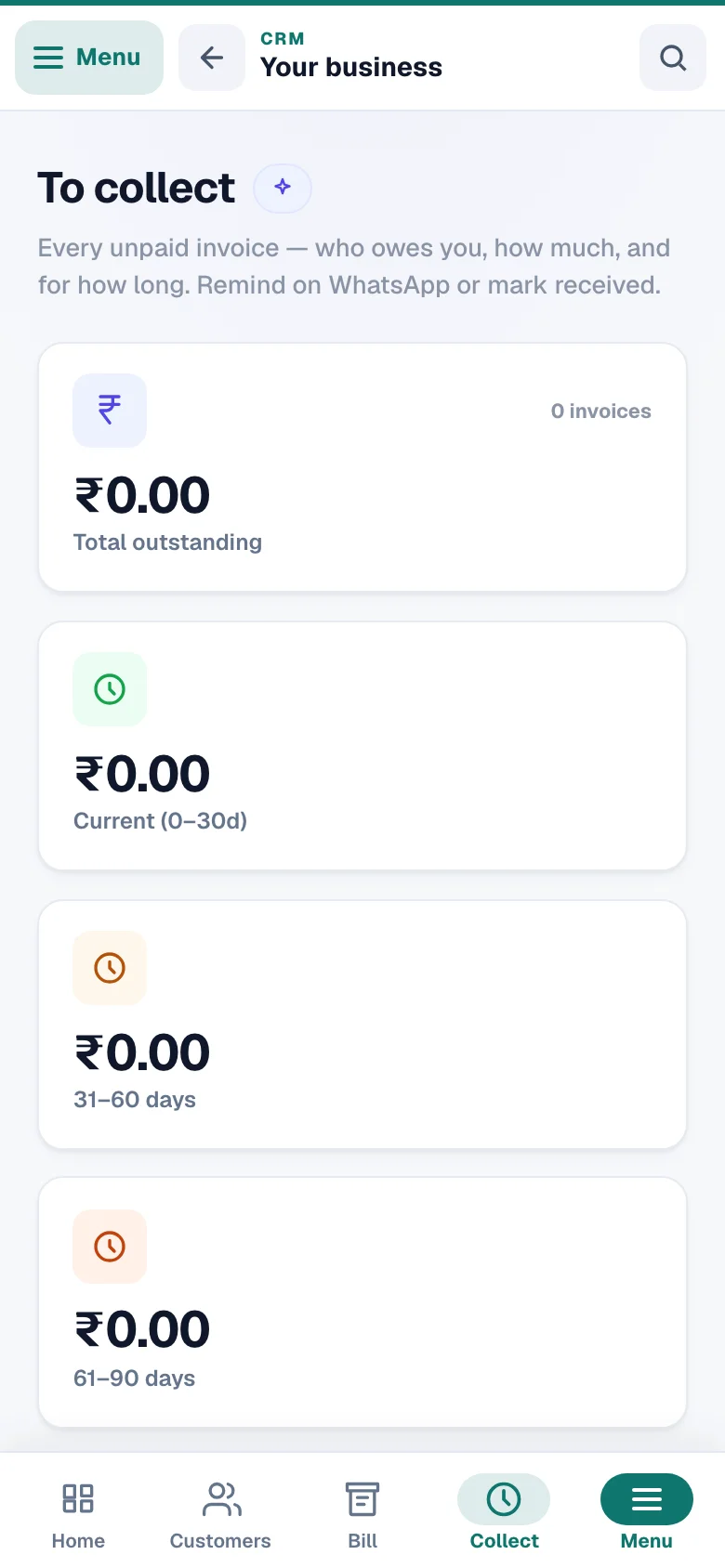
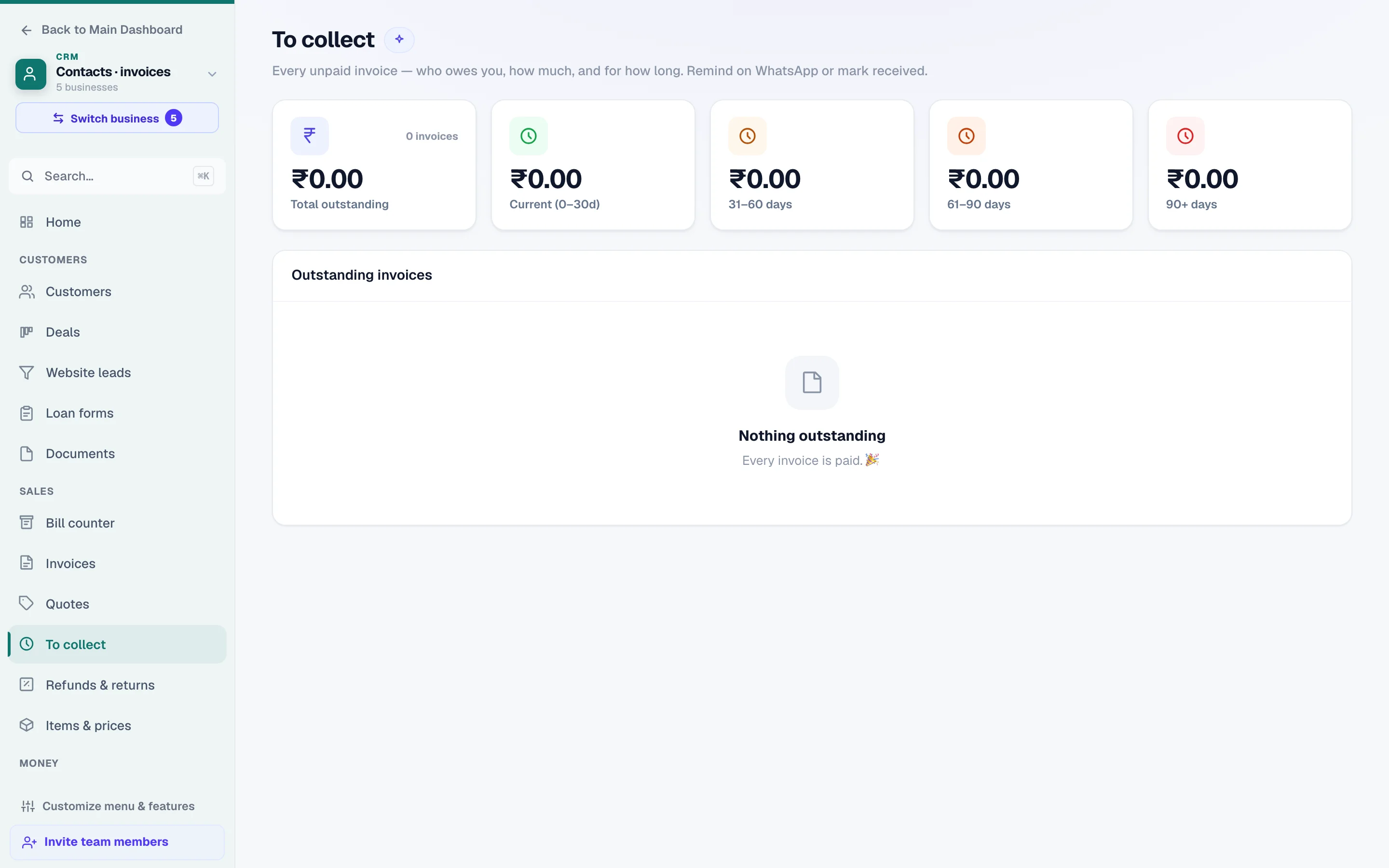
The To collect page opens on one card: the total still owed, and under it one bar by age — 0–30 days in green, 31–60 amber, 61–90 orange, 90+ red, each band as wide as its share of the money. Tap a band (or its line in the legend) to see only those bills; tap again for all. The bills follow, oldest first or Biggest first, each row with its age in the band's colour and what is still due after any part payment. The ⋯ on a row holds Mark received (the same payment sheet as the bill's own — if the bill changed meanwhile it shows the live figure and asks again), Remind (a polite pre-written WhatsApp message from your own number), Collect online and Open. A bill you mark received wears a PAID stamp for a moment and leaves the list; the total above changes with it.
Recurring payments — rent, tuition, AMC
If someone pays you the same amount regularly — rent, tuition, a service contract, a retainer, a membership — set it once in Recurring payments and the CRM tracks every cycle. Pick weekly, monthly, quarterly, half-yearly, yearly or every-N-days. Each due date appears in “who owes you”, gets its own reminder, and you record what you receive. One search box above the lists finds a customer, a plan, an amount, a phone or a due day in all three — who owes you, the plans and what is coming up. You can also switch on auto-invoice for a plan, and a proper GST invoice is issued for every cycle by itself — never for a cycle you skipped or a due you wrote off; an auto-invoiced due is then reminded through its invoice (your automations, WhatsApp layouts and customer messages for “payment due” still go out on the due day as before).
Stopping a plan never writes money off. Cancel plan stops new dues and new reminders; a due that has not started yet (its date still ahead, nothing received, not on an invoice) is skipped — the customer will not owe it, and the confirmation names each one — but every due that has already fallen due stays owed — in Collections, on the customer's balance and on statements — and you can still record its payment. To forgive them, open the cancelled (or ended) plan and press Write off unpaid dues: it needs the Mark payments received permission, and the confirmation names how many dues and how many rupees before you agree. A due that already went out on an auto-invoice is never written off here — its money lives on that invoice, so settle or cancel the invoice from Invoices — and a due you wrote off never goes out on an auto-invoice later. Changed your mind? Bring back the written-off dues on the same plan (same permission) makes them owed again — until you press Remove from list, which makes the write-off permanent, so removing a plan that has written-off dues needs that permission too. A plan that has run its course — it ended, made all its payments or passed its end date — is never re-activated; start a new plan to bill again.
Running more than one business in the CRM? Every extra business gets the same automatic reminders, recurring dues and auto-invoices — counted only from the day automatic billing began for that business. Due dates older than that are skipped, never billed backwards: a plan that was already behind simply picks up from its next due date, and CRM → Activity notes the dates it skipped. The skipped dates still count toward a plan with a set number of payments, so it ends when you meant it to — a 12-payment plan that skipped 3 bills the remaining 9 — and a plan whose payments all fell before that day simply ends.
GST — how much to pay, and the filing file
How much GST do I pay this month? The top of CRM → GST report answers exactly that: GST collected on the month's sales, minus the credit (ITC) from your purchase bills, applied in the legal set-off order — and the number left is what you pay in cash when filing. It counts website invoices under the same GSTIN too, shows any leftover credit that carries to next month, and warns when purchase bills are missing the vendor's GSTIN (credit can't be claimed without it — add the GSTIN from the bill and the credit counts). It's an estimate from your own books — the final credit comes from GSTR-2B, so confirm with your CA before paying. Composition dealers see their turnover instead (they pay a flat % via CMP-08), and unregistered sellers see “nothing to pay”.
One month picker at the top drives the whole page — the GST to pay, the summary and the filing file all follow it (Custom range is there for the CA who asks for a quarter). When filing time comes, your CRM invoices are already organised: the GSTR-1-style summary — sales to GST-registered buyers (B2B), sales to others (B2C), credit notes and the net — and, first among the buttons, Download the GSTR-1 file for <month>: the GST-portal-ready JSON for GSTR-1; Check the month counts what goes in it; the CSV of the summary is the secondary download for your CA. The filing file (needs your GSTIN; composition dealers file GSTR-4/CMP-08 instead, and we'll tell you so rather than give you the wrong file). Selling on your website under the same GSTIN too? GSTR-1 is filed once per GSTIN — the month check shows how many website invoices that GSTIN has and offers a Combined (website + CRM) download that puts both in one file, and it refuses (listing the numbers) if the two series ever share an invoice number. For the purchase side — the GST you can claim back — see GSTR-2B matching.
For your accountant — Tally files and one Excel workbook
On CRM → Import & export → Download, For your accountant puts a period's books in the shape a CA works with. Pick Last month (the usual monthly ask), This month, This FY, Last FY or two days of your own (up to a year); the line under the chips says what the period holds — bills, credit notes, purchases, payments received and made. Then download Excel for your accountant (one workbook: Sales, Credit notes, Purchases, Receipts & payments and To check) or the two Tally files: import Tally ledgers first (Gateway of Tally → Import → Masters — ledgers your company already has are combined, never doubled), then Tally vouchers (Import → Transactions). It needs the Export / download data permission, and payments of salaries or payouts are included only for a login that may see them.
Every bill becomes a Sales voucher (the customer's ledger, Sales, Output CGST / SGST / IGST and any round-off), every credit note the mirror of one, every purchase bill a Purchase voucher with the input GST split by the supplier's state — a purchase from a supplier with no GSTIN keeps its GST inside the purchase, since no credit can be claimed on it — and every recorded payment a Receipt or a Payment to Cash or Bank. A Bill-counter sale paid at the counter comes with its receipt. The figures are the GST report's own for the same period, every voucher balances to the paisa, and importing the same file again never posts twice. The To check list names what Tally can't be told for you — a bill marked paid with no payment details, an adjustment — so your accountant fixes those by hand. If your Tally company uses different ledger names (“HDFC Current A/c” instead of Bank), open Ledger names in your Tally and type them once; this device remembers them.
Print — full page or thermal receipt
Every invoice prints two ways — on a paid bill under Print / share, on an unpaid one under More: Print or save PDF gives the full themed A4 invoice (same designs and settings as your website invoices), and Thermal receipt (80 mm) prints an 80mm receipt for shop billing-roll printers — the print page is sized to the receipt itself, so there are no browser date/address lines and no blank roll fed after the bill. If your printer still shows extra lines or a wrong paper size, check that computer's print window: keep Margins on “Default” and pick the 80mm paper once. A bill made at the counter with a service marked done and a team member picked prints their first name under that line (By: Asha) on every design, A4 and thermal alike.
Quotations — validity & revisions
A quotation can carry a Valid till date — after it, the customer's link no longer accepts (they're asked to request a fresh quote). Need to change a quotation after it went out? Press Revise (new version) — a new quotation is issued with a fresh number carrying everything forward, the old one is marked superseded, and its link points the customer to the newest version. Your website's own Quotations work the same way.
Pick how it all looks under Invoicing → Settings (Save sits at the top and the bottom of the page; a section bar jumps between its six cards, and leaving with unsaved changes asks first): the A4 design (16 looks) with your accent colour, the Receipt (thermal) design (10 line styles) and bill text size (Normal / Large / Extra large), plus What shows on your invoices — switch off the logo, the business name in the header (handy when your logo already carries your name), bank details, terms, and more, or switch on a Prepared by line that prints who made the bill. To collect with a UPI ID also print a Scan to pay QR with the balance pre-filled — it disappears once the bill is marked paid.
Common questions
Do you take any cut of my payments? No. We never touch the money — the customer pays your UPI/bank directly, and Collect-online payments go through your own gateway account into your own settlement. We only keep the record.
Can I edit an invoice after saving? A saved tax invoice is frozen — but while it's still fully unpaid, press More → Edit (reissue) on the invoice page: the form opens pre-filled, and when you issue, the corrected invoice gets a fresh number while the old one is cancelled automatically (kept in your records for GST — a serial is never changed in place). Once any payment is recorded, the correction path is a credit note instead; the customer’s credit balance adjusts automatically either way. And once a bill already carries a credit note, Edit (reissue) is refused in plain words — “issue a credit note for whatever is left, then create a fresh invoice for the corrected sale” — so one bill can never be reversed twice.
Made a completely wrong invoice? Cancel it from the invoice page's More menu. It stays in your records (cancelled invoices are kept for GST), its number is never used again, and the customer’s credit balance and your stock adjust on their own. If its tax month is already over, cancelling issues a credit note instead of voiding the bill — and if a credit note already reverses it, you’re told exactly that and nothing new is issued.
What about quotations? Make a quote the same way — it has its own number series, the customer can accept or decline it from its WhatsApp link, and one tap converts an accepted quote into an invoice.
Is this the same as my website's order invoices? Same tax engine, different books. Website orders make their own invoices automatically (see GST invoices & reports); CRM invoicing is for everything you bill outside the website.
More in CRM, WhatsApp & AI
Did this answer your question?
It takes one tap and it genuinely changes what we write next.